How to Get Netflix on Apple TV: Setup, 4K, Sign Out & Fixes (2026)
 By Miles Kent
Apple TV does have Netflix, but you need to install the Netflix app from the App Store before you can start streaming. Netflix is available on Apple TV HD, Apple TV 4K (1st, 2nd, and 3rd generation), and newer Apple TV models running supported tvOS versions. With Netflix on Apple TV, you can stream movies and TV shows, browse personalized recommendations, manage profiles, and watch supported titles in 4K HDR on compatible Apple TV 4K devices.
This guide will show you how to get and install Netflix on Apple TV, watch Netflix on Apple TV 4K, sign out of your account, fix common Netflix not working issues, and download Netflix videos for offline viewing.
Part 1. Which Apple TV Models Support Netflix?
Netflix itself states that the app is "available on Apple TV HD (4th generation) and later." In practice, that means any Apple TV that can open the App Store with a reasonably current tvOS version.
Netflix Compatibility Across Apple TV Models
| Apple TV Model | Model Number | Released | Max Netflix Playback |
|---|---|---|---|
| Apple TV HD (4th gen) | A1625 | 2015 | Up to 1080p / HD |
| Apple TV 4K (1st gen) | A1842 | 2017 | 4K Ultra HD, Dolby Vision, HDR10 |
| Apple TV 4K (2nd gen) | A2169 | 2021 | 4K Ultra HD, Dolby Vision, HDR10 |
| Apple TV 4K (3rd gen, Wi-Fi) | A2737 | 2022 | 4K Ultra HD, Dolby Vision, HDR10+ |
| Apple TV 4K (3rd gen, Wi-Fi + Ethernet) | A2843 | 2022 | 4K Ultra HD, Dolby Vision, HDR10+ |
| Apple TV (2nd gen) | A1378 | 2010 | Not supported — no App Store |
| Apple TV (3rd gen) | A1427 / A1469 | 2012–2013 | Not supported — app discontinued |
The pattern is simple: if your Apple TV has an App Store, it has Netflix. The 2nd and 3rd generation silver boxes predate the App Store entirely, so there is nothing to install and no sideloading workaround.
If you are not sure which Apple TV model you own, here is how to check it quickly:
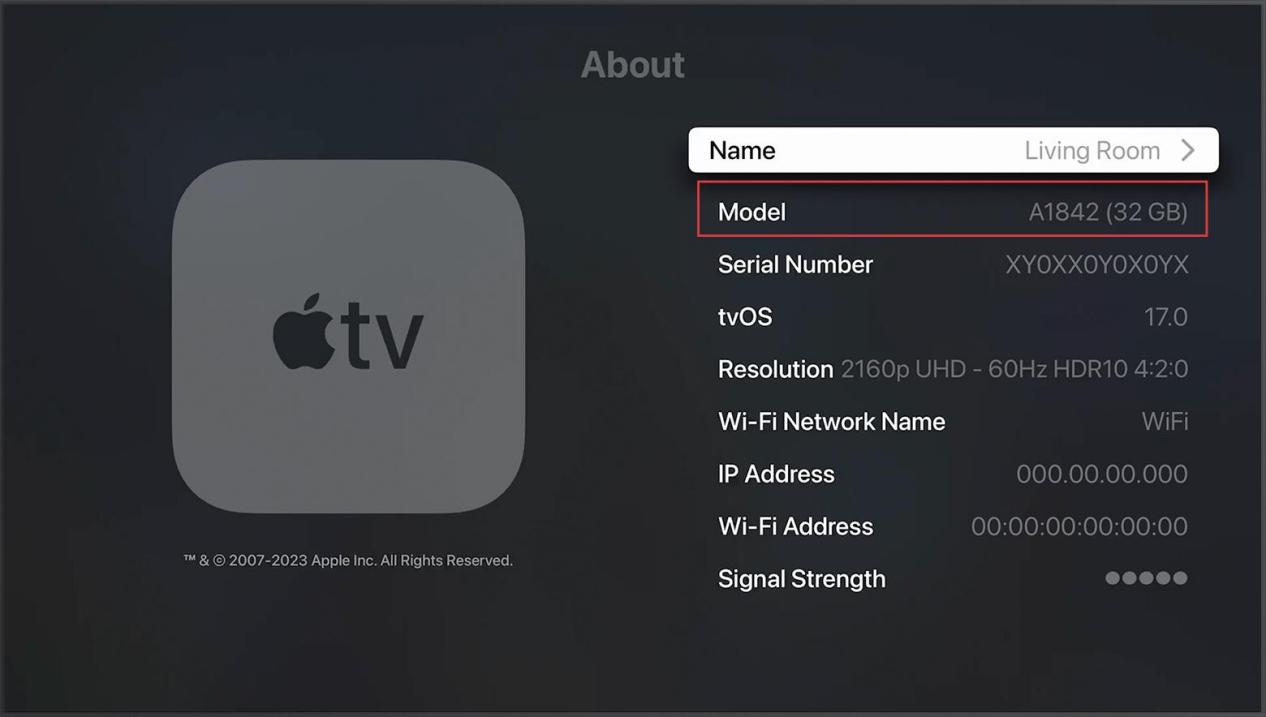
- Method 1. On the Apple TV home screen, go to Settings > General > About. The model number appears at the top of the screen, for example A2737.
- Method 2. Check the bottom of the Apple TV hardware. Flip the device over and look for the black label with a four-digit number starting with A.
- Method 3. Check the original packaging. If you still have the box, the model number is printed near the barcode on the back.
What Netflix Features You Get on Apple TV
Once you install Netflix on Apple TV, you get access to the full streaming experience. Here are the features I use most:
- 4K Ultra HD and HDR streaming: Apple TV 4K supports Dolby Vision and HDR10 for sharp, high-contrast video on compatible TVs.
- Spatial audio and Dolby Atmos: Apple TV 4K outputs Dolby Atmos surround sound, and you can use AirPods with dynamic head tracking for a more immersive experience.
- Siri voice search: You can use the Siri Remote to search for Netflix movies and shows by voice instead of typing on the on-screen keyboard.
- Multiple profiles: Netflix on Apple TV matches the official profile system, so each family member gets personalized recommendations.
- Cross-device viewing: You can start watching on Apple TV and continue on another device, or vice versa.
- Subtitles and audio options: Netflix on Apple TV supports subtitles, multiple audio tracks, and enhanced audio features on some titles.

The Netflix app on Apple TV has no offline viewing feature. Every title plays strictly online. If you want to watch Netflix without a connection on your television, you need files stored somewhere else and played back to the TV — see the offline playback section below.
Part 2. How to Get Netflix on Apple TV
To use Netflix on Apple TV, you first need to download and install the Netflix app. If your Apple TV model supports Netflix, you can do this in minutes from the App Store.
How to Install Netflix on Apple TV
Step 1. Turn on your Apple TV and make sure it is connected to the internet.
Step 2. Open the App Store from the Apple TV home screen.
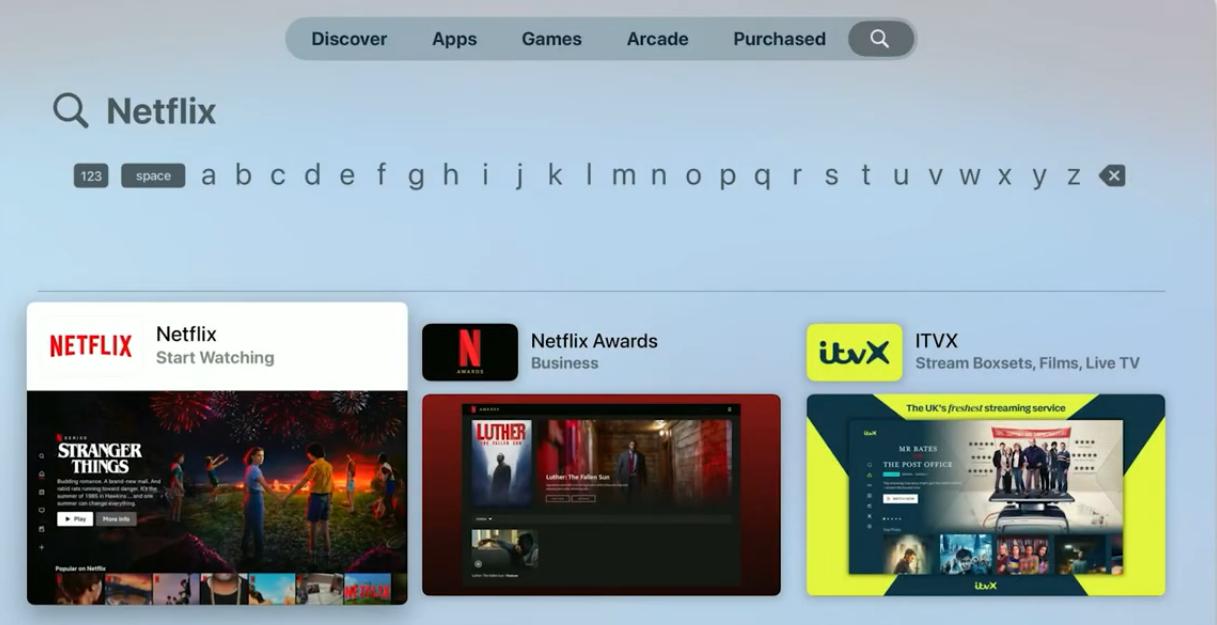
Step 3. Select Search and type Netflix.
Step 4. Choose the official Netflix app from the search results.
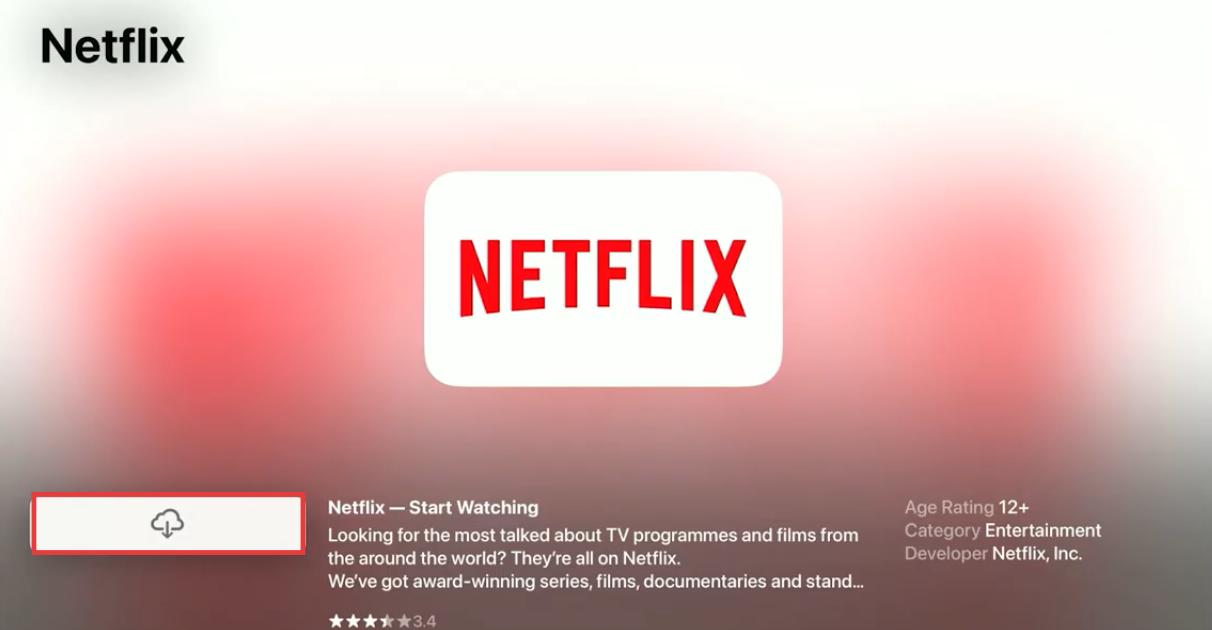
Step 5. Click Get or the cloud download icon to install Netflix on Apple TV.
Step 6. Open the Netflix app after installation finishes.
Step 7. Select Sign In. You can scan the QR code with your phone and enter the activation code in your browser, or type your Netflix email and password directly on the screen with the Siri Remote.
Step 8. Select your profile and start streaming.
Tip: If you have trouble typing with the Siri Remote, the QR code method is much faster. You control the login on your phone, which usually has a saved password and autofill.
How to Add Netflix to Apple TV Home Screen
Newly installed apps land at the far right of the home screen row. If you want to add Netflix to Apple TV's top row where it is reachable in one tap, move it:
Step 1. Highlight the Netflix icon and press and hold the center of the Siri Remote until the icon starts to jiggle.
Step 2. Swipe to drag the app to where you want it; most people move it to the far left of the top row.
Step 3. Press the center button once to drop it in place.
Part 3. How to Watch Netflix on Apple TV 4K
Getting Netflix on Apple TV 4K to actually output Ultra HD needs four things to line up at once: the right box, the right plan, the right cable and port, and the right playback setting. Miss any one of them and Netflix quietly drops you to 1080p.
Apple TV Netflix 4K Requirements
- An Apple TV 4K. According to Netflix's best video quality documentation, 4K playback is supported on Apple TV 4K models (1st, 2nd, and 3rd generations). The Apple TV HD is limited to 1080p playback, even when connected to a 4K television.
- A 4K-capable TV connected through an HDMI port that supports HDCP 2.2 or later — usually labelled HDMI 1, but check your TV's manual.
- A Netflix Premium plan. Lower-tier plans top out at 1080p. Only the Premium plan unlocks 4K Ultra HD.
- A steady connection of 15 Mbps or higher for the title you are playing.
- Streaming quality set to High in your Netflix account playback settings.
- A Premium High Speed or Ultra High Speed HDMI cable. Older High Speed cables frequently fail the HDCP 2.2 handshake, which is the single most overlooked cause of a 4K title refusing to play.
How to Watch Netflix in 4K on Apple TV
Once you have the hardware and subscription ready, set up your Apple TV for 4K playback:
Step 1. Connect the Apple TV 4K to your TV's HDCP 2.2 HDMI port with a Premium or Ultra High Speed cable.
Step 2. On your Apple TV, go to Settings > Video and Audio.
Step 3. Under Format, select 4K SDR or another supported 4K format based on your TV setup.
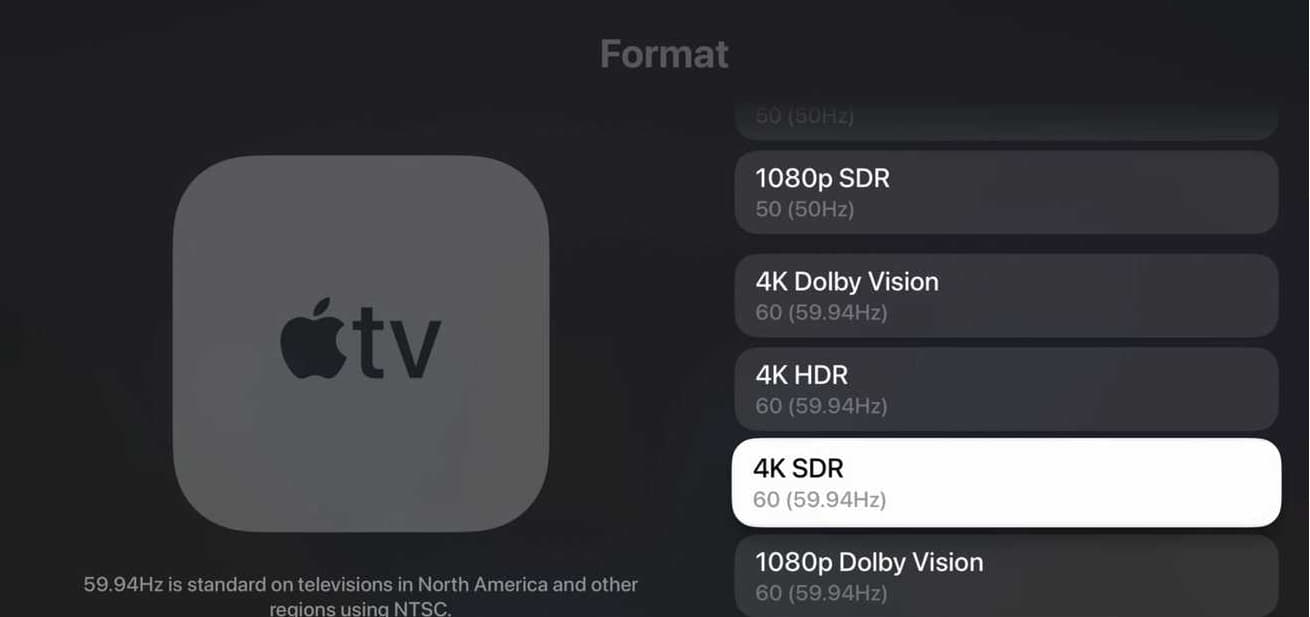
Step 4. Turn on Match Content options. Enable Match Dynamic Range and Match Frame Rate. This lets the Apple TV switch to the correct format for each movie or show.
Step 5. Open the Netflix app and sign in.
Step 6. Search for a movie or TV show that supports 4K Ultra HD.
Step 7. Start playback and check that Netflix is streaming in the highest available quality.
Netflix 4K Not Working on Apple TV? Try These Fixes
- Force-close and reopen Netflix. Double-press the TV button on the Siri Remote, swipe up on the Netflix card, then relaunch. This clears a stale playback token.
- Check playback settings in a browser. Go to netflix.com → Account → Playback Settings and set Data Usage per Screen to High.
- Swap the HDMI port and cable. Try the port your TV labels HDMI 1, with a different Premium High Speed cable.
- Bypass the soundbar. Connect Apple TV directly to the TV. A receiver or soundbar that does not pass through HDCP 2.2 drags the whole chain down to 1080p.

How to confirm you are really in 4K: Look for the Ultra HD 4K badge on the title's description page before pressing play. This badge only appears if your Netflix plan, Apple TV, and TV hardware chain all support 4K.
Part 4. Netflix Not Working on Apple TV? Try These Fixes
If Netflix is not working on your Apple TV, the issue could stem from the app, your network, your account, or the device itself. The table below summarizes the most common problems and their fixes before we walk through each solution in detail.
| Symptom | Most Likely Cause | What to Do First |
|---|---|---|
| Black screen, sound still plays | 4K HDR or Dolby Vision failing the HDMI handshake | Set Format to 4K SDR, enable Match Dynamic Range, or connect Apple TV directly to the TV instead of a receiver. |
| App opens but nothing loads | Stale cache or an expired session token | Force-close Netflix, restart Apple TV, and reopen the app. |
| Error code 2-0 or 3-0 | Corrupted app installation or outdated tvOS | Update tvOS, then delete and reinstall Netflix. |
| Constant buffering | Wi-Fi instability or insufficient bandwidth | Run a speed test on Apple TV and switch to 5 GHz Wi-Fi or wired Ethernet. |
| Audio behind the video | Bluetooth or soundbar processing delay | Go to Settings → Video and Audio → Wireless Audio Sync and complete the calibration using your iPhone. |
| Screen flickers when playback starts | TV struggles with Match Frame Rate switching | Disable Match Frame Rate and set the output format to 4K 60 Hz. |
| Title is greyed out or won't play | Regional licensing restrictions or removed content | Check the same title on another device to determine whether the issue is regional or device-specific. |
| Sign-in loop or repeated activation code | Incorrect system time or a stuck authentication token | Enable Settings → General → Date and Time → Set Automatically, then sign in again. |
Netflix Error Codes on Apple TV
Error 2-0
Usually appears with "There was a problem playing this content." It points to a network interruption or a local cache conflict rather than an account problem.
Fix in this order: unplug the Apple TV and your router for 60 seconds, then power the router first and the Apple TV second. If it persists, sign out of Netflix (steps below) and back in to refresh the token, then check Settings → System → Software Updates for tvOS.
Error 3-0
Shows as "Cannot play this title right now" and typically means the app install itself is damaged, or your plan and the device are out of alignment.
Fix: delete the Netflix app by pressing and holding its icon until it jiggles, pressing Play/Pause to remove it, then reinstalling from the App Store. If the error tracks specific titles only, confirm your plan tier in a browser — ad-supported plans restrict some titles entirely.
Black Screen With Sound
When you can hear the show but the picture stays black, the video signal is not surviving the HDMI handshake. Drop Settings → Video and Audio → Format to 4K SDR, make sure both Match Dynamic Range and Match Frame Rate are on, and connect directly to the TV instead of through a soundbar. If your TV has an HDMI mode setting, switch that input to Enhanced, Optimal, or Ultra Deep Color. Our dedicated guide to Netflix black screen with sound covers the HDMI-chain cases in more depth.
Lip Sync Problems
Audio lagging video by a second or two is normally processing delay from Bluetooth headphones or a soundbar, and it tends to surface right after a tvOS update.
Open Settings → Video and Audio → Wireless Audio Sync on the Apple TV and follow the prompts — your iPhone's microphone listens to a calibration tone and measures the delay automatically. If the drift only appears with Dolby Atmos content, switch Settings → Video and Audio → Audio Format to Dolby Digital 5.1 or Stereo as a test. For a comprehensive list of fixes on other platforms, check out our complete guide on how to fix Netflix audio out of sync across Smart TVs, Firestick, Roku, and PCs.
Laggy Dolby Vision or HDR Playback
If enabling Match Frame Rate causes a grey flash or stutter at the start of every episode, your TV's firmware handles the automatic switch poorly.
Turn Match Frame Rate off, then go to Other Formats in Video and Audio and lock a single output: 4K 24 Hz for film-centric viewing or 4K 60 Hz for general use. You give up exact frame matching, but the stutter disappears.
Constant Buffering
Apple TV 4K needs a consistent 15 Mbps for 4K titles, and consistency matters more than headline speed. Run a speed test from the Apple TV itself rather than your phone. If you are on the 64 GB A2737 model, remember it has no Ethernet port — moving the router closer or using a Wi-Fi 6 access point often does more than any in-app setting. See our full Netflix buffering troubleshooting guide for network-side fixes.
Part 5. How to Sign Out of Netflix on Apple TV
If you want to switch Netflix accounts, use a different account, or log out on a shared device, you can sign out directly through the Netflix app on Apple TV.
How to Log Out of Netflix on Apple TV
Step 1. On the Netflix home screen, press the Back button on the Siri Remote to open the side menu.
Step 2. Scroll down and select Get Help or Settings.
Step 3. Scroll to the bottom and select Sign Out.
Step 4. When the prompt asks "Are you sure you want to sign out?", select Yes.
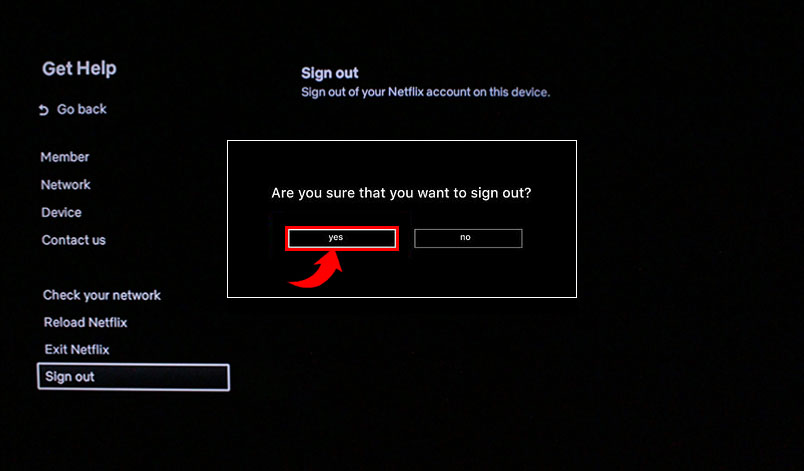
After you sign out, the Netflix app returns to the login screen. You can then sign in with a different Netflix account.
If You Cannot Reach the Get Help Menu
If you are stuck on an error screen or the menu will not load, you can use the remote shortcut to reach the hidden diagnostic menu. On the Siri Remote, press:
Up, Up, Down, Down, Left, Right, Left, Right, Up, Up, Up, Up
This skips the normal menus and opens a hidden diagnostic screen where you can select Sign Out or Reset directly.
Sign out remotely: If you have already returned the Apple TV or cannot access it, you can sign out remotely from netflix.com. Go to Account > Manage Access and Devices, find your Apple TV, and select Sign Out.
Part 6. How to Download Netflix Movies for Apple TV Offline Viewing
Since the Apple TV app does not offer a download feature, offline playback requires keeping your own video files elsewhere and streaming them to your TV. For a permanent local copy, a desktop tool such as VidiFab Netflix Video Downloader can save titles as MP4 or MKV files with up to 1080p quality, along with your selected audio tracks and subtitles.
VidiFab Netflix Video Downloader
Download Netflix videos as MP4 or MKV in up to 1080p with selectable audio tracks and subtitles for offline viewing on Apple TV and other devices.

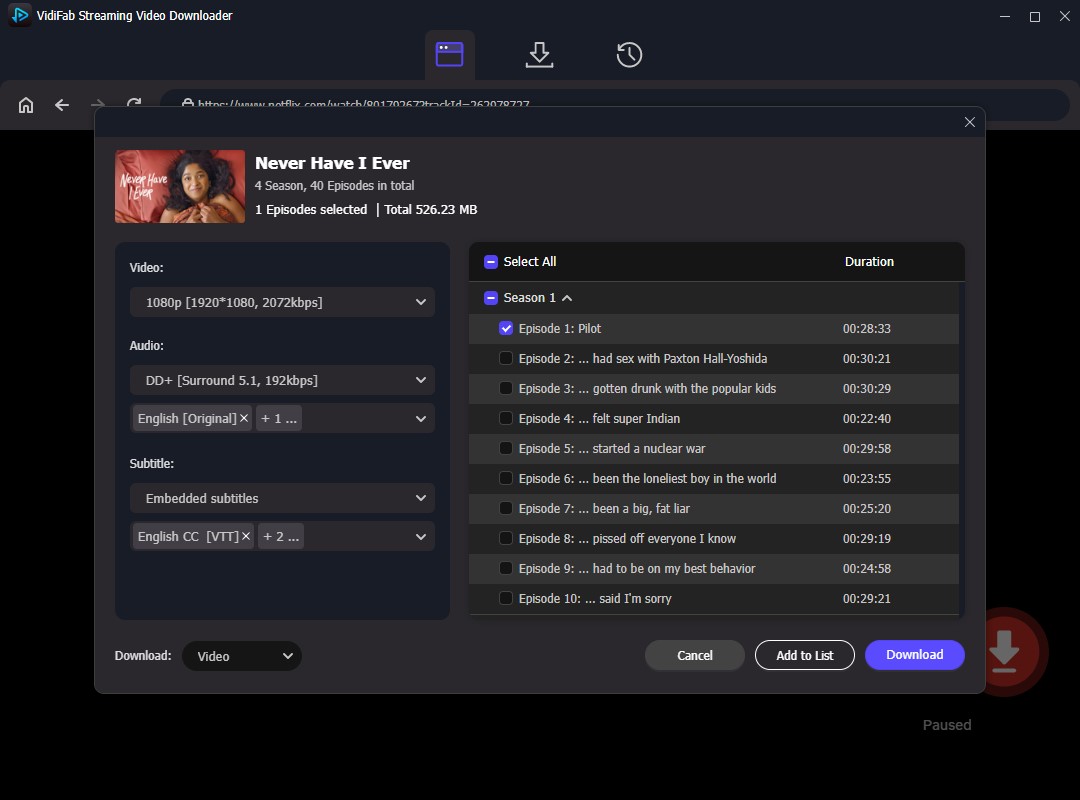
Once you've downloaded the chosen Netflix videos to your Windows or Mac computer, you can then play these files on Apple TV in several ways.
- VLC renderer: put your computer and Apple TV on the same Wi-Fi, open the file in VLC, then choose Playback → Renderer and pick your Apple TV.
- Infuse: install Infuse on Apple TV and read files directly off your computer over SMB.
- Plex: host the files on a Plex server and stream them through the Plex app on Apple TV. See our guide to watching Netflix content in Plex.
- HDMI direct: connect a laptop straight to the TV — this works even with the Wi-Fi off.
- AirPlay: play the file on a Mac and mirror it to Apple TV from Control Center.

Keep downloaded files for personal offline viewing only. Follow Netflix's terms of service and respect content creators' rights; do not redistribute or sell copies.
Conclusion
Netflix on Apple TV is simple once the requirements are clear. The app works on Apple TV HD (A1625) and newer models, while 4K playback requires an Apple TV 4K, a Premium plan, HDCP 2.2 support, and High playback settings. Most issues come from HDMI compatibility or app data problems, not your account.
Older models like A1625 and A1842 still work today, but they no longer receive tvOS 27, so future compatibility may depend on continued app support. For a more reliable offline viewing option, VidiFab Streaming Video Downloader can save Netflix videos as local files that you can transfer and play on Apple TV without relying on the Netflix app.
 Free Download
 Secure Download
 Free Download
Secure Download
Free Download
Secure Download
I write about streaming services, video playback, and digital media management. My articles cover practical ways to convert video files, troubleshoot playback issues, and manage digital content across devices. I aim to make technical topics easier to understand and help readers find practical solutions to common challenges.
 Leave Your Comment