How to Watch Netflix Without the App on Phone, Laptop & TV
 By Miles Kent
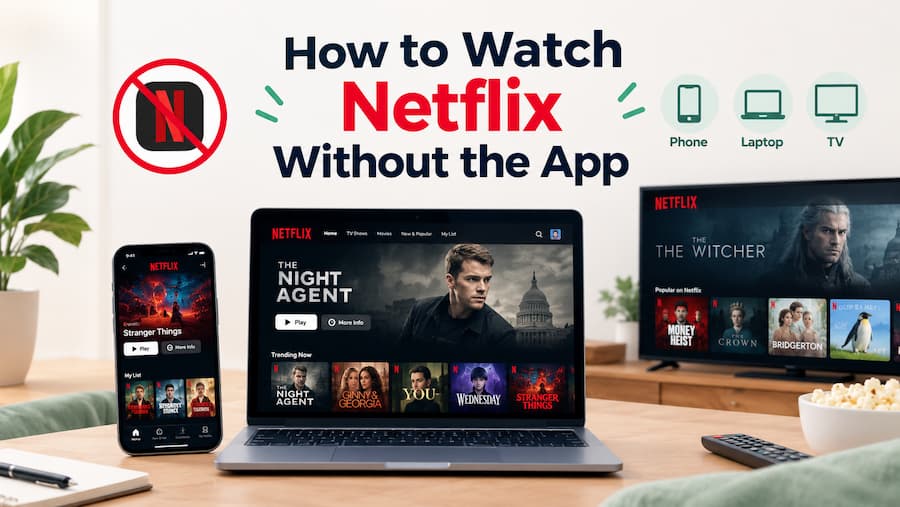
Can you watch Netflix without the app? Yes. You can watch Netflix in a web browser on a PC, Mac, or supported iPad without installing the Netflix app. On iPhone and Android phones, browser playback is more limited because Netflix may redirect you to its app. If you want to watch Netflix on a TV without the app, you can try workarounds like HDMI streaming, casting, or local media playback.
A Glance at How to Watch Netflix Without the App on Different Devices
| Device / Platform | Watch Without the App? | Supported Browsers & Requirements | Next Steps |
|---|---|---|---|
| Windows PC | ✅ Yes | Edge, Chrome, Firefox, Opera | See Method 1 |
| Mac | ✅ Yes | Safari, Chrome, Edge, Firefox, Opera | See Method 1 |
| Chromebook | ✅ Yes | Chrome. Requires ChromeOS 76 or later. | See Method 1 |
| Linux | ✅ Yes | Chrome, Firefox, Edge, Opera. Netflix doesn't guarantee support on every Linux setup. | See Method 1 |
| iPad | ✅ Yes | Safari. Requires iPadOS 14 or later. | See Method 2 |
| iPhone & Android | ❌ No | Mobile browsers redirect you to the app or fail with a playback error. Use the Netflix app. | See Method 3 |
| TV (Smart & Non-Smart) | ✅ Yes, but not officially | TV browsers generally can't play Netflix. Use casting, connect a laptop with an HDMI cable, or play a local video downloaded from Netflix. | See Method 4 |
Method 1. How to Watch Netflix Without App on a Laptop
Windows, Mac, Linux, and Chromebook laptops can all stream Netflix straight from a web browser. You just need to make sure your browser meets Netflix's requirements.
Step 1. Check That Your Browser Supports Netflix
According to Netflix's official browser support guidelines, Netflix works in Chrome, Edge, Firefox, Opera, and Safari, but each one has a minimum version, and the maximum video quality depends on your system and browser. Check the table below to make sure yours qualifies.
A tip: To check your current browser version, open your browser menu, navigate to Settings > About (or Help > About [Browser Name]), and let it automatically check for updates.
| Laptop / OS | System Requirement | Browser | Minimum Version | Max Video Quality |
|---|---|---|---|---|
| Windows | Windows 10 or 11 | Edge | 118 or later | Up to 4K (2160p) |
| Chrome | 117 or later | Up to 4K (2160p) | ||
| Firefox | 129 or later | Up to 1080p | ||
| Opera | 92 or later | Up to 1080p | ||
| Mac | macOS 10.15.5 or later | Safari | 14 or later | Up to 4K (2160p) |
| Chrome | 117 or later | Up to 1080p | ||
| Firefox | 129 or later | Up to 1080p | ||
| Opera | 92 or later | Up to 1080p | ||
| Edge | 118 or later | Up to 720p | ||
| Chromebook | ChromeOS 76 or later | Chrome | 117 or later | Up to 4K (2160p) |
| Linux | GNU/Linux | Chrome | 117 or later | Up to 1080p |
| Firefox | 129 or later | Up to 1080p | ||
| Edge | 118 or later | Up to 1080p | ||
| Opera | 92 or later | Up to 1080p |
- On Windows, Chrome or Edge gives you the highest quality.
- On Mac, Safari is the best choice for quality. Edge is limited to 720p.
- On Linux, all four browsers cap at 1080p, so pick whichever you prefer.
Step 2. Log In to Netflix and Start Watching
-
01
Open your supported browser and go to netflix.com .
-
02
Click Sign In and enter your Netflix email (or phone number) and password.
-
03
Select your profile.
-
04
Browse the library and click on any title to start instant streaming.
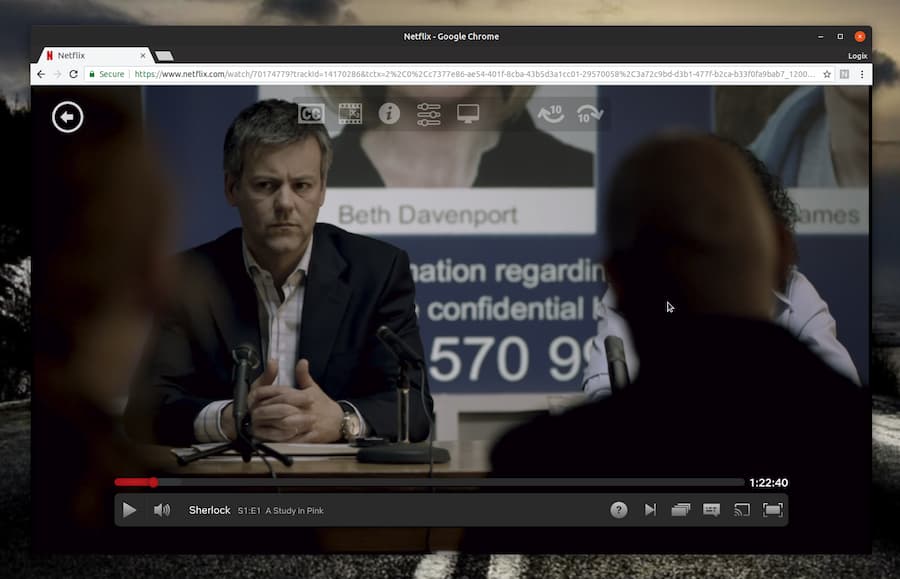
That's all there is to it. No download or installation is needed, and you can use the player controls to change subtitles, audio, and playback settings.

Netflix's web player is streaming-only, so you can't download titles for offline viewing in a browser, and you'll need an internet connection every time you watch. If you want to keep Netflix videos for offline viewing, for example on a flight or a trip, there are workarounds. See our guide on how to download Netflix movies on a web browser.
Method 2. How to Watch Netflix Without App on iPad & Tablets
Netflix officially supports browser playback on iPad. Your iPad needs iPadOS 14 or later and Safari 14 or later (up to 1080p), and watching live events requires Safari 15 or later.
Step 1. Open Netflix.com in Safari
-
01
Open Safari. Go to netflix.com and tap Sign In.
-
02
Enter your Netflix account details and choose your profile.
-
03
Pick a title and tap Play.
On iPadOS, Safari loads the desktop version of websites by default, so Netflix should play right away.
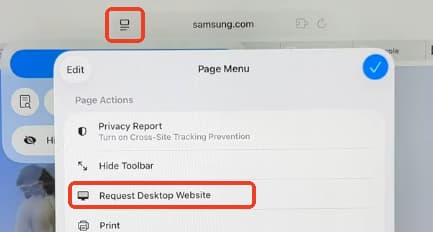
Step 2. Switch to "Request Desktop Website" if Netflix Redirects You to the App
-
01
Tap the icon to the left of the URL in Safari's address bar.
-
02
Tap the three-dot icon (⋯).
-
03
Scroll down and tap Request Desktop Website.
-
04
The page will reload. Sign in again if needed, then tap Play.
Method 3. How to Watch Netflix Without App on Mobile Phones (iPhone & Android)
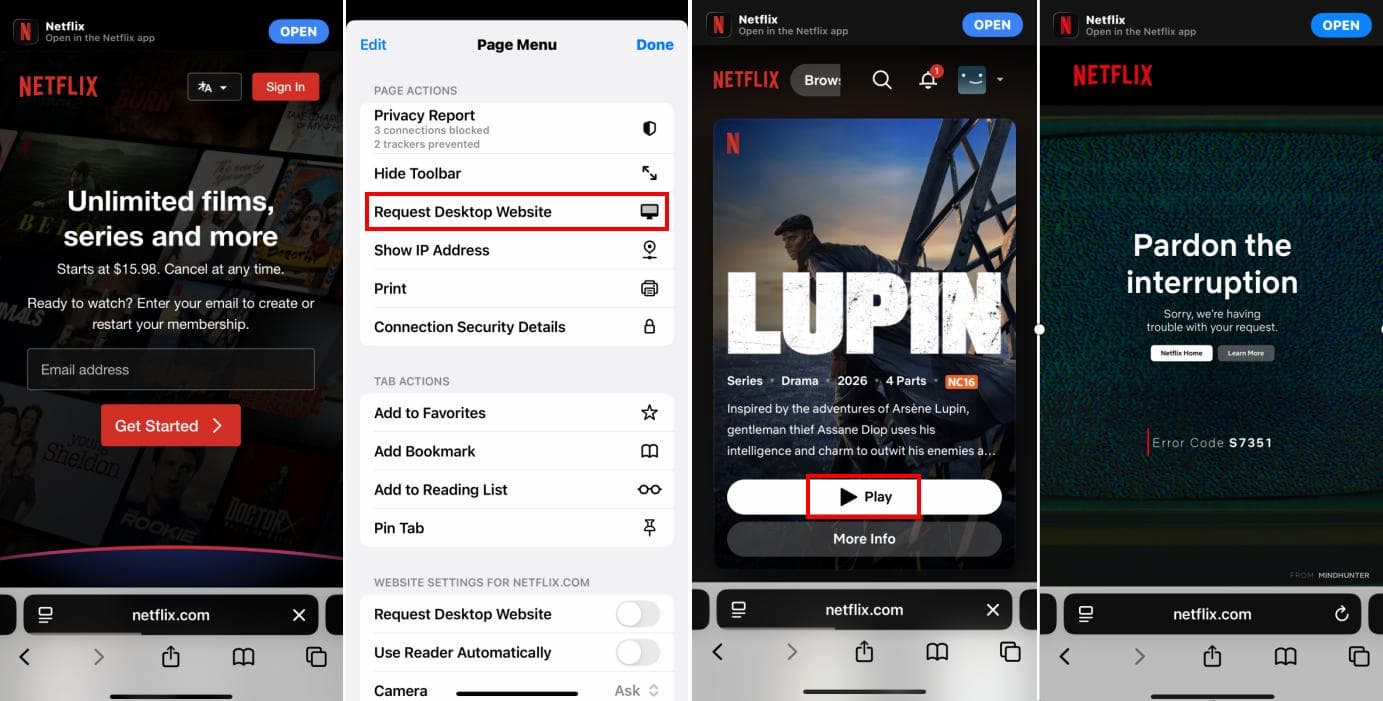
Unlike a laptop or iPad, phones aren't on Netflix's list of supported browser devices. If you open netflix.com on an iPhone or Android phone, you can usually sign in, but you'll be pushed to the app when you try to watch. So I tested it myself.
I opened netflix.com in Safari 18 on my iPhone 16 and switched on Request Desktop Website to get around the app redirect. The desktop site loaded and I signed in without any trouble.
But when I tapped Play, Netflix didn't start the video. Instead, it showed error code S7351, which usually means there's a conflict between the browser (or its settings) and Netflix's player.
Why You Can't Watch Netflix in a Mobile Browser on iPhone or Android
Mobile operating systems (iOS and Android) rely on a native app architecture to enforce hardware-level Digital Rights Management (DRM) protection. A mobile browser can't offer that level of protection, so Netflix blocks playback there. "Request Desktop Website" only changes how the page looks, which is why I could sign in but still got an error. For help with it, see my guide to fixing Netflix error code M7361-1253.
So Is There Any Way to Watch Netflix on a Phone Without the App?
Not at the moment. I couldn't find a reliable way to play Netflix on an iPhone or Android phone without the Netflix app, so the app is the only option for watching on your phone.
If you don't want the app because your phone's memory is full, you can free up space without removing it. Open the Netflix app and go to App Settings > Downloads > Delete All Downloads.
Method 4. How to Watch Netflix on TV Without App
Officially speaking, you can't watch Netflix through a TV's built-in web browser. If your TV doesn't have the Netflix app (for example, an older or non-smart model; see how to get Netflix on a non-smart TV), you need to bring the video to the TV from another device. There are three ways to do it:
| Method | What You Need | Internet Needed? | Video Quality | Best For |
|---|---|---|---|---|
| 1. Laptop + HDMI | Laptop, HDMI cable, Netflix account | Yes, while streaming | Depends on your browser and laptop (up to 1080p or higher) | Quick setup with no extra software |
| 2. Download with Vidifab, then play on TV | Computer with Vidifab, HDMI cable or USB drive | Only to download, not for playback | Up to 1080p | Avoiding black screens, watching offline, TVs with no internet |
| 3. Cast from your phone | Phone with the Netflix app, a compatible casting device or TV | Yes | Up to 1080p | Only older Chromecast or Google Cast TVs |
Option 1. Connect Your Laptop to the TV with an HDMI Cable
-
01
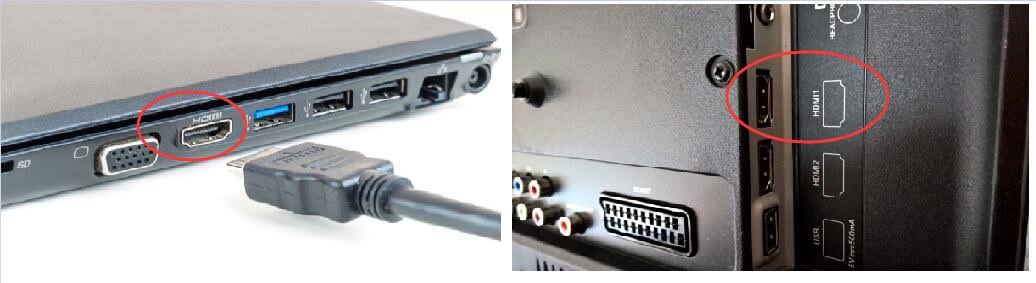
Plug one end of the HDMI cable into your laptop (use an adapter if it only has USB-C) and the other into a free HDMI port on the TV. Then switch the TV's input to that port.
-
02
Set up the display:
- Windows: Press
Windows + P, then pick Extend to use the TV as a second screen. - Mac: Go to System Settings > Displays and set the TV to mirror your Mac's screen.
-
03
Check the sound. If the audio still plays from your laptop, change the output to the TV:
- Windows: Settings > System > Sound, then choose the TV under Output.
- Mac: System Settings > Sound > Output, then select the TV.
-
04
Play Netflix. Open a supported browser on your laptop, go to netflix.com, and start a title. It will show on your TV.
- Use a certified high-speed cable (HDCP 2.2 compatible) and try another HDMI port on the TV.
- Switch browsers or turn off hardware acceleration in your browser settings, then restart the browser.
- Set your laptop's display resolution to 1080p.
- Check out this guide on how to fix the Netflix black screen with sound for more fixes.
Option 2. Play Netflix Movies and Shows Locally on Your TV
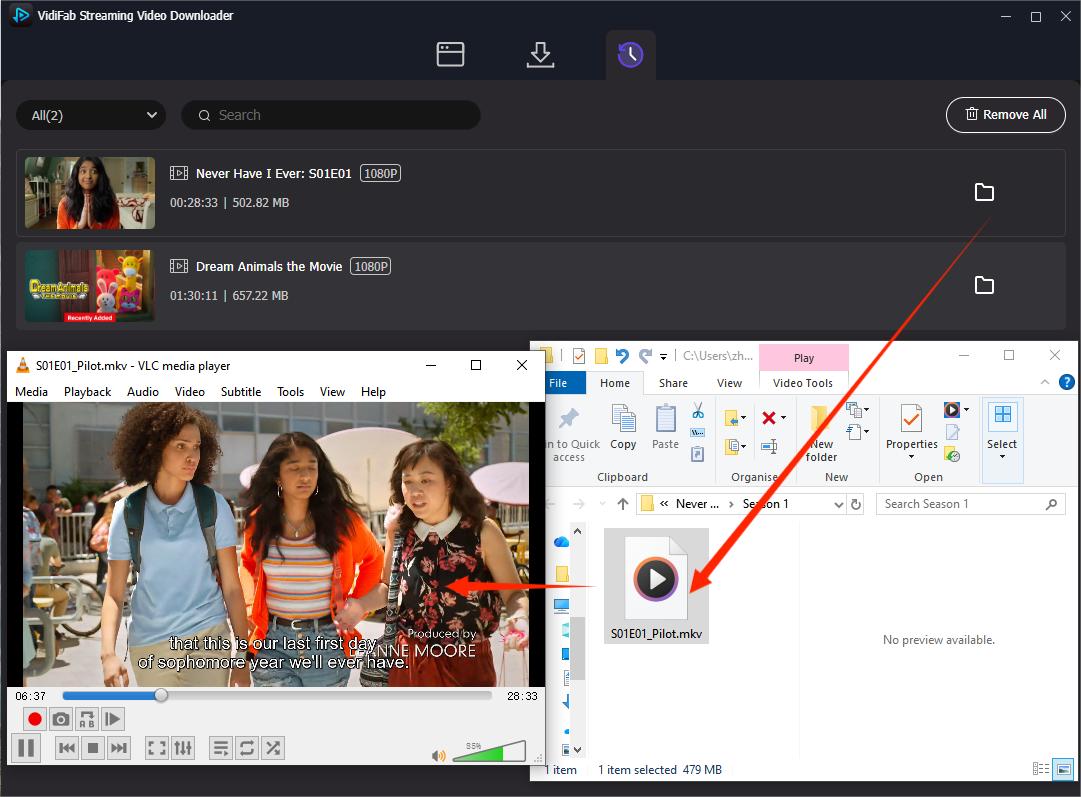
Playing a saved video file on your TV avoids the DRM problems that cause black screens, and it works even if the TV isn't online. Download Netflix videos to MP4 or MKV files with VidiFab Netflix Video Downloader on your computer, then play it on the TV in one of two ways:
- HDMI: Connect your computer to the TV and play the Netflix file in VLC Media Player or other players you prefer.
- USB: Copy the file to a USB drive, plug it into the TV's USB port, and open it from the TV's media player. Make sure your TV supports the file format, and check your TV's manual if the file won't open.
 Free Download
 Secure Download
 Free Download
Secure Download
Free Download
Secure Download
- Even if you're on an ad-supported plan, the downloaded video has no ads.
- Video and audio quality are both customizable.
- Multiple subtitle languages come in one video file, and you can select the one you want.
- Offline playback lets you play anytime.
Option 3. Cast from Your Phone to the TV (Very Limited)
Casting used to be the easiest way, but it no longer works for most TVs. The remaining options are older Chromecast models without a physical remote, the Google Nest Hub, and a small selection of Vizio and Compal TVs that support Google Cast, and casting is only available on ad-free plans.
Netflix also dropped Apple AirPlay support back in 2019.
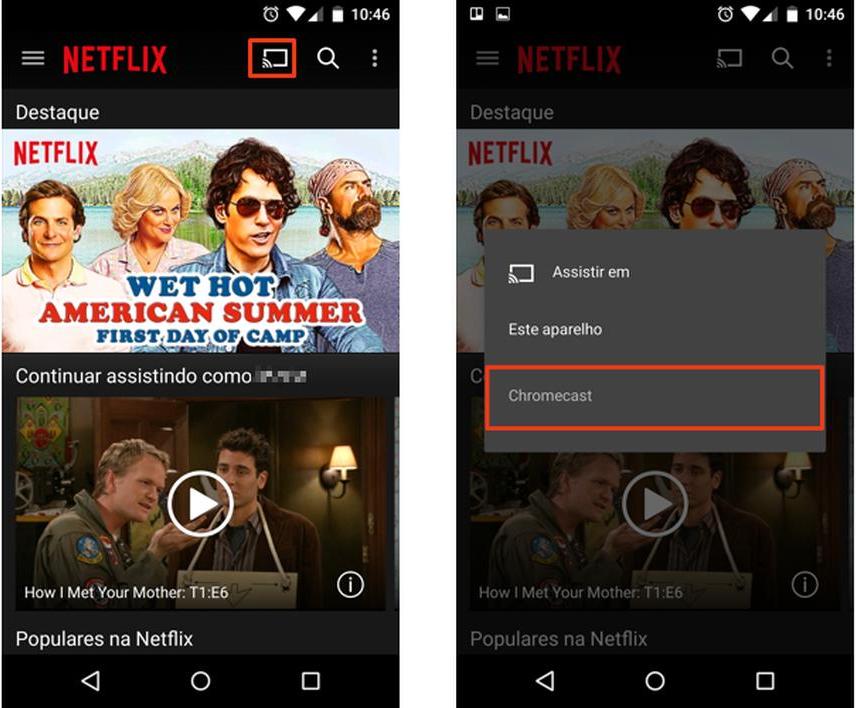
If your TV or device is on that list, here's how to cast Netflix from your phone or laptop to your TV:
-
01
Connect both your casting device (phone or laptop) and your TV to the same Wi-Fi network.
-
02
On a laptop: Open Netflix in Chrome, click the three dots in the top-right corner, and select Cast. Then select your TV from the list of available devices to display the video on your TV screen.
-
03
On a phone: Open the Netflix app, play a title, tap the Cast icon, and choose your TV.
FAQs About Watching Netflix Without the App
Can I watch Netflix on a work or school computer without installing anything?
Yes. As long as the computer has a pre-installed web browser (such as Chrome, Edge, Safari, or Firefox) and your network doesn't block streaming sites, you can simply open the browser, navigate to netflix.com, log in, and start watching.
Can I watch Netflix on two devices at once if I use a browser?
Yes. Standard with ads and Standard plans allow streaming on two devices at once, while Premium allows four.
Can I watch Netflix on a PS5 or Xbox without the app?
Yes. Save the Netflix video with Vidifab Streaming Video Downloader, copy it to a USB drive, plug it into your console, and play it with the console's media player. It's the same as watching any local video on your PS5 or Xbox, so you don't need the Netflix app.
Can I watch Netflix on a Samsung, LG, or Roku TV without the Netflix app?
Yes, but not through the TV's own browser. Instead, connect a laptop with HDMI, play a saved video file from a USB drive, or cast from your phone or laptop if your TV supports Google Cast.
Conclusion
You can watch Netflix without the app on a PC, Mac, Chromebook, Linux, or iPad using a supported browser. Phones still need the app. On a TV, connect a laptop with HDMI, or save videos with Vidifab and play them from a USB drive. They work offline, with no ads and no black screen.
Free Download
Secure Download
Free Download
Secure Download
I write about streaming services, video playback, and digital media management. My articles cover practical ways to convert video files, troubleshoot playback issues, and manage digital content across devices. I aim to make technical topics easier to understand and help readers find practical solutions to common challenges.
 Leave Your Comment