How to Watch Netflix on Echo Show 5, 8, 11, 15, 21 (2026)
 By Miles Kent
You can watch Netflix on Echo Show devices, but compatibility varies across models. No matter which Amazon Echo Show device you own, this guide offers methods to get Netflix running. Throughout this article, you will also find pro setup tips and quick fixes to deploy when Netflix is not working on your Echo Show.
Part 1. Can You Watch Netflix on Echo Show?
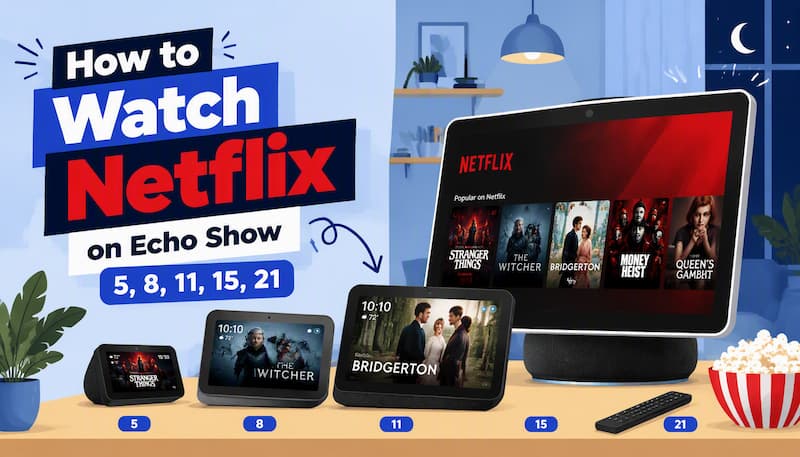
According to the official Netflix Help Center, the streaming service works natively on the first and second generations of the Echo Show and Echo Show 5. It is also fully supported across all generations of the Echo Show 8, Echo Show 10, the newly released Echo Show 11, Echo Show 15, and Echo Show 21.
Which Echo Show Models Support Netflix?
| Echo Show Model | Native Netflix App Support | How You Get Netflix |
|---|---|---|
| Echo Show 11 | ✅ Yes | Prime Video and Netflix apps are preinstalled |
| Echo Show 21 | ✅ Yes | Built-in Fire TV with access to apps like Netflix |
| Echo Show 15 | ✅ Yes | Built-in Fire TV with full app store access |
| Echo Show 10 | ✅ Yes | Prime Video and Netflix apps are preinstalled |
| Echo Show 8 | ✅ Yes | Prime Video and Netflix apps are preinstalled |
| Echo Show 5 (Gen 1-2) | ✅ Yes | Prime Video and Netflix apps are preinstalled |
| Echo Show 5 (Gen 3) | ❌ No | Prime Video app only; other streaming services are available through the browser |
| Original Echo Show (Gen 1-2) | ✅ Yes | Prime Video and Netflix apps are preinstalled |
- On the device: Swipe down from the top of the screen, tap Settings → Device Options → About. Your model name and software version will be displayed there.
- In the Alexa app: Open the Alexa app, tap Devices, select your Echo Show, and open About.
- Check the device label: If the label on the bottom of the device is still readable, you can also match the design against Amazon's official Which Echo Device Do I Have? page.
Part 2. How to Set Up and Play Netflix on a Supported Echo Show
To set up Netflix on your Echo Show, you need three things: a compatible Echo Show, an active Netflix subscription, and a reliable Wi-Fi connection. Amazon Prime is not required, and there is no need to enable a Netflix skill. The app is pre-installed on supported models, so it won't appear in the Alexa skills store.
Method 1. Open Netflix from the Echo Show Home Screen
-
01
Swipe down from the top of the Echo Show screen and tap Video. On some software versions, the shortcuts drawer may open from the right edge instead. In that case, tap Video to continue.
-
02
Tap the Netflix tile.
-
03
Tap Sign In and enter your Netflix email and password. Some models show an activation code or QR code on screen instead; follow the prompt and finish the sign-in on your phone.
-
04
Choose your profile, browse or search for a title, and tap Play.
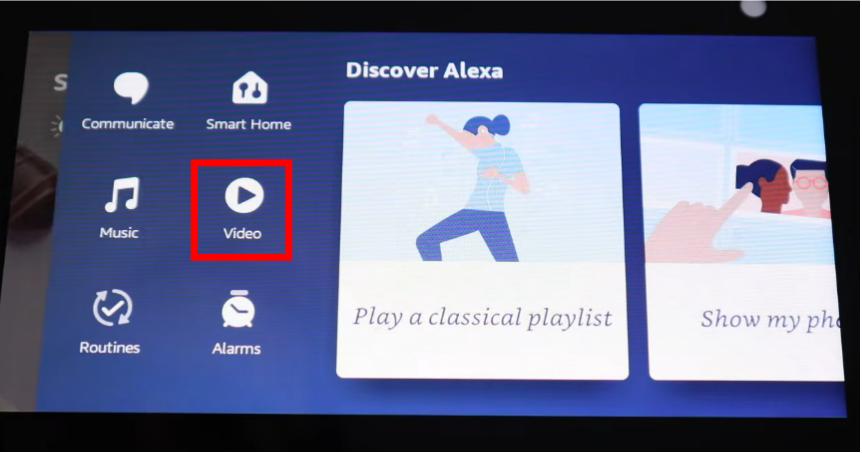
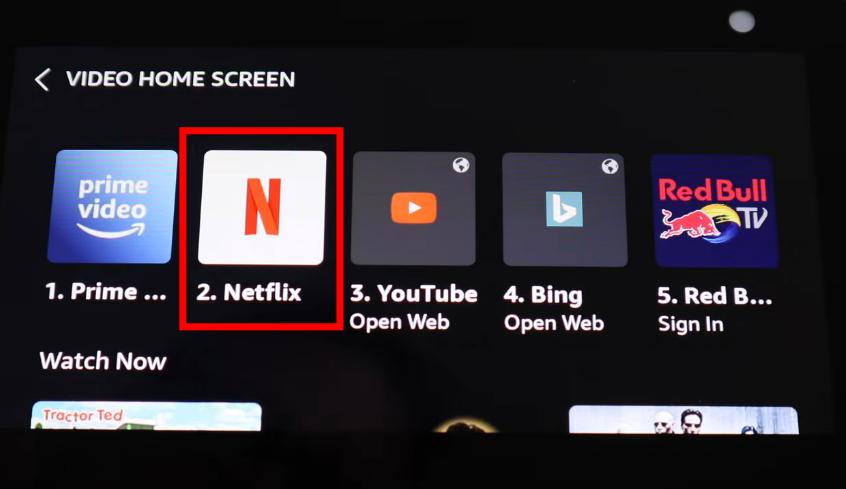
Netflix stays signed in afterwards, so next time you can go straight back in from the Video tab.

Can you pin Netflix on Echo Show for quick access? Unfortunately, you can't. However, you can use voice commands like "Alexa, open Netflix" without needing to touch the screen. More commands will be provided in the next method.
Method 2. Open Netflix with Alexa Voice Commands
Alexa can help you quickly open Netflix on supported Echo Show devices.
-
01
Say "Alexa, open Netflix." and wait for Netflix to launch on your Echo Show.
-
02
Sign in to your Netflix account if required. Follow the on-screen instructions to complete the setup.
-
03
Select the Netflix profile you want to use, browse the available titles, and choose the content you want to watch.
-
04
Tap Play to start streaming Netflix on your Echo Show.
Useful Alexa Voice Commands for Netflix on Echo Show
After signing into Netflix, you can use Alexa voice commands to open the app and start playing a specific title next time. Here are some useful Alexa commands you can try:
| What You Want to Do | Say This |
|---|---|
| Launch Netflix | "Alexa, open Netflix." |
| Play a specific title | "Alexa, play Stranger Things on Netflix." |
| Browse by genre | "Alexa, show me comedy movies on Netflix." |
| Pause or resume playback | "Alexa, pause." / "Alexa, resume." |
| Rewind or skip | "Alexa, rewind 30 seconds." / "Alexa, fast forward 2 minutes." |
| Jump to the next episode | "Alexa, next episode." |
| Adjust volume or brightness | "Alexa, turn up the volume." / "Alexa, brightness up." |
Method 3. Watch Netflix on Echo Show 15 & 21 with Built In Fire TV
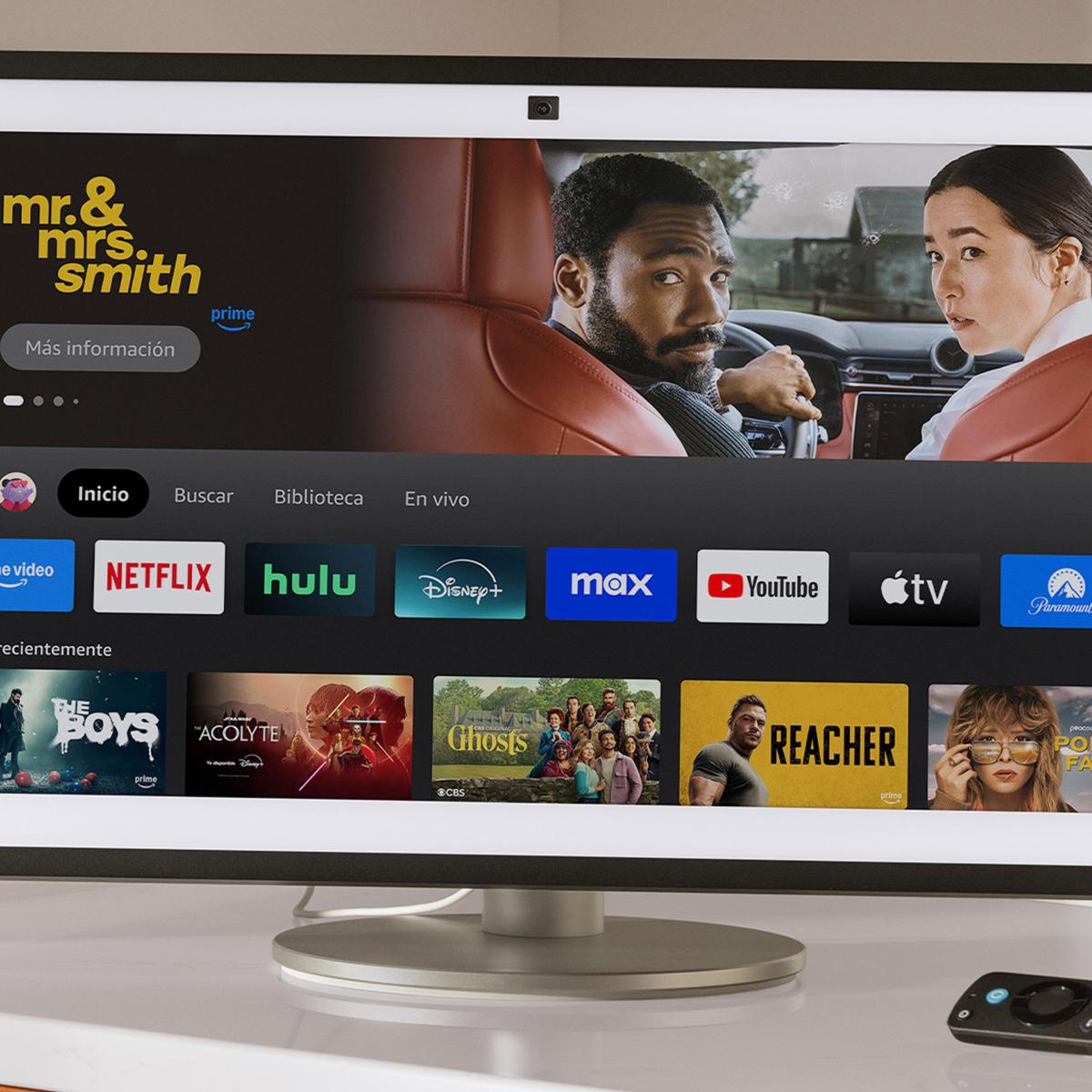
The Echo Show 15 and 21 come with full Fire TV built in. If you are already familiar with watching Netflix on Firestick, the setup process feels very similar. In most cases, the Netflix app is already available, so you can simply say "Alexa, open Netflix" or launch it from the Fire TV dashboard. If Netflix is missing, you can download it from the Fire TV Appstore.
-
01
Say "Alexa, open Fire TV", or swipe to the Fire TV icon on the home screen.
-
02
Open Apps or search, and find Netflix.
-
03
Select Download / Get to install it.
-
04
Open Netflix and sign in.
-
05
Browse with the included Fire TV remote, or keep using your voice.
What You Can and Cannot Do with Netflix on Echo Show
You Can:
- Stream the entire Netflix catalog.
- Browse categories and search by title, genre, or actor using your voice.
- Control playback without using your hands.
- Switch profiles on most devices.
- Enable subtitles and captions.
You Cannot:
- Download shows within the Echo Show Netflix app.
- Watch in 4K or HDR; playback is limited to 540p.
- Cast Netflix from your phone.
Part 3. How to Watch Netflix on an Unsupported Echo Show
If you own an Echo Show 5 (3rd Gen) or an Echo Spot, you have two options.
Option 1. Download Netflix Videos and Play Them on Echo Show (1080p Supported)
This is the only method that works on every Echo Show, including the Show 5 (3rd Gen), because it doesn't depend on the Netflix app or on browser support at all. You save the video as a regular MP4 file on your computer, upload them to Dropbox, and play them on your Echo Show using the My Video skill.
To save Netflix movies and shows as MP4 files, you can use VidiFab Streaming Video Downloader. It allows you to download videos from supported streaming platforms with no ads, batch downloads, and up to 1080p quality, making the videos compatible with the Echo Show display.
VidiFab Streaming Video Downloader
Download Netflix videos as MP4/MKV in 1080p for offline viewing on your Windows, Mac, iPhone, Android, and more devices.

Step 1. Download Netflix Videos as MP4 Files
-
01
Click the menu icon and select Preferences in VidiFab Streaming Video Downloader. Choose MP4 as the output format.
-
02
Go back to the home screen, click Netflix, and log into your account.
-
03
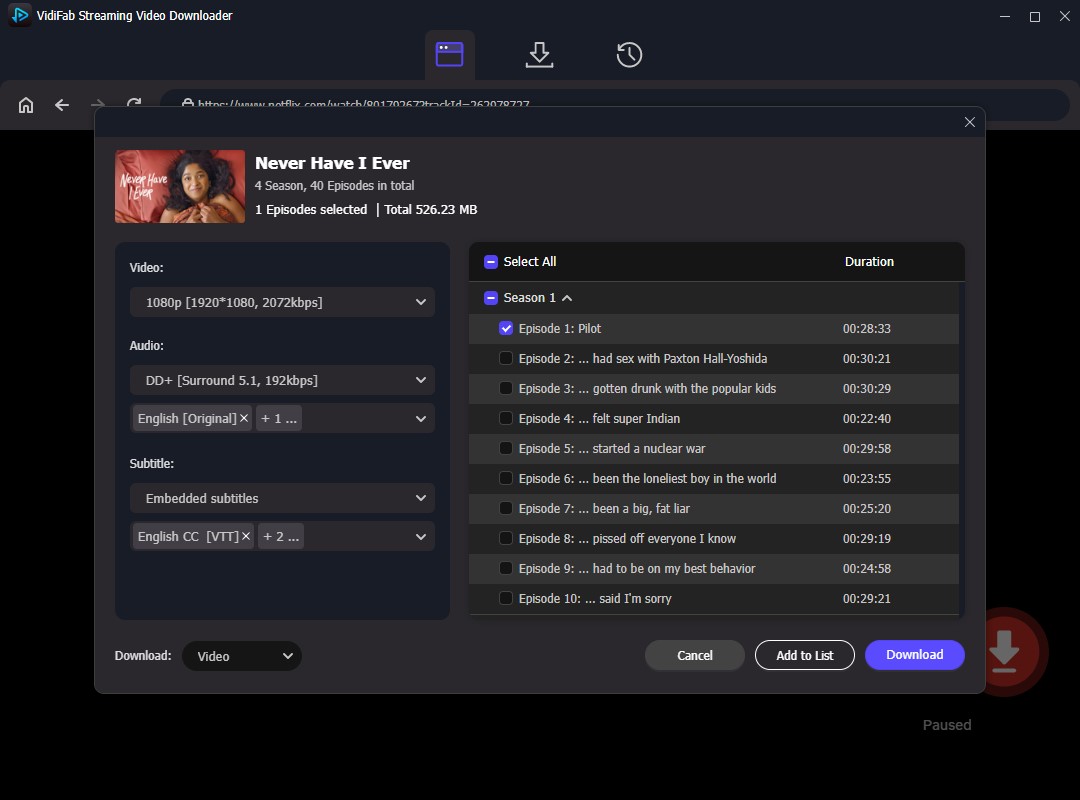
Search for the movie or TV show you want to watch. Open the details page and click the download icon at the bottom right corner.
-
04
In the download settings window, choose 1080p, your preferred subtitles, and audio language. You can save subtitles as SRT files or embed them into the video.
-
05
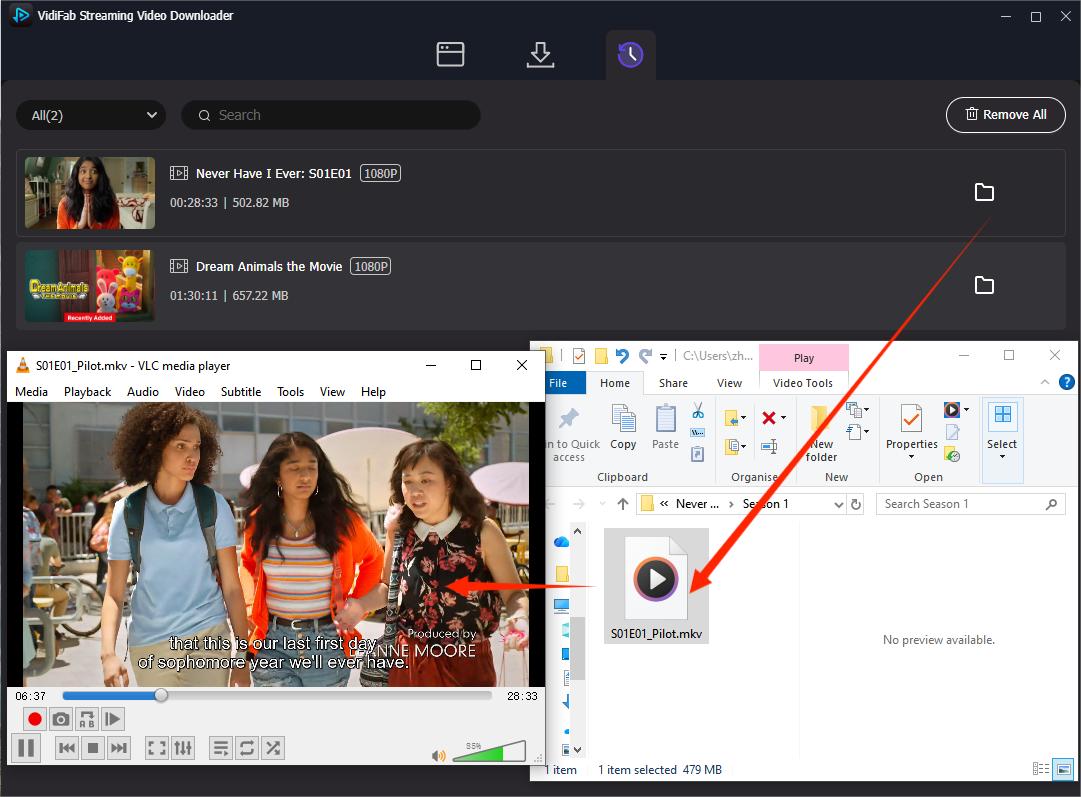
Click Download. When finished, go to the History section and click the folder icon to locate the downloaded MP4 videos from Netflix.
Step 2. Upload Videos to Dropbox
-
01
Go to https://www.dropbox.com.
-
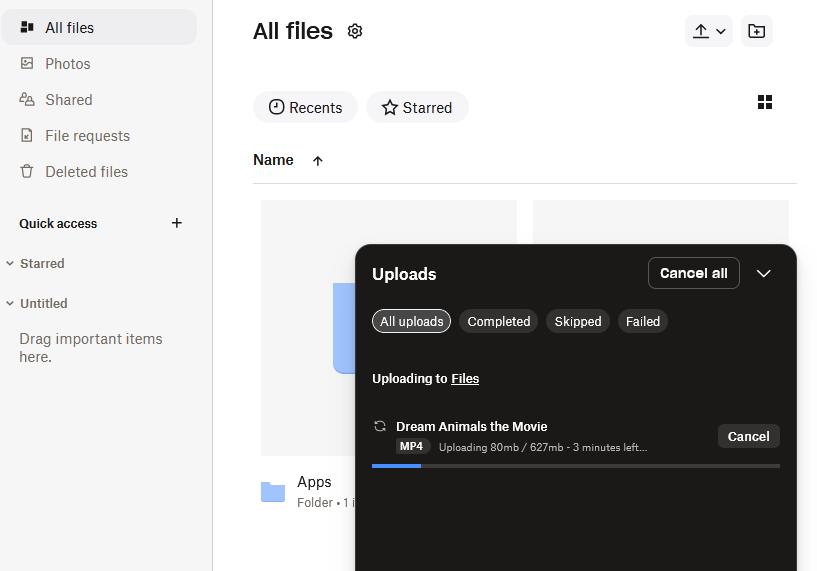
02
Tap the plus button and tap Upload Files.
-
03
Select the videos you downloaded from VidiFab and tap Upload.
Step 3. Link Dropbox with the My Video Skill
-
01
Open the Alexa app on your phone.
-
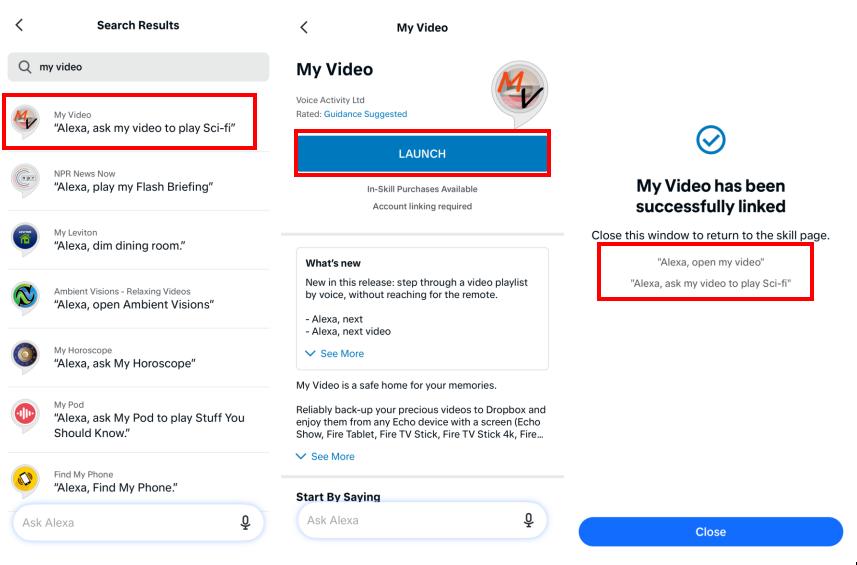
02
Navigate to Skills and Games and search for the My Video skill.
-
03
Enable the skill and link your Dropbox account.
-
04
On your Echo Show, say: "Alexa, open My Video."
-
05
Select your uploaded MP4 videos and start playback.
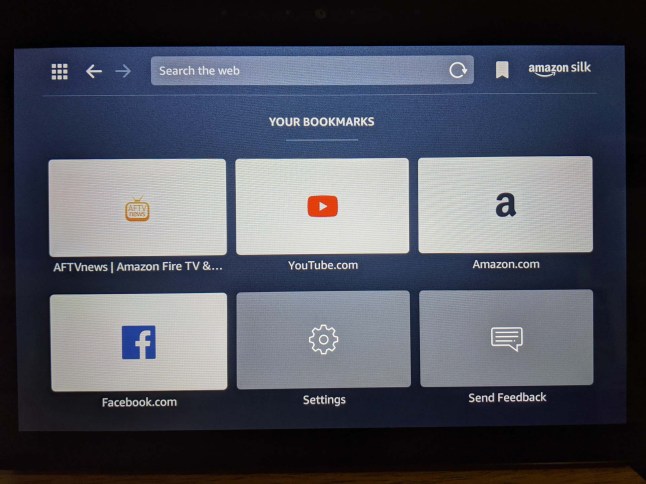
Option 2. Use the Silk Browser to Open Netflix
If your Echo Show does not support the Netflix app or you cannot access Netflix through the built-in options, you can try using the Silk Browser.
Most Echo Show models with a screen include the Amazon Silk Browser, but this method will not work on the Echo Show 5 (3rd Gen) because it runs on a Linux-based system that does not support this workaround. For that model, using the VidiFab and Dropbox method is a better choice.
How to Open Netflix in Silk Browser on Echo Show
-
01
Say "Alexa, open Silk."
-
02
Tap the address bar and go to Netflix.com.
-
03
Tap Sign In and enter your Netflix account information.
-
04
Select a movie or TV show and tap Play.
-
05
Tap the screen icon next to the bookmark icon to switch to desktop mode for improved layout.
Limitations of Browser Playback on Echo Show
Browser playback has two important limits. Keep these in mind before you rely on Silk for everyday viewing.
- When using the browser to play Netflix, the video quality is limited to 540p due to DRM restrictions. This quality ceiling is not a setting you can change on the Echo Show. It comes from the security level of the player, which is explained in more detail in our guide to why DRM caps playback quality.
- You may also encounter Netflix browser errors, such as M7361-1253, when trying to play videos through Silk Browser. If this happens, try clearing browser data, restarting your Echo Show, or switching to the offline playback method with downloaded MP4 files.
Part 4. How to Fix Netflix Not Working on Echo Show
Based on discussions about Netflix on the Amazon Forum, the issues can be categorized into two main types. Either Netflix will not open, or the app is not showing on the device. Use the troubleshooting steps below to work through both.
Issue 1. Echo Show Won't Open Netflix, or Netflix Won't Play
You ask Alexa to open Netflix. She answers "Here's Netflix" and nothing happens. Or you have signed in through the Silk browser, tap Play, and the film never starts. Other video apps work fine, so you know your connection is not the problem.
To resolve this issue, try the following steps in order.
- Update the device software. Swipe down, then tap Settings > Device Options > Check for Software Updates. After the update installs, Netflix can take up to 15 minutes to finish setting up in the background. Let it finish, then open Netflix and sign in.
- Disable the Netflix skill, if you enabled one. In the Alexa app, go to More > Skills & Games > Your Skills, find Netflix, and tap Disable Skill. Echo Show runs Netflix without a skill, and an enabled one can stop the app from launching.
- Restart the Echo Show. Unplug it, wait 30 seconds, plug it back in, then try again.
- Tap the Netflix tile several times in quick succession. It sounds unlikely, but plenty of owners report the app only opens after a few rapid taps.
Issue 2. Netflix Appears but Won't Play Videos on Echo Show
If there is no Netflix tile anywhere on the device, the cause is usually Alexa+ Early Access on a newer Echo Show. This restores it.
-
01
Say "Alexa, cancel Alexa+" or "Cancel Alexa Early Access."
-
02
Follow the prompts to exit Alexa+.
-
03
Go back to TV and Shows and check whether Netflix appears.
-
04
Sign in to Netflix.
-
05
If needed, restart Alexa+ after Netflix is available.
If the tile still is not there, run Settings > Device Options > Check for Software Updates, restart the device, and confirm your model supports Netflix in Part 1.
Still not working? Sign out of Netflix and back in, deregister your Echo Show from the Alexa app and set it up again, or contact Amazon or Netflix support with your model, software version, and the exact message you see.
Part 5. FAQs About Netflix on Echo Show
Can I watch Netflix on Echo Show without Wi-Fi?
Why is Netflix blurry on Echo Show?
Can I watch Netflix on Echo Show while using other apps?
Does Netflix work on Echo Show Kids Edition?
-
01
Open the Alexa app on your phone.
-
02
Go to More → Settings → Amazon Kids.
-
03
Select your child's profile and open Parent Dashboard.
-
04
Choose Add Content → Alexa Skills.
-
05
Turn on Netflix.
Is Netflix on Echo Show available outside the US?
Wrapping Up
Watching Netflix on Echo Show comes down to one question. Which model do you own? The Echo Show 1-2 Gens, 5 1-2 Gens, 8, and 11 offer native apps out of the box. The large 15 and 21 models use the full Fire TV app store. If you own the unsupported Echo Show 5 Third Generation, downloading your videos into 1080p MP4 files with VidiFab Streaming Video Downloader remains a reliable solution.
 Free Download
 Secure Download
 Free Download
Secure Download
Free Download
Secure Download
I write about streaming services, video playback, and digital media management. My articles cover practical ways to convert video files, troubleshoot playback issues, and manage digital content across devices. I aim to make technical topics easier to understand and help readers find practical solutions to common challenges.
 Leave Your Comment