How to Sign Out of Prime Video on Fire TV
 By Miles Kent
Prime Video on Fire TV has no Sign Out button, and no hidden menu will produce one. Unlike the Prime Video app on a Samsung TV, Roku, or iPhone, the Fire TV version has no login of its own — it runs on the Amazon account your entire Fire TV is registered to. That is why the one method that genuinely works for how to sign out of Prime Video on Fire TV is to deregister the device.
- Sign out on the device: Settings > Account & Profile Settings > Amazon Account > Deregister, then choose Deregister again to confirm.
- Faster route: open the Prime Video app, open the left menu, go to Settings > Sign Out, and select Sign Out again. This will automatically take you to the system deregister screen.
- No remote or not at home? Deregister remotely from Manage Your Content and Devices on the Amazon website.
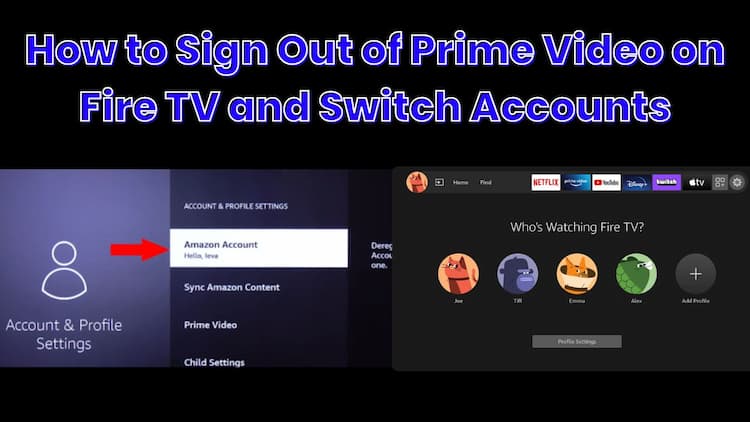
Part 1. How to Sign Out of Prime Video on Fire TV Step by Step
- To sign out of Prime Video on any Fire TV device, navigate to Settings > Account & Profile Settings > Amazon Account > Deregister. Confirm by clicking Deregister again to unlink the device from your account.
How to Sign Out and Log In to a New Amazon Account:
Step 1. Open Settings on your Fire TV
Depending on your Fire TV model and software version, Settings may appear as a gear icon or inside the Quick Menu.
- New 2026 Interface: Press the Menu button on your remote, scroll down, and select Settings.
- Older Interface: Use the directional pad to scroll to the Gear Icon on the far right of the home screen.
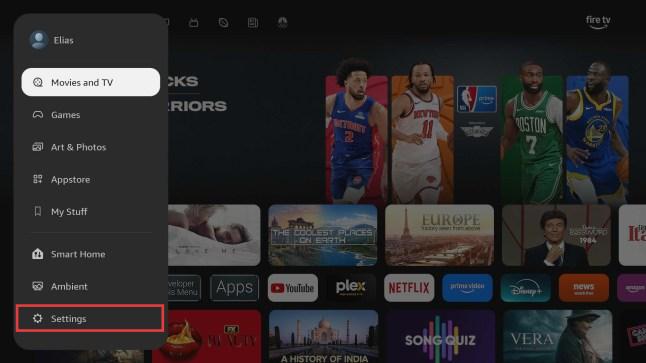
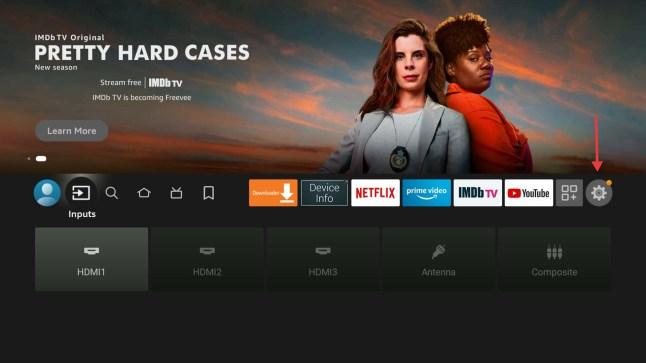
Step 2. Select Account & Profile Settings.
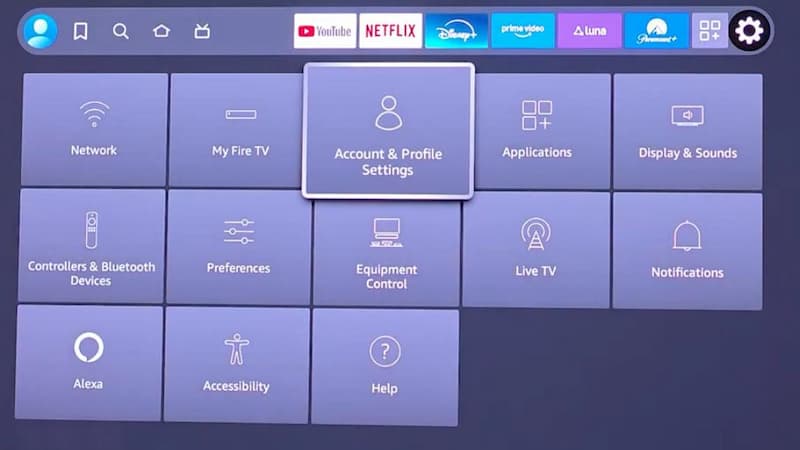
Step 3. Click on Amazon Account.
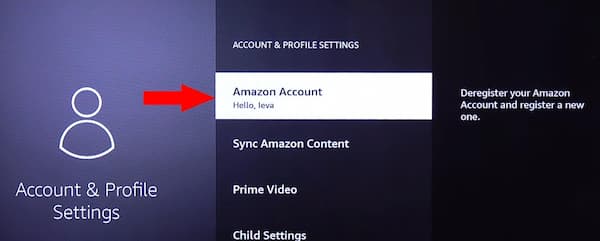
Step 4. Select the Deregister option. A confirmation pop-up will appear warning you that this will remove content from the device. Select Deregister again to confirm.
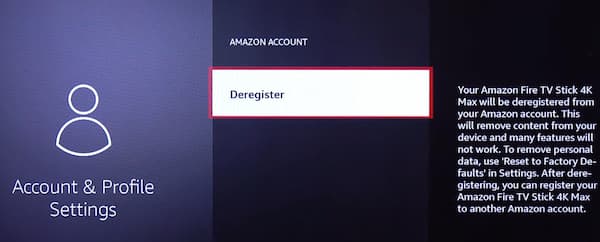
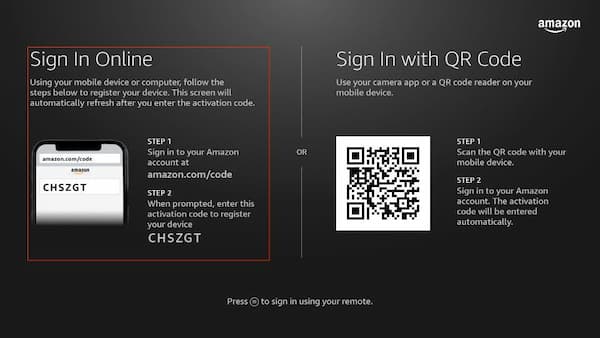
Step 5. The device will automatically refresh and display the "Register your Fire TV" screen.
Step 6. Sign in to another Amazon account.
- QR Code (Fastest): Scan the on-screen code with your phone and log in via your mobile browser.
- Activation Code: Go to amazon.com/code on any browser and enter the 6-character code shown on your TV.
If your goal is simply to watch Prime Video content on a shared Fire TV without repeatedly signing in and out of Amazon accounts, another option is to download eligible titles to MP4 in advance and play them locally on the device.
VidiFab Streaming Video Downloader lets you save Prime Video movies and shows to your computer for offline playback, making it easier to watch content without depending on the Prime Video app or account registration status.
Part 2. How to Sign Out of Prime Video on Fire TV Remotely
- Go to the Manage Your Content and Devices page on Amazon's website. Click the Devices tab, select your Fire TV, and click Deregister to force a remote sign-out.
How to Log Out Remotelyvia the Amazon Website:
Step 1. Visit the Amazon Manage Your Content and Devices portal.
Step 2. Click on the Devices tab at the top of the dashboard.
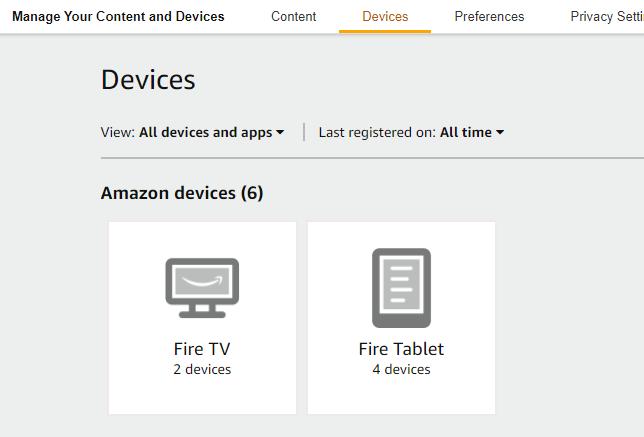
Step 3. Select the Fire TV to see every Fire TV Stick, Cube, or Smart TV currently registered to your account.
Step 4. Find the specific TV you want to sign out of.
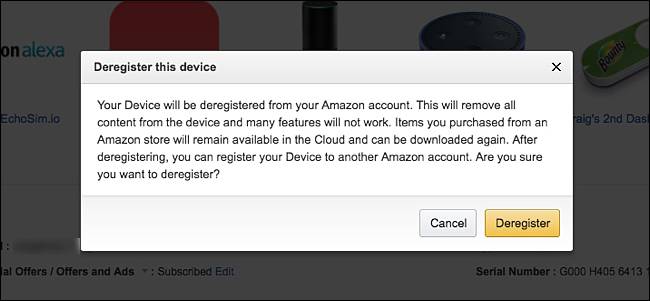
Step 5. Click the Deregister button next to the device name.
Step 6. A final prompt will ask if you want to remove all content. Click Deregister again to break the authentication token link.
How to Sign Out Remotely via the Amazon Shopping App:
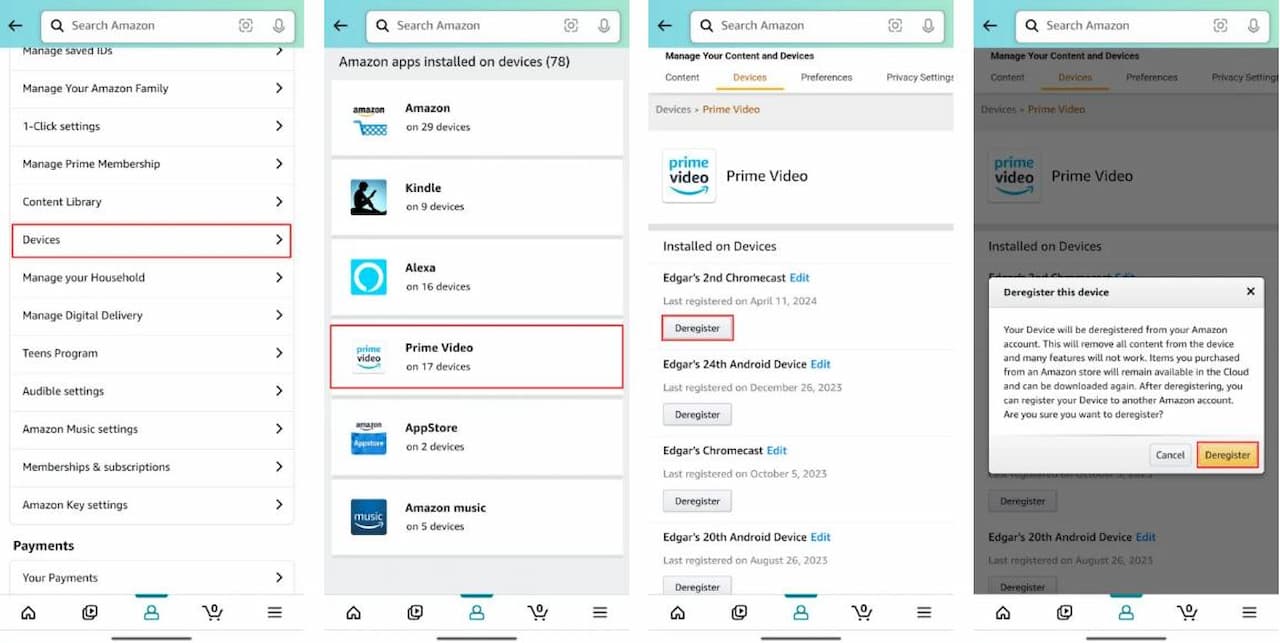
Step 1. Open the Amazon Shopping app and log into your account.
Step 2. Click the User Icon at the bottom of the screen.
Step 3. Select Your Account at the top.
Step 4. Scroll to "Account Settings" and choose Devices.
Step 5. Tap on Fire TV to expand your list of streaming devices.
Step 6. Locate the specific Fire TV device you want to sign out of and tap the Deregister button.
Step 7. Tap the Deregister button again to confirm.
Part 3. How to Change Profile on Fire TV Without Signing Out
- On the Fire TV home screen, move to the far left and select the profile icon. Choose a profile from the Who's Watching? screen, or select Add Profile to create a new one. No password and no sign-out needed.
How to Switch Profiles on Fire TV
Step 1. Go to the Fire TV home screen.
Step 2. Scroll to the far left of the navigation bar to reach the profile icon.
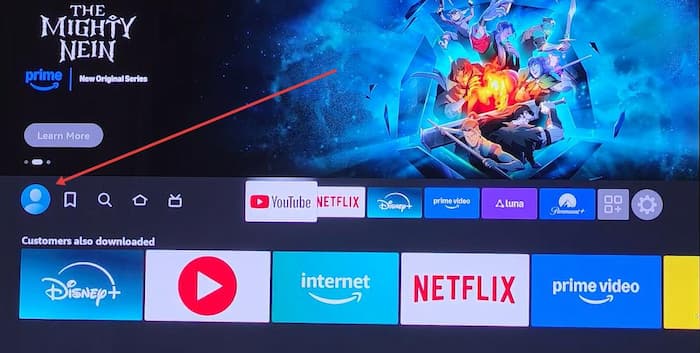
Step 3. Select it to open the Who's Watching Fire TV? menu.
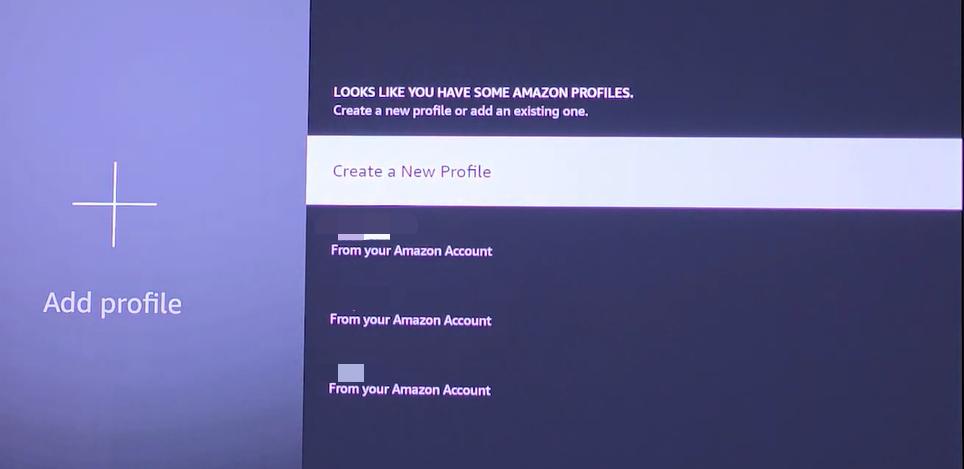
Step 4. Highlight the profile you want, or choose Add Profile to create one. Amazon allows several profiles per account, each with its own history and Watchlist.
Step 5. The interface refreshes with that profile's Watchlist, search history, and recommendations.
Changing profiles is different from signing out. Profiles have separate Watchlists, recommendations, and viewing history, but they still share the same Amazon account, Prime membership, and purchases.
Part 4. What Happens When You Sign Out of Prime Video
If you follow the steps mentioned in the previous sections to sign out, here are the specific changes you will face after you log out of your Prime Video account on Fire TV:
A Quick Comparison: Full Sign Out vs. Switching Profiles
| Feature | After Deregistering (Full Sign Out) | After Switching Profiles |
|---|---|---|
| Watchlist | Completely removed from device | Switched to new user's unique list |
| Purchased Movies | Inaccessible (hidden until new login) | Still accessible (shared by account) |
| Installed Apps | Remain (but cannot update/sync) | Fully functional & accessible |
| Prime Membership | Unlinked from hardware entirely | Stays active for all profiles |
| Data Deletion | Cloud sync & cache are wiped | Nothing is deleted |
| Login Info | Password required to re-access | No password needed to swap |
What Is Removed from the TV?
- The Prime Video library disappears from the interface, along with your Watchlist, until an account is registered again.
- All downloaded video files are wiped. Offline downloads are strictly tied to the active account and will be permanently deleted from local storage upon deregistration.
- The Appstore is locked. You cannot download, open, or update any apps while the device is unregistered.
- Some account-related settings and personal preferences will be removed when the device is deregistered.
What Stays Safe in Your Amazon Account?
Deregistering a Fire TV does not delete anything from your Amazon account. Your Prime membership, purchased movies, rented titles, Watchlist, and viewing history remain associated with your account and become available again after you sign in on another device.
If you sold, lost, or gave away a Fire TV device, deregistering it helps prevent other people from accessing your Amazon services while keeping your content and subscriptions intact.
Part 5. Troubleshooting: When Signing Out Doesn't Work
If you cannot sign out of Prime Video on Fire TV, the issue is usually related to account permissions, device sync, or network connectivity. The table below covers the most common sign-out problems and how to fix them.
| Problem | Why it happens | What to do |
|---|---|---|
| No Deregister option is visible | Some profiles, especially a Kids profile, hide account-level entries. | Switch to the primary profile (far-left profile icon), then return to Settings > Account & Profile Settings. |
| Deregister is greyed out | The device is mid-update, or another operation is still running. | Wait for any progress bar to finish, restart the Fire TV, and try again. |
| I deregistered remotely but the TV is still signed in | The change is queued until the device reaches Amazon's servers. | Leave the Fire TV powered and online; it applies on the next connection. |
| I only want Prime Video off, not the whole Fire TV | Not possible — Prime Video shares the device account. | Use a separate profile for other viewers and leave the account registered. |
Part 6. FAQs About Signing Out of Prime Video on Fire TV
Why is there no sign out option on Prime Video on Fire TV?
Can I stay logged in to my Fire TV but prevent others from seeing my search history?
Can I use two different Amazon accounts on one Fire TV?
Is there a Guest Mode on Fire TV?
Is there a limit to how many times I can sign in and out of Prime Video on Fire TV?
Final Thoughts
Signing out of Prime Video on Fire TV isn't always straightforward. To switch to a different account, you can use the Deregister option in Fire TV settings or via the Amazon website, or simply swap profiles through the Fire TV profile menu.
For situations where you want to avoid these steps, such as using a public Fire TV or protecting your Amazon account, VidiFab Prime Video Downloader offers a better solution. By downloading videos directly to a USB drive, you can watch your content offline, bypass the login system entirely, and keep your account secure.
 Free Download
 Secure Download
 Free Download
Secure Download
Free Download
Secure Download



I'm a video tech specialist with over 10 years of experience in digital media and streaming. I focus on making complex workflows simple and practical. Through my guides, you'll learn how to convert media, keep high-quality playback across devices, and manage your streaming video library with ease.
 Leave Your Comment