Netflix Not Working on Vizio TV? Here's How to Fix It
 By Miles Kent
Netflix not working on your Vizio TV? Whether the app won't open, endlessly buffers, freezes mid-episode, or shows a black screen, this guide walks you through every proven fix, from a quick power cycle to tackling specific error codes like NW-2-5 and UI-113.
Part 1. Why Is Netflix Not Working on My Vizio TV?
Netflix on Vizio TVs can fail for several reasons, and identifying the right one saves you a lot of trial and error.
- Your TV Model May No Longer Be Supported: If your Vizio TV was made before 2015 and runs the older VIA or VIA+ platform, Netflix may have already dropped support for it. You can see this full guide on how to use Netflix on Vizio TV for model-specific details.
- Accumulated Cache Is Clogging the System: Vizio's SmartCast system stores temporary data in the TV's limited onboard memory every time Netflix runs. Over time, this cache builds up like digital junk, causing the app to freeze on the loading screen, go black, or crash entirely.
- Network Issues (Even If Other Apps Work): Your TV might show YouTube just fine, but Netflix still fails. That's because Netflix has stricter requirements for network stability than most other streaming apps. If you're getting codes like NW-2-5 or NW-6-403, the main reason is a network issue.
- Incorrect System Date/Time: If your Vizio TV's internal clock is significantly off, Netflix's security certificate validation fails.
- Quick Start Mode Keeps Errors Alive: Most Vizio TVs ship with Quick Start Mode enabled by default. When you "turn off" the TV, it doesn't actually shut down. This means background errors never get cleared from memory, and over time, they accumulate until Netflix stops working properly.
Part 2. How to Fix Netflix Not Opening on Vizio TV
If Netflix won't open at all like tapping the icon does nothing, or the app freezes permanently on the loading logo, here's how to get it running again.
Fix 1. Power Cycle Your TV and Router (Start Here)
Using the remote's power button doesn't fully reset the system. Physically unplugging from the wall is what actually clears the frozen memory state that prevents Netflix from launching.
-
01
Turn off your Vizio TV and unplug it from the wall.
-
02
Unplug your router at the same time.
-
03
Wait at least 60 seconds.
-
04
Plug the router back in first and wait for it to fully reconnect (indicator lights should stabilize).
-
05
Plug the TV back in, power it on, and try Netflix.
Fix 2. Check and Optimize Your Network Connection
-
01
Confirm your TV is connected to Wi-Fi with a strong signal, or use a wired Ethernet connection.
-
02
Test whether another app like YouTube opens normally. If it does, the issue is specific to Netflix, not your internet.
-
03
Restart your router and try switching to the 5GHz band if your router supports it.
-
04
Temporarily disable any VPN or proxy, and then open the Netflix app to test it.
Fix 3. Use the Netflix Hidden Refresh Code
This is a trick that forces Netflix to refresh the app's authentication and server connection entirely, even from an error screen.
-
01
On the Netflix screen, use your remote's directional pad to enter: Up, Up, Down, Down, Left, Right, Left, Right, Up, Up, Up, Up
-
02
A hidden diagnostic menu will appear.
-
03
Select Sign Out, Reset, or Deactivate.
-
04
Open Netflix again and sign back in.
Fix 4. Reset the SmartCast Home Screen
If the SmartCast interface itself is frozen or not displaying app icons:
-
01
Switch to any other input source like HDMI 1 and wait 10 seconds.
-
02
Press the V or Home button on your remote to return to SmartCast.
-
03
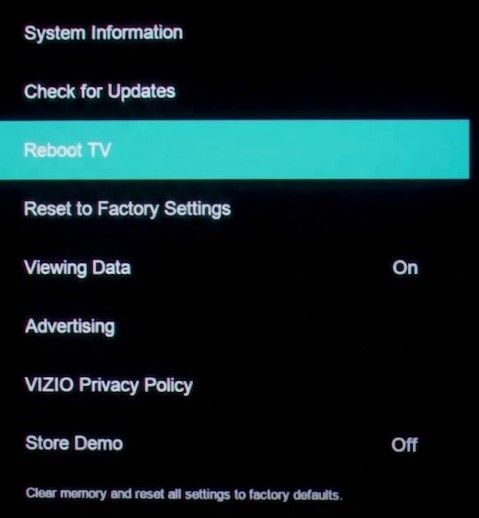
If the home screen loads slowly or icons are missing, go to Settings > System > Reboot TV to force a full system reload.
Part 3. How to Fix Netflix Not Loading on Vizio TV
You can open the Netflix app, but it just spins forever. It is likely that you can't browse titles or play anything. This usually means the TV is struggling to communicate with Netflix's servers
Fix 1. Test Your Network Speed
Netflix has hard minimum speed requirements. If your connection doesn't meet them, the app will just keep loading indefinitely.
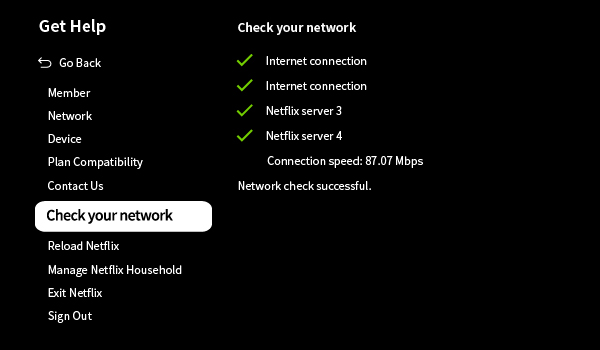
Open the Netflix app and press left on your remote to open the menu sidebar, scroll down and go to Get Help, select Check your network run a built-in diagnostic test.
| Quality | Minimum Speed Required |
|---|---|
| Standard Definition (SD) | 3 Mbps |
| High Definition (HD) | 5 Mbps |
| 4K Ultra HD | 15 Mbps |
If your speed test result falls short, try moving your router closer to the TV, or plug in a direct Ethernet cable to eliminate Wi-Fi interference.
Fix 2. Reset to Factory Settings
If only Netflix is stuck but other apps work, the app's internal cache files may be corrupted.
-
01
Press Menu on your remote.
-
02
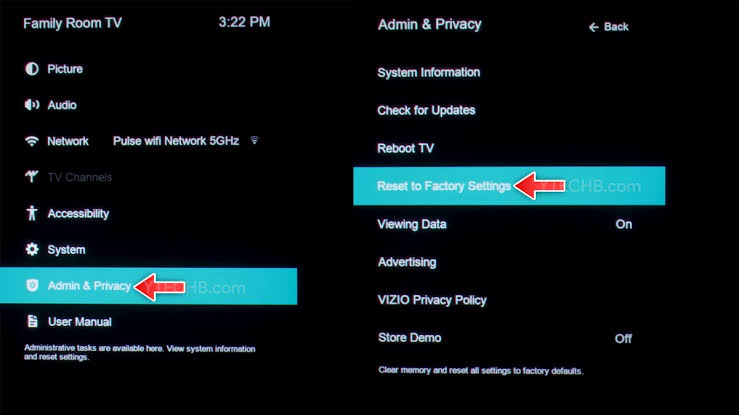
Go to All Settings → System → Admin & Privacy.
-
03
Select Reset to Factory Settings and confirm.

Note: You'll need to log back into Netflix and any other streaming service. It's an inconvenience, but it's one of the most effective fixes for app-level freeze issues.
Fix 3. Change Your DNS Settings
If your speeds are fine and the app reset didn't help, your ISP's DNS servers may be the bottleneck. Switching to a faster, public DNS often solves persistent loading issues.
-
01
Press the Menu button or V button, and scroll down the on-screen menu to go to Network.
-
02
Once you are inside the Network menu, select Manual Setup.
-
03
Turn off DHCP.
-
04
Set your Primary DNS to 8.8.8.8 (Google) or 1.1.1.1 (Cloudflare).
-
05
Save and restart your TV.
Part 4. How to Fix Netflix Freezing, Buffering, or Lagging on Vizio TV
Getting a movie to start only to have it freeze every few minutes, buffer constantly, or go out of sync with the audio is a common Netflix buffering issue. This usually points to insufficient real-time bandwidth or an overloaded TV processor.
Fix 1. The "Switch to Prime Video and Back" Trick
I know this sounds ridiculous, but this works. When Netflix on my Vizio was loading painfully slowly, I pressed the Amazon button on the Vizio remote, waited about 5 seconds on Prime Video, then switched back to Netflix. The app reloaded with noticeably better speed, and I was able to watch in 1080p without buffering.
Fix 2. Lower Netflix Playback Quality
If your bandwidth is inconsistent, forcing Netflix to use a lower quality setting can eliminate buffering almost entirely. You'll need to do this from a browser on your phone or computer:
-
01
Go to netflix.com and log in.
-
02
Click your profile icon → Account.
-
03
Under Profile & Parental Controls, expand your profile.
-
04
Click Playback Settings → Change.
-
05
Select Medium (~0.7 GB/hr, SD/720p) or Low (~0.3 GB/hr).
-
06
Click Save.
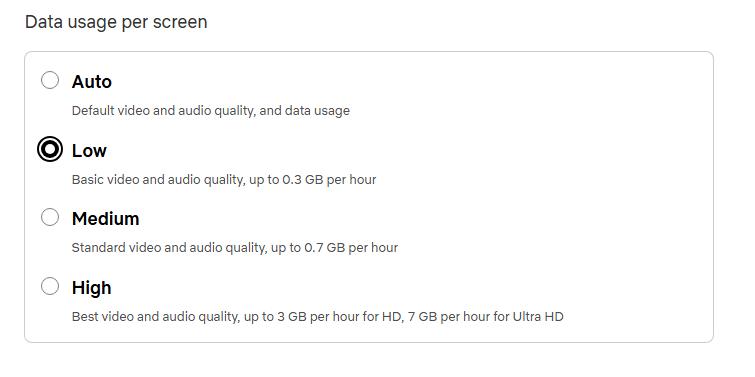
To apply the change immediately on your TV, you need to first open Netflix on Vizio, then press left to open the menu sidebar, scroll to Get Help, and select Reload Netflix.
Fix 3. Disable Quick Start Mode
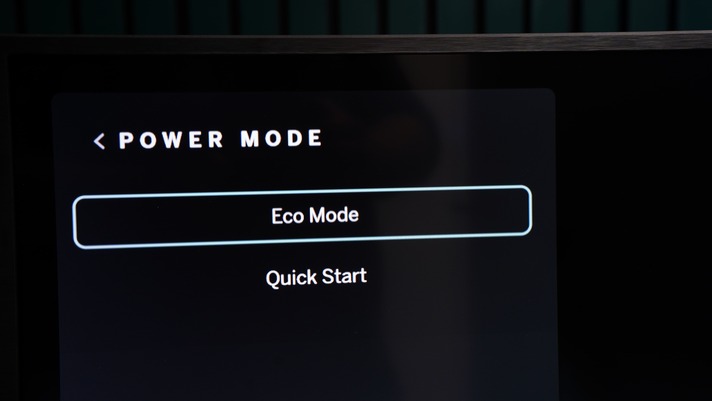
Disabling Quick Start Mode forces your TV to do a full cold boot each time, which clears cached junk and frees up processing power for Netflix.
-
01
Press Menu on your remote.
-
02
Go to System → Power Mode.
-
03
Change Quick Start to Eco Mode.
-
04
Power the TV off with the remote, then turn it back on.
Fix 4. Update Your Vizio System Software
Since the Netflix app is built into the Vizio firmware, keeping the system updated ensures compatibility with the latest Netflix version.
-
01
Press Menu (or Home / Gear) on your remote.
-
02
Select All Settings.
-
03
Go to Admin & Privacy (on older models: System or Support).
-
04
Highlight Check for Updates and press OK.
-
05
If an update is available, select Yes to download and install it.
Part 5. How to Fix Netflix Black Screen Issues on Vizio TV
A black screen on Netflix can be one of two things: audio plays but there's no picture, or the screen is completely dark and unresponsive. Each has a different cause and fix.
Scenario A. You Can Hear Audio But the Screen Is Black
This is almost always a HDCP (High-bandwidth Digital Content Protection) handshake failure. It means that the TV and your external device couldn't authenticate each other's copy protection. You can do the following three things to fix this HDCP problem:
- Re-seat the HDMI cable: Unplug the HDMI from both ends, check for dust or bent pins, then reconnect firmly.
- Connect directly to the TV: Bypass any soundbar, A/V receiver, or HDMI splitter and plug your streaming device directly into the TV's HDMI 1 port.
- Run a Soft Power Cycle: Go to System → Admin & Privacy → Soft Power Cycle. This forces the video controller to re-initiate the HDCP handshake.
Scenario B. Completely Black Screen, No Audio, No Response
If Netflix displays a black screen with no sound, check the Streaming Video No Sound Troubleshooting guide for various solutions for TV, phone, and desktop. You can also try these three quick fixes first:
Fix 1. Hard Cut the Power During the Black Screen
This is an aggressive but effective reset for when the video decoder chip gets stuck in a loop:
-
01
Launch Netflix normally and let the black screen occur.
-
02
While the screen is still black, do not use the remote, walk to the outlet and physically unplug the power cable.
-
03
Wait 10–15 seconds for the internal capacitors to fully discharge.
-
04
Plug back in, power on, and open Netflix.
Fix 2. Switch Inputs to Flush the Video Memory
-
01
Press Input on your remote and switch to any idle HDMI port.
-
02
Wait 15–20 seconds to fully disconnect SmartCast's background rendering.
-
03
Press Home to switch back to Netflix. If still black, press Back several times to force an exit prompt from the frozen app.
Fix 3. Disable Sleep Timer and Ambient Light Sensor
Vizio's energy-saving features can sometimes misread streaming activity and shut off the backlight mid-playback.
-
01
Press Menu → System → Timers.
-
02
Turn Sleep Timer and Auto Power Off to Off.
-
03
Go back to Picture → Picture Mode.
-
04
Disable Ambient Light Sensor and Backlight Control.

Hardware Check: Before spending more time on software fixes, do this: in a completely dark room, shine a flashlight close to your TV screen while Netflix is playing. If you can faintly see a moving picture, your TV's backlight might have physically failed and requires hardware repair.
Part 6. How to Fix Common Netflix Error Codes on Vizio TV
If Netflix leaves an error code on the Vizio TV screen, here's how to decode and fix the three most common ones on Vizio TVs.
Common Netflix Error Codes on Vizio TV
| Error Code | What It Means | How to Fix It |
|---|---|---|
| UI-113 | The device can't connect to Netflix — usually wrong credentials or an unsupported TV model. | 1. Double-check your email and password. 2. Power cycle and log in again. 3. If not signed out, use the Up-Up-Down-Down trick and select Sign Out or Reset. |
| NW-6-403 | Complete network failure or your IP address is being blocked by a firewall. | 1. Test your connection with another device on the same Wi-Fi. 2. Change DNS to Google (8.8.8.8 / 8.8.4.4) or Cloudflare (1.1.1.1). 3. Restart your modem (unplug, wait 30 seconds). 4. Contact your ISP if the issue persists. |
| NW-2-5 | You're connected, but the signal is too weak or slow to reach Netflix's servers. | 1. Go to fast.com on your phone to check if you have at least 5 Mbps. 2. Move your router closer or use a wired Ethernet connection. 3. Manually set DNS to 8.8.8.8. 4. Disable any VPN on your router. |
Part 7. How to Watch Netflix Without Vizio App Problems
If you've worked through every fix above and the Netflix app on your Vizio is still unreliable, you have two solid workarounds that bypass the native app entirely.
Option 1. Use an External Streaming Device
Plug in a dedicated streaming stick or box and forget about the Vizio app altogether. These devices run their own optimized software and make the Netflix app more stable.
- Amazon Fire TV Stick 4K
- Google Chromecast with Google TV
- Roku Streaming Stick+
- Apple TV 4K
Option 2. Download Netflix Videos and Play via USB
If your home network is unstable and constantly triggering the buffering, loading, or black screen errors, or if your TV model is no longer supported, downloading Netflix content offline and playing it through USB is the most foolproof solution.
VidiFab Netflix Video Downloader lets you save Netflix movies and shows as standard MP4 or MKV files at up to 1080p quality, with your choice of audio tracks and subtitle languages and format. Once downloaded, you copy the files to a USB drive and play them directly on your Vizio TV.
VidiFab Netflix Video Downloader
Download Netflix videos as MP4/MKV in 1080p with Dolby Atmos for offline viewing on your iPhone, Android, desktop, and more devices.

Step-by-Step: Download Netflix Videos and Watch on Vizio TV
Step 1. Set Up VidiFab on Your Computer
Download and install VidiFab Netflix Video Downloader on your PC or Mac. Open Preferences from the top-right menu and set the output format to MP4 or MKV (both are natively supported by Vizio TVs). Choose your preferred video quality and encoding settings, then click OK.

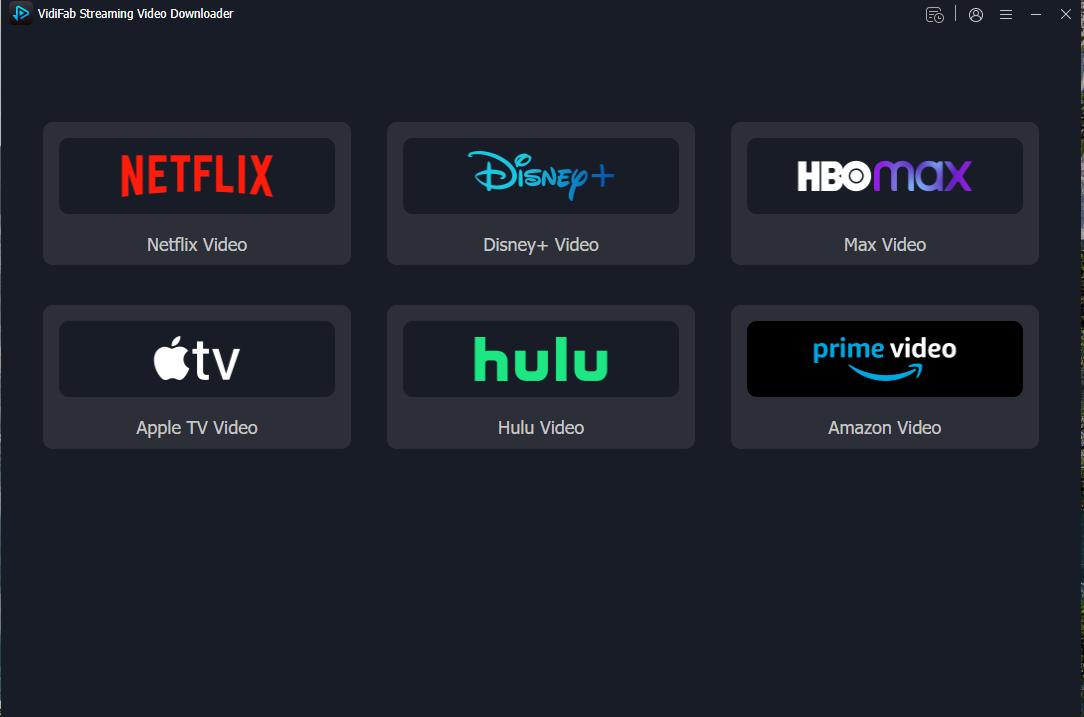
From the VidiFab home screen, select Netflix and log in through the built-in browser.
Step 2. Find Your Netflix Content
Browse the library or paste a direct Netflix URL into the search bar. Navigate to the title's detail page. VidiFab will automatically analyze the stream and display a Download button.

Step 3. Customize Your Download Settings
Select 1080p for the best quality your TV can display. Choose your preferred audio language and subtitle style. For TV series, you can queue an entire season in one go. Once ready, click Download.

Step 4. Download and Locate Your Files
VidiFab will download your Netflix videos at high speed. When finished, go to the History tab and click the folder icon to find your downloaded videos on your computer.

Step 5. Play on Your Vizio TV
-
01
Format a USB flash drive to FAT32 or NTFS.
-
02
Copy the downloaded MP4/MKV files onto the USB drive.
-
03
Safely eject the drive and plug it into the USB port on your Vizio TV.
-
04
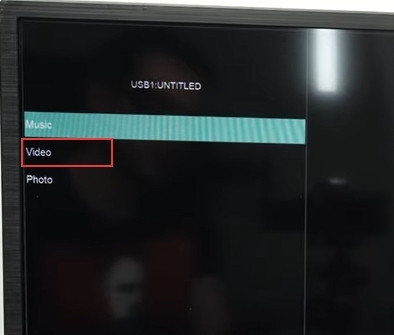
Press Input on your remote, select Media Player (or USB), then select your file and press play.

Conclusion
Most Netflix problems on Vizio TVs come down to a handful of root causes: an outdated or unsupported TV, accumulated cache, a shaky network connection, or Quick Start Mode keeping errors alive in memory. Start with a proper power cycle, work through the network and app-level fixes, and use the error code table to target specific issues.
If you've tried everything and the app still misbehaves, an external streaming device or offline playback via USB are both reliable long-term solutions.
 Free Download
 Secure Download
 Free Download
Secure Download
Free Download
Secure Download


I'm a video tech specialist with over 10 years of experience in digital media and streaming. I focus on making complex workflows simple and practical. Through my guides, you'll learn how to convert media, keep high-quality playback across devices, and manage your streaming video library with ease.
 Leave Your Comment