How to Watch Netflix on Apple CarPlay
 By Miles Kent
Can you watch Netflix on Apple CarPlay? Yes, but it's not as simple as tapping an icon. I spent the last few weeks testing every method people actually recommend online, burning through one sketchy adapter, a nearly-bricked old iPhone, and way too much time parked in my driveway. Here's what actually works, what's overhyped, and which method I now use every day.

If you use an Android phone instead, check out our guide on how to watch Netflix on Android Auto. For more options across different vehicle displays, see our complete guide on how to watch Netflix on a car screen.
Part 1. Why Apple CarPlay Doesn't Support Netflix
Before I started testing all these methods, I wanted to understand why Netflix is blocked on CarPlay in the first place. Turns out, Apple didn't forget video apps accidentally. The restriction is intentional.
1. Driver Safety Comes First
Apple has blocked video and social apps from CarPlay since its launch in 2014. The stated reason is driver safety: NHTSA data shows distracted driving kills thousands of people every year, and using a mobile screen while driving can multiply your accident risk by as much as six times.
Honestly, after testing some of these Netflix hacks myself, I understand why Apple is strict about it. Even changing episodes can pull your attention away from the road more than you expect.
2. Legal Problems for Apple and Car Manufacturers
There's also a legal layer. Most markets, including California under Vehicle Code §27602, prohibit playing video in the driver's sightline while the vehicle is in motion. Some newer safety standards even monitor where the driver is looking. If the system detects that your eyes stay on a video for too long, it can trigger warnings or interventions.
So even if Apple technically could allow Netflix on CarPlay, it would create legal headaches for both Apple and car manufacturers.
3. DRM and the Infamous Black Screen Problem
Netflix uses DRM protection and HDCP encryption to prevent unauthorized screen recording or external playback. CarPlay was never designed as a standard video output system, so even during my test, there are many times when Netflix gives me a black scree, or only playing the audio.
In other words, the black screen is not a CarPlay bug. It is the output rule doing its job. We covered the whole mechanism in why DRM blocks external playback.
Part 2. The 4 Methods I Tried to Play Netflix on CarPlay
I spent weeks testing the four methods the car community keeps recommending. Some surprised me. A few wasted my time. Here's the honest breakdown.
Method 1 — Built-in Video in Car
Verdict: If "CarPlay Netflix while driving" is what you came here for, keep scrolling. This won't help. If watching Netflix while parked is enough, read on.
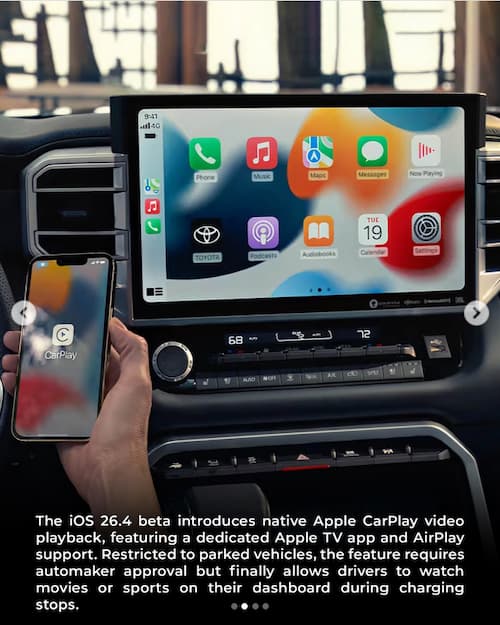
- iPhone 12 or newer
- iOS 18.5, iOS 26, or later
- A car that officially supports Apple's AirPlay Video in the Car feature (currently NIO, Zeekr, and a short list of others)
Apple introduced "Video in the Car" quietly alongside iOS 18/26. The idea is simple: AirPlay streams video wirelessly from your iPhone to the dashboard screen, the same way you'd AirPlay something to an Apple TV at home.
How to Use Built-in Video in Car to Play Netflix on CarPlay
Step 1. Connect your iPhone to your car via USB cable or wireless CarPlay.
Step 2. Shift into Park.
Step 3. Open a supported streaming app on your iPhone like Apple TV or YouTube.
Step 4. Swipe down to open Control Center, tap Screen Mirroring, and select your car's display.
Step 5. The video appears on the dashboard.
Pros:
- It's Apple's official path.
- Setup takes minutes and the connection is stable.
- Video quality is solid when it works.
Cons:
- The video cuts off the moment the car moves.
- DRM content in other apps can still produce a black screen depending on the car system.
- Most car manufacturers haven't pushed OTA updates to enable this feature.
Method 2 — HDMI Adapter
Verdict: It actually solves the DRM problem. The audio lag, though, is genuinely maddening.
- A car with a factory wired CarPlay USB port
- An HDMI-to-CarPlay adapter. Ottocast Car TV Mate and Carlinkit FireDrive are the two worth considering
- A streaming stick: Amazon Fire TV Stick, Chromecast, or Roku
- A 12V cigarette lighter adapter for extra power (the car's USB port usually isn't enough)
- An HDMI cable
- Netflix Standard or Premium plan (the ad-supported tier blocks HDMI output)
- Your iPhone hotspot for internet
How to Use an HDMI Adapter to Stream Netflix on CarPlay
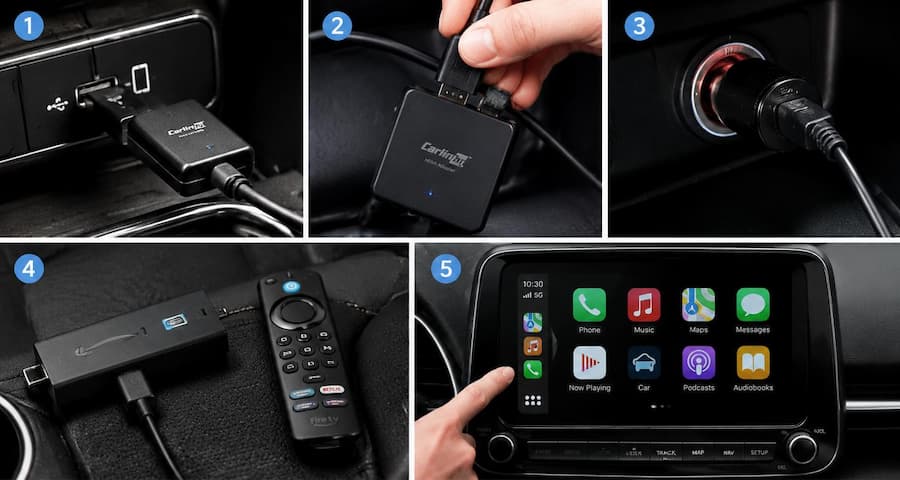
Step 1. Plug the HDMI adapter into your car's wired CarPlay USB port.
Step 2. Connect the Fire Stick to the adapter's HDMI input.
Step 3. Power the stick from a 12V cigarette lighter adapter.
Step 4. Connect the Fire Stick to your iPhone hotspot.
Step 5. Tap the CarPlay icon on your dashboard. The screen switches over to the Fire TV home screen. Open Netflix.
Why does this method actually play Netflix when others fail? Because the Fire Stick decodes the video at the hardware level and passes HDCP validation on its own. Your car screen just becomes a dumb display. The DRM problem, for all practical purposes, disappears.
This was the first setup I tested where Netflix played without black screens. That felt like a genuine breakthrough after everything else I'd tried.
Pros:
- Netflix DRM mostly stops being a problem.
- You get the full native Fire TV interface.
- No modifications to your iPhone whatsoever.
Cons:
- The audio lag is real and consistently annoying.
- You can't control Netflix through the car touchscreen.
- The setup involves cables, a second power source, and a fair bit of cable management.
- The adapter can conflict with your iPhone's wireless CarPlay connection.
Method 3 — Android CarPlay AI Box
Verdict: The most complete solution I tested, provided your car has a wired CarPlay port.
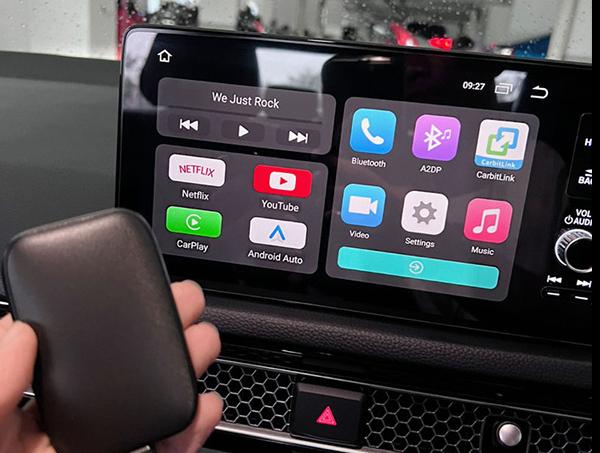
I was genuinely skeptical going into this one. An AI Box is a small Android computer with no screen of its own. You plug it into your car's wired CarPlay USB port, it handshakes using the CarPlay protocol, and then it takes over the display and runs a full Android OS on it.
- A car with wired CarPlay support
- An Android CarPlay AI Box with at least 8GB of RAM and a Qualcomm Snapdragon 6350 or 6490 (or equivalent)
- A box with official Widevine L1 certification — this is non-negotiable for Netflix in HD
- Your iPhone hotspot for internet, or a box with a built-in SIM slot
One thing worth knowing before you buy: Widevine L1 certification is the single most important spec on this list. Without it, Netflix either refuses to play or caps the resolution at something unwatchable. Many cheaper boxes skip it entirely, which explains most of the complaints you'll find in forums. The Carlinkit Tbox Ultra is the one that keeps coming up in community discussions for 2025 and 2026 for its consistent 1080p, decent thermal management.
How to Use an Android CarPlay AI Box to Get Netflix on CarPlay
Step 1. Plug the AI Box into your car's factory wired CarPlay USB port.
Step 2. Wait for it to boot. Most boxes take 15 to 40 seconds to load the Android interface on the dashboard screen.
Step 3. Connect the box to the internet through your phone's Personal Hotspot.
Step 4. Open the Google Play Store on the car screen and sign in with your Google account.
Step 5. Download and install Netflix.
Step 6. Sign in and start watching.
Pros:
- Netflix runs natively, so DRM is handled properly.
- You control everything through the car touchscreen.
- Split-screen navigation plus Netflix is possible on supported units.
- Easier to live with daily than the HDMI adapter setup.
Cons:
- Heat is a real issue.
- If your phone tries to connect via wireless CarPlay while the box is running, the two can fight over the Wi-Fi radio and cause a disconnect loop.
- No wired CarPlay in your car means this doesn't work at all. That's a hard limit, not a workaround.
Method 4 — Jailbreak + CarBridge
Verdict: Technically possible. For most people, the effort and risk aren't worth what you actually get.
I tested this on an old iPhone X rather than my main phone. That decision felt right by the end of the process.
Jailbreaking strips out Apple's software restrictions and gives you root access to iOS. CarBridge and WheelPal are paid tweaks, CarBridge runs about $9.99 through Cydia or Sileo, that intercept CarPlay's API and force unsupported apps like Netflix included to show up on the car display.
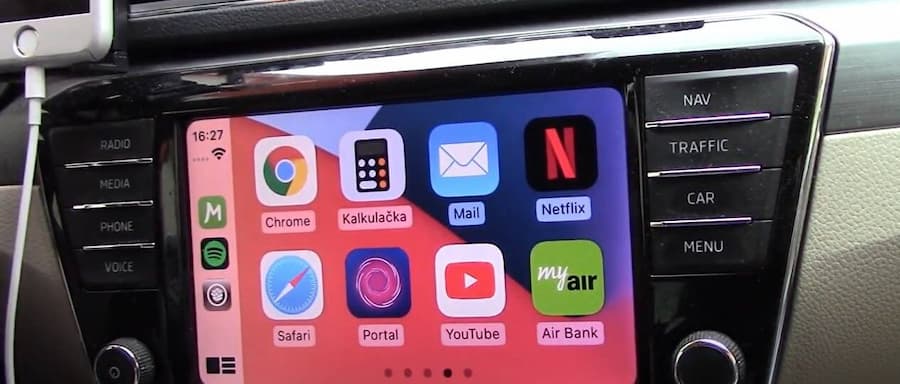
- An older iPhone, typically iPhone X or earlier
- A jailbreak tool compatible with your specific device and iOS version (unc0ver, checkra1n, palera1n, or Dopamine depending on your situation)
- CarBridge or WheelPal installed through Cydia or Sileo
- Significant patience for compatibility issues and app failures
How to Use Jailbreak and CarBridge to Watch Netflix on CarPlay
Step 1. Jailbreak your iPhone using a compatible tool for your device and iOS version.
Step 2. Open Cydia or Sileo and install the CarBridge or WheelPal tweak.
Step 3. Go to Settings, find the tweak, and open Bridged Applications.
Step 4. Find Netflix in the list and toggle it on.
Step 5. Connect your iPhone to CarPlay. Netflix should appear on the car screen.
Step 6 is where things get complicated. In most cases, Netflix shows audio and subtitles on a completely black screen. That's the DRM protection doing its job. The workarounds the community uses:
- Open Netflix through a browser like Brave or Chrome and bridge the browser instead of the app.
- Use the CarBridge Portal app to connect to a remote desktop on your PC and play Netflix from there through a browser.
- Use a spare iPhone running iOS 10.3.3, where older DRM implementations were less restrictive.
The workarounds that do get Netflix playing are functional in the same way that a duct-taped solution is functional. They work until they don't, and troubleshooting them eats time you could spend actually watching something. For anyone without a dedicated spare phone and a tolerance for tinkering, the other methods are better uses of your time.
Pros:
- Maximum control over what apps appear in CarPlay.
- Zero hardware cost if you already have an old spare iPhone.
- Can work for apps other than Netflix where DRM isn't the bottleneck.
Cons:
- Netflix's hardware-level DRM is not defeated by jailbreaking.
- Current jailbreak support mostly stops at iPhone X and iOS versions from several years ago.
- Jailbreaking removes iOS security protections entirely.
- Apple's warranty policy is unambiguous: jailbreaking ends it.
Part 3. The Methods I Now Use to Watch Netflix on CarPlay
The AI Box is my favorite of the four methods, and I still use it at charging stops. But for longer trips with passengers, I landed on something completely different. No CarPlay involved at all.
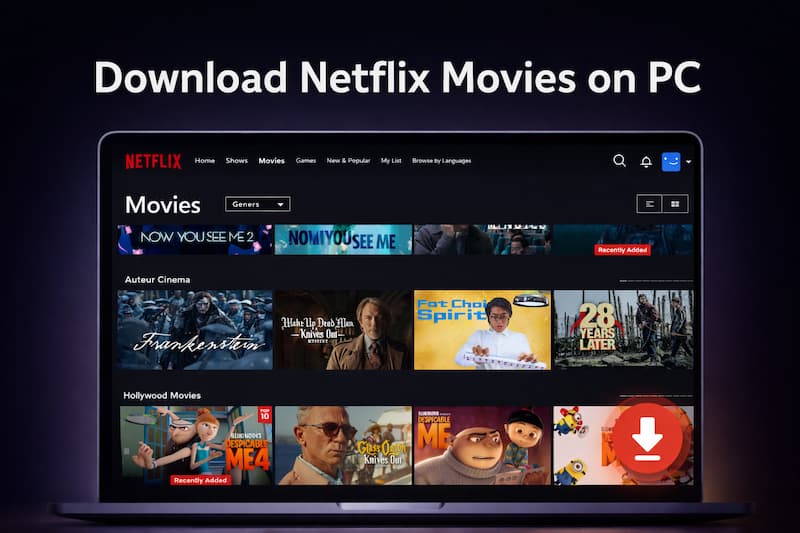
Now, I'm using VidiFab Netflix Video Downloader, a desktop app for Windows and Mac that downloads Netflix content as local MP4 or MKV files at up to 1080p. After the download completes, you can copy the files to a USB flash drive, plug it into your car's media system, and play them without CarPlay.
VidiFab Netflix Video Downloader
Download Netflix videos as MP4/MKV in 1080p with Dolby Atmos for offline viewing on your iPhone, Android, desktop, and more devices.

Besides Netflix, VidiFad also lets you download streaming videos from Apple TV+, Disney+, Amazon Prime Video, HBO Max, and Hulu. So, I think it is worth considering if you want an all-inclusive theater experience for your passengers.
- Zero Connection Issues: I'm completely independent of cellular data. No glitchy mobile hotspot to pair, no buffering mid-video, and zero worries about data throttling.
- Works with Most Modern Car Infotainment Systems: Most vehicles from the last five or six years can handle MP4 and MKV files directly from a USB flash drive without any compatibility issues.
- Bypassing the Driving Safety Screen Lock: Since I'm using the car's factory media player instead of the CarPlay interface, I completely sidestep Apple's strict video restrictions.

How to Download and Play Netflix on Your Car Display
Step 1. Launch VidiFab and Access the Netflix Library
Download the VidiFab Netflix Video Downloader and install it on your Windows PC or Mac. Hit the menu icon in the top right corner and pick Preferences. In the pop-up window, set the Download Video Format to MP4 as it has the highest compatibility. Choose your video encoding method and quality, then click OK. Next, select the Netflix icon from the main interface and log in to your account using the secure built-in browser.

Step 2. Search for the Video You Want to Watch in the Car
Browse the Netflix library just like you normally would, or paste the exact URL of the movie or TV show into the top search bar. Once you click on the video's detail page, VidiFab's smart engine will automatically analyze the streaming data. When it's ready, a Download button will pop up in the bottom right corner, click it.

Step 3. Select 1080p High-Definition Quality and Audio Settings
In the download advanced settings window, make sure to choose 1080p to get the crispest picture quality on your car's dashboard screen. Don't forget to select your preferred audio quality and language tracks. Most importantly, set the subtitles to "Embedded" in your preferred language so they display flawlessly on your vehicle's media player without needing external files.

Step 4. Save Netflix as Unprotected MP4 Files to Your Computer
Click the Download button to start the high-speed extraction. VidiFab saves a standard, DRM-free MP4 file directly to your PC or Mac desktop. Once the download bar finishes, head over to the History tab and click the folder icon to locate your file.

Step 5. Transfer to a USB Drive and Play on Your Car Screen
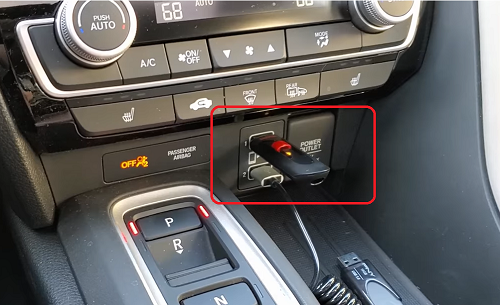
Grab a standard USB flash drive and make sure it is formatted to FAT32 or exFAT. These two formats almost all car infotainment systems recognize. Drag and drop your downloaded Netflix MP4 files from your computer onto the USB drive. Finally, plug the thumb drive into your vehicle's media USB port, switch your dashboard source from CarPlay to USB Media, and let your passengers enjoy a buffer-free, cinematic road trip!
I want to be clear here: I'm not suggesting you watch Netflix while you're behind the wheel. That's dangerous, and in most places it's illegal.
But passengers are a different story entirely. If you've got kids in the back, they have every right to watch something. And this method is the cleanest way I've found to make that happen.
Pros:
- Avoids the black screen glitch.
- No cellular data usage.
- 1080p HD quality.
- Does not need you phone
- Supports main six streaming platforms including Netflix
Cons:
- Requires you to download the video to a USB drive before you leave the house.
- You have to use your car's factory multimedia menu for playback controls.
- If your vehicle is too old to decode MP4 video formats via USB, this method does not work for you.
Part 4. Comparison: Which Method Is Right for You?
| Method | Netflix Works? | Supported Vehicles | Upfront Cost | Black Screen Risk? | Works While Driving? | Setup Difficulty | Best For |
|---|---|---|---|---|---|---|---|
| 1. Built-in Video in Car |
 when parked when parked
|
NIO, Zeekr; Hyundai, Kia, Genesis coming soon | Free (Built into iOS) | High risk when you're driving |
 (Audio only when moving) (Audio only when moving)
|
Easy | Drivers who only want to watch Netflix video while parked or charging. |
| 2. Wireless HDMI Adapter |
|
Any car with wired CarPlay | $50 – $80 (adapter + streaming stick + power adapter) | Low (Fire Stick handles DRM natively) |
|
Medium (Lots of cables) | People who want reliable Netflix playback and don't mind the hardware setup |
| 3. Android AI Box |
|
Any car with wired CarPlay | $150 – $250 |
(Uses native Android app)
|
|
Easy (Plug & play) | People who want a full Netflix Android experience. |
| 4. Jailbreak + CarBridge |
|
Cars compatible with older iPhones (iPhone X or earlier) | Free (CarBridge tweak costs ~$9.99) |
|
|
Hard (Requires technical hacking) | Tech-savvy users with a spare, older iPhone lying around. |
| 5. VidiFab Downloader + USB |
|
Any car supporting USB media playback (Most modern cars) | $59.95 |
(Completely removes DRM)
|
|
Easy (Simple drag & drop) | Drivers wanting high-def, lag-free movies for passengers without burning data. |
- Skip Method 1 (Built-In Video) if your sole purpose is to watch Netflix on the road. While it costs nothing, Netflix's strict DRM encryption completely blocks it.
- Avoid Method 4 (Jailbreaking) unless you happen to have a spare, older iPhone and you love technical troubleshooting.
- Choose Method 3 (Android AI Box) if you are willing to pay, you have an unlimited cellular data plan, and you absolutely want a full, native Android tablet experience on your dashboard.
- Go with Method 2 (Wireless HDMI Adapter) if you already own a streaming stick like an Amazon Fire Stick and don't mind dealing with a tangle of power cords and adapter cables running across your center console.
- Choose Method 5 (VidiFab Downloader + USB) If you want a reliable, high-definition movie experience for your passengers without the heavy upfront hardware costs or constant battery drain.
Final Thoughts
Watching Netflix on Apple CarPlay is doable. It just takes the right approach for your situation. If you want something permanent in the car, the Android AI Box is the most capable option. If you are planning ahead for a road trip with passengers, VidiFab plus a USB drive is the most reliable and hassle-free of everything I tested. The other methods have their place, but the tradeoffs add up quickly. Pick the one that fits your car, your budget, and how much setup you are actually willing to deal with.
 Free Download
 Secure Download
 Free Download
Secure Download
Free Download
Secure Download


I'm a video tech specialist with over 10 years of experience in digital media and streaming. I focus on making complex workflows simple and practical. Through my guides, you'll learn how to convert media, keep high-quality playback across devices, and manage your streaming video library with ease.
 Leave Your Comment