How to Watch Netflix on a Projector: 5 Simple Ways (No Black Screen)
 By Miles Kent
This guide will explain how to watch Netflix on a projector. You may have tried connecting your devices but ended up with sound and a black screen. Luckily, the five methods below will help you get Netflix playing on a projector with audio and full screen. I will show you how to use a streaming stick, connect a computer to your projector with an HDMI cable, watch Netflix on a projector from an iPhone, play movies directly from a USB drive, and more.
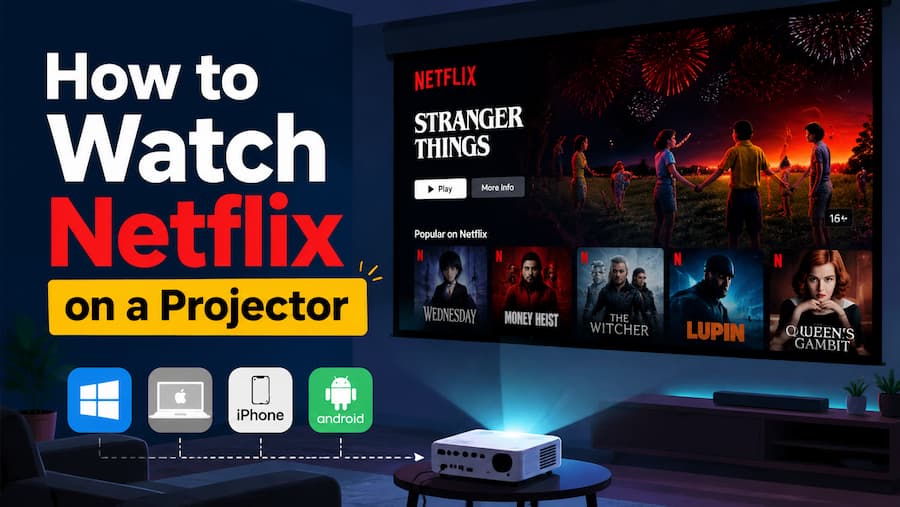
Can You Watch Netflix on a Projector?
Yes, you can watch Netflix on a projector. But you should know that because of Digital Rights Management (DRM) and HDCP (High-bandwidth Digital Content Protection), simply "mirroring" your phone screen wirelessly often results in a black screen with audio only.
So, to avoid the black screen error, I will show you how to watch Netflix on a projector in five main ways that work. To help you quickly choose the best method for you, you can refer to the table below to skip to the part that you find most suitable.
Quick Comparison: 5 Ways to Watch Netflix on a Projector
| Method | Required Equipment | Extra Cost | Max Resolution | Works Offline? | Difficulty | Best For |
|---|---|---|---|---|---|---|
| Method 1: Streaming Stick | Fire Stick / Roku / Apple TV + USB Power Cable | $30 - $150 | Up to 4K UHD | ❌ No | ⭐ (Easy) | Permanent home setups with stable Wi-Fi |
| Method 2: Laptop via HDMI | Laptop + HDMI Cable | Free (if owned) | 1080p Full HD | ❌ No | ⭐⭐ (Medium) | Quick movie nights using a computer |
| Method 3: iPhone via Adapter | Apple Digital AV Adapter + HDMI | $40 - $50 | 1080p Full HD | ❌ No | ⭐⭐ (Medium) | Mobile users who don't want to carry a laptop |
| Method 4: Video Downloader | Vidifab Netflix Video Downloader + USB Drive | $0.10/day for a Yearly License | 1080p Full HD | ✅ Yes | ⭐⭐ (Medium) | 100% success rate, ad-free, offline, & zero lag |
| Method 5: Certified Projector | Netflix-Licensed Smart Projector | $300 - $2,000+ | Up to 4K UHD | ❌ No | ⭐ (Easy) | Heavy users looking to buy a brand-new projector |
Method 1. Connect a Streaming Stick to Get Netflix on a Projector
Popular streaming sticks like the Amazon Fire TV Stick, Roku Premiere, Google Chromecast, or Apple TV have the Netflix app built in. This means that you can use them connected to your projector just like you normally use your mobile device for streaming.
If you want to get 4K Netflix playback on your projector, consider these options:
- For High-End Home Theaters: Apple TV 4K.
- The Best Value for 4K: Amazon Fire TV Stick 4K Max.
- For Simplicity: Roku Streaming Stick 4K.

How to Connect a Streaming Stick to a Projector for Netflix Playback:
-
01
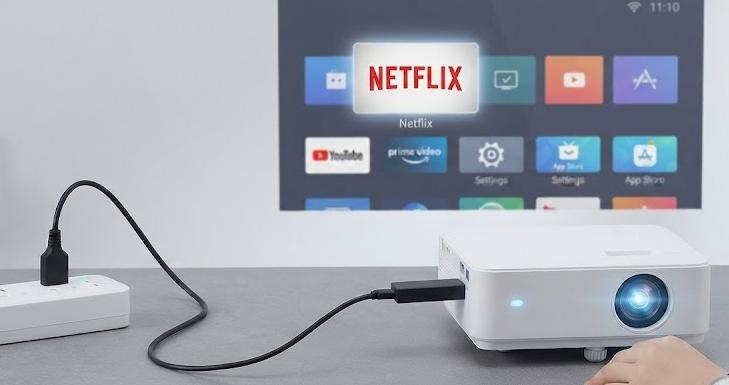
Plug it in: Insert your streaming stick directly into the projector's HDMI port. (Note: Only the HDMI 2.0 or 2.1 ports support 4K HDR. Some older projectors have limited HDMI 1.4 ports that will downscale your Netflix quality.)
-
02
Powering the Stick: Connect the stick's USB power cable to a wall outlet, power strip, or surge protector. While many projectors have a USB port, they often don't provide enough voltage for 4K sticks.
-
03
Select Source: Turn on your projector and switch the input source to HDMI.
-
04
Connect & Play: Connect the stick to your Wi-Fi, open the pre-installed Netflix app, log in, and start streaming.
- If you encounter a black screen, try a full power cycle. Unplug everything for 30 seconds, then turn on your devices in this order: Projector > AV Receiver (if used) > Streaming Stick.
- If you see the Netflix video but hear no sound or a loud buzzing, this is likely due to the streaming stick defaulting to Dolby Digital Plus surround sound. Go to your streaming stick's settings (e.g., Fire Stick Settings ➔ Display & Sounds ➔ Audio ➔ Surround Sound) and change the output from "Best Available" or "Dolby Digital" to PCM or Stereo. This will ensure the stick outputs standard stereo sound that any projector can play.
Method 2. Connect a Laptop via HDMI to Watch Netflix on a Projector
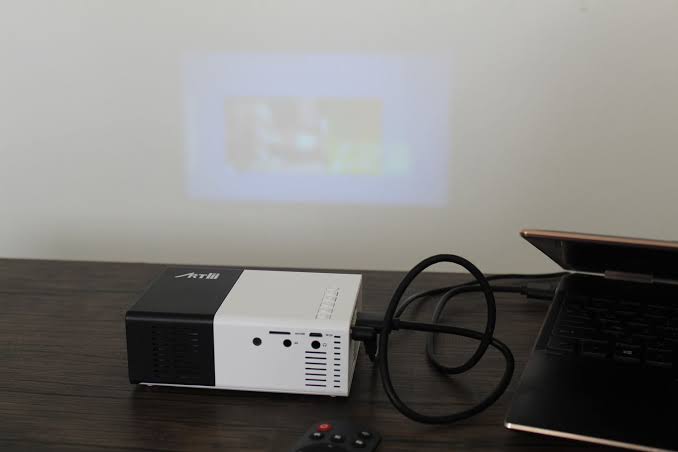
Connecting a laptop or desktop computer to your projector using a physical HDMI cable transforms your projector into an external monitor. Once connected, as long as you can play Netflix on your laptop, the screen will also display on the projector.
How to Play Netflix on a Projector via HDMI Cable with Computer:
-
01
Physical Link: Plug one end of the HDMI cable into your laptop's HDMI port and the other end into the projector. (Note: If you use a modern MacBook or ultra-thin Windows laptop, you will need a USB-C to HDMI adapter.)
-
02
Boot Order: Turn on your laptop first, then power on the projector.
-
03
Change Input: Set your projector's input source to the corresponding HDMI channel.
-
04
Mirror or Extend: On Windows, press
Win + Pand select Duplicate or Extend. On Mac, go to System Settings > Displays and arrange your screens. -
05
Launch Netflix: Open a web browser, head to the official Netflix website, sign in, and maximize the video player.
-
06
Audio Routing: If the video appears but sound plays from your laptop speakers, go to your computer's Sound Settings and select the Projector (or HDMI Audio Device) as the default output.
- Tip 1: Disable hardware acceleration in the browser. This works best for Chrome and Edge. You can go to the Settings and search for "Hardware Acceleration" or "Use graphics acceleration when available"; make sure this is toggled off. Restart your browser and play Netflix again. Now, you won't be getting the black screen.
- Tip 2: Do not use "Duplicate/Mirror" mode. Instead, set your display settings to Extend These Displays. This allows you to treat the projector as an entirely separate monitor.
- Tip 3: Use Safari on MacBook or Microsoft Edge on Windows to get the 4K UHD resolution. If you are using Google Chrome, Firefox, or Opera, the resolution maxes out at 720p.
Method 3. Use an Apple Adapter to Watch Netflix on Projector from iPhone
Netflix no longer supports AirPlay for screen mirroring when casting Netflix from an iPhone to other devices for streaming. To successfully cast from your iPhone, you need a wired method: using an official Apple adapter to tell Netflix your projector is a safe, authorized display.
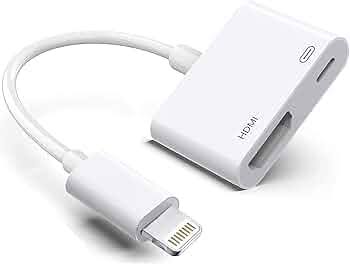
- For iPhone 14 and older: Use the Official Apple Lightning Digital AV Adapter.
- For iPhone 15/16 and newer: Use a USB-C Digital AV Multiport Adapter.
How to Cast Netflix to a Projector from iPhone:
-
01
Get the Adapter: Plug an official Apple Digital AV Adapter into your iPhone's charging port. If prompted, select "Trust" on the "Trust This Computer" pop-up to allow the data transfer.
-
02
HDMI Link: Connect a high-speed HDMI cable into the adapter's video output slot, and plug the other end into the projector's HDMI input.
-
03
Add Power: Plug a standard phone charging cable into the extra port on the Apple adapter and connect it to the projector or a power strip to keep the connection active.
-
04
Switch Input: Change your projector's input source to HDMI. Your iPhone screen will instantly mirror onto the wall.
-
05
Stream: Open the Netflix app on your iPhone, hit play, and the video will automatically expand to fill your projection screen.
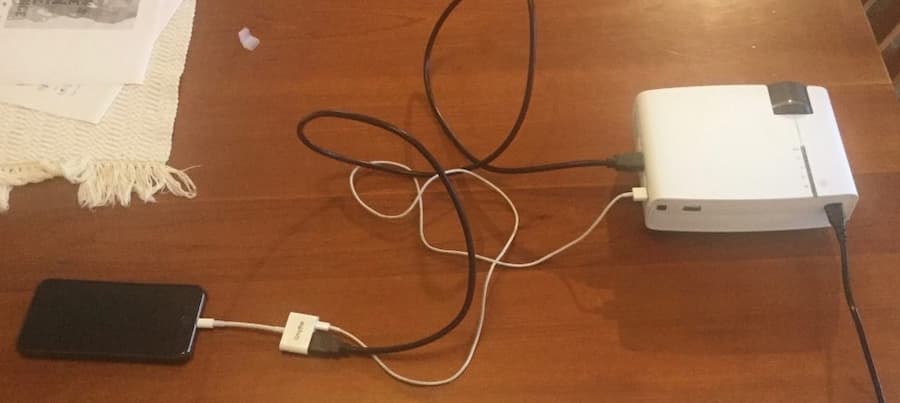
- If your home screen appears as a narrow vertical strip, don't panic. Simply open the Netflix app and hit "Play" on your movie; a certified adapter will automatically trigger landscape mode on the projector, filling the entire screen. If it is still in vertical mode, simply turn off your iPhone's Vertical Orientation Lock via the Control Center.
Method 4. Use a Netflix Video Downloader to Play Netflix from a USB Drive
If you are tired of dealing with expensive adapters, tangled HDMI cables, or weak Wi-Fi signals that cause constant buffering, VidiFab Netflix Video Downloader lets you play Netflix without ads, loading, black screens, or buffering, and it does not even need the internet.
VidiFab Netflix Video Downloader is a premium, specialized software application designed to download any movie, TV show, or original series directly from Netflix onto your Windows or Mac computer. It keeps the 1080p full HD quality, Dolby Atmos, 5.1 Surround Sound, and multilingual audio tracks and subtitles. You can download the Netflix videos in MP4 or MKV file format and transfer them to a USB flash drive for playback on a projector.
VidiFab Netflix Video Downloader
Download Netflix videos as MP4/MKV in 1080p with Dolby Atmos for offline viewing on your iPhone, Android, desktop, projector, and more devices.

How to Download and Play Netflix via USB on a Projector
Step 1. Launch VidiFab and Select Output Settings
Open the VidiFab Netflix Video Downloader on your computer. Click the menu icon in the top right and choose Preferences. Select H.264 MP4 as your video format, as it works with most projectors. Then, click the Netflix icon and log into your account using the built-in browser.

Step 2. Search for the Video
Browse the Netflix library in the built-in browser or paste the movie or show's URL into the search bar. Open the video's detail page. VidiFab will analyze the stream and show a Download button in the bottom right corner. Click it to access customization options.

Step 3. Customize 1080p Resolution and Projector Subtitles
In the settings window, choose 1080p for high-quality visuals. Select standard AAC Stereo audio unless your projector supports multi-channel Dolby audio. Set subtitles to Embedded format in your preferred language.

Step 4. Download and Export the Netflix Video Files
Click the Download button to begin the extraction. VidiFab will save a clean, DRM-free file to your local drive. Go to the History tab and click the folder icon next to your completed video to find your MP4 file.

Step 5. Transfer to USB and Play on Your Projector
Make sure your USB drive is formatted to FAT32 or exFAT, as NTFS is not compatible with older projectors. Insert the USB into your computer, copy the downloaded MP4 file, and paste it onto the drive. Safely eject the USB, then plug it into your projector's USB input.
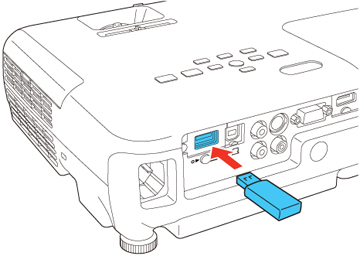
Turn on your projector, select USB / Media Player as the input source, choose your movie, and press play. Enjoy your video in Full HD without any black screen issues!
Method 5. Upgrade Your Setup to a Netflix Certified Projector
If you want a new home theater setup and prefer a cable-free experience, consider investing in a Netflix-certified projector.
What is a Netflix certified projector?
A Netflix-certified projector is a smart projector authorized by Netflix to run its app. Only certified projectors have the Widevine L1 encryption license, allowing you to watch movies in Full HD (1080p) or 4K quality. This ensures you won't encounter the "audio but a black screen" error.
- Budget & Portable Models (Under $400): Dangbei N2 mini, ETOE Seal Pro.
- Mid-Range & Travel Models ($500 - $800): XGIMI MoGo 4 Laser, WEMAX Go Advanced
- High-End & 4K Home Theater Models ($1,000+): Dangbei DBOXO2 Pro 4K, XGIMI HORIZON 20 Pro 4K.
How to Use a Certified Projector with Netflix:
-
01
Connect: Turn on your machine and connect it to your home Wi-Fi network.
-
02
Open: Use the dedicated red Netflix button on the remote for quick access.
-
03
Log In: Scan the on-screen QR code with your phone or enter your account details to start watching your favorite movies.
FAQs
How do I cast Netflix to a projector wirelessly?
How can I watch Netflix on a projector without Wi-Fi?
Can I use an app to mirror Netflix to a projector?
Why is my projector displaying a "device not supported" error on Netflix?
Can you cast Netflix to a projector from an Android phone?
Final Thoughts
The best way to watch Netflix on your projector depends on your setup and budget. For a quick home solution, connecting a streaming stick or laptop with HDMI is simple and reliable. For mobile users, a certified Apple or Android cable works well for streaming on the go. If you use it frequently, consider a premium smart projector to avoid needing extra hardware. Lastly, for offline movie watching without Wi-Fi issues, downloading files to a USB drive is the most flexible choice.
 Free Download
 Secure Download
 Free Download
Secure Download
Free Download
Secure Download


I'm a video tech specialist with over 10 years of experience in digital media and streaming. I focus on making complex workflows simple and practical. Through my guides, you'll learn how to convert media, keep high-quality playback across devices, and manage your streaming video library with ease.
 Leave Your Comment