How to Clear Netflix History and Continue Watching
 By Miles Kent
- Option 1: Hide from 'Continue Watching' (App / Web / TV): Open the Netflix app or website. Find the title in the Continue Watching row, tap the three dots (or X icon) on the title card, and select Remove from row. Detailed steps: skip to Part 2.
- Option 2: Clear Viewing Activity (Computer / Mobile Browser): Go to your profile, then Account. On a computer, open Edit settings. On mobile, open Privacy and data settings. Select Viewing activity, then click Hide next to the title. Detailed steps: skip to Part 3.
- Option 3: Delete the Profile: Go to Manage Profiles, select the profile you want to remove, and click Delete Profile. Detailed steps: skip to Part 5.
This guide explains how to clear Netflix watch history on a computer or phone and remove titles from Continue Watching on different devices. Before we begin, let's clarify the difference between Netflix Viewing Activity and Continue Watching. They are related, but they serve different purposes.
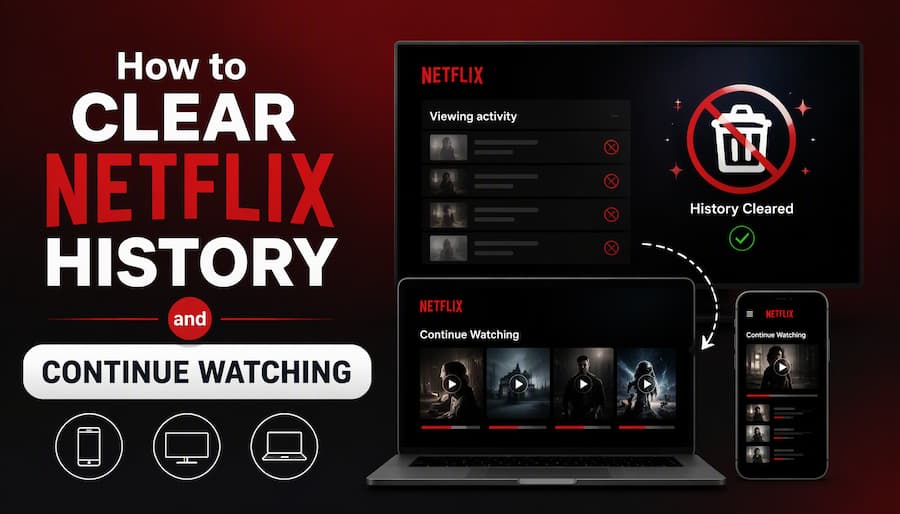
Part 1. Is Netflix Viewing History the Same as Continue Watching?
No. They are two separate features. Viewing History is the full record of everything a profile has watched. Continue Watching is a home screen row that helps you resume unfinished titles.
If you want to hide what you've watched, use Viewing activity. If you only want to clean up your Netflix home screen, remove titles from Continue Watching.
| Features | Netflix Viewing History | Netflix Continue Watching |
|---|---|---|
| Definition | A full log of what a profile has watched | A shortcut row for unfinished titles |
| Where it shows | Account page > Viewing activity | Netflix home screen, near the top |
| What it records | Every title and episode, with the date watched | Titles you started but did not finish with active progress bars. |
| Purpose | Feeds recommendations and lets you review past activity | Helps you resume playback fast |
| After deletion | The title leaves your history and the Continue Watching row. It no longer shapes recommendations | The title leaves the row only. Your viewing history stays |
Part 2. How to Remove Titles from Netflix Continue Watching
You can remove movies and shows from Netflix's Continue Watching row without deleting your entire viewing history. The steps vary by device, but the goal is the same: remove a title from your Netflix home screen.
Note: The steps below follow the Netflix Help Center guide and my own testing. Netflix may change its menus later, so the exact path may differ.
2.1 On Mobile (iOS and Android)
-
01
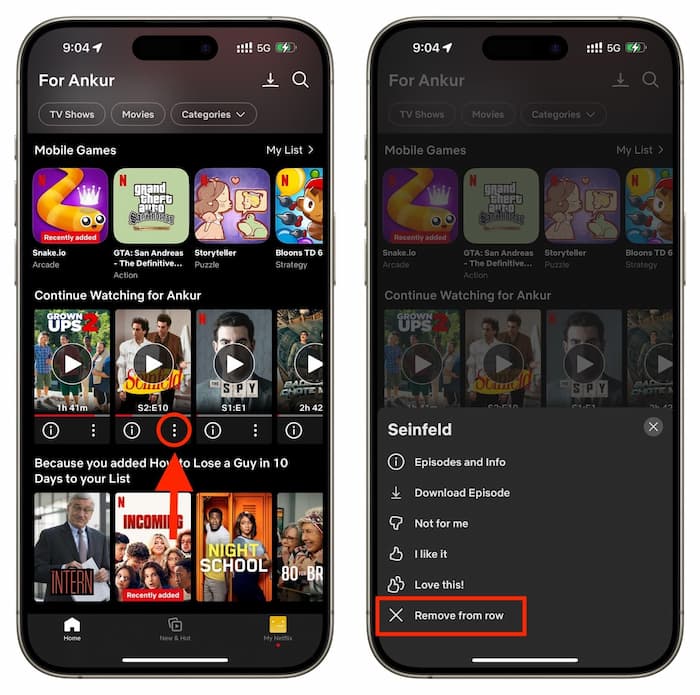
Open the Netflix app and find the Continue Watching row.
-
02
Tap the three-dot menu below the movie or show you want to remove.
-
03
Select Remove From Row.
-
04
The title will disappear from your Continue Watching row.
2.2 On a Computer or Web Browser
-
01
Go to Netflix.com in your web browser and log in to your account.
-
02
Scroll down your home page until you find the Continue Watching row.
-
03
Hover your mouse cursor over the movie or TV show you wish to remove.
-
04
Click the X icon (Remove from row) that appears on the title card.
-
05
Select a reason for removing the title (e.g., Already watched, Don't like this, or Just cleaning up). Netflix uses this feedback to refine your recommendations.

2.3 On a Smart TV or Streaming Device
-
01
Launch Netflix on your Smart TV or streaming media player.
-
02
Navigate to the Continue Watching row using your remote control.
-
03
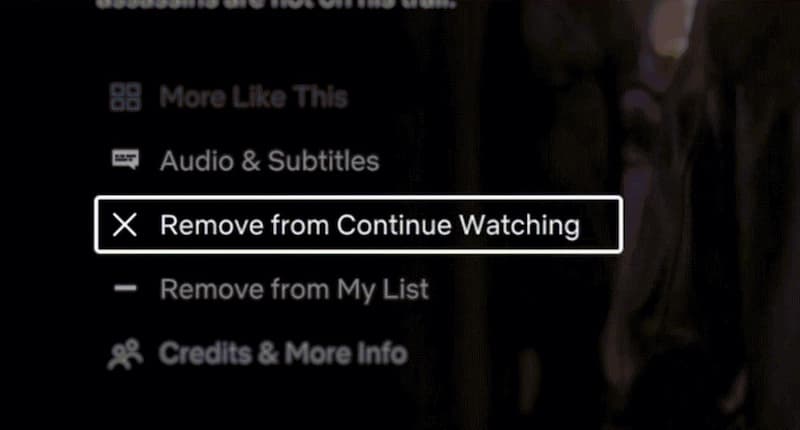
Select the title card you want to clear to open its main details page.
-
04
Scroll down the menu options and select Remove from Continue Watching.
-
05
Confirm your choice if prompted.
Video Tutorial: How to Clear Netflix History and Continue Watching
What If You Cannot Find the Remove Option?
If you cannot find the removal option, try these fixes:
- Update the Netflix app. Older versions often lack the remove option.
- Use a web browser instead. The computer method is the most reliable.
- Make sure you're not in a Kid's profile on Netflix, which does not allow you to hide the item from the Continue Watching row. In this situation, ensure that you are logged into a main adult profile, or if you want to remove a title from a Kid's profile, go to Account > Profile & Parental Controls > Kids profile > open Viewing Activity, and delete the specific title there instead.
- Check the row name. Titles under "Because You Watched" or "Recently Watched" are different rows. They have no remove option.
- Sign out and sign back in. This refreshes the home screen.
- Hide the title in Viewing Activity. It removes the title from Continue Watching too. See Part 3 for the steps.
Part 3. How to Clear Full Netflix Watch History
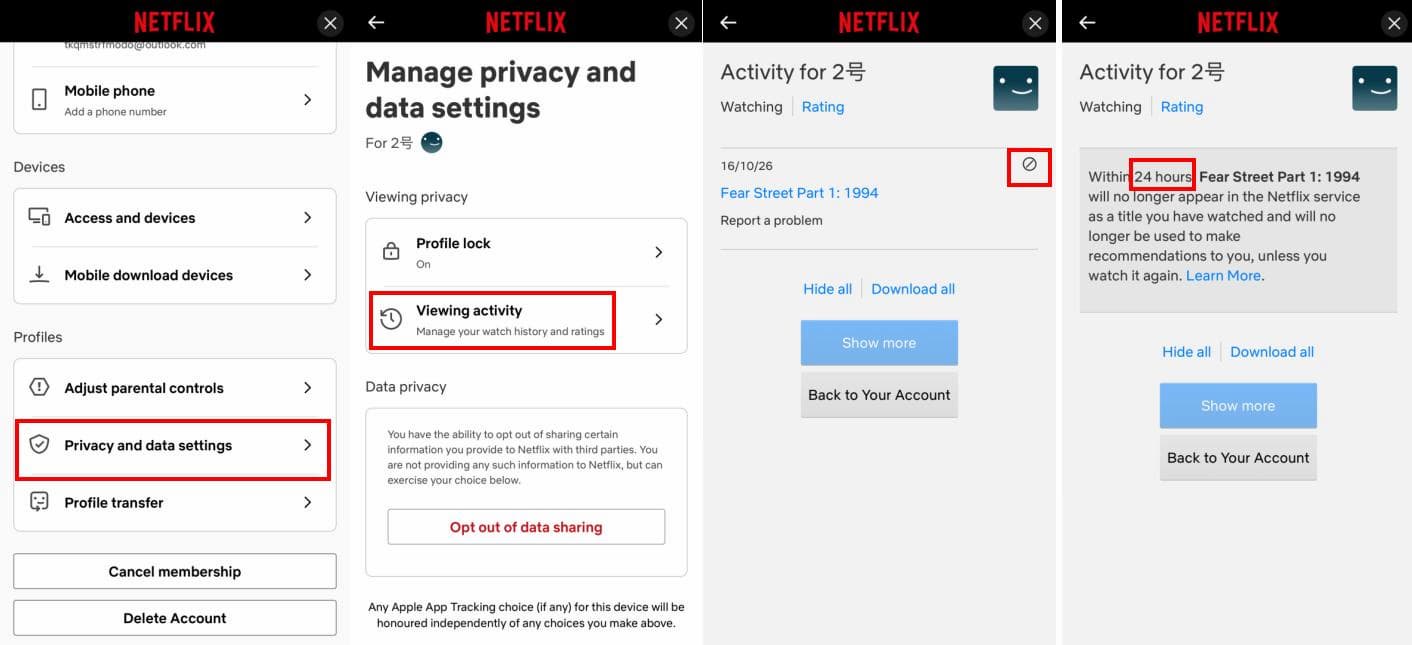
To clear your Netflix watch history, open Viewing activity in your account settings and hide the movies or episodes you want to remove. You can hide titles one by one or use Hide all to clear the viewing activity for the selected profile.
When you hide a title from Viewing activity, it will also be removed from Continue Watching if it appears there. This helps you clean up both your viewing records and your Netflix home screen.
3.1 How to Clear Netflix Watch History on a Web Browser (PC/Mac)
-
01
Go to Netflix.com and sign in.
-
02
Hover over your profile icon and click Account.
-
03
Find Edit settings and select Viewing activity.
-
04
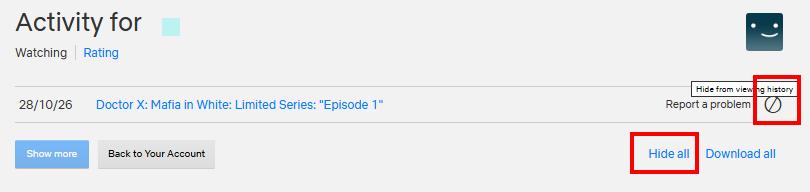
Click the hide icon next to the movie or episode you want to remove.
-
05
To hide all viewing activity, scroll to the bottom of the page and click Hide all to completely wipe your entire watch history.
3.2 How to Clear Netflix Watch History on a Mobile
-
01
Open the Netflix app on your phone or tablet.
-
02
Tap My Netflix at the bottom right corner of the screen.
-
03
Tap your profile icon in the top right, then select Account.
-
04
Scroll down and select Privacy and data settings.
-
05
Tap Viewing activity.
-
06
Tap the Hide icon (🚫) next to any title you want to remove, or scroll to the bottom and tap Hide all.
How Long Does It Take to Clear Netflix Watch History?
Netflix states that hidden titles may take up to 24 hours to disappear from all devices. If a title still appears on your TV or phone immediately after you hide it, wait and check again later.
Part 4. How to See and Download Your Full Netflix Watch History
Beyond clearing your history, Netflix allows you to access and export a CSV file of everything you have ever streamed on your profile. This is useful for tracking your viewing habits, finding a forgotten movie title, or keeping a personal data backup.
How to See and Download Your Netflix Watch History
-
01
Open a web browser on your computer or phone and log in to Netflix.com.
-
02
Hover over your profile icon. Click Account.
-
03
Scroll down to Edit settings. Click Viewing activity.
-
04
Scroll to the very bottom of the page.
-
05
Click or tap Download all.
Netflix will instantly generate a .csv file containing every title played on that profile, complete with the specific streaming dates. You can open this file using Microsoft Excel, Google Sheets, or any text editor.
Bonus: How to Watch & Save Netflix Videos Without Leaving a History
If you want to watch or save specific Netflix movies and TV shows without generating a "Recently Watched" record on your account, official in-app downloads won't help, as they still sync directly with your account's Viewing Activity.
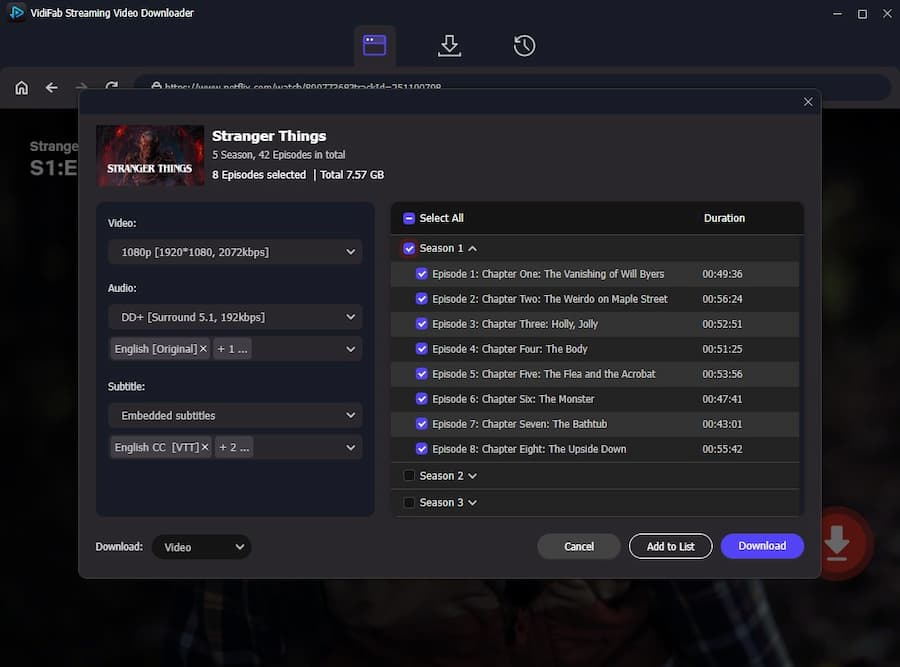
A smart workaround is to download Netflix movies or shows to your computer as local MP4 or MKV files using a specialized desktop tool like VidiFab Netflix Video Downloader.
 Free Download
 Secure Download
 Free Download
Secure Download
Free Download
Secure Download
- Zero History Tracked: Downloaded videos play offline using local media players (such as VLC or QuickTime). They never trigger playback history, update your "Continue Watching" row, or impact your profile's recommendation algorithm.
- Permanent Local Backup: You retain full HD video copies permanently, ensuring access even if titles leave Netflix, your subscription expires, or you decide to delete your profile later.
Part 5. How to Delete an Entire Netflix Profile (Alternative Privacy Method)
If you want to erase a profile's watch history, settings, and recommendations in one go, delete the profile. It is a bigger step than hiding titles, so use it only when you no longer need the profile.
Note: The primary profile cannot be deleted.
-
01
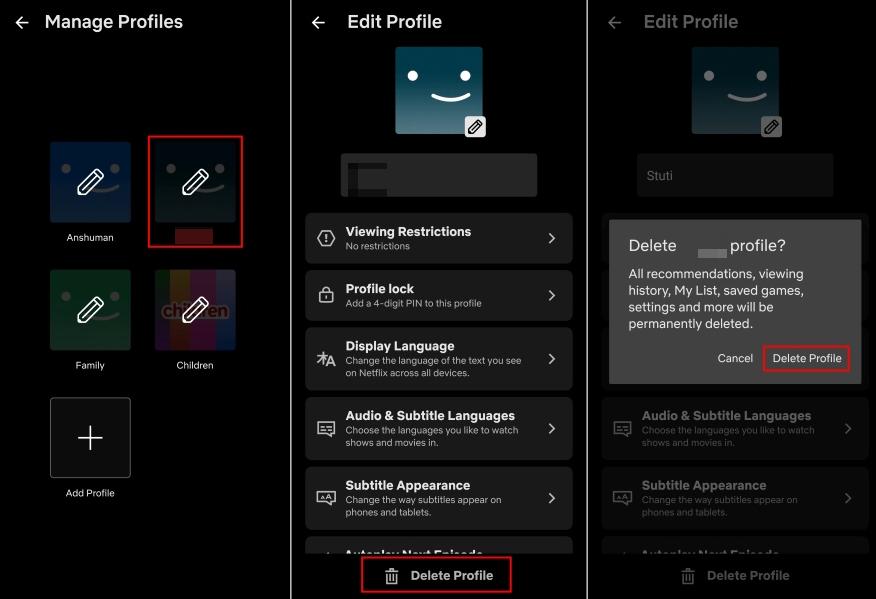
Open the Manage Profiles screen.
- TV or streaming device: On the profile selection screen, choose Manage Profiles.
- Web browser: Go to the Manage Profiles page.
- iPhone, iPad, or Android: Open the app, tap My Netflix, tap your profile name at the top, then tap Manage Profiles.
-
02
Select the profile you want to remove. Tap the Edit (pencil) icon.
-
03
Select Delete Profile and confirm the deletion.
Part 6. FAQs About Netflix Watch History
Can other people see my Netflix history?
Yes, if they share your profile or account. Anyone who opens your profile can view your Viewing History. To block that, turn on a Profile Lock PIN.
Can I turn off Netflix watch history?
No. Netflix has no setting to stop recording what you watch. You can only hide titles after you watch them. Or use a separate profile for private viewing.
Does deleting Netflix watch history affect my recommendations?
Yes. Titles you hide are no longer used to shape recommendations. Other signals still count, such as your ratings and My List.
Will clearing my history delete My List or my ratings?
No. My List and ratings are stored separately from Viewing activity. Hiding titles does not remove them. Deleting the whole profile does.
Can I get a hidden title back?
No. Netflix has no 'unhide' option. If you watch the title again, it is logged as a new entry. To keep a record, download your history as a CSV file before you hide anything.
Conclusion
Netflix tracks your activity in two places. Remove titles from Continue Watching to tidy your home screen. Hide titles in Viewing activity to erase the record. Delete the profile for a full reset. Download your history as a CSV first for a backup. Or use VidiFab Netflix Video Downloader to save shows and movies without leaving a history.
Free Download
Secure Download
Free Download
Secure Download


I write about streaming services, video playback, and digital media management. My articles cover practical ways to convert video files, troubleshoot playback issues, and manage digital content across devices. I aim to make technical topics easier to understand and help readers find practical solutions to common challenges.
 Leave Your Comment