How to Convert Amazon Prime Video to MP4 in 1080p
 By Miles Kent
If you want to convert Amazon Prime Video to MP4, the first thing to understand is that Prime downloads are not normal local video files. They are protected, app-bound offline titles, so the right solution is usually a desktop downloader or, in some cases, a recording workflow. Online converters often look convenient, but for Prime Video they usually fail because they are built for public web videos, not protected streaming content.
Part 1. Why Prime Video Isn't a Normal MP4 File?
MP4 is a standard format. A normal MP4 file can be copied, transferred, renamed, backed up, and played in most media players without much friction. Prime Video downloads do not work like that.
The Prime Video platform is designed for offline viewing inside Amazon's own playback environment, not for open-ended file export. In practice, that means the download you see in the app is tied to the service, the account, and the supported device.
Specifically, there are three reasons behind this:
1. Studios only license streaming rights
Most Prime Video content is licensed from major studios (Disney, Warner, Sony) who permit streaming, not distribution. Even a "purchased" movie on Prime gives you a license to watch, not a file to own.
2. Downloads are built to expire
Offline titles typically lapse after 30 days, or 48 hours after first playback. To enforce this without an internet connection, Amazon deliberately avoids bundling content into a portable file. Instead, a private local process tracks your subscription status and kills playback when the window closes.
3. Widevine DRM locks the data at the hardware level
Amazon streams all video through Google's Widevine DRM. Decryption happens inside a secure hardware zone on your device, authenticated in real time by Amazon's servers. At no point does an unencrypted, grabbable video file exist on your system.
Part 2. What Amazon Prime Video Offline Files Actually Are
Amazon Prime Video stores offline files on your device at:
You won't find a tidy list of movie files. What you'll find is a structure with fragmented micro-chunks with device-locked DRM encryption.
To compare it with a standard MP4, Amazon Download files come with more limits, as the comparison table shown below:
| Feature | Amazon Download (.pv / cache) | Standard MP4 (.mp4) |
|---|---|---|
| File structure | Hundreds of hidden fragments | Single file |
| Playback | Official app only | Any player (VLC, TV, phone, car) |
| Transferable | No — tied to device | Yes — copy anywhere |
| Expiration | 30 days / 48hrs after playback | Never expires |
| Library removal risk | Disappears if Amazon delists it | Stays on your drive permanently |
What does this mean for Prime Video to MP4 conversion?
Amazon's download format is a proprietary, encrypted cache, not a video file in any conventional sense. "Converting" it by changing the file extension or running it through a format converter does absolutely nothing.
- That is why the next section matters: it is not just about conversion, but about choosing the method that actually fits the way Prime Video works.
Part 3. The Best Way to Save Amazon Prime Videos as MP4
If your goal is to play MP4 Prime Video content outside the app, like on Plex, a car screen, a media server, or just your desktop, you need a tool that goes above the file level. The approach that works is a dedicated desktop downloader that handles DRM decryption and packaging in one step.
The table below compares some popular desktop tools for converting Amazon Prime Video to MKV and MP4. All four video downloader tools help you save videos from Amazon Prime Video on Mac and Windows as MP4 files.
| Converter | Prime Video Support | Batch Download | Max Resolution | Output Formats | Streaming Platform Coverage | Pricing |
|---|---|---|---|---|---|---|
| VidiFab | ✅ Yes | ✅ Yes | 1080p Full HD | MP4, MKV | 6 major platforms | Monthly $59.95 / Yearly $89.95 / Lifetime $149.95 |
| MovPilot | ✅ Yes | ✅ Yes | 1080p Full HD | MP4, MKV | 8 major platforms | Lifetime only $159.95 |
| KeepStreams | ✅ Yes | ✅ Yes | 1080p Full HD | MP4, MKV | 40+ platforms | Monthly $69.99 / Yearly $169.99 / Lifetime $269.99 |
| TuneFab | ✅ Yes | ✅ Yes | 1080p Full HD | MP4, MKV, MOV | Streaming platforms + open web | Lifetime only $149.95 |
How to choose the right tool for MP4 conversion?
- Choose VidiFab: Best value for Prime Video specifically. Solid 1080p output, batch downloading, and the lowest lifetime price of the group.
- Choose MovPilot: Good one-time purchase option if you also want coverage for a slightly wider range of streaming platforms.
- Choose KeepStreams: Best for power users who download from 40+ streaming platforms and don't mind the higher price.
- Choose TuneFab: Worth considering if you want MOV output in addition to MP4 and MKV.
Personally, I tested VidiFab Prime Video Downloader on Windows 11 with an ad-supported Prime Video plan. In my test, the downloaded files came out ad-free, in 1080p quality, with embedded subtitles and selectable audio tracks in different languages. Overall, I was satisfied with the result.
VidiFab Prime Video Downloader
Download Prime Video titles on PC or Mac computer into permanent 1080p MP4/MKV files with 5.1 sound.

If you are curious about how it works, here is a simple step-by-step guide to downloading Amazon Prime videos to MP4 on PC with VidiFab.
How to Convert Amazon Prime Video to MP4: A 4-Step Tutorial
Step 1. Set Your Output Format Preferences
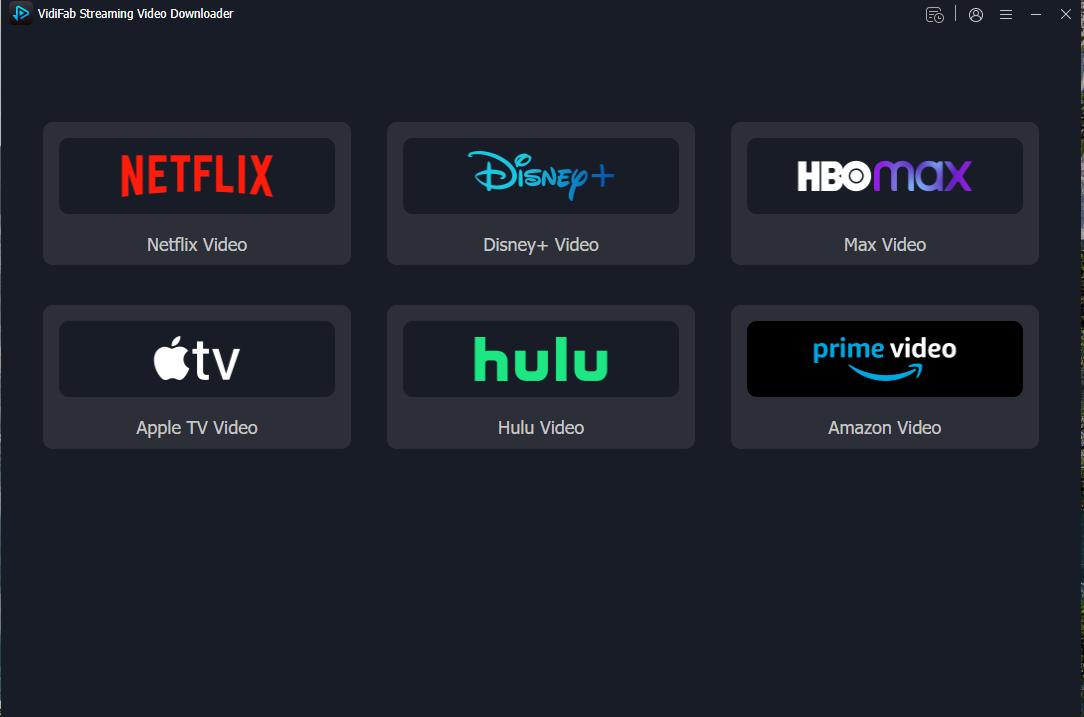
Launch VidiFab Prime Video Downloader on your desktop. Open the Menu icon, go to Preferences, and choose MP4 as your output format. If you want an alternative container for flexibility, you can also select MKV.

Once you save the settings, click the Amazon Prime Video icon on the main screen. This opens the built-in browser, where you can sign in to your Amazon account safely and access your library.
Step 2. Find and Analyze Your Prime Video
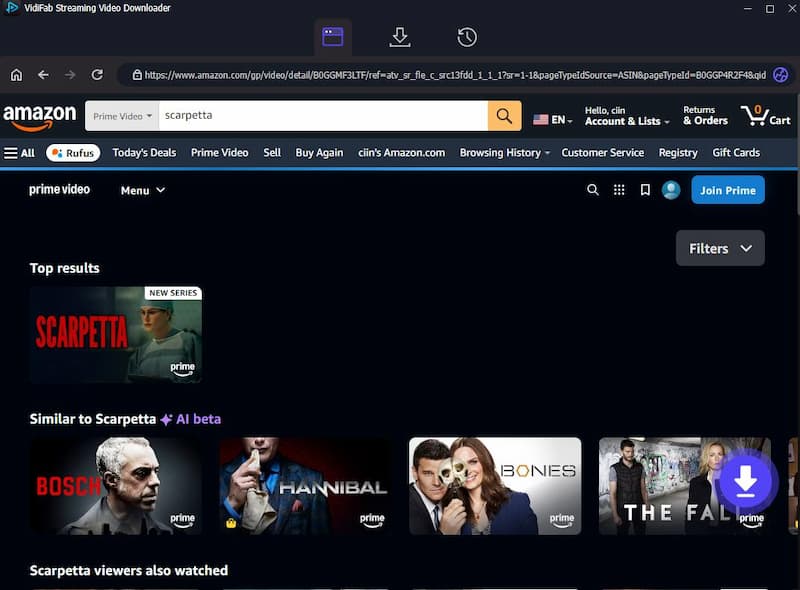
Browse the Prime Video library inside the built-in browser, or search for a specific movie or episode by keyword. You can also paste a Prime Video URL directly into the search bar. When the video details page opens, VidiFab will analyze the source automatically and show a Download button. Click it to continue.
Step 3. Customize Your Download Settings
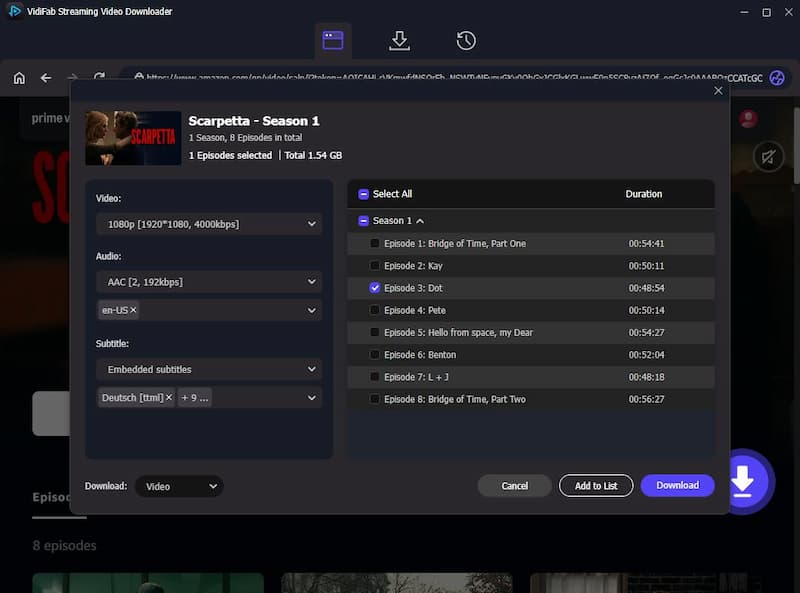
In the settings window, choose 1080p Full HD if you want the highest available quality. Then select your preferred audio tracks and subtitles. If you are downloading a series, the Batch Download feature can save time by letting you queue multiple episodes or an entire season at once.
Step 4. Start the Download
Click Download to begin. VidiFab uses hardware acceleration to speed up the process, which helps keep the workflow smooth and efficient.
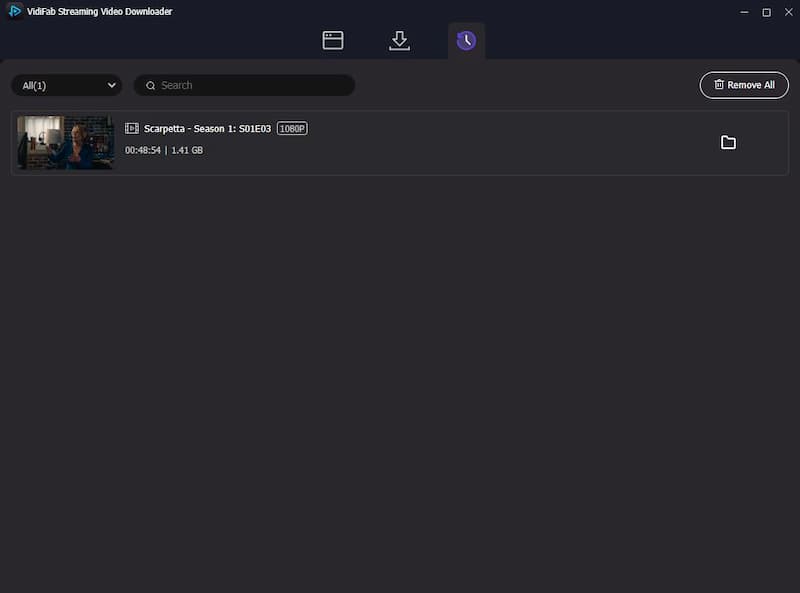
When the download is complete, go to the History tab and click the folder icon next to the video. This opens the output folder in your file manager. From there, you can keep the MP4 file on your internal drive, move it to an external SSD, or transfer it to your mobile devices for offline viewing.
Part 4. How to Save Amazon Prime Videos to MP4 via Recording
If you do not want to rely on a downloader, recording is the other realistic path. The idea is simple: if the video can be played on screen, it can be captured and saved as a local file. This is slower than downloading, but it can be useful when you only need a few titles, a short clip, or a fallback option that does not depend on a specific downloader.
PlayOn is one of the better-known recording-based options because it is built specifically for streaming capture.
- PlayOn Home is the Windows PC app. It records streaming videos directly on your computer.
- PlayOn Cloud is the mobile cloud-recording app. You start the recording from iPhone or Android, and then download the finished recording to your Mac or PC through the PlayOn Cloud Downloader.
How to Use PlayOn Cloud/Home to Record Prime Video and Save It as MP4
Step 1. Download PlayOn Cloud on your iPhone, iPad, or Android device.You can also download the PC version on PlayOn official website.
Step 2. Create a PlayOn account.
Step 3. In the app's "Channels" list, find Amazon Prime Video and log in with your Amazon credentials.
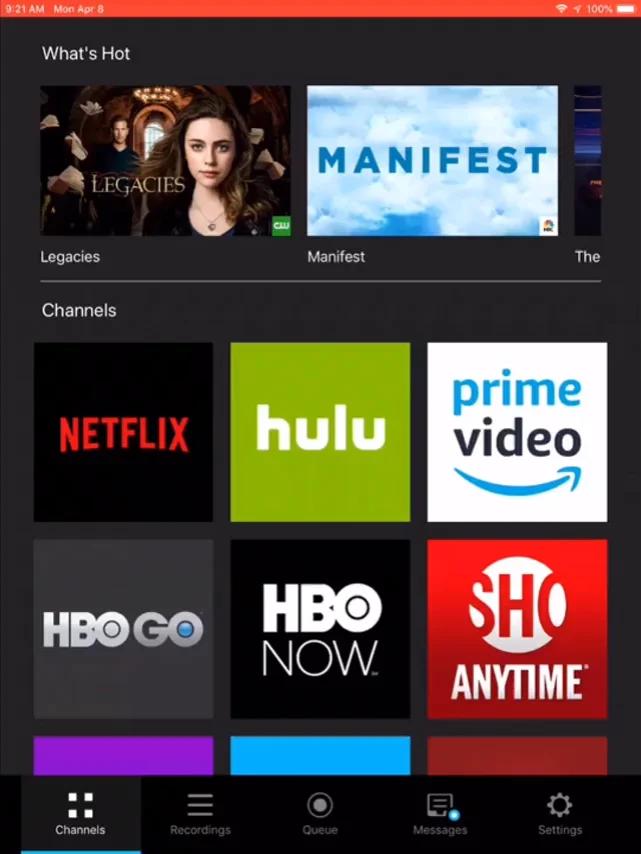
Step 4. Search for the title you want to save.
Step 5. Tap Record.
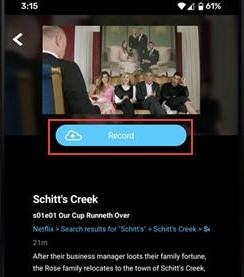
Step 6. You can leave the app running. PlayOn's cloud servers play through the content in real time and record it in the background.
Step 7. When recording is complete, you'll get a notification.
Step 8. Open your "Recordings" list, tap Download, and you'll have a standard MP4 file on your device.

Pricing note: PlayOn offers a free tier for SD-quality recordings of ad-supported content. For 1080p output and ad-free content, a paid plan starts at $4.99/month. Since PlayOn records at normal playback speed, a 2-hour movie takes 2 hours to process.
Yes, OBS Studio is free and open source, and technically you can use it to record Prime Video, but with serious caveats.
To bypass the black screen caused by HDCP, you need to disable hardware acceleration in your browser before recording: In Chrome: Settings → System → toggle off "Use graphics acceleration when available"
This removes the HDCP lock and lets OBS capture the video. However, doing this has two unavoidable consequences:
- Resolution drops immediately. Amazon's servers detect the absence of hardware acceleration and cap your stream quality at 480p or 720p. You cannot record 1080p this way.
- Playback quality degrades further. Without GPU-assisted decoding, recordings are prone to dropped frames, stuttering, and audio-video desync.
Part 5. Why Most Amazon Prime Video MP4 Converters Do Not Work
When you search "convert Amazon Prime Video to MP4," you'll find dozens of sites claiming to do this for free: just paste a link, click convert, and you're done.
Almost none of these work for Prime Video. Here's why:
1. Prime Video isn't a public URL
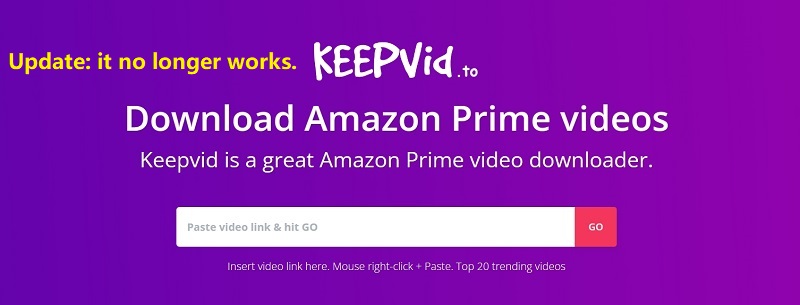
Online converters like KeepVid parse publicly accessible video URLs. Prime Video streams are authenticated, session-specific, and never exposed as a direct link. There's nothing for a URL parser to grab.
2. They have no ability to handle Widevine DRM
Even if an online tool could somehow access the video stream, the data would be Widevine-encrypted.
KeepVid itself is a telling example: it was once a go-to tool for video downloading, but it has since dropped Prime Video support entirely and pivoted to downloading only publicly accessible videos from platforms like YouTube. Its inability to handle DRM-protected content made Prime Video support impossible to sustain.
- If a site promises to convert Prime Video with just a URL, close the tab. At best, it won't work. At worst, it's phishing for your Amazon credentials.
Part 6. Is It Safe and Legal to Convert Amazon Prime Videos to MP4?
The honest answer: it depends entirely on what you do with the file afterward.
What's Generally Considered Fair Use ✅
If you're converting or recording Prime Video content strictly for personal offline viewing, this falls within what most legal frameworks recognize as personal fair use.
Amazon's official app supports offline downloads on Fire tablets, iOS, Android, macOS, and Windows 10/11. If you're working around device incompatibility (like a car screen or an older TV), the use case is the same: you're watching content you've already licensed, on your own device.
What Crosses the Line ❌
Amazon's Terms of Service explicitly prohibit circumventing any copy protection mechanism. More importantly, copyright law in most jurisdictions treats the following as clear violations:
- Uploading converted files to YouTube, TikTok, torrent sites, or any public platform.
- Selling or redistributing MP4 files derived from Prime Video content.
- Using someone else's account to download content via third-party tools (also risks account bans).
- Your account is active and in good standing: Don't use shared, borrowed, or compromised accounts.
- You have legitimate access to the content: It should be included in your Prime membership or a title you've rented/purchased.
- You're on your regular home network: Logging in through a VPN or unstable connection can trigger Amazon's fraud detection and temporarily lock your account.
Part 7. FAQs
Can I play the converted MP4 on my smart TV or phone?
Is MP4 better than MKV for Prime Video downloads?
Do converted Prime Video files keep subtitles and audio tracks?
How long does conversion usually take?
Final Thoughts
If your goal is to convert Amazon Prime Video to MP4 in a way that is practical and easy to use, the best answer is usually a desktop downloader. If you only need occasional saves or a backup workflow, recording is the fallback. Online converters are the least reliable option because Prime Video is protected streaming content, not a normal public video link.
Every time before you convert or record, always check your active account status, verify that your software is updated to the latest security patch, and ensure you have at least 4GB to 6GB of free local storage space per 1080p movie.
 Free Download
 Secure Download
 Free Download
Secure Download
Free Download
Secure Download


I'm a video tech specialist with over 10 years of experience in digital media and streaming. I focus on making complex workflows simple and practical. Through my guides, you'll learn how to convert media, keep high-quality playback across devices, and manage your streaming video library with ease.
 Leave Your Comment