How to Bypass DRM Protection on Streaming Video: What Actually Works
 By Arlo Bennett
Want to know how to bypass DRM protection on streaming video? The short answer is that modern DRM systems used by Netflix, Prime Video, Disney+, Hulu, and other streaming platforms are much harder to bypass than they were a few years ago. Most browser extensions, DRM removal tools, and online tricks no longer work reliably against technologies such as Widevine, PlayReady, and FairPlay.
To find out which methods still work, I tested them on DRM-protected streaming videos and analyzed the output files with MediaInfo. Below, you'll see the actual results, limitations, and the situations where each method makes sense.
- 💰 Free method: Screen recording with OBS works on almost any streaming service. (See Method 1)
- 🎬 Best quality: Saving the stream during an authorised playback session preserves the original video quality, frame rate, and available subtitles. (See Method 2)
- ⚖️ Most straightforward option: Buying DRM-free video avoids platform restrictions entirely. (See Method 3)

Important: Streaming content is licensed for personal, non-commercial viewing. Saving, converting or sharing a title may conflict with a platform's terms, such as Netflix's Terms of Use, or with copyright rules where you live. Everything below assumes you are signed in with your own paid account and keeping the copy for yourself. Do not distribute it.
Part 1. What Does DRM Protection Do?
DRM stands for Digital Rights Management. It is a set of technologies that content owners use to control how a film or show is played, copied and shared after it reaches your screen.
How Does DRM Work on Netflix and Other Streaming Platforms?
When you press play, the streaming platform does not send a ready-to-watch video file to your device. Instead, it sends an encrypted video stream. Your browser or app must request permission from a license server before the video can be decrypted and played.
Using Netflix as an example, the diagram below shows a simplified version of how DRM protection works during playback.
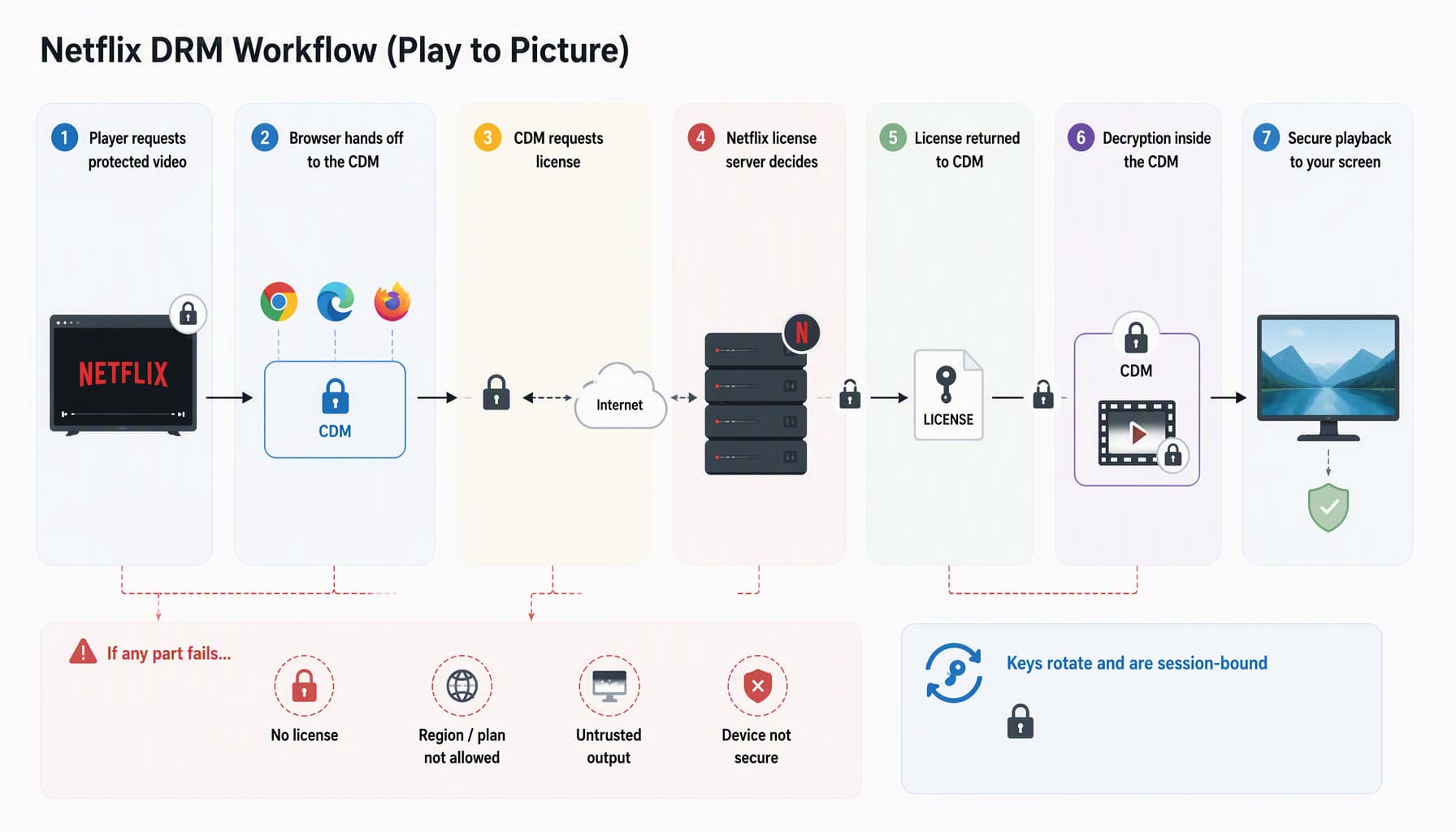
In simple terms, the process looks like this: Play Request → CDM Handshake → License & Device Verification → Short-Lived Key Issuance → Protected Decryption → Playback.
The Three DRM Systems You'll Run Into
For digital rights management, Netflix and almost every other streaming service rely on one of three systems, and which one you meet depends on your device rather than the film you picked.
| System | Who makes it | Where you meet it | What it means for saving video |
|---|---|---|---|
| Widevine | Chrome, Edge, Firefox, Android, many smart TVs | Has security levels. Software-only levels are usually limited to lower resolutions than hardware-backed ones. | |
| PlayReady | Microsoft | Windows apps, Edge, Xbox, some TVs | Different versions support different output rules on the same PC. |
| FairPlay Streaming | Apple | Safari, iPhone, iPad, Mac, Apple TV app | Offline copies are tied closely to Apple's ecosystem. |
Part 2. What Do You Get Beyond DRM Restrictions?
When DRM restrictions no longer limit how a video is accessed, you typically gain more flexibility over how you watch and store content.
- Standard Open Formats: Receive MP4 or MKV files that can be played with common media players and media servers such as VLC, Plex, and Jellyfin.
- Permanent Offline Access: Your downloaded files do not expire, even if a title later leaves a streaming platform or licensing agreements change.
- Original Video Quality: Preserve the original resolution, frame rate, and audio quality available from the source stream.
- Independent Subtitles & Audio: Keep multiple subtitle tracks and audio languages that can be selected, extracted, or managed separately.
- Device Flexibility: Play your videos on personal computers, phones, tablets, TVs, NAS devices, Plex servers, and other compatible devices.
Part 3. Tested Methods to Get Around DRM Protection
Before comparing the methods, I tested each approach on DRM-protected content from Netflix and Prime Video and analyzed the resulting files using MediaInfo.
- Source: Netflix / Prime Video
- Device: Windows 10
- Resolution: 1080p
- DRM Type: Widevine
- Test Date: September 10, 2026
- Analysis Tool: MediaInfo
- Tools Compared: OBS Studio (Free) / VidiFab Streaming Video Downloader (Paid)
Both files below came from the same kind of 1080p Widevine stream, so the differences you are about to see come from the method, not from the source.
Method 1: Screen Recording with OBS
OBS Studio is free, open-source, and works on Windows, Mac and Linux. It records whatever is on your screen.
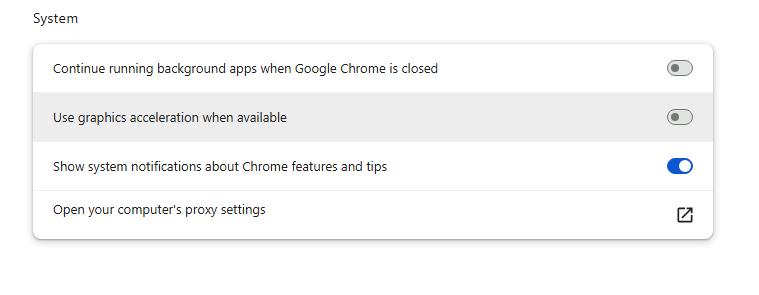
The catch is that DRM is specifically designed to stop this. On many setups you will record a black rectangle with perfect audio. The fix is to turn off hardware acceleration in your browser first, which forces the video through software rendering that OBS can see.
Step 1. Turn off hardware acceleration in your browser (Chrome: Settings → System → "Use graphics acceleration when available"; Firefox: Settings → Performance → uncheck "Use recommended performance settings"), then restart the browser.
Step 2. Download and install OBS Studio from the official site.
Step 3. Open OBS, click + under Sources, choose Window Capture, and select the browser window playing your title.
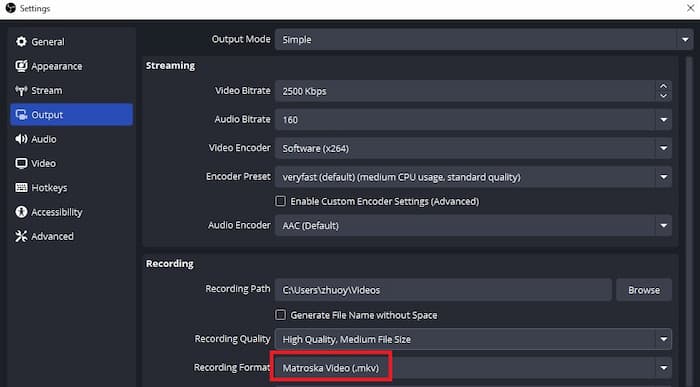
Step 4. Go to Settings → Output and set the recording format to MKV or MP4, and the quality to High.
Step 5. Press Start Recording, then play the video. Keep the window in front, and do not switch to another desktop.
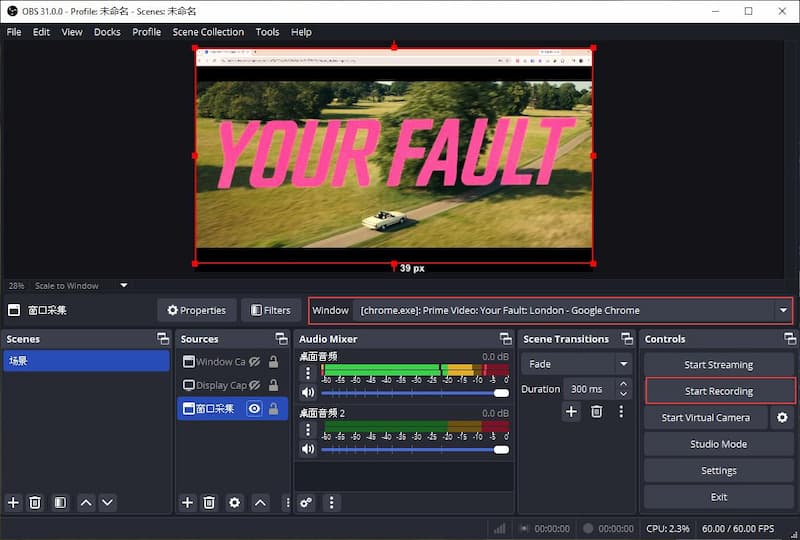
Step 6. Press Stop Recording when it finishes. The file is saved to the folder you chose under Settings → Output.

If the result is a black picture with sound, go back to step 1. That is the cause in almost every case. Our screen recording walkthrough covers the variations browser by browser.
Test Results: OBS Output in MediaInfo
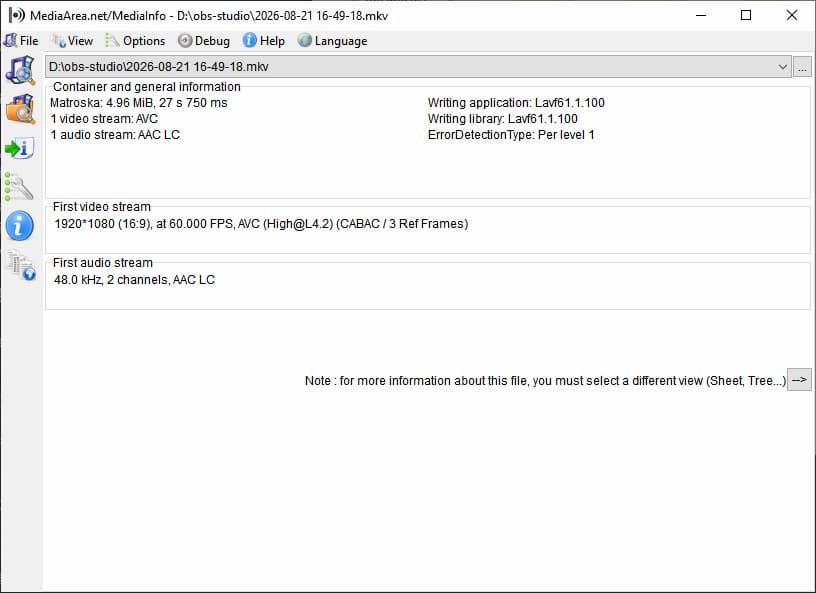
What the OBS Results Tell Us
- DRM Is No Longer Present: The output file is saved as a standard MKV video using the widely supported H.264 format. It can be played with common media players without requiring the original streaming service.
- 60 FPS Does Not Mean Better Quality: OBS recorded the video at 60 FPS because it follows the refresh rate of the display. Most movies on Netflix and Prime Video are originally around 24 FPS, so the higher frame rate does not make the picture sharper.
- No Separate Subtitle Tracks: MediaInfo detected no subtitle streams in the file. Any subtitles shown during recording would need to be permanently burned into the video, and they could not be turned on or off later.
Verdict: It works. As a way to get around DRM protection, screen recording does the job. It is just slow, a little fragile, and it costs you quality and subtitles.
Pros:
- Free and open source
- Works with any service, any browser
- No account login inside a third-party app
- Full control over resolution and bitrate
Cons:
- Runs in real time: a two-hour film takes two hours
- Re-encodes the picture, so quality drops
- No subtitle tracks unless burned in
- You cannot use the PC for anything else while it records
Method 2: Save the Stream During an Authorised Playback Session
For this test, I used VidiFab Streaming Video Downloader. It supports Netflix, Prime Video, Max, Hulu, Disney+, Apple TV+, and several other streaming services. Users can sign in through the built-in browser, select a title, and save it as an MP4 or MKV file on a Windows or Mac computer.
The software is not free, although a trial version is available. The trial allows downloads of the first three minutes of a video, which is enough for checking output quality and compatibility before purchasing.
VidiFab Streaming Video Downloader
Download videos from streaming platfroms as MP4/MKV in 1080p for offline viewing on different devices.

Since this article compares actual output files, I used the full paid version. If you'd like to try the full version, you can use the coupon code VF25OFF to receive 25% off your purchase.
Step 1. Install VidiFab Streaming Video Downloader on Windows or Mac and open it.
Step 2. Open the menu, go to Preferences, and choose MP4 or MKV as the output format.
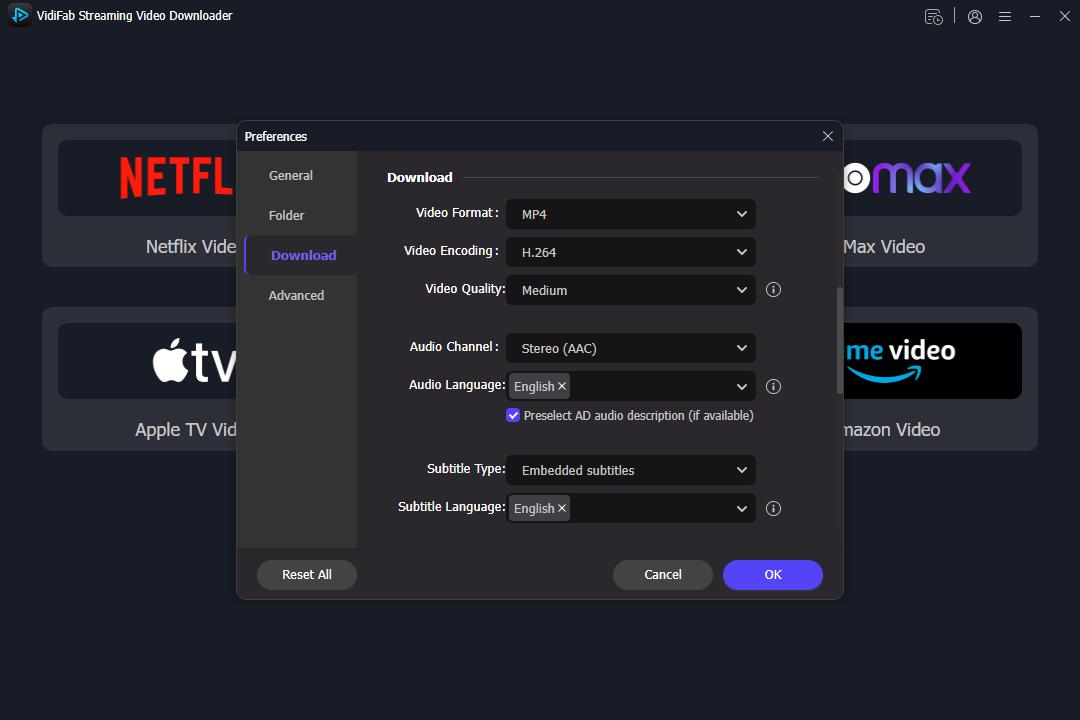
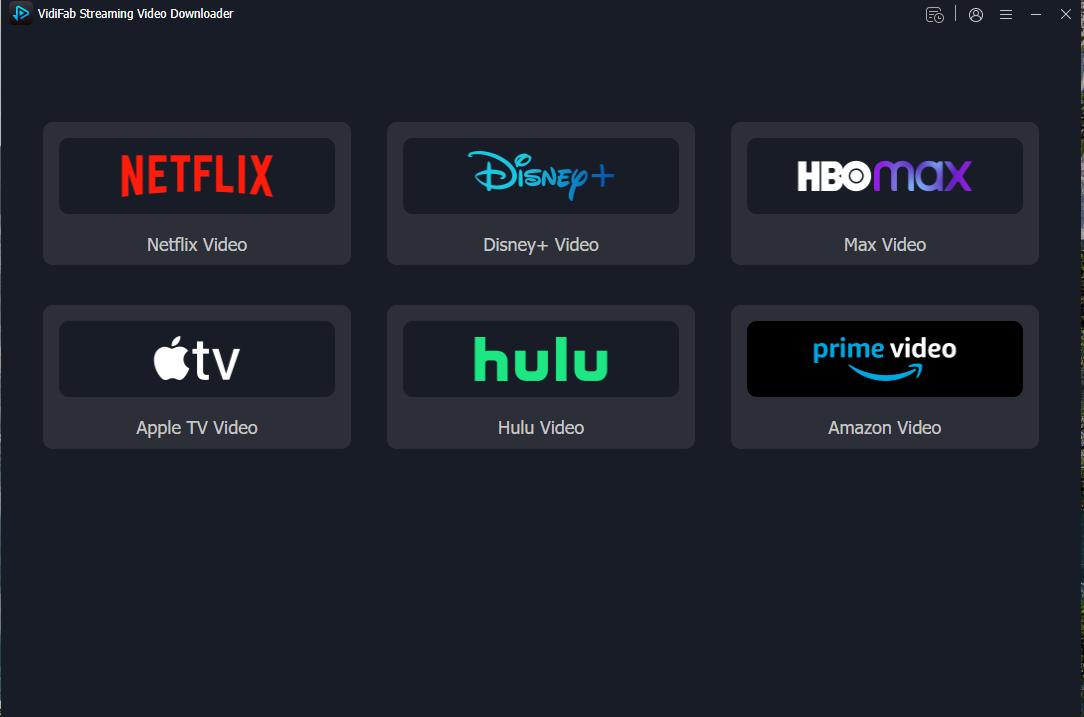
Step 3. Pick your service from the supported list and sign in with your own account in the built-in browser.
Step 4. Find the film or episode. Browse, or paste the URL, and VidiFab will analyse the title. Open the title's detail page and click the download button located in the bottom right corner.
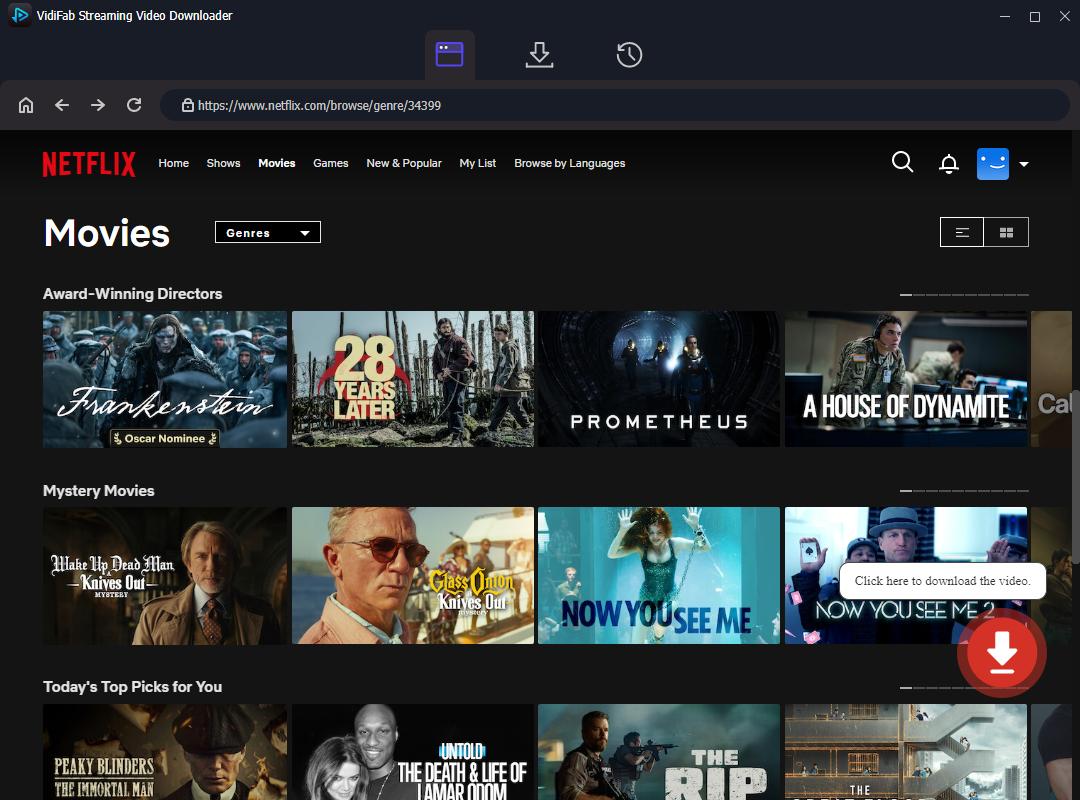
Step 5. Choose your options: 1080p, your preferred audio track and language, and whether subtitles are embedded or saved separately.
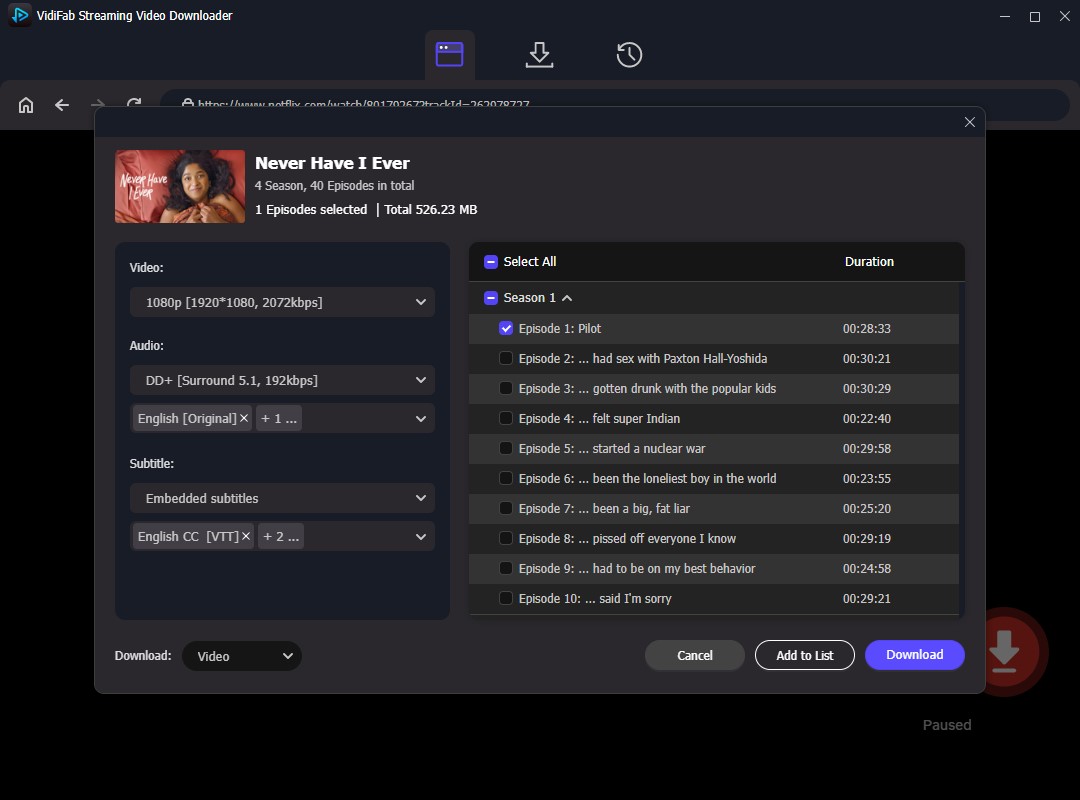
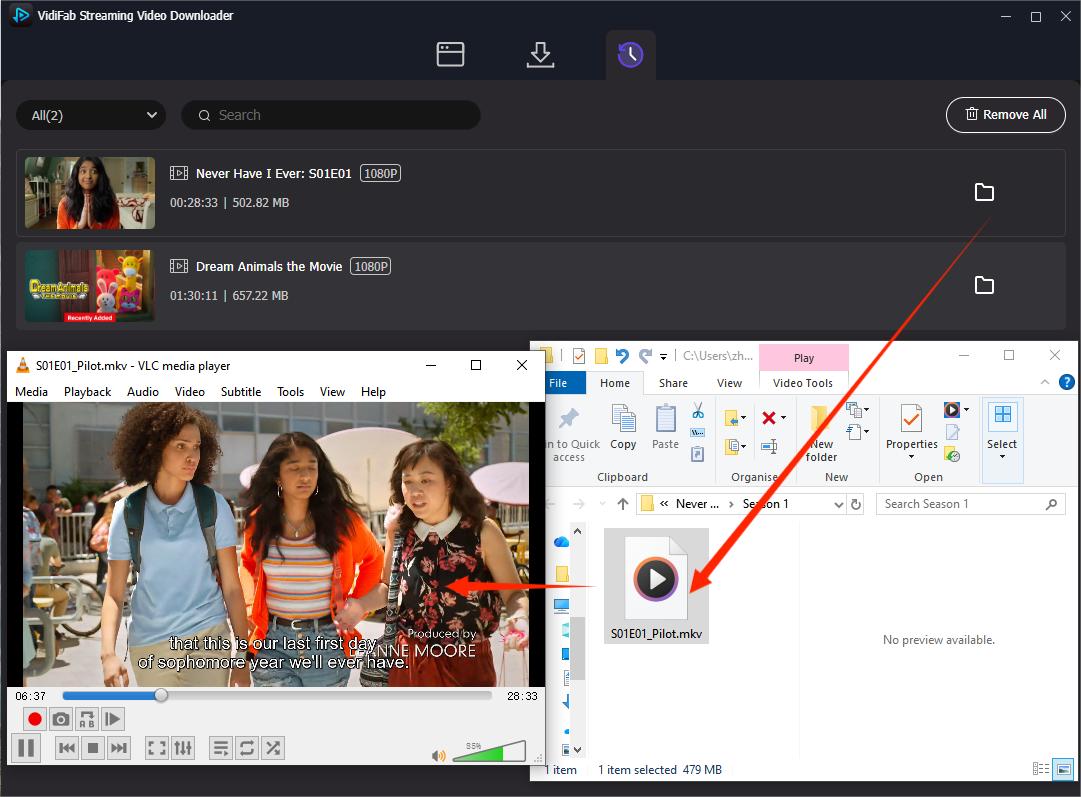
Step 6. Click Download. When it finishes, the file is in the History tab, click the folder icon and you will see the output videos. I opened the downloaded Netflix videos inside VLC Media Player, and they played with great quality, audio, and subtitles.
Test Results: VidiFab output in MediaInfo
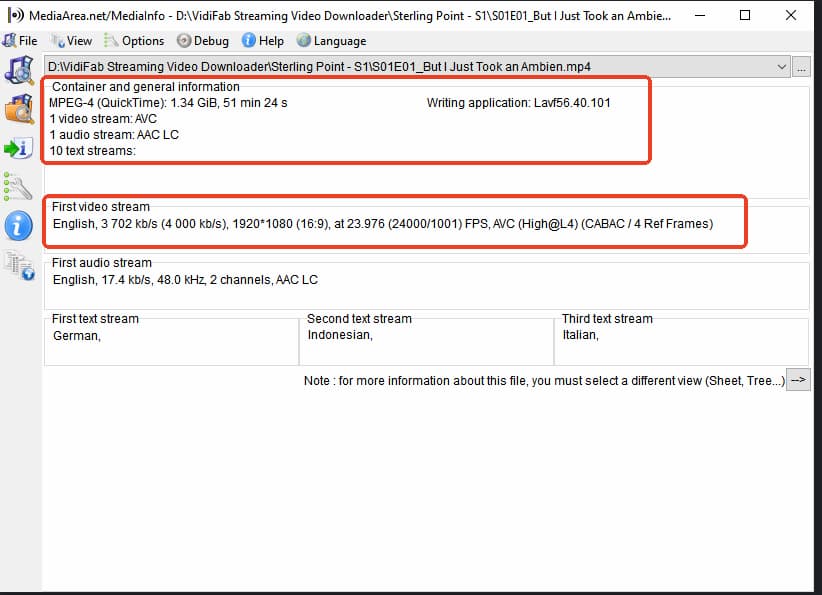
What the VidiFab Results Tell Us
- MP4 Format That Plays Everywhere: The downloaded file is saved as a standard MP4 video using the widely supported H.264 format. It can be played on phones, computers, Smart TVs, Plex, Jellyfin, and most media players without compatibility issues.
- Original Movie Frame Rate: The video keeps its native 23.976 FPS frame rate, which matches how most movies are originally released on streaming platforms.
- Multiple Subtitle Tracks Preserved: MediaInfo detected 10 separate subtitle tracks, including English, German, Indonesian, and Italian. These subtitles can be turned on, off, or switched at any time.
- Closer to the Original Stream: Unlike screen recording, the file retains the original frame rate, subtitle tracks, and metadata while being saved as a standard video file for offline playback.
Verdict: This method keeps more of the original viewing experience compared to screen recording, like the native frame rate and multiple subtitle tracks. However, the results vary by title. Some videos might only be in 720p, and downloads still need some processing time. In my tests, a 40-minute episode usually took around 15–20 minutes to download.
Pros:
- Keeps the original quality and frame rate
- Finished in minutes, not hours
- Subtitles and audio tracks preserved as data
- Batch download supported
- No black screen risk
Cons:
- Paid software, though a free trial is available
- Free trial output limited to the first 3 minutes
- Requires a Windows or Mac computer
- Some title may be limited to 720p.
- Downloads still require processing time.
Method 3: Buy DRM-Free Movies or Videos
Not tested, and here is why. There is no DRM to work around on this route, so there is nothing for MediaInfo to prove. A DRM-free file is just a file. I also could not test it fairly, because availability and price change by title, by country and by week. What I can do is tell you where to look and what to watch out for.
| Category | Platform | What you get | Typical cost | Best for | Watch out for |
|---|---|---|---|---|---|
| Public archives | Internet Archive, Wikimedia Commons | Public-domain and CC videos | Free | Classic and rare films | Quality and rights vary |
| Open collections | Open Culture, public-domain YouTube channels | Classic and educational videos | Free | Film study and education | Some uploads may be removed |
| Creator & digital stores | Vimeo On Demand, creator websites | Downloadable video files | $3–$20+ | Indie and creator content | Check DRM and download terms |
| Physical media | Criterion, Amazon, eBay, local stores | DVD, Blu-ray, 4K UHD | $1–$40+ | Long-term offline access | Requires a disc drive |
| Library services | Kanopy, Hoopla, Libby | Temporary streaming or downloads | Free | Free legal viewing | Access expires |
Part 4. Is It Legal to Remove DRM Protection?
Honestly, it depends on where you live. Personal use is not automatically a legal defence. In the U.S., for example, Section 1201 of the Digital Millennium Copyright Act generally restricts bypassing technical measures such as DRM, even if you have a valid subscription. The EU and other regions have similar rules, although the exact exceptions vary by country.
There is also a second issue: the streaming service's Terms of Use. Paying for Netflix, Prime Video, or Disney+ gives you access to stream content under the service's terms. It does not automatically give you the right to extract, copy, or redistribute the underlying video file.
How to Stay on the Right Side
If your goal is simply private offline viewing, keep these basic rules in mind:
- Only save what you have the right to watch. Use your own subscription, purchase, or valid rental access.
- Keep copies private. Do not upload, seed, post, or publicly share downloaded or recorded videos.
- Do not distribute copies. Do not send copies to people who do not have their own access to the content.
- Check your local laws. Rules vary by country and may differ for personal, commercial, educational, or public use.
Note: This is general information, not legal advice. If you are unsure whether a specific use is allowed, check the copyright and anti-circumvention rules in your country.
Part 5. FAQs About DRM Protection
How do I remove DRM protection from a file I already downloaded?
Can I download a DRM stream with yt-dlp or ffmpeg?
Why is my recording black but the sound is fine?
How to override DRM protection with a VPN?
How can I get DRM-free movies?
Does saving a stream reduce the quality?
Do saved files last forever?
Final Thoughts
DRM is not going away, but the need for offline access is real. OBS is free and widely compatible, but it records in real time and does not preserve separate subtitles. VidiFab produced a 1080p MP4 at 23.976 fps with all ten subtitle tracks in our test. For the least legal uncertainty, DRM-free content is the cleanest option. Whichever method you use, keep copies private, use your own access, and respect the licence and local laws.
 Free Download
 Secure Download
 Free Download
Secure Download
Free Download
Secure Download
I write about must-watch movies and TV shows, plus detailed reviews of video downloaders and media tools. I help you discover what to watch next and pick the right tools to save and manage your favorite content. My goal is to give you clear, honest insights so you can enjoy streaming and offline viewing without the hassle.
 Leave Your Comment