Amazon Prime Video No Sound? Fix Audio Issues on TV, Phone & Laptop
 By Miles Kent
- Test Another Title or App: Try a different title on Prime Video or check another app like YouTube. This helps determine if the issue is with the device, app, or specific title.
- Check Volume and Restart the App: Make sure your device volume is turned up and mute is disabled on both the system and Prime Video player. If there is still no sound, force-close and reopen the app.
- Perform a Hard Power Cycle: Unplug your TV or streaming device for at least 60 seconds, then plug it back in and restart Prime Video.
- Enable Dialogue Boost: While playing a supported title, click the Audio & Languages icon (speech bubble) and select English Dialogue Boost: High.
- Download Prime Video with Original Audio: Use VidiFab Streaming Video Downloader to save videos with available audio tracks and subtitles for offline playback.
Amazon Prime Video no sound problems can happen on different platforms. Whether you're using a TV, phone, or laptop, audio issues often arise from incorrect settings or hardware mismatches. This guide offers solutions for iPhone, Android phones, Samsung Smart TVs, Android TVs, Sony TVs, Windows laptops, and MacBooks. These fixes should help restore your audio so you can continue watching right away.

If Prime Video has no sound and the Netflix app also has audio issues on your device, you can check both guides for help.
Part 1. Why Amazon Prime Video Has No Sound
Most Amazon Prime Video sound issues are caused by one of the following factors:
- Volume and System Settings: Your device or the Prime Video player may be muted, or features like Do Not Disturb or Focus mode may block audio output.
- Audio Format Mismatches: Sound may fail when Prime Video plays advanced formats like 5.1 surround sound or Dolby Atmos on a device that only supports standard stereo (2.0) or cannot properly downmix the audio.
- App or System Glitches: An outdated Prime Video app, corrupted cache data, or temporary system bugs can interrupt audio playback.
- Connection and Routing Issues: A faulty HDMI cable can cause connection problems, or the audio may be routed to Bluetooth headphones or an external speaker instead of your main speakers.
Part 2. Fix No Sound on Prime Video on Phone
If there is no sound on Prime Video on your iPhone or Android phone, first check that the volume is turned up and the device is not muted. If your iPhone volume buttons do not work, go to Settings > Sounds & Haptics and turn on Change with Buttons.
Next, try these four fixes for both Android and iPhone:
Fix 1. Turn Off Bluetooth
Go to Settings > Bluetooth and turn it off to force the sound through your phone's built-in speakers.
Fix 2. Disable Do Not Disturb (DND) or Focus/Silent Mode
Open Quick Settings on Android or Control Center on iPhone and make sure your phone is not in a mode that affects sound output.
Fix 3. Reinstall the Prime Video App
Clearing cache and app data may help in some cases, but reinstalling Prime Video from the app store can remove app bugs and install the latest version.
Fix 4. Restart Your Phone
Hold the power button and select Restart to clear temporary system files that may block audio playback.

Tip: If your phone speaker has no sound in any app, check whether the speaker opening is blocked by dust, a phone case, or a screen protector.
Part 3. Fix No Sound on Prime Video on TV
If Amazon Prime Video has no audio on TV, the issue can come from the TV speaker, Prime Video app, soundbar, HDMI cable, ARC/eARC setting, or digital audio format. Start by testing whether the TV itself can make sound.
First, open another streaming app on the same TV. If YouTube or another app also has no sound, fix the TV audio settings before blaming Prime Video. If other apps work and only Prime Video has no sound, restart or reset the Prime Video app.
On Samsung Smart TV
Fix 1. Perform a Hard Reset
Unplug your Samsung TV from the wall outlet for at least 60 seconds before plugging it back in. This clears temporary system glitches that may affect audio playback.
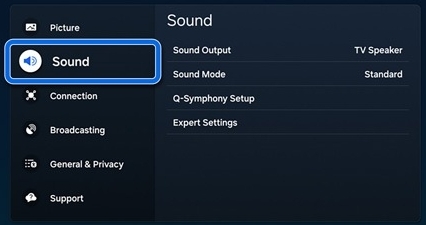
Fix 2. Check Samsung TV Sound Output
Press the Home button on your Samsung remote. Go to Settings > Sound > Sound Output. Select TV Speaker or your connected sound system, then play Prime Video again.
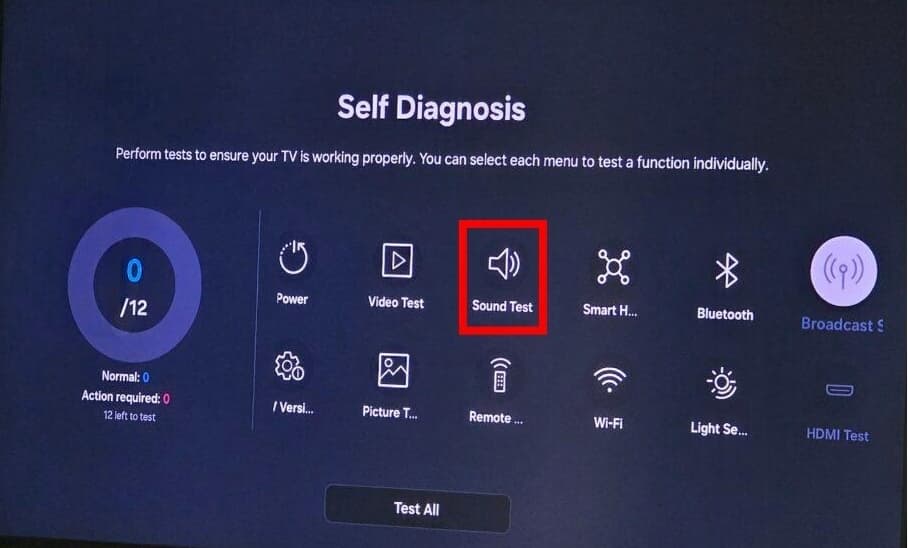
Fix 3. Run a Sound Test
Go to Settings > Support > Device Care > Self Diagnosis > Sound Test. If the test has audio, restart the Prime Video app. If it does not, the issue may be related to your TV settings or hardware.
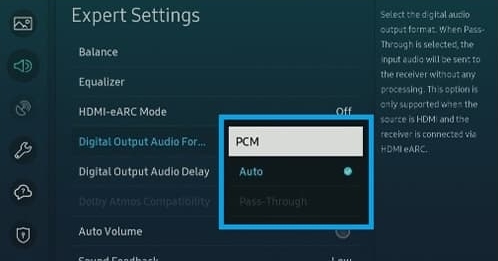
Fix 4. Change Audio Format to PCM
Go to Settings > Sound > Expert Settings. Set Digital Output Audio Format to PCM. This uses a standard audio format that is compatible with more speakers and sound systems.
Fix 5. Reinstall the Prime Video App
If the problem continues, delete the Prime Video app from your TV's app menu and reinstall it from the app store.
On Android TV
Some Android TVs may not detect supported audio formats correctly when the sound format is set to Auto. Try changing the audio format manually:
-
01
Open Settings on your Android TV.
-
02
Go to Device Preferences > Display & Sound > Advanced sound settings.
-
03
Select Select formats.
-
04
Change the setting from Auto to Manual.
-
05
Enable or adjust the available audio formats, then restart Prime Video and play the video again.
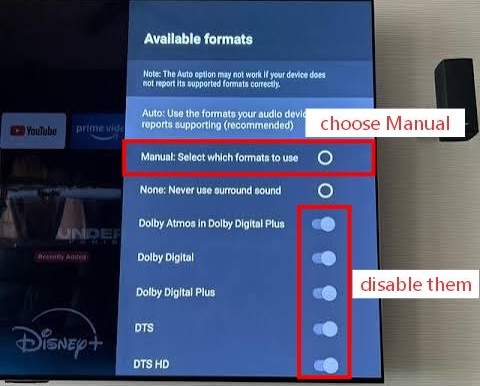
Note: Android TV settings can vary by model. If you cannot find the same options, check the Sound settings under Device Preferences. Try enabling System sounds and temporarily disabling advanced audio options like Dolby Digital, DTS, or AAC to see if Prime Video sound works again.
On Sony TV
Fix 1. Reset Sony TV Sound Settings
Go to Settings > Display & Sound > Sound and select Reset to restore the default audio settings.
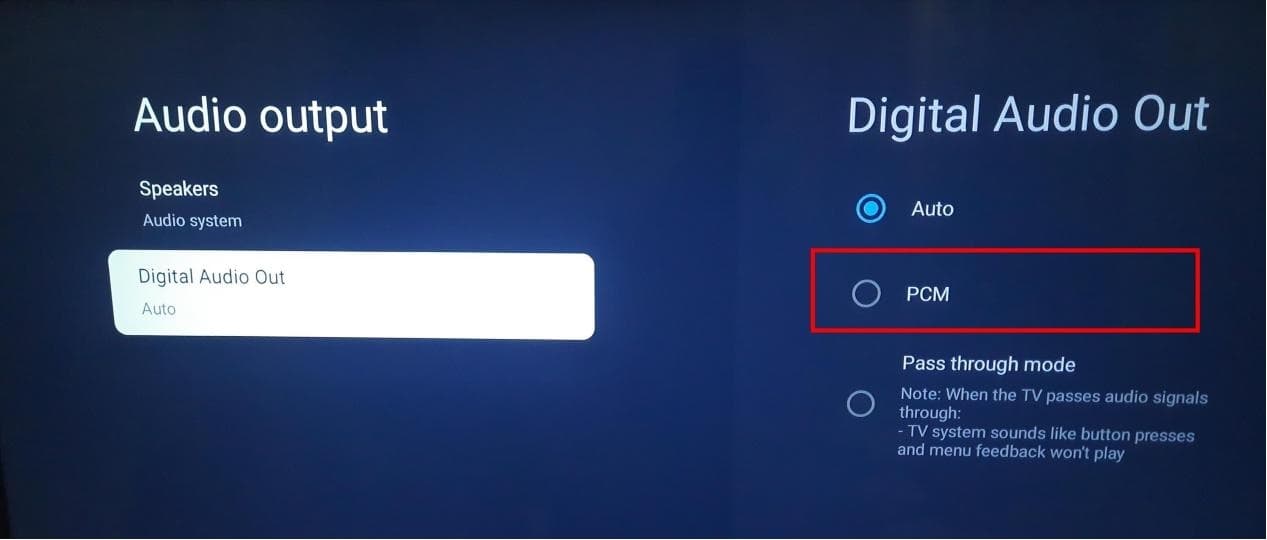
Fix 2. Change Digital Audio Output to PCM
If Prime Video has no sound through a soundbar or receiver, go to Settings > Display & Sound > Audio Output and set Digital Audio Out to PCM.
Fix 3. Change Dolby Digital Plus Settings
If you use an HDMI ARC connection and experience no sound or unusual audio, go to Settings > Display & Sound > Audio Output and change Dolby Digital Plus to Dolby Digital.
Fix 4. Restart and Reset Sound Settings
If Prime Video still has no sound, go to Settings > Display & Sound > Sound and select Reset. Restart Prime Video and test the audio again.
- Check HDCP compliance: If you're using an external streaming device, make sure your HDMI cable and display support HDCP 1.4 for HD content or HDCP 2.2 for UHD/4K and HDR content.
- Reset sound to factory defaults: Go to your TV's Sound Settings menu and choose Reset to Factory or Restore Defaults. After resetting, reopen the Prime Video app.
- Sync your TV clock: Open your TV Settings. Look for Date & Time or Clock Settings. Turn on Automatic Date & Time or Network Time. Restart Prime Video.
- Refresh HDMI connections: Unplug the HDMI cable from both ends and plug it back in securely, or try a different HDMI port on the TV to refresh the connection between devices.
Part 4. Fix No Sound on Amazon Prime Video on Laptop
If Amazon Prime Video has no sound on your laptop, first check whether your computer audio works in other apps. Play a video on YouTube or another website to confirm whether the issue comes from Prime Video, your browser, or the system audio settings.
If other apps have sound but Prime Video does not, try these fixes based on your laptop system.
On Windows 10/11 Laptop
Fix 1. Check Windows Volume Mixer
Right-click the speaker icon on the taskbar. Select Open Volume Mixer. Make sure your browser volume is turned up. Play Prime Video again.
Fix 2. Check the Default Audio Output
Windows may send sound to another device, such as Bluetooth headphones or an external monitor. Go to Settings > System > Sound. Select the correct output device and disconnect unused Bluetooth audio devices.
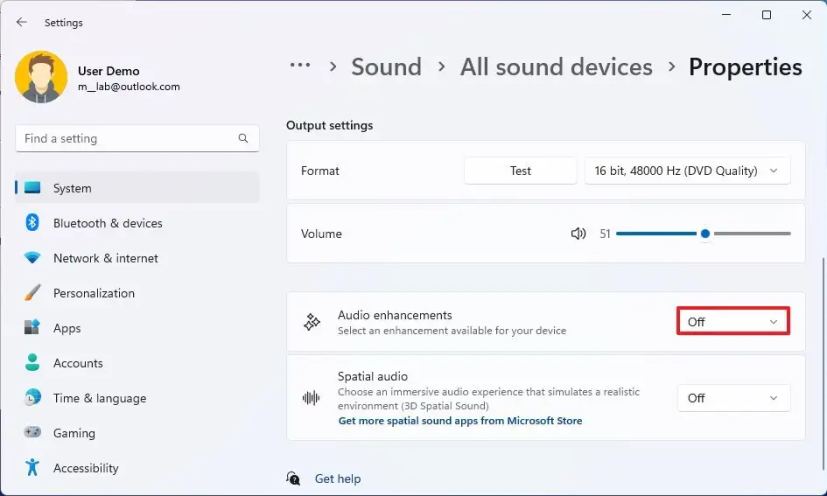
Fix 3. Disable Windows Audio Enhancements
These AI-powered tools are designed to improve sound but often cause silence or timing errors with DRM-protected streams. Go to Settings > System > Sound, select your output device, and set Audio enhancements to Off.
Fix 4. Run the Audio Troubleshooter
Search for "Troubleshoot settings" in the Start menu, go to Other troubleshooters, and select Run next to Playing Audio. This automatically detects and fixes driver conflicts.
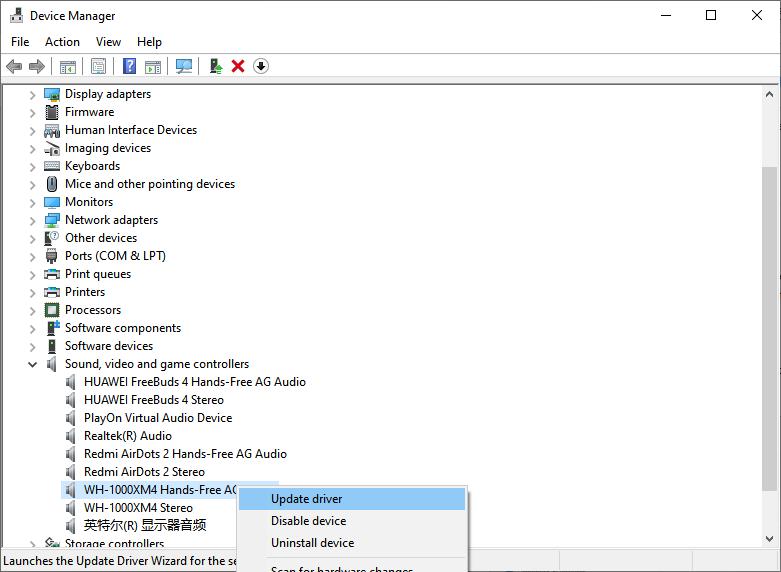
Fix 5. Update or Reinstall Audio Drivers
Right-click the Start button and open Device Manager. Expand Sound, video and game controllers, right-click your active audio device, and select Update driver. If sound is still missing, select Uninstall device and restart your laptop. Windows will reinstall a clean driver automatically.
On MacBook
Fix 1. Verify Sound Output Settings
Go to the Apple menu > System Settings > Sound > Output. Ensure Internal Speakers is selected and not a nearby Bluetooth device. Check that the volume level is up and the balance slider is centered.
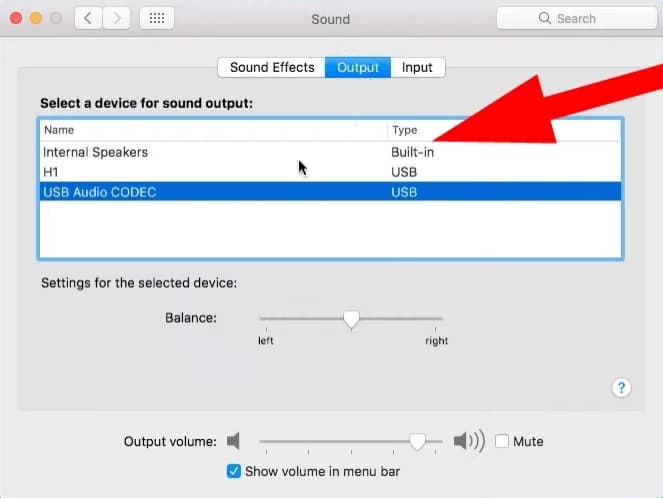
Fix 2. Restart the Core Audio Daemon
If the macOS sound system has experienced a software deadlock, you can reset it without rebooting. Open the Terminal utility and type sudo killall coreaudiod, then press Enter and provide your password. This forces the background audio service to restart.
Alternative: Download Prime Video Videos for Offline Playback
Prime Video already offers an official download feature for offline viewing. However, it may not fix the audio issue because it still plays within the app. For users who want a different offline playback option, a dedicated downloader like VidiFab Streaming Video Downloader can help save Prime Video videos as local files with their available audio tracks.
- Save videos with audio tracks: VidiFab checks available streams and saves videos on Prime Video as MP4 or MKV files with your chosen audio track.
- Choose your audio preferences: Select available audio languages and quality settings during the download process.
- Download audio tracks separately: VidiFab lets you download individual audio tracks for free.
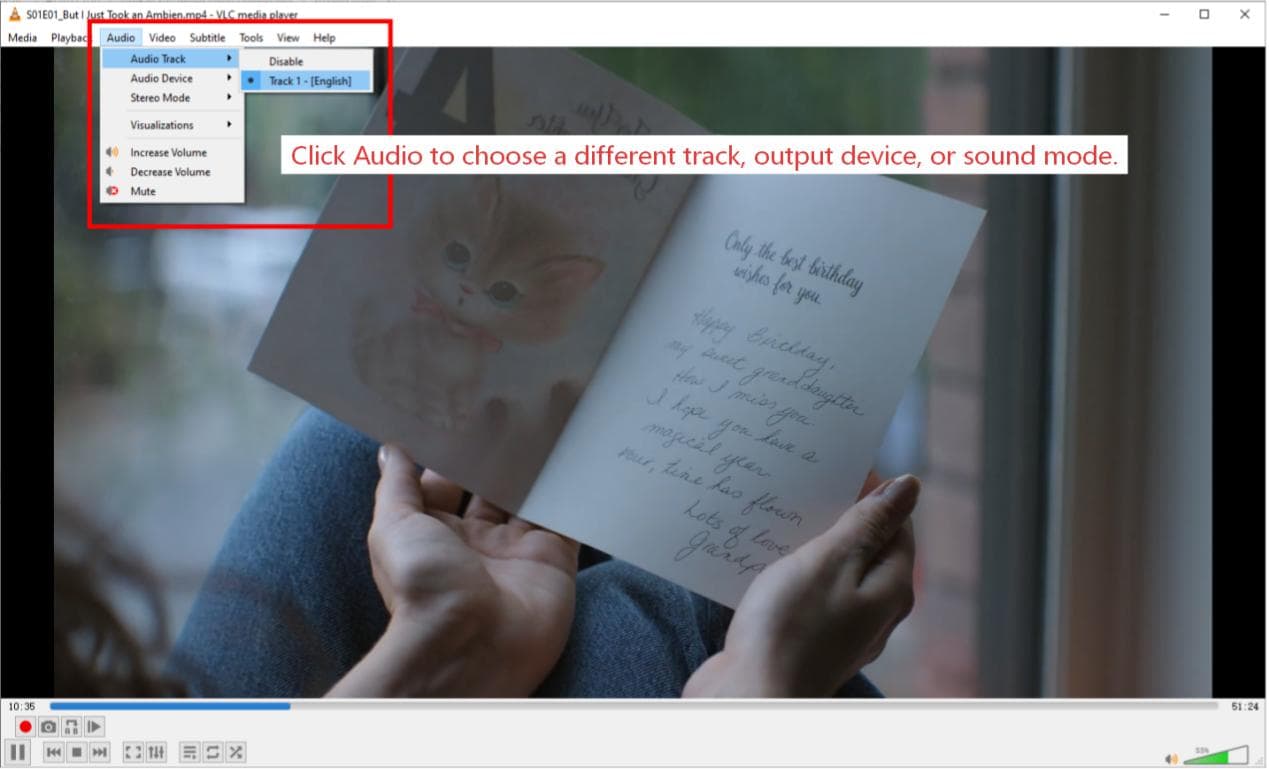
- Play files with media players: Play downloaded videos in media players like VLC to avoid common playback issues caused by streaming apps, browser settings, or incorrect audio routing.
VidiFab Streaming Video Downloader
Download Prime Video titles into 1080p MKV or MP4 files on PC or Mac computer with multilingual subtitles and audio tracks.

-
01
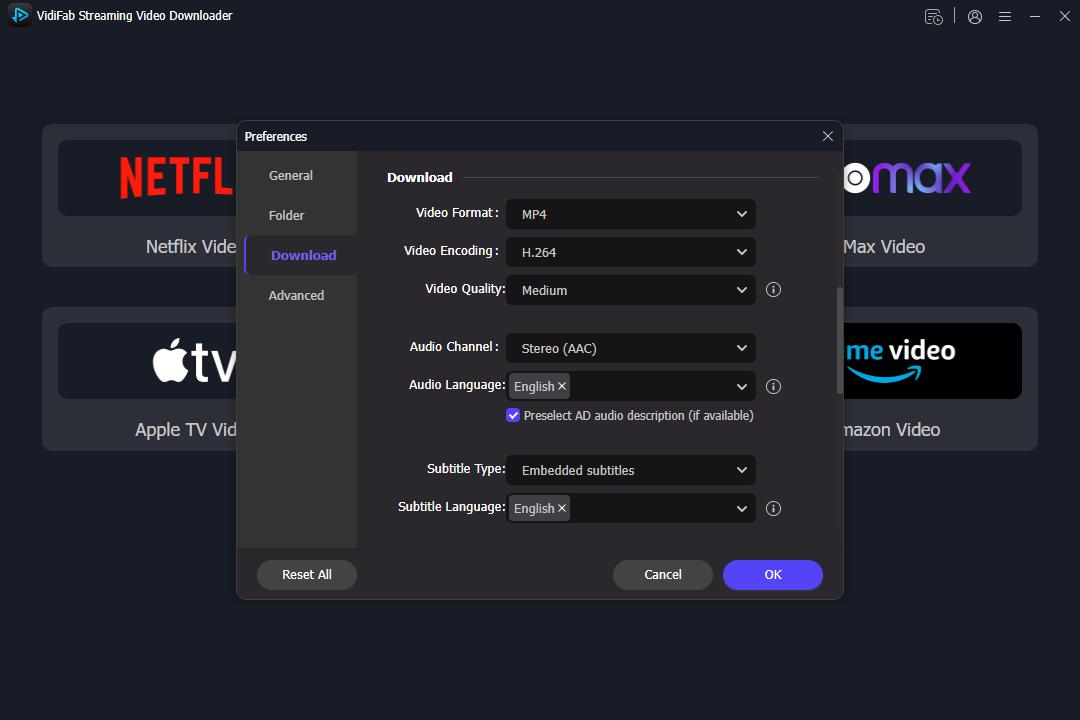
Open VidiFab Streaming Video Downloader on your desktop. Click the Menu icon, then go to Preferences > Download. Choose MP4 or MKV as the output format. Select a download folder and click OK. Return to the main interface, select Amazon Video, and sign in to your Prime Video account.
-
02
Search for the Prime Video movie or episode you want to save. Open the video page, and VidiFab will analyze the video source automatically. Click the Download button to access the download settings. Select 1080p video quality, choose your preferred audio language and codec, and select subtitle language and format. Once everything is set, click Download to start.
-
03
After the download finishes, go to the History section (clock icon) and click the folder icon to find your file. Play the video using VLC Media Player or any player you prefer; this lets you switch between audio tracks and ensures proper decoding of multi-channel sound for your speakers.
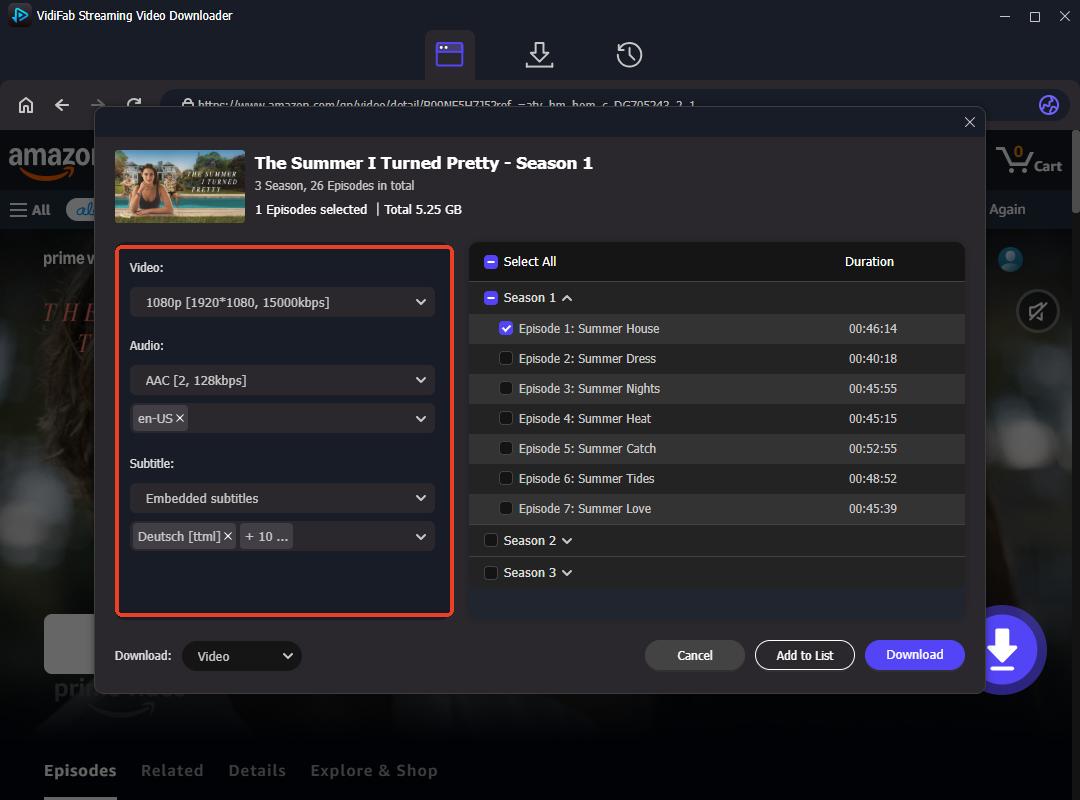

If you only need the audio file, open the Download dropdown in the bottom-right corner and select Audio. VidiFab will download the selected audio track to your computer for free.
Part 5. How to Avoid Amazon Prime Video No Sound Issues
You cannot prevent every Amazon Prime Video audio problem, but a few simple habits can help reduce repeated sound issues.
Tip 1. Keep Apps and Devices Updated
Keep the Prime Video app updated, restart your TV or laptop from time to time, and avoid leaving too many apps running in the background.
Tip 2. Keep TV Audio Connections Simple
Test with TV speakers first, then reconnect your soundbar or receiver after Prime Video audio works. If you use HDMI ARC or eARC, make sure the cable is firmly connected and the TV output is set to the correct speaker system.
Tip 3. Check Bluetooth Connections Before Watching
For phones and laptops, check Bluetooth before every long watch session. Many "no audio on Amazon Prime Video" cases happen because sound is playing through earbuds, a car, or another device in another room.
Part 6. Final Thoughts
To resolve sound issues on Amazon Prime Video, check the audio settings, restart the app and device, or adjust the sound settings on your device. The solution may vary depending on whether you are using a phone, TV, or laptop. If streaming problems persist, consider downloading videos with available audio tracks and watching them locally for a better experience.
 Free Download
 Secure Download
 Free Download
Secure Download
Free Download
Secure Download



I'm a video tech specialist with over 10 years of experience in digital media and streaming. I focus on making complex workflows simple and practical. Through my guides, you'll learn how to convert media, keep high-quality playback across devices, and manage your streaming video library with ease.
 Leave Your Comment