How to Watch Amazon Prime Video on Vizio TV: Setup, Casting & Fixes
 By Miles Kent
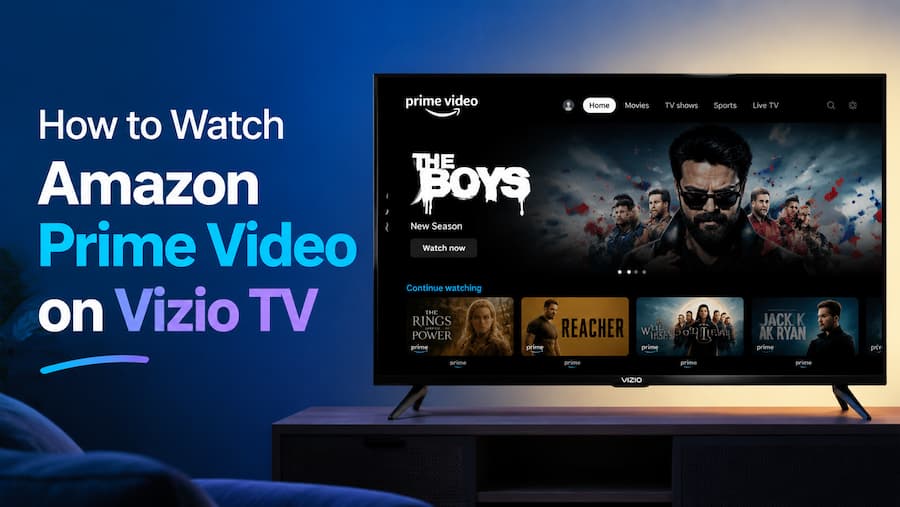
Vizio Smart TVs offer a premium streaming experience, allowing seamless access to Netflix, Amazon Prime Video, Apple TV+, and Disney+ via the integrated Vizio OS. However, if your device operates on an older firmware version, you may encounter compatibility hurdles. This guide outlines four methods to stream Prime Video content on your Vizio screen effortlessly. Additionally, I address common playback errors and setup configurations in Part 4 to ensure your viewing remains uninterrupted. Let's optimize your Vizio streaming setup now.
Part 1. Can You Use Amazon Prime Video on Vizio TV?
Yes, you can use Amazon Prime Video on Vizio TVs, but it depends entirely on the age and operating system of your television.
- If you own a Vizio TV manufactured from 2016 to the present, like the smart TVs in Vizio Home or SmartCast models, the native Prime Video app is on the home screen app row. You don't need to install or add it.
- If you have an early-generation SmartCast TV made between 2016 and 2018, you might need to first complete a firmware update to update the old SmartCast system to the new Vizio Home interface. This forces the installation of the official Prime Video app.
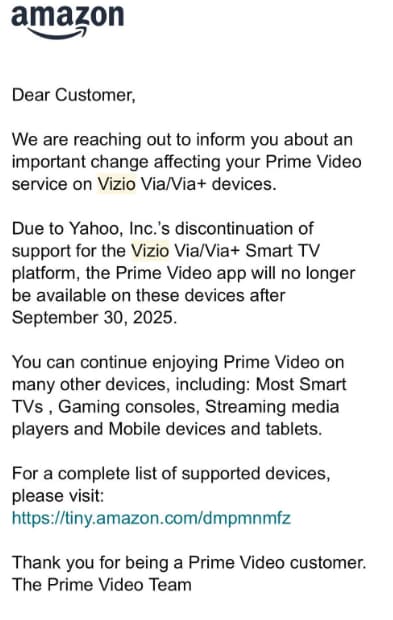
- If your TV was made before 2016, such as the Vizio VIA and VIA Plus models or the non-smart Vizio TVs, Amazon has officially dropped support for its built-in system. (Workarounds: Check Parts 3.3 and 3.4 to see how to watch videos from Prime Video on these types of TVs.)
Part 2. How to Get Amazon Prime Video on Vizio TV
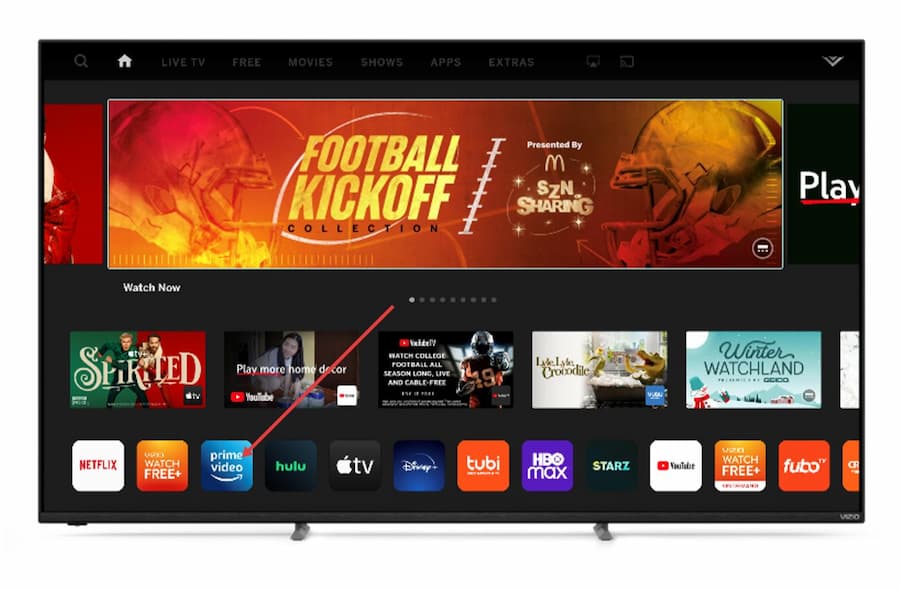
On modern Vizio Home or SmartCast TVs, Prime Video is usually accessed as a built-in streaming app from the home screen or app row.
Step 1. Locate the App on the Vizio Home / SmartCast Screen
-
01
Turn on your Vizio TV and press the V button or the dedicated Prime Video button on the remote to open the Vizio Home / SmartCast screen.
-
02
Look at the App Row (the horizontal list of apps).
-
03
Scroll through the row to find the Amazon Prime Video icon.
Step 2. What to Do If the Prime Video App Is Missing
If you cannot find the Prime Video icon on your home screen, do not panic. Since Vizio TVs do not have a traditional App Store to manually download apps, use these troubleshooting steps to force it to appear:
- Perform a System Update: Go to Settings > Admin & Privacy (or System) > Check for Updates. Installing available updates refreshes the Vizio Home interface and pushes missing apps to your screen.
- Do a Soft Power Cycle: If the app is still missing, go to Settings > System > Reset & Admin > Reboot TV. This reboots the TV's operating system and reloads the cloud app catalog.
Step 3. Sign In and Activate Prime Video
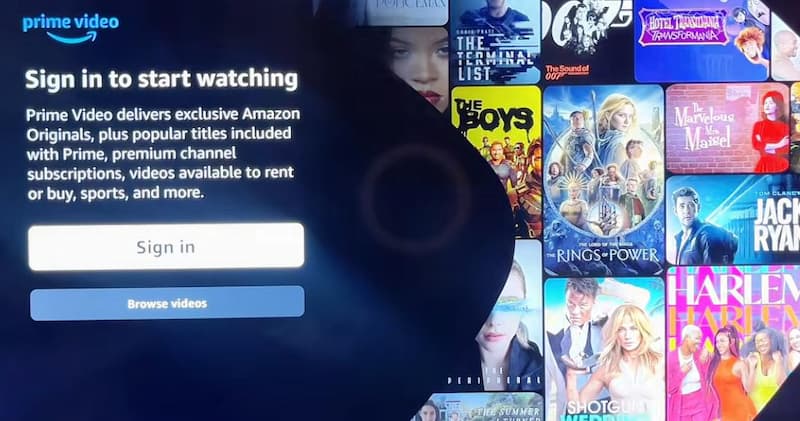
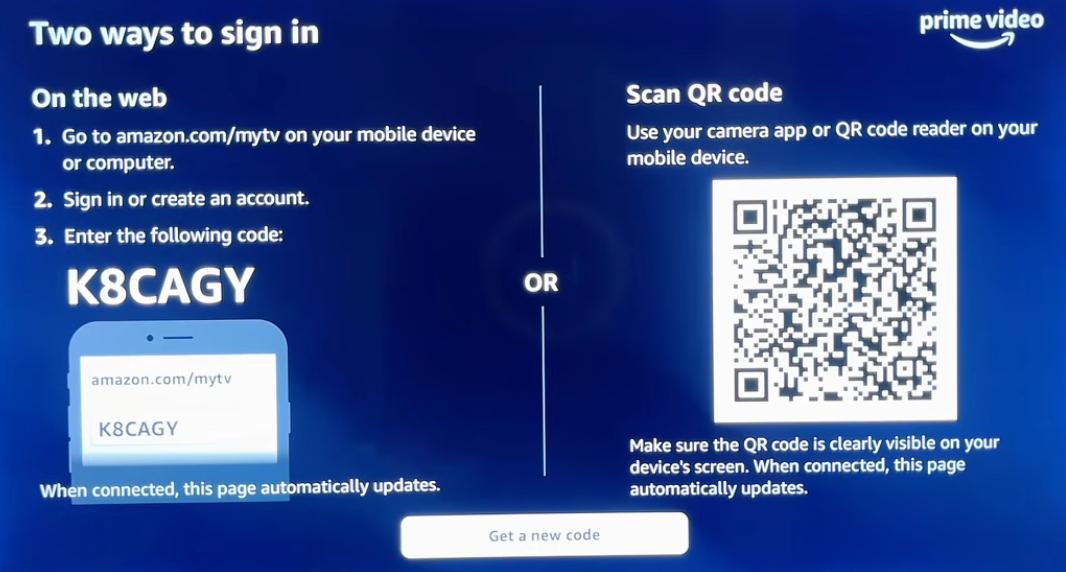
Once you open the app, you need to link it to your Amazon account. You can do this using your phone/computer to enter the code or scan the QR code with your phone's camera.
-
01
Open the Prime Video app on your Vizio TV and select Sign In.
-
02
On the web: Go to amazon.com/mytv on your phone or computer, sign in with your Amazon account, and enter the code displayed on the TV screen.
-
03
Scan QR code: Use your phone's camera to scan the QR code on the screen and authorize your account to log in on the Vizio TV.
Part 3. How to Watch Amazon Prime Video on Vizio Smart TV
In this section, I'll walk through both newer Vizio TVs and older models that no longer support the latest Prime Video app. The first two methods focus on watching directly through the app or casting on supported TVs, while the last two are workarounds for VIA and VIA Plus models.
Method 1. Stream Directly on Vizio Home / SmartCast Models (Modern TVs)
The app layout is similar to the web browser version, featuring sections for Home, Movies, TV Shows, and Live TV. So you can access your Watchlist and "My Stuff" directly through the app. Because the app is linked to your Amazon account, your watching progress is synced to the cloud, allowing you to pick up where you left off on other devices.

Tip: You can use the VIZIO SmartCast Mobile app to enter text (like searching for titles) via your phone's keyboard or to discover new content across multiple apps.
How to Set Subtitles and Audio Language on Vizio Prime Video App
- Remote Shortcuts: Press the CC button on your Vizio remote to quickly toggle closed captions on or off. And, you can hold the CC button for 5 seconds to immediately open the Accessibility menu, where you can select specific subtitle and audio language options.
- On-Screen Menu: While a video is playing, use the up/down arrow buttons on your remote to access the playback menu, then navigate to the CC/Subtitles or Audio icons. You can also pre-set your language preferences by going to Edit Profile within the app and managing Streaming Languages.
Having trouble displaying captions on your device? See how to fix Prime Video subtitles not working.
How to Change Amazon Prime Video Quality on Vizio TV
Prime Video uses adaptive streaming, meaning it automatically adjusts the resolution based on your current internet speed. If you wish to set a manual limit to save data or ensure high quality, follow these steps:
-
01
Open the Prime Video app on your Vizio TV.
-
02
Navigate to My Stuff and select the Settings (gear icon).
-
03
Select Stream & Download, then Streaming Quality.
-
04
Choose between Best, Better, Good, or Data Saver.
- You need a minimum internet speed of 25 Mbps to stream in 4K, though 50 Mbps is recommended for a stable experience.
Method 2. Cast Prime Video from Mobile Devices to Vizio Smart TVs
If your TV features SmartCast, you can use the Chromecast built-in functionality to stream Prime Video content directly from your mobile device or computer to your TV screen. This method is especially useful if your Vizio model does not have the native Prime Video app or if you find the mobile interface easier to navigate.
- Shared Network: Both your mobile device (phone/tablet) or computer and your Vizio Smart TV must be connected to the exact same Wi-Fi network.
- Terms of Service: You must have accepted the VIZIO and Google Terms of Service and Privacy Policies during the TV's initial setup. Accepting these is a required condition to enable the Cast functionality.
- App Updates: Ensure you are running the latest version of the Prime Video app on your mobile device.
How to Cast Prime Video to Vizio TV from a Mobile Phone
-
01
If you are using an iPhone or iPad, go to Settings > Apps >Prime Video and ensure the "Local Network" toggle is turned ON.
-
02
Launch the Prime Video app on your device and select the movie or show you wish to watch.
-
03
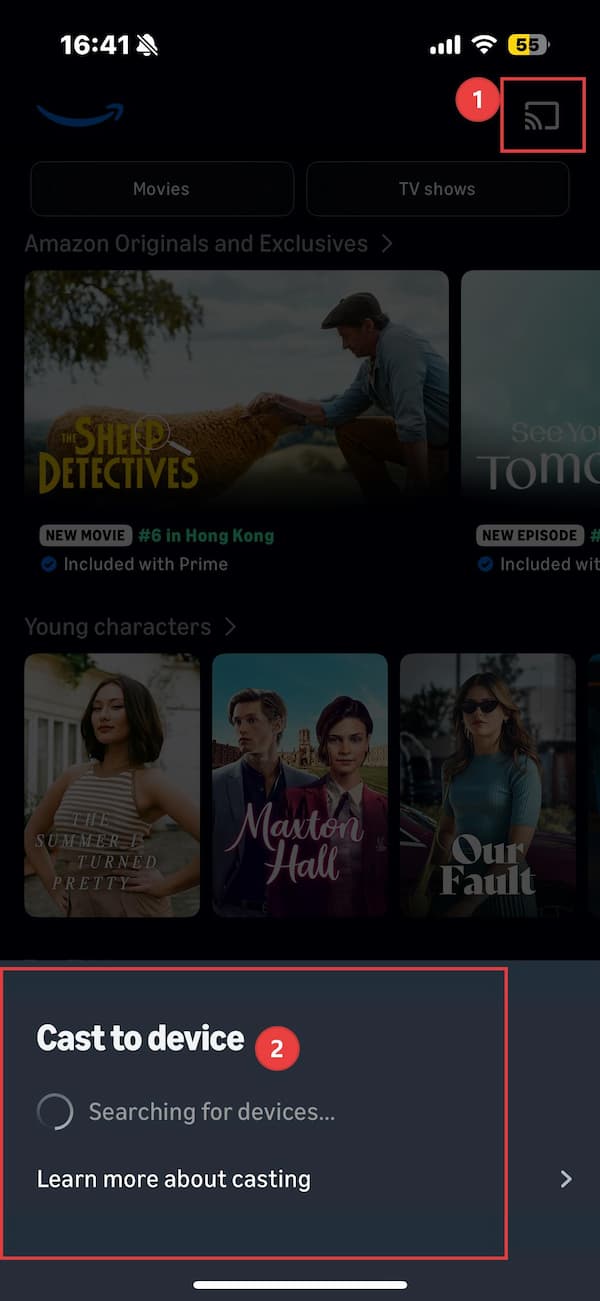
Look for the "Cast" icon in the top-right corner of the app screen.
-
04
A list of available devices will appear. Choose your Vizio Smart TV from the list.
-
05
Once the TV displays the "Ready to Cast" screen, press "Play" on your mobile device to begin the stream on your TV.
How to Cast Prime Video to Vizio TV from a Computer
-
01
Launch the Google Chrome browser on your computer.
-
02
Go to the official Amazon Prime Video website and start playing your content.
-
03
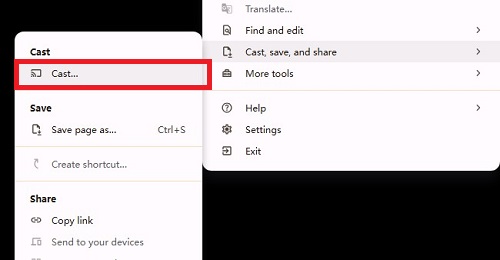
Click the three vertical dots (Menu icon) in the top-right corner of the Chrome browser.
-
04
Choose "Cast..." from the dropdown menu. In the popup that appears, select your Vizio TV to begin displaying the content on your television.
Method 3. Play Downloaded Prime Videos via a USB Stick on Vizio VIA / VIA Plus Models (Older TVs)
If you own an older Vizio TV (manufactured before 2016) running the VIA or VIA Plus platform, you can use a dedicated downloader tool like VidiFab Prime Video Downloader. This professional software lets you download videos from Amazon Prime Video on your PC to MP4 or MKV formats while keeping the 1080p video quality. After the download, you can transfer the video to your USB and then plug it into your Vizio TV for smooth video playback. No Prime Video app or internet is required.
VidiFab Prime Video Downloader
Download Prime Video titles into 1080p MP4/MKV files on Mac and Windows.

How to Download Amazon Prime Videos for Vizio TV via VidiFab
Step 1. Set Up VidiFab and Configure Output Settings
Download and install VidiFab on your computer. Open the menu (top-right icon) → Preferences → set your output format to MP4 or MKV (both work well with Vizio's media player). Choose your video quality and encoding, then click OK. Go back to the main interface, select Amazon Prime Video from the list, and log into your Amazon account using the built-in browser.

Step 2. Search for the Amazon Prime Video You Want to Watch on Vizio TV
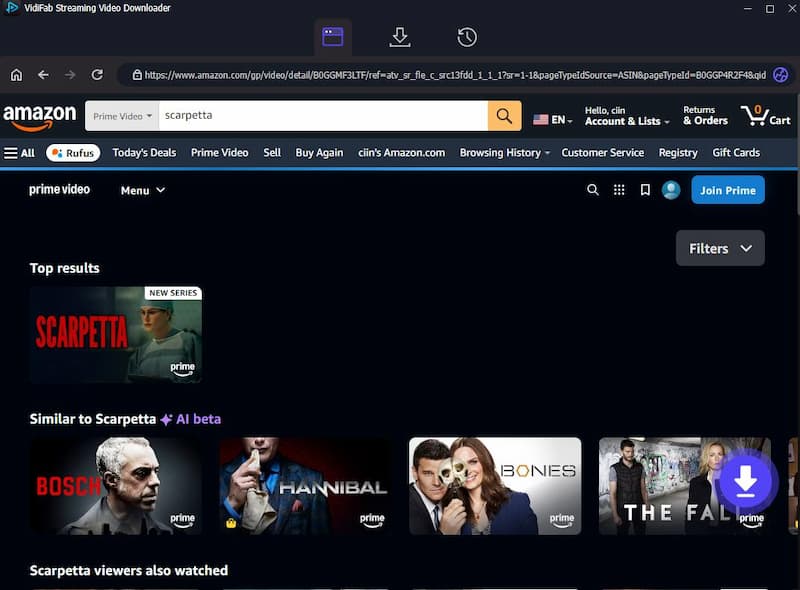
Browse the Amazon Prime library in VidiFab, or copy and paste a movie or show URL from your browser into VidiFab's search bar. Open the detail page of the video you want to watch. VidiFab will analyze the stream and show a Download button in the bottom-right corner. Click it to continue.
Step 3. Choose Your Video, Audio, and Subtitle Quality Settings
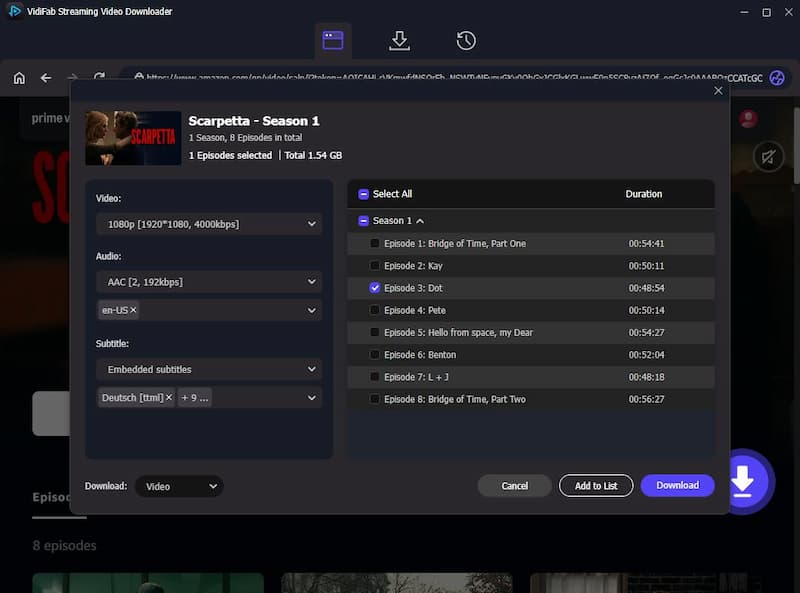
In the download prompt, select 1080p for the best picture quality on your Vizio TV. Choose your audio language and quality track. For subtitles, select your language and choose "Embed" to include them in the video file.
Step 4. Download and Locate Your DRM-Free Video Files
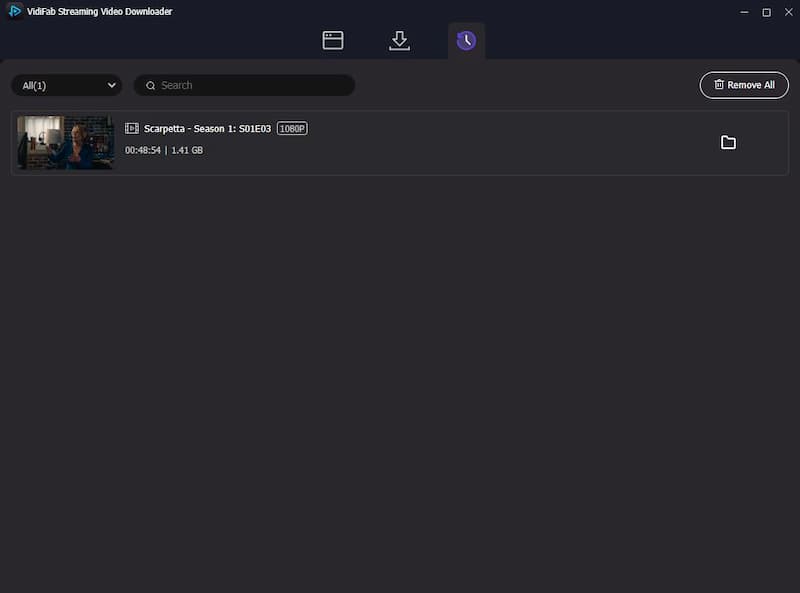
Click the Download button to start. VidiFab will remove the DRM encryption and save unencrypted video files to your computer. Once the download is complete, go to the History tab and click the Folder icon next to the video to find your downloaded MP4 or MKV files.
Step 5. Transfer and Play on Your Vizio TV via USB Stick
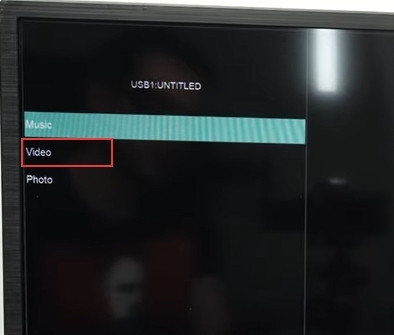
Insert a USB flash drive into your computer and format it to FAT32 or NTFS. Copy your downloaded Prime Video MP4 or MKV files onto the USB drive. Safely eject the drive. Plug it into the USB port on your Vizio TV. Press the Input or V button on your remote and select Media. Browse the video file list, select your converted Amazon Prime video, and press Play to enjoy offline viewing!

Method 4. Use External Streaming Devices on Vizio VIA or VIA Plus Models (Older TVs)
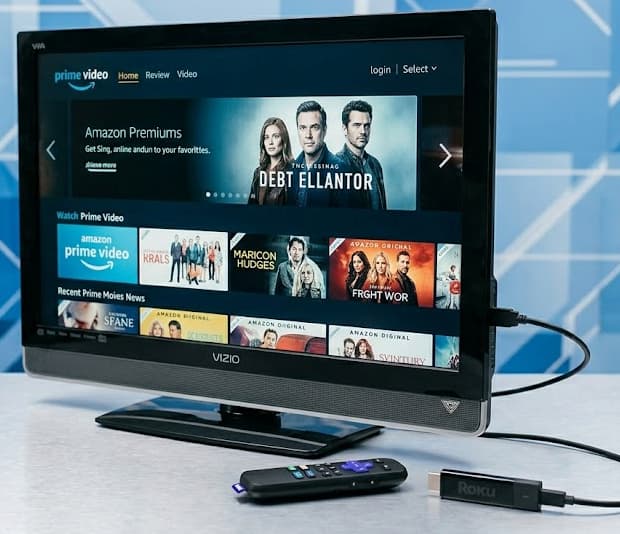
If you do not want to download videos and prefer a live, internet-connected app experience on your older Vizio VIA TV, your only option is to bypass the TV's internal system entirely by plugging in a modern external streaming player.
- Amazon Fire TV Stick: Including the Fire TV Stick 4K and Fire Cube
- Roku Devices: Such as the Roku Streaming Stick, Roku Ultra, and Roku Express
- Apple TV 4K: A more robust option for high-end features
How to Get Prime Video App on Vizio TV via a Streaming Stick
-
01
Plug your Roku, Fire Stick, or Apple TV into an available HDMI port on the back or side of your Vizio TV.
-
02
Press the INPUT button on your Vizio remote.
-
03
Select the HDMI input (e.g., HDMI-1, HDMI-2) that corresponds to the port where you plugged in your streaming device.
-
04
Use the remote that came with your streaming device (not the Vizio remote) to navigate to its app store.
-
05
Search for "Prime Video" and download the app.
-
06
Once installed, log in with your Amazon account to begin streaming immediately.
Part 4. How to Fix Amazon Prime Video Not Working on Vizio TV
If your Prime Video app is freezing, buffering, or failing to stream, use these steps to fix the problem based on your specific issue.
1. The App Keeps Loading, Buffering, or Fails to Launch
"I can't pause anything without it buffering every 5 seconds, I can barely load anything to watch it. Half the time the page where you surf for shows doesn't load in and it takes like 2 hours sometimes to load a movie for it to play." — QAL97
- Switch to an Ethernet Cable: Plug an Ethernet cable directly from your router into your TV. A wired connection is much more stable than Wi-Fi for streaming.
- Power Cycle Your TV: Press the Menu button on your remote. Go to System > Reset & Admin > Reboot TV, and select Yes.
- Try Casting: If your TV has Chromecast Built-in, open the Prime Video app on your phone or tablet and tap the Cast icon to stream it to your TV.
2. The Prime Video App Will Not Open
You try to launch Amazon Video on the TV and the app doesn't open at all, even though other apps like Netflix work fine.
- Check TV Compatibility: If you have an older Vizio TV (a "VIA" model), the built-in Prime Video app may no longer be supported.
- Update Your TV Software: Make sure your TV has the latest software. Go to Menu > System > Check for Updates.
3. "Connection Disconnected" Error
The app opens but shows a "connection disconnected" error message, even though your internet is working for other apps.
- Check the App Name: Look at the app's name on your screen. If it still says "Amazon Instant Video," your TV is running an old, obsolete version of the software that Amazon no longer supports.
Amazon frequently updates its software to add new features, meaning older TVs eventually stop supporting the app. If you do not want to buy a new TV, you can use a tool like Vidifab Prime Video Downloader on a computer. This lets you download your favorite videos onto a USB flash drive and play them directly through the USB port on your Vizio TV.
Part 5. FAQs
How do I clear the Prime Video app cache on a Vizio SmartCast TV?
Why does the Prime Video app ask me to register/sign in every single time I open it?
How do I switch profiles inside the Prime Video app on my Vizio TV?
How to log out of Amazon Prime Video account on a Vizio TV?
Final Thoughts
Watching Amazon Prime Video on a Vizio TV is straightforward if your TV was made after 2015. As for VIA users, the official Prime Video app is no longer supported. Therefore, the only workaround to display videos from Prime Video on the Vizio TV screen is VidiFab Prime Video Downloader, a reliable option. By converting your favorite shows to DRM-free files on a USB drive, you can enjoy a flawless, stable, and buffer-free viewing experience on any Vizio TV model.
 Free Download
 Secure Download
 Free Download
Secure Download
Free Download
Secure Download


I'm a video tech specialist with over 10 years of experience in digital media and streaming. I focus on making complex workflows simple and practical. Through my guides, you'll learn how to convert media, keep high-quality playback across devices, and manage your streaming video library with ease.
 Leave Your Comment