How to Download Amazon Prime Video to a USB Drive
 By Miles Kent
"To prepare for a big trip I want to download a few titles I bought on Amazon Prime. Since my mobile space is very limited I want to save these videos on a separate USB drive. I don't want to play these videos on other devices other than the one I have my Prime Video on. But for the love of god I can't find the option to do it." — DerKrepel from r/AmazonPrimeVideo
If that sounds familiar, you're not alone. Amazon officially allows "downloads," but those files are locked inside the app. If you've ever tried transferring them to a USB stick, you already know: they simply won't play anywhere else.
Don't worry. This guide walks you through everything: why the official download won't work for USB, and how to actually get your Prime Video content onto a USB drive as a standard video file like MP4 or MKV.
Part 1. Can You Download Prime Video Videos to a USB Drive?
Not directly, but there's a reliable workaround.
Amazon Prime Video's official app (Windows, Android, iOS, and Fire tablet) does support offline downloads. But here's the catch: every single file it saves is protected by DRM (Digital Rights Management) encryption.
- App-Locked: Only the Prime Video app itself can read your downloads.
- Non-Transferable: You cannot copy, transfer, or move them to a USB drive or any other device.
- Expiration: All downloads typically expire within 30 days or 48 hours after you press play.
- Licensing: Buying a title on Amazon gives you a viewing license, not a free-to-copy video file.
So no matter whether you're on a Prime membership, renting, or have bought a title, the official download path hits the same wall when you want USB storage.
The solution? Convert the video to an unencrypted format such as MP4 or MKV first, and then you can move it anywhere, including a USB drive.
Part 2. What You Need Before Downloading Prime Video to USB
Before diving into the steps, make sure you have the following ready:
| Requirement | Details |
|---|---|
| Computer | Windows 10 or later, or macOS 11 or later |
| USB Drive | 128 GB or larger recommended (flash drive or portable hard drive) |
| Amazon Account | Active Prime subscription, or purchased/rented content (a free account works for downloading a Freevee title). |
| Internet Connection | Required throughout the download process |
| VidiFab Prime Video Downloader | Specialized tool that removes DRM and saves videos as MP4/MKV |
Why choose VidiFab? It is designed specifically for streaming platforms and takes care of the technical details. It supports up to 1080p Full HD, allows batch downloading of entire seasons, multiple audio tracks, and both embedded and external subtitles. Plus, hardware acceleration can download at speeds up to 8x faster once you purchase a license, which means a 1-hour episode may take as little as 7 to 8 minutes to finish downloading. You can click the Download Free button to test it out on your computer.
VidiFab Prime Video Downloader
Download Prime Video titles into permanent 1080p MP4/MKV files on Mac and Windows.

Part 3. How to Download Amazon Prime Video to a USB Drive
There are two steps: first, download Prime Video content as an MP4 file with VidiFab; second, move the file to your USB drive.
Phase 1: Download Prime Video as MP4
Here's how to use VidiFab Prime Video Downloader to download videos from Amazon Prime Video to your PC or Mac as MP4 files.
Step 1. Set Output Preferences and Log In
Open VidiFab Prime Video Downloader. Click the Menu icon and select Preferences. Set the output format to MP4 for maximum compatibility. Choose H.264 for video codec and AAC for audio codec for smooth playback at 1080p.

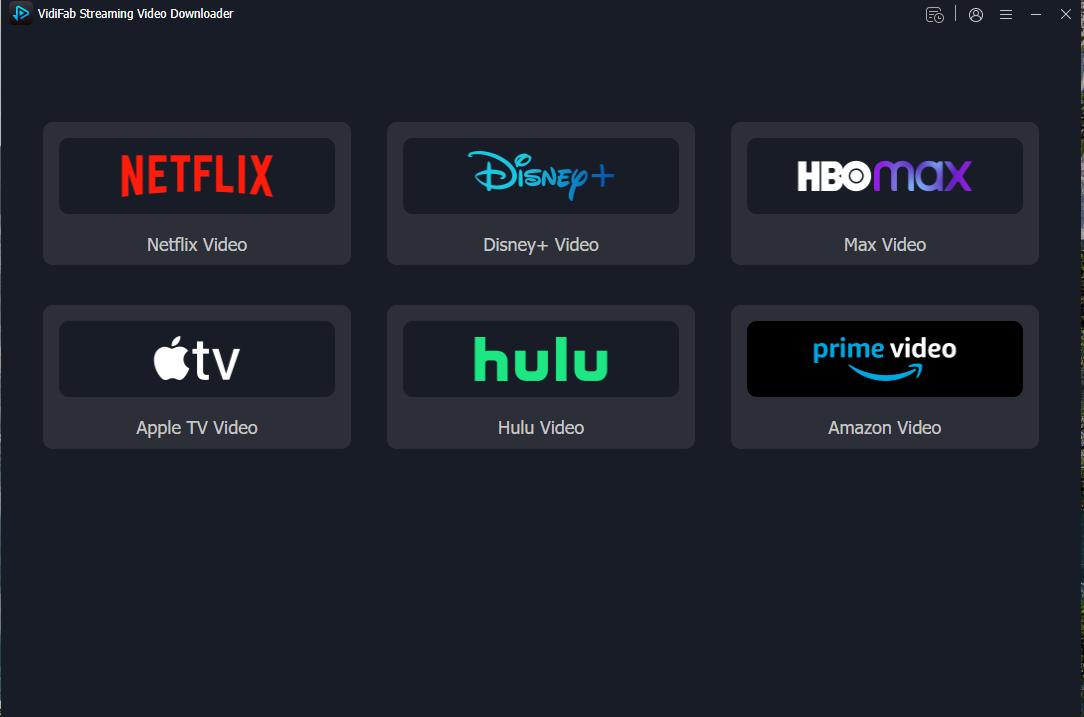
Once saved, click the Amazon Prime Video icon on the main interface and log in through the built-in browser using your Amazon account.
Step 2. Find and Analyze the Prime Video
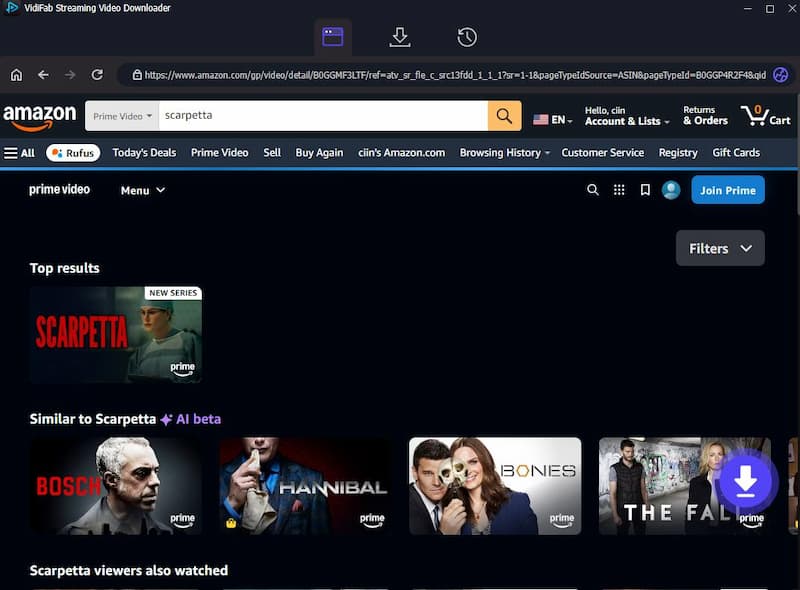
Use the built-in browser to browse or search for your movie or TV show. You can also paste a video URL. Once the page loads, VidiFab will analyze the video, and a Download button will appear.
Step 3. Customize Your Download Settings
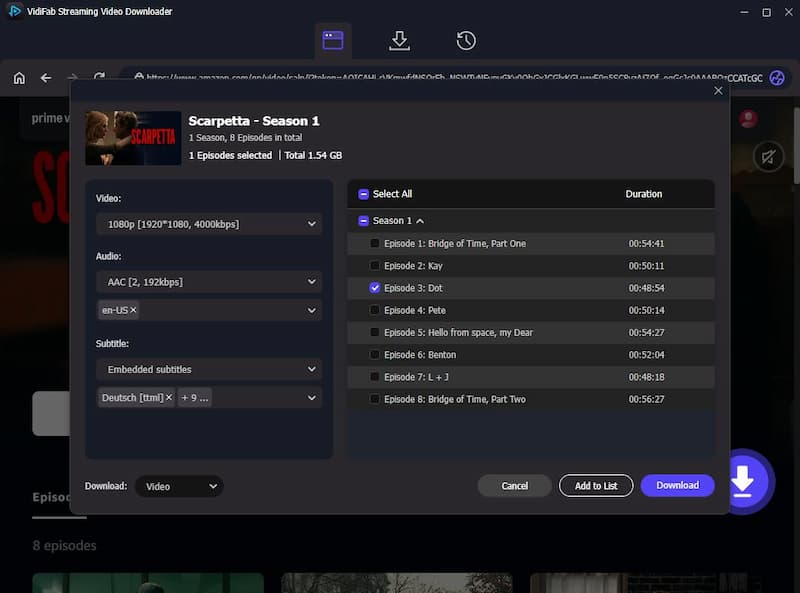
Click the Download button. In the popup, select 1080p Full HD for the best quality. Choose your preferred audio quality and language. For subtitles, select either embedded or external (.srt) files. If downloading an entire season, check the Select all box.
Step 4. Start Downloading
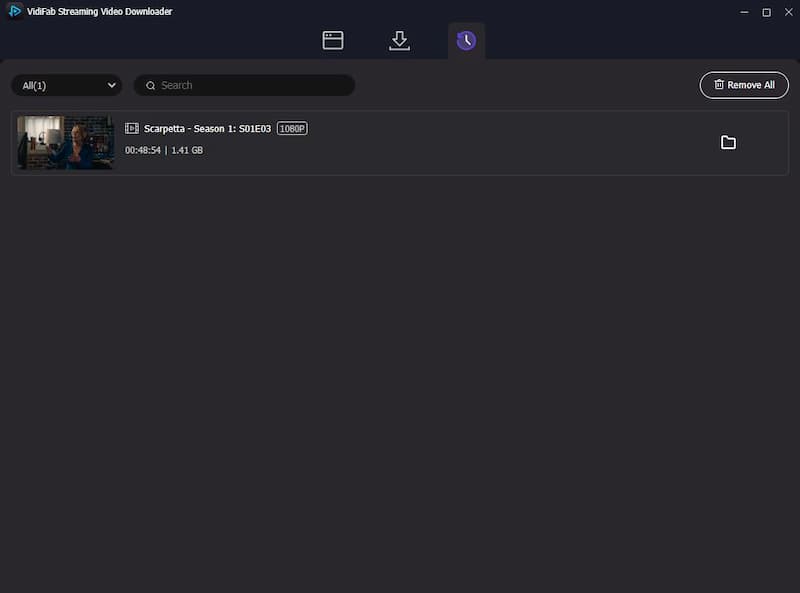
Click Download to start. After it's done, go to the History tab and click the folder icon to find your files. Prepare your USB flash drive to transfer them.
Phase 2: Transfer the Downloaded Prime Video Files to Your USB Drive
Step 1. Connect Your USB Drive
Plug the USB drive into your computer and confirm it's recognized. For large HD movie files, make sure the drive is formatted correctly (see Part 4 to figure out how to format your USB drive).
Step 2. Copy the Files
Navigate to the output folder where VidiFab saved your MP4 files. Then simply drag and drop, or copy and paste, the files onto your USB drive. Once the transfer completes, safely eject the drive.
Step 3. Play Prime Videos on Any Device
Plug the USB flash drive into the playback device. Use the default media player or any player to find and play the Prime Video you transferred offline.
- Other computers or phones: Open the MP4 file with VLC, PotPlayer, MX Player, or any standard media player.
- Smart TVs: Insert the USB, launch the media player app, and choose your file.
- Car media systems: Most modern in-car systems support MP4 via USB. You just plug the USB into the car system and switch the source to USB to play the video.
- Other devices: Use an OTG adapter or file manager app as needed.
Part 4. Best USB Formats for Prime Video Downloads
To make sure your Prime Video MP4 files, especially large HD movies and TV shows, work smoothly on different devices, choosing the right USB file system is important.
| File System | Best For | Large Files Support | Compatibility | Recommendation |
|---|---|---|---|---|
| exFAT | Most users | Yes (over 4GB) | Windows, Mac, most smart TVs, car systems | ⭐ Best choice |
| NTFS | Windows users | Yes | Windows, limited support on Mac and some TVs | Good for Windows-only use |
| FAT32 | Older devices | No (4GB file size limit) | Very wide compatibility | Not recommended for HD videos |
Format your USB as exFAT. It handles large files, works across Windows and Mac, and is recognized by most smart TVs and car media systems.

Warning: Formatting erases everything on the drive. Back up any existing files before proceeding.
How to Format Your USB Drive
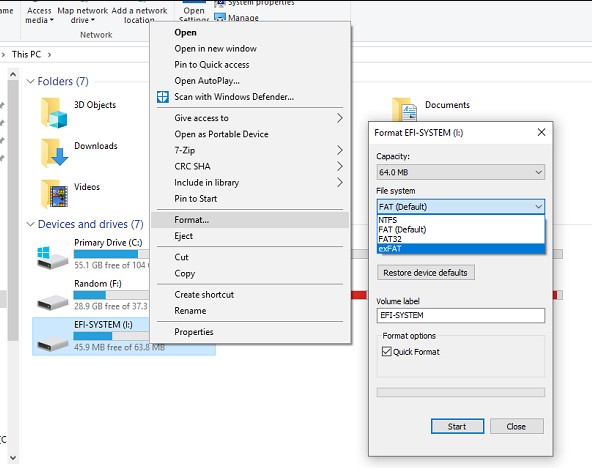
On Windows:
-
01
Plug in the USB drive and open File Explorer.
-
02
Right-click the USB drive and select Format.
-
03
Under File system, choose exFAT.
-
04
Set Allocation unit size to Default. Add a volume label if you like (e.g., "Prime Videos").
-
05
Check Quick Format, click Start, and confirm the warning.
-
06
Click OK when done.
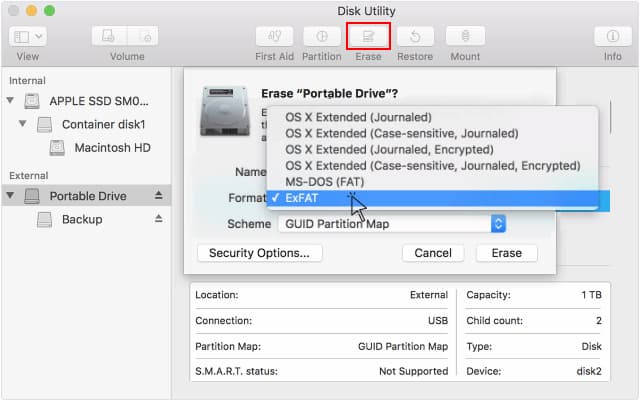
On Mac:
-
01
Plug in the USB drive.
-
02
Open Disk Utility (Launchpad or Spotlight: Command + Space → "Disk Utility").
-
03
In the sidebar, click View and select Show All Devices.
-
04
Select the top-level physical USB device.
-
05
Click Erase in the top menu.
-
06
Set the Format to exFAT and Scheme to GUID Partition Map.
-
07
Click Erase, confirm the action, and click Done.
Once formatted, copy your MP4 files over and you're good to go.
Part 5. Is It Legal to Download Prime Video to a USB Drive?
Downloading your own purchased content for personal offline use is usually acceptable as long as you don't share it.
Amazon Prime Video's Terms of Use make it clear that users only receive a limited license to watch content, not ownership of the videos. The rules also say you cannot:
- Copy, share, or redistribute the content (unless the service explicitly allows it)
- Try to bypass or break DRM or other protection systems
- Use the content for commercial or illegal purposes
In practice, Amazon mainly focuses on stopping large-scale piracy, such as uploading or sharing content publicly. It is less likely to target people who simply keep content for personal offline use.
Under U.S. DMCA: Bypassing DRM goes against streaming terms, but "format shifting"—converting purchased media for personal use—is usually accepted in many areas and rarely enforced against individuals.
Part 6. FAQs
Will the downloaded MP4 keep the original video quality and subtitles?
Can I use this method for Freevee content on Prime Video?
How long does it take to download a 2-hour movie?
My USB won't work on my TV. What can I do?
Can I still watch rental content after it expires?
Final Thoughts
Prime Video's official download feature is convenient, but those files are protected by DRM. This means you cannot copy them directly to a USB drive or stick.
If you want to save space, watch on your TV, watch offline while traveling, or keep movies for a long time, you should first convert them to MP4 or MKV files. Please only do this for movies you have bought, and follow copyright laws.
Once you have the MP4 or MKV files, you can treat them like any other video. You can save them to a USB drive or hard drive and watch them on any device you want.
 Free Download
 Secure Download
 Free Download
Secure Download
Free Download
Secure Download



I'm a video tech specialist with over 10 years of experience in digital media and streaming. I focus on making complex workflows simple and practical. Through my guides, you'll learn how to convert media, keep high-quality playback across devices, and manage your streaming video library with ease.
 Leave Your Comment