How to Watch Amazon Prime Video Offline on Any Device
 By Miles Kent
Amazon Prime Video supports offline viewing through its official app on supported devices, including iOS, Android, Fire tablets, and compatible Windows or macOS devices. However, not every title is available for download, and downloaded videos can only be watched within the Prime Video app. If you are searching for how to watch Amazon Prime Video offline, this guide explains the official download methods, offline viewing limits, and a more flexible way to save Prime Video movies and episodes for offline playback.
- The official Amazon Prime Video app allows you to download included movies, TV series, purchases, and rentals for offline viewing.
- You can watch downloads offline via the official app on iPhone, iPad, Android, Fire tablets, and supported Windows or Mac desktop apps.
- Not all third-party titles support offline viewing due to regional licensing and content provider restrictions.
- Downloads are subject to a cross-device account cap (15 to 25 titles for Standard or 100 for Ultra) and expire within 30 days (or 48 hours once you hit play). Only purchased titles do not expire.
- To keep Amazon Prime Video downloads longer and playable on more devices, consider using the VidiFab Streaming Video Downloader.
Part 1. Can I Watch Amazon Prime Video Offline?
Yes, you can watch Prime Video offline, but only through the official Prime Video app on supported devices.
Supported Devices for Amazon Prime Video Offline Viewing
| Supported Device | Offline Download | Required System or Version | Where to Get the Prime Video App |
|---|---|---|---|
| iPhone & iPod Touch | Yes | iOS 17.0 or later | Apple App Store |
| iPad | Yes | iPadOS 17.0 or later | Apple App Store |
| Android Phones & Tablets | Yes | Android OS 5.0 (Lollipop) or later | Google Play Store |
| Amazon Fire Tablets | Yes | Fire OS 5 or later (Excludes Kindle Fire 1st Gen) | Pre-installed / Amazon Appstore |
| Windows PC & Laptops | Yes | Windows 10 or Windows 11 | Microsoft Store |
| Mac (MacBook / iMac) | Yes | macOS 13.0 (Ventura) or later | Mac App Store |
| Web Browsers (Chrome, Safari, etc.) | No | Any OS (Streaming only) | N/A (Access via official website) |
- You need an active Amazon Prime or Prime Video membership to download videos.
- If you are part of an Amazon Family or Amazon Household group, downloading is not allowed. You can only watch or share Prime Video content with other members with ads in this situation.
- To unlock download access, you can use VidiFab Streaming Video Downloader to save Prime Video titles directly to your computer.
Part 2. How to Watch Amazon Prime Video Offline with the Official App
Amazon Prime Video lets you download certain movies and TV episodes, as well as your rentals and purchases, directly in the app. Once downloaded, you can watch these Amazon downloads offline within the app.
Download Prime Video Movies and Episodes on iPhone/iPad
Downloading Prime Video content to an iOS device is the ultimate solution for long flights or daily subway commutes. The Apple version of the app has a user-friendly interface that allows you to easily manage download settings from your profile, making it simple to save Prime titles to your iPhone or iPad.
-
01
Download the Prime Video app from the Apple App Store and sign in with the Amazon account that has Prime Video access.
-
02
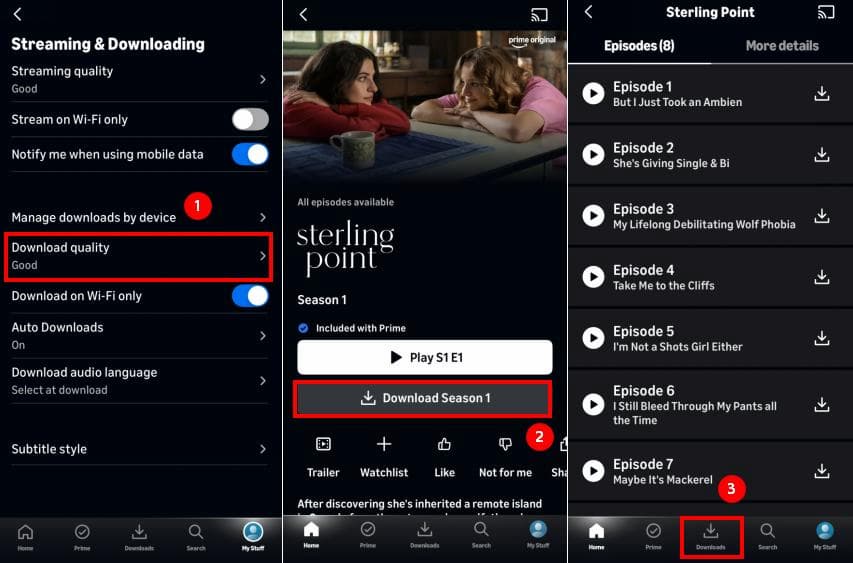
Open the Prime Video app, tap your Profile icon (top right), select the Settings gear, then tap Streaming & Downloading > Download Quality. Select your preference (Best, Better, or Good).
-
03
Find a movie or episode you want to download.
- For movies: Open the movie details page and tap Download.
- For TV shows: Open the series page, then download the entire season or select individual episodes.
- For purchased/rented content: Go to your My Stuff or Purchases tab at the bottom menu to find your specific rental or bought title.
-
04
Once the download is complete, go to the Downloads tab at the bottom center of the app. Here, you will see your downloaded titles. You can tap on any title to watch it without an internet connection.

To download Freevee content on Prime Video, use the VidiFab Streaming Video Downloader, as the app does not support this feature.
Download Amazon Prime Videos on Android Devices
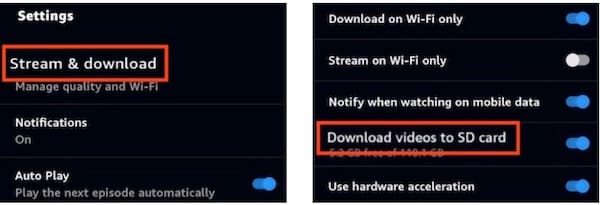
The Android version of the Prime Video app functions similarly to the iOS version for offline viewing. However, it includes an additional feature that allows Prime Video downloads to an SD card if one is inserted in your device. This is useful when your device's internal storage is limited.
-
01
To enable this feature, open the app, tap on your Profile, then go to Settings > Stream & Download, and turn on the option to download videos to the SD card.
-
02
Find your video or look under your Purchases tab for rented/bought movies. Tap the Download button for a movie or the down-arrow for specific episodes.
-
03
Once the download is complete, you can find it in the Downloads tab and watch it offline.
Download Amazon Prime Video on PC or Mac
Amazon allows offline downloads through the desktop version of the Prime Video app. To get started, open the Microsoft Store for Windows or the Mac App Store for macOS, and install the official Amazon Prime Video app. You can then download movies and shows just like on your mobile device.
-
01
Open the Amazon Prime Video app on your PC or Mac.
-
02
Search for the movies or TV episodes you want to download. For purchases and rentals, hover your mouse over the bookmark icon in the top right corner to find the option.
-
03
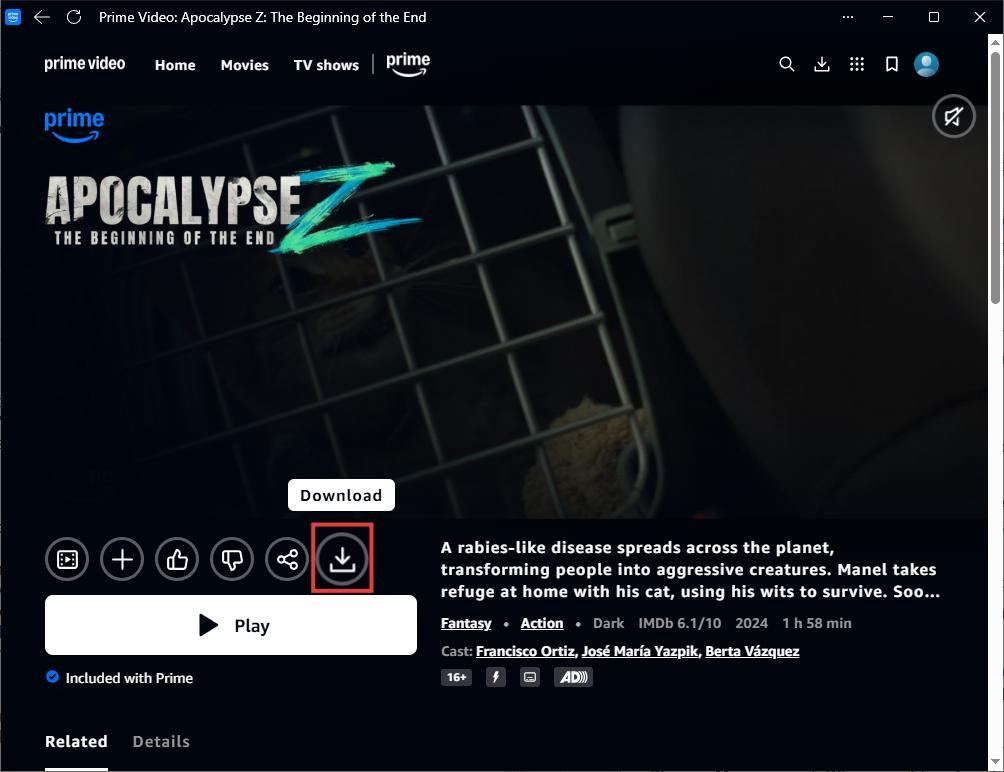
Open the title detail page, click the Download icon. A settings window will appear. Choose the download quality and audio languages, then click Start Download.
-
04
Click the download arrow icon in the top right to view all your downloads. Click on a video to play it offline within the Prime Video app.
If you experience any download errors, refer to the detailed guide on how to download movies from Prime Video to PC and the full guide for Prime Video download on MacBook or iMac.

Notes for PC and Mac Users: Prime Video downloads are stored inside the app, not as MP4 or MKV files. You cannot move downloaded videos to another device for playback.
Part 3. Amazon Prime Video Offline Download Limits You Should Know
Amazon Prime Video offline viewing is convenient, but downloaded content comes with several restrictions. These limitations are mainly related to device support, title availability, viewing periods, and playback methods.
Official Prime Video Download Limits
| Limit Type | The Official Rule | What it Means for You |
|---|---|---|
| Total Storage Cap | Standard Plan: Max 15 to 25 videos total. Ultra Plan: Max 100 videos total. | This is a cross-device cap. If you reach the limit, you must delete old videos to download new ones. |
| Device Caps | Prime Content: Max 2 devices at the same time. Purchased Content: Max 4 devices at the same time. Rented Content: Max 1 device only. |
You can delete a download from one device to free up a slot for another device if needed. |
| 30-Day Expiration | Unwatched downloads expire after 30 days. | You cannot download videos months in advance. They will delete themselves automatically if left unplayed. |
| 48-Hour Playback | Once you press Play, you must finish it within 48 hours. | When you start watching a video offline, a 48-hour clock starts. After that, it locks until you go back online to refresh the license. |
| Rental Expiration | Subject to standard rental rules: 30 days to start, 48 hours to finish. | Downloading a rental does not freeze or extend your rental timer. |
| Account Dependency | Downloads disappear if your Prime subscription ends. | No active membership means no offline viewing, even for already downloaded files (excludes purchased videos). |
| No Casting | Playing downloaded content offline via Chromecast or AirPlay is blocked by the app. | You can only watch the offline downloads on your download device. |
Part 4. How to Save Amazon Prime Video Offline with More Flexibility
If you want to keep Prime Video downloads for longer and watch them on more devices, such as smart TVs or Plex, you can try VidiFab Streaming Video Downloader. VidiFab lets you download Amazon Prime Video movies, TV shows, Freevee titles, rentals, and purchased videos for offline viewing. It also supports unlimited downloads without ads, regardless of your Prime Video plan.
VidiFab Streaming Video Downloader
Download Prime Video titles as 1080p MP4 or MKV files with subtitles and audio tracks on Mac and Windows for offline viewing.

Prime Video Official App vs VidiFab Downloader
| Features & Limits | Official Prime Video App | VidiFab Downloader |
|---|---|---|
| Who Can Download | ❌ Primary paying member only. (Blocks Amazon Family profiles) | Anyone with access to the Prime Video streaming content. |
| What You Can Download | ❌ Select titles only. (Blocks Freevee and restricted streams) | Any streamable video (Includes Freevee). |
| File Expiration | ❌ Expires in 30 days (or 48 hours after you press play). | Never expires. Saved forever. |
| Download Cap | ❌ Max 15 to 25 or 100 videos total across accounts. | Unlimited (Depends on your hard drive). |
| Device Restrictions | ❌ Max 1 to 4 devices total. App locked. | No limits. Move files to any phone, PC, or TV. |
| Video Format | ❌ Encrypted DRM files (Plays only inside the official app). | Universal MP4 or MKV (Plays on VLC, Plex, etc.). |
| Subscription Rule | ❌ Downloads vanish if your membership ends. | Videos stay playable even if you cancel Prime. |
| Rental Clock | ❌ Strict 48-hour viewing window once started. | Saves rentals permanently before they expire. |
How to Download Videos from Prime Video with VidiFab
Step 1. Open VidiFab and Set Output Settings
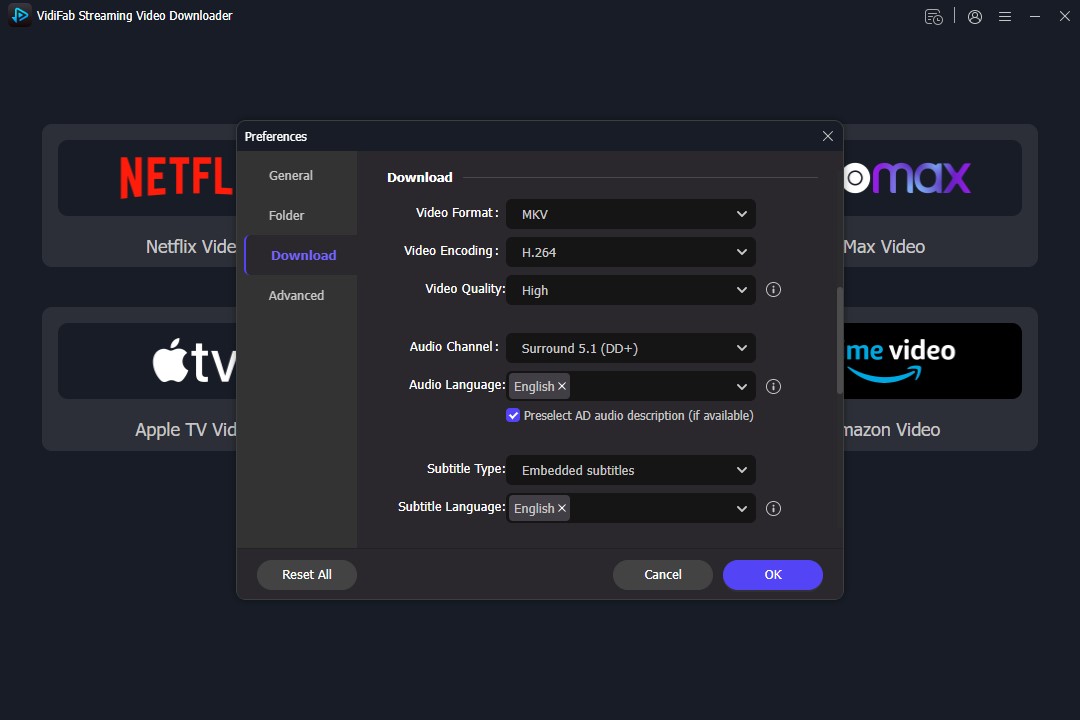
Launch the VidiFab Streaming Video Downloader. Click the menu icon, then go to Preferences > Download. Set MP4 or MKV as your output format and choose a folder for downloads. Click OK to save your settings.
Step 2. Find the Videos You Want to Watch Offline
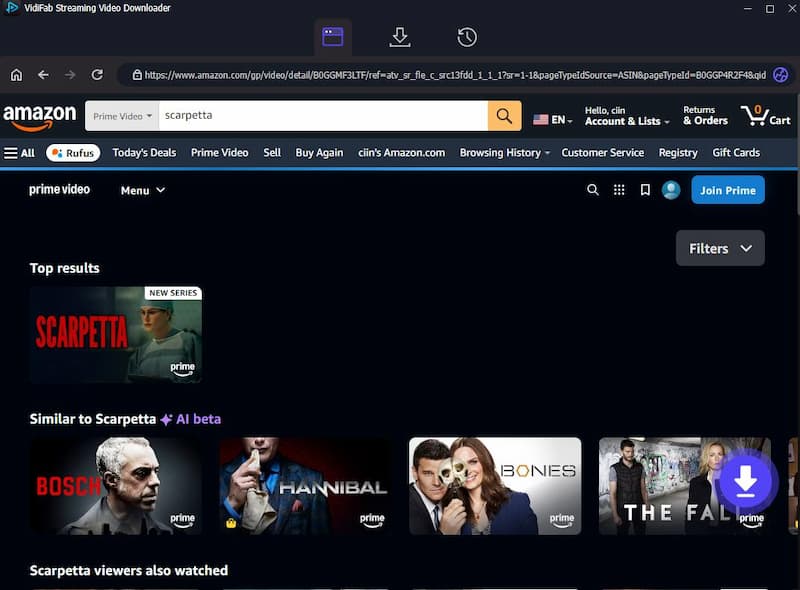
Select Amazon Prime Video from the home dashboard. Sign in to your Amazon account using the secure web player. Browse or search for the movie or TV episode you wish to save. Click the Download button in the bottom right corner, and a settings window will appear.
Step 3. Select Download Settings
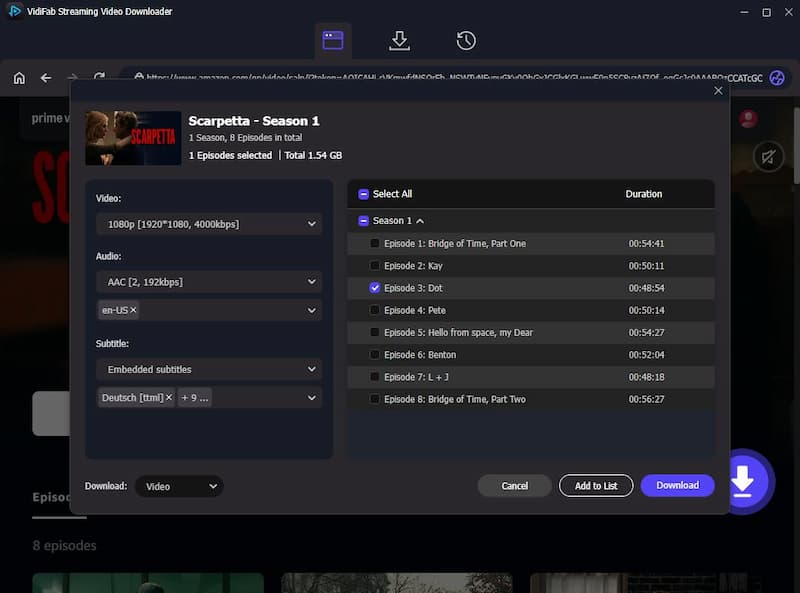
In the settings window, choose your preferred resolution, such as 1080p Full HD. Select the languages for audio tracks and subtitles. If necessary, choose the desired audio quality and subtitle format.
Step 4. Download and Watch Offline
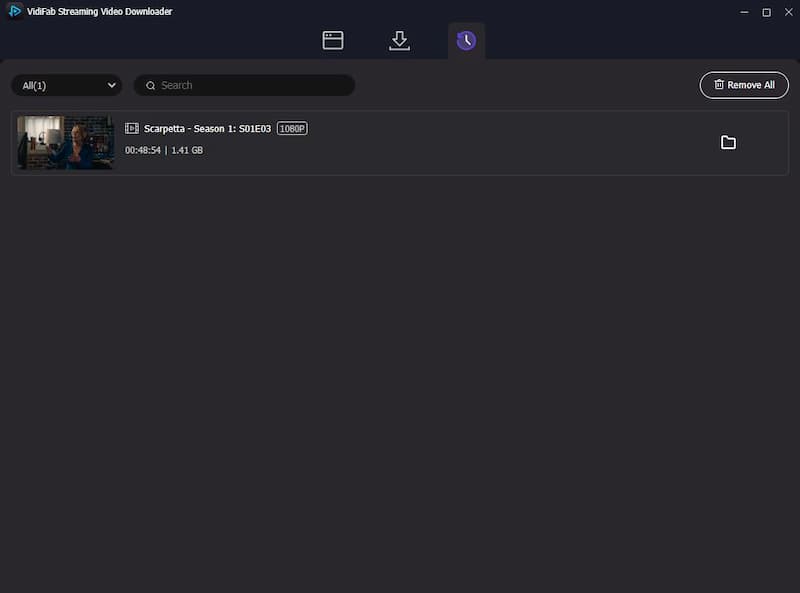
Click the Download button to begin the high-speed download. Once finished, go to the History tab and click the folder icon to find your video files. You can now move these Prime video files to a USB drive for easy management or to your iPhone, iPad, or Android device for flexible playback.
Part 5. FAQs About Prime Video Offline Viewing
Why is my Amazon Prime Video not downloading?
If your Prime Video is not downloading, it is usually due to one of these common issues:
- You may have reached Amazon's account limit for shared devices.
- Some titles have a limit on download times; once you reach that limit, you cannot download it again.
- You might be using a shared Amazon Household/Family profile.
- Another person in your home has already downloaded that specific movie or episode on two other devices.
- Your phone, tablet, or PC may not have enough storage space to save the file.
Where is the Amazon Prime offline video directory located on PC?
On Windows PC, they are stored under C:\Users\[Username]\AppData\Local\Packages\AmazonVideo.PrimeVideo_...\LocalState\OfflineDownloads.
Where is the Amazon Prime offline video directory located on Android?
On Android, they sit in Internal Storage/Android/data/com.amazon.avod.thirdpartyclient/files/Downloads.
Why does my downloaded Prime video say Expired before the 30 days are up?
While unwatched videos last 30 days, the clock changes to 48 hours the exact moment you hit Play. If you started watching a movie, paused it, and went offline, it will expire and lock exactly 48 hours later, requiring an internet connection to renew the digital DRM license. Another situation might be the title leaving Prime Video, so your downloads go away.
Does downloading Amazon Prime videos use a lot of cellular data?
Yes. An hour of HD video can consume between 1 GB and 2.5 GB of data. To avoid massive phone bills, always go to your app settings and turn on Download on Wi-Fi Only. If you are low on data and space, use the Android app's Data Saver option, which compresses the file down to roughly 0.14 GB per hour.
Part 6. Conclusion
Amazon Prime Video offline viewing is convenient, but official downloads come with limits on devices, expiration time, and playback options. The Prime Video app works well for short-term offline watching, while VidiFab Streaming Video Downloader offers a more flexible way to save Prime Video content on your computer and manage your offline library.
 Free Download
 Secure Download
 Free Download
Secure Download
Free Download
Secure Download




I'm a video tech specialist with over 10 years of experience in digital media and streaming. I focus on making complex workflows simple and practical. Through my guides, you'll learn how to convert media, keep high-quality playback across devices, and manage your streaming video library with ease.
 Leave Your Comment