Real Test: 3 Methods to Convert Amazon Prime Video to MKV
 By Miles Kent
If you want to download Amazon Prime Video to MKV, you usually cannot get an official MKV export from Prime Video itself, but you can still end up with MKV files by using a workaround.
I tested three methods: a popular browser extension, OBS Studio screen recording, and a dedicated Prime Video downloader. For each method, I'll walk you through what I did, what happened, and what I'd actually recommend depending on your situation.
Part 1. Why Convert Prime Video to MKV?
MKV, short for Matroska Video, is a container format designed to hold video, audio, subtitles, and chapter data in one file. This makes it useful for keeping multiple subtitle tracks together, especially when dealing with subtitle issues on Prime Video or other streaming content. If you use VLC, Plex, or a NAS-based media library, MKV is usually the format that feels the least restrictive.
I prefer MKV over MP4 or MOV when I want more control over the playback experience. MP4 is more universally compatible, but it is less flexible for multiple audio tracks and subtitle handling. MOV is useful in editing workflows, especially in the Apple ecosystem, but it is not my first choice for a personal streaming archive.
Here is the practical difference at a glance:
| Feature | MKV | MP4 | MOV |
|---|---|---|---|
| Video Quality | Preserves exact original 1080p stream | High, but slight compression vs. MKV | High-bitrate, optimized for editing |
| Audio Track Support | Multiple tracks + Dolby Digital Plus 5.1/Atmos | Usually single stereo (2.0) or basic AAC | PCM or Apple-specific formats |
| Subtitle Support | Unlimited toggleable tracks (SRT/ASS) | Limited subtitle tracks | Embedded subtitles |
| File Size | Optimized — compact and efficient | Small (strips extra data) | Medium to large |
| Device Compatibility | Great (VLC, Plex, NAS) | Excellent (almost universal) | Best in Apple ecosystem |
| Best For | Media libraries and long-term storage | Everyday playback and sharing | Video editing and production |

Part 2. Can You Get Amazon Prime Video as MKV Format?
Not directly. While you can easily follow the official method to download Prime Video content on your MacBook or download Prime Video to PC, those files are stored as encrypted DRM offline caches. You won't find a folder full of playable MP4 or MKV files anywhere on your system.
So you can't simply "convert" those cached downloads into MKV. The DRM encryption prevents it.
What you can do is use third-party software to capture or extract the video stream as you watch it. But before you go further, there's a critical legal note:
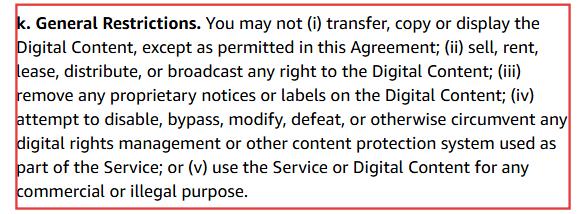
- Amazon's Terms of Service explicitly prohibit bypassing, modifying, or circumventing any DRM or content protection system on the platform. You are also prohibited from copying, selling, or distributing downloaded content outside your personal account. Any MKV conversion should be done strictly for personal backup under fair use principles.
Part 3. 3 Ways to Convert Amazon Prime Video to MKV: Real-World Test
Test setup: Windows 10 HP laptop, active Amazon Prime Video membership, Chrome browser, home broadband connection. All three methods were tested under identical conditions.
I tested:
- Video DownloadHelper (browser extension)
- OBS Studio (screen recording)
- VidiFab Prime Video Downloader (dedicated downloader)
Method 1 — Video DownloadHelper
Video DownloadHelper is a browser extension available for Chrome, Firefox, and Edge. It detects media resources on web pages and, in some cases, offer MKV output.
-
01
Installed and enabled Video DownloadHelper in Chrome.
-
02
Opened settings and checked "Download as MKV when possible", then set the quality to maximum.
-
03
Logged into Amazon Prime Video and started playing a full HD movie.
-
04
Clicked the extension icon in the toolbar once playback began. The extension did detect the video entry.
-
05
Hit download.
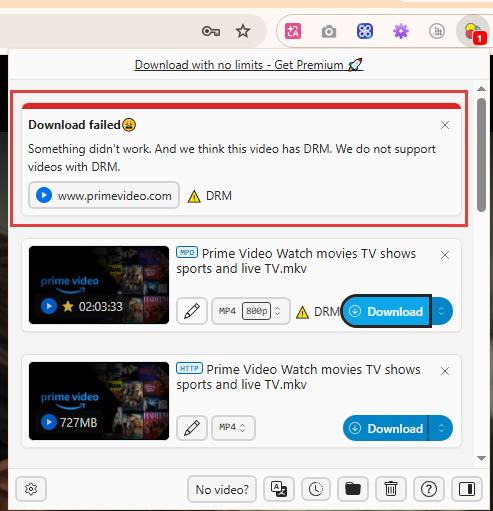
Result: Complete Failure ❌
The extension immediately threw a red error message:
"Download failed. Something didn't work. And we think this video has DRM. We do not support videos with DRM."
It didn't even capture 0 bytes. Amazon's Widevine DRM encryption stopped it cold.
Pros:
- Completely free
- No installation beyond the browser extension
- Works for many non-DRM sites
Cons:
- Failed on the Prime Video stream
- Not reliable for protected streaming content
Method 2 — OBS Studio Screen Recording
OBS Studio is a free, open-source screen capture tool. Instead of downloading a video file directly, it records your screen in real time. That's actually what lets it bypass DRM since it's not touching the encrypted file at all; it's just recording what's displayed on your monitor.
If you try to record Prime Video without a black screen in your recording, you need to disable hardware acceleration in the settings of the browser. I'll take Google Chrome as an example to show you how to turn it off: Chrome → Settings → System → Turn off "Use hardware acceleration when available" → Restart Chrome
-
01
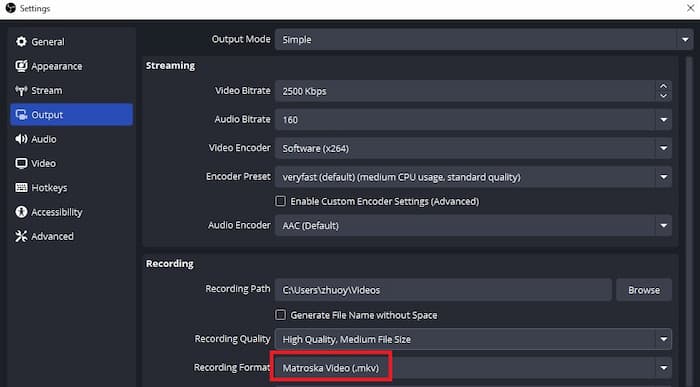
Download and install OBS Studio. Open it and go to Settings → Output.
-
02
Change Recording Format from the default to MKV. Set Recording Quality to high.
-
03
Back on the main OBS interface, click + in the Sources panel and add Window Capture. Select your Chrome window playing Prime Video.
-
04
In the capture properties, check Disable Cursor so your mouse pointer doesn't appear in the recording.
-
05
Set the Prime Video player to fullscreen. Hit Start Recording in OBS, let the content play completely, then click Stop Recording.
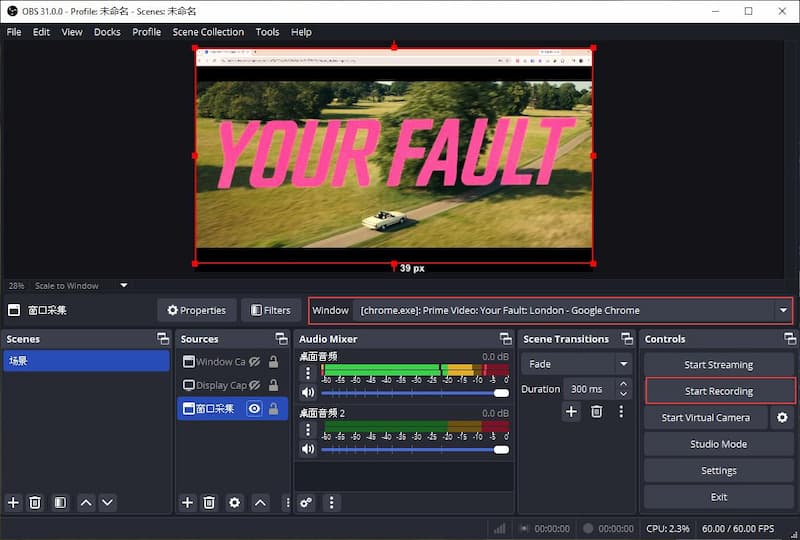
Result: Works, But Very Inefficient
I ended up with a functioning MKV file that captured the video, audio, and any displayed subtitles. The picture quality was 1080p, similar to online streaming, which is what I like about this workaround.
However, it's time-consuming because you have to capture in real-time. You also can't move your mouse, use other apps, or let notifications show up. I tested this and accidentally moved my mouse during recording, causing the Prime Video player controls to appear on screen and become permanently embedded in my MKV file.
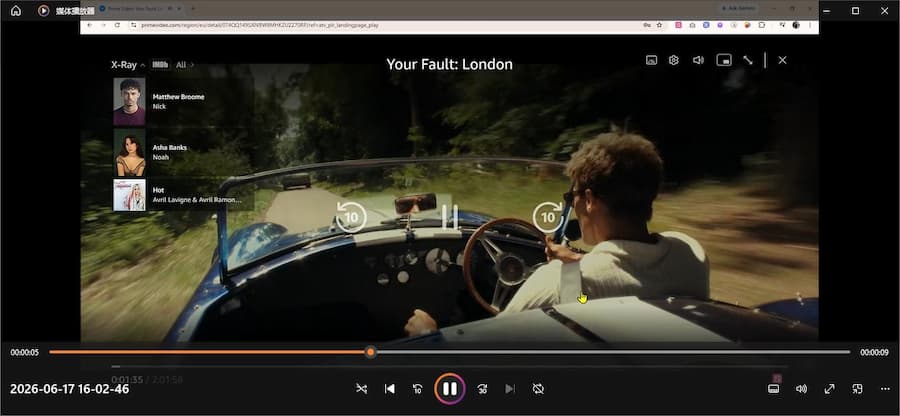
Pros:
- Completely free and open-source
- Does successfully produce a valid MKV file
Cons:
- Real-time only
- Locks up your PC for the entire recording
- Subtitles are not switchable or removable
- No multi-language audio support
Method 3 — VidiFab Prime Video Downloader
VidiFab Prime Video Downloader is a dedicated streaming video downloader built specifically for services like Amazon Prime Video, Netflix, Disney+, HBO Max, Hulu, and Apple TV. Rather than recording your screen, it extracts the video stream directly and packages it as a lossless 1080p MKV file, with all audio tracks and subtitles included.
It also automatically strips ads, including Freevee ads, which is a nice bonus.
VidiFab Prime Video Downloader
Download Prime Video titles as permanent 1080p MP4 or MKV files with multiple subtitles and audio tracks on Mac and Windows.

-
01
Download and install VidiFab Prime Video Downloader on your Windows PC or Mac.
-
02
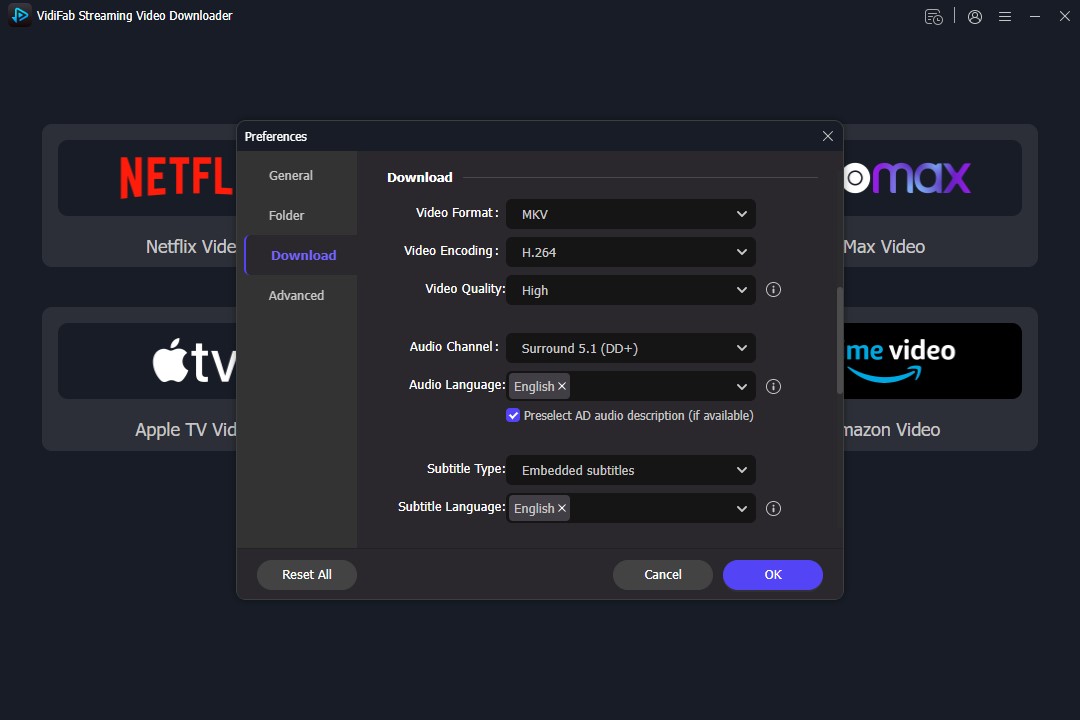
Open the app, go to Preferences, and set MKV as the default output format.
-
03
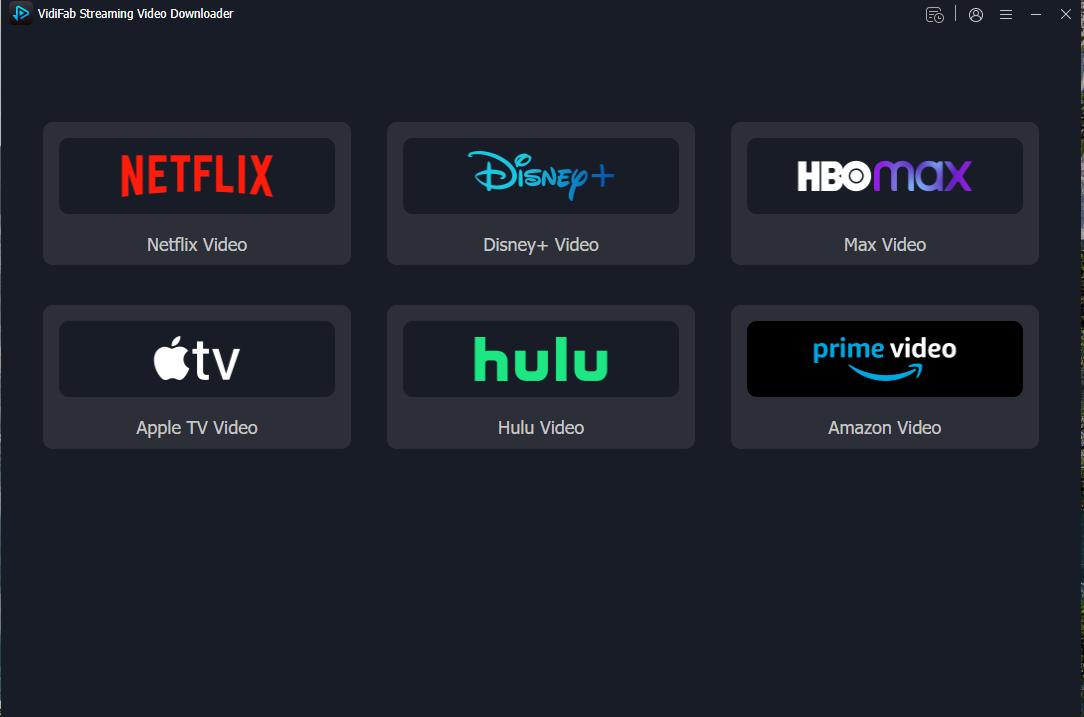
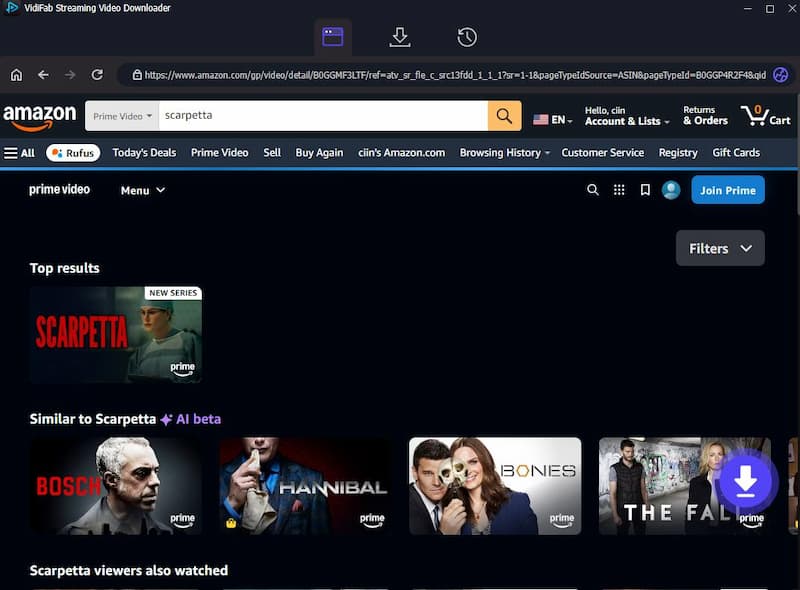
Return to the home screen, click the Amazon Prime Video logo, and sign in to your account using the built-in browser.
-
04
Search for the movie or TV episode you want. When you open the title, VidiFab will automatically detect the video and show a download button; click it.
-
05
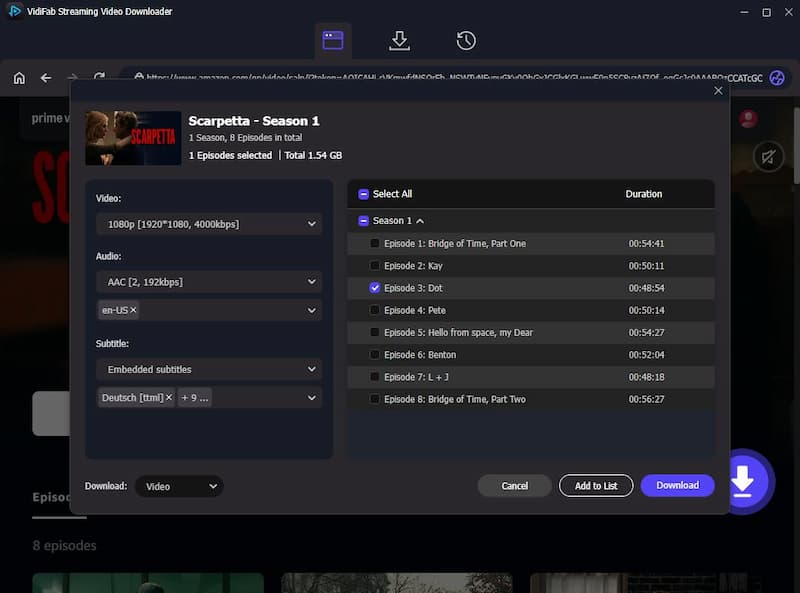
A settings panel will appear where you can choose your preferred resolution (up to 1080p) and select audio tracks and subtitle languages.
-
06
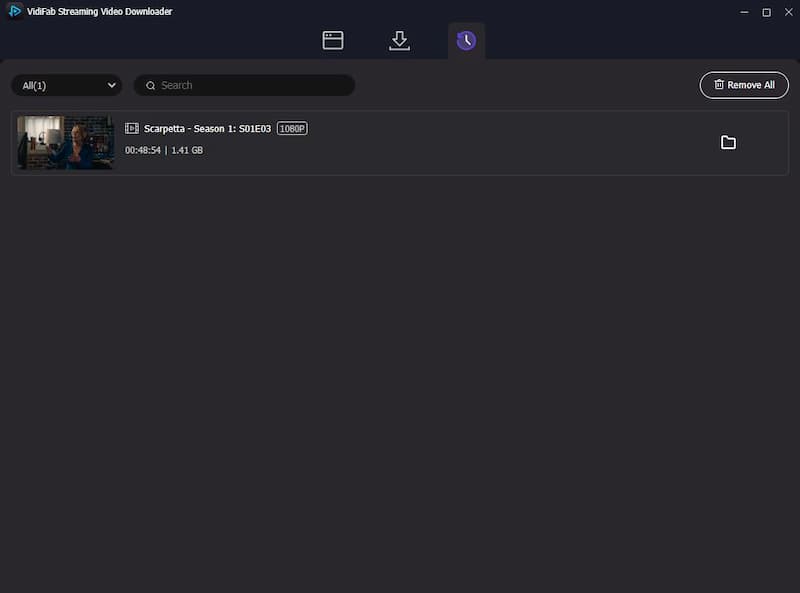
Click Download. VidiFab will process and download the file in the background. Once finished, click the folder icon to find the MKV file in your local folder.
Result: Fast, Clean, Complete
In my test, I downloaded a 48-minute TV episode in under 4 minutes on a standard home broadband connection. That's roughly 8x real-time speed compared to OBS's 1x.
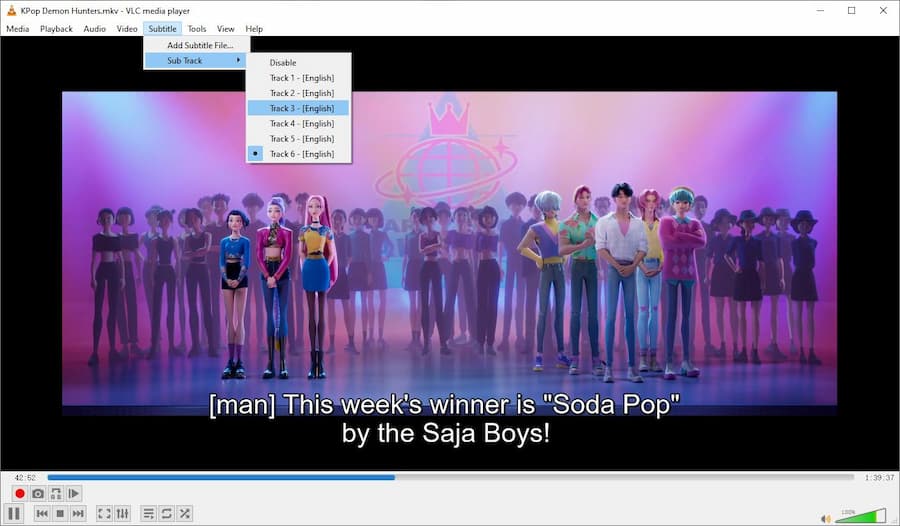
When I opened the finished MKV in VLC, I could go to the Subtitle and Audio menus and find the language tracks and subtitle options packaged inside the single file. Everything was soft-coded, meaning I could toggle subtitles on or off, switch languages, or turn audio tracks entirely.
Pros:
- Lossless 1080p video quality
- Preserved selectable audio and subtitles
- Auto-removes all streaming ads
- Batch season downloads supported
- Runs in the background
Cons:
- Paid software after the trial
- Not the right choice if you only want an occasional one-off capture
Part 4. Final Comparison: Which Is the Best Way to Convert Prime Video to MKV?
After testing all three methods, the best one depends on what you need. If you want a quick and free option and don't mind a slow process, OBS Studio can create a playable MKV file. However, if you value your time, need the original 1080p resolution, or want to download a full season, VidiFab Prime Video Downloader is a better option.
Below is a comparison table of the three methods based on important factors for converting Prime Videos to MKV.
| Comparison Metric | Video DownloadHelper | OBS Studio | VidiFab Downloader |
|---|---|---|---|
| Success rate | 0% | 100% | 100% |
| Speed | Failed | 1x, real time | Up to 8x |
| Video quality | No file | 1080p capture | Lossless 1080p |
| Audio handling | No usable output | Basic stereo capture | Multi-language track support |
| Subtitle handling | No usable output | Burned into the recording | Soft subtitles available |
| Ads removed | No | No | Yes, in supported cases |
| Computer interruption | None, because it failed | Yes | Minimal |
| Cost | Free | Free | Paid after trial |
My Verdict
If your only goal is to get a local MKV copy of a Prime Video title for personal offline viewing, I would skip the browser extension and treat OBS Studio as a backup plan. OBS works, but only if you are willing to trade time and convenience for a free solution. A dedicated downloader like VidiFab is the most practical option when you care about speed, subtitle flexibility, and a clean MKV output.
Whatever method you choose, keep your use strictly personal. Amazon's terms are clear, and the goal here is a better home viewing experience — not distribution.
 Free Download
 Secure Download
 Free Download
Secure Download
Free Download
Secure Download


I'm a video tech specialist with over 10 years of experience in digital media and streaming. I focus on making complex workflows simple and practical. Through my guides, you'll learn how to convert media, keep high-quality playback across devices, and manage your streaming video library with ease.
 Leave Your Comment