Can You Download Prime Videos on Mac? [2026 Full Guide for MacBook/iMac]
 By Miles Kent
Quick answer: Yes, you can download Amazon Prime Video on a Mac, but the official method is through the Prime Video macOS app, not through the web player. On Macs running macOS 13.0 (Ventura) or later, including MacBook Air, MacBook Pro, and iMac, the app lets you save Prime Video titles for offline viewing. The catch is that downloads stay inside Amazon's app-based system, so they do not behave like ordinary video files.
If your goal is simply to watch Prime movies offline on a Mac laptop, the official app is usually enough. If your goal is to move files around freely, keep them permanently, or manage them like standard MP4s, the official route is limited. That is why you may need a more flexible way to download Amazon Prime videos on Mac.
Part 1. Download Amazon Prime Videos on Mac with the Official App
You can download and install the official Amazon Prime Video app from the Mac App Store. Even though Amazon says it requires macOS Big Sur 11.4 or later, in 2026, after the latest update, you need to use the app on a macOS 13.0 (Ventura) or later machine.
What You Need Before Downloading on Mac?
| Requirement | Details |
|---|---|
| Amazon account | Active Prime membership, Prime Video subscription, or purchased/rented content |
| Apple ID | Required to download from the Mac App Store |
| macOS version | macOS 13.0 (Ventura) or later (the older Big Sur 11.4 support has been dropped as of 2026) |
| Chip compatibility | Both Apple Silicon (M1–M4) and Intel chips are supported |
| Storage space | ~2.5–4.5 GB per 2-hour movie at Best quality; ~15–30 GB for a full 10-episode season |
Which Macs Support the Prime Video App?
The new app requires macOS 13 (Ventura), which means your Mac needs to be from roughly 2017 or later. Here's the full breakdown:
Macs that Can Run the Latest Prime Video App:
- MacBook Air: 2018 or later
- MacBook Pro: 2017 or later
- MacBook: 2017 or later
- iMac: 2017 or later
- iMac Pro: All models
- Mac mini: 2018 or later
- Mac Studio: All models
- Mac Pro: 2019 or later
Macs that Cannot Run the Latest Prime Video App
- MacBook: All 2016 and earlier models
- MacBook Air: 2017 and earlier
- MacBook Pro: 2016 and earlier, including 2015 Retina models
- iMac: 2015 and earlier
- Mac mini: 2017 and earlier
- Mac Pro: 2013 "trash can" and older aluminum towers
- If you're on a perfectly functional 2015 MacBook Air or 2015 iMac that no longer supports the Prime Video app, you can use VidiFab Amazon Prime Video Downloader, which supports macOS 11.0 and later. It saves Prime videos as standard MP4 or MKV files directly to your Finder.
- Tip: If you are having trouble with the macOS app and have a Windows computer at home, you can try downloading your movies there instead. Read our step-by-step guide on how to download Prime Video on Windows for a workaround.
Step-by-step guide: How to download Amazon Prime videos on Mac
Step 1. Open the Mac App Store, search for "Amazon Prime Video," and install the official client.
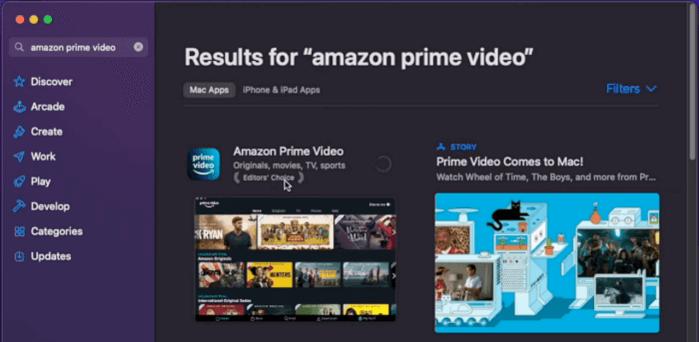
Step 2. Open the app and log in with your Amazon account credentials. If you have two-factor authentication (2FA) enabled, approve the login on your phone.
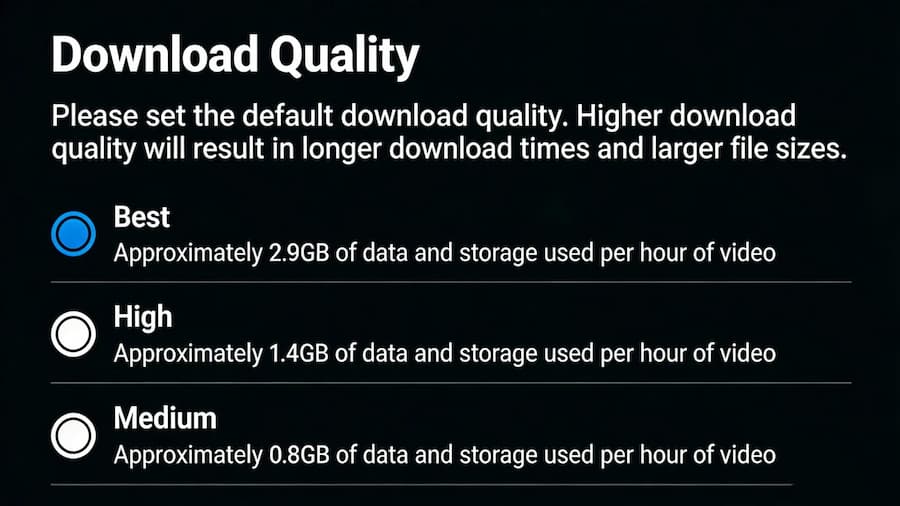
Step 3. Click the gear icon to open Settings, then find Download Quality. Choose between Good, Better, or Best. Keep in mind that Best quality delivers the highest resolution (up to 720p) but uses around 2.9 GB per hour of content — plan your storage accordingly.
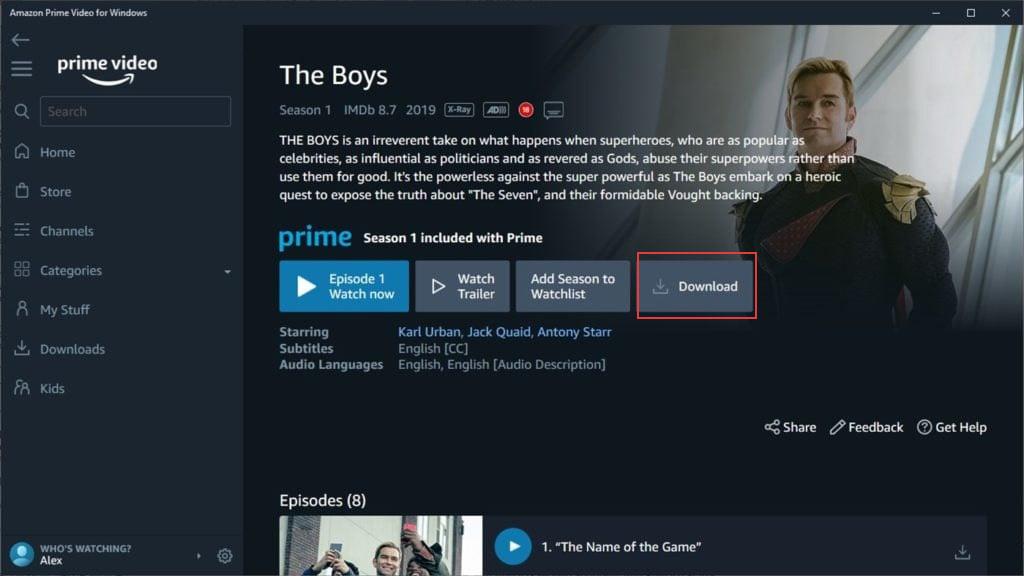
Step 4. Browse or search for your content. Only titles that show a downward arrow (Download) icon on their detail page can be saved for offline viewing. Some third-party licensed content may not have this option.

Generally, Prime Originals, included Prime titles, and purchased or rented content are downloadable. Live TV & sports events, Premium Channel content (Max, STARZ), and ad-supported free titles cannot be downloaded.
Step 5. Start the download. For a movie: click the Download button on the detail page. For a TV show: click "Download Season" to grab the whole season, or scroll to individual episodes and tap the download icon next to each one.
Where Are Amazon Prime Video Downloads Stored on Mac?
This is where things get a bit annoying. Downloads don't appear as regular MP4 or MKV files in your Downloads folder or Movies folder. Amazon encrypts and fragments the files into countless cache pieces with no file extensions, buried deep in macOS's sandbox container at:
- ⚠️ Do not try to copy, move, or rename these files. They're heavily DRM-encrypted and cannot be played by QuickTime or VLC even if you drag them to a USB drive. The official app also doesn't allow you to change the download location to an external SD card or SSD since everything eats into your Mac's built-in storage.
How to Watch Downloaded Prime Video Offline on Your Mac
Step 1. Disconnect from Wi-Fi or enable Airplane Mode to simulate an offline environment.
Step 2. Open the Prime Video app from Launchpad or your Applications folder. It'll launch in offline mode automatically; no network login required.
Step 3. Click the Downloads tab in the bottom navigation bar.
Step 4. Hover over a title and hit Play.
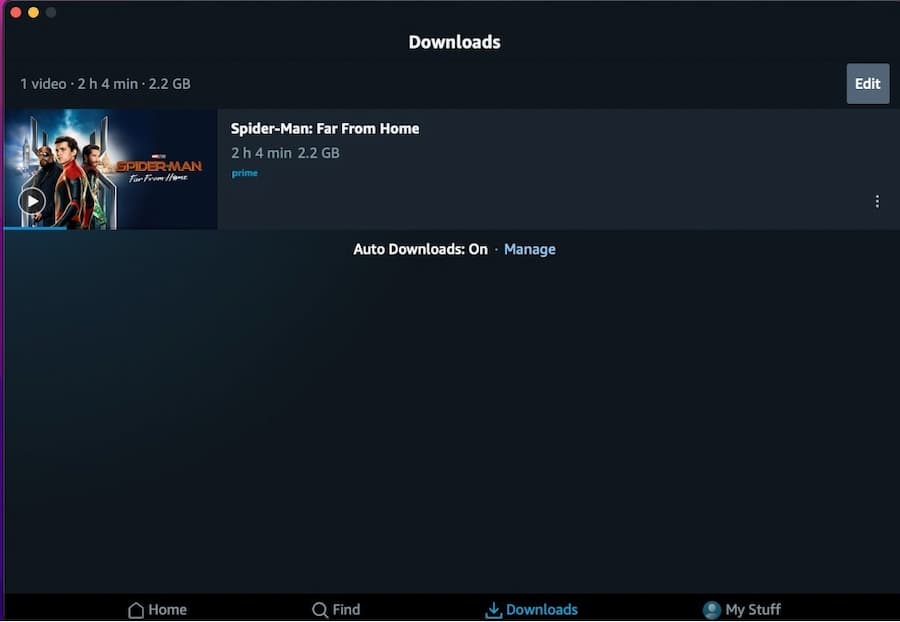
How to Enable Prime Video Auto Downloads for Series (Optional):
If you've downloaded the first few episodes of a show and want the app to automatically grab the next ones, you can set this up:
Step 1. Go to the Downloads tab.
Step 2. Scroll to the bottom and click Manage next to Auto Downloads.
Step 3. Toggle Auto Downloads on and set a cap (e.g., up to 3 episodes at a time).
Step 4. Toggle on Delete Watched Episodes to prevent storage buildup.
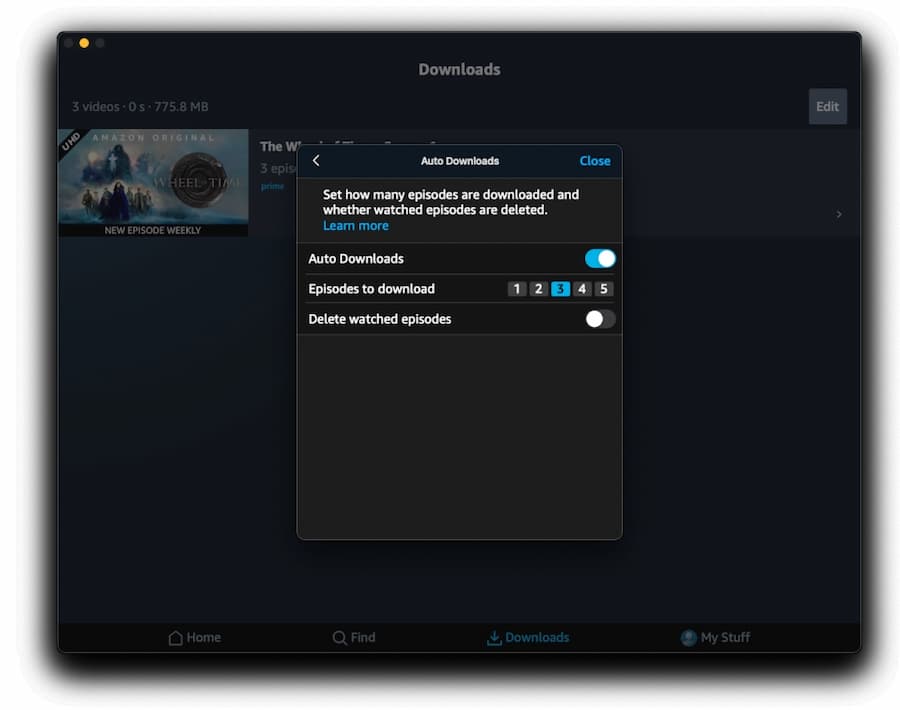
- Auto Downloads only works when your Mac is connected to Wi-Fi. If you're already on a plane and have watched through your pre-downloaded episodes, the app absolutely will not fetch new ones mid-flight. It needs to reach Amazon's servers to request encrypted license keys. Plan ahead and download everything before you go offline.
Part 2. Common Amazon Prime Video Download Limits on Mac
The official app works, but it comes with six frustrating restrictions that are worth knowing about before you invest time in downloading your watchlist.
1. Downloads are not permanent
Amazon's rules for some Prime Video downloads are time-limited. For downloaded titles, you typically have 30 days to start watching and, once playback begins, 48 hours to finish. For rentals, the viewing window is also limited.
2. AirPlay and Chromecast are limited for downloads
Amazon also restricts playback of downloaded content through some external casting paths. In practice, that means offline downloads are meant to be watched inside supported playback environments, not shared freely across devices.
3. Downloads resolution caps at 720p
The highest download resolution is 720p (1280×720). There's no way around this cap within the official app. Streaming in a browser, by comparison, supports 1080p natively.
4. Amazon household members are blocked
If you use a secondary account under Amazon Household (the free family sharing feature), the download button simply disappears for you. Household members cannot download content from Prime Video. They can only stream online.
However, Amazon Prime Video still allows you to share Prime Video with family members in the same household through Amazon Household. If someone outside your household cannot download Prime Video titles, a Prime Video watch party can be an alternative way to enjoy the same content together.
5. CPU overheating and battery drain
This is probably the most complained-about issue. The Mac app is essentially a ported iPad app and handles window management poorly:
- Apple Silicon Macs (M1–M4): Even when a video is paused or running in the background, the app can peg 2 CPU cores at 100% for hours. On a fanless MacBook Air, this causes rapid overheating.
- Intel Macs: Without modern hardware decoding for DRM content, the CPU has to work overtime. Fans spin up aggressively and the machine gets uncomfortably hot, even during download, not just playback.
6. No external storage support
Since downloads are locked in macOS's encrypted sandbox, you can't redirect them to an external SSD, USB drive, or SD card. Everything occupies your Mac's expensive built-in storage, and you can't AirDrop the files to an iPad either.
Part 3. An Advanced Way to Download Amazon Prime Videos on Mac
Tired of watching blurry 720p movies that expire in 48 hours and bloat your Mac's internal storage? There's a more flexible way to save videos from Amazon Prime Video onto your Mac computer: download Prmie Video as MKV or MP4 format and watch it via any player you want.
To do this, you can use a professional third-party downloader like VidiFab Amazon Prime Video Downloader, which works on macOS 11 or later.
Why VidiFab is Better Than the Official App?
| Feature | Amazon Prime Video App for macOS | VidiFab Prime Video Downloader |
|---|---|---|
| macOS Support | macOS 13+ | macOS 11+ |
| Max Resolution | 720p (Blurry) | 1080p (Full HD) |
| Expiration | 30 days / 48 hours | Permanent (Never expires) |
| File Location | Hidden / Encrypted | Finder (Standard MP4/MKV) |
| External SSD | ❌ Blocked | Allowed (Saves Mac space) |
| Platform Integration | Amazon Only | All-in-One Hub (Netflix, Disney+, etc.) |
| Mac Performance | Heavy CPU hog / Overheating | Light / 8x Hardware Accelerated |
| Shared Accounts | ❌ Household members blocked | Full support |
VidiFab Prime Video Downloader
Download Prime Video titles as ad-free MP4/MKV in 1080p on Mac and Windows for offline viewing.

Step-by-Step: How to Download Amazon Prime Videos on Mac via VidiFab
Step 1. Set Your Output Format Preferences
Launch VidiFab Amazon Prime Video Downloader on your Mac. Click the Menu icon, select Preferences, and set your output format to MP4 or MKV. These standard formats ensure full compatibility with Mac's native QuickTime Player, VLC, and the Apple TV app.

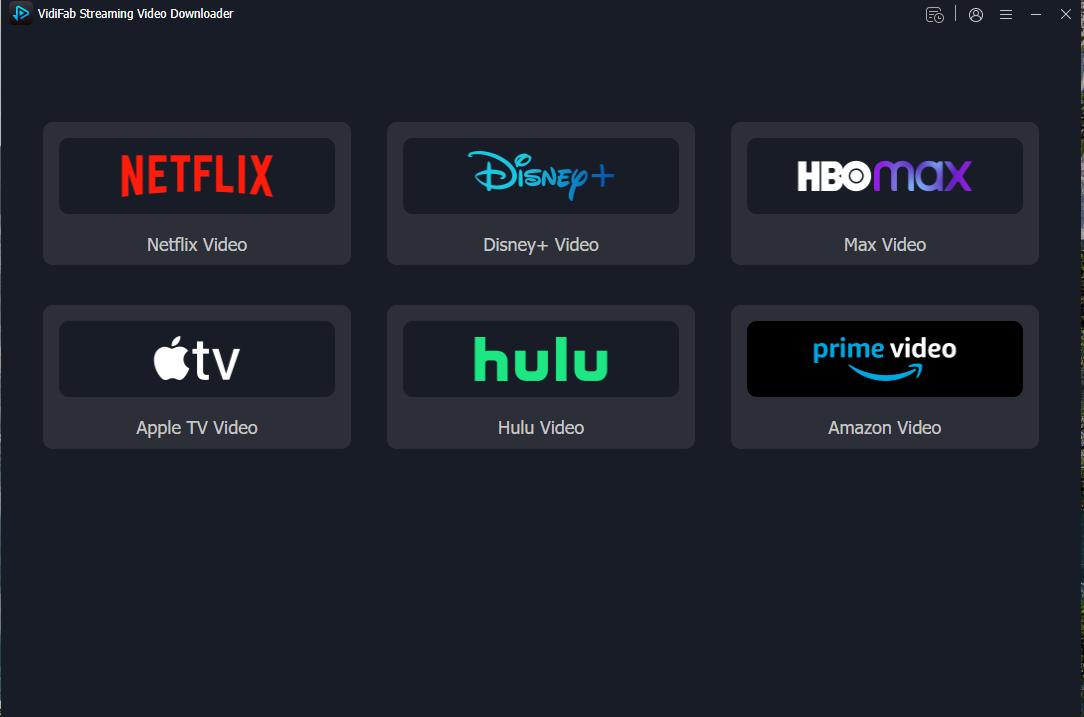
Once saved, click the Amazon Prime Video logo on the main screen to open the safe, secure built-in browser and log into your Amazon account.
Step 2. Find and Analyze Your Prime Content
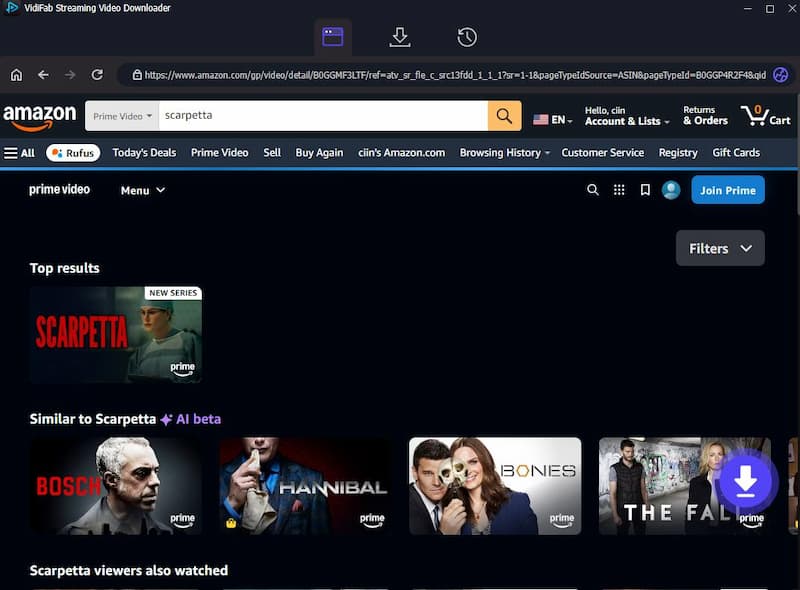
Browse the Amazon library directly inside VidiFab's built-in browser, or simply search for your favorite MacBook Air/Pro travel movies using keywords. You can also paste a specific movie URL directly into the search bar. Once the video details page opens, VidiFab will instantly analyze the streaming source, and show you a Download button in the bottom right corner. Click on it.
Step 3. Customize Your High-Definition Settings
In the setup window, choose 1080p Full HD to make full use of your Mac's premium Retina display. Select your preferred multi-language audio tracks and subtitles. For completed series, use the Batch Download feature to select an entire season at once.
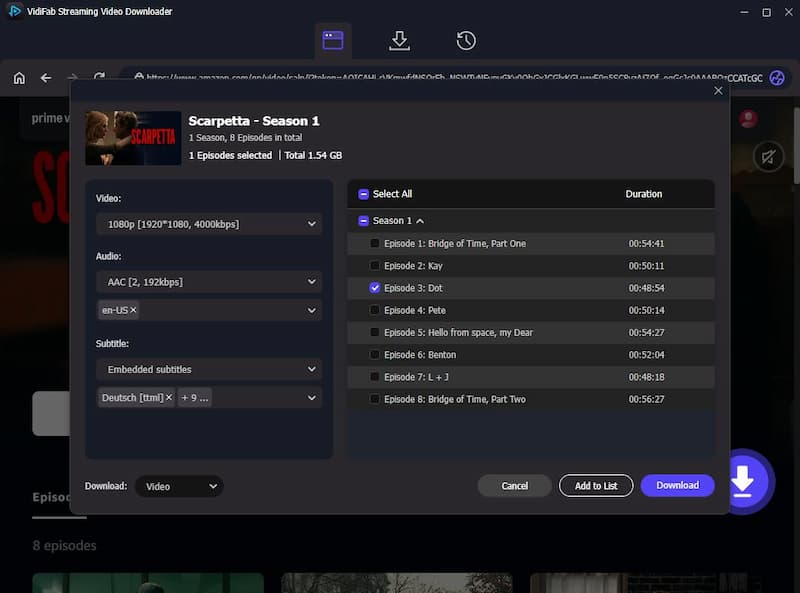
Step 4. Download Videos Directly to Mac Storage or External SSD
Click Download to initiate the extraction. VidiFab leverages Mac's M-series (M1-M4) or Intel hardware acceleration engines to download videos 8x faster than normal playback speed, keeping your laptop cool and quiet.
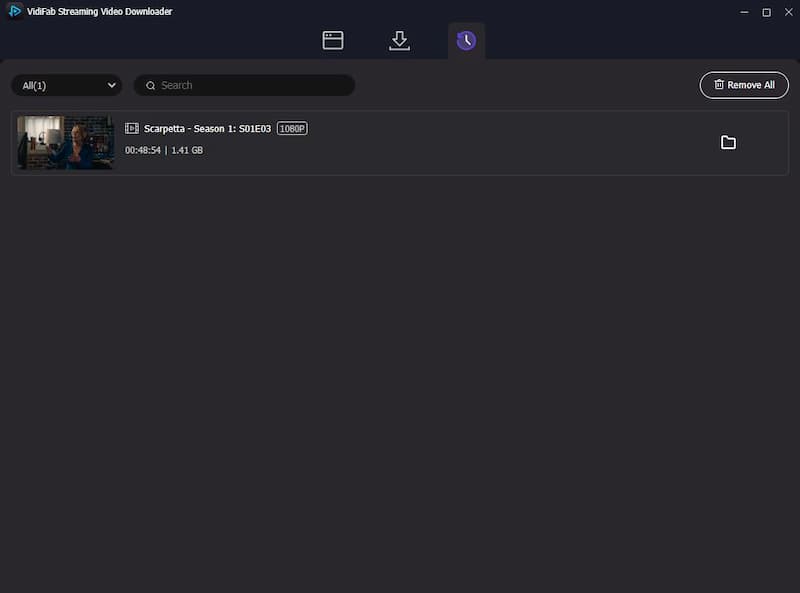
Once the download is complete, navigate to the History tab within VidiFab and click the folder icon next to your video. This will instantly open the target directory in your macOS Finder. From here, you can permanently store the MP4/MKV files on your internal drive, move them to an external SSD to save valuable Mac space, or AirDrop them to your iPad for true offline viewing during flights.

Part 4. Which Method Is Better for Your MacBook vs. iMac?
The right approach depends on which Mac you're using and how you actually watch content.
- If you have an iMac: Offline downloading is rarely a priority for desktop users. I'd honestly recommend just streaming through Safari or Chrome. Amazon's web player natively supports 1080p, which is better than anything the download app offers. No app needed.
- If you have a MacBook Air or MacBook Pro on macOS 13+: The official app is fine for travel. The 720p download cap won't be noticeable on a 13- or 14-inch laptop screen when you're just catching up on a show during a flight. The one thing I'd stress: always fully quit the app (right-click the Dock icon → Quit) after watching. Leaving it running in the background is how you end up with a hot, battery-drained MacBook by the time you land.
- If your Mac can't upgrade to macOS 13, the app is overheating your machine, or you're an Amazon Household member who's been locked out of downloads: VidiFab is worth a look. It sidesteps all of the restrictions above without requiring a second Prime membership.
Part 5. Troubleshooting Amazon Prime Video Downloads on Mac
Problem 1: The Download Button Has Disappeared (or Shows an Error)
Why this happens:
- You've hit the device/download limit: Amazon lets you download on just 2 devices per account, with a total cap of 15–25 downloads. Once you hit either limit, your Mac gets locked out completely.
- Expired session token: The app's background authentication can be pretty sensitive. If you switch Wi-Fi networks, use a VPN, or stay logged in for too long, it might mess up your local session credentials. This can lead the app to think you don't have permission to download.
How to fix it:
-
01
Clear device slots: Open the Amazon Prime Video app on your phone or iPad and delete downloaded content to free up download count.
-
02
Force-reset your session: In the Mac Prime Video app, go to Settings → Sign Out. Then right-click the Dock icon and choose Quit to fully close it.
-
03
Restart and re-login: Reboot your Mac, reopen the app, and sign back in. This forces a fresh authentication request to Amazon's servers and usually restores the download button.
-
04
Deregister old devices: Visit amazon.com/mycd in any browser → find Prime Video under "Apps on Devices" → click Deregister on every old device you no longer use.
Problem 2: "You Appear to Be Offline" Error Despite a Completed Download
So, you downloaded all your movies at home over Wi-Fi, but once you're on the plane, the app keeps asking for a network connection and won't play anything.
Why this happens:
The official app uses intermittent network verification. The video file itself is downloaded, but the decryption license key (the "digital key" that unlocks it) may not have been cached locally. If you closed your MacBook lid and walked out the door while still connected to Wi-Fi, the app never had a chance to sync that key to your Mac's local sandbox.
The fix: Pre-play lock-in before you leave:
In the 30 minutes before you disconnect (while still on your home or airport Wi-Fi), open the Prime Video app's Downloads tab and play each title you want to watch for 15–30 seconds.
This forces the app to pull the decryption key down from Amazon's servers and store it locally. After doing this for each title, you can switch to Airplane Mode, and you'll be good to go for offline viewing!
Part 6. FAQs
Can I use screen recorders like QuickTime to save Amazon Prime movies on Mac?
Can I download Prime Video purchases if I travel to a country where Amazon is unavailable?
Are there Chrome or Firefox browser extensions that can download Prime videos?
Can I use free online video downloaders or websites to save Prime movies?
Final Thoughts
Downloading Amazon Prime videos on Mac is genuinely possible. For MacBook users who travel frequently, the official app handles the basics just fine. But the 720p cap, 48-hour expiration window, and CPU performance issues are real limitations that affect the experience, especially on older Intel machines.
If you're on macOS 13+ and just want to grab a few shows for a flight, the official method works. If you need 1080p, permanent files, external storage support, or you're using an older Mac or an Amazon Household account, VidiFab gives you a more flexible path. Either way, you now have everything you need to watch Prime Video offline on your Mac.
 Free Download
 Secure Download
 Free Download
Secure Download
Free Download
Secure Download



I'm a video tech specialist with over 10 years of experience in digital media and streaming. I focus on making complex workflows simple and practical. Through my guides, you'll learn how to convert media, keep high-quality playback across devices, and manage your streaming video library with ease.
 Leave Your Comment