The Ultimate Guide to Downloading Amazon Prime Video to an SD Card
 By Miles Kent
Want to download Amazon Prime Video movies to an SD card for offline viewing? Prime Video only supports SD card downloads on Android mobile devices, Amazon Fire tablets, and some Chromebooks. This guide will help you change the download location, resolve SD card issues, and explore alternatives to watch videos on Prime Video offline.
- Prime Video can save downloads to an SD card on Android phones, Amazon Fire tablets, and some Chromebooks.
- On Android, you need to set the SD card as "Portable Storage" and turn on the "Download videos to SD Card" toggle in Settings.
- On a Chromebook, you must grant external storage access to Android apps before the Prime Video app can see the card.
- If your device or Chromebook cannot use the SD card, a desktop tool like VidiFab Streaming Video Downloader saves Prime Video as 1080p MP4 files you can move anywhere.
Part 1. How to Download Amazon Prime Video to SD Card on Android
Before downloading Prime Video videos to an SD card, make sure your card is properly set up.
- Choose the right format: Make sure your SD card uses the exFAT or FAT32 file system. I highly recommend exFAT. FAT32 cannot save single video files larger than 4GB, which causes HD downloads to fail.
- Select Portable Storage: When you insert the SD card, Android will ask you to choose a storage mode. You must select "Portable Storage"; Sometimes called Removable Storage.
- Check Android permissions: Go to your phone's Settings > Apps > Prime Video > Permissions. Ensure that Files and Media or Storage permission is set to "Allow".
How to Save Prime Video Downloads to Your SD Card on Android
Once your SD card is formatted correctly as portable storage, follow these steps to save your movies and TV shows directly to it.
-
01
Open the Amazon Prime Video app on your Android device.
-
02
Tap your Profile icon or "My Stuff" at the bottom or top corner.
-
03
Tap the Gear icon in the top right corner to open Settings.
-
04
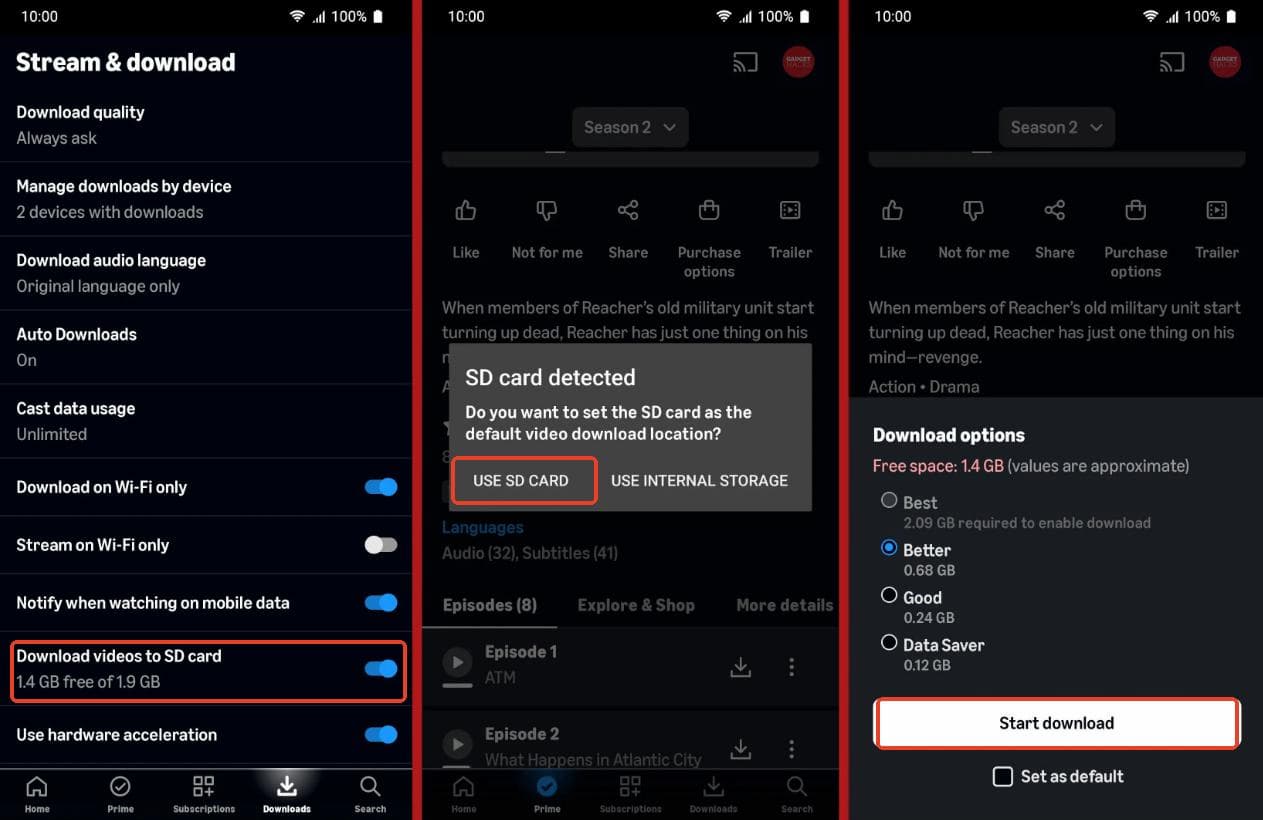
Select "Stream & Download" from the menu.
-
05
Scroll down and toggle on "Download videos to SD Card".
-
06
Amazon will ask if you want to set the SD card for video download location. Tap USE SD CARD.
-
07
Go back to the homepage, find the movie or TV show you want to save, and tap the Download button on its detail page.
Where Is the Prime Video Download Location on Your SD Card?
On your Android SD card, downloaded videos are stored in a highly restricted system folder:
SD Card/Android/data/com.amazon.avod.thirdpartyclient/files
What Are the Limitations of Prime Video SD Card Downloads?
While saving videos to an SD card saves your phone's internal memory, Amazon enforces strict Digital Rights Management (DRM) rules:
- Device & App Lock: Stored videos can only be played inside the official Prime Video app on the exact device and account that downloaded them. You cannot swap the SD card into a laptop or TV to watch the files.
- No Direct Moving: If you already have videos in your device's internal storage, you cannot directly transfer them to the SD card. You must delete them first, ensure the SD card setting is active, and then re-download them.
- Strict Expiration: Downloaded videos generally expire within 30 days of downloading. Once you press play, you must finish watching within 48 hours before the license expires. Learn more about Amazon Prime Video downloads expiration rules to better manage the downloads stored on your SD Card.
- Subscription Reliance: If your Amazon Prime membership expires, or if you log out of your account, all downloaded videos on the SD card will instantly become unplayable.
Part 2. Can You Download Prime Video to SD Card on Chromebook?
Yes, you can. Starting from ChromeOS 72, Google added external storage support for Android apps. This means the Prime Video Android app can now save offline videos to your MicroSD card or an external USB-C drive.
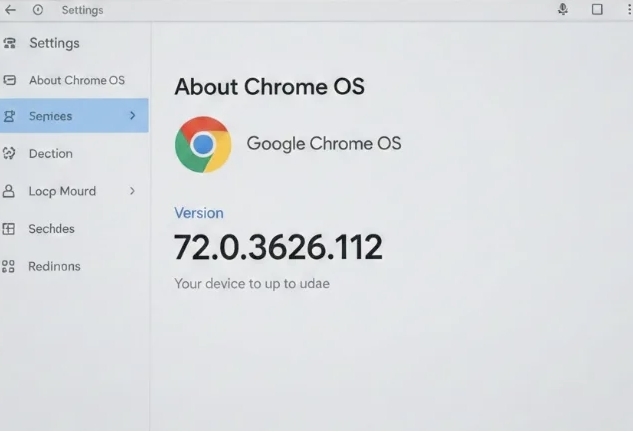
- Open Chrome OS settings > About Chrome OS.
- Check the number under Version.
- If the number starts with 72 or higher, it means that your Chromebook supports downloading Android app media to an external SD card.
However, Chromebooks run Android apps in a virtual container, this means your offline video playback quality will be locked to Standard Definition (SD, 480p), even if you successfully save the files to your SD card.
How to Enable SD Card Access for Prime Video on Chromebook
To make your external SD card visible to the Prime Video Android app, you must manually enable ChromeOS system permissions.
-
01
Open your Chromebook Settings and click on "Device".
-
02
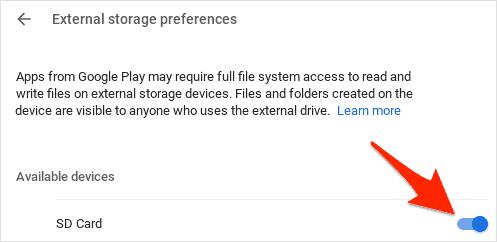
Click "Storage Management", and then select "External Storage Preferences".
-
03
Find your SD card in the list and toggle on the switch to give Android apps full file system access.
-
04
Restart your Chromebook completely so that the Android virtual container can properly mount the SD card.
-
05
Open the Prime Video app, go to Settings > Stream & Download, and turn on "Download videos to SD Card".
Why Can't My Chromebook Save Prime Video Downloads to an SD Card?
If you have granted all permissions and restarted your device, but the app still shows a "Grayed Out" option or doesn't see your card, it is probably related to your Chromebook model's external storage support.
For example, a user reported that Prime Video and Netflix downloads did not work on an Acer CB311 Chromebook, even after trying different settings and troubleshooting steps. However, after switching to a Lenovo Chromebook, the same apps were able to save downloads to an external SD card.
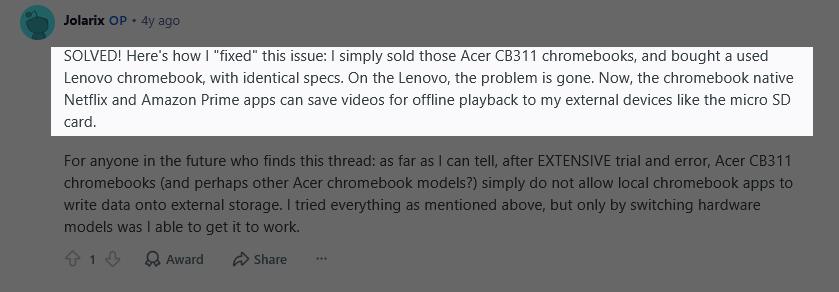
This suggests that the limitation may be caused by Chromebook hardware or manufacturer-specific settings rather than the SD card itself. If Prime Video still cannot recognize your SD card after checking permissions, your Chromebook model may simply not support external storage downloads for Android apps.
The Software Fix: Download Prime Video as MP4 for Incompatible Chromebooks
If your Chromebook doesn't recognize your SD card, the Prime Video app doesn't allow saving to the SD card, or you want better video quality than 480p, consider using VidiFab Streaming Video Downloader.
VidiFab is a powerful desktop application that enables you to download movies and TV shows from popular streaming services like Prime Video, Netflix, HBO Max, Disney+, Hulu, and Apple TV+, provided you have an active subscription. It saves videos in 1080p MP4 or MKV formats, including original subtitles and audio tracks.
VidiFab Streaming Video Downloader
Download Prime Video titles into 1080p MP4 or MKV files on PC or Mac computer with multilingual subtitles and audio tracks.

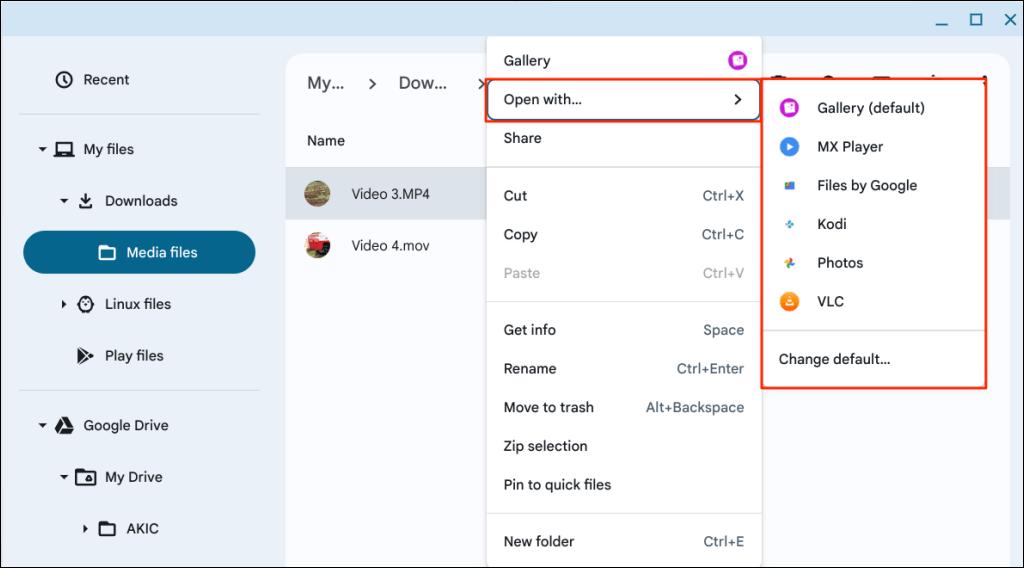
After the download, you are able to save the Prime Video downloads to a USB flash drive or external hard drive. From there, you just plug the drive into your Chromebook and play your movies instantly using the native ChromeOS Files app.
Step-by-Step: How to Save Prime Video to USB Using VidiFab

Since VidiFab is desktop software, you will need to perform the initial download on a Windows or Mac computer, then transfer the USB drive to your Chromebook.
Step 1. Set Your Output to Your USB Drive
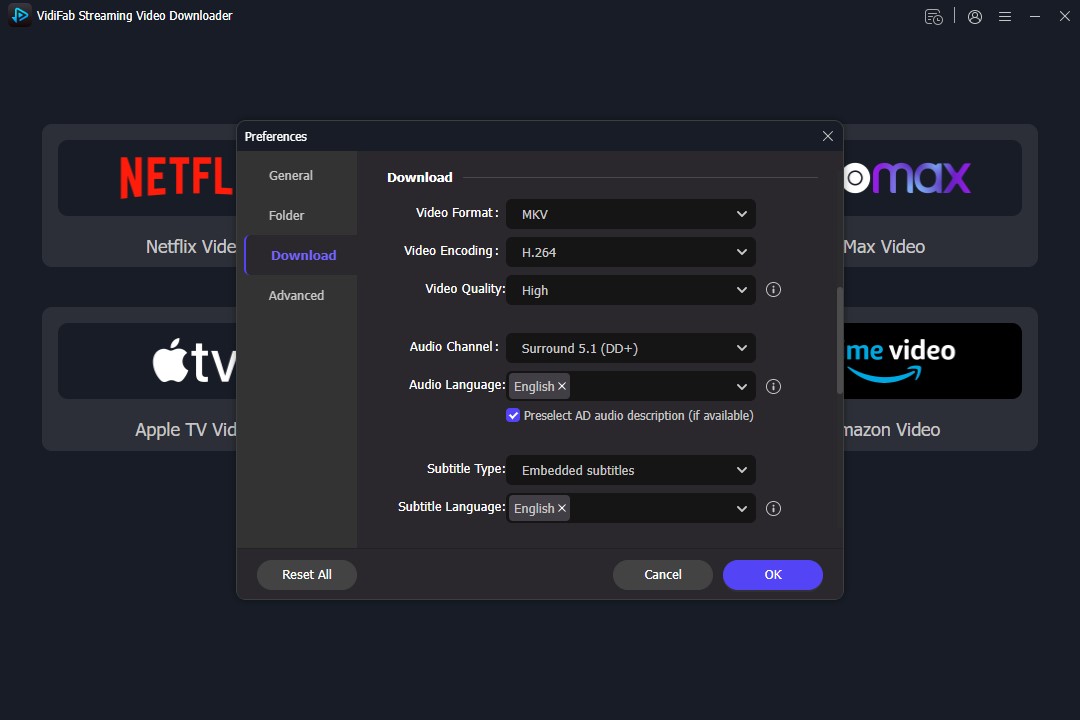
Open VidiFab on your Windows or Mac desktop. Click the Menu icon in the top corner, navigate to Preferences > Download, and select either MP4 or MKV as your default output format. Choose your USB drive (or a local computer folder) as your preferred destination and click OK to save your settings.
Step 2. Log into Your Amazon Account
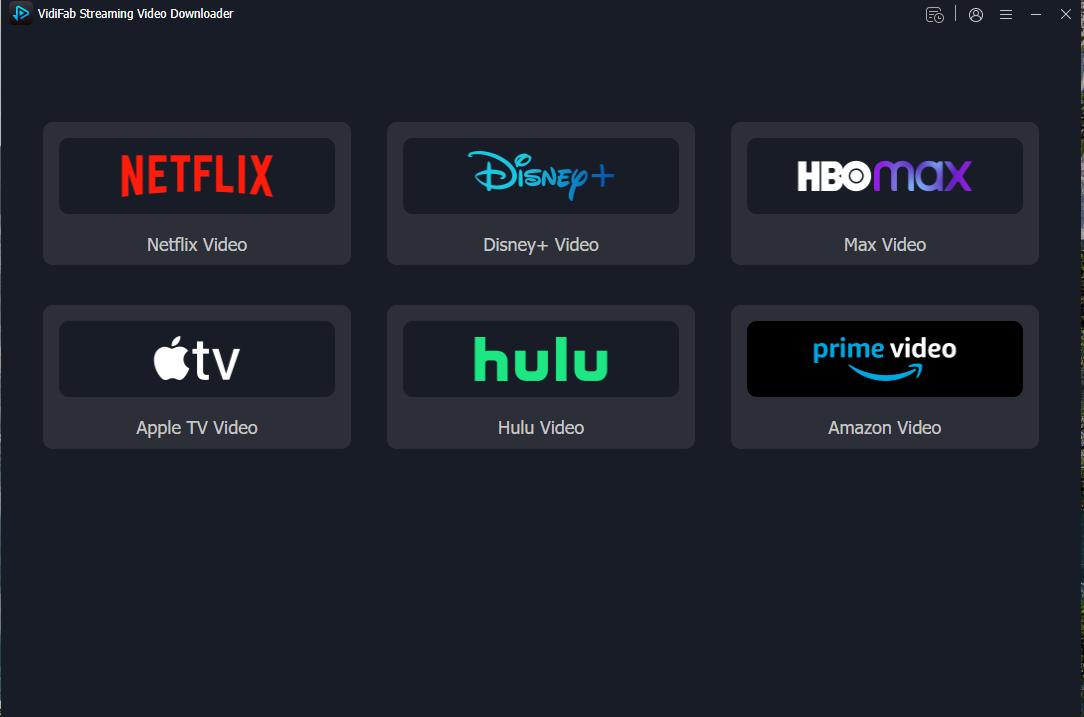
Return to the main VidiFab interface. Click on the Amazon Video card from the supported streaming services. A secure, built-in browser window will appear. Log into your active Amazon Prime Video account just like you would on a normal web browser.
Step 3. Choose 1080p Quality and Download
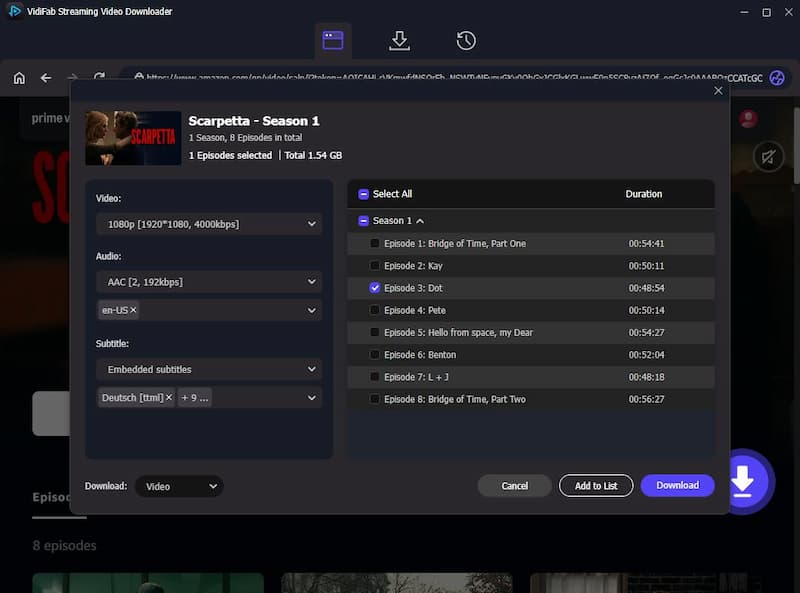
Browse the library or use the search bar to find the specific movie or TV show episode you want to save. Open the video details page. VidiFab will automatically analyze the video stream and display a Download button. Click it to open the customization window. Here, you can select 1080p video quality, choose your preferred audio tracks, select your subtitle languages. Click Download to start saving the file.
Step 4. Plug and Play on Your Chromebook
Once the download finishes, navigate to the History section (the clock icon) and click the Folder icon to locate your saved MP4 file. If you didn't download it directly to your external drive, copy the MP4 file onto your USB flash drive or MicroSD card. Eject the drive from your PC/Mac, plug it into your Chromebook, and open the video using the native ChromeOS player or VLC Media Player for a smooth, ad-free offline viewing experience.
Part 3. Troubleshooting: Why Won't Prime Video Recognize My SD Card?
Many Android and tablet users, especially those on Amazon Fire tablets, frequently run into issues where the Prime Video app fails to recognize their external SD card, blocking offline downloads. This is usually caused by simple configuration, permission, or formatting conflicts. Here is how to fix them quickly.
3.1 Why Is the "Download to SD Card" Option Grayed Out?
If your device detects the SD card but the "Download to SD Card" option is still unavailable, the issue is usually due to a formatting conflict or an app storage glitch:
Fix 1. Format Your SD Card as Portable/External Storage
If you formatted your SD card as Internal Storage (Adoptable Storage), Android merges and encrypts it with your device's internal memory. Since Prime Video downloads are DRM-protected, the app may not recognize it as a removable SD card and disable the download option.
To fix this, back up your files and reformat the card as Portable Storage:
-
01
Go to your device's Settings > Storage.
-
02
Select your SD card.
-
03
Choose Format as Portable/External Storage.
-
04
Restart Prime Video and check the download settings again.
Fix 2. Keep Apps on Your Internal Storage
If you previously moved your apps to the SD card under Internal Storage, the Prime Video app can glitch and block download settings. As a proven fix, you must move all apps back to internal storage, which may require deleting your downloaded offline content first, and reformat the SD card.
3.2 Why Does Prime Video Say "SD Card Not Present" or Not See My Card?
If your device can read the SD card normally but Prime Video cannot find it, the problem is usually related to app permissions or SD card compatibility.
Fix 1. Check Storage Permission
Android's storage restrictions may prevent Prime Video from accessing the SD card. Go to your device's Settings > Apps > Prime Video > Permissions and manually set the Storage permission to "Always Allow".
Fix 2. Check the SD Card Format
If you use the FAT32 format, you'll hit a 4GB limit on single files, which prevents Prime Video from working with the SD card. For best results, format any card larger than 32GB to exFAT, as it has no file size limit. Always use a computer to perform a Full Format instead of a "Quick Format" to check for and disable any corrupted sectors.
Part 4. FAQs About Amazon Prime Video SD Card Downloads
Can you move downloaded Amazon Prime videos to an SD card?
No, you cannot transfer already downloaded videos from your phone's internal storage to an SD card. The app does not have a manual transfer feature. To get them on your card, you must delete the existing downloads, turn on the "Download videos to SD card" toggle in the app settings, and download them again.
How do you delete Prime Video data on a corrupt SD card?
If your SD card is corrupted and the app freezes, you can delete the data by clearing the Prime Video app cache and data, or format it on a computer to wipe the card.
Can I play SD card downloads on a laptop?
No, you cannot play official app downloads on a laptop by simply plugging in the SD card. Amazon encrypts these files with Digital Rights Management (DRM). They are locked to the specific mobile device and Amazon account that downloaded them.
To watch Prime Video videos on a laptop from an external drive, you need to use a video downloader like VidiFab Streaming Video Downloader to save the videos as MP4 or MKV files. After saving them to an SD card, you can play them with media players like VLC.
Part 5. Conclusion
Downloading Amazon Prime Video to an SD card is a great way to save storage, provided you select Portable Storage and grant the necessary Android permissions. If hardware restrictions on devices like Acer Chromebooks block your path, desktop tools like VidiFab offer the perfect software fix to download unrestricted MP4 files straight to your USB drive.
 Free Download
 Secure Download
 Free Download
Secure Download
Free Download
Secure Download


I'm a video tech specialist with over 10 years of experience in digital media and streaming. I focus on making complex workflows simple and practical. Through my guides, you'll learn how to convert media, keep high-quality playback across devices, and manage your streaming video library with ease.
 Leave Your Comment