How Long Do Amazon Prime Downloads Last?
 By Miles Kent
According to official Amazon Prime Video Usage Rules, downloaded titles usually stay on your device for 30 days. However, once you start watching, you have 48 hours to finish before they expire. The duration of Amazon Prime offline downloads can vary based on the content type, as some rentals or licensing agreements have stricter time limits.
If your downloaded videos disappeared early, don't panic. This guide breaks down exact offline limits, device restrictions, and how to keep Prime Video downloads longer.
Part 1. How Long Do Amazon Prime Downloads Last?
Amazon Prime downloads do not have a single expiration period because the available viewing time depends on the type of content you download. Amazon mainly offers three types of video access: Prime Video titles included with your membership, rented movies, and purchased videos.
- Prime Video Downloads (Included with Prime Membership): These titles generally stay on your device for 30 days from the download date. Once you click play, a strict 48-hour viewing window begins. You must finish the video or reconnect to the internet within this timeframe, or the download will expire.
- Rented Movies (Amazon Rentals): You usually have 30 days from the payment date to start watching the movie. Once you stream or download the rental and press play, the expiration shrinks to a tight 48-hour window (or 24 hours for select titles) to complete it.
- Purchased Movies & TV Shows: Bought videos have no expiration date for offline storage. Once you purchase a title, you own the digital copy. It can remain downloaded on your authorized device indefinitely, provided you log into your account periodically to verify ownership.
Amazon Prime Downloads Expiration and Device Limits Summary
| Video Category | Max Storage Duration | Window After Pressing Play | Multi-Device Limits |
|---|---|---|---|
| Included with Prime | 30 Days | 48 Hours | Max 15 to 25 total titles downloaded across your entire account at the same time. A single title can be downloaded to 2 devices at the same time. |
| Rented Content | 30 Days | 48 Hours | Can only download a specific rental title onto 1 device at a time. |
| Purchased Content | Indefinite | Unlimited | Can download purchased titles onto up to 4 compatible devices at the same time. |
Amazon Prime Video has device restrictions for offline downloads in addition to time limits. If you have hit the maximum number of devices for downloads, you can delete existing downloads or unlink a device.
To unlink a device, visit the Amazon Prime Video Account Settings, go to the Devices tab, find the device, and click Deregister. Once you free up a slot, you can download eligible titles on a new supported device.

Part 2. Why Do Amazon Prime Downloads Expire?
Amazon Prime Video downloads expire because they are not owned by you. They are only available for offline viewing. Here are the common reasons for this:
- Digital Rights Management (DRM): Amazon uses strong encryption to prevent piracy. Your device must connect to Amazon servers regularly to confirm your subscription is active.
- Studio Licensing Agreements: Most content on streaming platforms is not owned by them. Movie studios set strict rules for distribution, including limits on offline viewing periods and regional access.
- Content Rotation: Each month, titles may leave the Amazon Prime library as licensing contracts expire. If a movie is removed from the platform, its download on your device will also deactivate.
- App Security Updates: If your device stays offline for too long or if the Prime Video app receives a major update, older downloads may become unreadable or need refreshing.
- Membership or Account Changes: Changes to your Prime membership or account status can impact your access to downloaded content.
Do Amazon Prime Downloads Expire Before Watching?
Yes, Amazon Prime downloads can expire before you watch them. If a download disappears before the 30-day period is up, it could be because:
- The title has been removed from Prime Video due to licensing changes.
- Your account no longer has access to that content.
- The downloaded file needs to verify its availability online.
Do Purchased Amazon Prime Downloads Expire?
According to Amazon Prime Video Usage Rules, purchased digital content is supposed to remain accessible indefinitely as long as you maintain your account. However, real-world user experiences show a significant drawback: you only own a license to view the content, not the actual file.
For example, one Reddit user shared that an older purchased movie disappeared from their account. After contacting Amazon customer support, they were told the purchase had expired because it was an older transaction, and Amazon provided account credit so the movie could be purchased again at the current price.
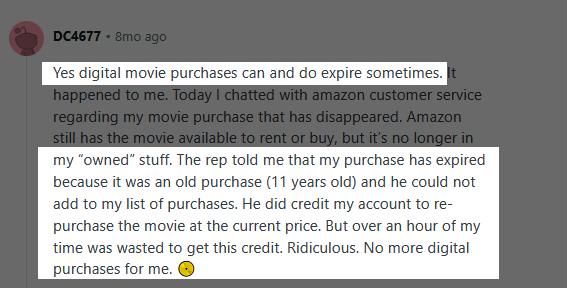
While this situation may be rare, it underscores an important fact: digital purchases do not equal owning a physical copy. Treat digital purchases as long-term rentals, as access relies on the platform and the agreements governing the content.
Part 3. How to See When Your Amazon Prime Download Expires
If you have downloaded a movie or TV show from Amazon Prime Video, you can check its expiration date in the Downloads section on your iPhone, Android, Fire Tablet, or Windows or Mac Prime Video app.
-
01
Open the Prime Video app on your device.
-
02
Tap on Downloads to see your offline videos.
-
03
Locate the movie or TV show you want to check.
-
04
Select the downloaded title or view its details page.
-
05
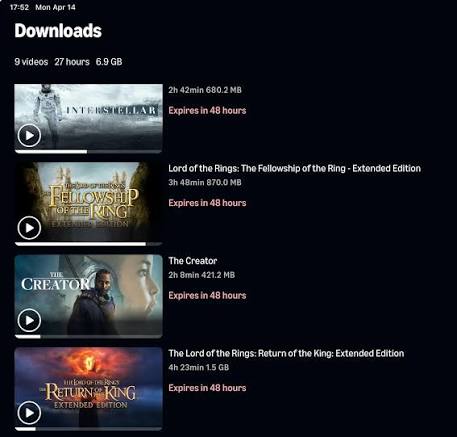
Titles with less than 7 days remaining will show red text indicating the remaining time for offline viewing, such as "Expires in 48 hours."
Can You Renew the Downloads on Prime Video?
Yes. For Prime Video downloads, you can delete the title and re-download it to reset the 30-day countdown. For rental downloads, if it is within 30 days of payment, you can delete the movie and download it again to reset the 48-hour viewing countdown. However, after the 30 days, you will need to rent the movie again.
Part 4. How to Keep Amazon Prime Downloads Forever
To permanently keep your favorite movies and TV shows without worrying about expiration dates, you can purchase them digitally or physically from Amazon, or use a downloader to save Prime videos in MP4 or MKV format.
Option 1. Purchase the Movie or Show from Amazon
When you buy movies and shows, they are saved in your Amazon library. You can stream or download them on compatible devices without any expiration.
You can buy digital titles on Amazon's website or through the Prime Video app. If a title has a yellow shopping bag icon on the homepage, it means you need to pay to watch it. Typically, prices range from $9.99 to $19.99 per movie or full season of a show.
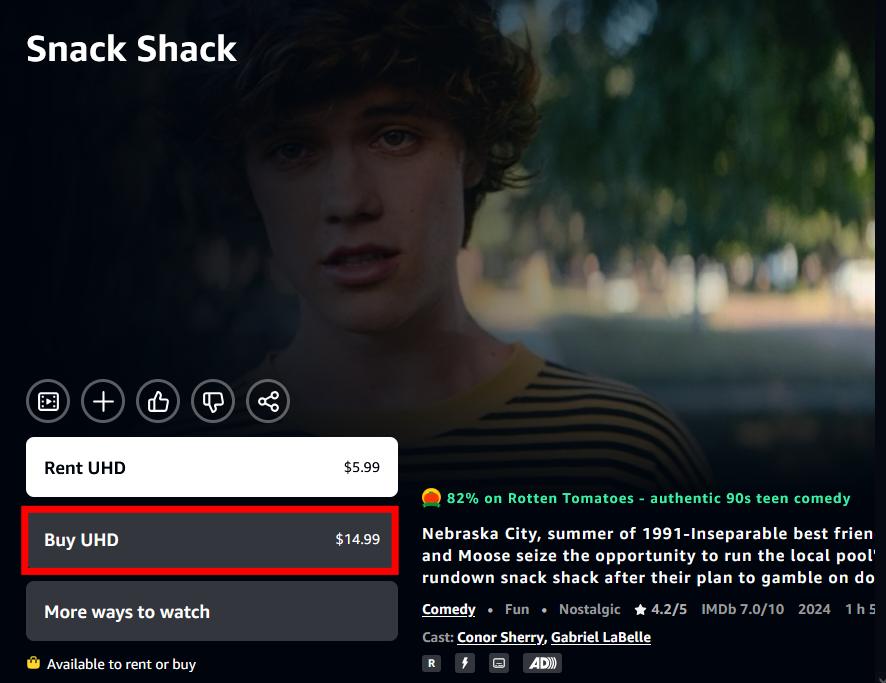

However, if Amazon loses distribution rights to a specific studio, the purchased title may still be removed from your account.
Option 2. Purchase Physical Media (Blu-ray or DVD)
Physical discs cannot be deleted remotely through a server update, do not need an internet connection for authentication, and will not expire due to licensing issues between Amazon and Hollywood studios.
You can purchase these physical copies from major retailers like Amazon, Walmart, or eBay. To play them, you need a standalone Blu-ray or DVD player connected to your TV, a gaming console with a disc drive, or an external USB disc drive for your computer. Always verify that the disc's region code matches your device: Region A/1 for North America or Region B/2 for Europe, to prevent playback issues.
Option 3. Download Amazon Prime Videos for Flexible Offline Management
If you want a permanent digital copy that plays on any media player, you can use a dedicated archiving tool like VidiFab Streaming Video Downloader.
With VidiFab Streaming Video Downloader, you can download various titles, including movies, TV shows, and content from Freevee on Amazon, saving them as MP4 or MKV files. Once downloaded, you can organize your video library, play the files on multiple devices, or transfer your videos to a USB drive for better management.
VidiFab Streaming Video Downloader
Download Prime Video titles as permanent 1080p MP4 or MKV files with multiple subtitles and audio tracks on Mac and Windows.

Please note: VidiFab Streaming Video Downloader and any downloaded content are meant for personal use only. Be sure to check your local copyright laws and regulations before downloading or storing any streaming content.
Here is how to use VidiFab Streaming Video Downloader to save Amazon Prime Video movies or TV shows on your Windows or Mac computer:
Step 1. Launch VidiFab and Set Output Preferences
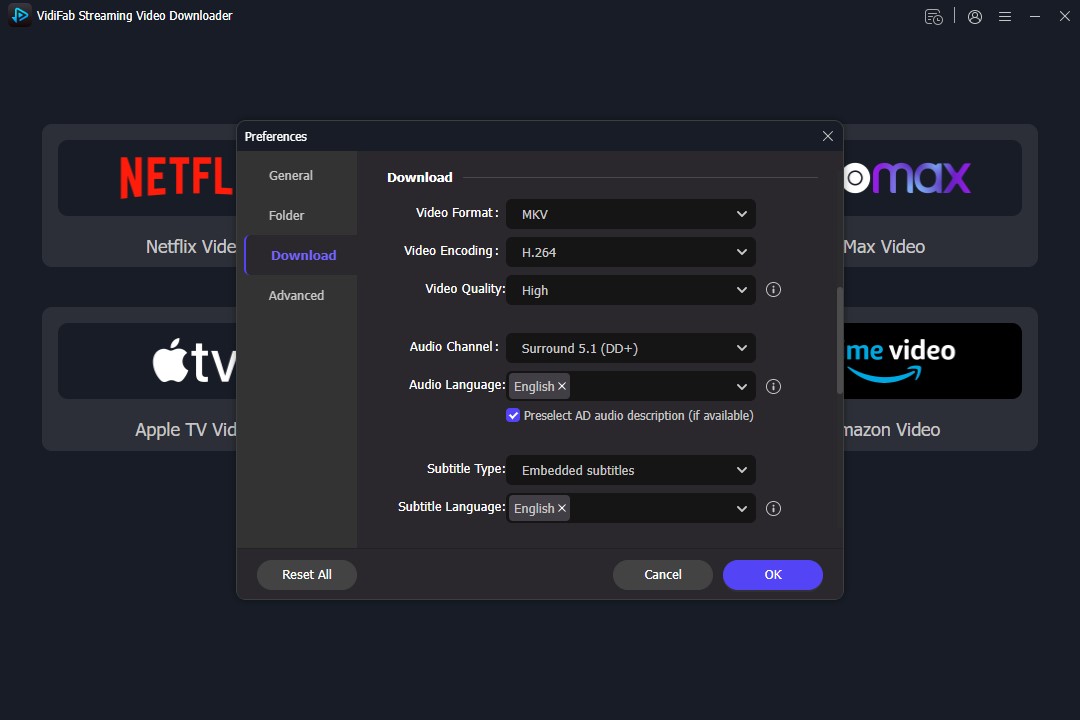
Launch VidiFab Streaming Video Downloader and click the menu icon. Go to Preferences > Download to choose your output format (MP4 or MKV) and select a destination folder for saving your videos. Click OK to apply the settings. Return to the main interface and select Amazon Video from the supported platforms. VidiFab will open a built-in secure web player where you can sign in to your Amazon account and browse your available content.
Step 2. Choose the Video and Download Settings
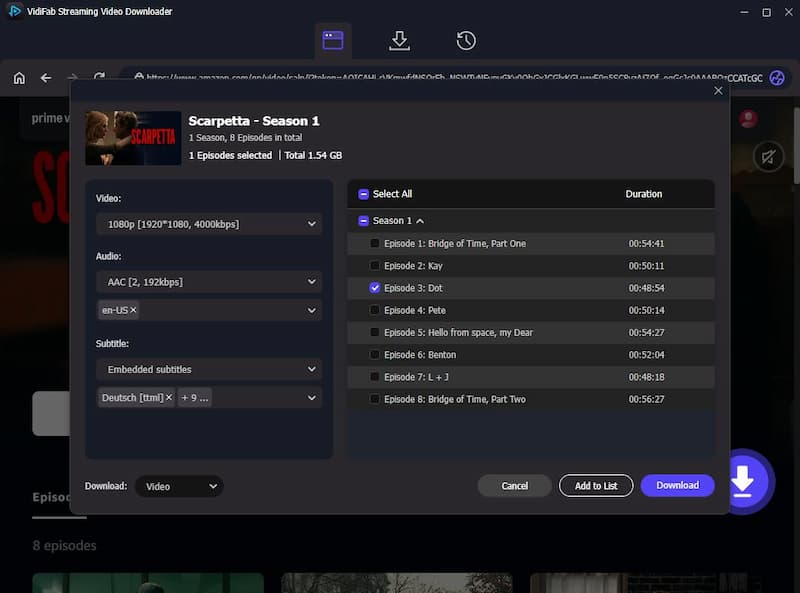
Search for the movie, TV show, or episode you want to save. Click the Download button in the bottom-right corner to open the download settings window. Choose your preferred video resolution (most titles support up to 1080p), select audio tracks and subtitle languages, and customize subtitle options. You can choose to save subtitles as SRT files or embed them directly into the video. For TV series, select multiple episodes to download them in batches. Once all settings are ready, click Download to start the process.
Step 3. Find Your Saved Files
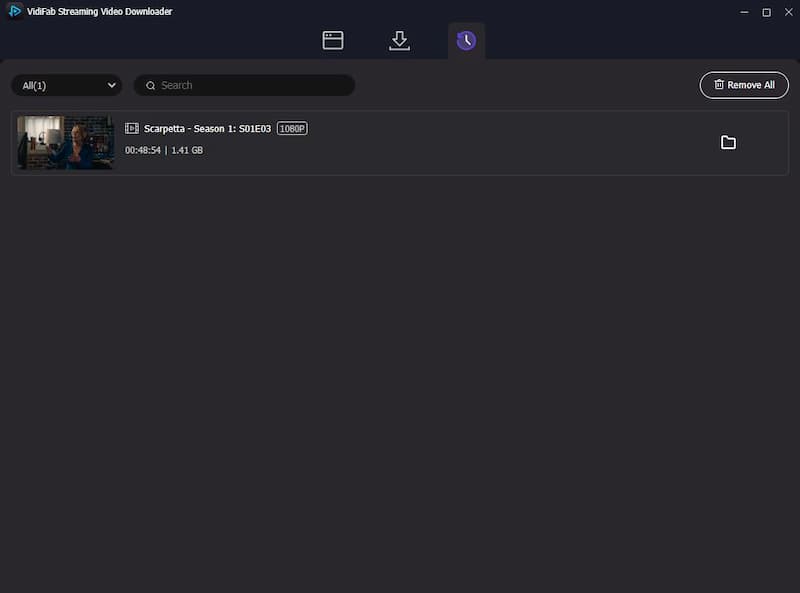
Once the download finishes, click the folder icon to access the saved files on your computer. You can move, transfer, or play the videos using compatible media players, just like any other video files. There is no need to worry about expiration.
Part 5. FAQs About Amazon Prime Download Limits
Will Amazon notify me before a Prime Video title expires due to licensing rights?
No. Amazon does not send push notifications or emails when a title leaves the platform due to licensing changes. If you unexpectedly lose access to a purchased or rented title due to licensing changes, you can reach out to Amazon Customer Service to explain the situation and inquire about a possible refund or account credit.
Why can't I download a movie on Amazon Prime?
You might not be able to download a movie on Amazon Prime because the title is not available for offline viewing, or your region does not support downloads for that content.
Why does Amazon Prime Video show a download error even though my download has not expired?
This error happens because your device is in a location where those titles are not accessible. This often occurs when you download a title in one country and try to play it in another, or while at sea. The app connects to the internet and verifies that the titles are not licensed for that area, so it refuses to play them, even if they are downloaded. It is advisable to use airplane mode to play downloads when you are in a different region.
Can you copy Amazon Prime downloaded videos to an SD card?
Yes, but only through the official app settings on Android devices by changing your default storage location to the SD card. You cannot manually copy, transfer, or play those video files on another device or media player because Amazon heavily encrypts the files to tie them exclusively to the original app.
Part 6. Conclusion
Amazon Prime downloads offer great convenience but come with strict 30-day and 48-hour expiration limits due to licensing restrictions. While purchases and physical media provide more control, tools like VidiFab help you save supported videos for more flexible personal offline management. You can organize your files, transfer them to a USB drive, and enjoy easier access across devices.
 Free Download
 Secure Download
 Free Download
Secure Download
Free Download
Secure Download


I'm a video tech specialist with over 10 years of experience in digital media and streaming. I focus on making complex workflows simple and practical. Through my guides, you'll learn how to convert media, keep high-quality playback across devices, and manage your streaming video library with ease.
 Leave Your Comment