How to Watch Netflix Together Online: Web, Mobile & TV Methods
 By Miles Kent
Want to watch Netflix together online with friends? Netflix does not offer a built-in watch party feature, and some streaming platforms are reducing support for native co-watching tools. With Amazon Prime Video retiring its Prime Video Watch Party feature, users now rely on third-party extensions, apps, and video call solutions. This guide explains how to watch Netflix together on web browsers, phones, and TVs, even when you are apart.
Part 1. How to Watch Netflix Together with A Free Browser Extension
Browser extensions are the most common and effective way to synchronize Netflix playback on desktop and laptop computers. Teleparty (formerly known as Netflix Party) is the industry leader for this purpose.
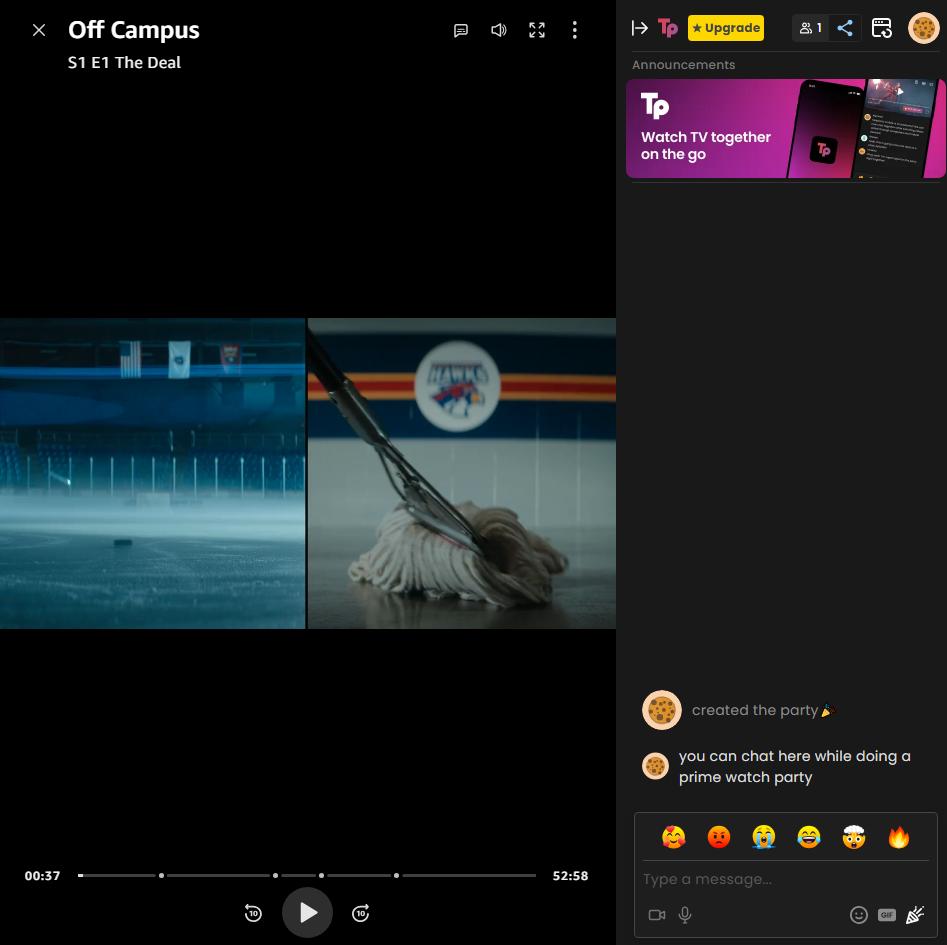
Teleparty allows for synchronized video playback and provides a group chat sidebar that supports sessions with up to 1,000+ members. The free version of the extension provides basic video synchronization and real-time text chat. While it started as a Netflix-only tool, it has expanded to support a variety of popular streaming services including Disney+, Hulu, HBO Max, and YouTube.
How to Use Teleparty to Watch Netflix Together
-
01
Visit the official Teleparty website or your browser's store (Chrome Web Store or Microsoft Edge Add-ons) and click "Install Teleparty".
-
02
Click the puzzle icon in your browser toolbar and pin the Teleparty icon (Tp) for quick access.
-
03
Open Netflix in your browser, log in, and begin playing the movie or TV show you wish to share.
-
04
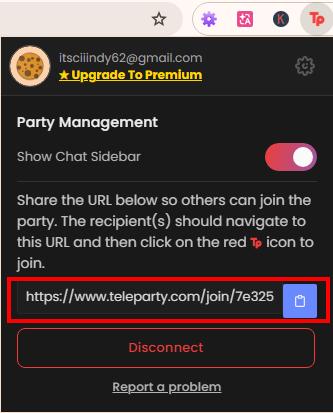
Click the red "Tp" icon on your toolbar. A window will appear; you can toggle "Only I have control" to prevent guests from pausing or seeking the video. Click "Start the party" to generate a unique room URL.
-
05
Copy the generated link and share it with your friends.
-
06
Participants must click the shared link to load the video and then click the red "Tp" icon on their own browser toolbar to automatically sync their player with the host.
- Individual Subscriptions: For Teleparty to work, every participant must have access to their own active Netflix account and valid subscription.
- Device Compatibility: This extension does not work on smart TVs or gaming consoles. To watch on a TV, you need to use an HDMI cable from your laptop or cast your browser tab with Chromecast (see Part 4 for steps).
- Browser Support: Teleparty only works on Chromium-based browsers, such as Google Chrome, Microsoft Edge, and Opera.
- Regional Content: If a title is not available in a participant's region, the synchronization engine will not load the media for them.
Other Free Browser Extensions to Watch Netflix Together
- Hyperbeam: This extension creates a virtual browser in your room, allowing you to take turns controlling it. The free version also includes audio and video calling.
- SyncUp: This extension works with multiple browsers, including Chrome, Edge, Firefox, and Safari. The free version supports voice chat and local video sharing.
- WatchMates: This extension offers simple co-watching features. It only provides a small text area for chatting, but provides more stable room hosting.
Part 2. How to Watch Netflix Together Long Distance on Mobile
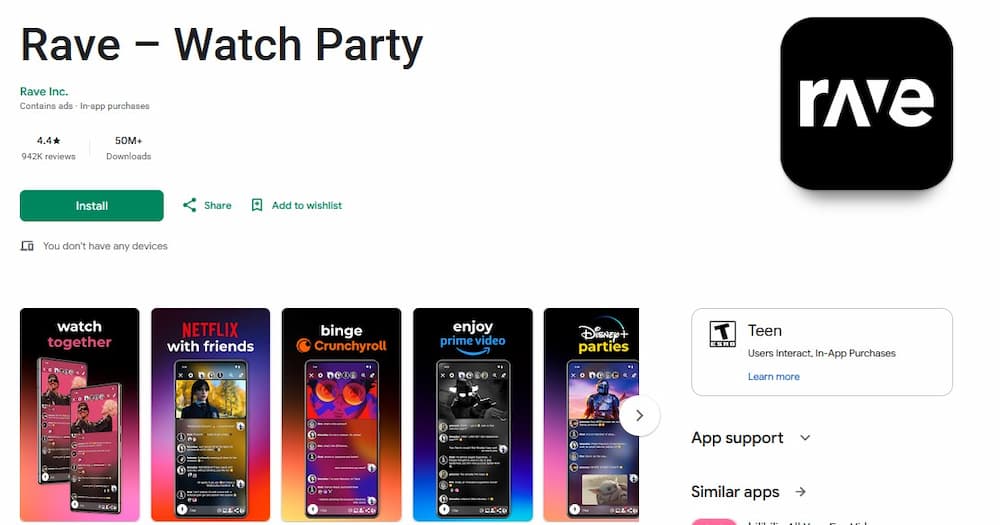
If you and your friends want to watch Netflix together on smartphones or tablets, you can use an app called Rave.
Rave, also known as "Wever" or "Rave party: Netflix teleparty" in some places, syncs Netflix playback and allows users to chat via voice or text.
One useful feature of Rave is its floating video window, which lets you continue using your phone while keeping the video playing. It also provides public rooms where you can join other users' watch sessions when your friends are unavailable.
How to Set Up a Netflix Watch Party on Rave
-
01
Install the Rave app from the Apple App Store or Google Play Store. Launch the app and authenticate using your Apple, Google, or Facebook account.
-
02
Tap the "+" icon in the bottom-right corner and select Netflix. You will be prompted to log into your active Netflix account within the app's internal browser.
-
03
Choose the movie or TV show you wish to watch to start the stream.
-
04
By default, Rave may make your room public. To watch privately, change the privacy setting on the bottom bar to "Friends" or "Invite Only".
-
05
Copy the generated room link or code and share it with your friends.
-
06
Participants must click the link and log into their own Netflix accounts within their respective Rave apps to join the synchronized session. You can use the area below the video for real-time text and voice chat.
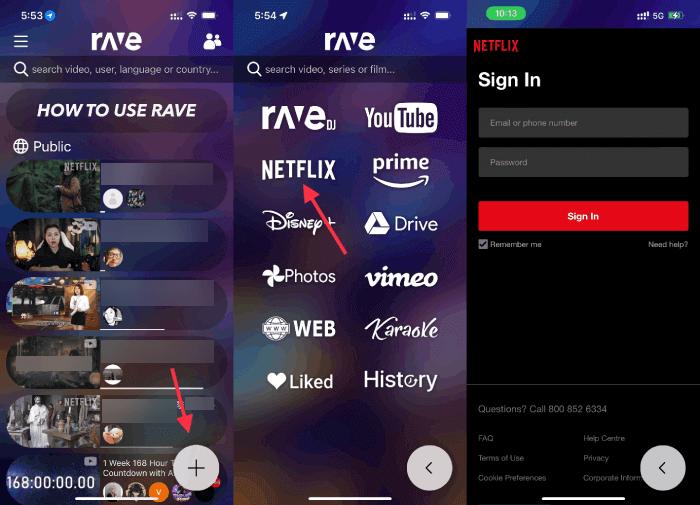

Tip: If your friends can't access the same movie or show, use VidiFab Streaming Video Downloader to save Netflix videos in MP4 or MKV format. After saving the video, upload it to your Google Drive. Open the Rave app, tap the plus (+) icon, select Google Drive, and then you can watch the videos together with your friends.
Can You Watch Netflix Together on FaceTime?
You cannot watch Netflix together on FaceTime. While Apple's SharePlay feature allows for co-watching on apps like Disney+ and Hulu, Netflix does not support SharePlay and has disabled integration. If you try to share your screen while playing Netflix on FaceTime, the other participants will likely see a black screen because of DRM restrictions.
Part 3. How to Watch Netflix Together on Discord (Without the Black Screen)
Streaming Netflix on Discord is a popular choice for watch parties since only the host needs a Netflix subscription.
However, users often face a frustrating "black screen" where the audio plays, but the video does not. To fix this issue, you need to disable hardware acceleration in your web browser and the Discord client, forcing your system to use software rendering.
Step 1. Disable Hardware Acceleration in Your Browser
-
01
Open a supported browser like Google Chrome, Firefox, or Opera (Note: Safari and Microsoft Edge may not work with this method).
-
02
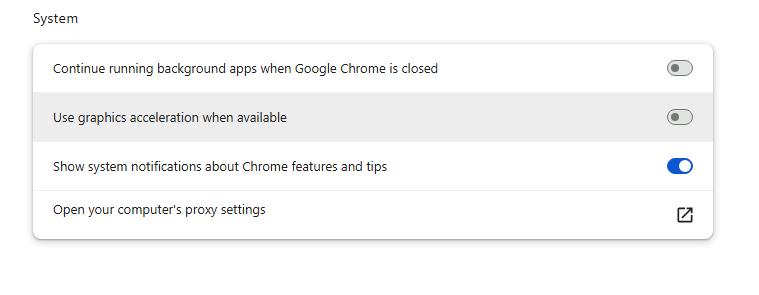
Go to Settings > System (or "Performance" in Firefox).
-
03
Turn off the option for "Use graphics acceleration when available" (or "Use hardware acceleration").
-
04
Click "Relaunch" or restart the browser to apply these changes.
Step 2. Disable Hardware Acceleration in Discord
-
01
In the Discord desktop app, click the gear icon in the bottom-left corner.
-
02
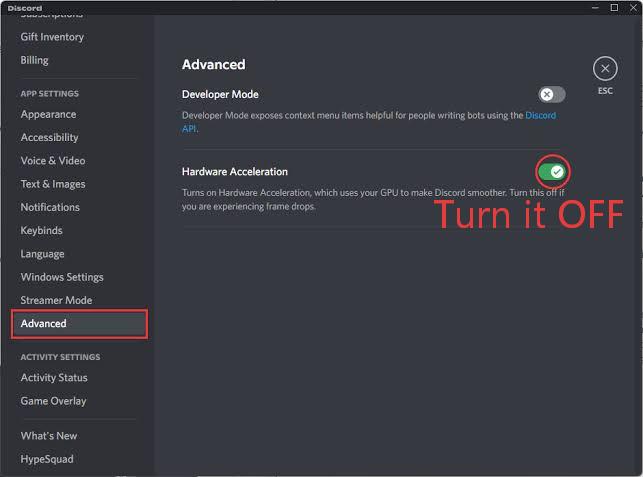
Navigate to the "Advanced" tab under App Settings.
-
03
Turn off "Hardware Acceleration" and confirm the relaunch.
-
04
Under "Voice & Video," scroll to the "Screen Share" section and disable "Use our latest technology to capture your screen" if problems persist.
Step 3. Stream Netflix on Discord
-
01
Log into Netflix using your optimized browser and select your video.
-
02
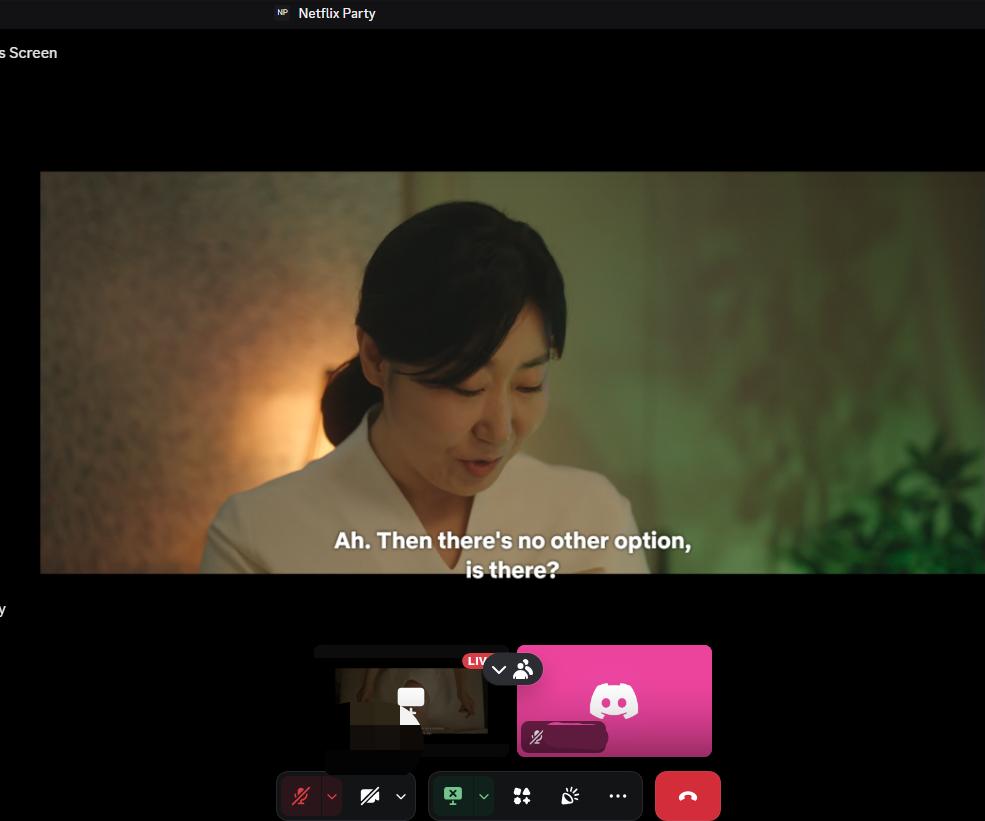
Join a Discord voice channel and click the "Share Your Screen" button.
-
03
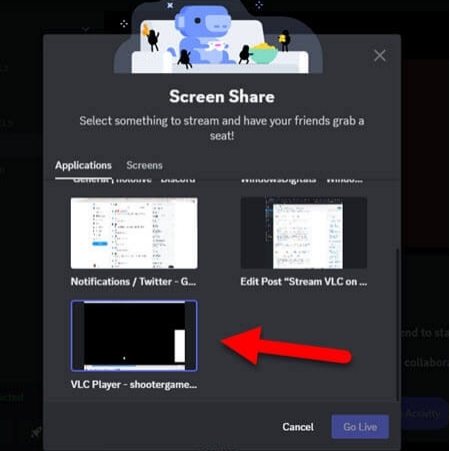
In the sharing prompt, select the "Applications" tab and choose your browser window. Avoid sharing your entire "Screen" to prevent DRM issues.
-
04
Click "Go Live" and start the video.
- Quality Restrictions: Free Discord users can only stream at 720p and 30fps. To stream at 1080p or higher, the host needs a paid Discord Nitro subscription.
- Buffering and Loading: The stream quality depends on the host's upload bandwidth. Viewers may experience Netflix video buffering, or resolution drops if the connection is unstable.
- High System Load: Streaming high-definition content while using Discord and a web browser can use a lot of CPU and RAM, which may cause application crashes.
A Smoother Alternative: Watch Netflix Without Streaming Issues
You can choose a "Local Playback" method to avoid performance issues with live browser streaming. Tools like VidiFab Streaming Video Downloader enable users to download Netflix content as ad-free, DRM-free MP4 or MKV files in up to 1080p or 4K quality. Using VLC media player to play Netflix videos and streaming them on Discord, rather than using a browser tab, can reduce buffering and avoid black screen issues.
VidiFab Streaming Video Downloader
Download Netflix videos as MP4/MKV in 1080p with Dolby Atmos for offline viewing on your iPhone, Android, desktop, and more devices.

-
01
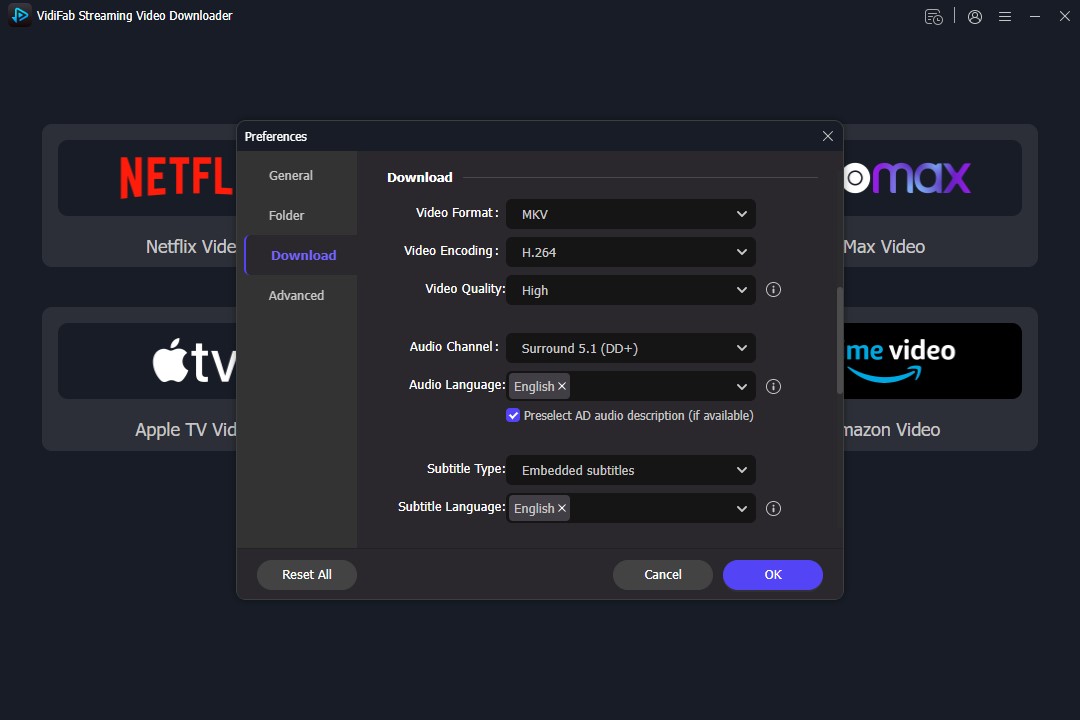
Install VidiFab Streaming Video Downloader and open the program. Click the menu icon in the top-right corner and select Preferences. Choose MP4 or MKV as the download format, select an output folder, and click OK. Then select Netflix from the supported streaming services and sign in to your Netflix account through the built-in browser.
-
02
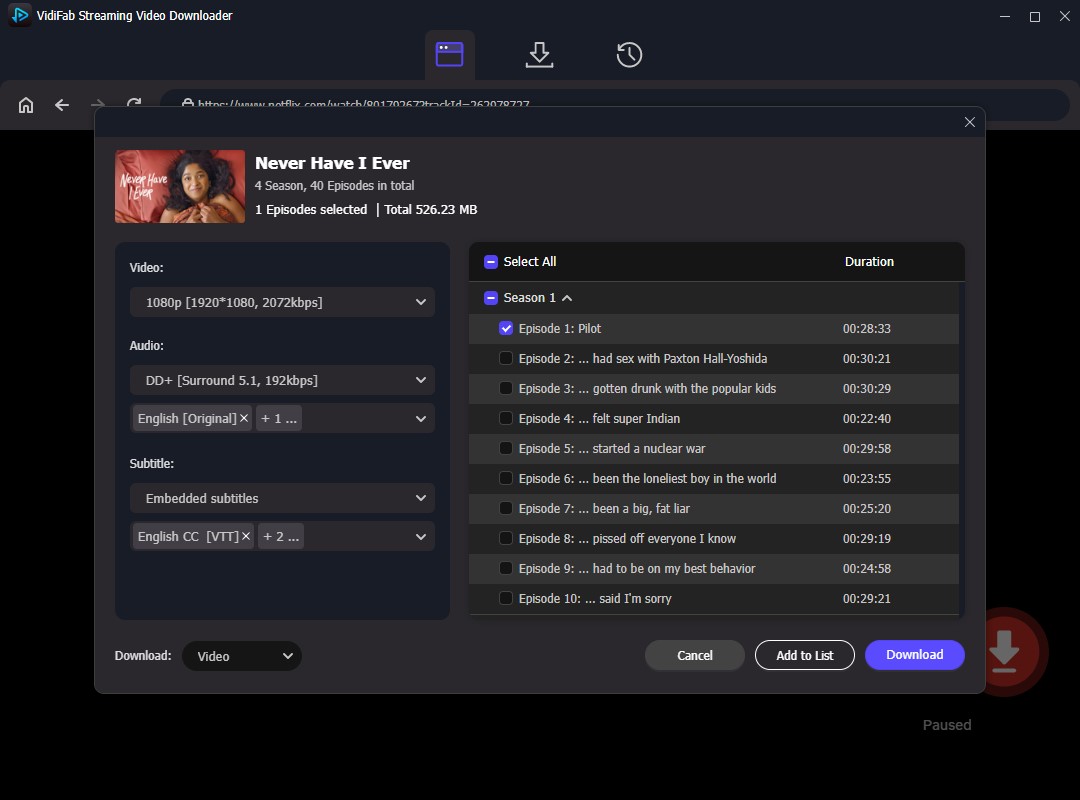
Browse Netflix or search for the movie or TV show you want to save. Open the video details page and let VidiFab analyze the content. Click the Download button in the bottom-right corner. Select your preferred video quality, audio track, language, and subtitle settings, then click Download to start the process.
-
03
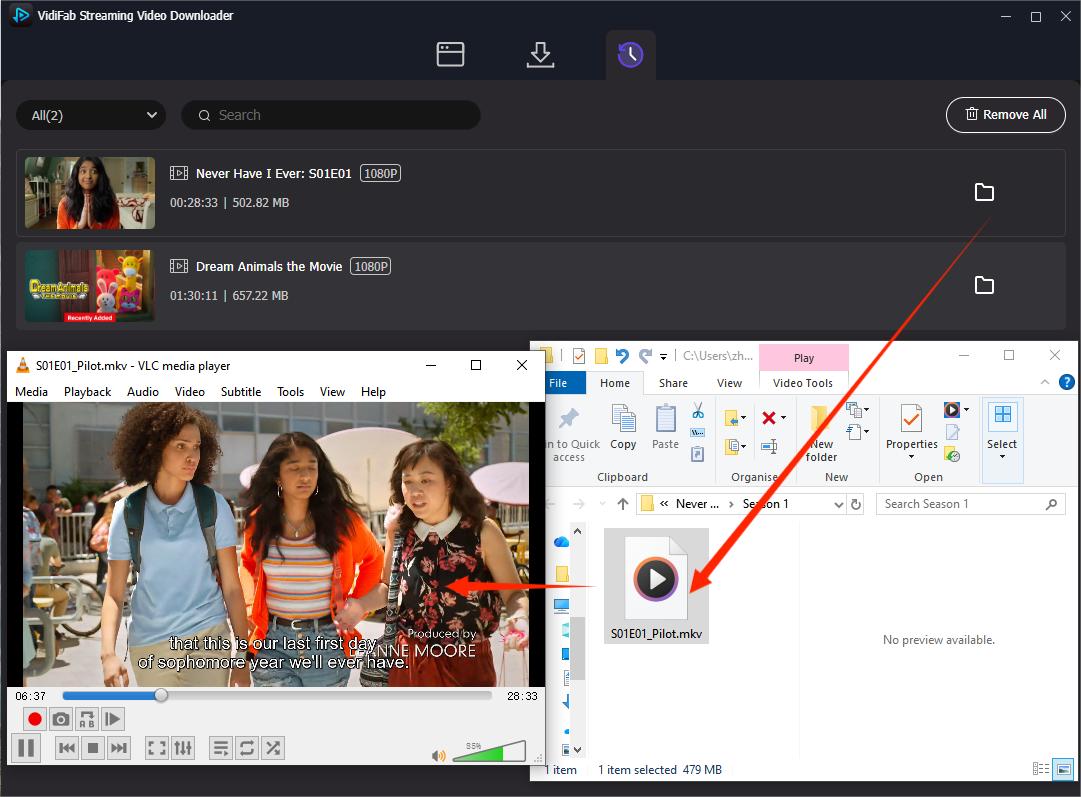
Once the download finishes, open the History tab in VidiFab. Click the folder icon next to the downloaded video, and the saved file will open in your selected output folder.
-
04
Open the downloaded video with a media player such as VLC. Join a Discord voice channel and click "Share Your Screen". Select the "Applications" tab, choose the media player window, and start streaming the video with your friends.
Part 4. How to Watch Netflix with Friends on TV
Native smart TV systems like Samsung Tizen, LG webOS, Roku OS, and Apple tvOS can't use browser extensions or third-party sync tools. To sync your watch party, connect your computer or mobile device to the TV using hardware or wireless methods.
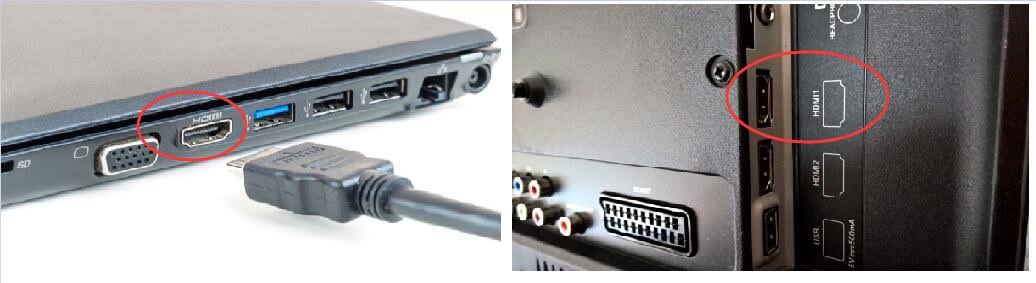
Option 1. Connect Laptop to TV with HDMI
This is the most reliable way to watch together on a TV without audio-video lag.
-
01
Use a laptop that has a sync extension like Teleparty.
-
02
Connect one end of a high-speed HDMI cable to the laptop and the other end to an available HDMI port on your TV.
-
03
Set your laptop display to "Duplicate" or "Mirror Desktop" in the system settings.
-
04
Start the watch party extension in your browser. Your TV will show the synced video and chat sidebar, while you can chat with friends using your laptop keyboard.
Option 2. Use Scener on Roku
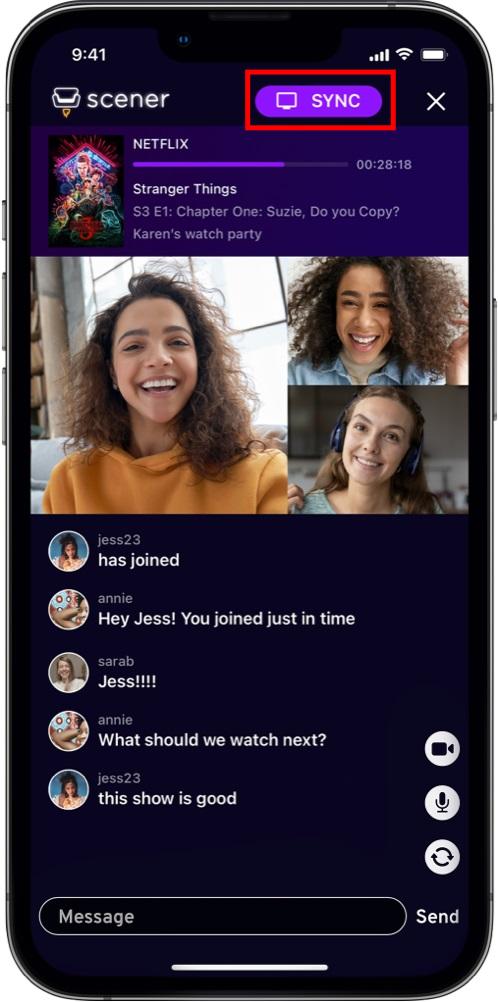
Scener offers a way for Roku users to sync using an iPhone app. You need an iPhone with iOS 15 or later and a Roku device on the same Wi-Fi network.
-
01
Open the Scener app on your iPhone to join a watch party (Note: you must host via a computer browser extension).
-
02
The Scener app will find your Roku device. Tap the SYNC button or the content image to sync your TV.
-
03
The content will play in sync on your Roku TV, and your iPhone will act as a controller and camera for video chat.
Option 3. Cast Netflix to TV with Chromecast
You can wirelessly cast a browser-based watch party from your computer to a TV using Google Chromecast or a compatible smart display.
-
01
Ensure your computer and Chromecast are connected to the same Wi-Fi network.
-
02
Open Google Chrome or Microsoft Edge, log into your Netflix account, and start a room using an extension like Teleparty.
-
03
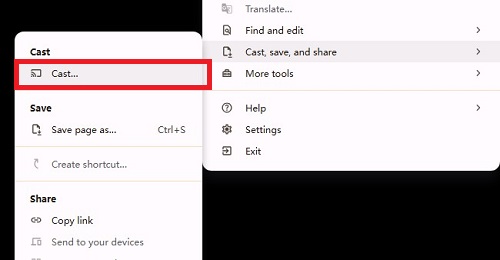
Click the three-dot menu in the upper-right corner of the browser and select "Cast..." (or "Save and Share > Cast").
-
04
In the "Sources" dropdown, choose "Cast tab" instead of "Cast desktop." Select your Chromecast device to mirror the synced Netflix tab and chat panel on your TV.

Technical Note: Avoid using the "Cast" icon in the Netflix video player, as this can disrupt synchronization and may trigger Netflix Household restrictions. Also, native mobile casting is blocked on Netflix ad-supported plans.
Part 5. Netflix Watch Together FAQs
Can I watch Netflix together with someone in another country?
Can I watch Netflix together using a shared account?
Is it possible to watch downloaded Netflix videos together?
Can I watch Netflix together while on a video call?
Is using a Netflix watch party extension legal and safe?
Why is the audio out of sync during my Netflix watch party?
Part 6. Conclusion
Watching Netflix together with friends is still possible even without an official watch party feature. Whether you use browser extensions, mobile watch party apps, Discord, or TV setups, you can find a method that fits your needs. If buffering or connection issues affect your experience, VidiFab provides another option for local personal viewing with flexible playback.
 Free Download
 Secure Download
 Free Download
Secure Download
Free Download
Secure Download


I'm a video tech specialist with over 10 years of experience in digital media and streaming. I focus on making complex workflows simple and practical. Through my guides, you'll learn how to convert media, keep high-quality playback across devices, and manage your streaming video library with ease.
 Leave Your Comment