How to Watch Netflix on Car Screen: A Complete & Safe Guide
 By Miles Kent
If you have ever sat in a parked car during a road trip, while waiting for someone, or during EV charging, you have probably wondered: can I watch Netflix on my car screen?
Yes, you can, but not through standard Apple CarPlay or Android Auto. Those systems are built for navigation, calls, and music, not video streaming. To make Netflix work on a car display, you usually need a workaround like an AI box, HDMI connection, screen mirroring, a built in browser, or local video playback from a USB stick.
In this guide, I'll walk through the safest and most practical methods, explain who each one is best for, and help you avoid the common mistakes that lead to black screens, lag, or wasted money.

Note for Tesla Owners: If you drive a Tesla, you can access Netflix natively via Theater Mode. Read our comprehensive guide on How to Watch Netflix on Tesla Model Y, 3, S, X to set up native streaming
Part 1. Can You Watch Netflix on a Car Screen?
Yes, you can watch Netflix on a car screen, but usually only with extra hardware or a compatible in car system. The 5 most common ways are:
| Method | Best For | Main Tradeoff |
|---|---|---|
| Multimedia AI Box | Best overall experience | Higher cost |
| HDMI Connection | Stable wired playback | More cables |
| Screen Mirroring | Lower budget setup | Can hit DRM black screen issues |
| Built in Browser | Smart cars like Tesla or BYD | Often limited quality |
| USB Stick with MP4 files | Offline watching with no buffering | Requires prep on a computer |

Important: These methods should only be used when the car is parked. Watching Netflix while driving is dangerous and usually illegal.
Why CarPlay and Android Auto Do Not Support Netflix?
Apple and Google block streaming video apps because:
- they want these systems focused on driving tasks like maps, calls, and music
- moving video can distract the driver
- many regions ban entertainment video within the driver's field of view
- the system can detect when the vehicle is moving and shut off unsupported video behavior

Can You Watch Netflix on a Car Screen with Bluetooth?
The A2DP audio protocol that handles Bluetooth audio maxes out at around 512 kbps. Netflix needs at minimum 3 Mbps for standard definition, 5 Mbps for HD, and 15 Mbps for 4K. That's a 10x gap at the very least. Even if you tried, you'd get nothing but buffering, audio sync failures, and dropped frames. It's a dead end.
Do You Need to Modify Your Car or Void Your Warranty?
Most of the methods in this guide use:
- plug and play USB devices
- temporary adapters
- HDMI accessories
- browser access already built into the car
Once you unplug the device, the car returns to normal. The only risky path is deep system hacking or jailbreaking an aftermarket head unit, and that is not something I would recommend for most drivers.
Part 2. Top Ways to Watch Netflix on Your Car Screen
No single method works for every car or every person. Here's an honest breakdown of all five, including what they require, how to set them up, and where they fall short.
Method 1: Using a Multimedia AI Box
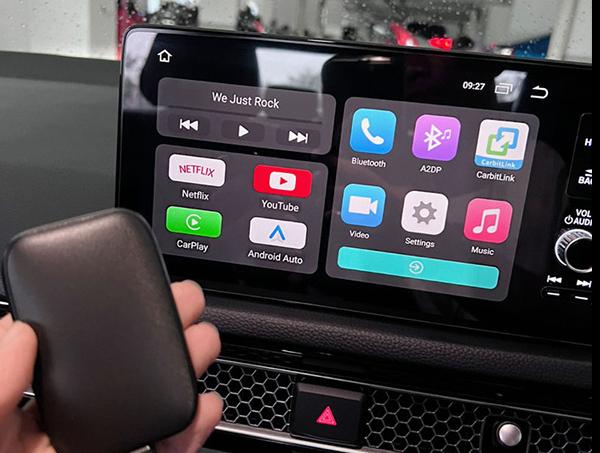
A multimedia AI box is a small Android device that plugs directly into your car's CarPlay or Android Auto USB port. Once connected, it takes over the screen and gives you a full Android experience. You can then access the Play Store, Netflix, YouTube, and basically any app you want.
Best for: Anyone with a car that supports wired CarPlay or Android Auto who wants a seamless, high-quality experience.
- A multimedia AI box such as CarlinKit T-Box or Ottocast P3 Pro
- A USB-C cable with data transfer support
- A mobile hotspot, car Wi-Fi, or a nano SIM card for the box
Step 1. Plug the AI box into the car's wired CarPlay or Android Auto USB port.
Step 2. Wait for the car screen to load the box interface.
Step 3. Go into Wi-Fi settings on the Android screen and connect to your phone's hotspot (or insert a SIM card if your box supports it).
Step 4. Find Netflix on the home screen. If it's not pre-installed, download it from the built-in Google Play Store.
Step 5. Log in to your Netflix account and start watching.
Pros:
- It feels close to a native app experience
- You do not have to keep using your phone for playback
- Many boxes support other apps like YouTube and TikTok
- Some premium models can also feed rear seat screens
Cons:
- Expect to spend $100–$200 or more for a quality unit
- Lower end boxes can feel slow
- Heat can affect performance in hot weather
- If you buy an AI box, you'd choose a model with stronger memory and storage, such as 8GB RAM and 128GB ROM, for smoother app performance.
Method 2: Using an HDMI Connection
If your vehicle has an HDMI input, or if the setup supports an HDMI adapter, this is one of the most stable ways to watch Netflix on a car screen.
Best for: Cars with an HDMI input; users who want the best video quality and don't mind a cable.
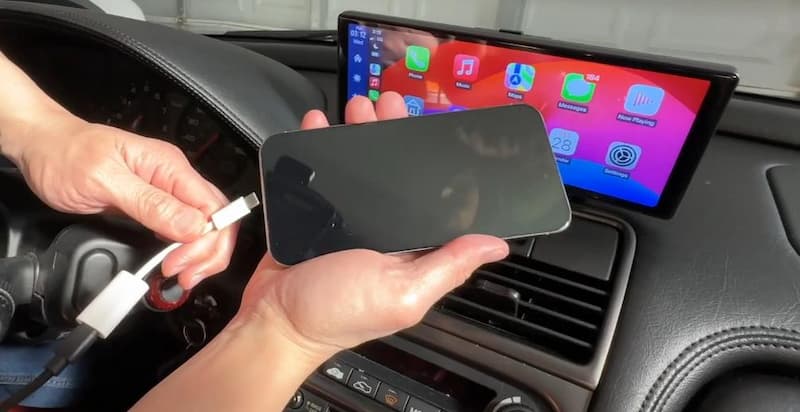
- For iPhone: An official Apple Lightning-to-Digital AV Adapter or USB-C-to-HDMI adapter
- For Android: A USB-C to HDMI cable supporting DP Alt Mode. Ensure your phone supports video output (e.g., Samsung S or Huawei P series).
- Other options: An Amazon Fire TV Stick, a Google Chromecast, or a laptop with HDMI output
Step 1. Plug the HDMI cable or streaming stick into the car's HDMI port.
Step 2. Connect the other end to your phone or setup device.
- For iPhone Users: Connect the HDMI cable to an Apple official or MFi-certified Digital AV Adapter, then plug it into your iPhone.
- For Android Users: Plug a standard Type-C to HDMI cable directly into your phone.
Step 3. If you use a streaming stick, power it through USB and connect it to your hotspot.
Step 4. Switch your car screen's input source to "HDMI" or "AUX-IN."
Step 5. Open Netflix on your phone and hit play. The car screen will mirror it at full quality.
- If Using a Phone: Launch the Netflix app on your phone and hit play.
- If Using a Streaming Stick: Use the stick's remote control to navigate the interface directly on your car screen.
Pros:
- The hardware HDCP handshake bypasses DRM black screen issues reliably
- Better audio and video sync
- Typically outputs at 1080p
Cons:
- Your phone may be tied up during playback
- Cable clutter around the center console
- You'll need to control playback from your phone or a streaming stick remote, since you usually can't tap the car screen to pause
Method 3: Wireless Screen Mirroring
This method uses apps like ApowerMirror or LetsView to mirror your phone's screen wirelessly to your car's display. It sounds great in theory, but this is also the method most likely to run into Netflix DRM problems.
Best for: Tech-savvy users on a tight budget who don't mind troubleshooting.
- A mirroring app such as ApowerMirror or LetsView
- A compatible smart head unit or Android based car system
- Both your phone and car system on the same Wi-Fi network
- For advanced users, use tools like CarBridge on jailbroken iPhones
Step 1. Install the mirroring app on both your phone and your car's Android head unit.
Step 2. Connect both devices to the same Wi-Fi network.
Step 3. Open the app on the car screen and put it in "waiting for connection" mode.
Step 4. On your phone, open the same app and initiate the connection.
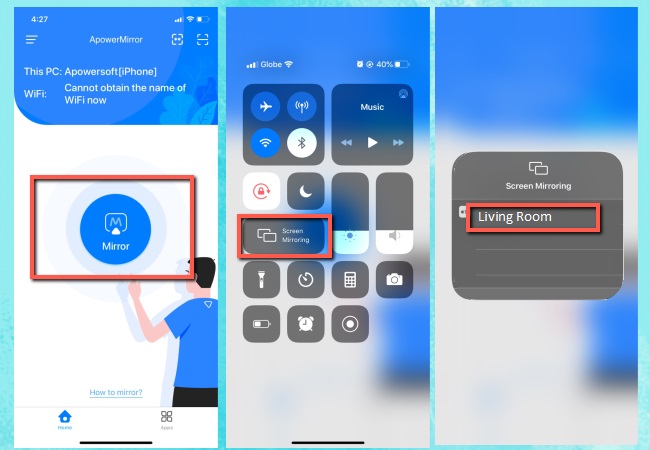
- iPhone: Swipe open Control Center, tap Screen Mirroring, and select your car from the list.
- Android: Tap "Cast" or "Connect" in the app and select your car unit.
Step 5. Once mirrored, open Netflix on your phone and play.
- If you hit the DRM black screen issue on an iPhone 15 or newer, try this hardware workaround: use a USB-C hub with an HDMI port, connect that to a "HDMI-to-CarPlay" adapter, and run the HDMI cable to your car screen. Because the phone "thinks" it's connected to a monitor rather than a capture device, it bypasses the DRM block.
Pros:
- Low cost
- Flexible for more than just Netflix
- Can work with many apps once the connection is stable
Cons:
- DRM can lead to a black screen when you mirror Netflix wirelessly.
- iPhone users might need to jailbreak their devices.
- Apple or Google may release updates for CarPlay or Android Auto to block this method
Method 4: Using the Vehicle's Built-in Browser
If you drive a Tesla, Rivian, BYD, NIO, Li Auto, or another modern EV or smart vehicle, you might already have a Netflix-capable browser built right into your dash.
Best for: Owners of smart EVs and new-energy vehicles with capable in-dash browsers.
- Nothing extra. Just make sure your car is connected to Wi-Fi or has an active data plan.
Step 1. Put the car in Park.
Step 2. Open the built-in browser on your car's touchscreen.
Step 3. Go to netflix.com.
Step 4. Sign in and start watching.
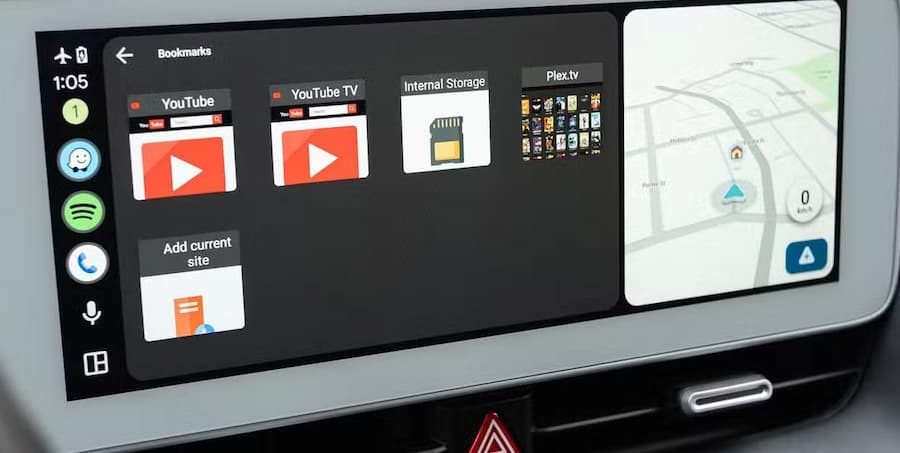
- Go to Theater Mode for a full-screen and optimized viewing experience.
Pros:
- No cables, no extra hardware, no phone involvement
- Direct hardware decoding means smooth full-screen playback
Cons:
- Drains your car's data plan or phone hotspot fast
- Video quality might max out at 480p without Widevine L1 certification
- Older gas-powered cars typically don't have a browser at all
- BYD owners frequently report a "M7701-1003" error
Method 5: Play Downloaded Netflix MP4 Videos via USB Stick
No internet? No problem. This method involves downloading Netflix content to your computer first, converting it to a DRM-free MP4 or MKV file, then playing it directly from a USB drive in your car. It's the most offline-friendly option by far.
Best for: People who want offline viewing with no buffering and no live connection issues.
- A Windows or Mac computer
- A Netflix video downloader that removes DRM (such as VidiFab Netflix Video Downloader)
- A USB drive formatted as exFAT for newer smart models or FAT32 for older cars
- A car system that supports local video playback
VidiFab Netflix Video Downloader
Download Netflix videos as MP4/MKV in 1080p with Dolby Atmos for offline viewing on your iPhone, Android, desktop, and more devices.

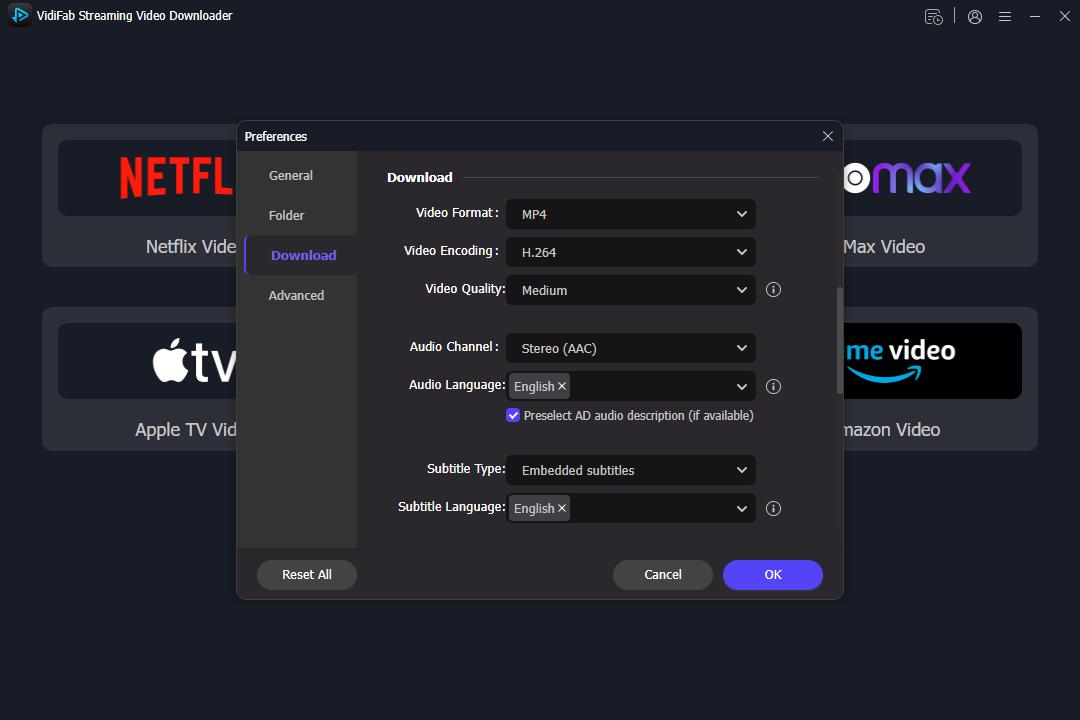
Step 1. Open the VidiFab Netflix Video Downloader. Click Menu > Preferences > Download > Output as H.264 MP4.
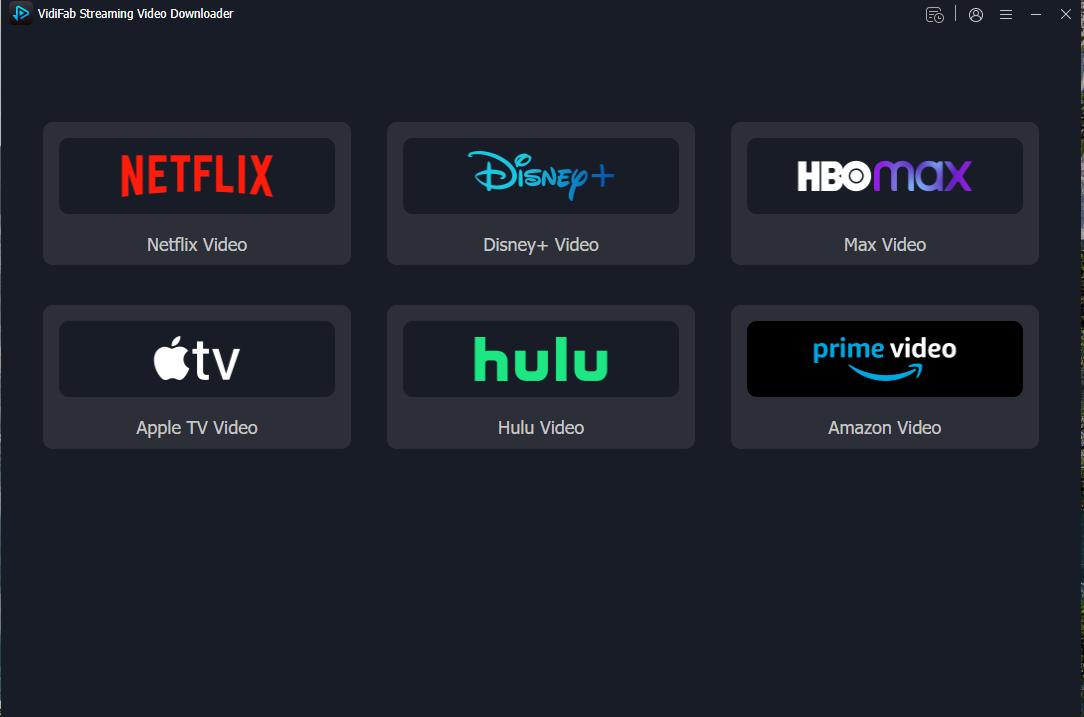
Step 2. Click the Netflix icon on the main interface and log in to your account in the protected built-in browser.
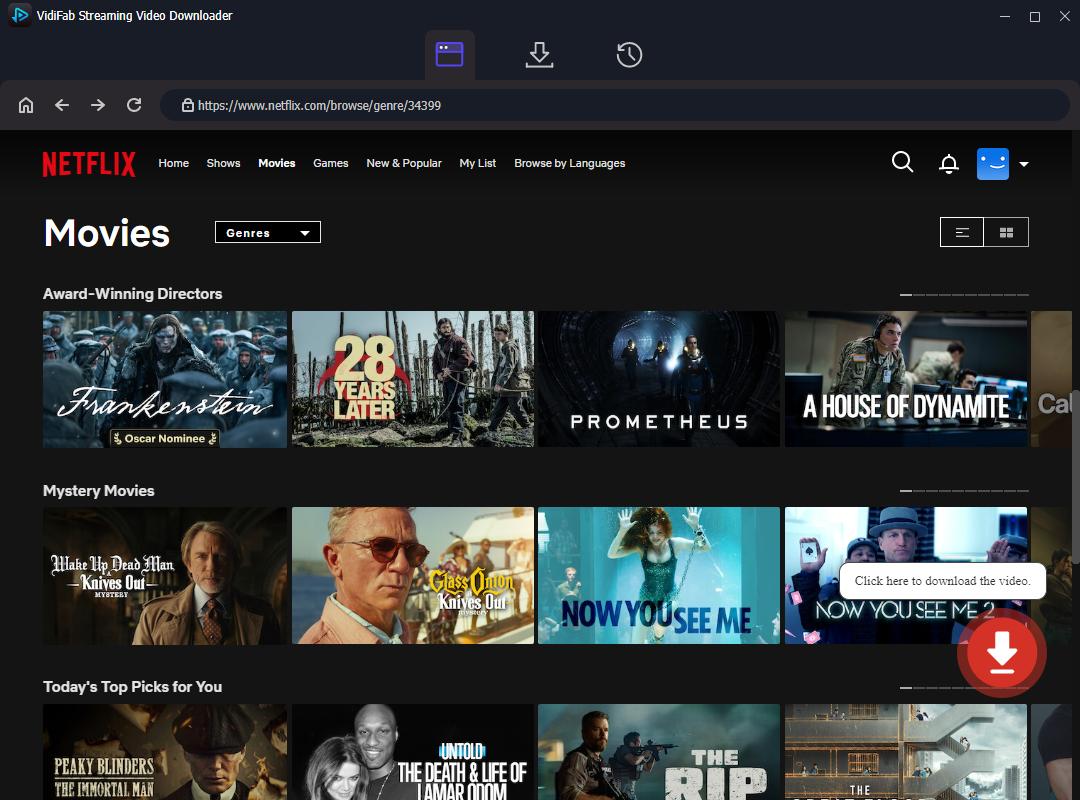
Step 3. Find the show or movie you want. Click the Download button in the bottom right corner.
Step 4. Set the quality to 1080p. Choose the preferred audio language for audio and subtitles. Set subtitles to Embedded or SRT. Click Download to start downloading.
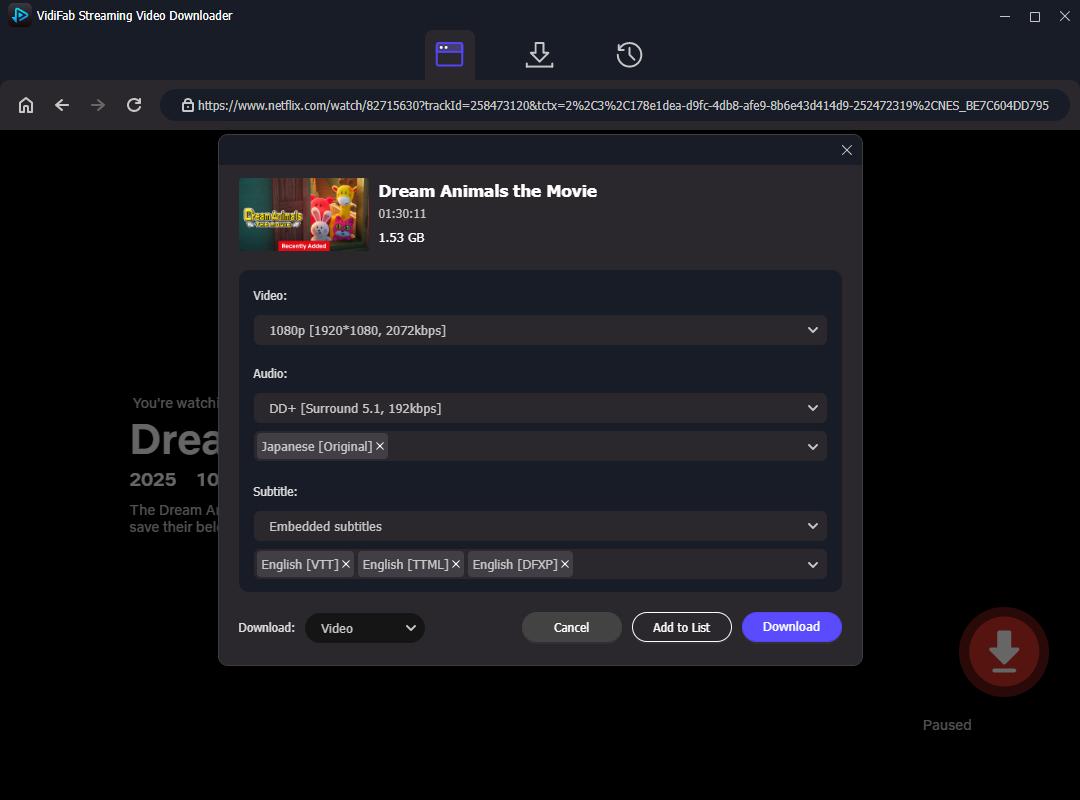
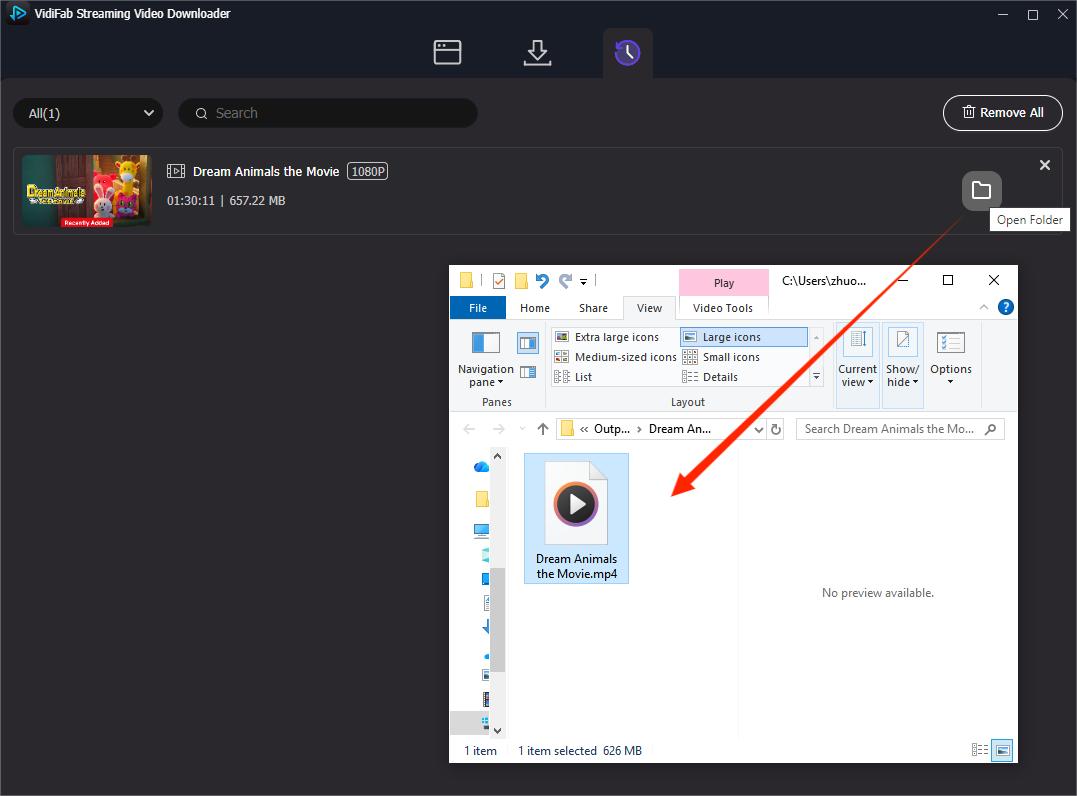
Step 5. Once the download is complete, plug the USB to your computer and copy the downloaded MP4 or MKV file to your USB drive.
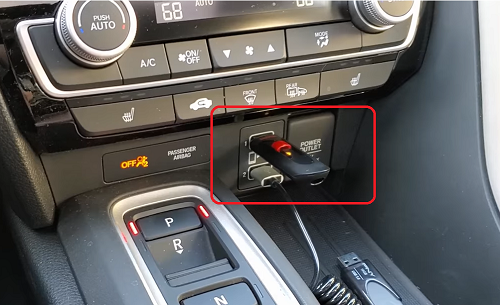
Step 6. Plug the USB drive into your car's USB port.
Step 7. Open your car's media player and navigate to the USB source. Select and play your file.
Pros:
- No internet required
- No buffering
- No hotspot battery drain
- Great for places with poor signal
- Often more stable than streaming methods
- No hardware purchases beyond a USB drive
Cons:
- Requires advance prep before every trip
- File format support can vary by vehicle
Part 3. Is It Legal to Watch Netflix While Driving?
Let me be completely direct here: watching Netflix while driving is illegal in virtually every country, and it's genuinely dangerous.
In the United States, all 50 states prohibit watching video while operating a vehicle. The legal standard in most places is anything "within the driver's line of sight." Even if your phone is mounted on a dashboard holder, showing a video on it is still a violation. This is precisely why CarPlay and Android Auto lock out video apps at the system level.
When You Can't Watch Netflix on a Car Screen:
- Watching Netflix on the main center screen while driving
- Watching video on a phone mounted near the dashboard
- Forcing video onto a screen the driver can see, even if the passenger is the one using it
When You Can Watch Netflix on a Car Screen:
- Watching while the vehicle is safely parked
- Rear seat entertainment screens that the driver cannot see
- Passenger only screens with proper privacy technology, if the vehicle is designed for that
Important: This article is for safe, parked use only. Local rules vary, so you'd better always check the laws where you drive.
Final Thoughts
If you want to watch Netflix on a car screen, you absolutely can, but the best method depends on your vehicle and how simple you want the setup to be. For the smoothest all around experience, you can start with a multimedia AI box. For stable wired playback, HDMI is a great pick. If you care most about offline viewing, using the VidiFab Netflix Video Downloader for USB video playback is hard to beat.
 Free Download
 Secure Download
 Free Download
Secure Download
Free Download
Secure Download


I'm a video tech specialist with over 10 years of experience in digital media and streaming. I focus on making complex workflows simple and practical. Through my guides, you'll learn how to convert media, keep high-quality playback across devices, and manage your streaming video library with ease.
 Leave Your Comment