How to Watch Netflix on Kodi: Install Netflix Kodi Addon Step by Step
 By Miles Kent
Kodi does not offer an official Netflix app or built-in Netflix support. However, you can watch Netflix on Kodi by installing a third-party Netflix addon, such as the one provided by CastagnaIT. This guide explains how to install the Netflix Kodi addon, sign in to your Netflix account, and stream Netflix movies and shows on Kodi step by step. You will also learn about an alternative way to watch Netflix content on Kodi without relying on an addon.
Part 1. Can You Watch Netflix on Kodi?
Yes, you can watch Netflix on Kodi. However, Kodi does not have official Netflix support, so you need a third-party addon like the CastagnaIT plugin to access Netflix content.
This community-developed addon uses the Widevine DRM system to access Netflix services, allowing you to browse and stream Netflix movies and shows directly within the Kodi interface.
However, you still need an active Netflix subscription to use the addon. The Netflix Kodi addon requires you to sign in with your Netflix account before you can access the content library. If your Netflix membership expires, you will no longer be able to watch Netflix on Kodi, even if the addon is already installed.
If you want to watch Netflix content on Kodi without signing in to a Netflix account, check Part 5 for another possible solution.
Part 2. How to Download and Install Kodi on Your Desktop
Before adding the Netflix add-on, install Kodi on your computer. Visit https://kodi.tv/download/ and scroll to the "Select Your Platform" section to download the appropriate version for your device.
- For Windows: Click on Installer (64BIT) for most modern PCs. Use 32BIT only if you have an older computer.
- For Mac: Click the Installer (64BIT) link.
After downloading, open the file and follow the on-screen instructions. Click Next, agree to the terms, and then click Install.
Part 3. How to Add the Netflix Addon on Kodi
You can download the CastagnaIT plugin from GitHub and install it on Kodi. This plugin works with Windows, Mac, Linux, and most certified Android TV devices and streaming sticks. The installation steps are generally the same. Here are the steps I follow to install it on my Windows 10 computer:
Step 1. Enable Unknown Sources on Kodi
-
01
Open Kodi and click the Gear Icon in the top-left corner.
-
02
Select System, then click Add-ons from the left sidebar.
-
03
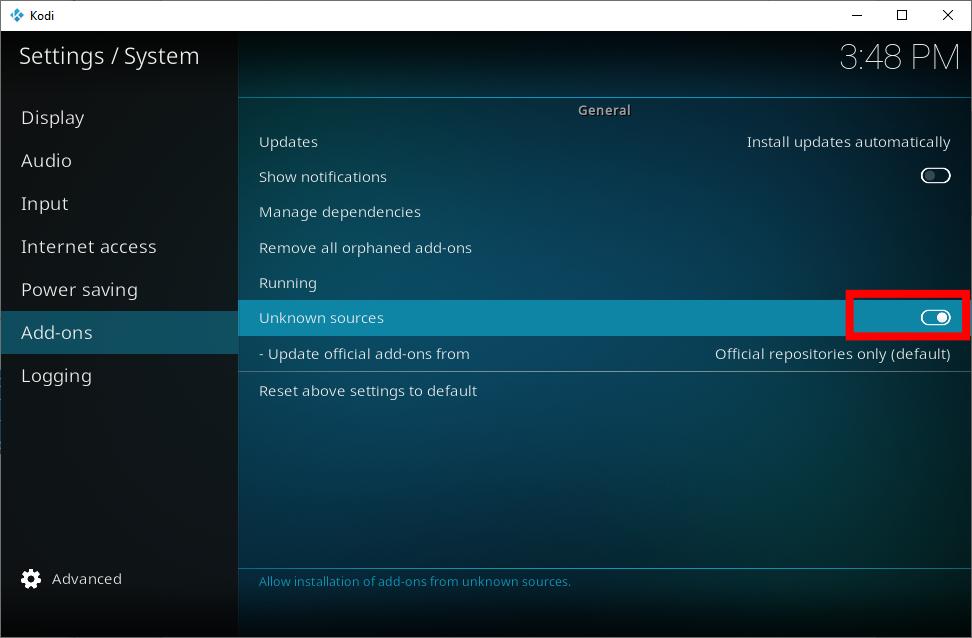
On the right panel, toggle Unknown sources to ON and click Yes when the warning popup appears.
Step 2. Download the Netflix Kodi Addon Repository
-
01
Open your web browser and download the official Netflix Kodi Addon Repository ZIP file from GitHub.
-
02
Save the downloaded .zip file to an easy-to-find location on your computer, such as the Downloads folder. Do not extract the file.
Step 3. Install the Netflix Addon Repository
-
01
Return to the Kodi home screen and select Add-ons from the left menu.
-
02
Click the Package Icon (Open Box) in the top-left corner.
-
03
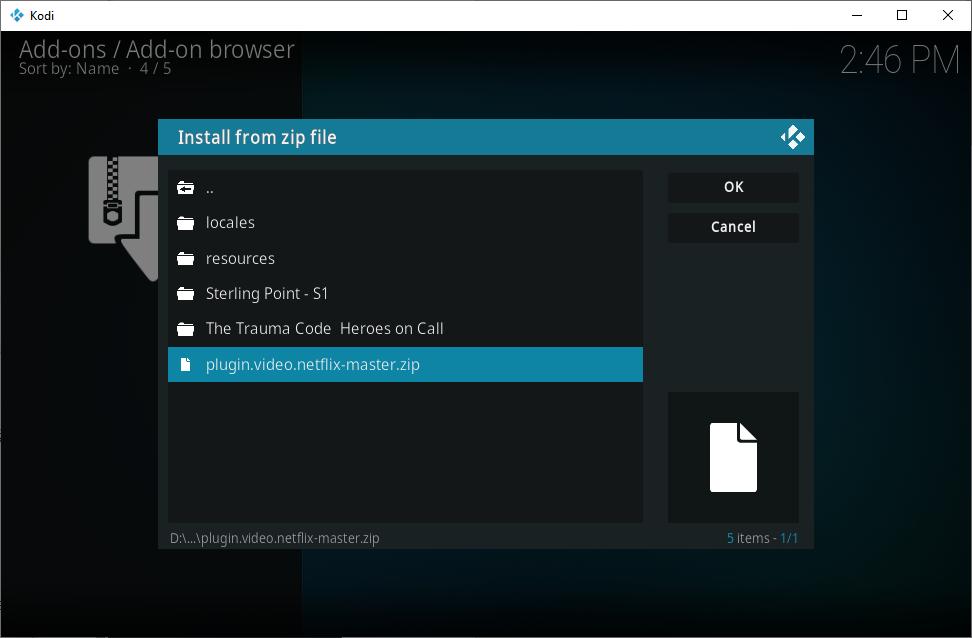
Select Install from zip file, locate the repository ZIP file you downloaded, and click OK.
-
04
Wait a few seconds while Kodi extracts and installs the repository automatically.
Step 4. Open the Netflix Addon and Install Required Components
-
01
Go back to the main Add-ons menu and select Video add-ons.
-
02
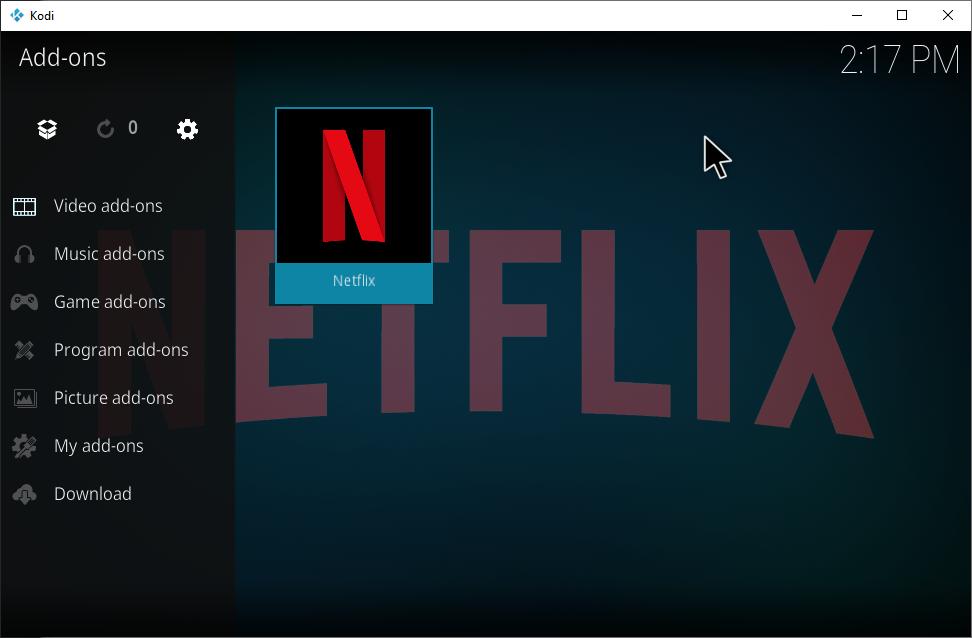
Find the Netflix plugin icon and click it to launch the addon.
-
03
When prompted, follow the on-screen instructions to install and enable InputStream Adaptive, which is required for video playback.
Part 4. How to Sign In and Browse Netflix on Kodi
After installing the Netflix addon, you need to sign in to your Netflix account before you can access Netflix content on Kodi.
Step 1. Open Netflix and Select Auth Key Login
-
01
Open the Netflix plugin in Kodi.
-
02
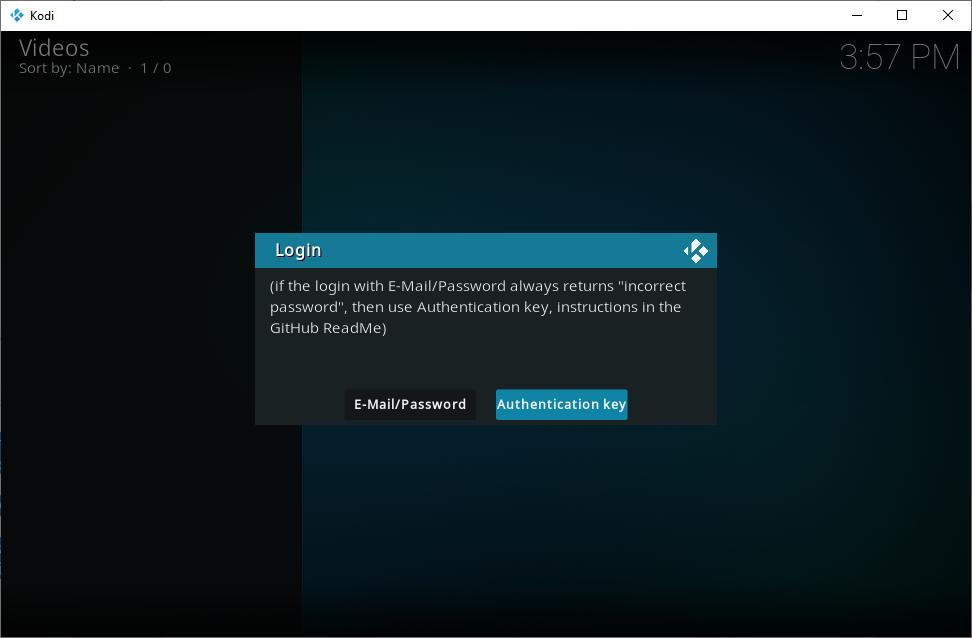
When the login menu appears, select Login with Authentication key. Due to Netflix security updates, direct login with your password may not work, so an authentication key is required.
Step 2. Sign In Netflix with the Authentication Key
-
01
Open your web browser and download the authentication key generation tool that matches your Windows, Linux, or macOS computer.
-
02
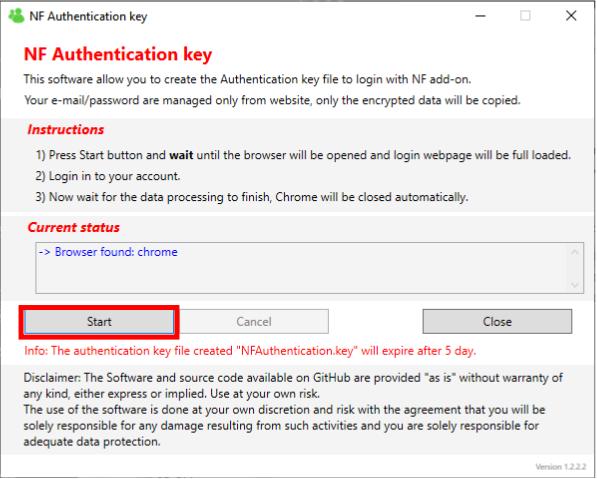
Open the downloaded authentication.exe file and click Start.
-
03
The tool will automatically open a secure browser window or tab. Enter your Netflix email and password on this page to complete the sign-in process.
Step 3. Browse Netflix Content on Kodi
-
01
After successful authentication, Kodi will automatically connect to your Netflix account.
-
02
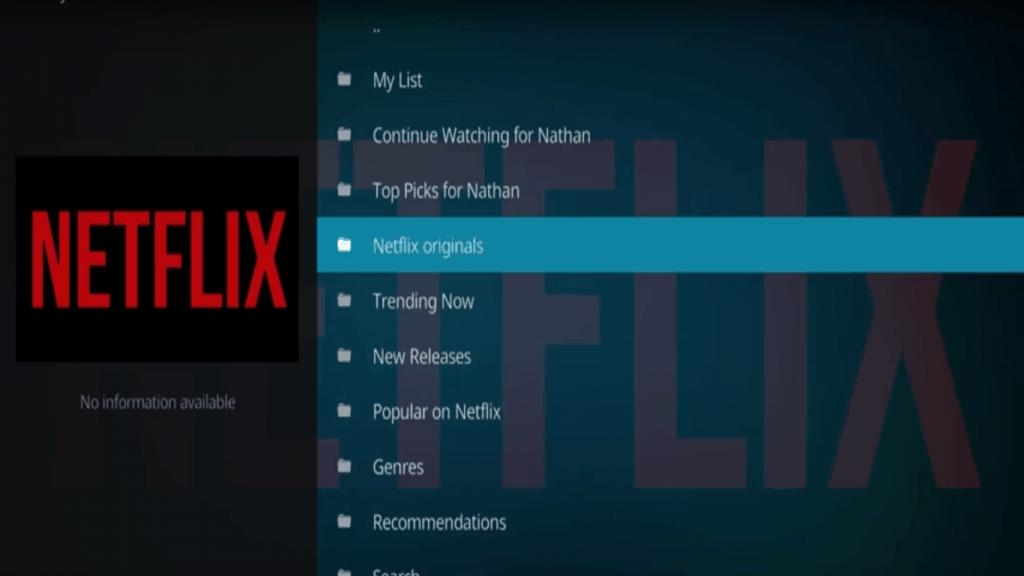
Open the Netflix addon again. You can now browse Netflix movies and TV shows, search for specific titles, access your Netflix library, and start streaming videos directly through Kodi.
Part 5. A More Direct Way to Get Netflix on Kodi
Since the addon such as CastagnaIT is a community-developed addon, it may stop working when Netflix changes its DRM system, Widevine requirements, or API. The setup process can also be complicated, as you can see above.
VidiFab Streaming Video Downloader provides a smarter way. It lets you download Netflix videos to your PC or Mac in MP4 or MKV format, which are both compatible with Kodi, and then you can add them to Kodi from local folders.
VidiFab Streaming Video Downloader
Download Netflix videos as MP4/MKV in 1080p with Dolby Atmos for offline viewing on your iPhone, Android, desktop, and more devices.

- No Netflix login on Kodi: Save videos locally and add them to Kodi as MP4/MKV files.
- Avoid addon issues: Play downloaded videos without relying on third-party addons or updates.
- Avoid Netflix buffering issues: Watch videos without loading or internet interruptions.
- Keep your collection: Store downloaded videos in your Kodi library even if your Netflix subscription changes.
Here are the steps to download Netflix videos and add them to Kodi:
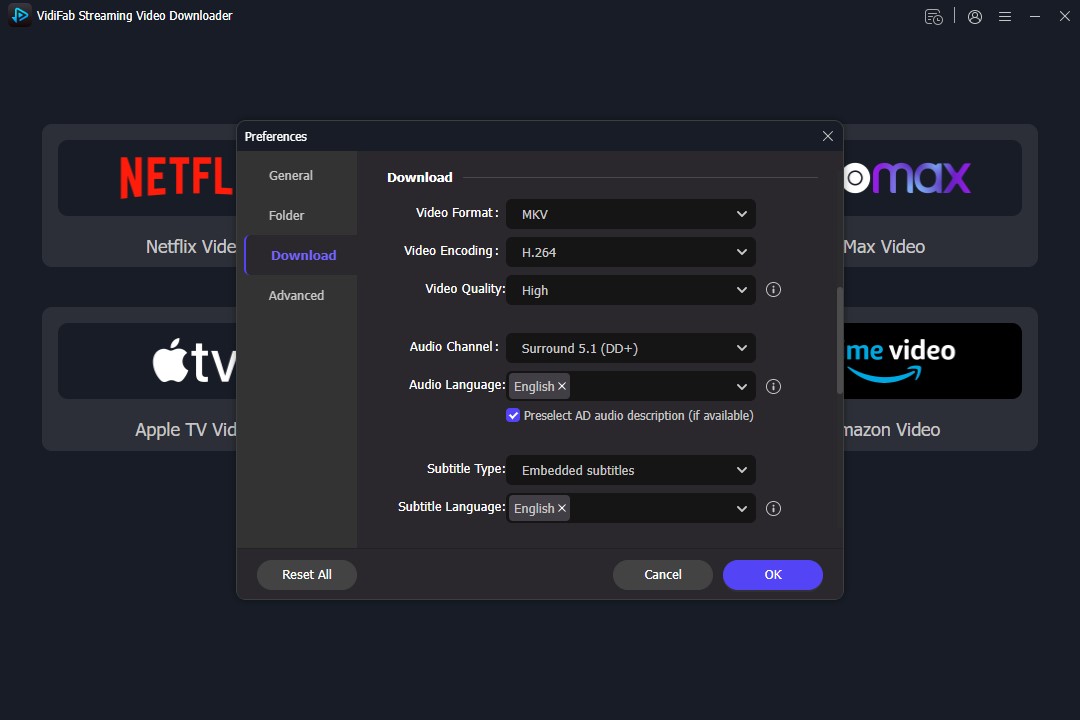
Step 1. Launch VidiFab Streaming Video Downloader. Go to Menu > Preferences > Download and choose the output format (MP4 or MKV) and download folder. Click OK to save the settings. Then select Netflix from the supported services and sign in with your Netflix account through the built-in browser.
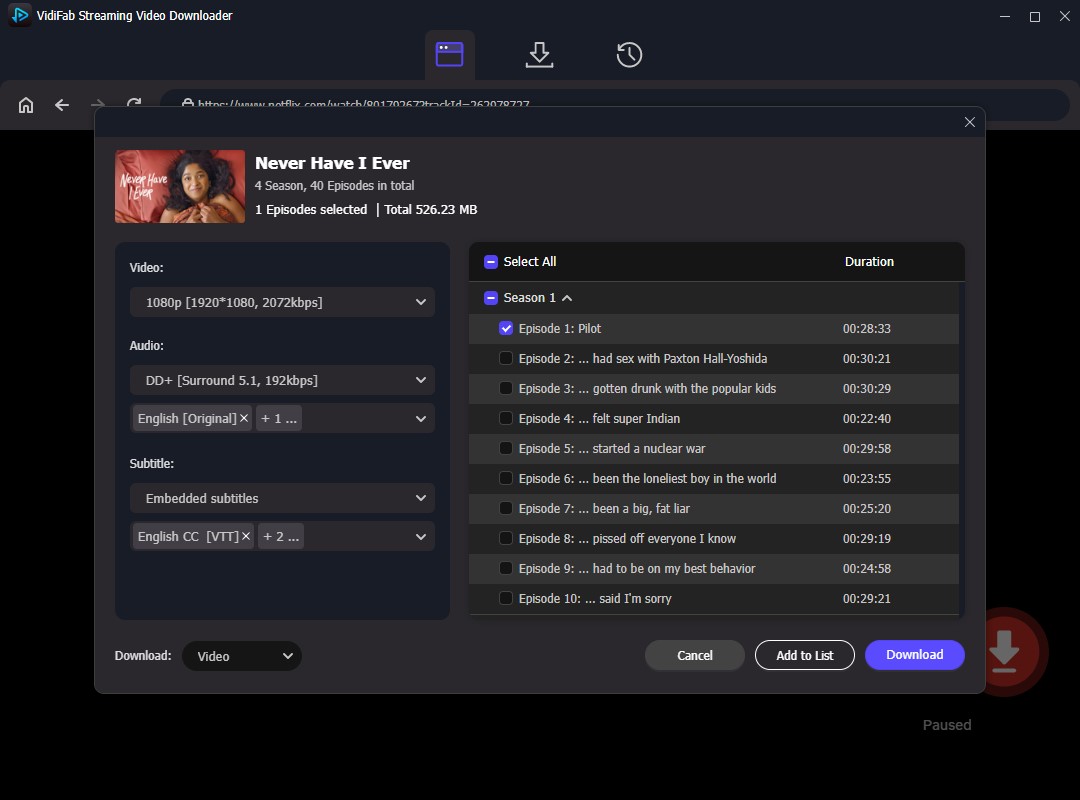
Step 2. Browse or search for the Netflix movie or TV show you want to save. Click the download icon and adjust the download settings, including: video quality, audio language and quality, and subtitle language and format. Click Download.
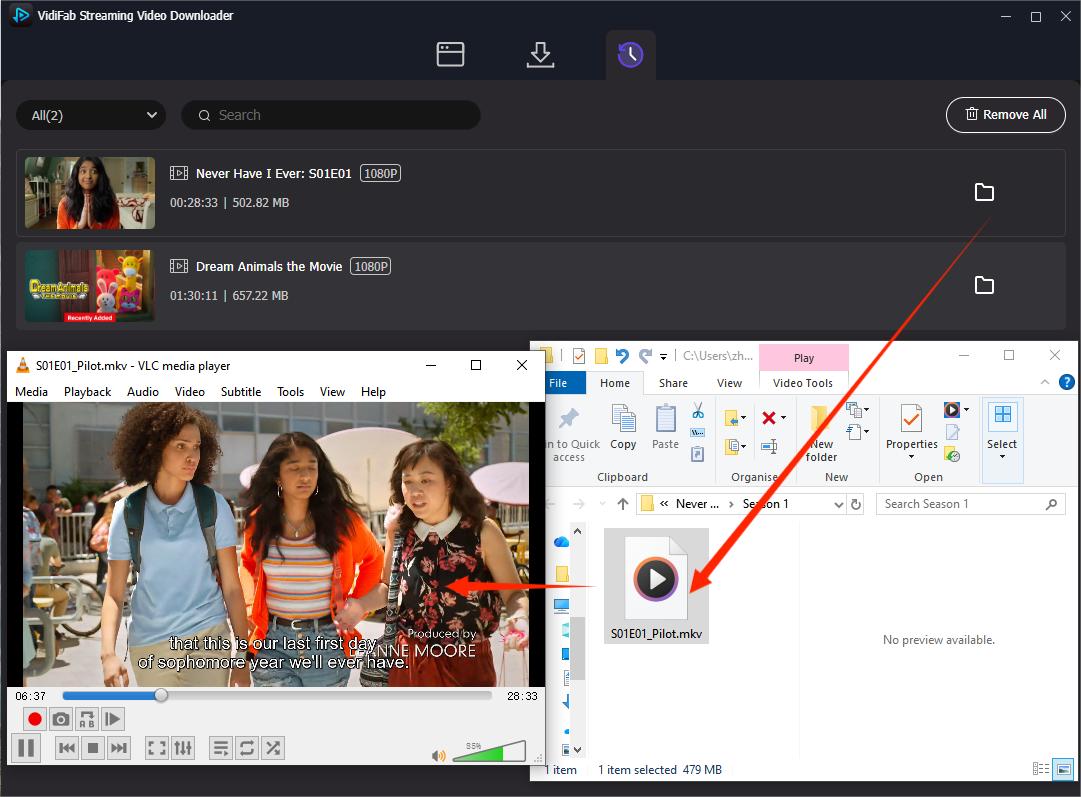
Step 3. After the download finishes, open the History section in VidiFab and click the folder icon to locate your downloaded MP4 or MKV files.
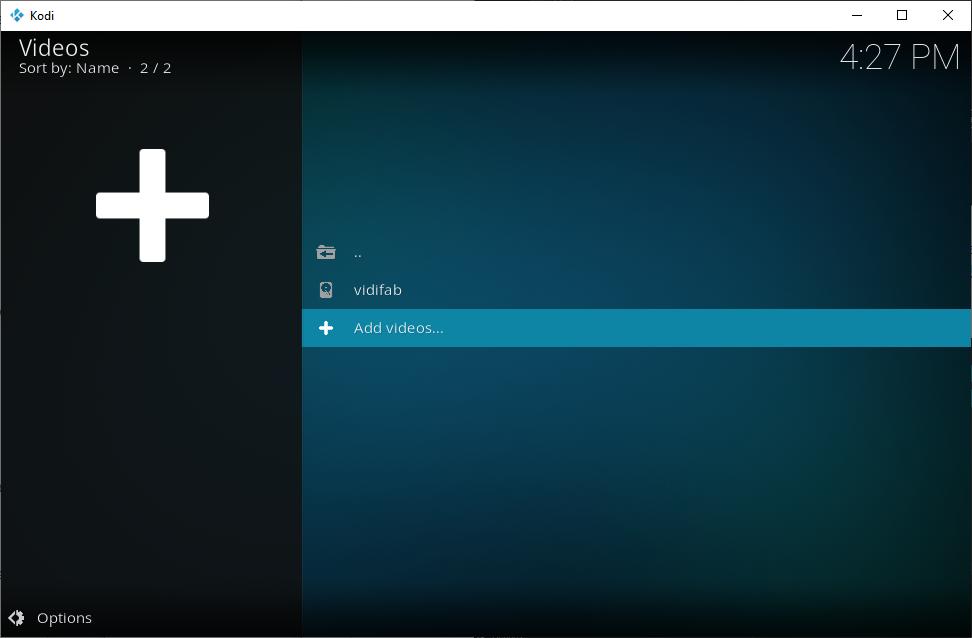
Step 4. Open Kodi. Go to Videos from the main menu. Select Files > Add videos.... Click Browse and choose the folder containing your downloaded videos. Click OK to add the folder.

Tip: A Set content window will automatically appear. Click This directory contains and select either Movies or TV shows. Leave the default information provider (scraper) as it is. Kodi will ask: "Do you want to refresh information for all items within this directory?" Click Yes.
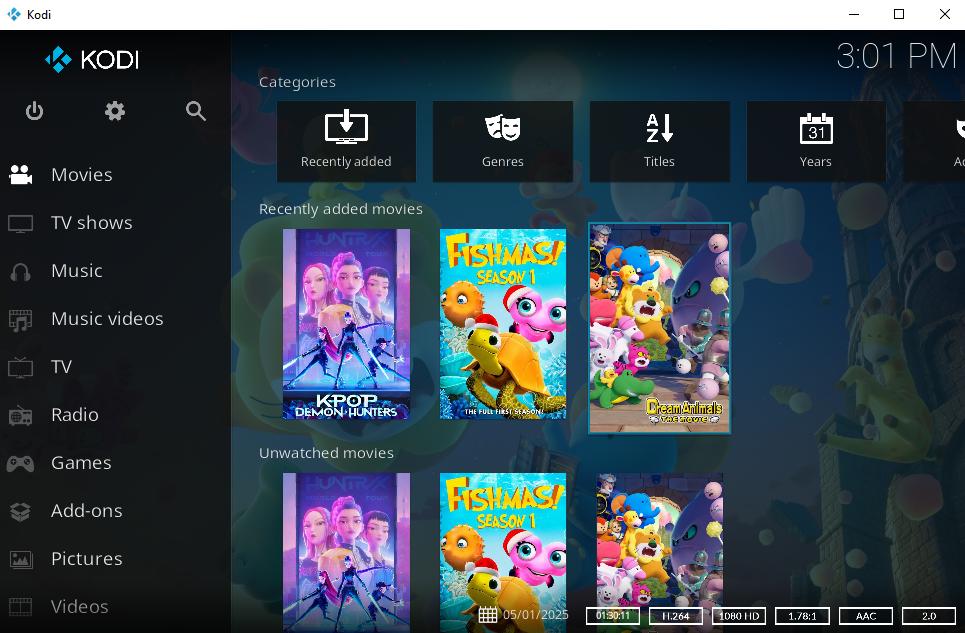
Step 5. Return to the Kodi home screen and open Movies or TV shows. Your downloaded Netflix videos will now appear in your Kodi library with posters, titles, and other information, just like a regular media collection.
Part 6. How to Make Kodi Look Like Netflix (A Bonus Tip)
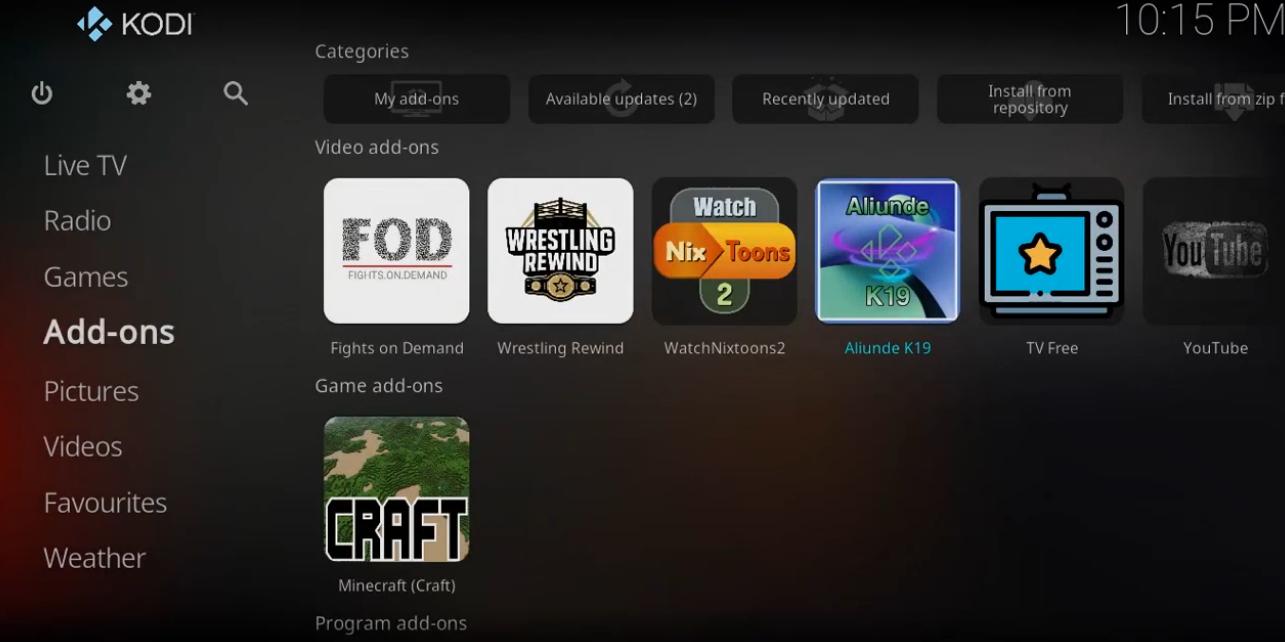
If you like the Netflix-style interface, you can change the Kodi skin and customize the home screen to create a similar browsing experience.
-
01
In File manager, select Add source, enter
https://umbrellaplug.github.io , name it Umbrella, and click OK. -
02
Go to Add-ons > Package Box > Install from zip file > Umbrella, and select the zip file, waiting for the installation notice.
-
03
Go to Install from repository > Umbrella Repo > Video add-ons > Umbrella, then click Install and confirm dependencies.
-
04
Go to Kodi Settings > Interface > Skin > Umbrestuary. The Kodi interface will change to resemble Netflix.
Part 7. Conclusion
Watching Netflix on Kodi is possible with a third-party Netflix addon, but the setup process can take some time. If you prefer a simpler way, you can use VidiFab to download Netflix videos as MP4 or MKV files and add them directly to Kodi. This lets you enjoy a more flexible and personalized viewing experience.
 Free Download
 Secure Download
 Free Download
Secure Download
Free Download
Secure Download


I'm a video tech specialist with over 10 years of experience in digital media and streaming. I focus on making complex workflows simple and practical. Through my guides, you'll learn how to convert media, keep high-quality playback across devices, and manage your streaming video library with ease.
 Leave Your Comment