How to Block Netflix Ads: Best Netflix Ad Blocker Solutions That Work
 By Miles Kent
- To block Netflix ads for free, you can try browser extensions like uBlock Origin, Brave Shields, or Pi-hole. However, their effectiveness against Netflix's in-stream ads may vary.
- For a more reliable ad-free experience, choose a Netflix plan without ads, if available in your region. Alternatively, download Netflix videos with VidiFab without ads for offline viewing.
According to Netflix's official Q1 2026 earnings report, over 60% of new sign-ups in available markets now choose the ad-supported tier. That means roughly 250 million viewers sit through up to four minutes of commercial interruptions every hour. I get why people sign up for it; it is cheaper. But I also get why those same people immediately start searching for a Netflix ad blocker.
I have tested every method I could find: browser extensions, Firefox with uBlock Origin, Brave Browser, Pi-hole, and plan upgrades. I will also examine whether tools like Adblock actually work and introduce an alternative way to enjoy Netflix videos without ads through offline downloads.

Part 1. Does Adblock Block Netflix Ads?
Not always. Traditional ad blockers may reduce some ads, but they don't reliably block ads played within Netflix streams. To check this, I installed AdBlock Plus on Chrome, signed in to a Netflix ad-supported account, and played a movie. The ads still appeared during playback.
Why Standard Ad Block for Netflix Tools Usually Fail
Domain filtering does not work. Traditional ad blockers often rely on filter lists to block requests to known advertising domains. However, streaming ads can be delivered in ways that make them difficult to distinguish from regular video content. When ads are inserted into or delivered as part of a video stream, blocking network requests alone may not remove them reliably.
Blocking causes playback errors. If an ad blocker blocks requests that Netflix needs to load a video, the result may be a playback error rather than an ad-free stream. The exact behavior depends on how the ads are delivered and how the blocking tool works.
Ad blocking is different from skipping content. Some browser extensions skip intros, recaps, or transitions between episodes. These features can make watching more convenient, but they don't necessarily block advertisements. To reduce Netflix ads, you need a tool that specifically supports ad blocking, and even then, results may vary by browser, extension version, and Netflix's current ad delivery methods.
Part 2. How to Block Netflix Ads with Browser Extensions
Some browser extensions claim to block or skip Netflix ads, while others focus on skipping intros, recaps, and credits. Their effectiveness varies, so check each extension's supported features before installing it.
Method 1. Testing uBlock Origin with Firefox
uBlock Origin can block many web ads and trackers, but it does not guarantee that Netflix's in-stream ads will be blocked. For the full uBlock Origin extension, Firefox is a practical choice. Chrome users may encounter different limitations because the full extension is no longer available there; uBlock Origin Lite is the Chrome alternative with a different feature set.
If you want to test uBlock Origin with Netflix, follow these steps:
-
01
Download and install the latest version of Firefox on your PC or Mac.
-
02
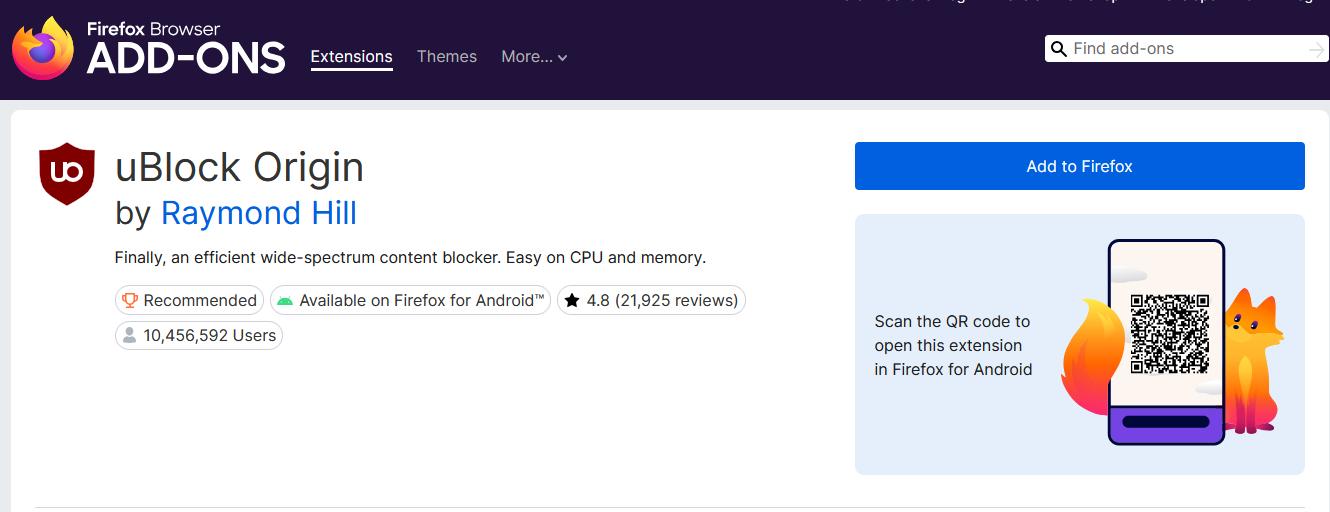
Open Firefox, visit the Add-ons store, and search for uBlock Origin. Install the official extension.
-
03
Click the uBlock Origin icon in the toolbar, open the Dashboard, go to Filter lists, and click Update now. This ensures you have the latest streaming ad-blocking rules.
-
04
Sign in to Netflix and play a title on your ad-supported plan. Check whether ads still appear, as the extension may not block every ad or work consistently after Netflix updates its playback system.
Fix uBlock Origin Glitches: What to Do If Netflix Ads Are Still Showing
If you installed uBlock Origin on Firefox and Netflix ads still play, try these fixes:
- Check for extension conflicts. Open Firefox's extension manager and temporarily disable other video-related extensions like Adblocker for YouTube, YouTube NonStop, or third-party video helper tools.
- Purge and reload caches. Open uBlock Origin's Dashboard, go to Filter lists, click Purge all caches, then click Update now to force-refresh the rules.
- Restart the browser. Close Firefox and reopen it, then test Netflix again. You can also try a separate Firefox profile to check whether another extension or browser setting is causing the problem, but this does not guarantee that Netflix ads will be blocked.
Pros:
- Completely free with no hidden costs
- Open source and privacy-focused
- Provides broad ad and tracker filtering
Cons:
- Requires some technical setup
- May need manual filter cache refreshes after Netflix updates
- Only works on desktop browsers
- Does not guarantee that Netflix's in-stream ads will be blocked
Method 2. Use Streaming Enhanced Chrome Extension
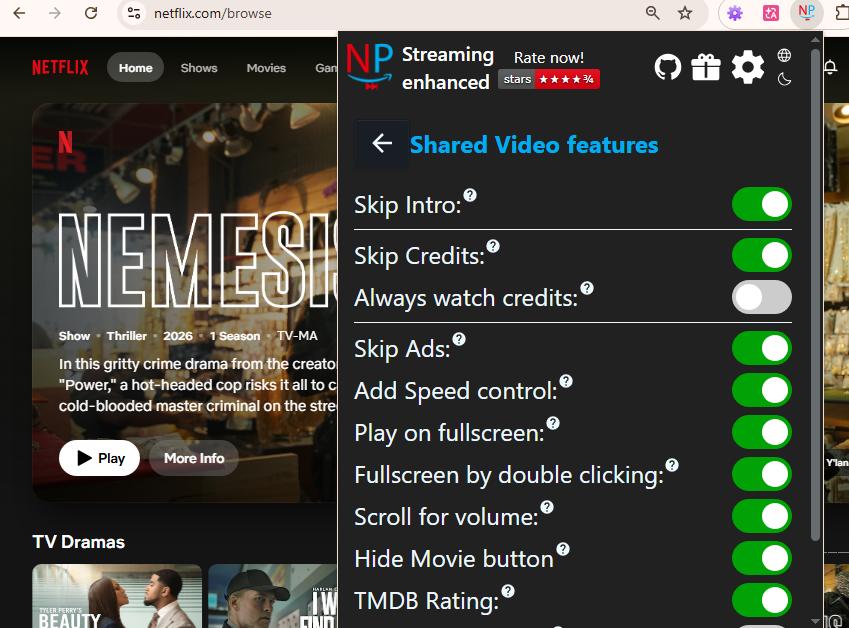
Streaming Enhanced: Netflix Disney+ Prime Video is more than just an ad blocker for Netflix. It also supports Disney+, Amazon Prime Video, Crunchyroll, and HBO.
According to its Chrome Web Store listing, it supports ad blocking, skipping intros and recaps, skipping credits, and other playback enhancements. However, these features may not always work as expected when streaming websites change their interfaces.
-
01
Open the Chrome Web Store in your Chrome browser.
-
02
Search for Streaming Enhanced: Netflix Disney+ Prime Video. Click Add to Chrome.
-
03
Click the extension icon in your toolbar and open the Settings panel. Enable the features you want: Skip Recaps, Skip Intro, and Skip Ads.
-
04
Open Netflix in your browser and play a video. When an ad segment starts, the extension detects it and fast-forwards through it automatically.
Pros:
- Free and open source with code available on GitHub
- The developer states that the extension does not collect or use user data
- Skips intros, recaps, credits, and ads
- Shows TMDB ratings directly inside Netflix
- Fast-forward approach rarely triggers Netflix proxy or VPN detection
Cons:
- Netflix front-end updates can temporarily break the extension
- Patch updates may take time from a solo developer
- Only works on desktop browsers
Method 3. Exploring the Multi Skipper Tool
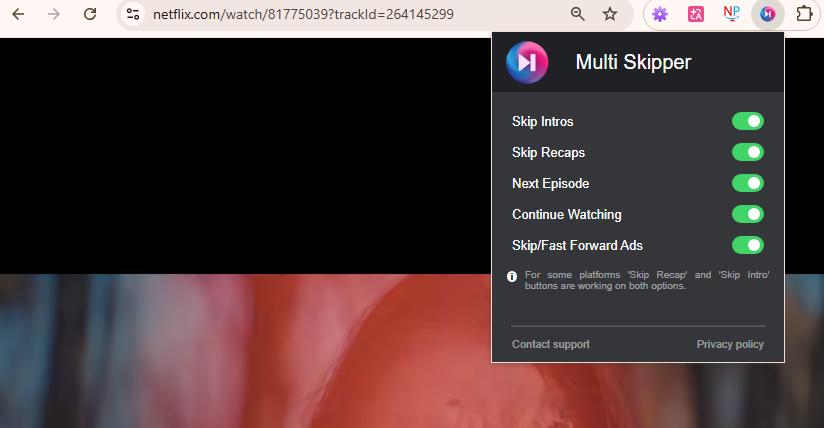
Multi Skipper is a lightweight Netflix video stream commercial skipper. When the Netflix web player shows a Skip button during an ad break, Multi Skipper simulates a mouse click and jumps the playback position past the ad. It also handles intros, recaps, "next episode" prompts, and "continue watching" segments.
Note: Multi Skipper can only skip an ad when the required skip control is available and recognized. It does not guarantee that every Netflix ad can be skipped, and its developer notes that it was developed and tested for English-language playback.
-
01
Go to the Chrome Web Store and search for Multi Skipper.
-
02
Click Add to Chrome. Once installed, pin the extension to your toolbar so you can see its status.
-
03
Open or refresh your Netflix playback page.
-
04
Open the extension's settings and enable the skipping options you want. Play a supported title and check whether the extension recognizes and activates any available skip controls. If no skip button appears, the extension may not be able to skip that ad.
Pros:
- Extremely lightweight with minimal memory usage
- No complex filter lists to download or process
- Instant response with smooth performance
- Keeps your computer running efficiently without performance drops
Cons:
- Works only when it can detect and activate a supported skip control
- Netflix interface changes may affect its performance
Part 3. Does Brave Browser Block Netflix Ads?
Yes, Brave Browser can sometimes reduce or skip certain Netflix advertising elements, but it does not reliably remove all Netflix ads.
Brave relies on its built-in Shields system to block trackers, advertising requests, and unwanted content. Because Netflix ads are integrated into the streaming platform itself, Brave may help in some situations, but it cannot consistently block every commercial shown on Netflix's ad-supported plan.
Method 4. Use Brave Browser to Block Netflix Ads Without Extensions
To give Brave the best chance at blocking Netflix advertisements without breaking playback, follow these steps:
-
01
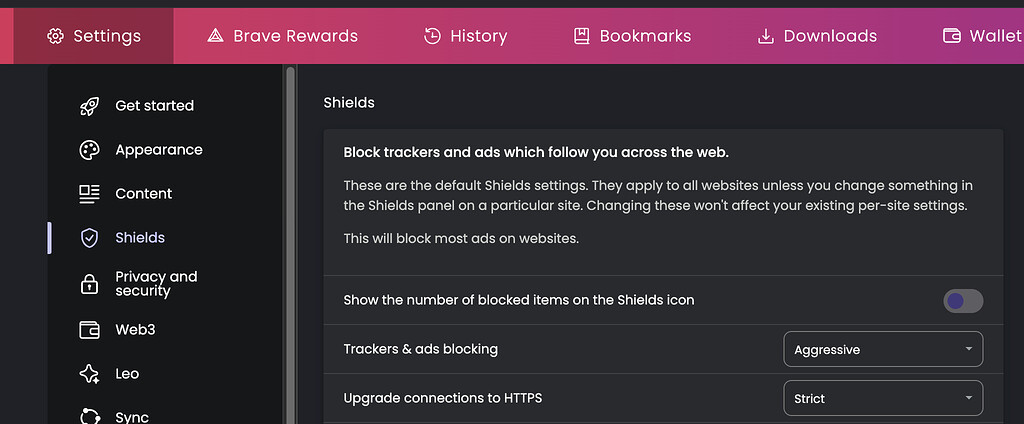
Enable Aggressive Shield Settings. Go to Settings > Shields and privacy > Trackers & ads blocking. Set the blocking level to Aggressive.
-
02
Update Filter Lists. Go to Settings > Shields and privacy > Content filtering. Click Update list to get the latest blocking rules.
-
03
Turn Off Shields If Playback Problems Occur. If Netflix fails to load or videos refuse to play, click the lion icon in the address bar and turn off Brave Shields for Netflix. Or, in settings, allow Netflix cookies and cross-site trackers, then refresh the page.
-
04
Temporarily Disable Extensions. Turn off all other extensions, log into Netflix, then re-enable them one by one to see if any are causing conflicts.
-
05
Test Netflix in a Private Window. If ads still appear, open a Private Window (which loads no extensions) and try Netflix there. This isolates whether an extension is the problem.
Pros:
- Works immediately without installing extensions
- Native ad blocking uses less memory and battery
- Available on both desktop and mobile devices
Cons:
- Built-in Shields filters may update slower than dedicated tools
- May require waiting for Brave component updates after Netflix changes
- Only works at the browser level, not on Smart TVs or mobile apps
Part 4. Does Pi-hole Block Netflix Ads?
No, Pi-hole cannot block Netflix ads because it operates at the network DNS level and cannot separate commercials stitched into the video stream by Netflix's SSAI technology.
However, Pi-hole can meaningfully reduce how often ads appear. I found reports from Reddit users who added 10 to 15 aggressive blocklists. After configuring Pi-hole, some users reported only 1 to 2 ad segments of about 35 seconds each during an entire movie. That is not zero ads, but it is a big improvement.
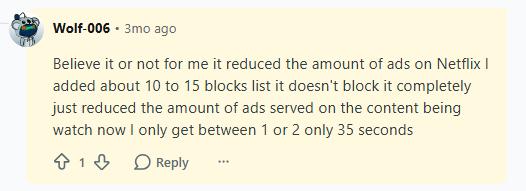

Miles's Technical Note: In our testing, relying solely on Pi-hole may cause playback errors or an endless loading screen rather than a clean ad-free experience. However, if you still want to experiment with it to reduce tracking and general ad telemetry, follow the setup below:
Method 5. Try Pi-hole to Reduce Netflix Ads on Your Network
-
01
Install Pi-hole on a Raspberry Pi, Docker container, or any Linux device. Open the Pi-hole admin dashboard, confirm it is running, and note the device's IP address.
-
02
Log into your router's admin page and find the DNS Settings. Replace the default DNS with your Pi-hole device's IP address. Save and restart your router.
-
03
All devices connected to your Wi-Fi, including Smart TVs, Fire TV, Apple TV, phones, and computers, now route their DNS queries through Pi-hole.
-
04
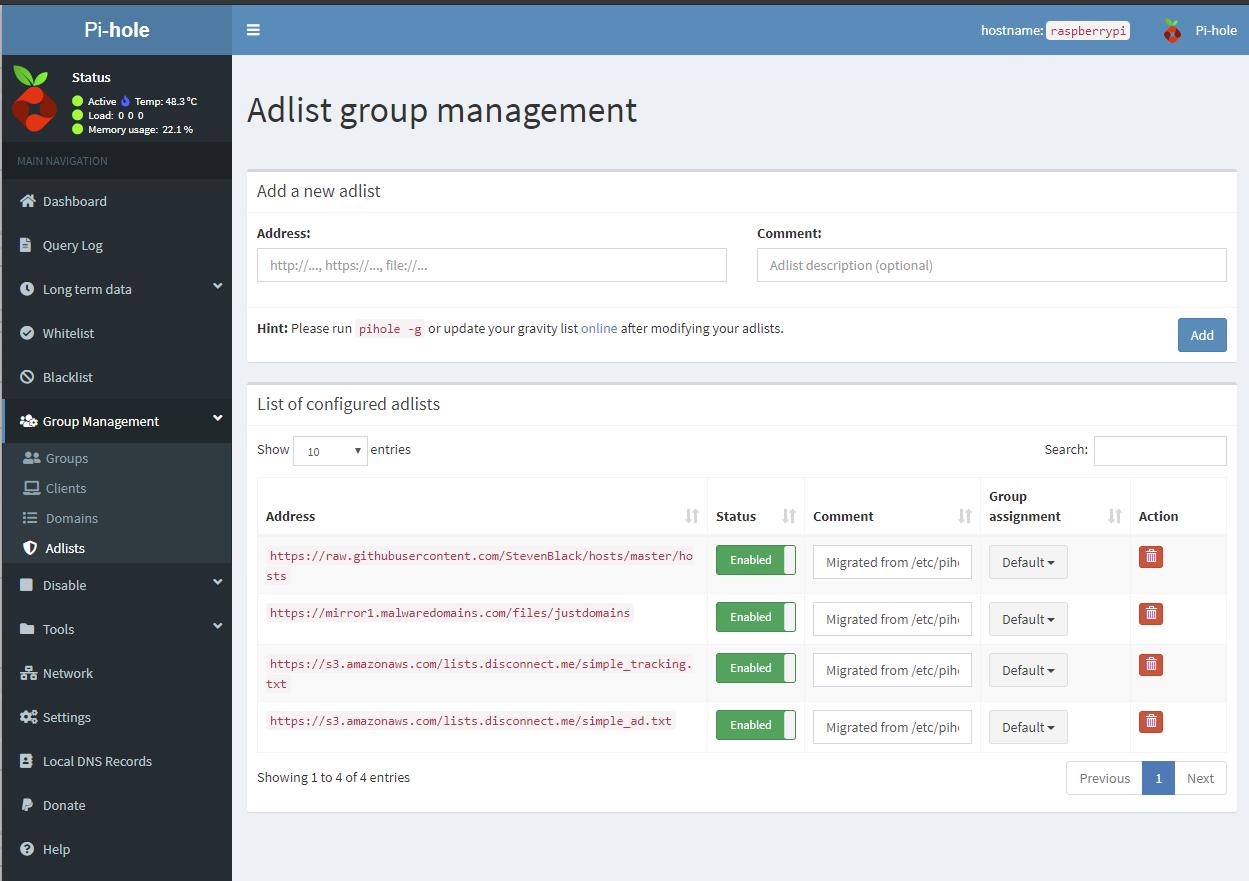
In the Pi-hole admin dashboard, go to Group Management > Adlists > Add a new adlist. Enter additional ad-blocking list URLs and save.
-
05
Go to Tools > Update Gravity to rebuild Pi-hole's filtering database with the new lists.
-
06
Open Netflix and play an ad-supported video. Monitor whether ad frequency drops. If results are weak, go back and add more blocklists, then update Gravity again.
- Visit the Pi-hole Discourse Community and search for "Netflix ads blocklist" or "streaming ads blocklist."
- Try these general ad and tracking blocklists: OISD Blocklist, Hagezi DNS Blocklists, StevenBlack Unified Hosts, and Block List Project.
Pros:
- Works on all devices connected to your network
- No browser extensions required
- Can reduce Netflix ad frequency in some cases
Cons:
- Cannot completely remove Netflix ads
- Requires Pi-hole hardware setup and DNS configuration
- Needs ongoing blocklist management
- May cause continuous playback issues on older streaming hardware
Part 5. Upgrade Netflix Plan to Remove Ads Completely
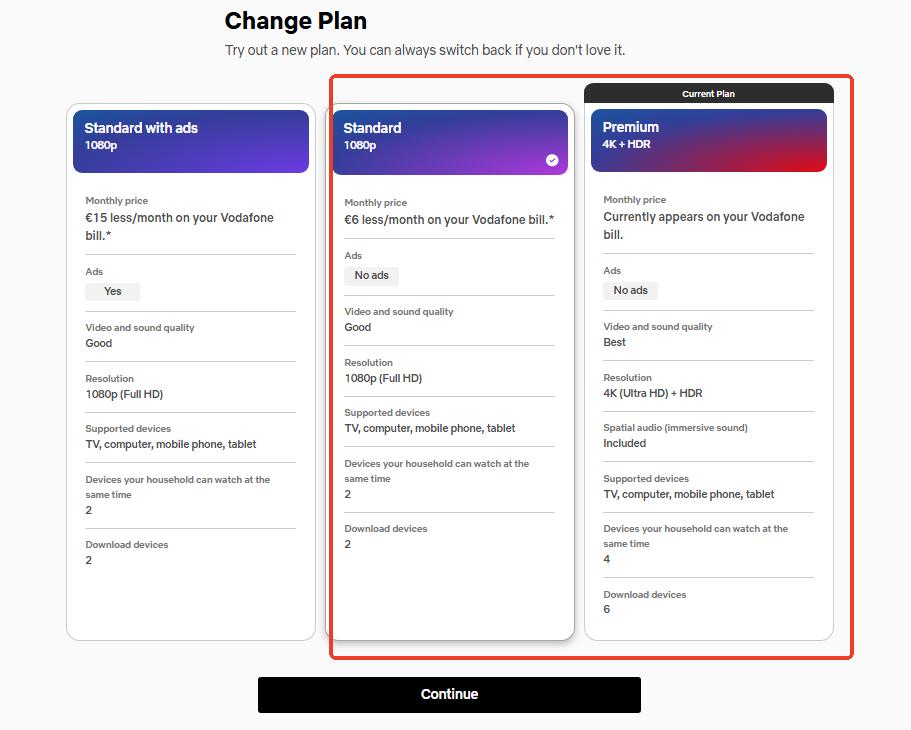
Upgrading to a Netflix ad-free plan is the most reliable way to remove Netflix ads. It is the official solution, supported on every device, and requires zero technical setup. If you are tired of fighting with extensions and blocklists, this is the path of least resistance.
Method 6. How to Upgrade to Netflix Ad-Free Plans
-
01
Log into your Netflix account and go to Account > Change Plan.
-
02
Select a Standard or Premium plan. Click Continue, confirm the upgrade, and complete the payment.
-
03
The upgrade takes effect immediately. Reopen Netflix and play any video. Ads are gone -- permanently.
Pros:
- Official method with full stability and reliability
- Works on all Netflix-supported devices
- No extra tools or configuration required
Cons:
- Requires a higher monthly subscription cost
- Not suitable if you want to block Netflix ads for free
Part 6. Download Netflix Videos for Offline Viewing Without Ads
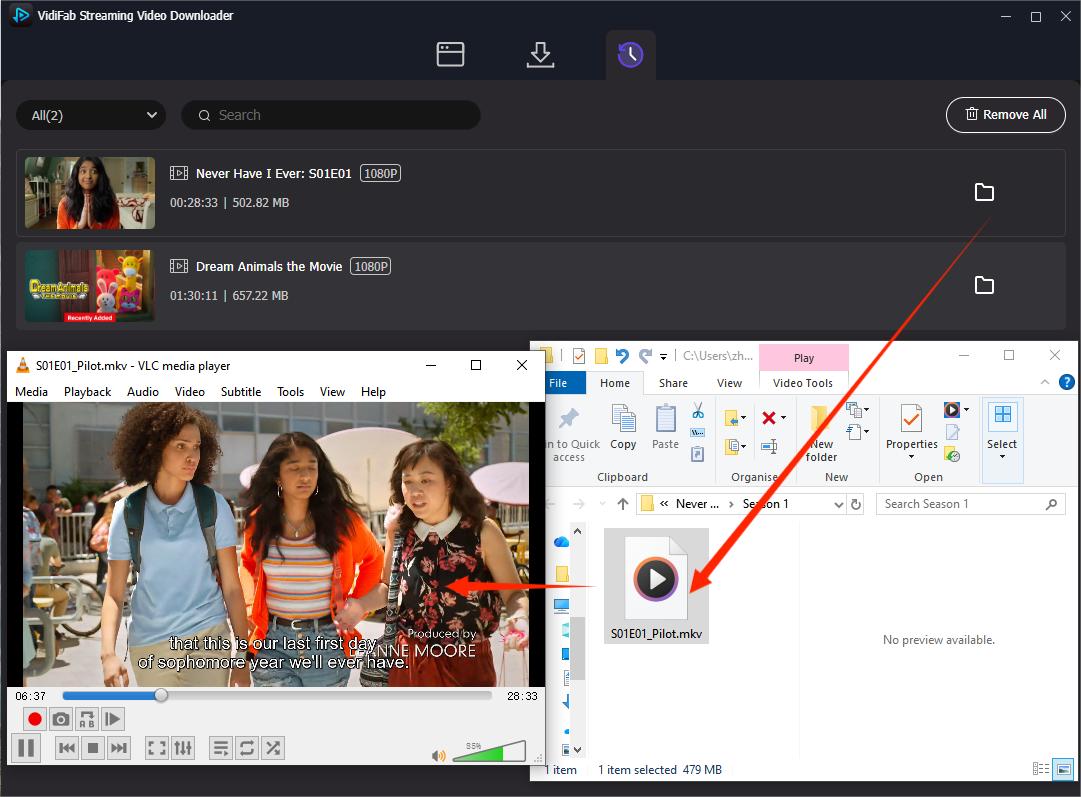
Watching downloaded videos is different from blocking ads on Netflix. Instead of filtering ads while streaming, you can download Netflix shows for offline viewing and watch them in VLC media player or other players without any ads.
VidiFab Netflix Video Downloader works with all Netflix plans, including the ad-supported tier. It saves unlimited Netflix videos as MP4 or MKV files, keeping up to 1080p quality, Dolby Atmos audio, selectable audio tracks, and subtitles. The result is a clean, ad-free video file you can watch anytime, on any device, without touching Netflix's advertising system.
VidiFab Netflix Video Downloader
Download Netflix videos as ad-free MP4/MKV in 1080p with Dolby Atmos for offline viewing on your iPhone, Android, desktop, and more devices.

Method 7. How to Watch Ad-Free Netflix Videos via VidiFab
Step 1. Set Your Download Preferences for Ad-Free Netflix Videos
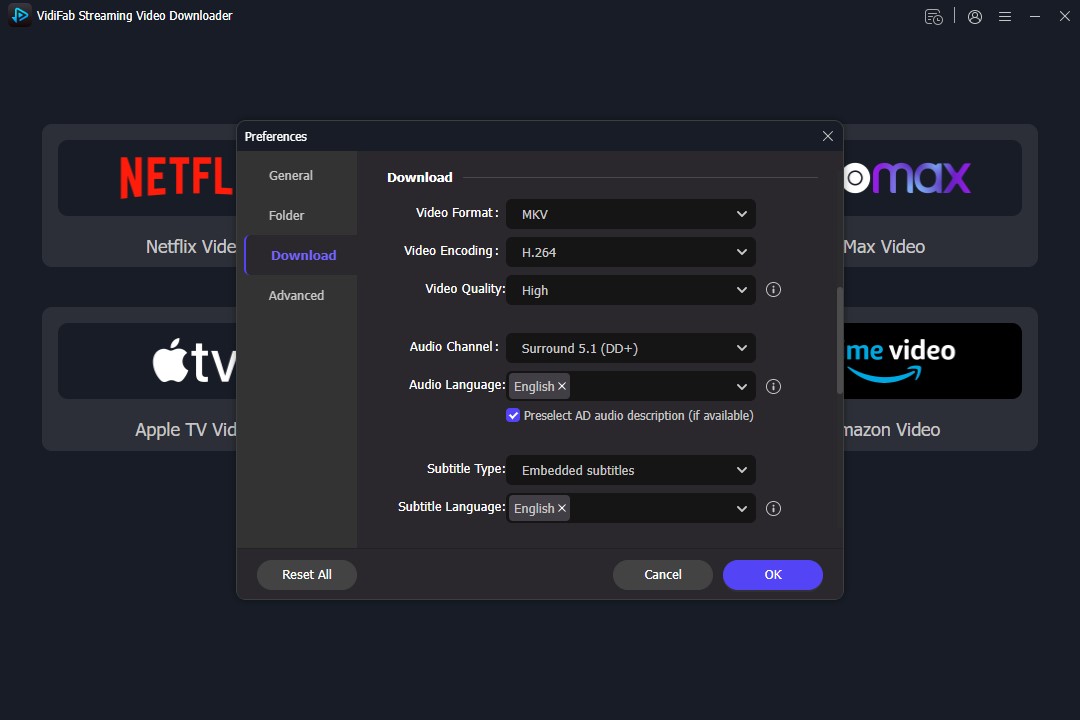
Install and open VidiFab Netflix Video Downloader. Click the menu icon in the top-right corner and go to Preferences. Choose your preferred output format, such as MP4 or MKV, and adjust the video quality up to 1080p. After saving your settings, select Netflix from the main interface and log in to your account through the built-in browser.
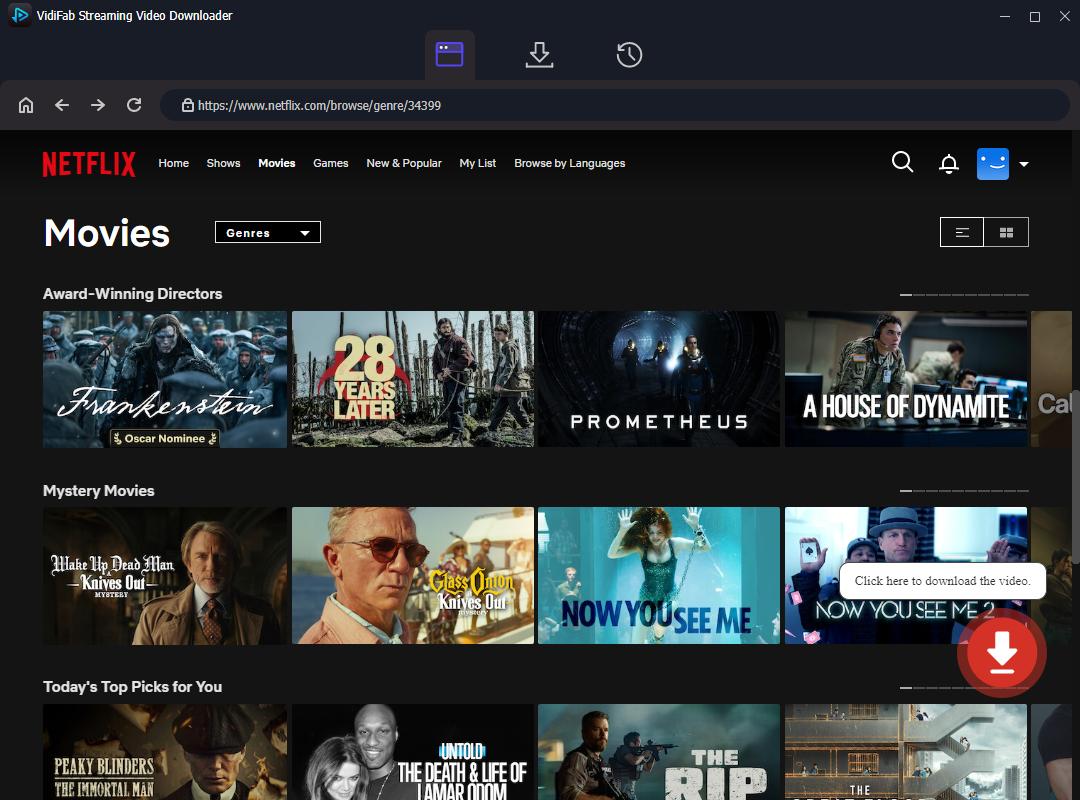
Step 2. Find the Netflix Movie or Show You Want to Download
Search for the Netflix movie or TV show you want to watch. Once VidiFab detects the video, click the Download button to view available download options.
Step 3. Customize Video Quality, Audio Tracks, and Subtitles
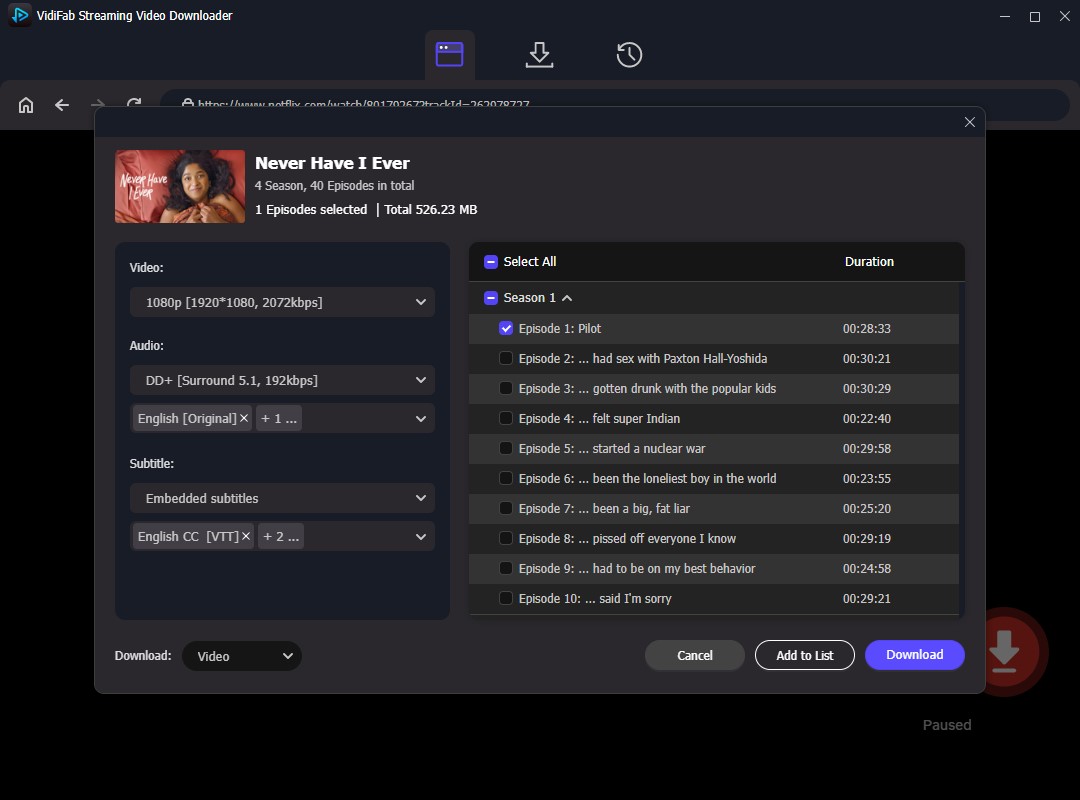
Before downloading, choose your preferred settings, including:
- Video format: MP4 or MKV
- Resolution: Up to 1080p
- Audio tracks: Available languages
- Subtitles: Selectable subtitle languages
- Audio quality: 5.1 surround sound or Dolby Atmos (if available)
Step 4. Download Netflix Videos Without Ads
Click Download to start saving the Netflix video. VidiFab will download the content and save it as a local MP4 or MKV file. After downloading, you can watch the video anytime without Netflix commercials, internet connection issues, or playback interruptions.
Pros:
- Works with all Netflix plans, including the ad-supported tier
- Provides a true offline and ad-free viewing experience
- Keeps high-quality video and audio
- Supports unlimited downloads
- Downloaded MP4/MKV files work on phones, tablets, TVs, and computers
Cons:
- Requires installing dedicated software
- Paid tool, although a free trial is available
Part 7. Which Netflix Ad Blocker Method Is Best?
Best Netflix Ad Blocker Methods Compared
| Method | Core Mechanism | Completely Blocks Netflix Ads? | Supported Platforms | Price |
|---|---|---|---|---|
| Firefox + uBlock Origin | Script-level detection and forced ad skip | Not guaranteed | Desktop browsers (Windows/Mac) | 100% Free |
| Streaming Enhanced | High-speed fast-forward with auto-mute | Not guaranteed | Chrome/Edge browsers | 100% Free |
| Multi Skipper | Simulated click to jump progress bar | Limited; depends on available skip controls | Chrome browsers | 100% Free |
| Brave Browser | Built-in Shields with native fast-forward filtering | Not reliable for in-stream ads | Desktop and mobile web | 100% Free |
| Pi-hole | DNS-level blocking of ad telemetry, reducing ad frequency | Limited, may reduce some ads | All network devices (Smart TV, phone, etc.) | Free (hardware required) |
| Upgrade Netflix Plan | Official channel removes ad code from video | ✅Yes | All devices (official app/web) | Monthly plan upgrade cost |
| VidiFab Downloader | Decrypts video, strips ads, saves as MP4/MKV | ✅Yes | Compatible devices that can play the transferred files | Software subscription/license |
- If you only watch Netflix occasionally in a desktop browser, try Firefox + uBlock Origin or Brave Browser.
- If you want to reduce ad requests across multiple devices on your home network, consider setting up Pi-hole.
- If you want a stable, ad-free experience on Smart TVs, phones, or tablets, consider upgrading to a Netflix ad-free plan or using VidiFab Netflix Video Downloader to download videos and enjoy completely ad-free playback.
Part 8. FAQ: Netflix Ad Blocker
Can I use a VPN to block Netflix ads?
No. A VPN usually cannot block Netflix ads. If you attempt to connect to a VPN server in a country without ads (like Portugal or Poland), According to Netflix Help, Netflix will detect the proxy tunnel, trigger a E120 error, and completely block the video from loading.
Does modifying Netflix profile language bypass geographic ad delivery?
No. Changing your profile language only updates the interface text and has zero effect on ad delivery. Netflix determines ad delivery based on your actual geographic location and account plan, not your language settings.
Is it legal to use a Netflix ad blocker under their Terms of Service?
It depends on the method. Using browser settings or privacy tools is generally not illegal, but using tools that modify, bypass, or interfere with Netflix's streaming system may violate Netflix's Terms of Use. Always review the terms before using any third-party tool.
Can I block Netflix ads on my phone?
No, not if you use the official Netflix mobile app. The app does not support ad-blocking extensions. To watch ad-free videos on your iPhone or Android device without upgrading your plan, download the files as ad-free MP4s on a computer first using a tool like VidiFab, then transfer them to your phone.
Can changing DNS block Netflix ads?
No. Changing DNS settings alone cannot fully block Netflix ads. DNS-based solutions like Pi-hole can filter some advertising or tracking domains, but Netflix ads often share the same delivery system as normal video streams. This makes DNS-level filtering inconsistent at best.
Is there a free way to watch Netflix without ads?
Not reliably. Free methods such as browser extensions, Brave Browser, and Pi-hole may reduce or skip some ads, but they cannot guarantee a permanent ad-free experience. For consistent results, you need either an official ad-free plan or an offline viewing solution like VidiFab.
Part 9. Final Thoughts
Finding a reliable Netflix ad blocker depends on your needs and device. Browser extensions, Brave, and Pi-hole can help reduce ads, but their results may vary. Upgrading to a Netflix ad-free plan is the easiest official solution, while downloading videos with VidiFab provides a consistent offline viewing experience without commercial interruptions. Choose the method that best fits your budget, device, and viewing habits.
 Free Download
 Secure Download
 Free Download
Secure Download
Free Download
Secure Download




I write about streaming services, video playback, and digital media management. My articles cover practical ways to convert video files, troubleshoot playback issues, and manage digital content across devices. I aim to make technical topics easier to understand and help readers find practical solutions to common challenges.
 Leave Your Comment