Prime Video Download Limit: How to Fix the Limit Reached Error
 By Miles Kent
Amazon Prime Video limits how many titles you can download for offline viewing, but that varies by your subscription, location, device, and the title's licensing restrictions. If you see a download limit reached message or can't download another movie, you may need to remove existing downloads, check your registered devices, or confirm whether the title is available for download. This guide explains Prime Video download limits and what you can do when you reach one.
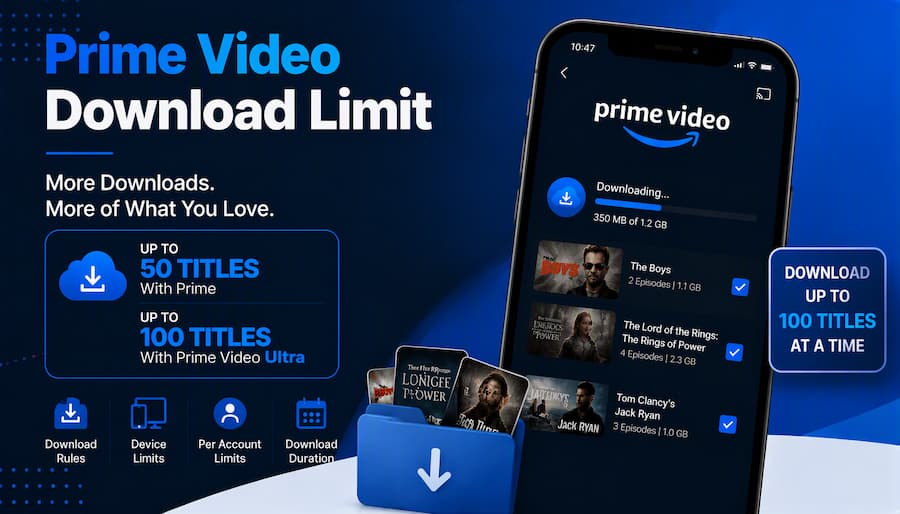
Part 1. What Is the Prime Video Download Limit?
Whenever you download a video for offline viewing in the Amazon Prime Video app, you're subject to certain download limits. These restrictions vary depending on your subscription plan and whether you're downloading a rented, purchased, or subscription-included title.
To keep it simple, take a look at this table of Prime Video download limits to see what you can download.
| Content Type | Total Download Cap (Account-Wide) | Device Limit (Per Title) | Expiration Timer (Unwatched)* | Expiration Timer (Once Started) | Max Quality |
|---|---|---|---|---|---|
| Standard Subscription | 15–25 titles* (Global) 50 titles (U.S. & Select Regions) |
Max 2 devices | 30 Days | 48 Hours | 1080p (HD) |
| Prime Video Ultra Tier | 100 titles max | Max 2 devices | 30 Days | 48 Hours | 1080p (HD) |
| Purchased Movies/Shows | Unlimited (No global cap) | Max 4 devices | Permanent | Unlimited | 1080p (HD) |
| Rented Movies (Rentals) | Unlimited (No global cap) | Strictly 1 device | 30 Days | 48 Hours | 1080p (HD) |
| Prime Mobile Edition | 15–25 titles | Strictly 1 device only | 30 Days | 48 Hours | 480p (SD) |
*Amazon Originals do not count toward your overall Prime Video download limit.
*The expiration timer varies depending on the title and viewing status. For more details, see our guide to how long Amazon Prime downloads last.
Besides the download limits mentioned, Prime Video has other rules that could impact how and where you can watch your downloaded videos offline.
How Many Videos Can You Download on Prime Video?
You can download a maximum of 15 to 25 titles total across your entire account in most international regions. However, in the U.S., standard Prime Video allows up to 50 downloads, while Prime Video Ultra raises the limit to 100 downloads. This limit applies to your entire account, so it counts all the downloads regardless of the device you use. If you purchased or rented the movie, there is no global limit. You can download as many as your device storage allows.
What Devices Can I Use to Download Videos?
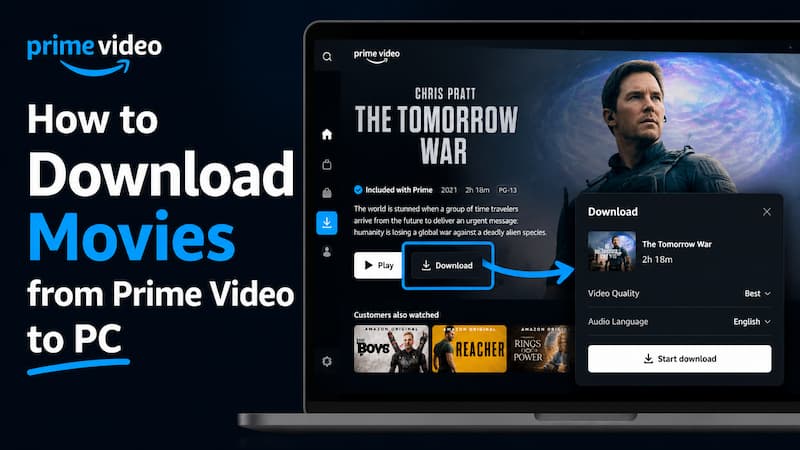
You can only download videos using the official Amazon Prime Video app on Android phones and tablets, iOS devices (iPhones and iPads), and Fire tablets (excluding the 1st Gen Kindle Fire). You can also download videos using the native Amazon Prime Video desktop applications on Windows 10/11 and macOS. Downloading directly via web browsers, Smart TVs, or gaming consoles is not supported.
Is There a Way to Download Prime Video in 4K?
No. The official Prime Video app does not offer 4K UHD downloads for offline viewing due to heavy storage compression and data protection protocols. Offline downloads are generally capped at 1080p (HD). If you want to watch in 4K, you may need to stream the title on a compatible device with a supported plan and display.
Can I Cast Downloaded Prime Video Content to My TV?
No. Downloaded Prime Video content generally cannot be cast from your phone or tablet to a TV using these wireless casting methods. If you want to watch downloaded content on a larger screen, you may need a supported wired connection or compatible adapter, depending on your device and TV.
Will My Prime Video Downloads Work If I Travel Abroad?
It's not guaranteed. If you download content that's not from Amazon Originals (like third-party movies or shows) in your home country, it will get locked and won't play as soon as your device connects to the internet in another country because of regional licensing rules. Also, when you're traveling, you can only download new content that has the "Watch While Abroad" label, no matter how much you can download based on your membership.
Do I Permanently Own My Downloaded Files?
No, you don't. Offline downloading isn't like buying a file. It expires after 30 days, or 48 days if you've watched it, or when your subscription ends. Even for titles you've bought, if they leave Amazon Prime Video, your download might disappear, so you won't truly own those files. If you want to learn how to keep those files, check out the guide on storing Amazon Prime Videos on an SD card or downloading Prime Videos to a USB.
Part 2. Why Can't I Download More Videos on Prime Video?
According to Amazon Prime Video download restrictions, if you break even one rule, you cannot download any more videos. When this happens, the Amazon Prime Video app will usually display a specific error message explaining why your download failed.
2.1 You've Reached the Prime Video Download Limit
When you hit your total account download cap, you cannot download new videos. This happens even if your phone or tablet has plenty of free storage space. The app will pop up a notice saying: "You have reached the maximum allowed for your Prime membership."
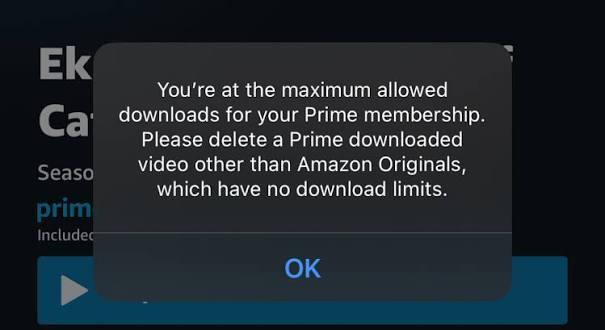
To free up space under the download limit, open your app, go to Downloads, and manually delete videos you have already watched. Tip: delete third-party movies first, as Amazon Originals usually have more flexible rules.
This means other devices linked to your account, like an old phone, a family iPad, or a PC app, have used up your global download slots.
How to Fix It on a Web Browser:
-
01
Go to the official link: amazon.com/gp/video/settings .
-
02
Log into your account and click the Devices tab.
-
03
Find any old or unused devices and click Deregister.
How to Fix It Inside the App:
-
01
Open the Prime Video app and go to Settings.
-
02
Tap on Registered Devices.
-
03
Find the extra device and click Sign Out.
Once a device is deregistered or signed out, Amazon instantly wipes its offline licenses. Your main device can then download videos immediately.
2.2 You've Reached the Device Limit
Prime Video also limits the number of devices that can download certain types of content. For example, a standard Prime Video membership may allow downloads on up to two devices at a time, while Prime Video Mobile Edition may limit downloads to one device. The exact rules can vary by plan and region.
If you have already downloaded videos on the maximum number of devices, the app may display a message explaining that you've reached the device limit.
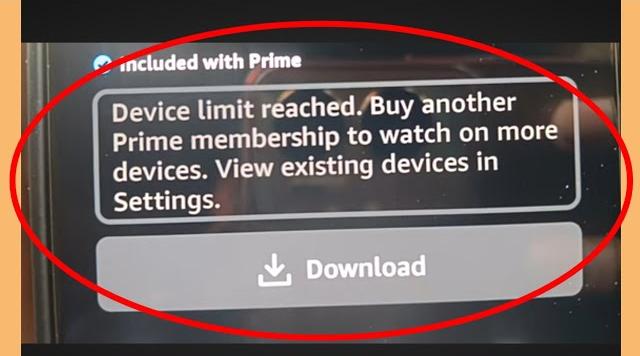
To fix this, you need to remove the extra devices using the exact same step-by-step methods shown in Section 2.1 (either via the website link or the app settings). Then try downloading the video again.
2.3 The Title Restricts Offline Viewing (Missing Download Button)
Sometimes, you cannot download a specific video because of legal copyright rules, not because of your account status. If a video is restricted, the Download button will be missing completely.
- Streaming Only: Certain Hollywood studios allow users to stream their movies online but strictly ban offline viewing.
- Regional Restrictions: A movie might allow downloads in the US, but if you travel to another country, the local copyright laws might block offline saving for that region.
- Purchase or Rental Required: Many titles are not included in your basic Prime membership. If a video requires you to buy or rent it first, you cannot download it until you pay for that specific title.
Part 3. How to Download Prime Video Without Download Limits
If you're frustrated by Prime Video's download restrictions, such as download caps, missing download buttons, or limited offline playback options, try VidiFab Streaming Video Downloader.
| Features & Limits | Official Amazon Prime Video App | VidiFab Streaming Video Downloader |
|---|---|---|
| Total Download Cap | Strictly limited to 15–100 titles | Unlimited (Hard drive space only) |
| Unwatched Expiration | 30 Days max | Permanent (Never expires) |
| Watched Expiration | 48 Hours once played | Permanent (Never expires) |
| Max Device Limits | Simultaneous download on 1–2 devices | Unlimited (Universal file transfer) |
| Max Video Quality | Capped at 1080p HD (No 4K offline) | Supports up to 1080p |
| File Format Type | Encrypted App Cache (DRM Protected) | Universal MP4 / MKV formats |
VidiFab lets you save eligible Prime Video titles as MP4 or MKV files on your computer, as long as they don't require a separate purchase or rental and aren't live content. You can choose the available video quality, audio language, and subtitle options before downloading. Once saved, your files won't expire under Prime Video's usual offline viewing timer, and you can play them with compatible media players without relying on the Prime Video app.
 Free Download
 Secure Download
 Free Download
Secure Download
Free Download
Secure Download
Step 1. Open VidiFab Streaming Video Downloader and go to Preferences > Download. Choose MP4 or MKV and select a folder for your downloads. Then return to the main screen, select Amazon Prime Video, and sign in to your Amazon account in the built-in player.
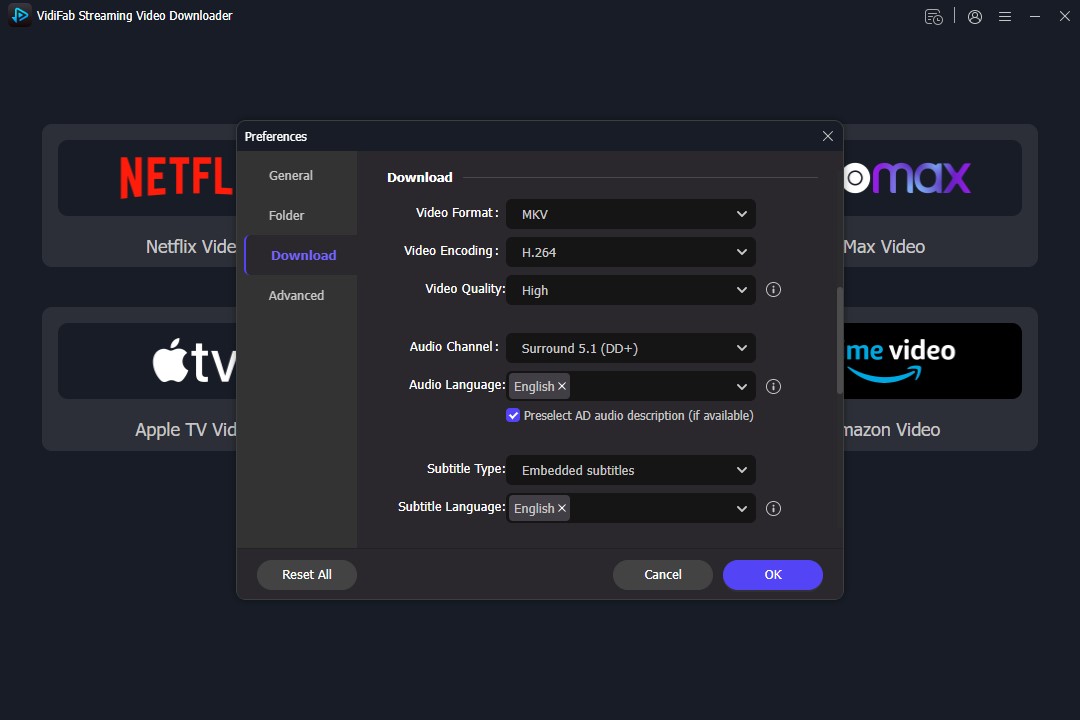
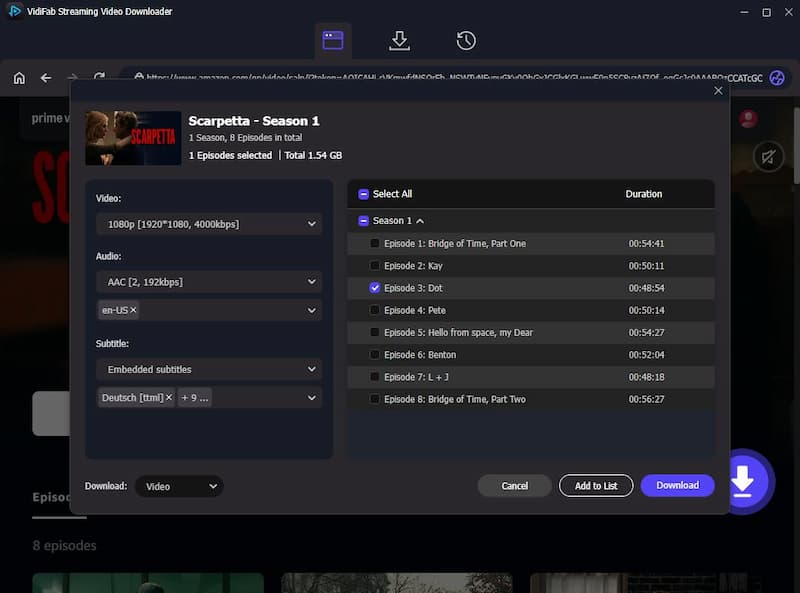
Step 2. Find the movie, TV show, or episode you want to download and click the Download icon. Choose the available video quality, audio language, and subtitle options. You can save subtitles as separate SRT files or embed them in the video. For TV shows, select multiple episodes to download them in batches. Click Download.
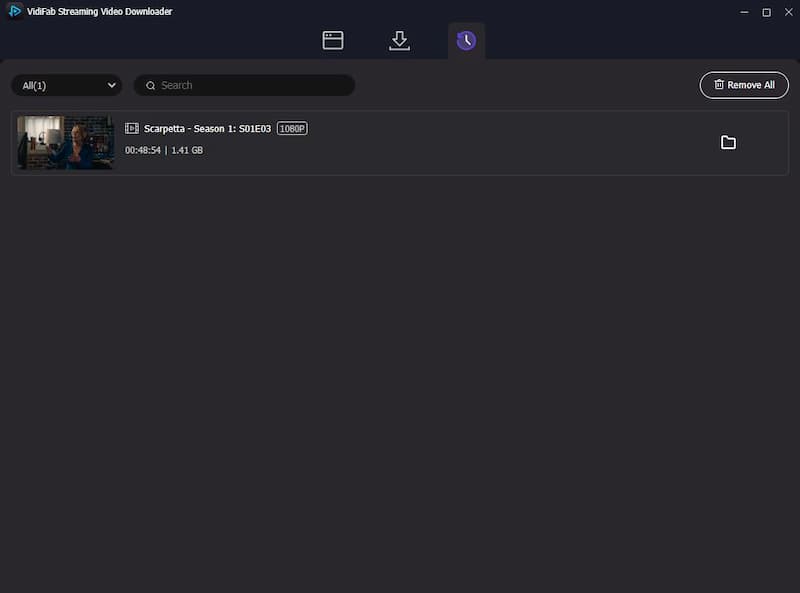
Step 3. When the download is complete, click the folder icon to find your saved files. You can move them to other compatible devices or play them with supported media players without relying on Prime Video's standard download expiration timer.
Part 4. When Does the Prime Video Download Limit Reset?
Amazon does not automatically reset your download limit on a fixed monthly calendar or bill cycle. Instead, Amazon utilizes a dynamic Rolling Reset System. Think of your account's download limit as a fixed number of physical slots. What you are restricted by is the total number of downloaded titles that all profiles under one single account can simultaneously hold.
Prime Video will never reset this limit automatically on its own. A slot only becomes free and resets the exact moment a downloaded video expires due to native time restrictions or when you manually delete it from your library.
How Can You Get More Download Space on Prime Video?
If you're still running into download limits, these tips can help you manage your downloads more effectively.
- Prioritize Amazon Originals: Try to save Amazon Originals whenever you can. These shows usually don't have strict limits on how often you can download them or how many devices you can use. You can pretty much download them as often as you want on any device without worrying about getting locked out of your account.
- Manually Delete Old Downloads: Open the Downloads section in the Prime Video app and remove movies or episodes you have finished watching. This can free up space for new downloads when your account has reached an applicable download limit.
- Check Your Registered Devices Regularly: If you have downloaded videos on other devices, review your Amazon account's device settings and remove old devices you no longer use, where appropriate.
- Use VidiFab Streaming Video Downloader: If you are trying to watch content offline on a device that doesn't natively support the Amazon Prime app (like a Smart TV, gaming console, or a laptop browser), or if the specific title you want to save legally does not feature a download button, your best workaround is VidiFab.
Take Control of Your Prime Video Offline Downloads
Prime Video download limits can make it difficult to save all the movies and episodes you want. By managing your existing downloads, checking device restrictions, and understanding expiration rules, you can make better use of your offline viewing allowance. If you need more flexibility, VidiFab Streaming Video Downloader lets you save eligible Prime Video titles as MP4 or MKV files for offline playback.
Free Download
Secure Download
Free Download
Secure Download


I'm a video tech specialist with over 10 years of experience in digital media and streaming. I focus on making complex workflows simple and practical. Through my guides, you'll learn how to convert media, keep high-quality playback across devices, and manage your streaming video library with ease.
 Leave Your Comment