How to Fix Prime Video Subtitles Not Working Issues
 By Miles Kent
Amazon Prime Video has many movies and shows with different audio tracks and subtitle options. However, subtitle issues can occur during playback. Some users notice that subtitles are out of sync, appearing several seconds too early or too late compared to the dialogue. Others struggle with captions not showing on their TV or cannot find English subtitles. If you have problems with Prime Video subtitles, this guide outlines possible causes and offers solutions for sync issues, missing captions, subtitle settings, and language availability.
Subtitles on Amazon Prime Video might stop working or become unsynchronized because of disabled settings, temporary app glitches, or outdated device software. You can fix most issues by adjusting the subtitle options in the playback menu, restarting your streaming device, or clearing the app cache.
Part 1. Does Amazon Prime Video Have Subtitles?
Yes, Prime Video offers subtitles and closed captions for many movies, TV shows, and live titles, but not all titles have them. Some include English captions, some have multiple languages, and others might only have audio tracks or subtitles in certain regions.
Availability can also change depending on whether you are watching on the Prime Video website, mobile app, Fire TV, Roku, Apple TV, smart TV app, game console, or a subscribed Prime Video Channel.
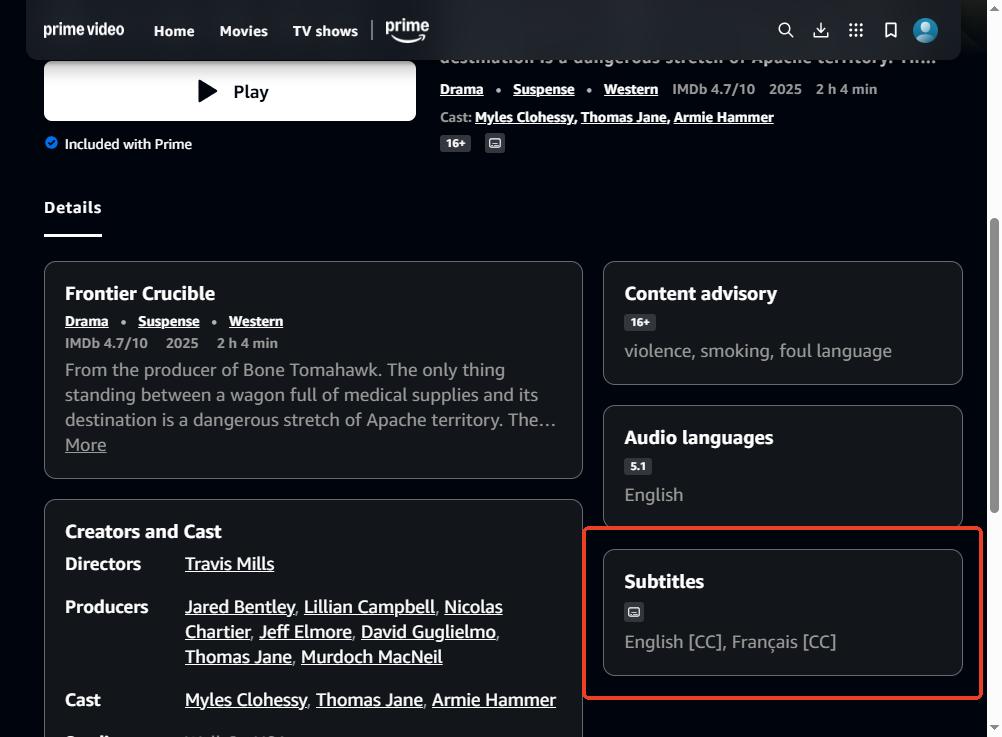
To check, open the title page. Look for the subtitles icon or scroll down for subtitles information. If available, it will show details like English [CC] or Français [CC].
Part 2. How to Turn On or Change Subtitles on Prime Video
On Prime Video, subtitles are enabled and changed during playback via the speech bubble icon on mobile and web, or the menu/options button on TV devices.
- Desktop / Web / Mobile / Tablet: Play video → Tap the screen once → Tap the speech bubble icon in the top right → Choose Subtitles → Select Language.
- Amazon Fire TV Devices: Play video → Press the Options button (three horizontal lines) on the remote → Select Subtitles → Select Language.
- Roku Devices: Play video → Pause playback → Navigate to the CC icon in the player overlay (top or bottom corner) → Press OK and select Language. Or press the Star (*) button on the Roku remote during playback to pull up a side menu with caption options.
- Apple TV: Play video → Swipe down or press the Select button on the Siri Remote → Navigate to Subtitles (the speech bubble) → Select Language.
- Smart TVs and Game Consoles (PlayStation / Xbox): Play video → Press Up or the Select / A / X button on the controller → Navigate to the speech bubble or "CC" icon → Select your Language.
Part 3. Why Are Prime Video Subtitles Not Working?
Prime Video subtitles can stop working for different reasons depending on the issue you see. Missing captions, subtitle delays, and unavailable languages usually come from subtitle settings, title availability, device limitations, or playback problems.
| What You May Notice | Possible Cause |
|---|---|
| The CC/subtitle option is off or the wrong language is selected | Subtitle settings are disabled, or the selected subtitle language is not available for that title |
| A movie or show has no English subtitles or fewer language options available | The title does not support your subtitle language (Fixes in Part 6) |
| Subtitles disappear, fail to load, or work on one device but not another | App loading errors or app bugs (Fixes in Part 5) |
| Subtitles appear too early, too late, or become delayed after buffering or resuming playback | App cache problem or app bugs (Fixes in Part 4) |
| Captions work in the Prime Video app but not in a browser | Conflict with ad blocker extensions in the browser |
| Foreign-language scene translations disappear or behave differently when full subtitles are enabled | Full subtitles override or interfere with forced narrative subtitles (Fixes in Part 5) |
Part 4. How to Fix Prime Video Subtitles Out of Sync or Delayed
Subtitles are out of sync when they appear several seconds before or after the dialogue. This usually happens because of slow internet, ads, or old software. Here are the best ways to fix it:
1. Quick Fixes (Try these first)
- Pause and Resume: Pause your video for 5 to 10 seconds. This often helps the audio and text tracks realign.
- The 10-Second Skip: Use the forward or backward 10-second buttons. This forces the player to reload both the video and the subtitle stream.
- Toggle Subtitles: Turn subtitles "Off" in the menu, wait a few seconds, and then turn them back "On".
2. The "Toggle and Jump" Hack
If a simple toggle doesn't work, try this advanced reload technique:
-
01
While the video is playing, turn subtitles Off.
-
02
Back out of the video player to the title's main info page.
-
03
Resume the video and immediately skip forward or backward 10 seconds.
-
04
Once the video is stable, turn subtitles back On.
3. Clean the App and Cache
Corrupted temporary data (cache) often causes delays, especially on Android, Fire TV, and Smart TVs.
- Clear Cache/Data: Go to your device Settings > Applications > Prime Video. Select "Force Stop," then "Clear Cache" and "Clear Data".
- Update Software: Ensure your Prime Video app and device firmware are the latest versions. Many updates are released specifically to fix subtitle bugs.
- Re-login: Sign out of your account, restart the device, and sign back in to refresh your user settings.
4. Disable Browser Extensions, VPN, or Proxy
Using Prime Video in a browser can be affected by some extensions or network tools. If you're on a PC, disable extensions like uBlock Origin. If you're using a VPN, turn it off during playback, as it may cause lag due to data traveling through distant servers.
5. Lower Video Quality on Older Devices
If your device is struggling to handle high-definition video, the subtitles may drift. You can change the quality manually by going to My Stuff > Settings > Stream and Download > Streaming Quality and selecting Good instead of Best or Better.
Part 5. How to Fix Prime Video Not Showing Subtitles
If you have selected a language in the menu but no text appears on the screen, it might be a glitch with the app, a conflict between device settings, or an issue with the video version.
First, always check the movie's details page for the "CC" or Subtitles icon to make sure that specific title actually supports them. If subtitles are supported but still missing, try these steps:
1. Refresh the App from the TV Home Screen
Press the Home button on your remote to go to the TV's main menu. Exit Prime Video completely. Open Prime Video again from your TV app menu. Start the video and check subtitles.
2. Check Subtitle Settings on Roku Devices
Roku devices may use both Prime Video subtitle controls and Roku system caption settings. Try these options:
From the Prime Video player:
-
01
Start playing a video.
-
02
Press the Up button on the Roku remote to open playback options.
-
03
Select the subtitle/CC option and choose your language.

Note: You can also press the Star (*) button during playback to open a side menu. Go to sound or accessibility settings and ensure captions are set to "Always On".
From Roku settings:
-
01
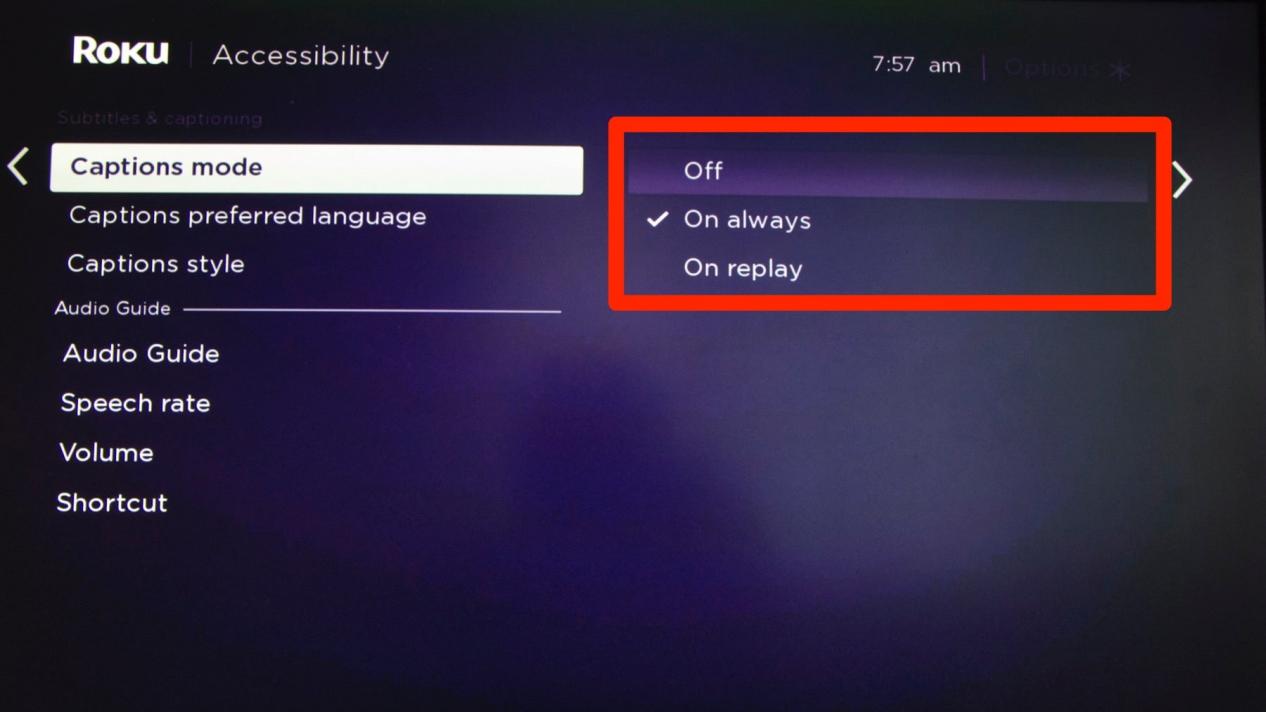
Go to Roku Home Screen → Settings → Accessibility → Captions Mode.
-
02
Make sure captions are On always.
3. Set Default Subtitle Preferences for Your Account
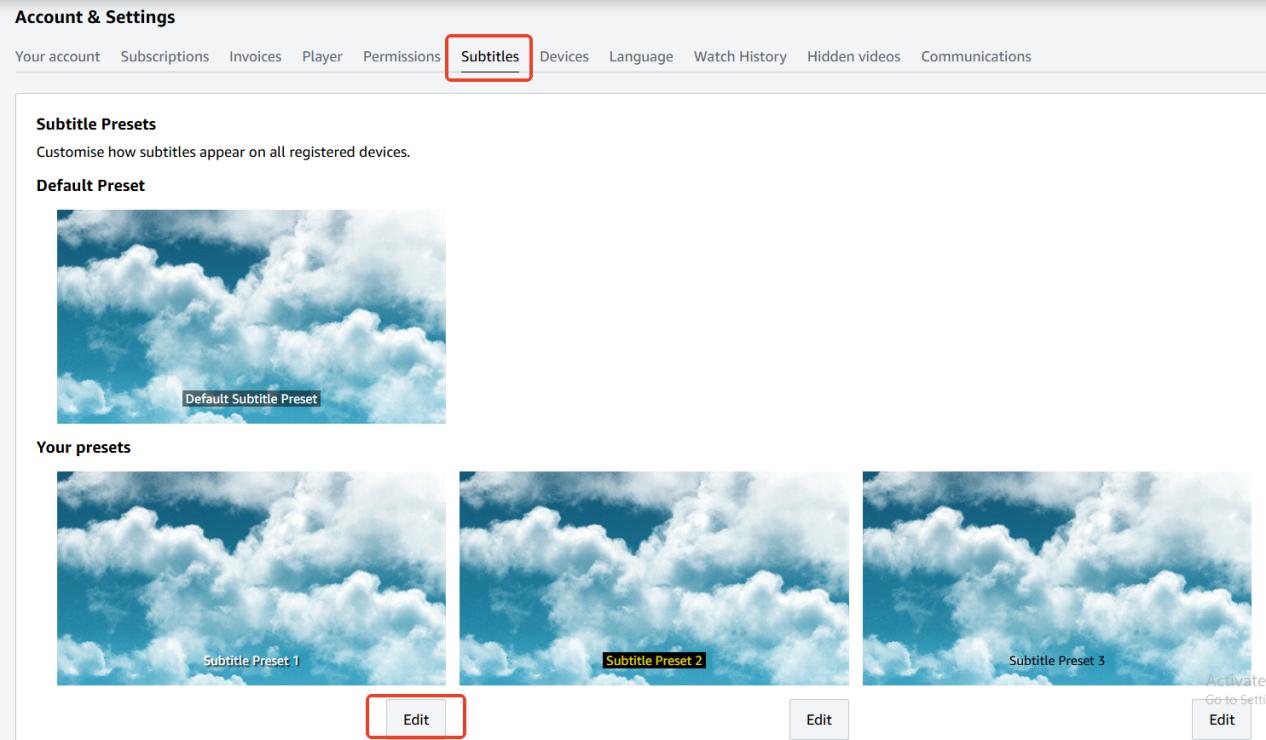
You can set a permanent subtitle style and preference for your whole account using a computer browser. This may refresh the subtitle settings and force the subtitle to come up on your device screen.
-
01
Sign in to your Amazon account.
-
02
Click Account & Lists → Scroll to Digital content and devices → Click Prime Video Settings → Select the Subtitles tab.
-
03
Select your preferred subtitle appearance and language settings.
4. Turn Off Subtitles for Missing Foreign Dialogue Captions
Some movies include built-in subtitles only for specific foreign-language scenes. These are called forced subtitles. If the foreign parts have no translation, try turning subtitles OFF. Then restart the scene or replay the video.
5. Use System Live Captions as a Backup Option (on Android / iOS)
If Prime Video does not show subtitles for a title, you can also try your device's built-in live caption feature on an Android or iOS device.
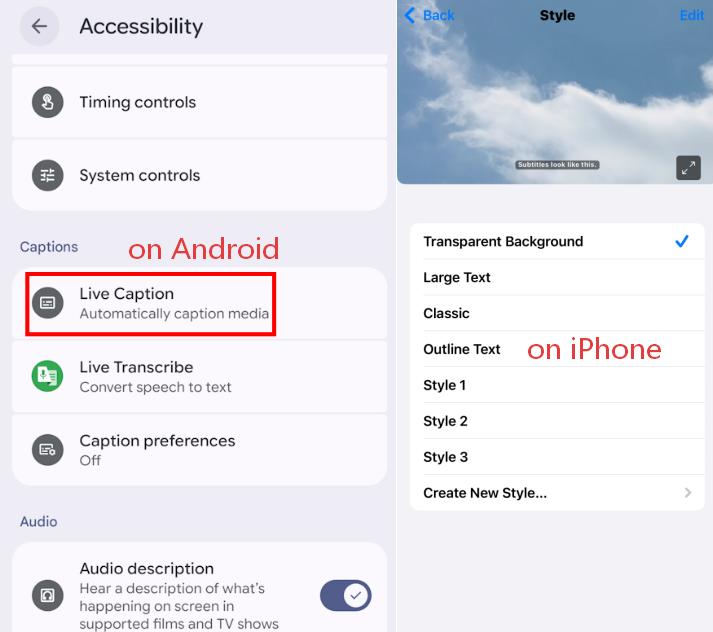
On Android Devices:
Press the Volume button while playing a video. Tap the Live Caption icon below the volume slider.
On iPhone (iOS 16 and Later):
-
01
Go to Settings → Accessibility → Live Captions.
-
02
Turn on Live Captions.
-
03
You can also go to Settings → Accessibility → Subtitles & Captioning → Style to adjust caption appearance.
-
04
Start playing Prime Video, and your iPhone will generate captions automatically.
6. Download Prime Video with Subtitles Using VidiFab
If all other fixes fail and the subtitles are still out of sync, delayed, or missing, you can use VidiFab Streaming Video Downloader.
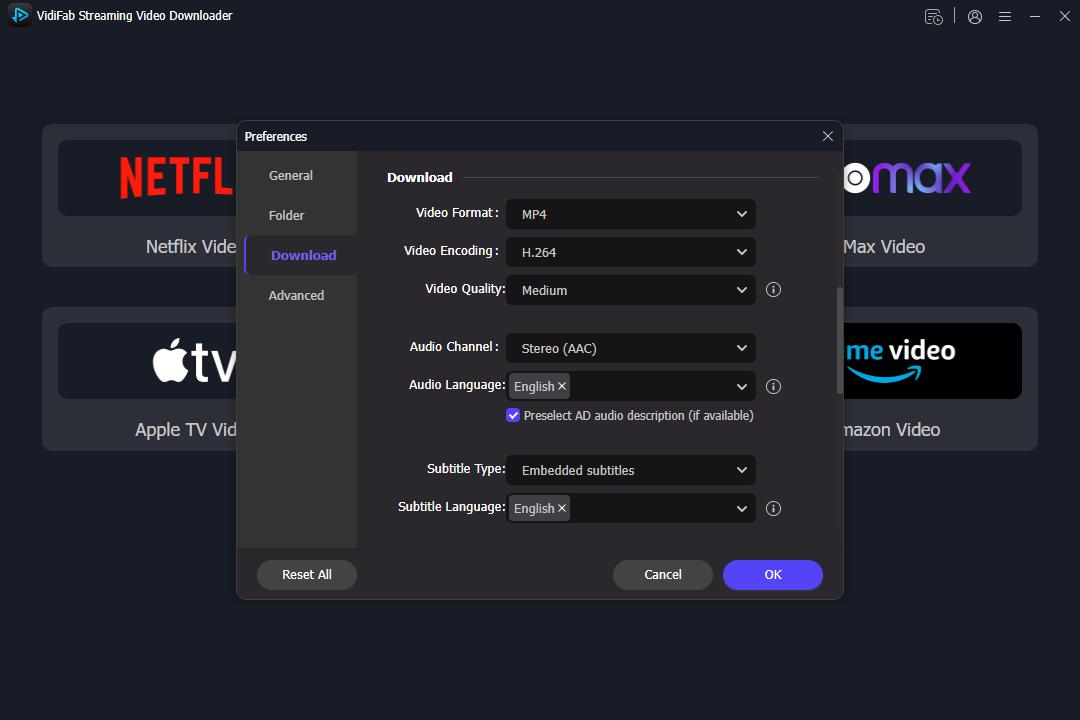
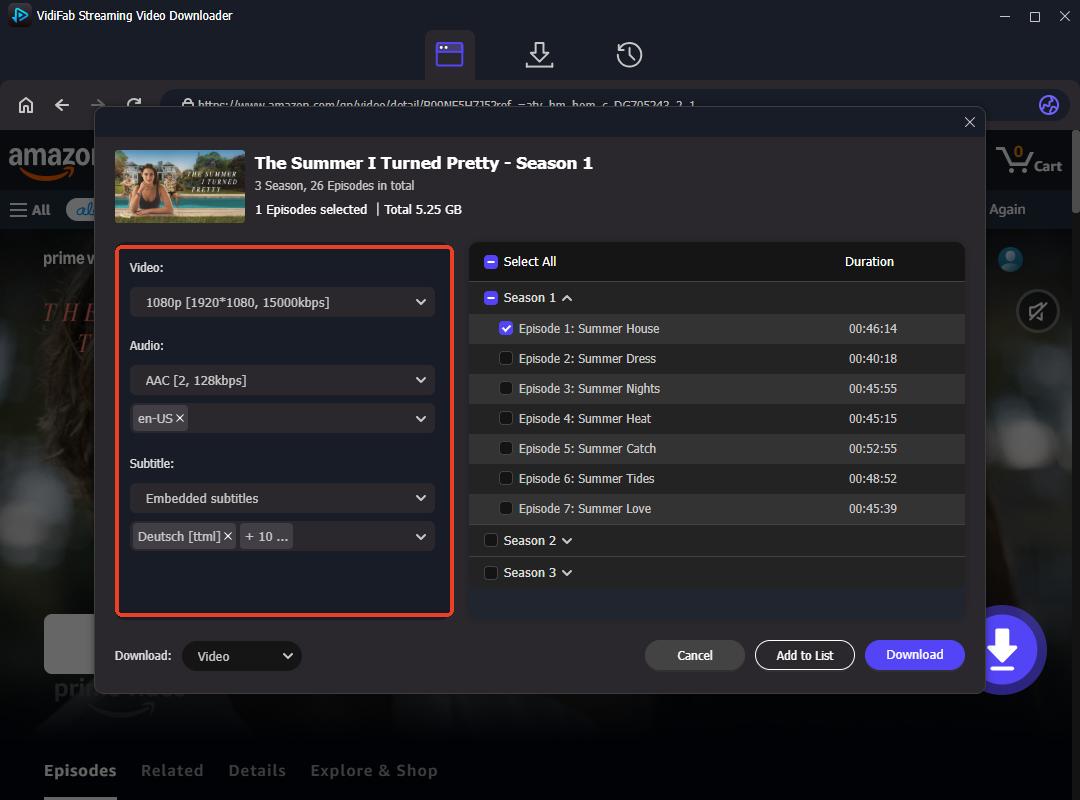
This downloader allows you to download videos from Prime Video in high-quality MP4 or MKV format. You can choose to save subtitles as embedded text or as a separate SRT file in different languages. You can also select different languages for the audio tracks. Once downloaded, the video can be played with subtitles on any media player or directly on your TV from a USB drive.
VidiFab Streaming Video Downloader
Download Prime Video titles into 1080p MKV or MP4 files on PC or Mac computer with multilingual subtitles and audio tracks.

-
01
Open VidiFab Prime Video Downloader on your desktop. Click the Menu icon, go to Preferences > Download, and select MP4 or MKV as the output format. Choose a download folder and click OK to save your settings. Then return to the main interface, click Amazon Video, and log into your Prime Video account.
-
02
Browse the Prime Video library in the built-in browser or search for a specific movie or episode. When the video details page opens, VidiFab will automatically analyze the source and show a Download button. Click it to open the download settings window. Select 1080p video quality, choose your preferred audio and subtitle languages, and decide whether to save subtitles as embedded subtitles or separate subtitle files. Click Download to start.
-
03
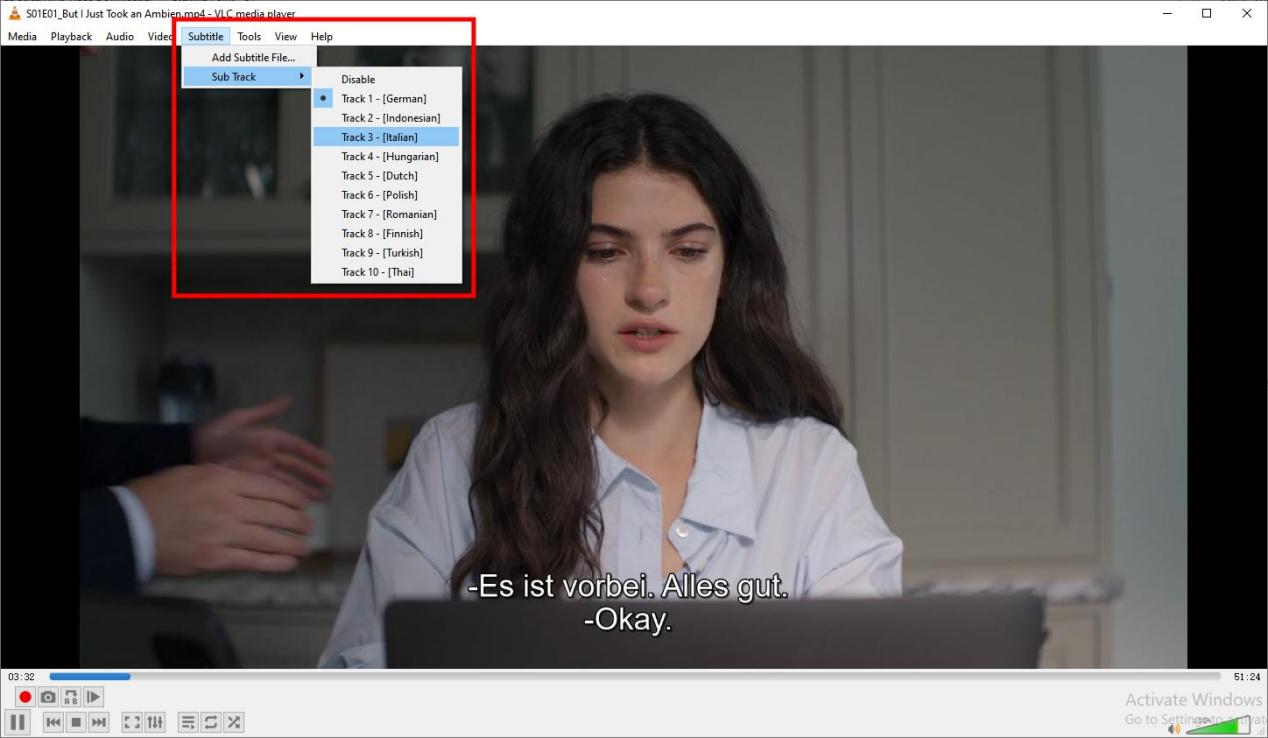
VidiFab will download the Prime Video title based on your selected settings. After the download finishes, open the History section (the clock icon), find your video, and click the folder icon to locate the saved file. You can then play the downloaded video with a media player like VLC Media Player and switch between available subtitles and audio tracks.
(Note: You can get the SRT subtitle file for free with VidiFab.)
To watch it on a TV or game console, transfer the downloaded Prime video file to a USB drive and play it through the device's media player.
Part 6. How to Fix Amazon Prime Video No English Subtitles
Sometimes you cannot find English subtitles, or you see a message saying "Subtitles are unavailable for your selected language". This usually happens because of your account region, profile errors, or conflicts between different channels.
1. Check Whether the Title Includes English Subtitles
Before you watch, open the movie or show details page. Find the Subtitles or Languages information. Check whether English is listed. If English subtitles are not listed, that specific version of the title may not include an English subtitle track.
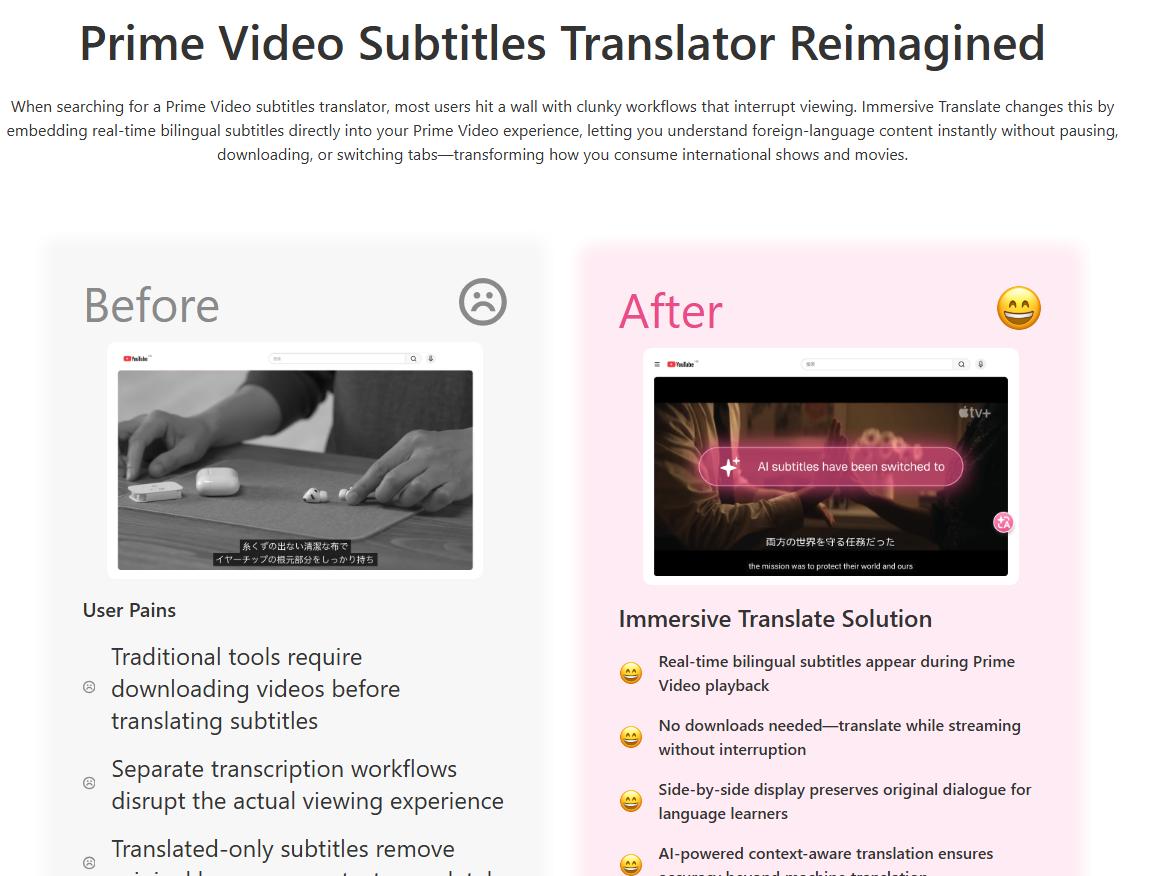
If a Prime Video title lacks English subtitles, some Chrome extensions can enhance subtitle options, including bilingual subtitles and translation. Here are some Chrome browser extensions that work with Amazon Prime Video:
- Subtitles for Language Learning (Prime Video) – Adds subtitle support with dictionary features for language learners.
- Immersive Translate – Provides bilingual subtitles and translation features on the Prime Video web player.
- Sabi / MovieLingo – Offers dual subtitles and interactive vocabulary tools while watching videos on Prime Video.
2. Align Account Regional Settings
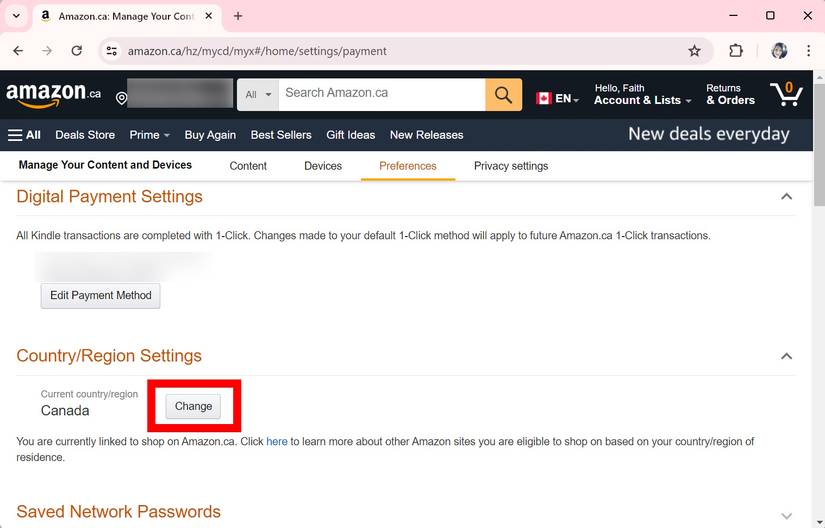
Prime Video shows you subtitle options based on where your account is registered. If your address does not match your current location, English subtitles might be blocked.
-
01
Log in to your Amazon account on a web browser.
-
02
Go to Manage Your Content and Devices > Preferences tab > Country/Region Settings.
-
03
Click Change, enter your correct physical address, click Update, and restart the Prime app.
3. Reset Profile Language Preferences
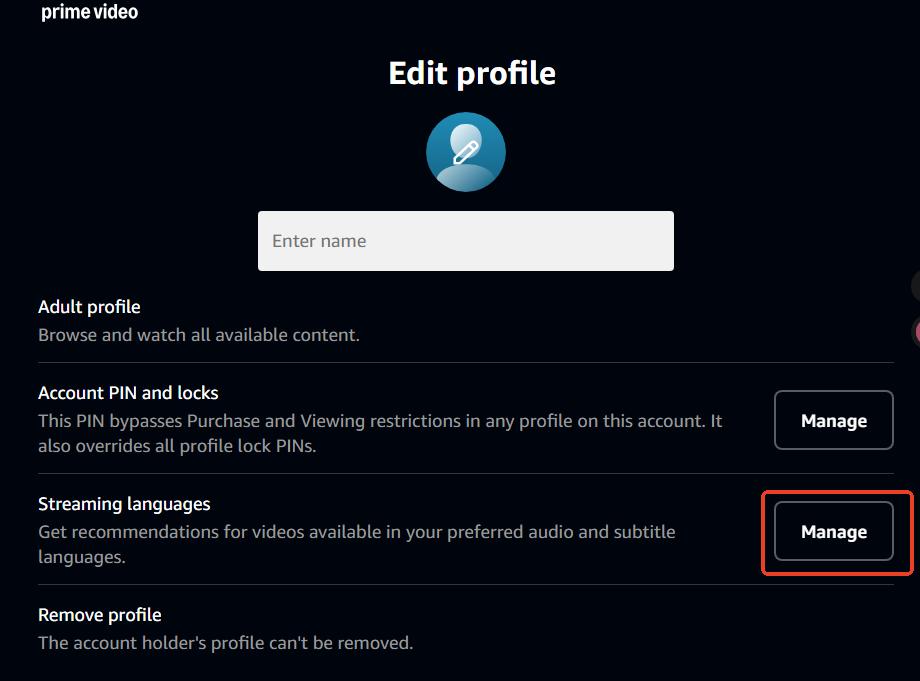
Your Prime Video subtitle options may change depending on your profile and language preferences. To update your subtitle language preferences:
-
01
Go to PrimeVideo.com.
-
02
Select Manage Profiles.
-
03
Click Edit Profiles.
-
04
Choose Manage under Streaming Languages.
-
05
Select Custom and choose your preferred subtitle languages. Your subtitle preferences will then apply across supported streaming devices.
4. Resolve Channel Conflicts
If you manually turned on English subtitles for a show on one channel, the player may try to force that setting onto the next show, even if the next show does not support it. This causes the "Subtitles are unavailable" error.
To fix it, go back to the previous video where you first turned subtitles on. Open the menu and manually switch them to "Off". Then, return to your new show, and the error should be gone.
Part 7. Conclusion
Subtitle issues on Prime Video are common but usually fixable through systematic troubleshooting. Whether the cause is network congestion, app bugs, or device settings, simple steps like toggling subtitles or restarting the Prime Video app often resolve the problem. For persistent errors, using external browser tools like Immersive Translate or downloaders like VidiFab Streaming Video Downloader can provide more flexible subtitle options for viewing.
 Free Download
 Secure Download
 Free Download
Secure Download
Free Download
Secure Download



I'm a video tech specialist with over 10 years of experience in digital media and streaming. I focus on making complex workflows simple and practical. Through my guides, you'll learn how to convert media, keep high-quality playback across devices, and manage your streaming video library with ease.
 Leave Your Comment