How to Watch Netflix on Tesla Model Y, 3, S, X
 By Miles Kent
- For Model 3, Model Y, and newer Model S/X (post-2018): Shift into P (Park) → tap the Application Launcher (three dots) → go to Entertainment → open Tesla Theater → select Netflix and sign in. Full steps in Part 2.
- For older Model S and Model X (pre-2018):
You have two options. Use VidiFab Netflix Video Downloader to download movies onto a USB drive and play them offline through the Tesla Media Player. Or pay $1,500+ at a Tesla Service Center to upgrade to the MCU2 infotainment system. Details in Part 3.
Tesla is one of the few cars that lets you watch Netflix on a car screen natively, without any hacks or dongles. But here is the catch: how you get Netflix running depends on which Tesla you drive and when it was built. If you own a Model 3, Model Y, Cybertruck, or a post-2018 Model S/X, Netflix is already sitting in your dashboard. If you drive a pre-2018 Model S or Model X, the story is different, and you will need a workaround.
In this guide, I will walk you through every Netflix for Tesla method that works on different Tesla models. Let's dive in.
Part 1. Can You Watch Netflix on Your Tesla Model?
Yes, you can watch Netflix on a Tesla — but it depends on your car's production year and hardware generation. Not every Tesla rolls off the line with the same computing brain, and that makes all the difference.
Here is a quick compatibility matrix to help you figure out where your car stands:
Tesla Netflix Compatibility Matrix
| Tesla Model & Production Year | Native Tesla Theater App? | Built-in Browser Support? | Need a Workaround? |
|---|---|---|---|
| Model 3 (2017–Present) | Yes | Yes (Chromium) | No |
| Model Y (2020–Present) | Yes | Yes (Chromium) | No |
| Newer Model S (Post-March 2018) | Yes | Yes (Chromium) | No |
| Newer Model X (Post-March 2018) | Yes | Yes (Chromium) | No |
| Older Model S (Pre-March 2018) | No (missing hardware) | No (blocks video) | Yes |
| Older Model X (Pre-March 2018) | No (missing hardware) | No (blocks video) | Yes |
| Cybertruck (All Years) | Yes | Yes (Chromium) | No |
If you own a Model 3, Model Y, Cybertruck, or a post-2018 Model S/X, your car natively supports video streaming. Netflix comes pre-installed inside the vehicle's entertainment hub, and you can open it through Theater mode in a few taps.
If you drive an older Model S or Model X built before March 2018, you will not find Netflix on your dashboard. These legacy vehicles run on the older MCU1 hardware, which simply does not have the processing power for built-in streaming apps. Skip straight to Part 3 for the best practical workarounds.
Part 2. How to Stream Netflix on Tesla (Model Y, 3, and Newer Model S/X)
Before you start, you need to check a few things. To stream Netflix natively on a compatible Tesla, you must meet these prerequisites:
- A parked car. Your vehicle must be shifted into P (Park). Tesla locks all video playback while driving.
- An active internet connection. You need a strong Wi-Fi connection, a mobile hotspot from your phone, or Tesla's Premium Connectivity plan ($9.99/month).
- A personal Netflix account. Tesla gives you the screen and the app. You still need your own Netflix login to watch anything.
- A supported region. Tesla vehicles sold in Hong Kong and Mainland China do not have Netflix integrated due to local regulations and licensing constraints.

Tip: If you do not want to pay $9.99/month for Premium Connectivity, you can tether your phone's hotspot to your Tesla. The connection is usually fast enough for Netflix streaming, and it costs you nothing beyond your existing phone data plan.
If you check all four boxes, Tesla gives you two native ways to access Netflix from your dashboard: the official Theater Mode app and the built-in web browser.
Method 1: Get Netflix on Tesla via the Native Theater Mode
This is the official, pre-installed method designed by Tesla. It offers the most stable interface and takes full advantage of your dashboard screen.
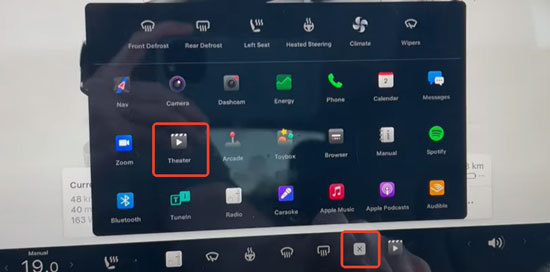
-
01
Shift your Tesla completely into P (Park).
-
02
Tap the Application Launcher icon (the three dots) at the bottom of your touchscreen.
-
03
Select the Entertainment tab, then tap Theater.
-
04
Select the Netflix icon.
-
05
Enter your Netflix account credentials to log in.
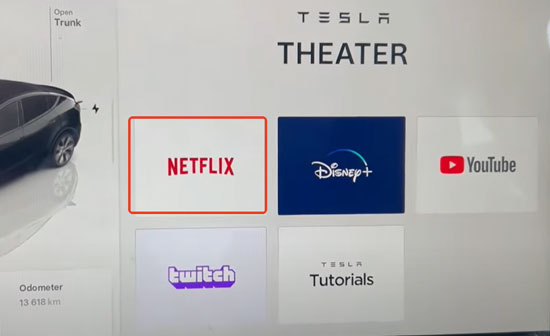

Note: To log out or switch profiles, tap your profile icon in the top-right corner of the Netflix screen, scroll down, and select Sign Out.
Pros:
- Fills the entire dashboard display seamlessly
- Integrates perfectly with Tesla's premium immersive sound system
- Receives regular firmware updates directly from Tesla
Cons:
- Shuts down instantly the moment you shift into Drive or Reverse
- Burns through cellular data quickly, requiring Premium Connectivity or phone hotspot setup
Method 2: Watch Netflix on Tesla via the Built-In Browser
Tesla vehicles include a built-in Chromium web browser. While it is mainly meant for reading websites, you can use it to access your Netflix account under specific conditions.
Note: This is not the primary way to watch Netflix on Tesla. Use the browser only as a backup when the Theater app freezes, crashes, or fails to load due to a system glitch.
-
01
Make sure the vehicle is in P (Park).
-
02
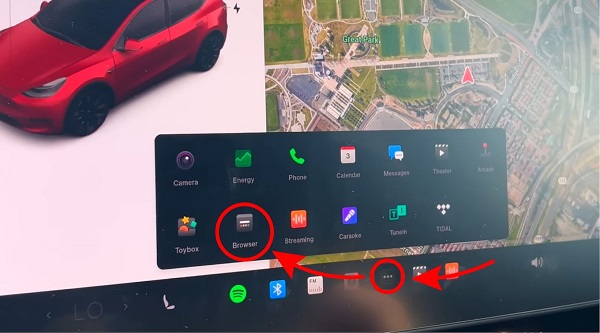
Tap the Application Launcher (three dots).
-
03
Open the Browser app.
-
04
Type
netflix.cominto the address bar and press enter. -
05
Log into your account and try to play a video.
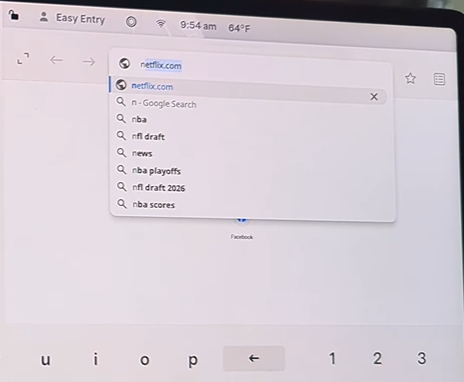
Troubleshooting: Tesla Netflix Browser Not Supported
If you follow these steps and see a "Browser Not Supported" error, a black screen, or an infinite loading wheel, you are hitting a known Tesla software restriction.
The fix: Use a third-party proxy website built for Tesla screens, such as abettertheater.com or testube.app.
-
01
Open your Tesla browser and navigate to
abettertheater.com. -
02
Click the Netflix icon on their dashboard.
-
03
The site acts as a bridge, forcing your browser to open a secure, full-screen playback window.

Warning: These proxy sites are unofficial and may stop working after a Tesla software update. Do not enter sensitive payment information through them. If a proxy site asks for your Netflix password, navigate away immediately and use Theater Mode instead.
Pros:
- Works as a quick backup when Theater Mode glitches
- No extra apps or plugins needed — just type and go
- Access to the full Netflix web interface, including profile switching and settings
Cons:
- Highly unreliable due to Tesla's frequent background browser updates
- Interface lag and choppy video frame rates are common
- Locks out video the moment the car moves, just like Theater Mode
Part 3. The Workarounds for Older Model S and Model X (Pre-2018)
Older Model S and Model X vehicles lack the computing power to stream movies. But that does not mean you are stuck. There are two practical workarounds to get Netflix on your dashboard; the first one costs under $150, the other costs over $1,500.
Workaround 1: Use VidiFab Netflix Video Downloader to Watch via USB
This is the smart, cost-effective route. VidiFab Netflix Video Downloader pulls Netflix videos straight from the platform and saves them as high-definition 1080p MP4 or MKV files — complete with Dolby Atmos 5.1 surround sound, original audio tracks, and multilingual embedded subtitles. Once downloaded, you plug a standard USB drive into your center console and play movies offline through Tesla's built-in USB Media Player.
VidiFab Netflix Video Downloader
Download Netflix videos as MP4/MKV in 1080p with Dolby Atmos for offline viewing on your iPhone, Android, desktop, projector, and more devices.

- Zero internet required. Once the file is on your USB drive, you can watch it anywhere. Underground parking, remote areas, or even on the road as a passenger. No Wi-Fi, no hotspot, no Premium Connectivity.
- No buffering, ever. The video plays straight from the USB drive. No loading wheels, no resolution drops, no frozen screens.
- No Netflix household detection issues. If you stream Netflix from your car away from home, Netflix may flag your Tesla as a non-household device and restrict playback on that screen until you verify it. This is a real problem that Tesla Model Y owners have reported on Reddit. With the VidiFab method, you download the file once at home and play it offline without household verification and risks.
How to Download and Play Netflix via Tesla USB
Step 1. Launch VidiFab and Access the Netflix Library
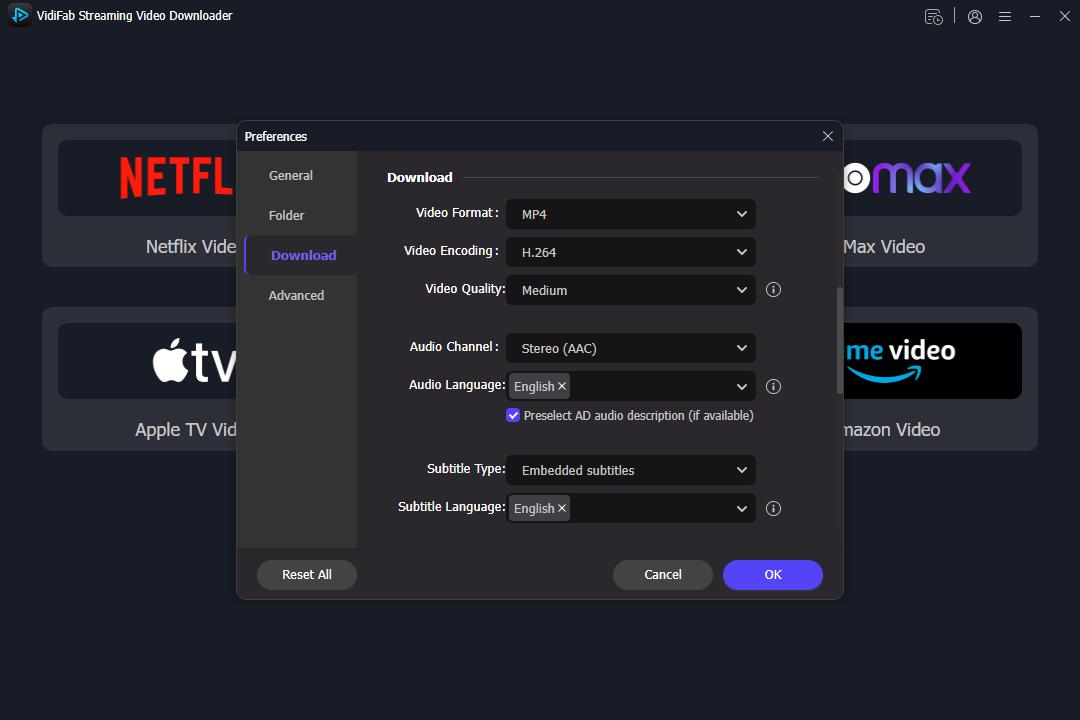
Download and install VidiFab Netflix Video Downloader on your Windows PC or Mac. Click the menu icon in the top-right corner and pick Preferences. In the pop-up window, set the Download Video Format to MP4 as it has the highest compatibility with the Tesla Media Player. Choose your video encoding method and quality, then click OK. Next, select the Netflix icon from the main interface and log in through the secure built-in browser.
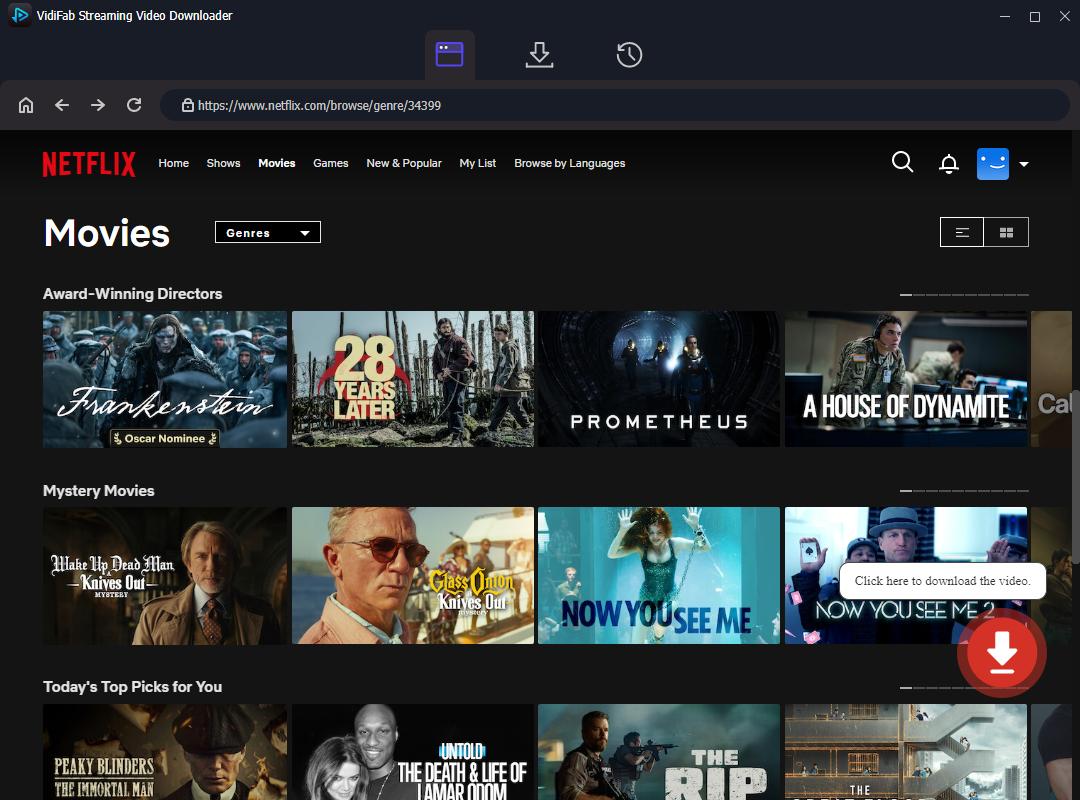
Step 2. Search for the Video You Want to Watch in the Car
Browse the Netflix library like you normally would, or paste the exact URL of the movie or TV show into the search bar. Once you open the video's detail page, VidiFab's engine analyzes the streaming data and gives you a download button. Click it.
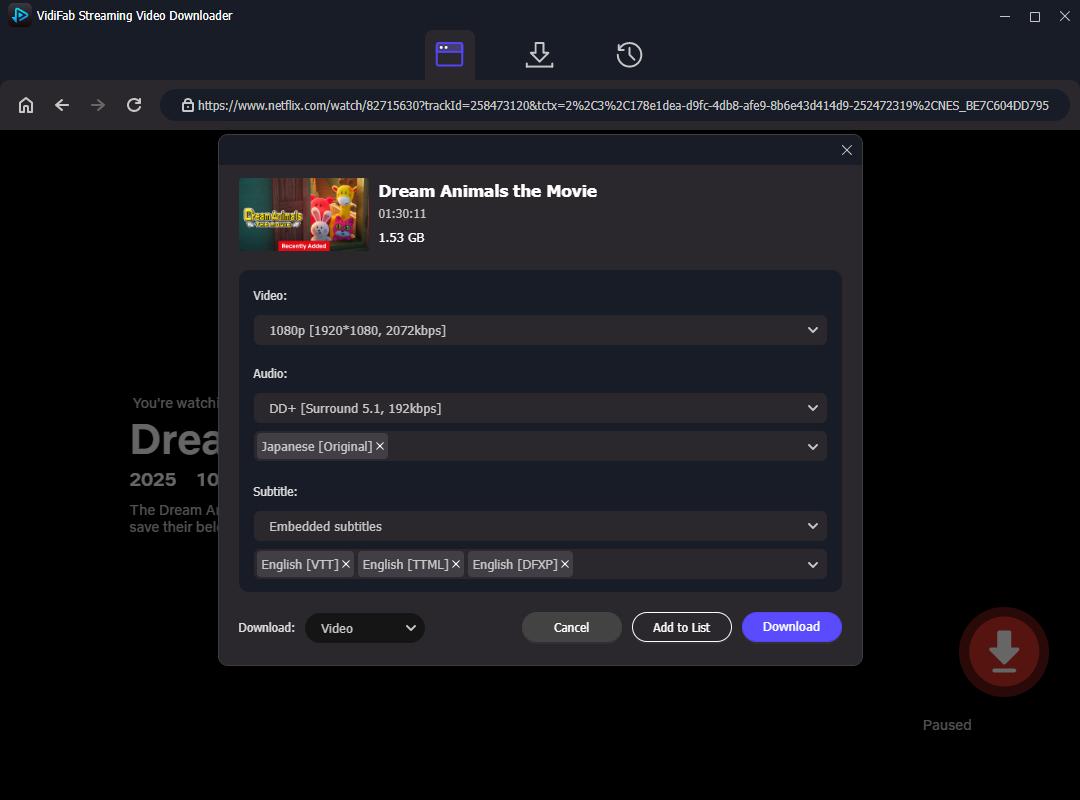
Step 3. Select 1080p Quality and Audio Settings
In the advanced download settings window, choose 1080p for the sharpest picture on your dashboard screen. Pick your preferred audio quality (such as Dolby 5.1) and language tracks. Set subtitles to Embedded in your preferred language so they display correctly on the Tesla Media Player without needing separate external subtitle files.
Step 4. Save Netflix as Unprotected MP4 Files
Click the Download button to start the extraction. VidiFab saves a standard, DRM-free MP4 file to your PC or Mac. When the download finishes, go to the History tab and click the folder icon to locate your offline video files.
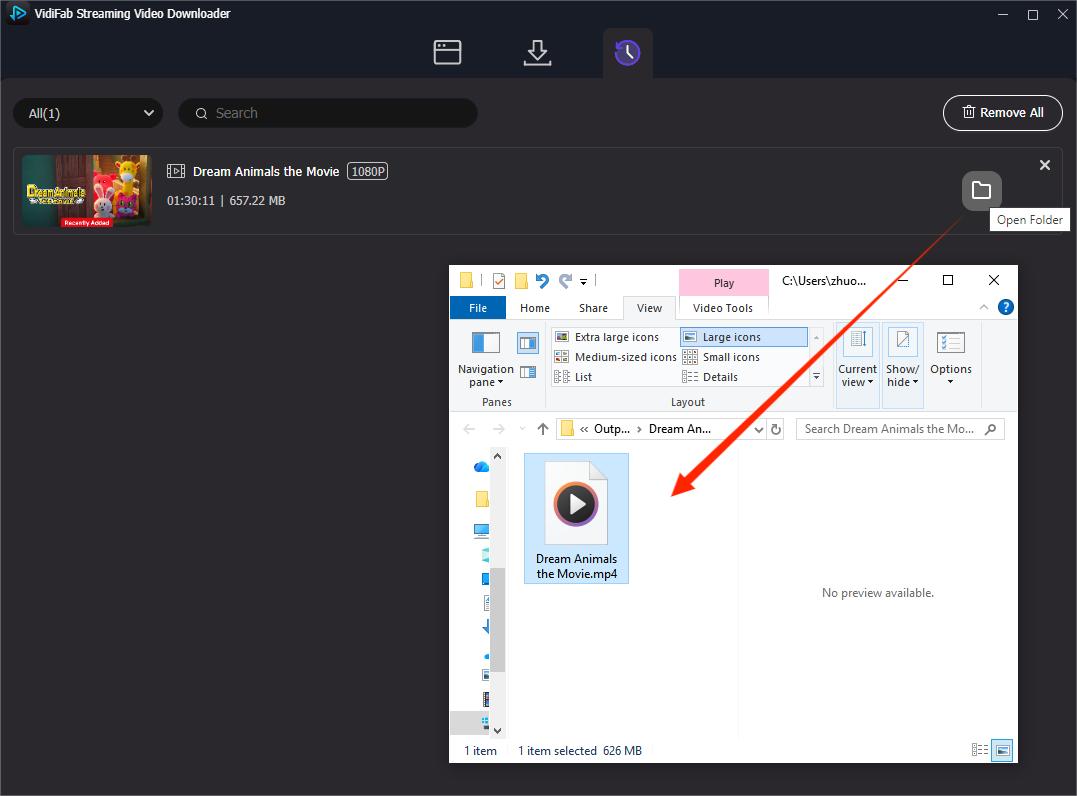
Step 5. Transfer to USB Drive and Play on Your Tesla
Insert a USB flash drive or external SSD into your computer. Make sure it is formatted to exFAT or FAT32. Create a folder on the drive, then copy your downloaded MP4 files into it.
Tip: Use an SSD instead of a basic flash drive if you plan to watch 1080p files. SSDs read data faster, which means smoother playback and fewer stuttering issues on the Tesla Media Player.
Finally, plug the USB drive into one of the front USB ports in your Tesla's center console. On your dashboard screen, tap the USB icon, select your drive, and hit play.
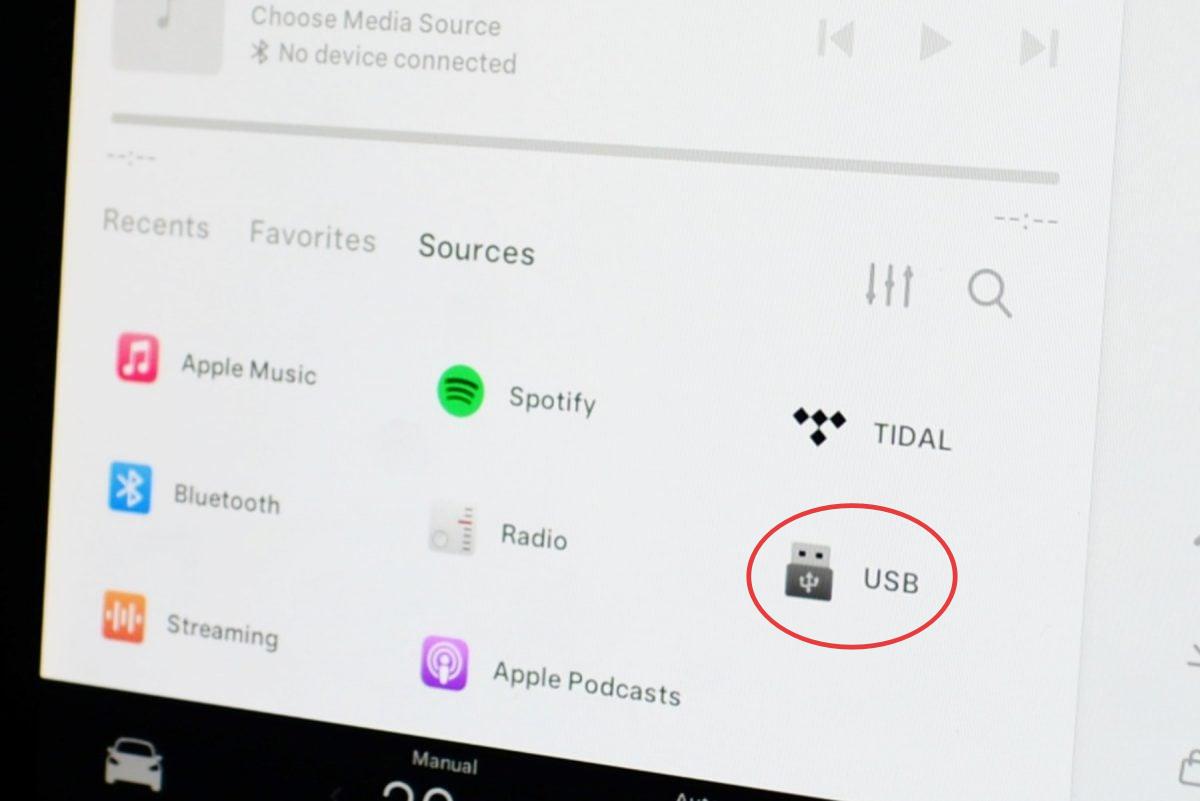

Pros:
- Saves you thousands of dollars compared to a hardware upgrade
- Works completely offline
- Smooth 1080p playback with perfect audio syncing
- Avoids Netflix household detection problems
Cons:
- Requires some prep work before each movie session
- VidiFab is a paid tool (though a free trial is available)
Workaround 2: Upgrade the Tesla Infotainment System
If you want a permanent, official fix that adds native apps directly to your dashboard, you can request a hardware replacement from Tesla. Known as the Infotainment Upgrade, a Tesla technician removes your old MCU1 media computer and installs the modern MCU2 unit. Here's how to book the upgrade.
-
01
Open the Tesla app on your phone.
-
02
Tap Service → Schedule Service.
-
03
Choose Upgrades & Accessories from the list.
-
04
In the description box, type: "Request Infotainment Upgrade (MCU1 to MCU2)" and submit.
-
05
A Tesla service advisor reviews your vehicle configuration and sends a cost estimate to your app. Tap to accept the quote.
-
06
Drive to your chosen Tesla Service Center at the appointment time. The hardware swap typically takes 1 to 2 business days.
Warning: The MCU2 upgrade removes your car's ability to receive AM/FM and SiriusXM radio natively. To keep radio, you need to pay an additional $500 for a separate radio upgrade module. Factor this into your total cost.
For full official pricing and service center eligibility, check the Tesla Infotainment Support Page.
Pros:
- Adds the official Tesla Theater app to your screen
- Makes the entire touchscreen interface noticeably more responsive
Cons:
- Costs between $1,500 and $2,000+ plus taxes and labor
- Removes AM/FM and SiriusXM radio unless you pay $500 extra for a radio module
Part 4. Can You Watch Netflix on Tesla While Driving?
No. You cannot watch Netflix on your Tesla's front dashboard screen while driving. Tesla hard-locks all video playback the moment the car shifts out of Park.
Here is exactly what happens if you try:
| Method | What Happens When You Start Driving |
|---|---|
| Tesla Theater | The Netflix app freezes, minimizes, or shuts down completely. The screen switches back to the navigation map. |
| Web Browser | The browser blocks all video rendering. The screen goes black or shows a safety warning. |
| USB Media Player | The video auto-pauses or the screen goes blank, leaving only audio through the speakers. |
Warning: Do not attempt to bypass Tesla's driving lock with third-party hacks or modified software. It is a safety feature designed to keep your eyes on the road. Tampering with it can void your warranty and, more importantly, put lives at risk.
Pro Tip: The Best Workaround for Backseat Passengers
The driver needs to stay focused on the road. But your passengers, especially kids on long road trips, do not have to go without entertainment.
Since VidiFab saves Netflix content as standard, unprotected MP4 or MKV files, you can bypass Tesla's front-screen lock entirely by moving the viewing experience to portable screens. Here are the best options:
- iPads and Android Tablets: Transfer the MP4 files via a data cable or local Wi-Fi sharing, then clip the tablet to the back of the front seats with a cheap headrest mount. If you prefer downloading directly to your iPhone or iPad, you can also download Netflix episodes to your iPhone for offline viewing on the go.
- Amazon Fire Tablet: Load the downloaded files onto a microSD card and pop it into the Fire HD tablet for hours of offline entertainment.
- Nintendo Switch: Upload your VidiFab MP4 videos to YouTube personal library. Here is a full guide on watching Netflix on a Nintendo Switch.
- Chromebook Tablet: Copy files to a Chromebook's local storage and hand it to your passenger. If you want a streaming alternative, you can also watch Netflix on a Chromebook directly through the browser.
Tip: To learn more ways to watch Netflix on your car screen without using other devices, check this guide: "How to Watch Netflix on Car Screen: A Complete & Safe Guide," which includes methods not covered here.
FAQs: Netflix on Tesla
Can I watch Netflix on Tesla without Premium Connectivity?
Yes. Premium Connectivity ($9.99/month) is not required if you connect your Tesla to Wi-Fi or use your phone's mobile hotspot. Premium Connectivity simply lets you stream over Tesla's cellular network when Wi-Fi is not available. If you mainly watch Netflix at home or at Superchargers with Wi-Fi, you do not need it.
How to update Netflix on Tesla?
Netflix updates automatically through Tesla's over-the-air software updates. You do not need to manually update the app. If Netflix is not working, check for a pending Tesla software update in Settings → Software. Installing the latest update usually fixes app glitches and browser issues.
Why is Tesla Netflix not working?
Common causes: weak internet connection, an outdated Tesla software version, or a temporary Netflix server outage. Try these fixes in order: (1) Check your Wi-Fi or hotspot connection, (2) Install any pending Tesla software updates, (3) Sign out of Netflix and sign back in, (4) If you are hitting a browser compatibility loop, read our dedicated guide on how to fix Netflix Error Code E109 on Tesla, or (5) try a proxy site like abettertheater.com. If nothing works, contact Tesla Support.
How do I add Netflix to my Tesla?
You do not need to add or install Netflix — it comes pre-installed on all compatible Tesla models. If you cannot find it, open the Application Launcher → Entertainment → Theater. Netflix should be listed alongside YouTube and other streaming apps. If it is missing, your vehicle may be running older MCU1 hardware (pre-2018 Model S/X). See Part 3 for workarounds.
Final Thoughts
To watch Netflix on Tesla, first try the official Theater mode. If that is glitching, use the built-in browser app with a proxy link as a backup. If both are not working, verify your vehicle's production date.
For older models, or to bypass strict driving locks and save on cellular fees, use VidiFab Netflix Video Downloader. Simply download your favorite shows to a USB drive or passenger tablet to enjoy flawless, high-definition entertainment anywhere the road takes you.
 Free Download
 Secure Download
 Free Download
Secure Download
Free Download
Secure Download



I'm a video tech specialist with over 10 years of experience in digital media and streaming. I focus on making complex workflows simple and practical. Through my guides, you'll learn how to convert media, keep high-quality playback across devices, and manage your streaming video library with ease.
 Leave Your Comment