How to Watch Netflix on Android Auto (3 No-Root Methods)
 By Miles Kent
While Android Auto supports apps like Spotify and YouTube Music, it does not let you watch Netflix on your Android Auto car display, whether you are driving or parked. The main reason is to protect driver safety and comply with road legal regulations.
However, if you want to prepare Netflix shows for your passengers, or watch movies while waiting to charge your EV, this guide provides 3 working methods. All of them work without rooting your device, so you do not have to worry about risking your phone's security. Let's get into the first method.

Note: If you want to watch Netflix directly on different vehicle displays, check out our guide on how to watch Netflix on a car screen for more methods and compatible devices.
Method 1. Watch Netflix on Android Auto Using Third-Party Apps (AAAD, CarStream & More)
If you do not want to spend money on expensive hardware, you can use free third-party applications to stream Netflix on your car display.
Before trying any workaround, please check your current Android version. Go to Settings > About Phone > Android version or Software Information on your device to see your exact Android version, and follow the specific guide below:
For Android 11 Users: AAAD + CarStream
CarStream is an open-source media players designed for Android Auto. It includes a built-in web player that allows you to visit websites like netflix.com and stream videos directly from your car screen.
To download CarStream, you can use Android Auto Apps Downloader (AAAD), a third-party app installer that tricks your system so these apps show up on your car launcher menu.
- An Android phone running Android 9.0 to Android 11.
- The official Android Auto app installed on your phone.
- A vehicle or head unit supporting wired or wireless Android Auto.
- The AAAD APK file downloaded from its official GitHub repository.
- A high-quality USB data cable.
How to Install CarStream for Netflix on Android Auto
-
01
Go to your phone's main settings, tap "About Phone," and tap "Build Number" 7 to 10 times consecutively until the screen notifies you that Developer Mode is enabled.
-
02
Go into your new Developer Options menu and toggle "USB Debugging" on.
-
03
Open Android Auto settings on your phone, scroll to the bottom, and tap "Version" 10 times to unlock Android Auto Developer Mode.
-
04
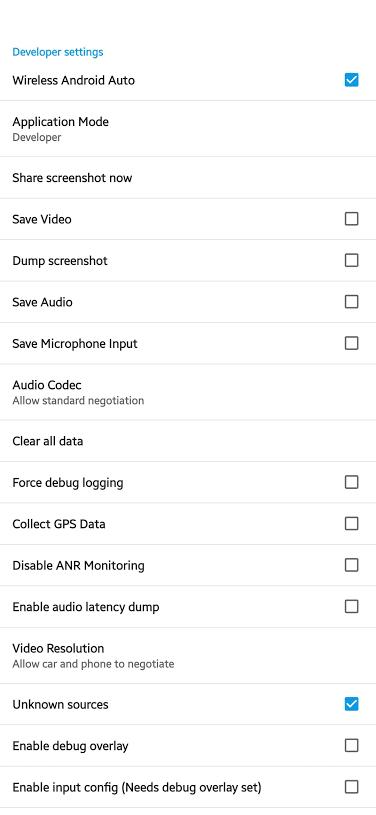
In the Android Auto Developer Settings (via the top-right three-dot menu), enable "Unknown Sources".
-
05
Download and install the AAAD APK from Github on your phone, giving your phone's browser permission to install apps from "unknown sources" if prompted.
-
06
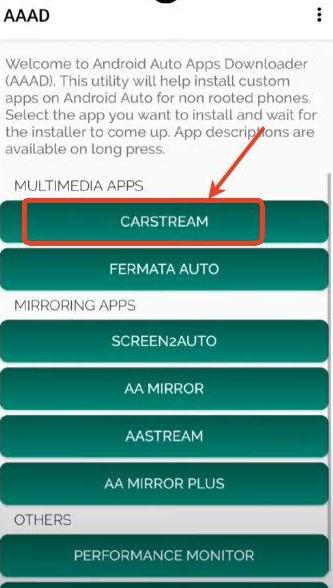
Open the AAAD app, tap CarStream, and install the app.
-
07
Open CarStream on your Android device. Navigate to netflix.com using the built-in web browser. Log into your account and tap the bookmark icon to save the current site.
-
08
Connect your phone to your car's USB port using the USB data cable.
-
09
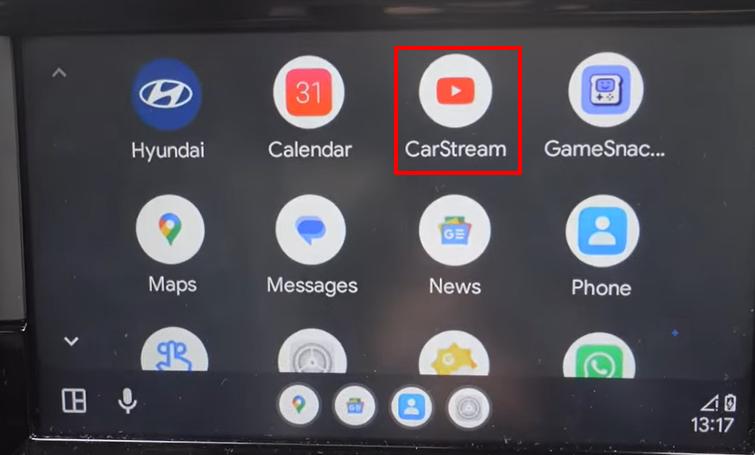
Launch CarStream on your car screen, go to the bookmark section, find the Netflix page, and start playing your video.
Note: If the Netflix web page says that this device is not supported, enable the Desktop Mode, and refresh the page.

Limit on the AAAD app: The free version of AAAD limits you to only 1 app download every 30 days. If you are worried the app might not work and waste your single free slot, try KingInstaller instead, which is the exact method introduced below for newer Android systems.
For Android 13/14/15/16 Users: Use CarStream with Wireless AA Adapters
If you try to use AAAD on Android 13, 14, or 15, the installation will likely crash, or Google's upgraded App Verification Security will detect the fake certificate and completely hide the CarStream icon from your car's dashboard.
For the best experience, download CarStream and install from KingInstaller, use it with a specialized Wireless Android Auto adapter to maintain the connection and avoid video stream blocks on newer Android systems.
- An Android phone running Android 13, 14, 15, or 16.
- A specialized wireless streaming adapter (like the MSXTTLY V-Stream dongle).
- The KingInstaller APK and the raw CarStream APK file (both downloaded for free from GitHub).
How to Use Netflix on Android Auto with Android 13/14/15/16
-
01
Open Android Auto settings on your phone, scroll to the bottom, and tap "Version" 10 times to unlock the developer menu. Tap the three dots in the top-right corner, enter Developer Settings, and check the box next to "Unknown Sources".
-
02
Download the standalone CarStream.apk and KingInstaller.apk from GitHub to your phone storage.
-
03
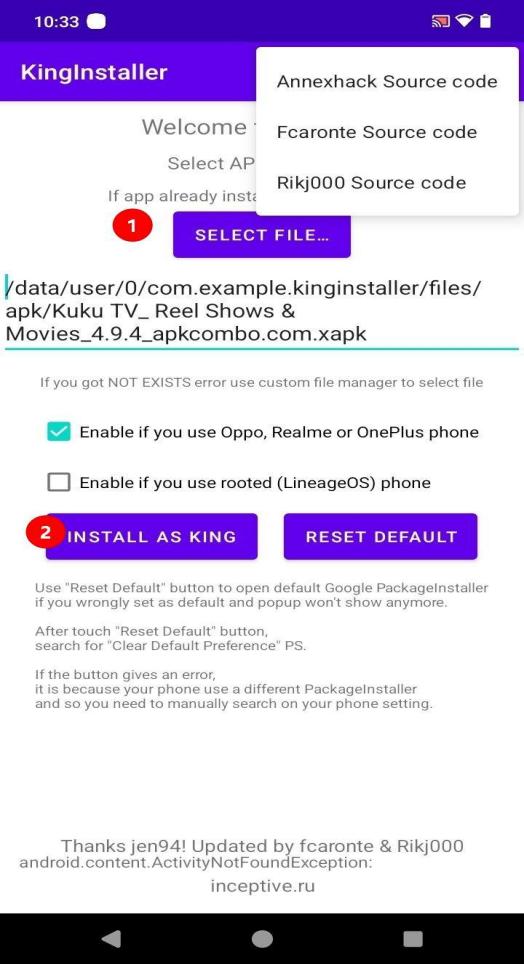
Open KingInstaller, select the CarStream APK file, and tap Install as King to bypass Google's installer block.
-
04
In your mobile Android Auto settings, open Customize launcher and ensure the checkbox next to CarStream is marked active.
-
05
Open CarStream on your Android phone, go to netflix.com, change the settings to Desktop Mode, log in, and bookmark this page.
-
06
Unpair your smartphone from your car's factory Bluetooth entirely to prevent signal conflicts.
-
07
Plug the wireless adapter into your vehicle's Android Auto USB port.
-
08
Turn on your phone's Bluetooth and data. Search for the adapter's broadcast signal (often named "Smartbox") and connect.
-
09
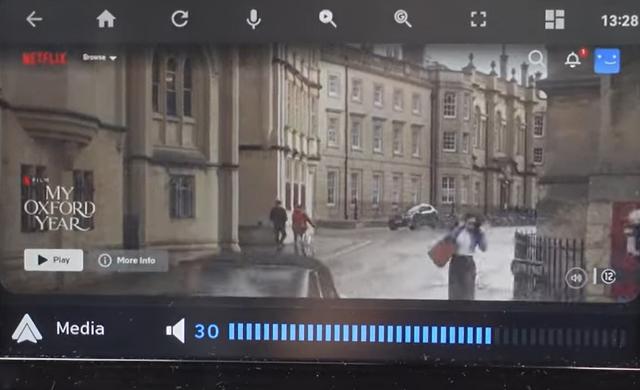
Once the wireless Android Auto interface loads on your dashboard, tap the CarStream icon. Tap on the bookmark icon in the upper right corner, find the Netflix page, and start streaming.
Pros and Cons of Third-Party Android Auto Apps
Pros:
- Free
- No root needed
- Supports multiple video sites, not just Netflix
Cons:
- Netflix might display a black screen due to DRM protection
- May stop working after system updates
- Newer Android versions require an adapter to function
- Limited downloads in the free AAAD version
- OnePlus, OPPO, Xiaomi, and other devices may not allow third-party apps in Android Auto
- Possible buffering or audio delay
Method 2. Stream Netflix on Android Auto with an AI Box
An Android AI Box is a small hardware device that plugs into your car's USB port. It converts your car's wired Android Auto system into a standalone Android tablet. This allows you to run video apps directly on your car screen without using your phone.
- A car with factory-installed wired Android Auto (excludes BMW cars).
- An Android AI Box, such as the Carlinkit Tbox or Ottocast Play2Video.
- A smartphone with a Wi-Fi mobile hotspot for internet access.
- An active Netflix account.
- An auxiliary power cable if your car has low USB power output (common in 2023-2024 Mazda, Toyota, and Hyundai Ioniq models).
How to Set Up an AI Box for Netflix on Android Auto
-
01
Plug the AI Box into your car's primary USB data port.
-
02
Wait for the car screen to display the AI Box's custom Android home screen.
-
03
Turn on your smartphone's Wi-Fi hotspot.
-
04
Open the AI Box settings and connect it to your phone's hotspot.
-
05
Open the pre-installed Google Play Store on the car screen.
-
06
Log in with your Google account, then search for and download the Netflix app.
-
07
Launch Netflix on your car screen, log in, and start streaming.
- When shopping online, avoid cheap, unbranded AI boxes that cost $30 to $50.
- Netflix requires strict security called Widevine L1/L3 DRM Certification. Generic boxes do not have the necessary security keys for Netflix. Even if they run Android, the official Netflix app will not play videos and will show an "Error 5.2" message.
- Before purchasing an AI box, verify that it supports Netflix playback and has the right DRM certification. Popular brands like CarlinKit TBox and Ottocast are often preferred for in-car entertainment, but compatibility can differ based on the model and vehicle system.
Pros and Cons of Using an Android Auto AI Box
Pros:
- Easy plug-and-play setup.
- The app operates directly on the box, not just mirroring your phone.
- It doesn't interfere with your phone's regular functions.
- Supports original car controls.
- Provides backseat entertainment options.
Cons:
- AI boxes typically cost between $55 and $300.
- Needs continuous mobile data.
- Some car models may need an additional auxiliary power cable to avoid disconnections.
- The box can overheat and restart in hot weather.
Method 3. Play Netflix Videos on Android Auto Without Buffering
Both sideloading third-party apps (Method 1) and using an AI Box (Method 2) have a major weakness: they need a strong, continuous internet connection to stream videos. This can lead to frustrating buffering, visual glitches, and high mobile data usage. Also, online streaming can be interrupted by ads.
To ensure a more stable car entertainment experience, download videos ahead of time and play them locally. However, Netflix's offline downloads are restricted to the Netflix app and cannot be used with Android Auto, CarStream, or an AI Box. To play downloaded videos on your car's media system, you need a video downloader like VidiFab Streaming Video Downloader that saves files as standard video formats.
 Free Download
 Secure Download
 Free Download
Secure Download
Free Download
Secure Download
- Download videos from Netflix, Amazon Prime Video, Disney+, HBO Max, Hulu, and Apple TV+.
- Save videos in MP4 or MKV format for better device compatibility.
- Maintain HD video quality with multiple subtitles and audio tracks.
- Save videos for offline viewing without an internet connection.
- Support batch downloads for multiple movies or episodes.
- A PC or Mac computer.
- An Android phone running Android Auto.
- VidiFab Streaming Video Downloader installed on your computer.
- A free local media player app like Fermata Auto installed on your phone.
- A high-quality USB data cable to transfer files.
How to Download Netflix Videos for Android Auto Offline Playback
Step 1. Set Up VidiFab and Open Netflix
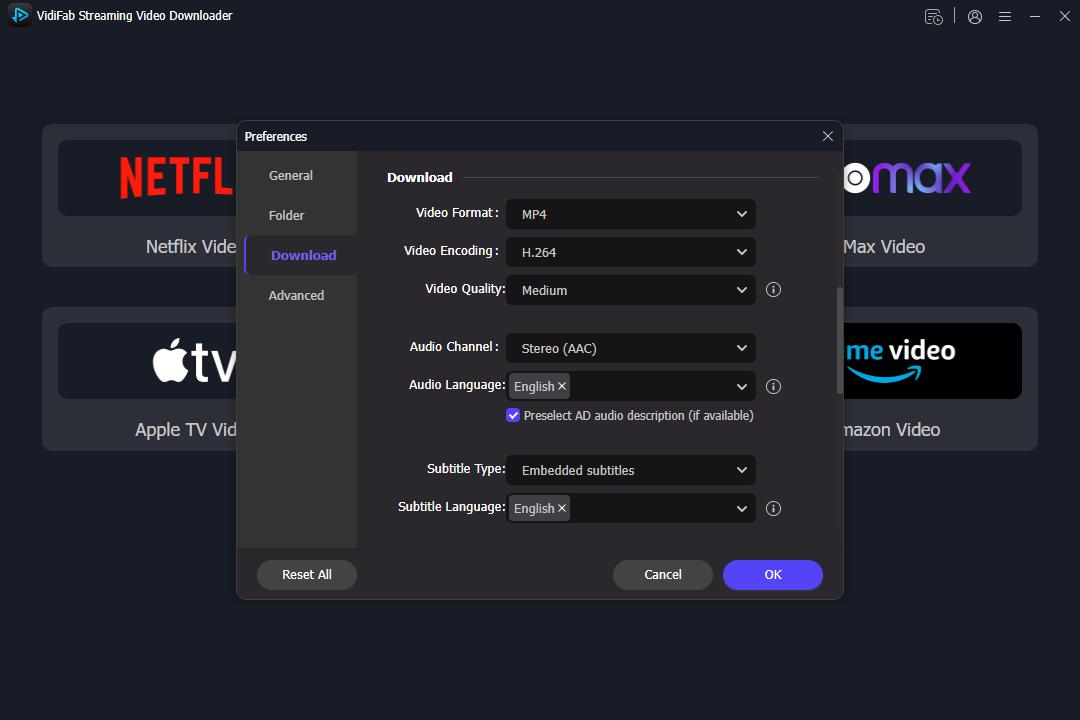
Install VidiFab Streaming Video Downloader on your computer. Open the program, go to Preferences, and set the output format to MP4 or MKV. You can also choose the video quality, codec, audio, and subtitle settings. Then select Netflix from the supported services and sign in through the built-in browser to access your Netflix library.
Step 2. Find the Movies or Shows You Want to Download
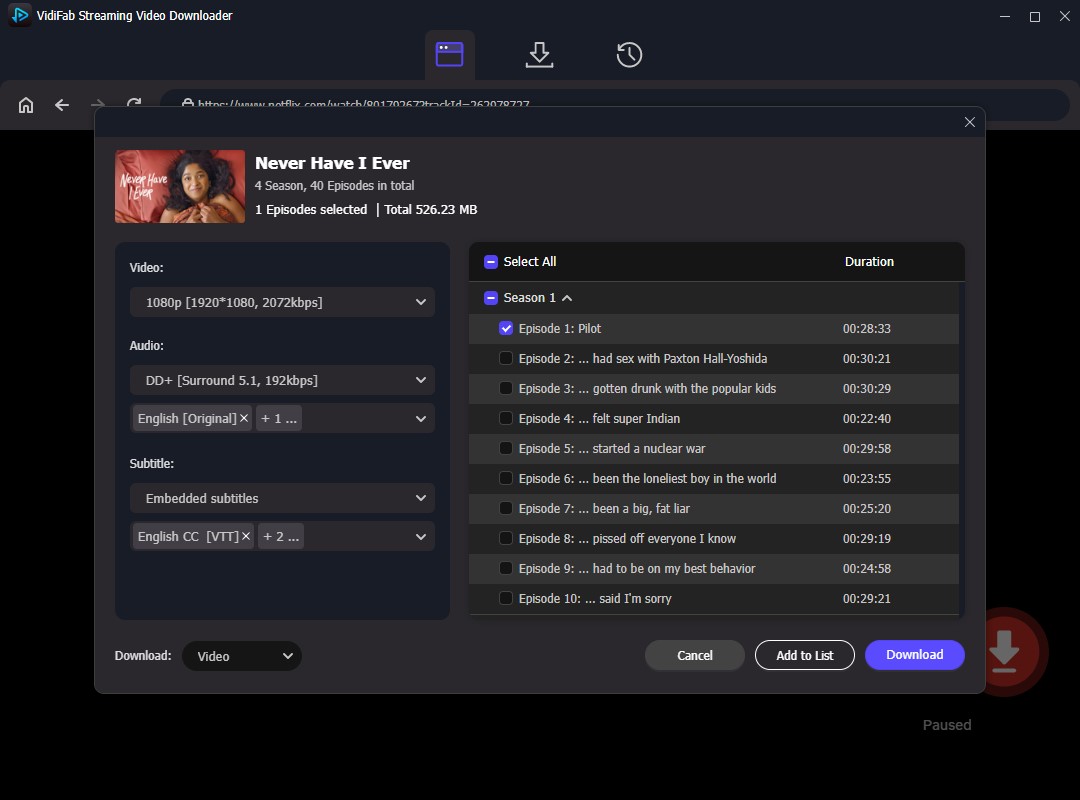
Browse Netflix inside VidiFab or search the movie or TV show you want to save. Open the video page, wait for VidiFab to analyze the content, and click the Download button. In the pop-up window, select the 1080p for better video quality, choose your preferred audio track and language, and the subtitles. Click Download to start downloading.
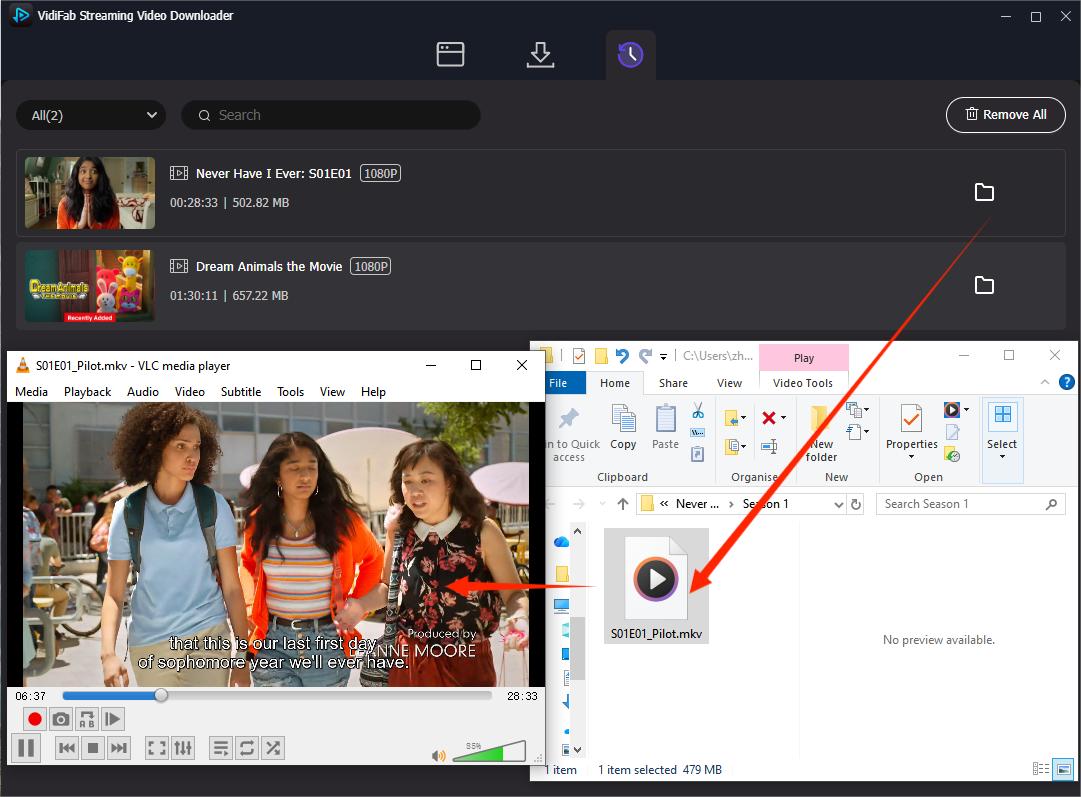
Step 3. Move Videos to Your Phone
After the download finishes, open the History tab and click the folder icon to find your files. Connect your phone to your computer with a USB cable, then copy the MP4/MKV videos to a local folder, such as: /Movies or /Download.
Step 4. Play Downloaded Videos Through Android Auto
-
01
Open your phone's browser, go to GitHub, and download the raw Fermata Auto APK and KingInstaller APK.
-
02
Open KingInstaller, select the downloaded Fermata Auto APK, and tap "Install as King." This allows Android Auto to show the app icon on your dashboard.
-
03
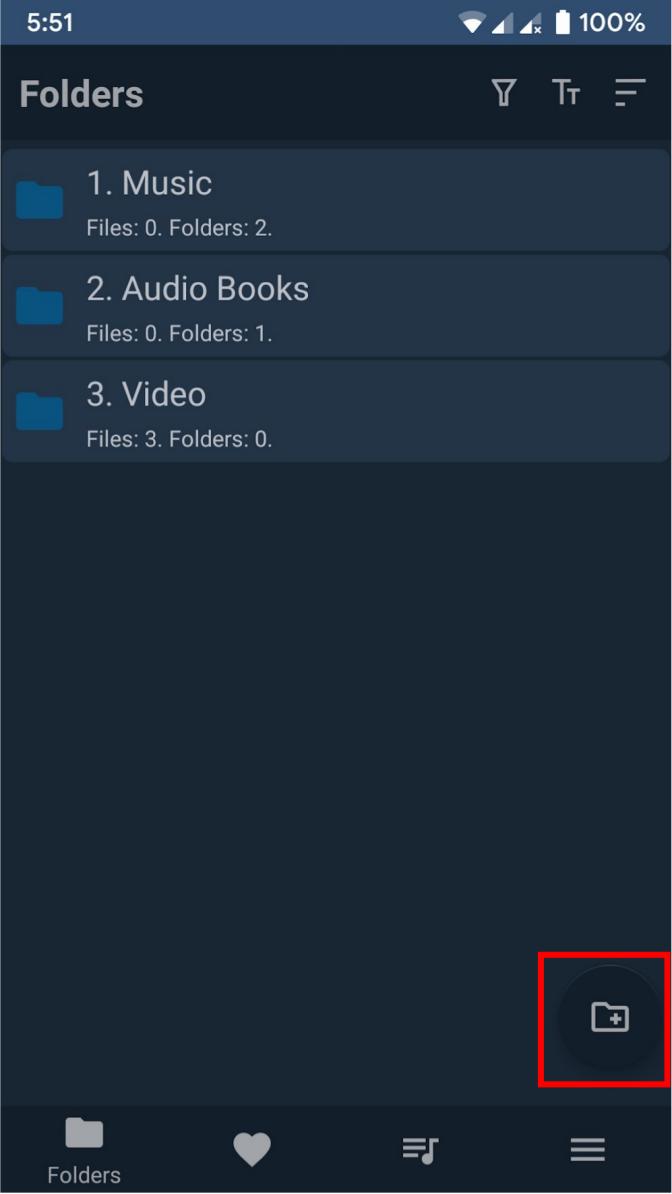
Open the newly installed Fermata Auto app on your phone, grant it file storage permissions, go to the Folders tab, tap "+", select File System, and choose the folder with your Netflix MP4 videos.
-
04
Connect your smartphone to your car's USB port using a high-quality data cable to start Android Auto.
-
05
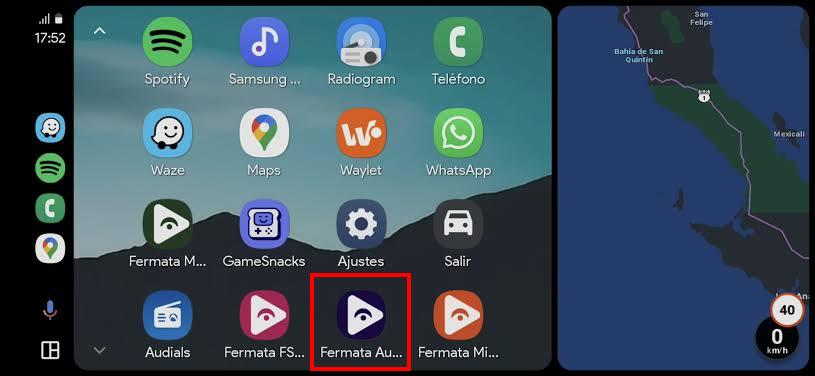
Look at your car's touchscreen display launcher menu and tap the blue Fermata Auto icon.
-
06
Tap the folder you linked earlier, select your downloaded Netflix movie, and enjoy smooth playback without buffering.
Pros and Cons of Offline Playback
Pros:
- Playback doesn't need an internet connection
- Saves mobile data
- No buffering or loading delays
- No ads
- Enjoy movies in clear Full HD 1080p
Cons:
- Requires manual transfer from computer to phone
- Uses phone storage
- VidiFab is paid software with a free trial available
Which Methods To Choose for Playing Netflix on Android Auto?
Netflix on Android Auto: Methods Comparison Table
| Feature | Method 1: Sideloaded Apps (AAAD) | Method 2: Android AI Box | Method 3: VidiFab Offline Playback |
|---|---|---|---|
| Price | Very Cheap or free | $55-$300 | $59-149 |
| Effort (Setup) | Medium to High. Android 13+ may need to use an adapter to make CarStream work. | Low. Plug and play. | Low. A click download and direct file transfer to your phone. |
| Active Internet Needed? | Yes, constantly | Yes, via hotspot | No (Zero data used while driving) |
| Buffering & Video Lag | High risk of lag and frame drops | Occasional stuttering | None (Perfectly smooth local playback) |
| Ad-Free Experience? | No (subject to streaming plan) | No (subject to streaming plan) | Yes (Ads are automatically removed) |
| Hardware Heat & Power | Phone battery drains and gets hot | AI Box can overheat and disconnect | Very Low (Easiest on phone battery) |
Which Method Should You Choose?
Choose Method 1 (AAAD + CarStream/Fermata Auto) if you want a low-cost solution and do not mind technical setup. However, be aware that this method may stop functioning after Android updates, and video playback relies on your internet connection.
Choose Method 2 (Android AI Box) if you want something quick and easy, or you want the official Netflix app on your car screen. The trade-off is the higher cost and possible hardware compatibility problems.
Choose Method 3 (VidiFab Offline Playback) if you want smooth playback without buffering. Note that you will need to download videos beforehand and ensure you have enough storage space for your trip.
Safety & Legal Note: Can You Watch Netflix While Driving?
Technically, the methods in this guide can enable Netflix playback on your car display while driving, but it is neither safe nor legal to watch videos while driving.
Watching a video screen while driving is extremely dangerous. In 2023, distracted driving killed 3,275 people in the United States alone. Plus, it is illegal in almost every country. If you get caught, you can face severe punishments.
Therefore, I do not recommend watching Netflix or any videos on your Android Auto while driving. If you want to enjoy Netflix in your car, follow these guidelines:
- Use passenger screens: Front dashboard screens are illegal to use for video while moving because the driver can see them. If your family wants to watch movies on a road trip, use rear-seat displays or mounted tablets that are completely out of the driver's line of sight.
- Only watch when parked: If you are using the front screen, make sure your car is fully stopped. Keep the transmission in "Park" (P) and engage the parking brake before starting any video.
FAQs About Netflix on Android Auto
Why does Netflix show a black screen on Android Auto?
Can I download Netflix on Android Auto?
Why does the Netflix video stutter or go out of sync with the audio?
Wireless Lag: Wireless adapters need to convert phone data and transmit it through Bluetooth and Wi-Fi, which can create a 2 to 3-second delay between audio and video.
Poor Cellular Signal: Streaming Netflix in a car depends on a stable internet connection. Weak cellular coverage or slow hotspot speeds can cause buffering and playback issues.
Underpowered Hardware: Some low-cost AI Boxes may have limited processing power and memory, which can struggle with demanding streaming apps and lead to lag.
Can I use Netflix on Android Auto for back-seat passengers?
Can I watch Netflix on Android Auto with my iPhone?
Final Thoughts
Netflix is not officially supported on Android Auto, but you still have several ways to enjoy videos in your car. Sideloading apps offer a free solution, AI boxes provide a more integrated experience, and offline playback delivers the most stable performance. Choose the method that best fits your budget, setup time, and viewing needs.
Free Download
Secure Download
Free Download
Secure Download


I'm a video tech specialist with over 10 years of experience in digital media and streaming. I focus on making complex workflows simple and practical. Through my guides, you'll learn how to convert media, keep high-quality playback across devices, and manage your streaming video library with ease.
 Leave Your Comment