How to Watch Netflix on Steam Deck (2026 Guide)
 By Miles Kent
Although there is no native Netflix app for SteamOS, you can easily watch Netflix on your Steam Deck. Whether you want to stream directly using browser shortcuts, automate the setup via EmuDeck, or even unlock offline viewing of Netflix on your Steam Deck, this guide covers the ultimate workarounds to supercharge your handheld.
Part 1. Can You Watch Netflix on Steam Deck?
Yes, you can watch Netflix on your Steam Deck. Since SteamOS features a Desktop Mode, you can use standard web browsers like Google Chrome, Microsoft Edge, or Firefox to access the Netflix catalog and watch it on your device.
Since there is no official Netflix app for Steam Deck, I'll explain how to add Netflix to your Game Mode for easy access and a method to unlock 1080p quality, including an offline option.
Part 2. How to Add Netflix to Steam Deck and Watch Online
There are three ways to set up Netflix on Steam Deck. You can use EmuDeck to automatically add Netflix to Game Mode, manually add a browser shortcut through Steam, or use a Kodi extension to improve streaming quality beyond the browser 720p limit.
Method 1. Add Netflix to Steam Deck with EmuDeck
EmuDeck is famous for retro gaming, but it also has a built-in tool called the Cloud Services Manager (CSM).
This tool adds lots of streaming services, including Netflix directly to your Steam library. So you can launch it like a regular game inside Gaming Mode. It also pre-configures your Steam Deck controller, allowing you to navigate menus and play videos easily using your trackpads and buttons.
Steps to Add Netflix to Steam Deck Gaming Mode Using EmuDeck
Step 1. Switch to Desktop Mode and Install EmuDeck
-
01
Press the physical STEAM button on your Deck, select Power, and choose Switch to Desktop.
-
02
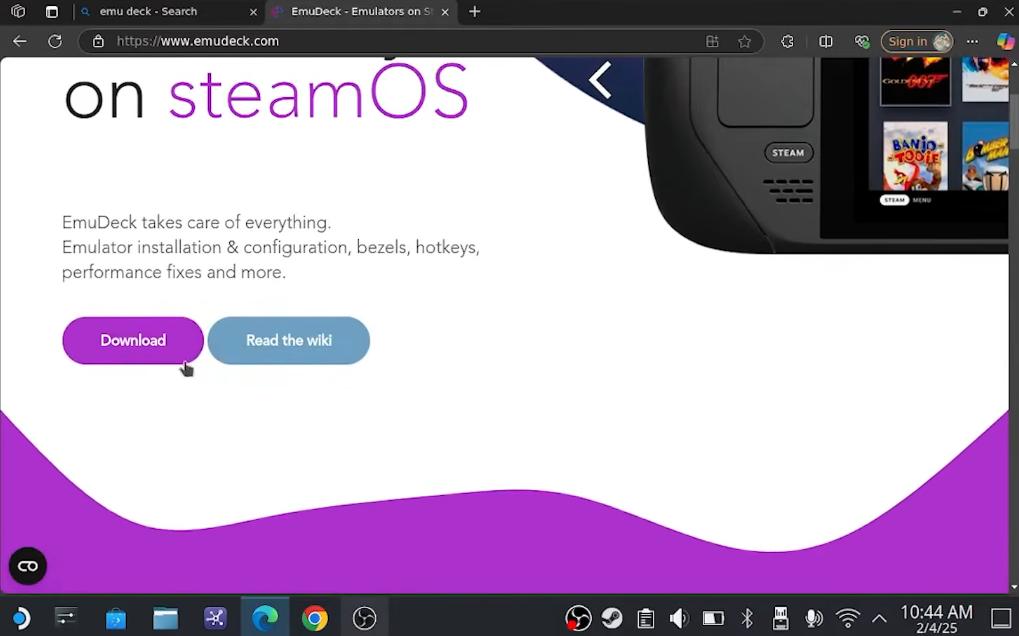
Open a browser and visit the EmuDeck website to download the SteamOS version of EmuDeck.
-
03
Run the installer and complete the EmuDeck setup.

Note: If you haven't downloaded a browser, you can download it from the Discover Software Center in the taskbar. I recommend using Microsoft Edge as it usually provides good compatibility.
Step 2. Open Cloud Services Manager and Choose Netflix
-
01
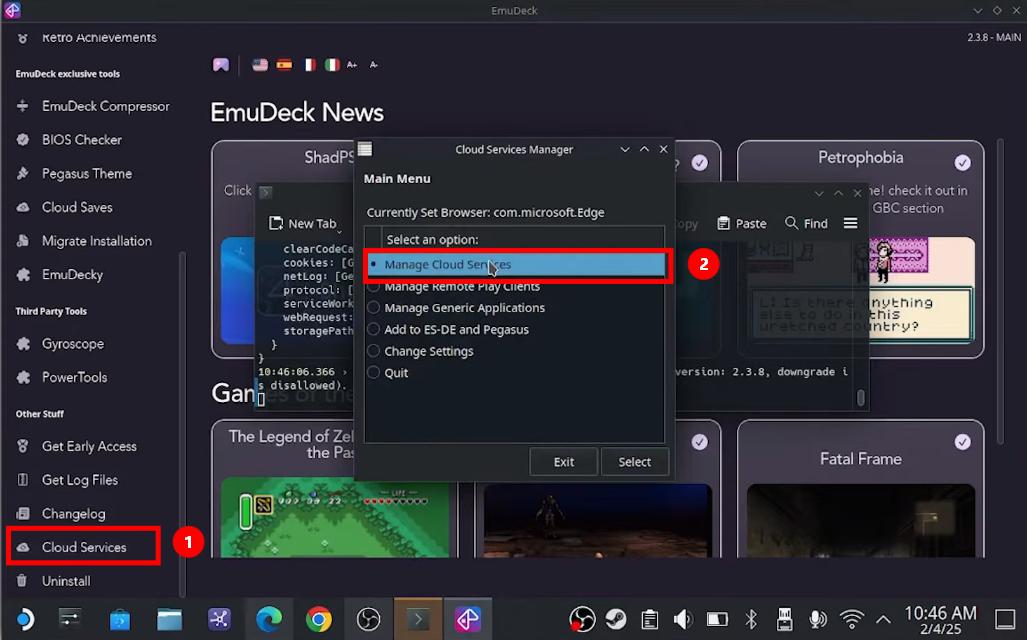
Inside EmuDeck, open the left-side menu, scroll down, and click Cloud Services.
-
02
Click Manage Cloud Services.
-
03
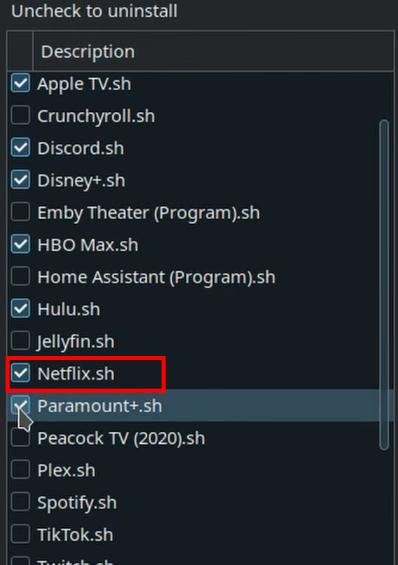
Check the box next to Netflix. You can also select other streaming apps like Hulu, YouTube, or Disney+ if you want to add them as well. Click OK.
-
04
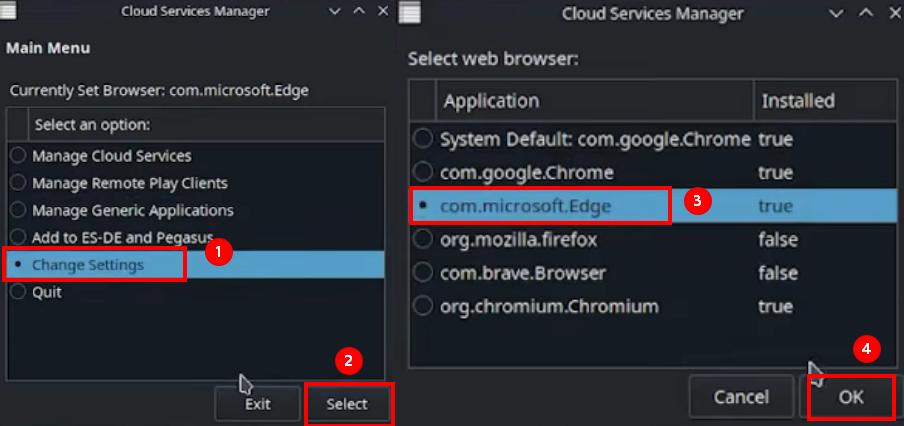
Click Change Settings on the main menu to choose your preferred web browser for streaming. If your chosen browser is not installed yet, EmuDeck will automatically download and install it for you.
Step 3. Add Netflix to Your Steam Library
-
01
Find the Steam ROM Manager in the left sidebar of EmuDeck and click on it.
-
02
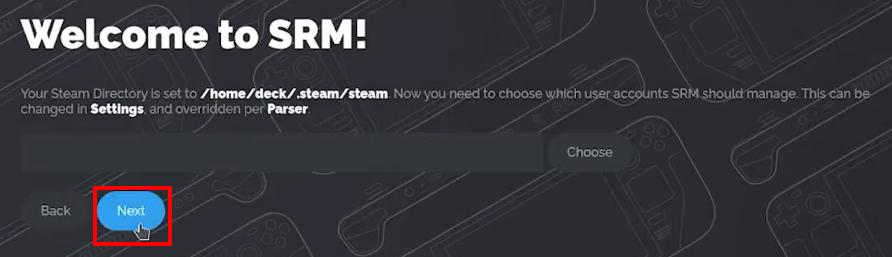
Click the Next button under the search bar.
-
03
Click Add Games, then click on Parsers from the left menu.
-
04
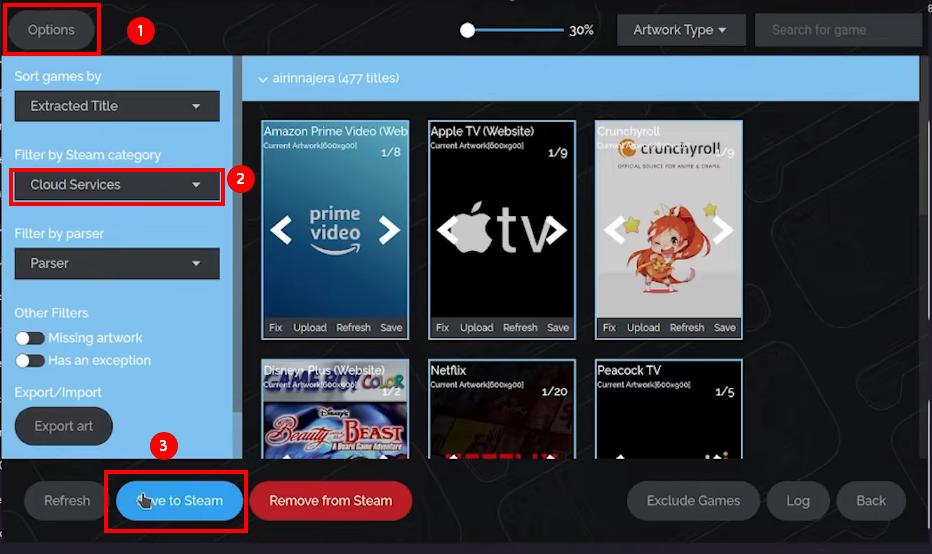
Click Options in the upper left corner, open the Filter for the Steam category, and select Cloud Services.
-
05
Click Save to Steam. A green notification bar will appear in the upper right corner once the entries are added.
-
06
Double-click the Return to Gaming Mode shortcut on your desktop.
Step 4. Log In to Netflix and Stream
-
01
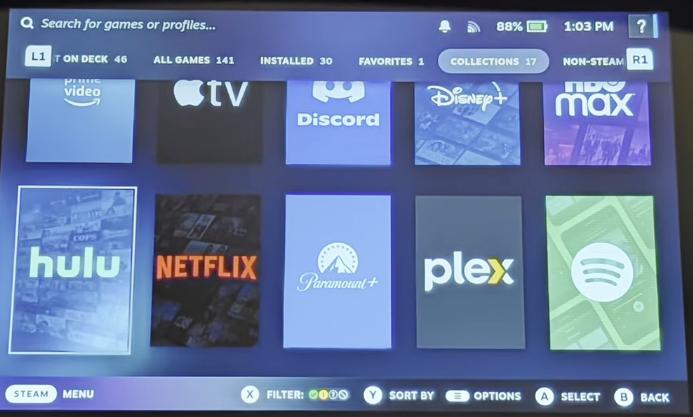
Back in Gaming Mode, go to your Library, navigate to Collections, and open the Cloud Services folder.
-
02
Select Netflix and click Play.
-
03
Use the on-screen keyboard by pressing STEAM + X to enter your email and password to log into your account. You are ready to stream.
Pros:
- Beautiful Steam library integration
- Creates a one-click shortcut in your Steam library
- Can add multiple streaming services at once
- No need to manually edit browser launch commands
Cons:
- Runs Netflix inside a web browser wrapper
- Requires installing EmuDeck first
- The setup process is longer than manually adding a browser shortcut
- Netflix videos are capped at 720p SDR
- No offline downloads
Method 2. Add Netflix as a Non-Steam Game Using Chrome/Edge
You can also watch Netflix on the Steam Deck using the web browser. However, it isn't convenient to switch to Desktop Mode and visit netflix.com for streaming each time. In this section, I will explain how to add your browser with a Netflix shortcut as a Non-Steam Game. This way, you can launch Netflix like a regular game without needing to install any third-party tools.
Step-by-Step Guide to Add Netflix as a Non-Steam Game Using Chrome/Edge
Step 1. Switch to Desktop Mode and Get Your Browser
-
01
Press the physical STEAM button on your Steam Deck. Select Power and choose Switch to Desktop.
-
02
In Desktop Mode, click the blue shopping bag icon on the taskbar to open the Discover Software Center.
-
03
Search for Google Chrome or Microsoft Edge. Click Install to download the browser.
Step 2. Add the Netflix Shortcut to Your Steam Library
-
01
Open Netflix in the web browser on your Steam Deck.
-
02
Log into your account and choose your profile. Leave the Netflix tab running.
-
03
Open the Steam desktop client.
-
04
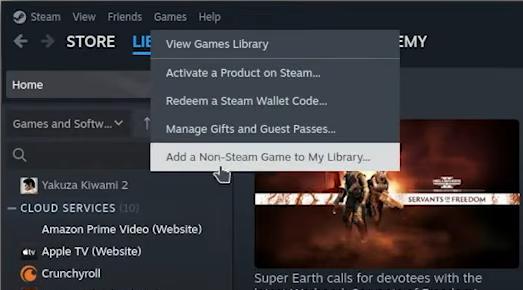
Click Games at the upper left and choose Add a Non-Steam Game to My Library....
-
05
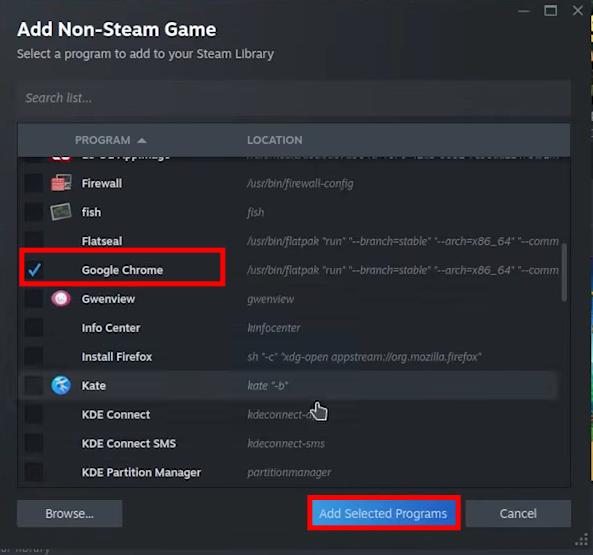
Find Google Chrome or Microsoft Edge in the list. Check the box next to the browser and click Add Selected Programs.
Step 3. Configure the Launch Options
-
01
Find Google Chrome or Microsoft Edge in your Steam Library list.
-
02
Right-click it and select Properties.
-
03
Change the name from "Google Chrome" to "Netflix".
-
04
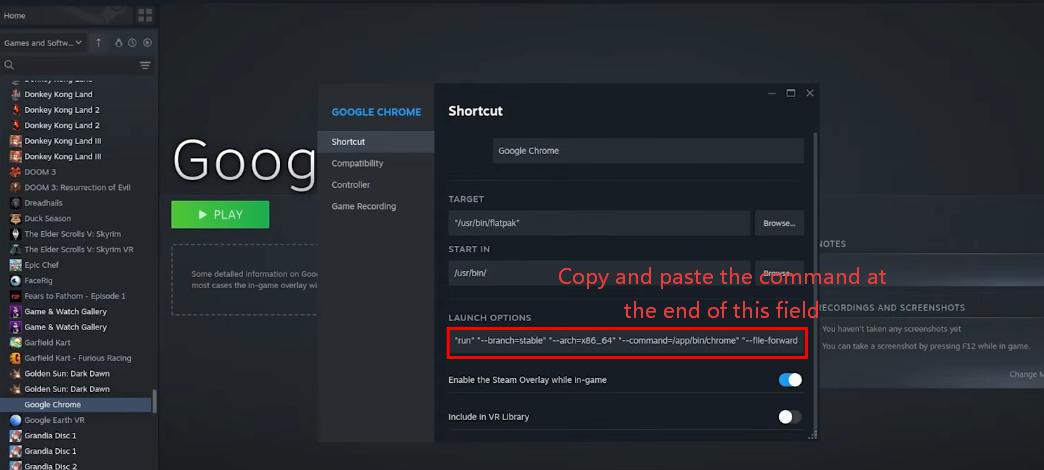
Locate the Launch Options text box. Go to the very end of the existing text, press the Spacebar once to add a space, and paste this command:

The URL after "kiosk" should be the Netflix tab you are signed into. You can copy and paste it after "kiosk" with quotation marks. It can be any site you are watching.
-
05
Exit the properties window.
Step 4. Launch Netflix from Gaming Mode
-
01
Return to Gaming Mode.
-
02
Open Library and go to Non-Steam Games.
-
03
Find Netflix.
-
04
Launch it and sign in if needed.
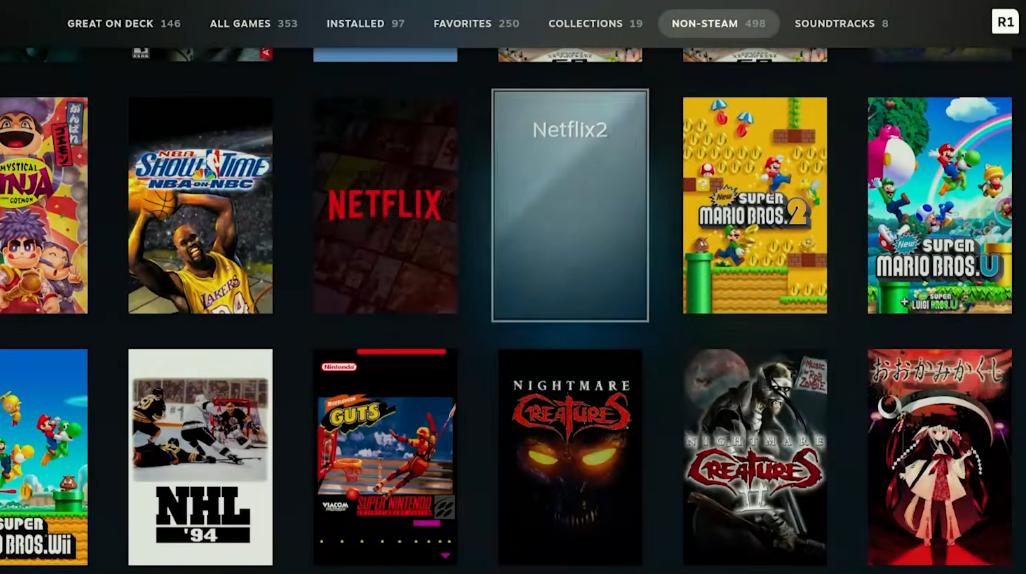
After setup, you can open Netflix directly from Steam Deck Gaming Mode without switching to Desktop Mode every time.
Pros:
- No extra software needed
- Applies to any video streaming sites, not just Netflix
- Very stable
Cons:
- Online streaming resolution is limited to 720p SDR
- No automatic artwork
- Requires manual typing
- No offline downloads
Method 3. Watch Netflix on Steam Deck with Kodi Extension in 1080p
To watch Netflix in Full 1080p HD on your Steam Deck, you need to install Netflix on Kodi using a custom script.
Step-by-Step Guide to Set Up Netflix Kodi Extension on Steam Deck
Step 1. Create a Password for Konsole
Before installing the media center script, you need to create a password for your Steam Deck terminal. This password allows the script to make system changes during setup.
-
01
Press the physical STEAM button on your Steam Deck. Go to Power and select Switch to Desktop.
-
02
In Desktop Mode, open the Application Launcher in the bottom-left corner.
-
03
Navigate to System > Konsole.
-
04
Type the
passwdcommand and press Enter. -
05
Enter your new password and type it again to confirm.
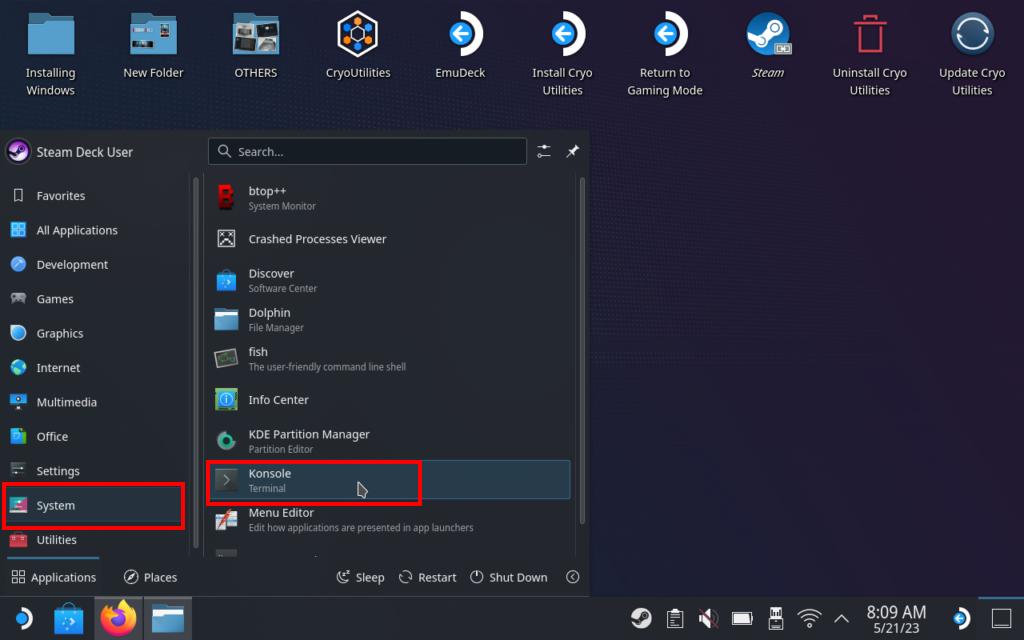
Note: When entering your password in Konsole, nothing will appear on the screen — no letters, dots, or symbols. This is normal. Simply type the password and press Enter.
Step 2. Install the SteamOS Media Center Script
-
01
Open a web browser in Desktop Mode.
-
02
Visit the official GitHub project: https://github.com/slynobody/SteamOS-Mediacenter. Download the project files.
-
03
Run the
install.shscript. -
04
When Konsole asks for permission, enter the password you created in Step 1.
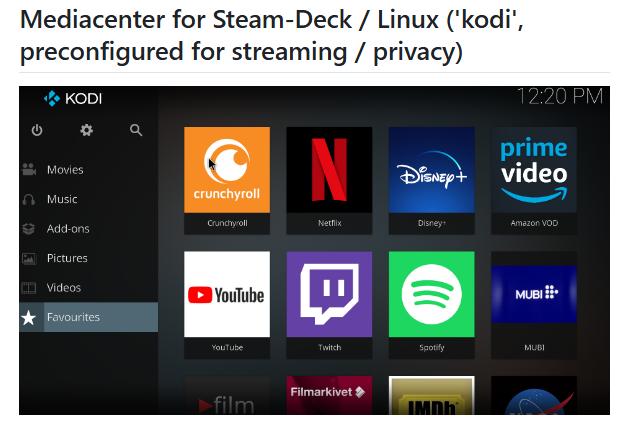
Note: You don't need to download or install Kodi from the Discover store first. The installer script automatically downloads Kodi, installs the Netflix plugin, and adds other apps like Spotify and Disney+. It also creates a shortcut in your Steam Library for quick access.
Step 3. Launch Netflix from Gaming Mode
-
01
Return to Gaming Mode by opening the Return to Gaming Mode shortcut on your desktop.
-
02
Open Library > Non-Steam Games.
-
03
Select the newly added media center shortcut.
-
04
Launch Kodi and complete the Netflix setup.
-
05
Log into your Netflix account to start streaming in Full HD.
Pros:
- Unlocks 1080p resolution
- No web browser needed
- Native controller support
- Consolidates Netflix, Twitch, Disney+, Crunchyroll, and Spotify under one clean, TV-style interface
Cons:
- Setup requires terminal commands
- Needs to wait for script updates if the streaming server changes
- No offline playback
Part 3. Can You Download and Watch Netflix Offline on Steam Deck?
No, you cannot download Netflix movies and shows directly on Steam Deck for offline viewing. Because your Steam Deck accesses Netflix online using web-browser wrappers, there is no official "Download" button available in Gaming Mode.
Fortunately, you can use VidiFab Streaming Video Downloader on your computer to prepare the MP4/MKV video files from Netflix. After that, you can transfer the video to your Steam Deck wirelessly, or use a USB flash drive for offline playback. This method is helpful if you want to watch Netflix on Steam Deck on long flights or road trips where the internet is not available.
VidiFab Streaming Video Downloader
Download Netflix videos as MP4/MKV in 1080p with Dolby Atmos for offline viewing on your iPhone, Android, desktop, and more devices.

- Support download for Netflix, Disney+, Amazon Prime Video, HBO Max, Hulu, Apple TV+, and more coming up.
- Download Netflix videos as MP4 or MKV files for flexible offline playback.
- Save videos in up to 1080p quality with selected audio tracks and subtitles.
- Keep multiple audio languages and subtitles based on your preferences.
- Batch download movies and TV shows to save time.
- Play downloaded files on Steam Deck and other devices without needing the Netflix app.
How to Download Netflix Videos for Offline Viewing on Steam Deck
Step 1. Set Up VidiFab and Access Netflix
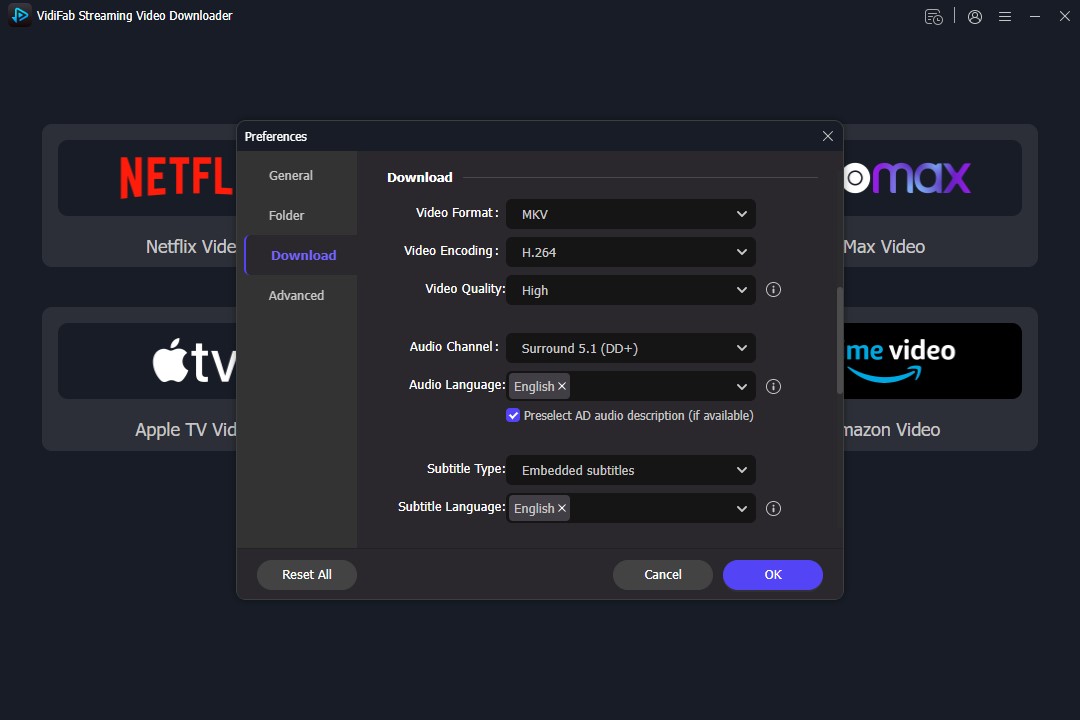
First, install VidiFab Streaming Video Downloader on your Windows or Mac computer. Launch VidiFab and open Preferences from the menu in the top-right corner. In the pop-up window, set the Download Video Format to MP4. Choose an output folder for the downloads. Click OK to save. Select the Netflix icon on the main interface. Log in to your account using the secure built-in browser to access your profile.
Step 2. Find Titles and Customize Download Settings
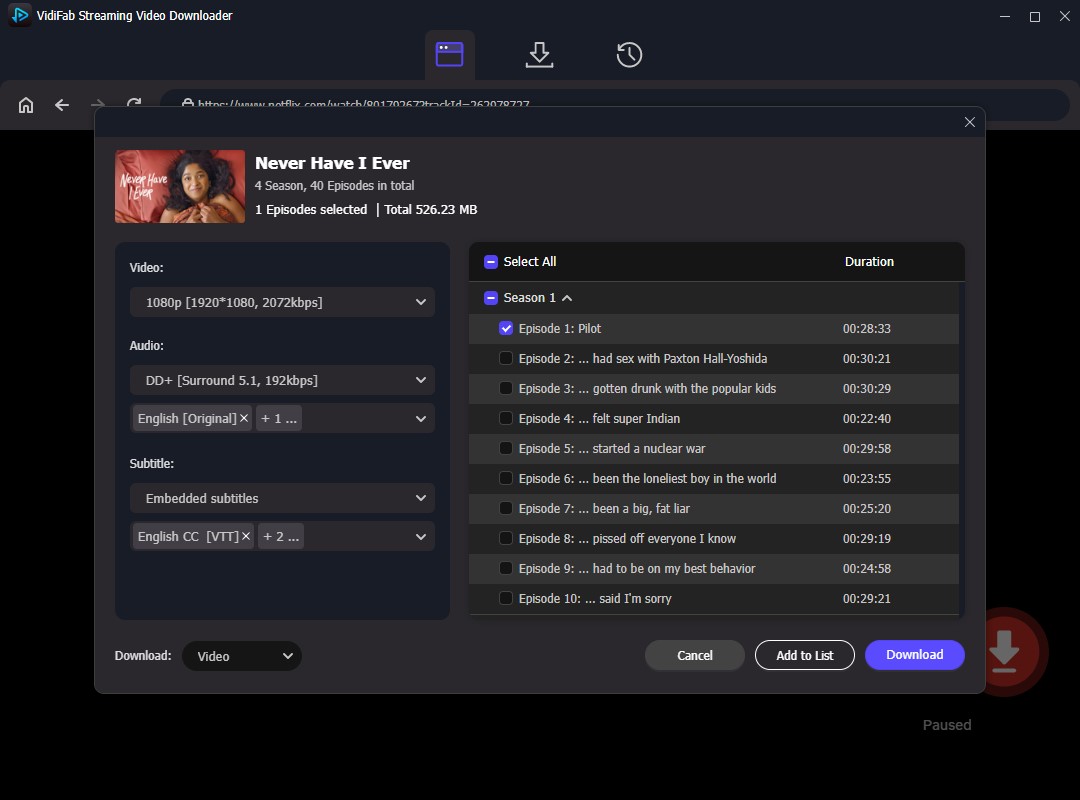
Browse Netflix inside VidiFab or paste the URL of a specific movie or TV show. Open the video details page. Click the Download button in the bottom right. In the pop-up download settings window, choose 1080p video quality, select your preferred audio track and language. Also, choose for subtitle options. Click Download to start.
Step 3. Transfer the Downloads and Play Your MP4 Files on Steam Deck Offline
After the download is finished, click the folder icon next to the title to see the downloaded Netflix videos stored in the output folder.
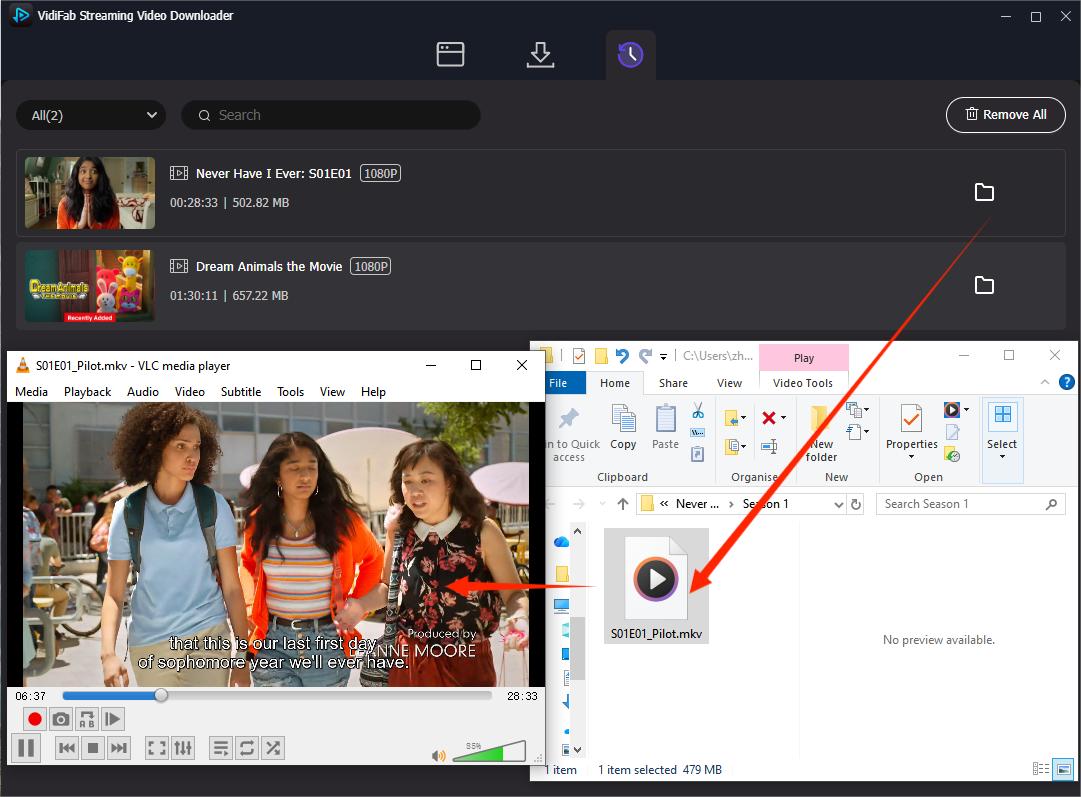
You can now choose the transfer methods to play the Netflix videos files on Steam Deck without internet.
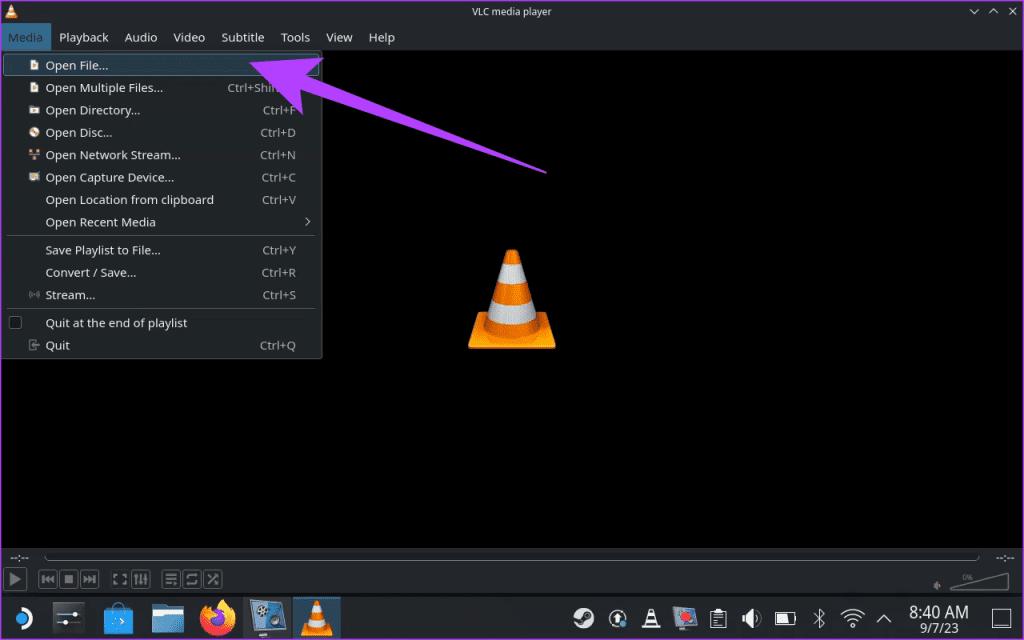
Method A: Wired Transfer via USB Flash Drive + VLC Media Player
-
01
Format a USB-C flash drive to exFAT or NTFS on your computer.
-
02
Copy the MP4 files onto the drive.
-
03
Plug the drive into your Steam Deck.
-
04
Switch to Desktop Mode, open Dolphin File Manager, and copy the files from your USB drive to a local folder (like /home/deck/Videos/).
-
05
Install VLC from Discover Software Center and add it to the Steam library.
-
06
Go back to Gaming Mode. Find and launch VLC under Non-Steam tab.
-
07
Browse your local folders to watch your downloaded Netflix movies offline anywhere.
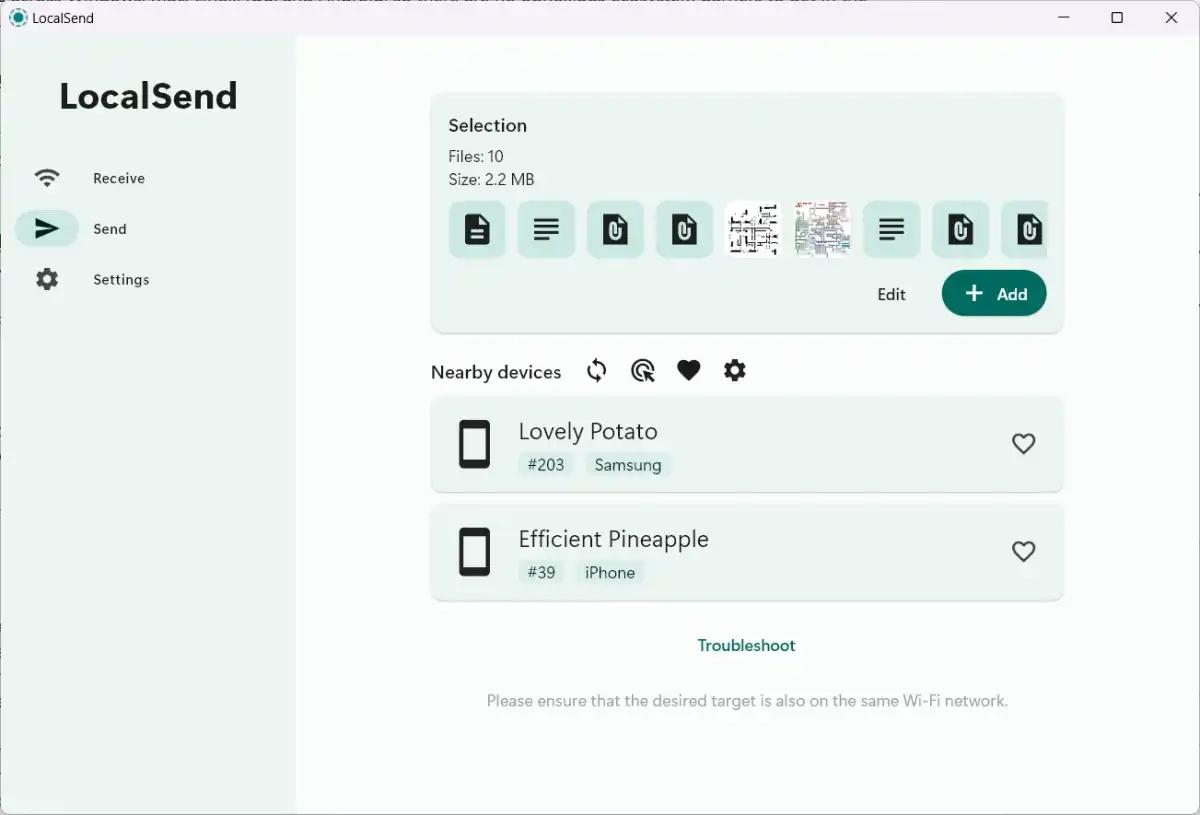
Method B: Wireless Transfer via LocalSend + VLC Media Player
-
01
Switch your Steam Deck to Desktop Mode.
-
02
Open the blue Discover Software Center, search for LocalSend, and click Install.
-
03
Install the free LocalSend app on your Windows PC or Mac.
-
04
Make sure your PC and Steam Deck are connected to the same Wi-Fi network.
-
05
Open LocalSend on both devices. On your PC, select Send > File, choose your downloaded Netflix MP4 videos, select your Steam Deck, and click Accept on the Deck to receive the files wirelessly.
-
06
Follow steps 5, 6, and 7 from Method A to play the transferred Netflix videos offline using VLC Media Player.
Part 4. How to Fix Netflix Not Working on Steam Deck
If you run into issues while streaming Netflix on your Steam Deck, here are the quick fixes for the most common problems.
1. Fix Widevine Error Code M7702-1003
This error occurs when your web browser cannot decode DRM-protected content due to a directory permission issue with the Widevine module.
- Fix 1. Switch to Desktop Mode, open the Konsole terminal, and run the following command to restore proper directory permissions:
- Fix 2. If Chrome still has issues, you can download and use Microsoft Edge to play Netflix.
2. Fix Black Screen with Audio Playing (DRM Protection)
If you get a black screen but can still hear the audio and see subtitles, Netflix's copy protection is blocking the video feed.
- Fix 1. Open your browser's settings menu, go to System, and turn off "Use graphics acceleration when available", then restart your browser.
- Fix 2. Switch to Mozilla Firefox. Firefox manages DRM playback without relying on hardware-protected overlay blocks, preventing the black screen entirely.
- Fix 3. If none of these solutions work, refer to this guide on fixing the Netflix black screen with sound.
3. Fix the Fullscreen White Line Bug
If you watch Netflix movies in fullscreen (especially on Firefox) and notice a thin, distracting white line across the top of your screen, it is a scaling glitch.
- While the movie is playing, hold down the Control (Ctrl) key and scroll your mouse wheel up (or press Ctrl + +). This zooms your browser slightly past 100%, stretching the player past the physical screen edge and hiding the line.
Part 5. FAQs About Netflix on Steam Deck
What browser works best for Netflix on Steam Deck?
Can you cast Netflix from a smartphone to a Steam Deck?
Can I use Netflix on Steam Deck while traveling?
Can I use Plex to download Netflix videos offline on Steam Deck?
Part 6. Conclusion
Watching Netflix on Steam Deck is possible with a few simple workarounds. You can add Netflix to Game Mode using EmuDeck or a browser shortcut, while Kodi offers another option for better playback quality. If you want offline viewing, download Netflix videos as MP4 files with VidiFab and play them directly on your Steam Deck.
 Free Download
 Secure Download
 Free Download
Secure Download
Free Download
Secure Download




I'm a video tech specialist with over 10 years of experience in digital media and streaming. I focus on making complex workflows simple and practical. Through my guides, you'll learn how to convert media, keep high-quality playback across devices, and manage your streaming video library with ease.
 Leave Your Comment