How to Activate Disney+ on TV With or Without a Code (DisneyPlus.com/begin)
 By Miles Kent
To log in to Disney+ on a Smart TV or console, open the app, choose Log In, and write down the 8-digit code. On your phone or computer, go to disneyplus.com/begin and type the code to pair your devices. If you do not have an activation code, you can log in directly on your TV screen using your email and password, or use one-tap Wi-Fi approval from your mobile app. If you run into any trouble while activating, head over to Part 3 for quick troubleshooting steps.
Want to start streaming Disney+ on your TV? This guide walks you through activating any supported device at disneyplus.com/begin, shows you three ways to log in without typing an activation code, and gives you fixes for expired codes, pages that won't load, and sign-in errors.
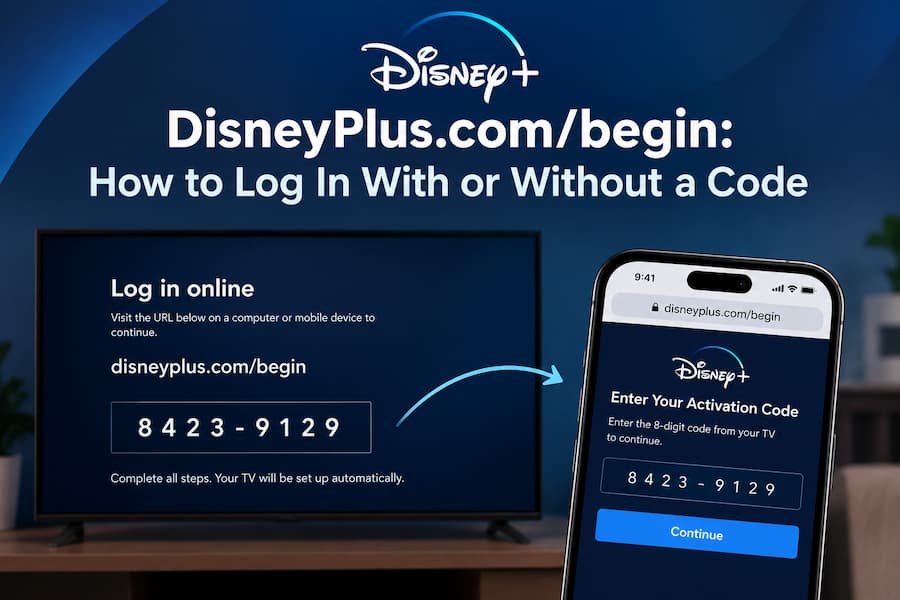
Part 1. How to Use DisneyPlus.com/begin to Activate Your TV
Activating Disney+ with a code takes about two minutes. You only need your TV and a phone or computer with internet access.
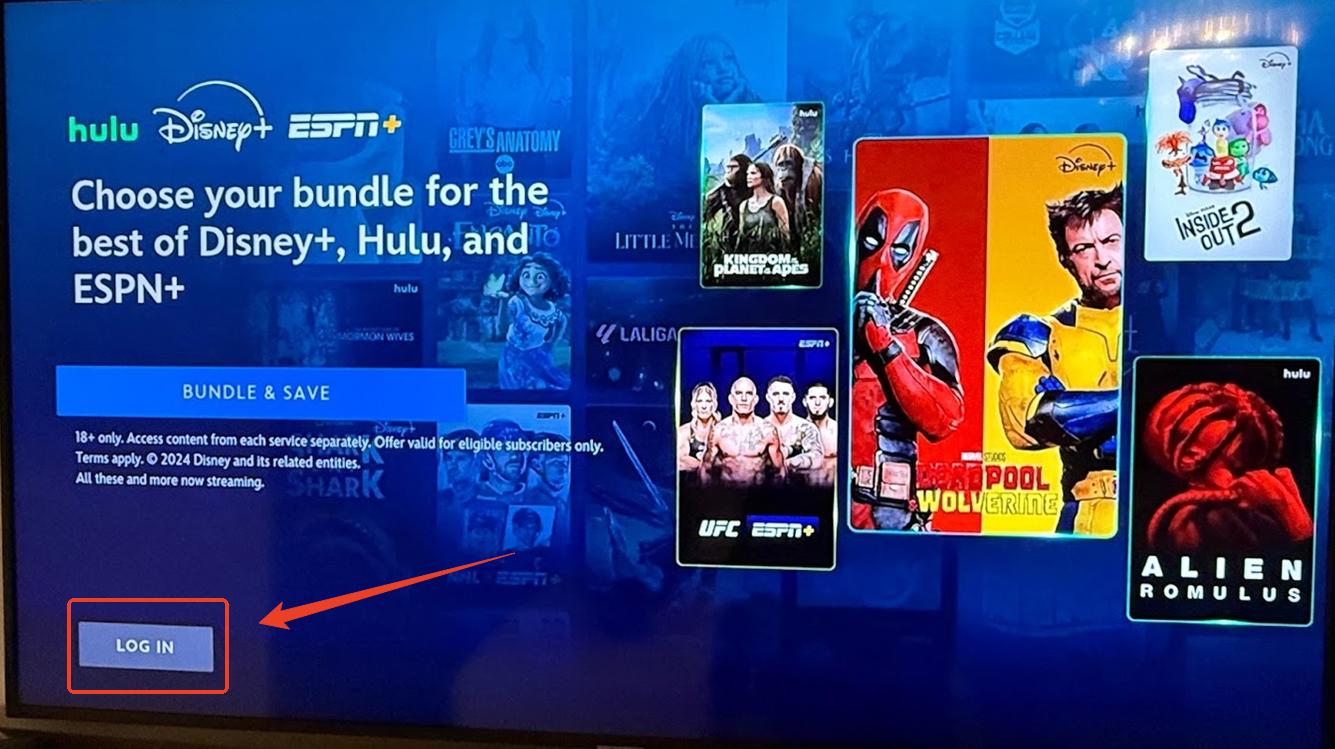
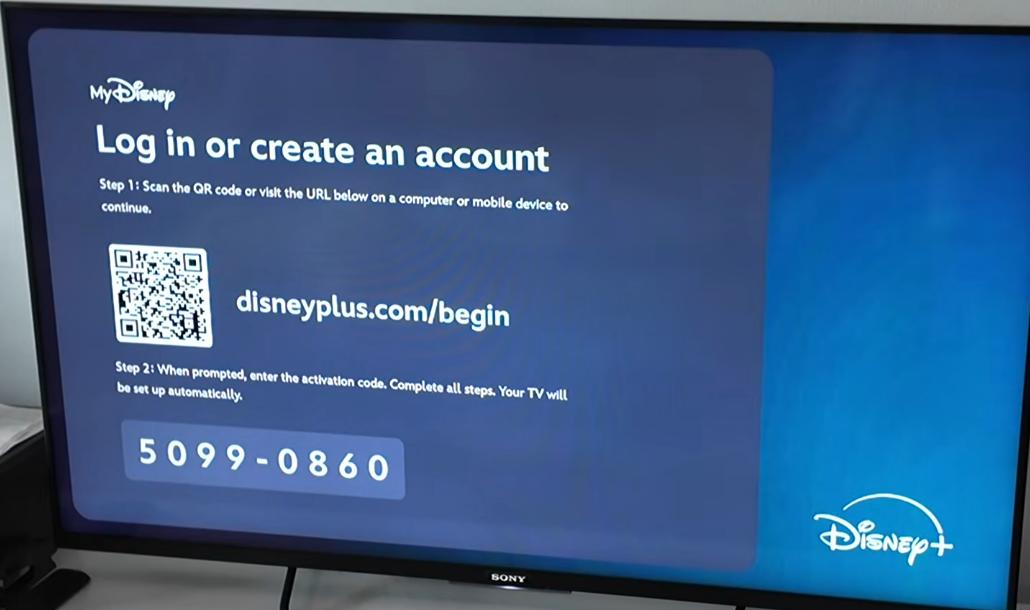
Step 1. Launch the Disney+ app on your smart TV, streaming device, or gaming console, then select Log In. An 8-digit activation code or a QR code should appear on the screen.
Step 2. On your phone or computer web browser, go to https://disneyplus.com/begin. Type the address directly into your browser's address bar, or click the link above. Don't type it into a search box, because search results can send you to the wrong page.

Turn off your VPN before you open the page. If you don't, you may see the error "Sorry, something went wrong. Please try again later."
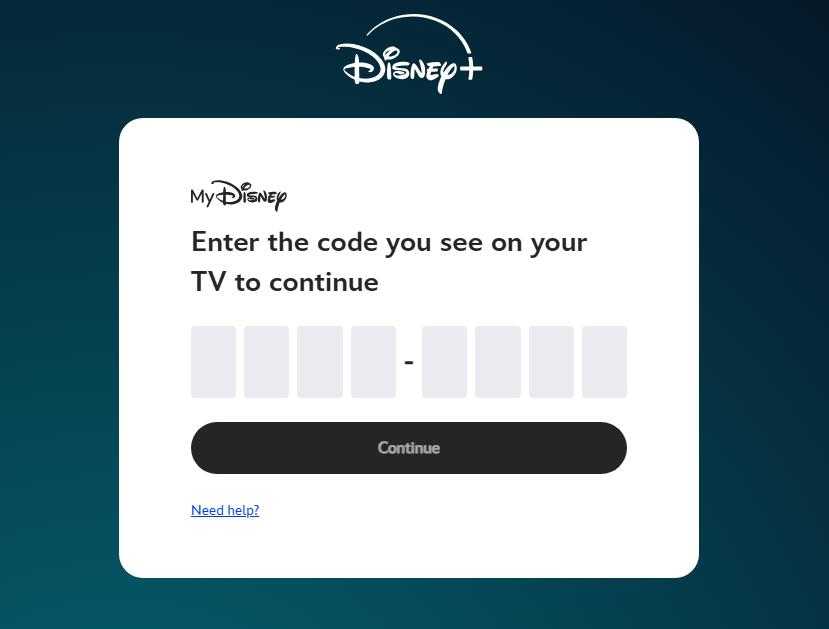
Step 3. Type the code shown on your TV into the box on the page, then click Continue.
Step 4. When the page asks you to sign in, enter your account email and password.
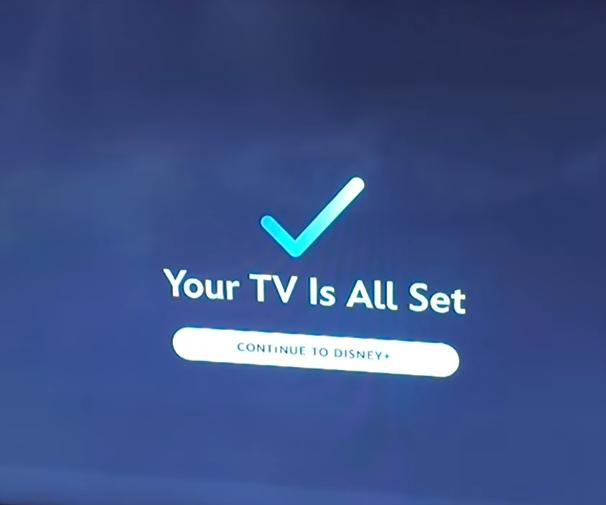
Step 5. Once activation succeeds, your TV screen should show a "Your TV Is All Set" message. Select Continue to Disney+, then choose your profile and start streaming.
Part 2. How to Log In to Disney+ Without an Activation Code
Not all TVs need you to go to DisneyPlus.com/begin to sign in. Depending on your TV model and what's available in your Disney+ app, you might be able to log in by approving it on your phone or by entering a one-time code sent to your email. Just check your TV's login screen to see what options you have.
Method 1. One-Tap Mobile App Login (Same Wi-Fi)
On many supported Smart TVs, you can approve your TV login instantly using your phone.
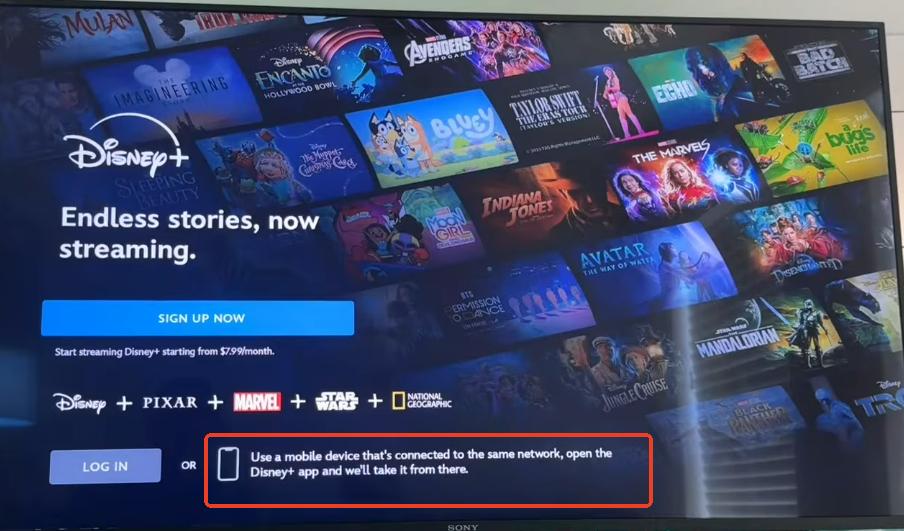
When you open Disney+ on your TV, check the text on the right side of the Log In button. If you see the message: "Use a mobile device that's connected to the same network, open the Disney+ app and we'll take it from there," it means your TV supports this hassle-free method.
-
01
Make sure both your smartphone and your TV are connected to the exact same Wi-Fi network.
-
02
Open the Disney+ app on your phone and make sure you are signed into your account.
-
03
Open the Disney+ app on your TV. (Do not click "Log In" on the TV screen yet.)
-
04
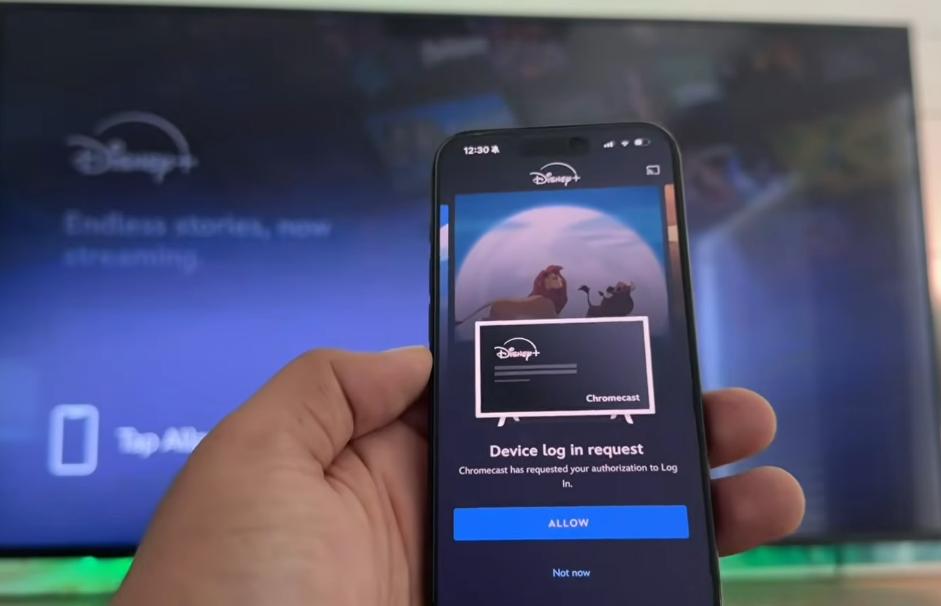
Hold your phone near the TV. A Device log in request will automatically pop up on your smartphone.
-
05
Tap Allow on your phone, and your TV screen will log in automatically within seconds.
Method 2. Email Passcode / Password-Free Login
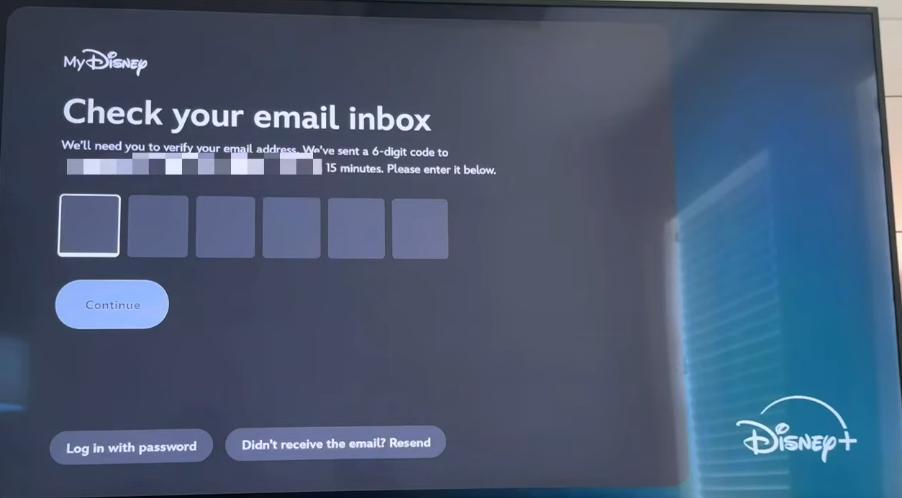
If you've forgotten your password or don't want to type it, you can sign in with a one-time passcode sent to your email.
-
01
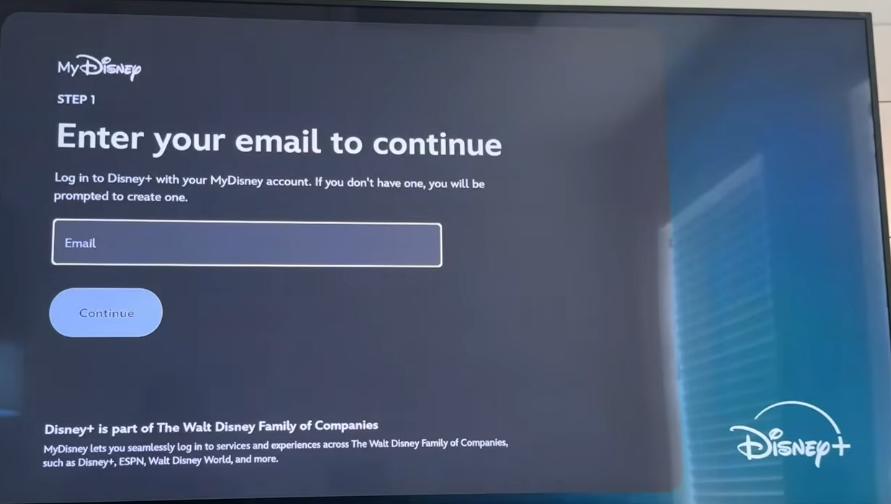
Open Disney+ on your TV, select Log In, and enter your account email address.
-
02
Disney+ will send a 6-digit code to that email address.
-
03
Open your email on your phone or computer and find the message from Disney+.
-
04
Enter the 6-digit code on your TV to log in.
Method 3. Direct Password Login on TV
This is the simplest option if you don't mind typing with your remote.
-
01
Open the Disney+ app on your TV and select Log In.
-
02
Choose the option to sign in with your email address (if your TV offers it).
-
03
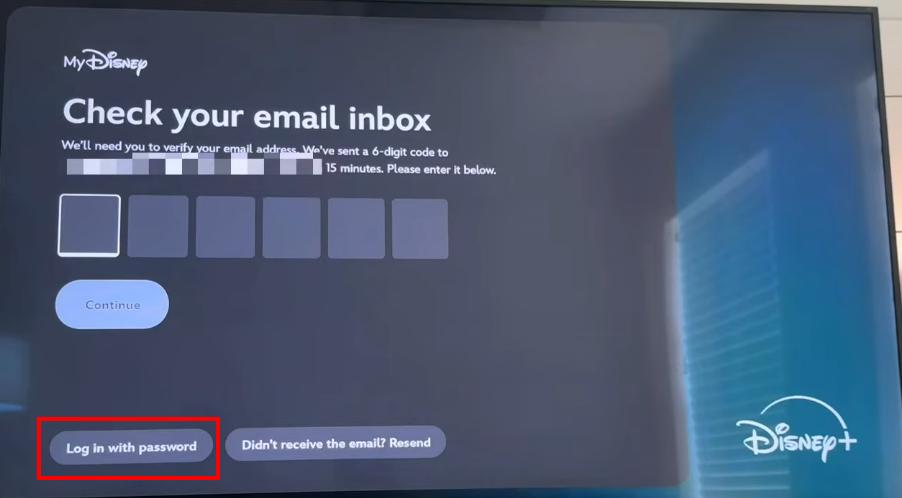
Enter your Disney+ email address, then click the "Log in with password" button located in the bottom-left corner of the screen.
-
04
Use the on-screen virtual keyboard to enter your account password. Once done, select Log In, and Disney+ will sign you in on your TV.
Part 3. How to Fix Disney+ Login & Code Not Working
Having trouble pairing your TV or accessing the activation page? Check out these easy, step-by-step solutions to resolve the most common Disney+ login issues and activation problems.
Issue 1. DisneyPlus.com/begin Won't Open
If typing DisneyPlus.com/begin takes you to a search results page, a blank page, the Disney+ mobile app, or a "Sorry, something went wrong" error, your browser settings or network configuration are likely interfering. Try these fixes in order:
- Turn off your VPN. A VPN can trigger the error "Sorry, something went wrong. Please try again later."
- Type the address (https://disneyplus.com/begin) directly into your browser's address bar instead of searching for it.
- Use your laptop or computer instead of your phone. A desktop browser doesn't have the app-redirect problem below.
- Try a different browser, or open a private or incognito window.
- Stop your phone from opening the Disney+ app instead of the browser. If you previously chose to always open Disney+ links in the app, your phone may send you back to the app in a loop.
On Android: Go to Settings > Apps > Disney+ > Open by default (or Set as default), and disable "Open supported links".
On iPhone: Copy https://disneyplus.com/begin and paste it directly into an Incognito/Private browser window, or switch to a laptop/desktop computer to complete the setup.
Issue 2. The Activation Code Is Invalid or Expired
Activation codes work only for a short time, and each code can be used once. A code that doesn't work is usually old or mistyped.
- Go back to your TV and generate a new code by reopening the Log In screen. If the screen doesn't offer a new code, close the Disney+ app and open it again.
- Enter the new code right away, without leaving the TV screen.
- Check each character carefully. Letters and numbers can look alike, such as
0andO, or1andI.
Issue 3. The TV Code Is Not Working
If you enter the 8-digit code on your browser, but the website rejects it or says "Invalid Code," your browser session or app state may be out of sync.
- Clear your browser history or open a fresh Incognito tab.
- Restart the Disney+ app on your TV to get a fresh code.
- Check that your TV's internet connection works by opening another app. If it doesn't, restart your router.
Issue 4. Disney+ Is Stuck After Entering the Code
Sometimes the website confirms the activation, but the TV stays on the code screen.
- Wait about 30 seconds. The TV can take a moment to detect the activation.
- Close the Disney+ app and open it again. In many cases, you'll be signed in automatically.
- Power cycle your TV or streaming device by unplugging it for 30 to 60 seconds, then plugging it back in.
- If the screen still doesn't change, uninstall and reinstall the Disney+ app, then try activating again.
Issue 5. You Can't Sign In to Your Disney+ Account
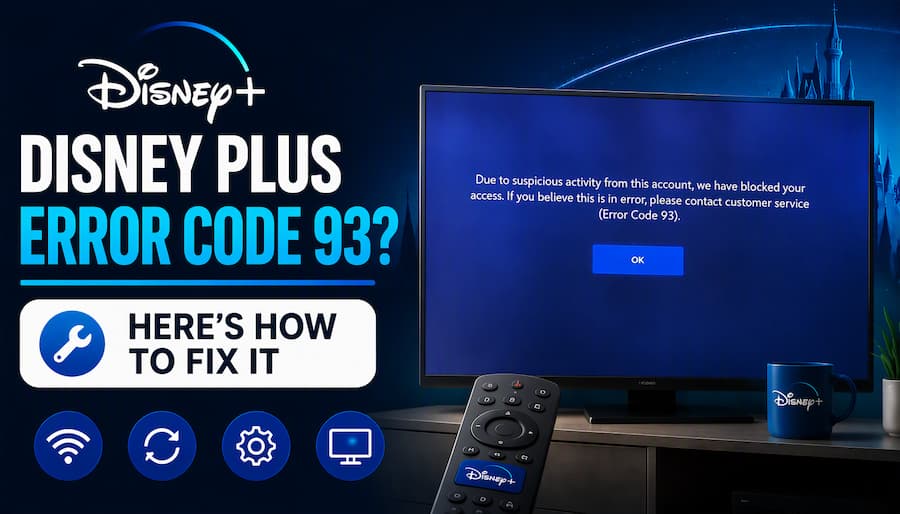
If you can't sign in, check whether Disney+ displays an error code. If you see Disney Plus Error Code 42, the issue may be related to the connection between your device and Disney+ servers. If no error code appears, try the following fixes.
- Use the right email. Make sure you're entering the email address you signed up with, and type your password slowly. If you have more than one email address, try the others.
- Reset your password. Select Forgot Password to set a new one, or use the one-time email code instead (see Method 2 in Part 2).
- Check your subscription. An expired or cancelled subscription can block sign-in, so confirm it's still active.
- Check where you subscribed. If you signed up through a partner, such as a mobile provider or bundle, Disney+ may ask you to log in through that provider's account.
- Verify your household. Disney+ has household sharing rules. If you're signing in away from your main home network, you may be asked to confirm your account with an email passcode.
If internet drops, login limits, or repeated sign-in errors keep interrupting your TV time, you can use VidiFab Streaming Video Downloader to save your favorite Disney+ movies and shows to a USB drive or laptop. You can then play them on your TV offline, with no activation code or login needed.
 Free Download
 Secure Download
 Free Download
Secure Download
Free Download
Secure Download
Part 4. Device-Specific Disney+ Login & Activation Tips
The core login steps are very similar on every platform, but each device has its own typing shortcuts and fixes. Find your device below to sign in faster.
| Supported Models | Pro Login Shortcuts & Tips |
|---|---|
| Samsung (Tizen) | Update the Disney+ app in the Samsung App Store if the 8-digit code screen freezes or fails to load. |
| LG (webOS) | Use the LG Magic Remote pointer to click letters on the virtual keyboard effortlessly. |
| Apple TV | Tap any text field on TV to trigger an automatic keyboard popup on your iPhone/iPad. |
| Amazon Fire Stick | Use the Amazon Fire TV App on your phone to copy-paste passwords directly onto your TV screen. |
| Roku Devices | Open the Roku Mobile App remote tab and use your phone's native keyboard to type. |
| PlayStation (PS4 / PS5) | Press Triangle on your controller to instantly bring up the virtual keyboard. |
| Xbox (One / Series X/S) | Press Y on your controller to open the on-screen keyboard, or plug a standard USB keyboard into your console. |
Part 5. FAQs About DisneyPlus.com/begin
Is DisneyPlus.com/begin an official Disney+ website?
Why does my TV ask me to log in to Disney+ every time I open the app?
• Update the Disney+ app and your TV's software.
• Clear the Disney+ app cache and data in your TV's Settings > Apps menu. The exact path varies by brand.
• Free up storage space on your TV by removing apps you no longer use.
• Uninstall and reinstall the Disney+ app to reset its local data.
What should I do if I didn't receive the 6-digit email passcode?
Can I watch Disney+ on TV without logging in?
Conclusion
Activating Disney+ on your TV is simple once you know the steps. Enter your code at DisneyPlus.com/begin, or skip it with a password, mobile, or email login. If something goes wrong, check your VPN, refresh the code, and restart your device. Prefer offline viewing without logins? VidiFab Streaming Video Downloader lets you play Disney+ videos on your TV anytime.
Free Download
Secure Download
Free Download
Secure Download
I write about streaming services, video playback, and digital media management. My articles cover practical ways to convert video files, troubleshoot playback issues, and manage digital content across devices. I aim to make technical topics easier to understand and help readers find practical solutions to common challenges.
 Leave Your Comment