Netflix Not Working on Roku? Here's How to Fix It
 By Miles Kent
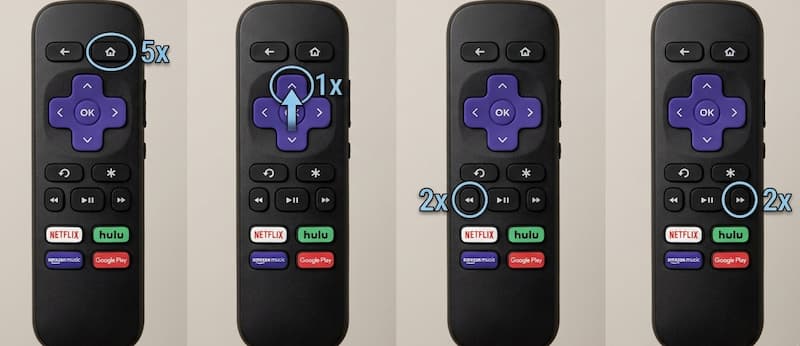
- Clear System Cache via Remote Shortcut: Press Home (5x) > Up (1x) > Rewind (2x) > Fast Forward (2x) to flush corrupted memory and reboot your Roku.
- Reinstall the Netflix Application: Remove the Netflix channel, restart your Roku device first, and then download the app again for a clean installation.
- Power Cycle Roku and Home Network: Unplug both your Roku and Wi-Fi router for 60 seconds to clear temporary connection glitches and refresh streaming servers.
- Update Roku OS Firmware: Navigate to Settings > System > Software update to install the latest patches and eliminate software compatibility bugs.
- Adjust Display and Audio Output Settings: Turn off HDR or switch audio mode to Stereo.
When Netflix freezes, crashes, or refuses to load on Roku, a temporary glitch is usually to blame. Whether you use a Roku Streaming Stick or a built-in TCL or Hisense Roku TV, these fixes can resolve your streaming issues and get your shows playing smoothly again.
Part 1. Why Is Netflix Not Working on Roku?
Netflix usually stops working on Roku because of corrupted cache data, a weak Wi-Fi connection, outdated Roku software, or an HDMI or audio connection issue. Other streaming apps, such as YouTube or Hulu, might still work normally. Netflix is more sensitive to small system problems because it relies heavily on strict digital rights management (HDCP) and real-time memory allocation.
Use the quick diagnostic table below to match your exact symptom with its root cause and jump straight to the right fix:
| Symptom | Common Cause | Recommended Fix |
|---|---|---|
| Netflix App Won't Open | Outdated Roku OS, corrupted app installation, or unsupported legacy Roku model | Update Roku firmware and perform a clean reinstall → Fix App Won't Open |
| Netflix Keeps Crashing or Restarting | Low device memory, corrupted system cache, or weak TV USB port power | Clear Roku system cache via remote shortcut and use wall power → Fix Crashing Issues |
| Netflix Keeps Loading (Stuck on Spinner) | Glitched account session, DNS/VPN conflict, or unresponsive Netflix CDN node | Reset Netflix login session and power cycle router → Fix Loading Loop |
| Netflix Not Playing Titles | Regional content restriction, proxy interference, or temporary account token error | Disable VPN/proxy and refresh network connection → Fix Playback Failure |
| Netflix Black Screen (With Sound) | HDR / Dolby Vision handshake failure or HDCP HDMI cable mismatch | Disable HDR/Dolby Vision in Roku display settings → Fix Black Screen |
| Netflix Keeps Buffering | Slow Wi-Fi bandwidth, congested 2.4GHz band, or background network traffic | Switch to 5GHz Wi-Fi and test internet speed → Fix Buffering |
| Netflix Has No Sound | Incompatible surround sound format or Roku Volume Leveling glitch | Switch audio output mode to Stereo → Fix Audio Issues |
| Netflix Keeps Freezing Mid-Stream | Overheating Roku stick, overloaded RAM, or stuck remote shortcut button | Flush system memory and check device ventilation → Fix Screen Freezing |
Part 2. Fix Netflix App Not Opening or Keeps Loading on Roku
When Netflix won't open or just keeps spinning, your Roku is rarely broken. In most cases the Netflix app needs a refresh, or your Roku can't get a steady connection. Try the fixes below in order. Each one takes only a few minutes.
2.1 Netflix App Won't Open on Roku
You click Netflix, the screen flashes, and you land back on the Roku home screen. Or you just see a blank screen. This usually means the Netflix app is out of date or damaged, or your Roku needs a software update.
Step 1. Update the Netflix app. On the Roku home screen, highlight Netflix and press the Star (*) button on your remote. Choose Check for updates.
Step 2. Update your Roku. Go to Settings > System > Software update > Check now. This works the same on a Roku TV and on a Roku stick or box.
Step 3. Remove Netflix and add it back.
-
01
Highlight Netflix, press the Star (*) button, then choose Remove app and confirm.
-
02
Restart your Roku once.
-
03
Add Netflix again: press the Netflix button on your remote if you have one, or search for Netflix in the Streaming Store and select Add channel.
-
04
Sign in again. Have your Netflix email and password ready.
2.2 Netflix Keeps Crashing or Restarting Roku
Sometimes the whole Roku screen goes black and restarts when you open Netflix, or Netflix throws you back to the home screen in the middle of a show. This often means the Roku needs a fresh start. For more fixes, see our full guide: Netflix keeps crashing on Roku.
Step 1. Do a full restart with the power unplugged.
- Roku TV: Unplug the TV from the wall for at least 15 seconds, then plug it back in. Pressing the remote's power button only puts a Roku TV into standby, so it doesn't give the system a real restart.
- Roku stick or box: Unplug its power cable, wait at least 15 seconds, then plug it back in.
Step 2. Try the hidden remote shortcut to clear the cache. On your Roku remote, press Home 5 times, Up 1 time, Rewind 2 times, then Fast Forward 2 times.
2.3. Netflix Keeps Loading on Roku
You see a red spinning circle that never ends, or the progress bar gets stuck at a number like 25% or 99%. This usually means your Roku can't keep a steady connection to Netflix. The cause is often Wi-Fi, the router, or a short glitch.
Step 1. Restart your Roku.
- On a Roku TV: Go to Settings > System > Power > System restart (if Power is not listed, go to Settings > System > System restart).
- On a Roku Stick, Express, or Box: Go to Settings > System > System restart, or unplug the power cable for 10 to 30 seconds and plug it back in.
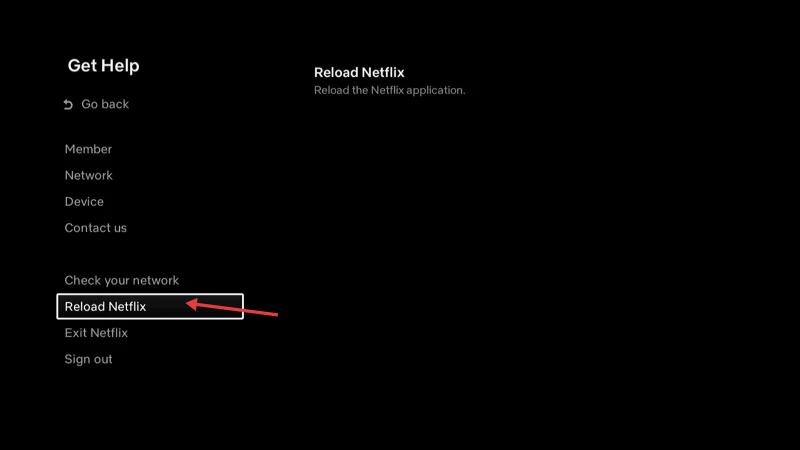
Step 2. Reload Netflix inside the app. If you can reach the Netflix menu or startup screen, open the left menu, scroll down to Get Help, and select Reload Netflix.
Step 3. Check your connection. Go to Settings > Network > Check connection. You can also check your Wi-Fi signal under Settings > Network > About. If the signal is weak, move the router closer to your Roku.
Step 4. Turn off VPN, proxy, or custom DNS if you use any, then try Netflix again.
Step 5. Power cycle your modem and router. Unplug both your modem and Wi-Fi router from power, wait 30 full seconds, plug the modem back in first, wait for its status lights to settle, and then plug the router back in.
Part 3. Fix Netflix Playback Problems on Roku
If the Netflix app opens but you see error messages, a black screen, endless buffering, no sound, or the show freezes, the issue is usually a connection problem or a mismatch between Netflix and your TV settings. Here's how to troubleshoot these playback problems on Roku streaming players (Stick, Express, or Ultra) and Roku TVs.
3.1. Netflix Not Playing on Roku
When you select a movie or episode and see a message like "We're having trouble playing this title right now" or error codes such as 003, 014, or 018, your Roku is struggling to hold a steady connection with Netflix's streaming servers.
Step 1. Test another title or streaming channel. Try playing a different show on Netflix, or open another app like YouTube. If only one specific Netflix title refuses to start, the issue is usually a temporary glitch on Netflix's end rather than your Roku.
Step 2. Reconnect to your Wi-Fi network. Go to Settings > Network > Set up connection > Wireless, pick your Wi-Fi network again, and re-enter the password.
Step 3. Test with your phone's hotspot. Turn on your phone's hotspot, connect your Roku to it, and try Netflix for a few minutes. Streaming uses mobile data, so don't leave it on.
- It plays: the problem is your home network. Restart your modem and router or ask your internet provider.
- It still fails: go back to Part 2 and reinstall the app.
3.2 Netflix Black Screen on Roku TV
You can hear the show, but the screen stays black. Or you may see a message about "HDCP" or a purple screen. The fix depends on what you own, so start with the checks that apply to both.
First, check the TV input. Use your TV remote to select the right input, and pause for about 10 seconds on each one. Next, restart your Roku TV or unplug the streaming stick. Last, remove and re-add Netflix.
- Reset the HDMI link. Unplug the HDMI cable at both ends. Turn off the TV and unplug it. Unplug the Roku's power. Reconnect the HDMI cable firmly, wait about a minute, then plug everything back in.
- Try a different HDMI port and cable. A short, good-quality cable works best. If you stream in 4K, use the HDMI port your TV marks for 4K. Check the TV manual if you're not sure which one it is.
- Skip the soundbar or receiver. Plug the Roku straight into the TV for a test.
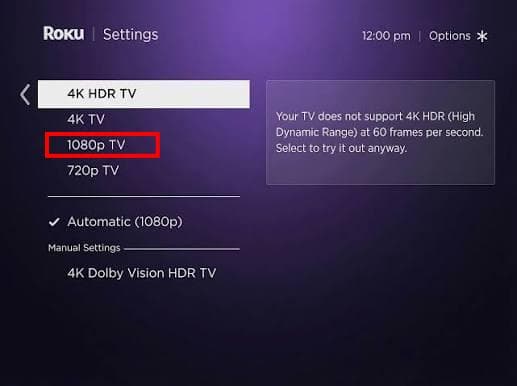
- Change the display type. Go to Settings > Display type on your Roku home screen and switch from Auto detect to a fixed option like 1080p TV or 4K 60Hz TV.
If you also run into Netflix black screens on your phone or computer, find more fixes in this Netflix Black Screen with Sound troubleshooting guide.
3.3 Netflix Keeps Buffering on Roku TV
The picture stops after a few seconds, or a spinning circle keeps coming back. This means your internet isn't fast enough for the quality you're asking for. For more tips that work on any device, see our Netflix buffering fix guide.
Step 1. Check your speed. Run Settings > Network > Check connection. Netflix recommends at least 3 Mbps for HD (720p), 5 Mbps for Full HD (1080p), and 15 Mbps for 4K. To see your actual speed, open fast.com on a phone or laptop on the same Wi-Fi.
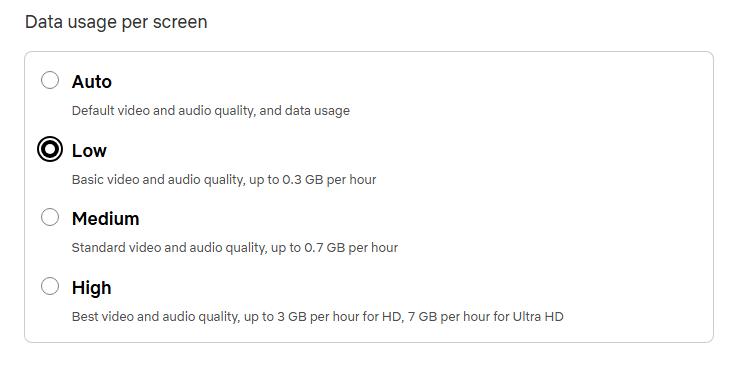
Step 2. Lower the Netflix quality. On a phone or computer, go to your Netflix Account > Profiles, choose your profile, then open Playback settings. Pick Medium or Auto.
3.4 Netflix Has No Sound on Roku
The picture is smooth, but there's no sound. Or the sound crackles, hisses, or pops. This often happens when Netflix sends surround sound that your TV or soundbar can't play.
Step 1. Do the basics. Check that the TV and soundbar aren't muted, and turn up the volume in the Netflix player. Then try another show. If other shows have sound, use Report a problem in Viewing Activity for the one that doesn't.
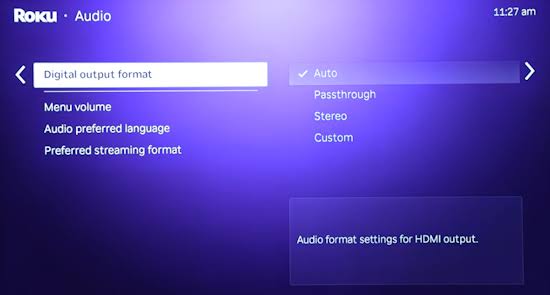
Step 2. Switch Roku's audio output to Stereo or PCM. On your Roku home screen, go to Settings > Audio > Digital output format and change it from Auto or Passthrough to Stereo (or PCM).
Step 3. Turn off volume leveling. While a show is playing, press the Star (*) button on your remote, open Sound settings, and set Volume mode to Off.
Still no sound on other brands of TV too? See our guide to fixing Netflix with no sound on TV.
3.5 Netflix Keeps Freezing on Roku
The picture freezes while the sound keeps playing, or the remote stops responding. This is usually a temporary glitch. Try the same fixes from Part 2: reload Netflix, restart your Roku, update it, or remove and re-add the Netflix channel.
If it keeps freezing, see our full guide: Netflix keeps crashing on Roku.
Part 4. What to Do If Netflix Still Doesn't Work on Roku
You've tried the fixes above, but Netflix still isn't working. Don't worry. You can try a few more solutions or contact Netflix's or Roku's official support to get the app running again.
These fixes aren't guaranteed to work, and some may take time. If you want to watch Netflix on your Roku right away, you can use VidiFab Streaming Video Downloader to save Netflix movies or shows as MP4 or MKV files and play them on your TV without the Netflix app. See Part 5 for the steps.
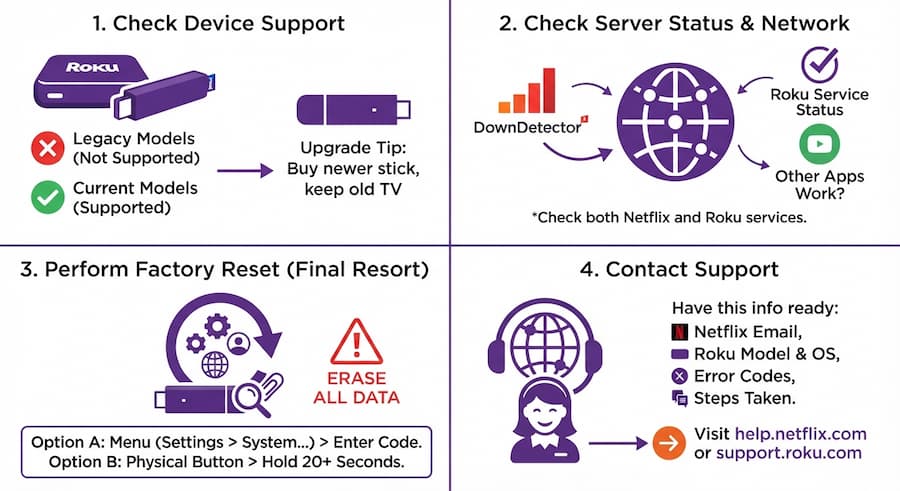
4.1 Check Whether Your Roku Device Supports Netflix
Early units such as the Roku SD (N1050), HD (N1000/N1100), HD-XR, XD, XDS, early Roku LT (2400X/2450X), Roku 2 HD/XD/XS (3000X/3050X/3100X), and the original Streaming Stick (3400X/3500X) have reached end-of-life support. You can check your exact model number under Settings > System > About.
If your Roku is too old, you don't need a new TV. Plug an inexpensive streaming player, such as a current Roku Express 4K or Roku Streaming Stick, into your TV's HDMI port. Your old TV gets Netflix back right away.
4.2 Check Whether Netflix or Roku Is Having Problems
- Check Netflix. Open Netflix's Is Netflix down? page on your phone or computer. You can also look at a site like Downdetector, which shows a spike when many people report problems. If Netflix's page lists nothing, that doesn't prove everything is fine, so keep going.
- Check Roku. Roku has used the Issue Tracking Board on its Community site to announce service interruptions. A quick look there can tell you if Roku's channel store or account services are having a bad day.
- Test your other apps. Open YouTube or The Roku Channel on your Roku. If they work fine, your Wi-Fi and your Roku are healthy. If they fail too, the problem is your connection or the Roku itself. Don't miss the fixes provided in Parts 2 and 3.
4.3 Contact Roku or Netflix Support
Before you contact official support, prepare your Netflix account email, your Roku model and software version, the Netflix problem you are having, and the fixes you've tried.
- A Netflix problem (account, playback errors, "title unavailable"): Netflix Help Center.
- A Roku problem (frozen device, won't update, setup trouble): Roku Support.
- A Roku TV made by TCL, Hisense, or another brand: Roku handles setup and software help, and the TV maker handles other issues.
4.4 Factory Reset Your Roku (Last Resort)
A factory reset puts your Roku back to how it was when you first bought it. It erases your preferences, the link to your Roku account, and all apps and settings. Only do this after every other step has failed.
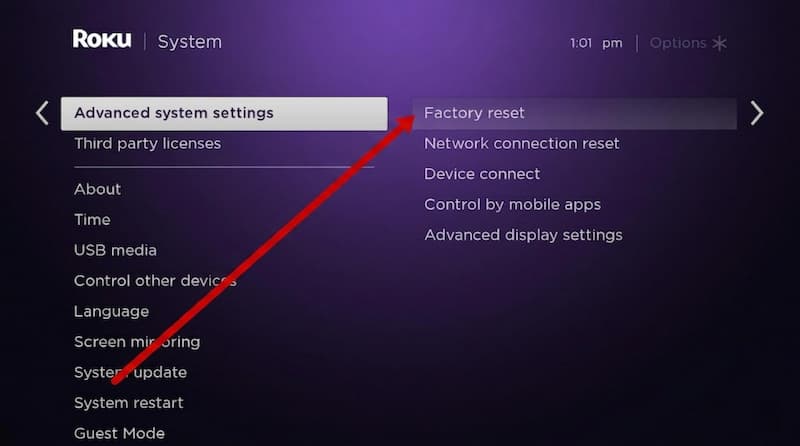
- Reset through the Roku menu: Go to Settings > System > Advanced system settings > Factory reset. Enter the 4-digit code displayed on your TV screen and confirm to begin the reset.
- Reset using the physical button (if the screen is frozen): use the reset button instead. Find your device in the table to see how to reset it.
| Device | How to reset |
|---|---|
| Roku stick, box, or player | Find the Reset button on the back or bottom. With the device powered on, hold it for about 10 seconds. Let go when the status light blinks rapidly. |
| Roku Pro Series TV | Hold Power and Find My Remote on the side of the TV for 12 seconds. |
| Roku Plus Series TV | Older models: hold the pinhole reset for 12 seconds. Newer models: hold Power and Find My Remote on the back for 12 seconds. |
| Roku Select Series TV | Hold the Reset button for 12 seconds if there is one. If not, hold Power and Find My Remote for 12 seconds. |
| Other brands of Roku TV | Check your TV's manual or the maker's support page. |
Part 5. Tired of Netflix App Issues? Watch Netflix on Roku Offline via USB
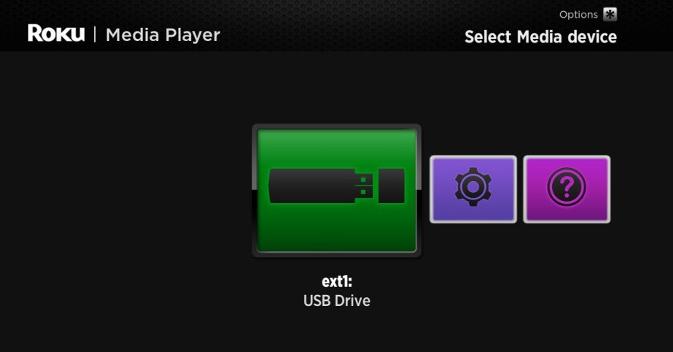
Here's a workaround that lets you avoid Netflix problems on your Roku device. Simply save your Netflix movies as regular video files, copy them to a USB drive, and play them on your Roku with the free Roku Media Player. The Netflix app isn't involved, and you don't need Wi-Fi to watch.
It's especially useful if your Roku or Roku TV is a few years old. Netflix regularly updates its app, and older devices may not support newer versions. That can lead to crashes, freezing, and slow loading. A plain video file asks much less of your Roku, so it's an easy way to keep watching.
- A Windows or Mac computer with VidiFab Streaming Video Downloader. VidiFab downloads unlimited Netflix movies and shows as ad-free MP4/MKV files at up to 1080p, with multilingual audio and subtitles. You can keep the downloaded videos as long as you want.
- Your Netflix account with an active subscription
- A USB drive
- A Roku with a USB port. Some Roku devices have one, such as many Roku TVs and the Roku Ultra, but not all do. Check the sides and back of yours.
 Free Download
 Secure Download
 Free Download
Secure Download
Step 1. Install VidiFab and Choose Your Format
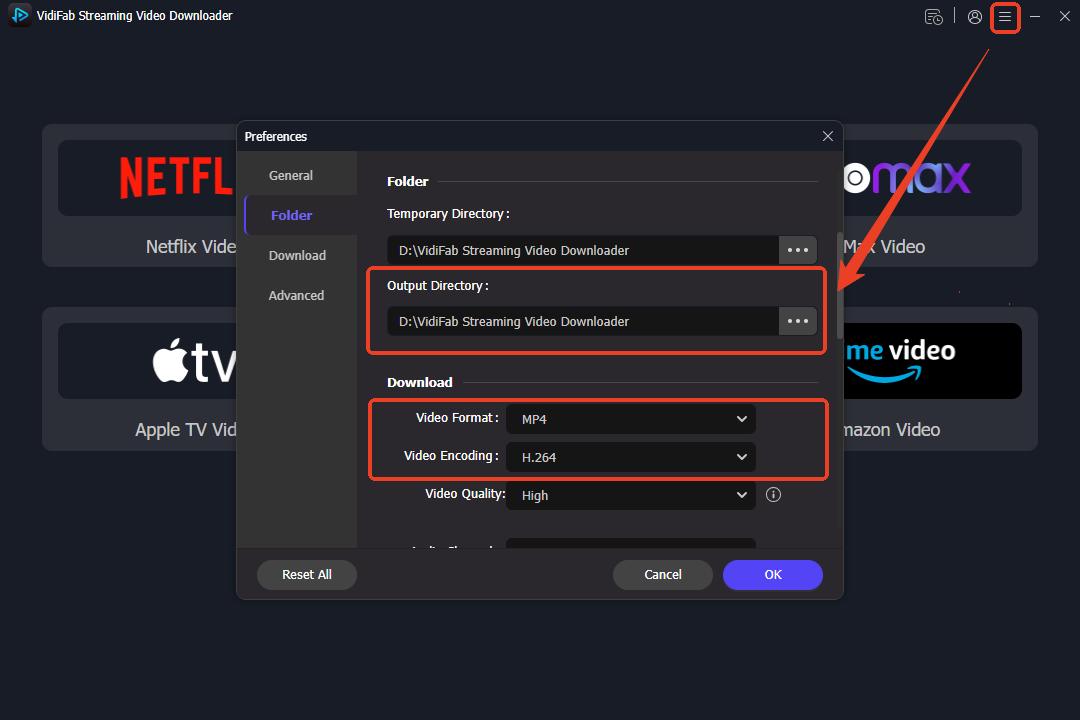
Download and install VidiFab. Open it, click the Menu icon, and select Preferences. Set Download Video Format to MP4 or MKV, then click OK. Next, select Netflix on the main screen and sign in to your account.
Step 2. Find the Movie or Show
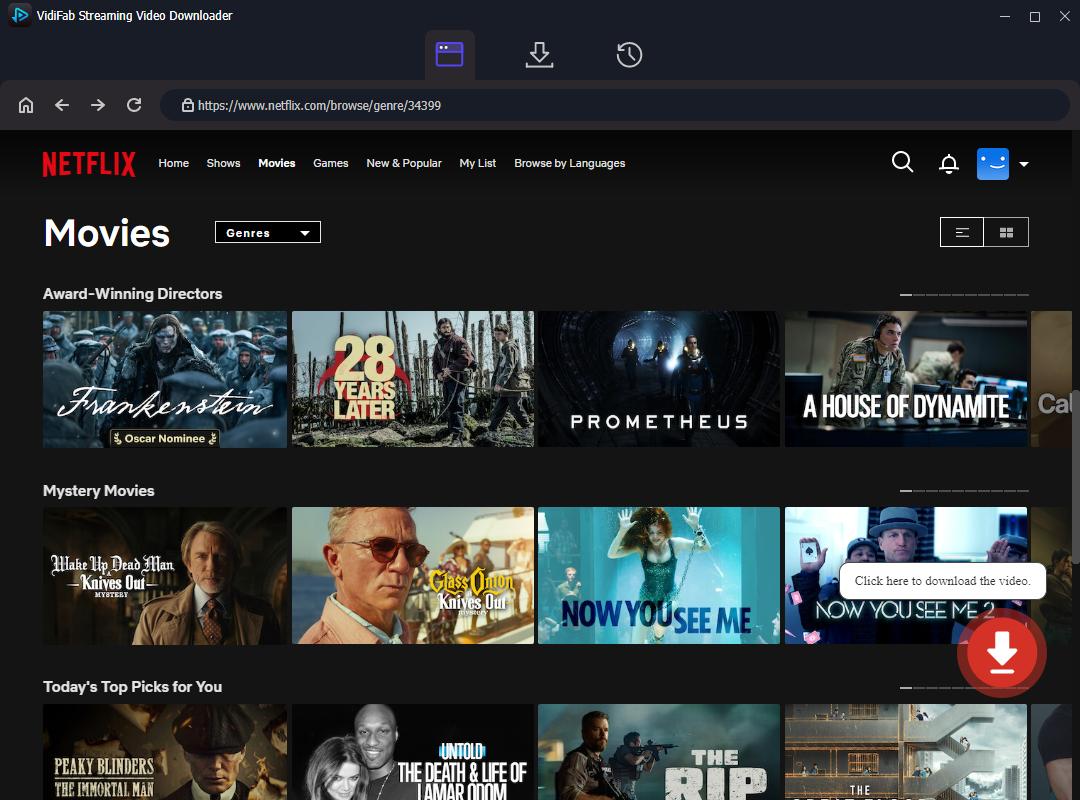
Browse the Netflix library inside VidiFab, or paste a video link into the search bar. When the video page opens, VidiFab reads the video information. When the Download button appears, click it.
Step 3. Pick Quality, Audio, and Subtitles
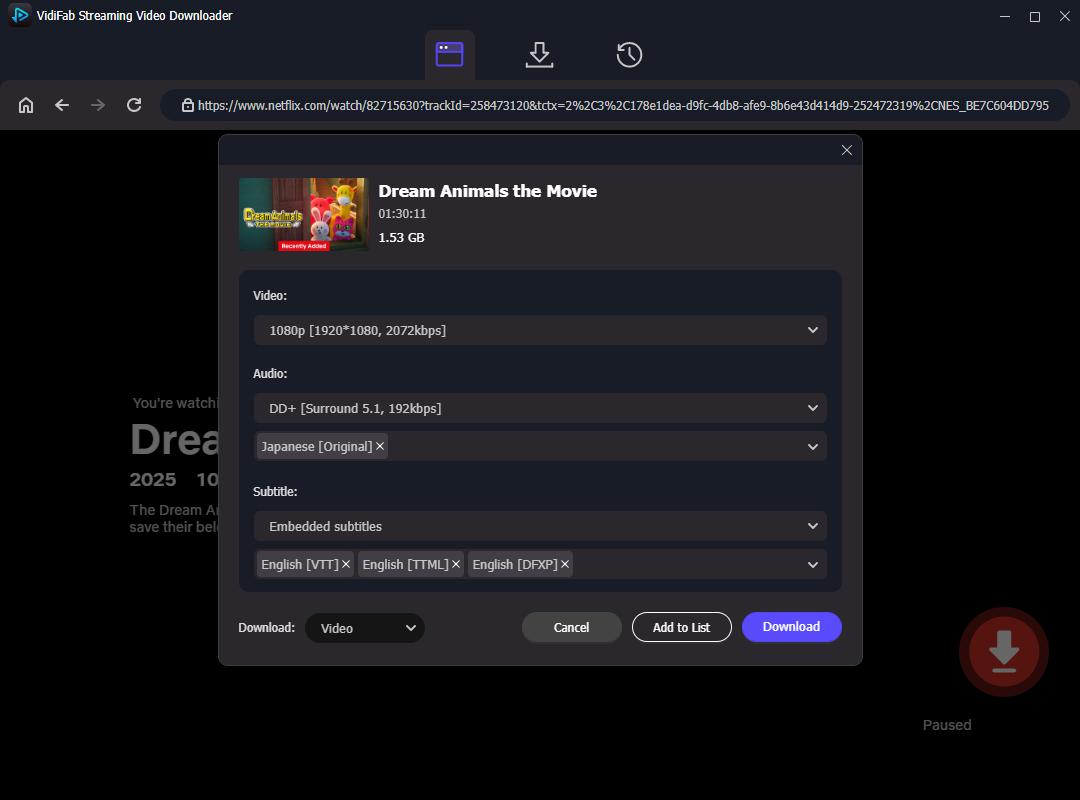
A settings window opens. Choose 1080p along with the audio language and subtitles you want included so you do not have to fiddle with playback tracks later.
Step 4. Download and Find Your File
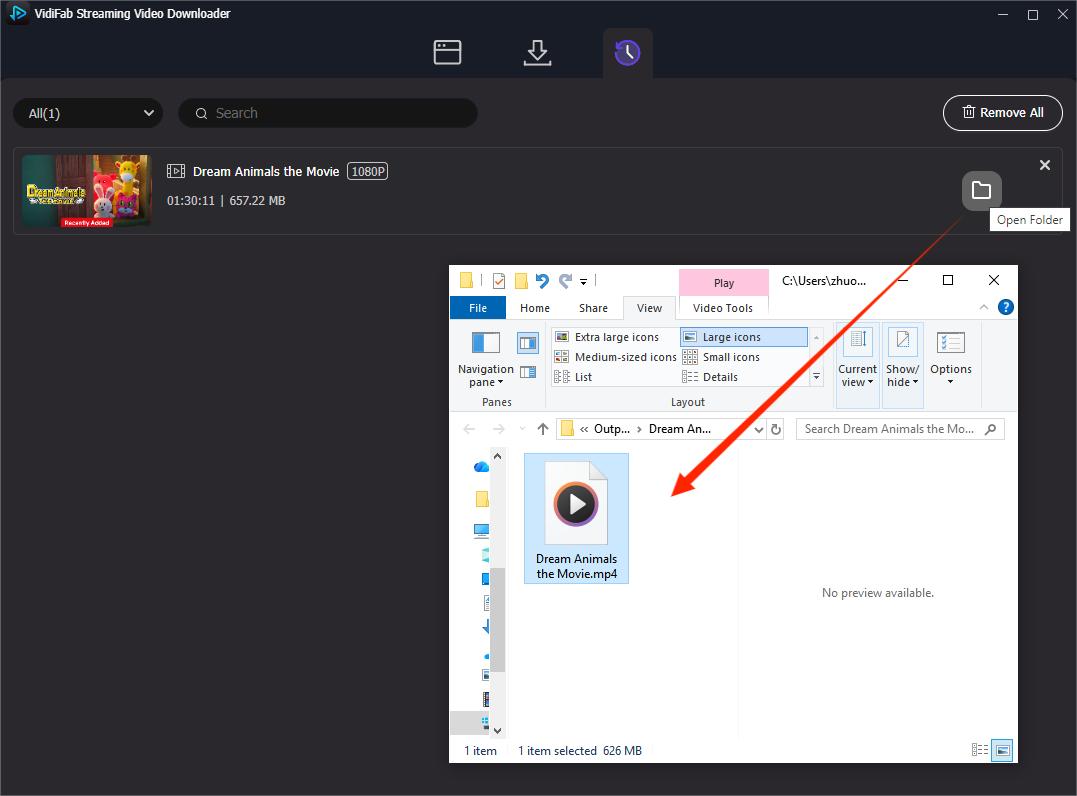
Click Download. When it finishes, open the History tab to find the file on your computer.
Step 5. Copy to a USB drive and play on Roku
Move the MP4 file onto a USB flash drive, plug it into the USB port on your Roku TV or Roku Ultra, open Roku Media Player (install it free from the Roku channel store if needed), select your USB drive, and press play.
Part 6. FAQs About Netflix Not Working on Roku
Why does Netflix keep logging me out on my Roku?
Why is the Netflix app missing from my Roku home screen?
How do I sign out of Netflix on Roku if the app is stuck or frozen?
Can I cast Netflix from my phone to Roku if the app won't work?
Why isn't Netflix playing in 4K on my Roku?
Final Thoughts
Netflix not working on Roku is frustrating, but most problems come down to a quick restart, an update, or a weak connection. Work through the fixes in order, and your show should be back soon. If your Roku is old or keeps struggling, save your favorites as video files with VidiFab and play them from USB.
Free Download
Secure Download
Free Download
Secure Download
I write about streaming services, video playback, and digital media management. My articles cover practical ways to convert video files, troubleshoot playback issues, and manage digital content across devices. I aim to make technical topics easier to understand and help readers find practical solutions to common challenges.
 Leave Your Comment