Can You Watch Netflix on Meta Quest 3, 3S & 2? (Online & Offline Guide)
 By Arlo Bennett
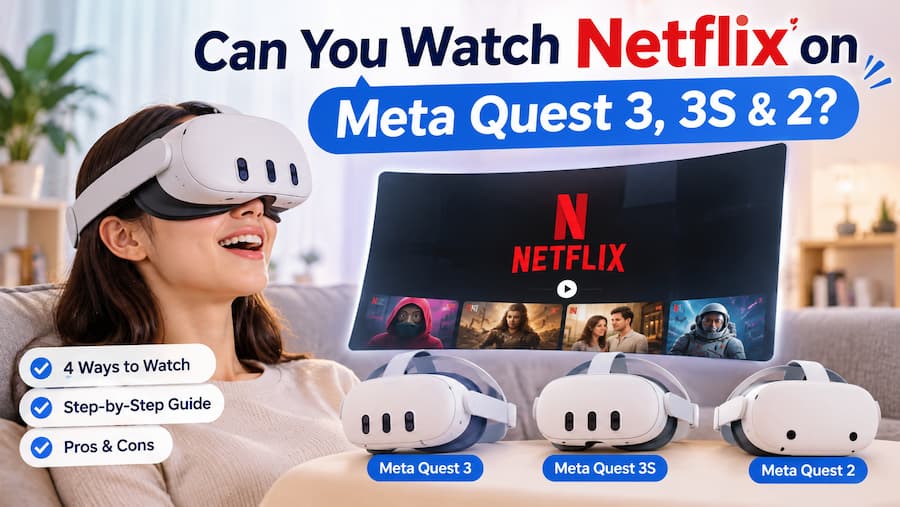
Yes, you can watch Netflix on Meta Quest 3, 3S, and Quest 2. Although the standalone Netflix VR app was discontinued in July 2024, you can still stream Netflix online through Meta Quest Browser, Virtual Desktop, or a sideloaded APK, or watch downloaded Netflix videos offline in a local VR player. Here is how the four methods compare.
| Comparison | Meta Quest Browser | Virtual Desktop (PC Streaming) | MP4/MKV Local Playback | SideQuest (Netflix APK) |
|---|---|---|---|---|
| Category | Online | Online | Offline | Online / Offline |
| Compatibility | Quest 2, 3, 3S, Pro | Quest 2, 3, 3S, Pro | Quest 2, 3, 3S, Pro | Quest 2, 3, 3S, Pro |
| Video Quality | Up to 1080p | Up to 1080p | Up to 1080p | 480p SD |
| Passthrough Support | Yes | Yes | Yes | Limited (Not guaranteed) |
| Extra Features | Curved/flat screen, Jumbo resize | Multitasking alongside PCVR games | Screen resize, multitasking, IMAX theaters, lay-down mode, multi-audio/subtitles | Native mobile app download button |
| Setup Difficulty | Very Easy | Moderate | Easy (Download & USB drag-and-drop) | Advanced (Developer account, ADB & APK hunting) |
| Best For | Quick and easy Netflix streaming | PCVR gamers multitasking | Flights, travel & best cinema quality | Advanced users experimenting with Android apps |
Part 1. How to Watch Netflix on Meta Quest Online
With a stable internet connection, you can watch Netflix on your Meta Quest using the built-in browser. You can also stream your computer screen to your headset with Virtual Desktop.
Method 1: Use the Built-in Meta Quest Browser (Official & Easiest)
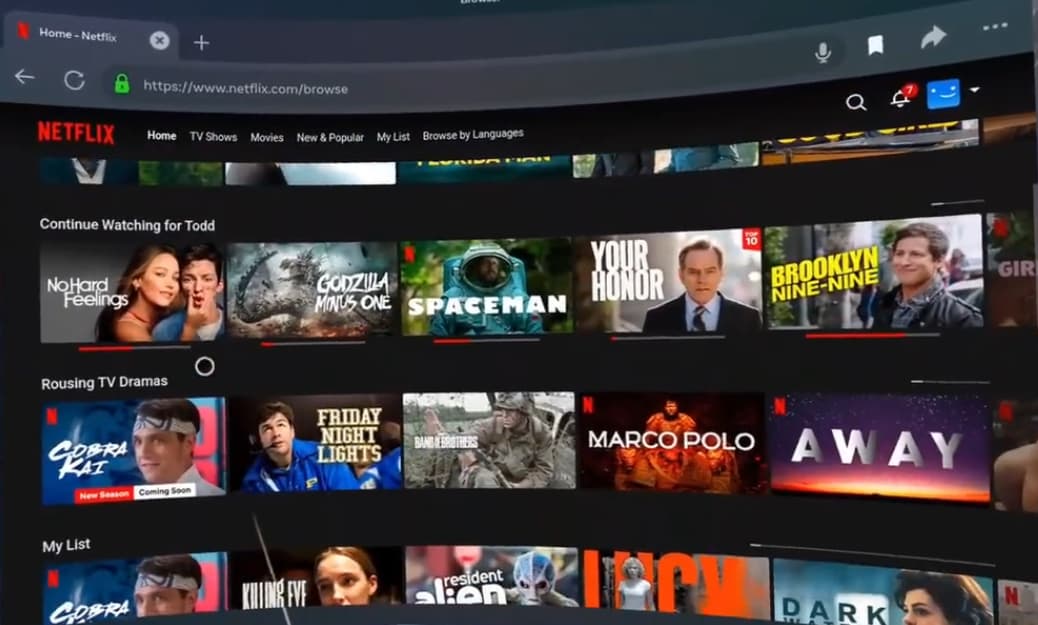
According to Netflix's guide for Meta Quest, the built-in Meta Quest Browser is now the official way to watch Netflix on Quest headsets. Unlike the old app, which limited video to blurry 480p, the browser supports crisp 1080p Full HD streaming.
Once you're signed in to your Netflix account, you can browse My List and the full Netflix library. While watching, you can also choose subtitles and audio tracks, just as you can in the Netflix app.
-
01
Open the Browser: Put on your headset, press the Meta button on your right controller to open the universal menu, and launch the Meta Quest Browser. Make sure your headset OS and browser are updated (Browser v32 or newer is required for 1080p Netflix playback).
-
02
Go to Netflix: Click the address bar, type
netflix.com, and sign in with your Netflix account credentials. -
03
Start Playing & Enter Full-Screen: Pick any movie or TV show and hit play. Once the video starts, click the Full-Screen icon in the bottom-right corner of the video player.
-
04
Switch the Screen Style (Optional): You can switch between a flat 2D screen and a theater view. Look for this option in the player controls or the browser's window settings.
-
05
Pick Passthrough or a Virtual Environment: Press the Meta button to open the universal menu, where you can reposition the window. You can turn passthrough off, and you can move the screen around the room, even watch while lying down.
- If Netflix says it can't play or isn't supported, clear browser data: If it's your first time opening Netflix on Quest or if you see an error saying "Your browser is no longer supported" or "Pardon the interruption", try this: click the three-dot menu (⋮) in the top-right corner of the Meta Quest Browser, choose Clear Browsing Data and refresh
netflix.com.
Pros:
- Official method, no extra cost
- Up to 1080p
- Works in passthrough, supports multitasking
- Works on Quest 2, 3, and 3S
- Easy to setup
Cons:
- No offline viewing; you must stay online
- No 4K
- Quality drops if the connection is weak
- Typing the password with controllers can be slow
Method 2: Stream from PC via Virtual Desktop (Best for Multitasking)
Virtual Desktop is a paid Quest app that mirrors your Windows PC inside the headset. Netflix runs on your computer, and you watch it on a giant virtual screen. It's the better choice if you want to keep other desktop apps (notes, chat, a browser with several tabs) open next to your movie, or if your PC already handles Netflix better than the Quest Browser does.
-
01
Install Virtual Desktop: Purchase and install Virtual Desktop from the Meta Horizon Store on your headset, and download the free Virtual Desktop Streamer app on your Windows PC or Mac.
-
02
Configure Virtual Desktop Streamer: Open Virtual Desktop Streamer on your PC. When prompted, enter the same Meta username associated with the account you use on your Quest headset.
-
03
Connect Your Quest Headset to Your PC: Make sure both your computer and Quest headset are connected to the same 5GHz or Wi-Fi 6 network. Put on your headset, launch Virtual Desktop, and select your computer from the list.
-
04
Disable Browser Hardware Acceleration (Crucial Step): On your computer, open Google Chrome or Microsoft Edge. Go to Settings > System, toggle OFF "Use graphics acceleration when available", and restart your browser.
-
05
Stream Netflix: Open Chrome or Edge on your virtual desktop screen, head to
netflix.com, and start watching. You can switch to Virtual Desktop's built-in Cinema or Home Theater environments for a cozy big-screen vibe.
Pros:
- Watch on a large virtual screen with your full PC desktop
- Multitask with any PC app, not just a browser
Cons:
- Virtual Desktop is a paid application
- More setup than Method 1
- Needs a strong, stable Wi-Fi network
- PC must stay on while you watch
- No offline viewing
Part 2. How to Watch Netflix on Meta Quest Offline
Streaming works well at home, but it has limits. The Meta Quest Browser has no download option, so there's no offline viewing. Airplane Wi-Fi, hotel networks, and a weak signal at a campsite can all make HD streaming stutter or fail completely.
Below are the two ways to do it. Let's start with the cleanest 1080p method.
Method 3: Save Netflix as MP4/MKV for Local VR Playback (Stable 1080p Quality)
This method saves Netflix videos as standard MP4 or MKV files on your Windows or Mac computer. You can then copy them to your headset and play them with any VR video player you like.
Because the files are stored on your headset, playback doesn't rely on your network or a browser. This helps avoid lag, buffering, and the black screens that can sometimes happen when you stream Netflix on your headset.
VidiFab Streaming Video Downloader is a desktop app that lets you save unlimited titles from Netflix and seven other streaming platforms as standard MP4 or MKV files. These settings are especially useful for VR:
- Format: MP4 for broad compatibility, MKV when you need multiple audio tracks.
- Picture: 1080p, with H.264 or AV1 at the highest available bitrate so your VR player can map depth cleanly.
- Audio and subtitles: 5.1 surround sound and embedded subtitles that you can reposition in the player.
Note: Use it for personal offline viewing only, and follow Netflix's terms of use and the laws where you live.
 Free Download
 Secure Download
 Free Download
Secure Download
-
01
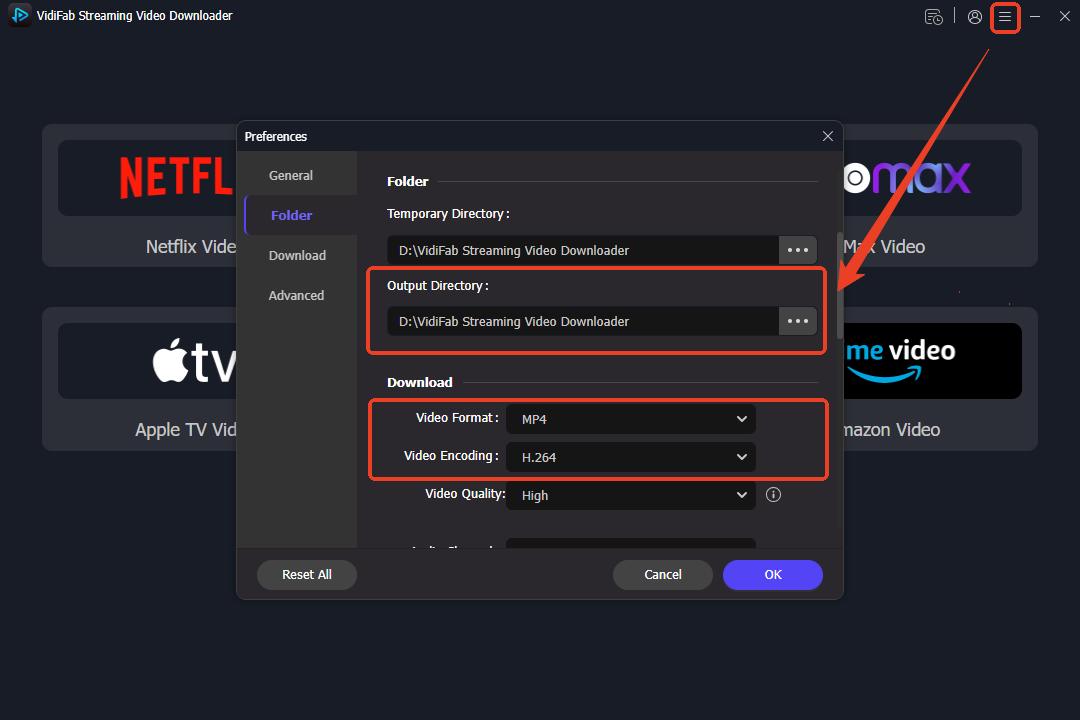
Set the Output Format: Open Preferences in VidiFab and choose MP4 or MKV. Pick H.264 or AV1 at the highest bitrate. Choose an output folder to save the downloaded Netflix videos. Click OK, then select the Netflix icon and sign in through the built-in browser.
-
02
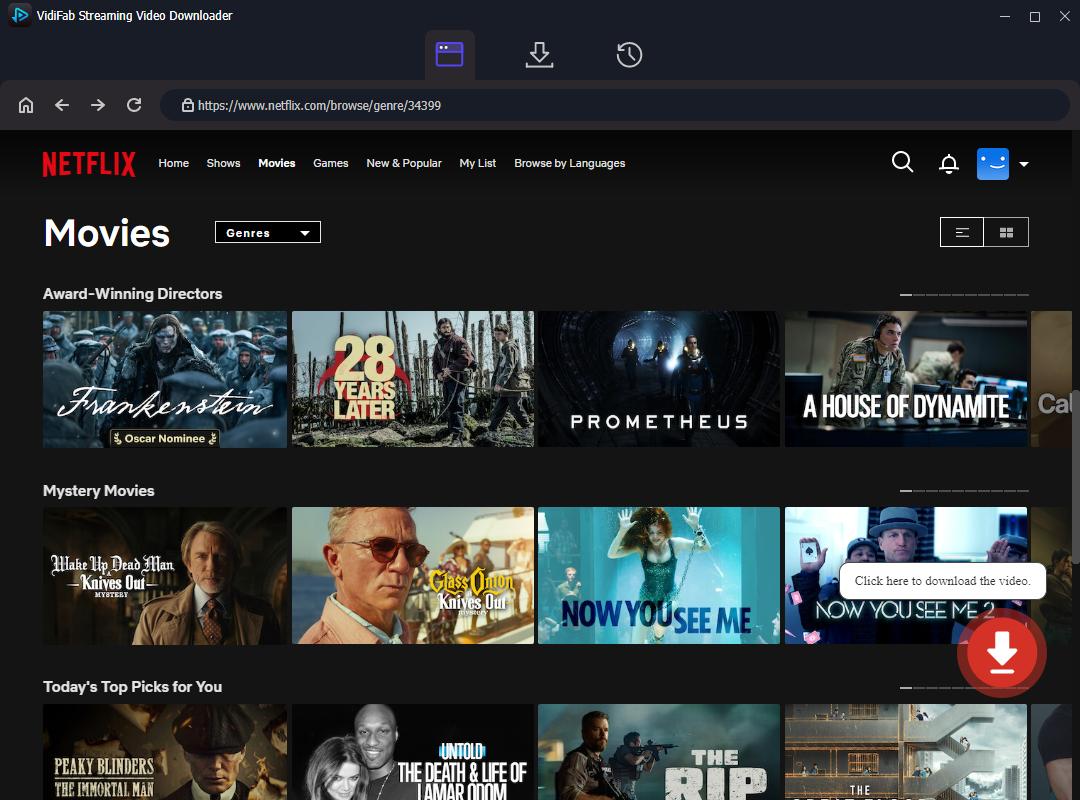
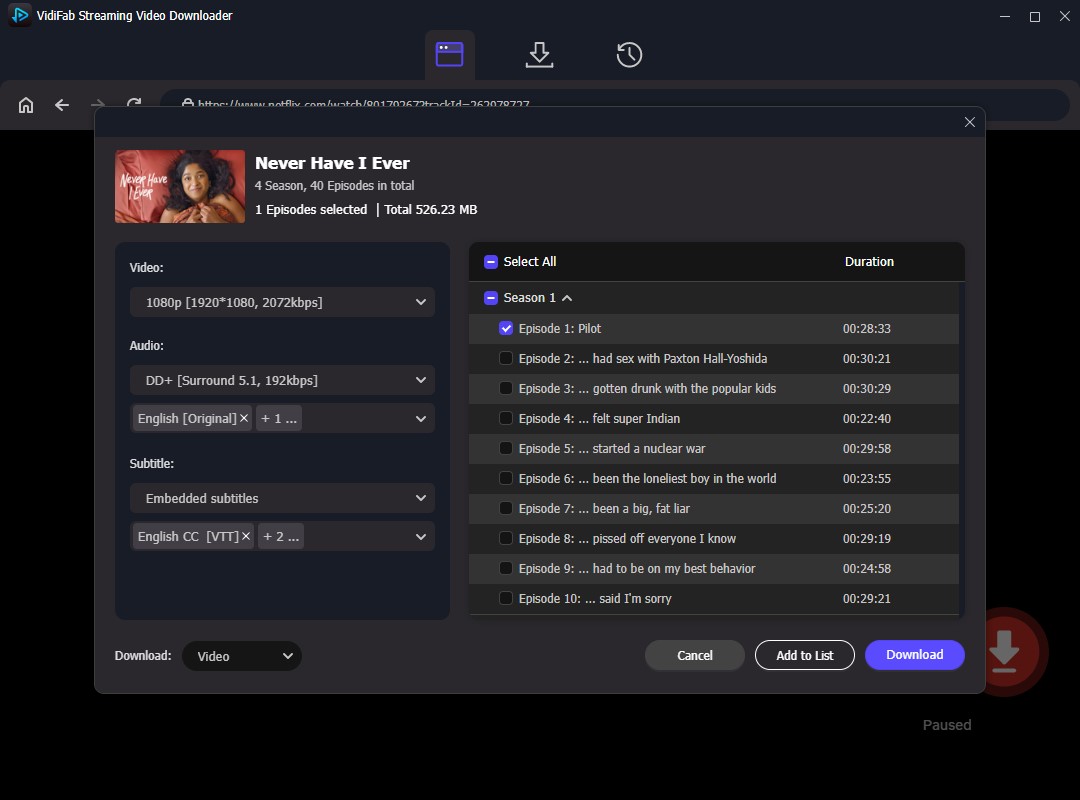
Select Your Movie or Show: Search for the title you want to watch offline and open its detail page. Once the tool analyzes the video stream, click the Download button.
-
03
Choose 1080p Quality, Audio & Subtitles: In the pop-up settings, select 1080p resolution, pick your preferred audio track (including 5.1 surround sound if available), and select Embedded Subtitles or separate subtitle tracks so your VR player can render them cleanly.
-
04
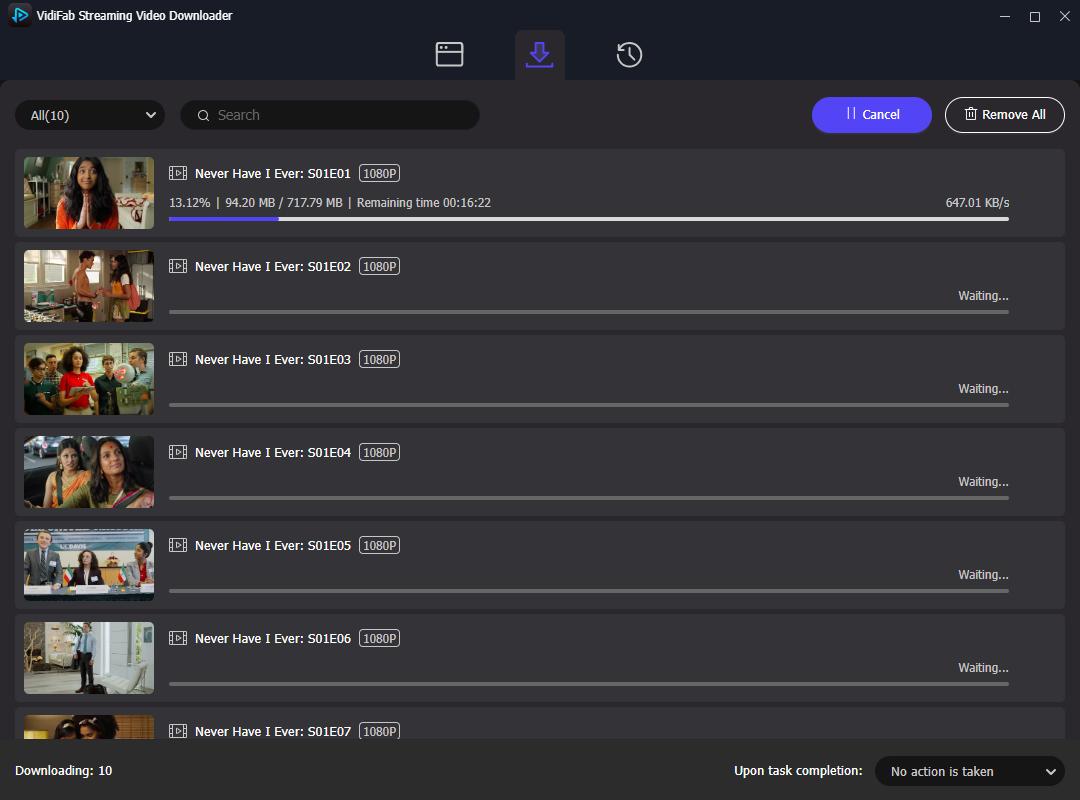
Download & Transfer to Your Meta Quest: Click Download to save the local file to your computer. Next, connect your Quest 3, 3S, or 2 to your PC via a USB-C cable, put on the headset to click Allow on the data-access prompt, and drag the MP4/MKV files into the headset's Movies folder (Mac users can use the free OpenMTP app to transfer files).
-
05
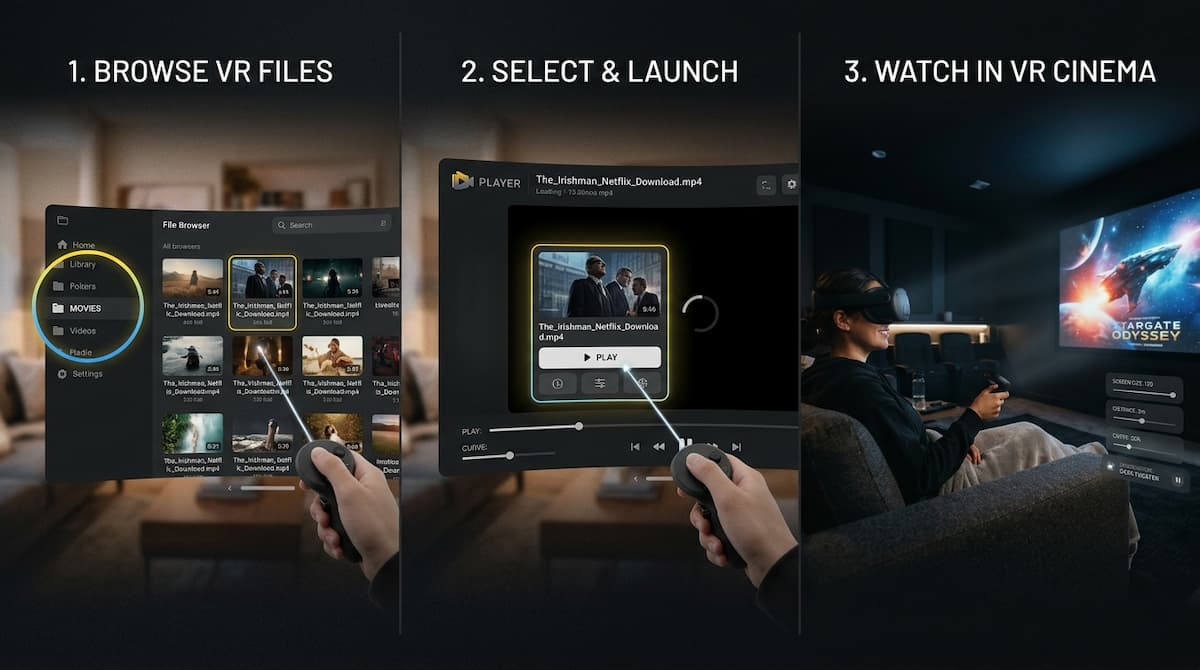
Watch Offline in Any VR Player: On the headset, open a local VR video player (for example Skybox VR, Moon VR Player, or 4XVR), browse to your file, and press play. Then pick an environment such as a cinema or open space, and adjust the screen size, distance, and curve to your taste.
Which VR Video Player Should You Use for Watching Downloaded Netflix Files?
| Feature | Meta Quest TV / Files | Bigscreen Beta | SKYBOX VR | Moon VR | 4XVR Video Player |
|---|---|---|---|---|---|
| Price | Free (Built-in) | Free (Paid rooms optional) | Paid (~$9.99) | Paid (~$9.99) | Freemium (Paid Pro unlock) |
| Best For | Quest 2, 3, 3S (Zero extra setup) | Quest 2, 3, 3S (Social cinema) | Quest 2, 3, 3S (Best all-rounder) | Quest 3 & 3S (Mixed reality) | 128GB Quest models (USB drive playback) |
| Key Features | Native multitasking window, Passthrough support, quick playback | Realistic 3D movie theaters, watch with friends, custom lighting | IMAX theater scenes, lay-down ceiling mode, MKV multi-audio & subtitles | Smooth high-bitrate decoding, Passthrough, custom screen curve & tilt | Direct USB-C flash drive reading, lossless MKV & 5.1 audio decoding |
| Workflow Path | App Library > Files (or Meta Quest TV > Your Media) > Movies > Click video | Launch Bigscreen > Open Video Player menu > Local Files > Movies > Play | Open SKYBOX VR > Directory > Internal Storage > Movies > Select video | Launch Moon VR > Local Storage (or All Videos) > Movies > Play | Open 4XVR > Local Storage (or USB Device) > Movies > Tap video |
Pros:
- Works fully offline, ideal for flights, trains, and hotels
- Compatible with Moon VR, Skybox VR, and Bigscreen
- Downloaded Netflix videos stay playable forever
- No DRM black screen issues during playback
- Ad-free
- More environments, screen controls, subtitle and audio options
- No developer mode or sideloading required
Cons:
- Needs a computer and a one-time transfer
- Takes up storage space on the headset
- VidiFab is a paid software. Bonus for you: Use VF50OFF for 50% off
Method 4: Sideload the Netflix Android APK via SideQuest (Workaround with Limits)
The regular Netflix Android app lets you watch shows offline. Since Meta Quest runs on an Android-based system, you can install the app manually through SideQuest to download Netflix shows for offline viewing.

A kind reminder: This workaround requires a developer account, a computer, and a USB cable. Netflix doesn't support this setup, so it may stop working after an app or system update. Meta also says Developer Mode is meant for development tasks, and other uses may lead to account limitations. If you only want to watch offline, Method 3 is the safer route.
-
01
Create and Verify a Meta Developer Account: Go to
developers.meta.com, log in with your Meta account, and navigate to "My Projects." Verify your account either by enabling two-factor authentication or by adding a credit card. Once verified, create an organization and accept the agreements. -
02
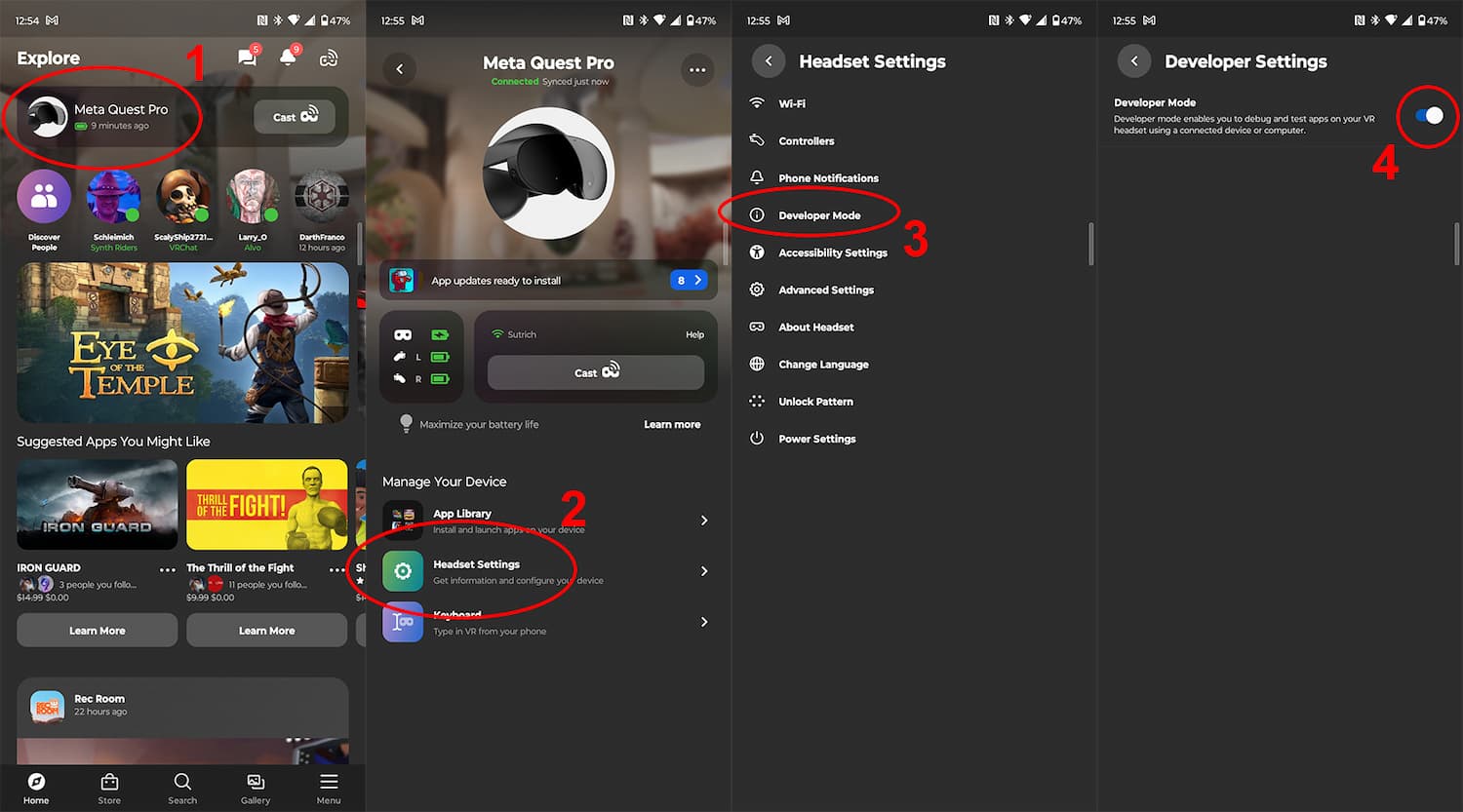
Turn on Developer Mode from Your Phone: Open the Meta Horizon app, tap the headset icon, select your paired headset, then go to Headset Settings → Developer Mode and switch it on. Restart the headset afterwards.
-
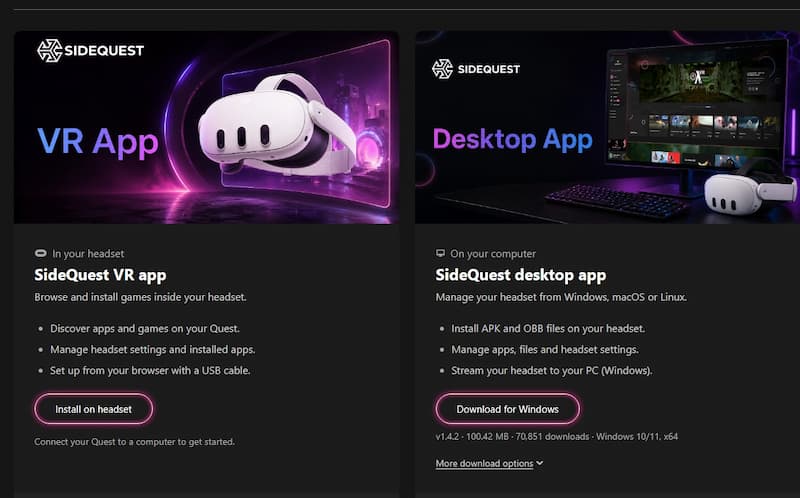
03
Install the SideQuest PC App: Visit
sidequestvr.comon your Windows PC, Mac, or Linux computer and download the SideQuest desktop app. Install and launch it on your computer. -
04
Connect Your Headset via USB: Plug your Quest 3, 3S, or 2 into your computer using a USB-C data cable. Put on the headset, select "Always allow from this computer", and click OK on the Allow USB debugging prompt. Once connected, the status dot in the top-left corner of SideQuest will turn green.
-
05
Download the Netflix Android APK: On your computer, download a standard mobile/tablet
.apkfile for Netflix from a trusted archive site like APKMirror or APKPure (avoid.xapkor.apkmbundles, as SideQuest's single-file installer requires a standalone.apk). -
06
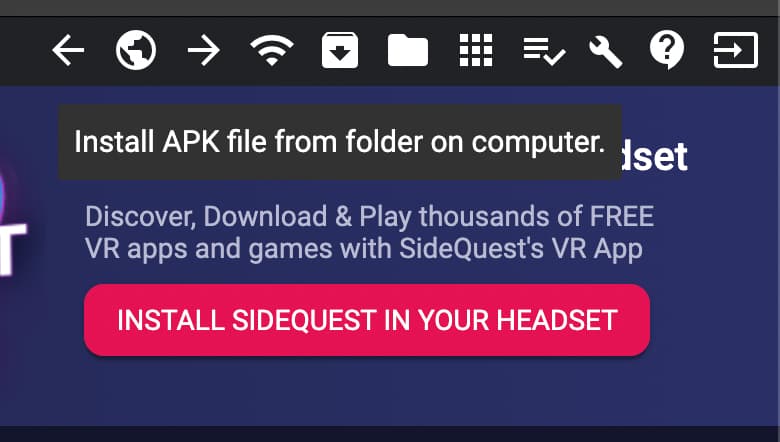
Install the APK: In SideQuest, drag the
.apkfile onto the window, or click the Install APK file from folder on computer button (the box with a down arrow) in the top bar. Wait until SideQuest says the installation has finished. -
07
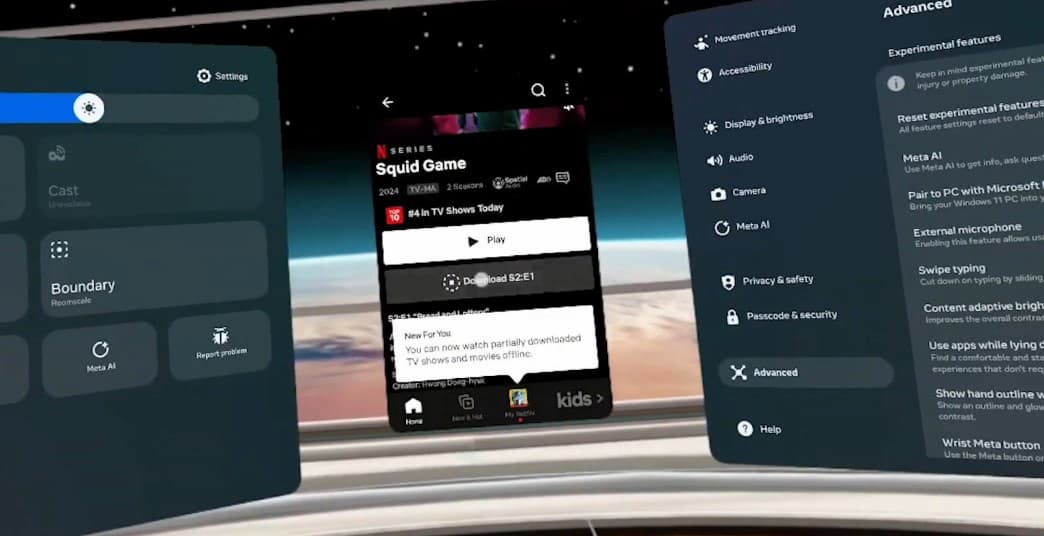
Open Netflix on the Headset: Put on the headset, open Library, and in the filter dropdown at the top right choose Unknown Sources. Launch Netflix from there.
-
08
Sign In and Download: Log in, open a title's detail page, and tap the Download icon. Once it finishes, go to Downloads and play it with Wi-Fi off to confirm it works before your trip.
Pros:
- Uses Netflix's own download feature
- Free (no extra software to buy)
Cons:
- Needs a verified developer account
- 480p SD quality
- Newer Netflix APKs often throw playback errors
- No cinema environments
Part 3. FAQs About Watching Netflix on Meta Quest
Does Meta Quest 3 or 3S support 4K Netflix?
Can you watch Netflix with friends on Meta Quest 3?
Can you enable Passthrough while watching Netflix on Quest?
Are Netflix Games available on Meta Quest?
Does Netflix have any 3D or VR content for Meta Quest?
Final Thoughts
Even without an official app, your Meta Quest 3, 3S, or 2 remains a versatile personal cinema. Choose your setup based on where you watch: rely on the built-in browser for quick home streaming, or prepare offline MP4/MKV copies before your next flight so poor Wi-Fi never interrupts your movie night.
Free Download
Secure Download
Free Download
Secure Download
I write about must-watch movies and TV shows, plus detailed reviews of video downloaders and media tools. I help you discover what to watch next and pick the right tools to save and manage your favorite content. My goal is to give you clear, honest insights so you can enjoy streaming and offline viewing without the hassle.
 Leave Your Comment