How to Stream Prime Video on Discord Without Black Screen or Errors
 By Miles Kent
Since Amazon Prime Video officially discontinued its native Watch Party feature on April 2, 2024, Discord has become the go-to alternative for watching movies with friends. However, many users report that screen sharing triggers a frustrating black screen.
This guide will show you how to stream Prime Video on Discord without a black screen on PC, Mac, and mobile.
Part 1. Why Does Amazon Prime Show a Black Screen on Discord?
Amazon Prime Video uses DRM (Digital Rights Management) to protect its copyrighted content. In some cases, this protection prevents Discord from capturing the video area correctly. The result is a black screen, while the audio may still work.
Another common cause is hardware acceleration. Browsers and Discord use hardware acceleration to improve video performance. But it can conflict with screen sharing and stop protected videos from displaying properly.
Part 2. How to Stream Prime Video on Discord on PC and Mac
To share Prime Video with your friends on Discord, use the Discord desktop app or the Discord web player along with a web browser for Prime Video. The official Amazon Prime desktop app will cause a black screen.
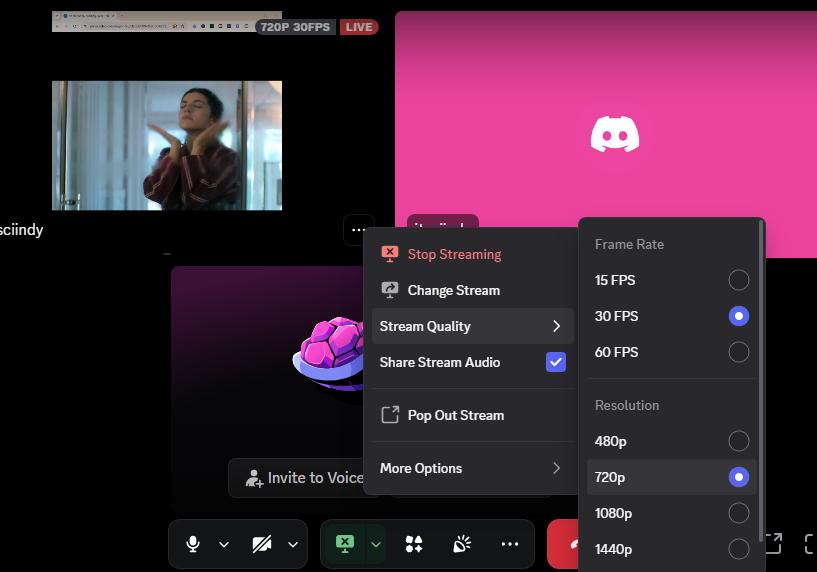
Without Nitro on Discord, stream quality is limited to 720p at 30fps. Because this is online streaming, you may see buffering or audio sync issues. For smoother playback, refer to Part 4 for a workaround.
Step 1: Choose the Best Browser for Screen Sharing Prime Video
To avoid the Prime Video black screen, I recommend Mozilla Firefox. Firefox handles video security at the browser layer, so it is less likely to cause black-screen errors. But Google Chrome and Microsoft Edge also work well, as long as you follow the steps below to disable browser hardware acceleration.
Step 2: Disable Browser Hardware Acceleration & Relaunch
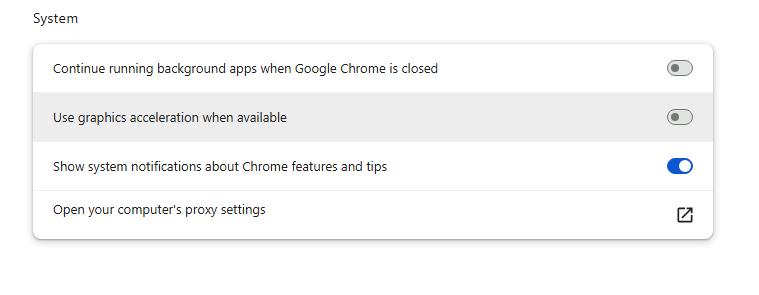
Before you stream, turn off hardware acceleration in your browser. This stops your graphics card (GPU) from locking down the video stream.
For Google Chrome & Microsoft Edge
-
01
Click the three dots in the top-right corner and select Settings.
-
02
In the search bar at the top of the Settings page, type "acceleration".
-
03
Find the toggle for "Use graphics acceleration when available" (or "Use hardware acceleration when available") and turn it Off.
-
04
Click the Relaunch (or Restart) button to apply the changes.
For Mozilla Firefox
-
01
Open the menu and click on Settings.
-
02
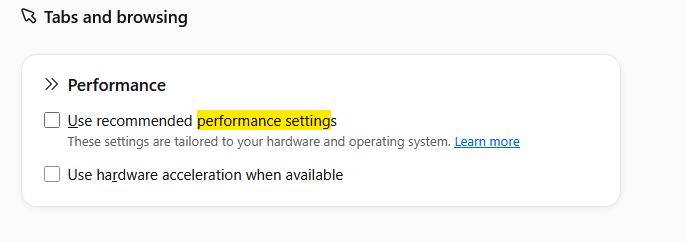
Go to Tabs and browsing, then scroll down to the Performance section.
-
03
Uncheck "Use recommended performance settings".
-
04
Uncheck "Use hardware acceleration when available".
-
05
Close Firefox completely and restart it.
Step 3: Open Prime Video and Pick Your Movie
-
01
Go to primevideo.com in your newly configured browser.
-
02
Log in with your Amazon account.
-
03
Choose the movie or TV show you want to watch and pause it at the beginning.
Step 4: Open Discord (A Quick Note on Discord Settings)
-
01
Open your Discord desktop application or log into Discord on your browser.
-
02
Click the gear icon next to your username, go to Advanced in the left sidebar, locate Hardware Acceleration, and turn it off.
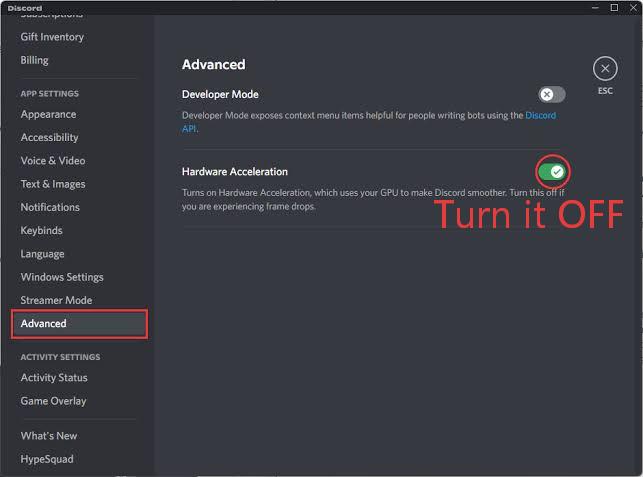
Note on Discord Settings: The hardware acceleration setting may be difficult to find or may not exist in some versions of Discord. Do not worry. Your Discord screen sharing will still work perfectly as long as you have turned off hardware acceleration in your web browser (as shown in Step 2).
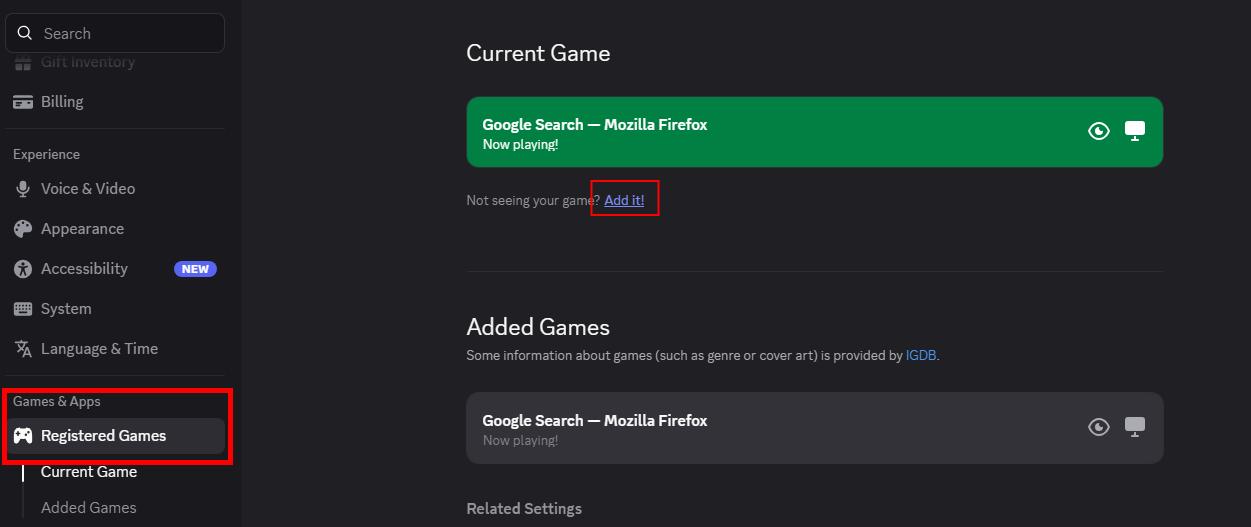
Step 5: Add Your Browser as a Registered Game
Registering your browser as a game forces Discord to capture it with a more stable streaming method.
-
01
Keep your web browser open in the background with Prime Video loaded.
-
02
In Discord, click User Settings (gear icon) in the bottom-left corner.
-
03
In the left menu under Activity Settings, select Registered Games (sometimes called Activity Status or Game Activity).
-
04
Click the blue "Add it!" link.
-
05
Select your web browser (e.g., Firefox or Google Chrome) from the dropdown list and click Add Game.
-
06
Close the settings menu.
Step 6: Go Live!
-
01
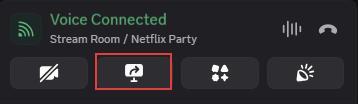
Join a Discord voice channel on your server.
-
02
Click the Share Your Screen icon.
-
03
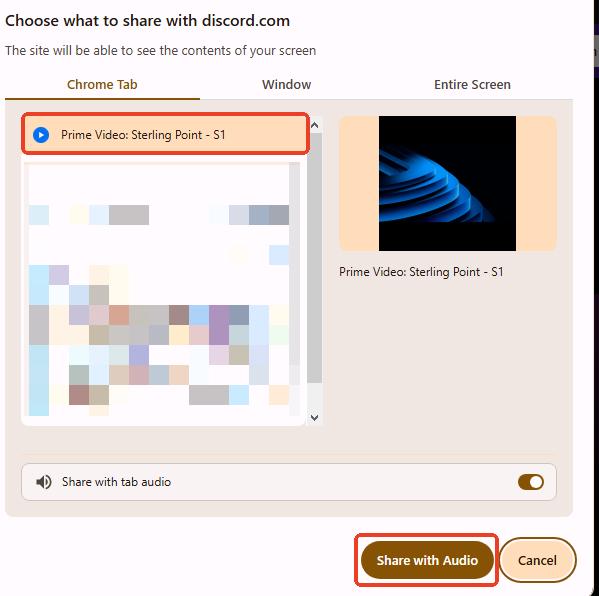
Under the Applications tab, select your specific Browser Window. Make sure "Share with tab audio" is enabled.
-
04
Click Go Live. Play your movie on your browser, and your friends will see and hear it without a black screen or errors.
-
05
To adjust quality, click the three-dot icon in the bottom-right of the playback window. Choose 30 FPS and 720p for a smoother playback.

Never select "Entire Screen" or "Screens." Capturing your whole desktop bypasses your browser fixes and will instantly trigger a black screen.
Part 3. How to Stream Prime Video on Discord Mobile
Can you screen share Amazon Prime Video on the mobile Discord app? No.
If you open the official Amazon Prime Video app on iOS or Android and try to screen share it over Discord, your friends will see a black screen 99.9% of the time. Even if you play it from desktop mode in a mobile web browser, your Android or iPhone uses hardware-enforced DRM security that makes the stream fail.
Also, you cannot use FaceTime to co-watch Prime Video via Apple SharePlay. It is restricted under the same platform limits.
This leaves you with only two viable options for mobile:
- Method 1: Use dedicated mobile watch party apps. Apps like Rave or Kast let you watch Prime Video together on your phone. But everyone in the room needs an active Amazon Prime subscription to access the title.
- Method 2: Play downloaded local videos via a media player on Discord. You can share your screen on Discord while playing video files from your device's storage. First, download and convert the Prime Video movie to a DRM-free MP4 or MKV file, then transfer it to your phone. See the next section for details.
Part 4. A More Stable Way to Screen Share Prime Video on Discord on Desktop & Mobile
For a more stable playback or to share on Discord from a phone, download Prime Video as MP4 or MKV files and play them directly through Discord. This prevents a black screen and gives everyone in the room a smoother viewing experience.
To do this, you can use VidiFab Streaming Video Downloader, a desktop tool that downloads Amazon Prime Video as MP4 or MKV files at up to 1080p.
VidiFab Streaming Video Downloader
Download Prime Video titles as permanent 1080p MP4 or MKV files with multiple subtitles and audio tracks on Mac and Windows.

How to Download Prime Video for Discord Playback
Step 1. Set Your Output Format for Discord Playback
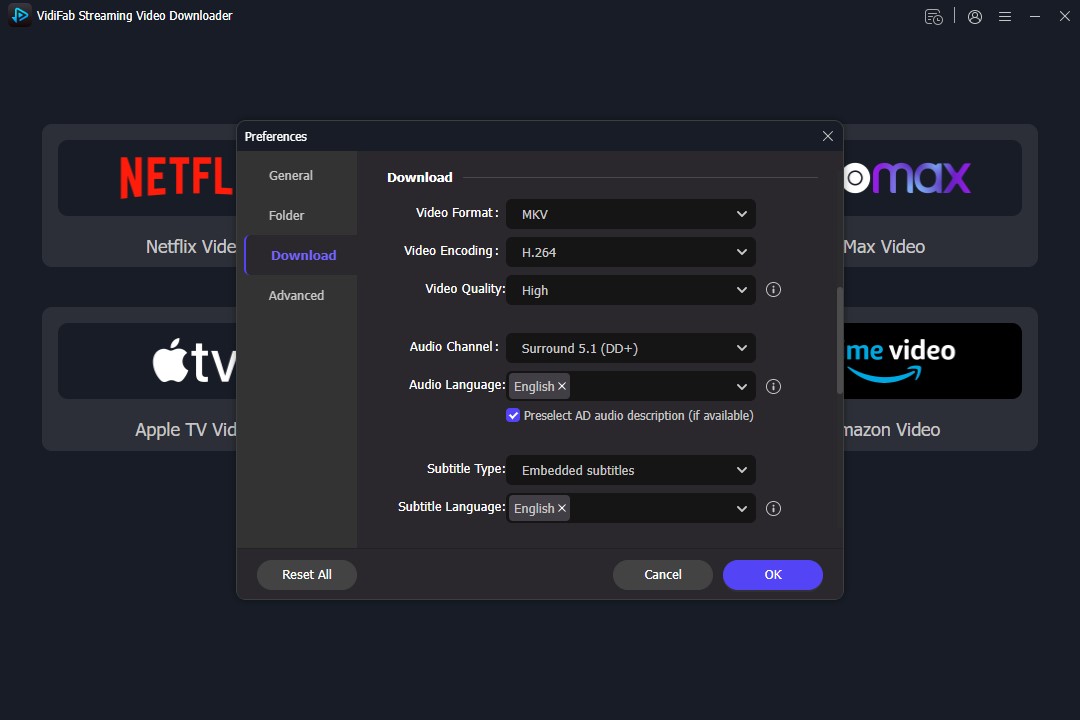
Launch VidiFab Streaming Video Downloader on your desktop. Open the Menu icon, go to Preferences, and choose MP4 as your output format. MP4 works well with most media players and Discord-supported playback. You can also choose MKV if you need more flexibility with video and audio tracks.
After saving, click the Prime Video icon on the main screen. VidiFab opens its built-in browser. Sign in to your Amazon account and open your Prime Video library.
Step 2. Customize the Download Settings
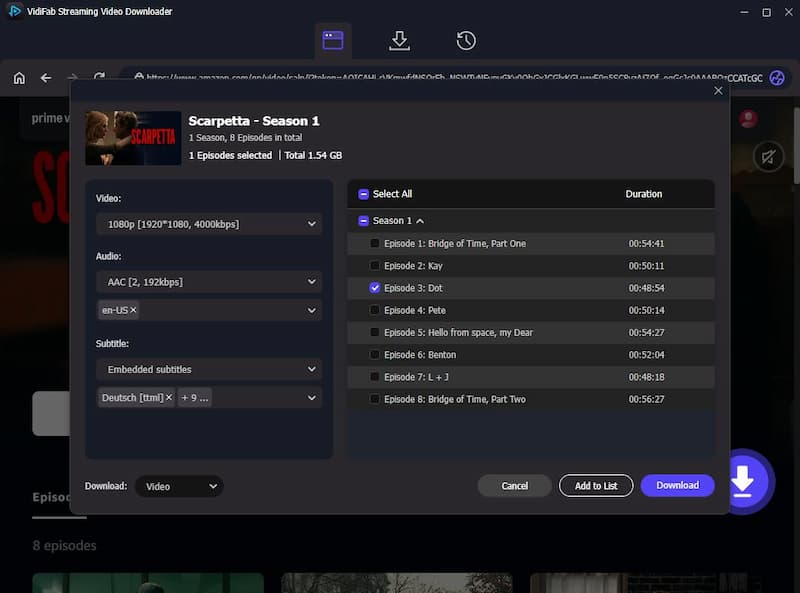
Search for the movie or TV show you want to save. Once VidiFab detects the video source, it analyzes the title and shows available download options. Click Download to continue. In the settings window, select 1080p Full HD and choose your preferred audio tracks and subtitle language.
Step 3. Download Prime Video Videos
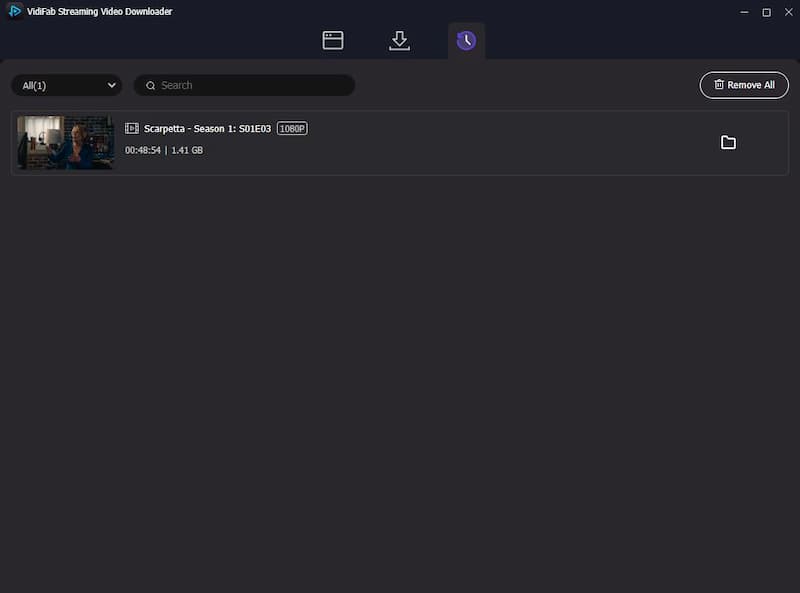
Click Download to start. When it finishes, open the History tab and click the folder icon next to the video. This opens the location of your downloaded MP4 or MKV file. You can then play it locally or share it through Discord.
Step 4. Play Downloaded Videos on Discord
-
01
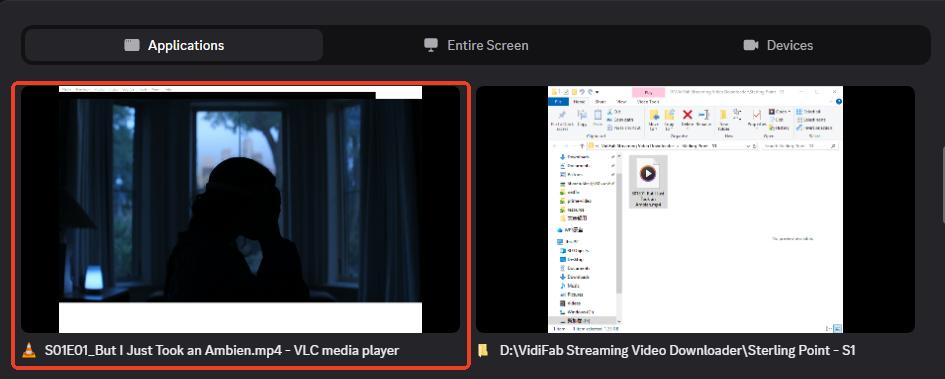
Open the downloaded MP4 or MKV file with a media player, such as VLC Media Player.
-
02
Open Discord and join a voice channel.
-
03
Click the Share Your Screen icon. In the application picker, navigate to the Applications tab and select VLC Media Player as your capture target.
-
04
Click Share Screen.
-
05
Now, You and others can watch the downloaded Prime Video via Discord more smoothly, without worrying about playback issues.
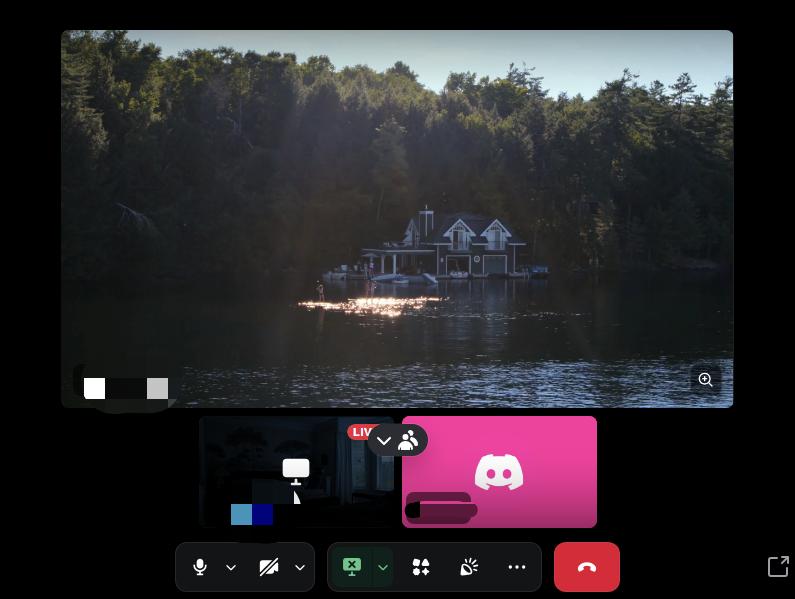

For Mobile Users: Transfer the downloaded videos from your computer to your phone or tablet. Use wireless methods such as AirDrop, Google Drive, or other file transfer tools. You can also connect your device with a USB cable and move the files directly to local storage. Once saved, open the video with your preferred media player and share your screen on Discord for smoother playback.
Part 5. Is It Legal to Stream Prime Video on Discord?
I am not a lawyer, and this is not legal advice. Copyright rules vary by location and use.
In general, publicly distributing copyrighted content without permission may violate copyright laws. A private watch party with a small group of friends is different from making content available to the public.
To reduce potential risks, keep your watch parties private. Only stream in locked, password-protected channels with close friends. Never charge entry fees or redistribute downloaded files publicly.
Part 6. FAQs About Streaming Prime Video on Discord
Can I stream Prime Video on Discord with friends in another country?
Why can my friends hear audio but cannot see the Prime Video screen?
Can I use Discord Watch Together for Prime Video?
Do all viewers need a Prime Video subscription to watch on Discord?
Can I stream rented or purchased Prime Video movies on Discord?
What internet speed do I need to stream Prime Video smoothly on Discord?
Can I watch Prime Video on Discord with subtitles?
Part 7. Conclusion
Screen sharing Prime Video on Discord often leads to black screen errors because of DRM restrictions. Disabling browser hardware acceleration is a quick fix. But downloading content with VidiFab ensures a more stable streaming experience on all devices. Follow the steps in this guide to start watching Prime Video movies and shows with your friends.
 Free Download
 Secure Download
 Free Download
Secure Download
Free Download
Secure Download


I'm a video tech specialist with over 10 years of experience in digital media and streaming. I focus on making complex workflows simple and practical. Through my guides, you'll learn how to convert media, keep high-quality playback across devices, and manage your streaming video library with ease.
 Leave Your Comment