Prime Video Black Screen With Sound? Here's How to Fix It
 By Miles Kent
All apps work fine except Prime Video. Prime Video app loads, shows library and previews (with sound) for highlighted shows/movies. Once I select a movie and click play I get a black screen or stay on the same screen.
- Power off your phone, computer, or TV, wait 30 seconds, and turn it back on.
- Unplug your HDMI cable from both the TV and the streaming device, then plug it back in securely.
- Go to your device settings, find the Prime Video app, and clear its cache and data.
- Open your device's app store and install the latest version of Prime Video.
- Use VidiFab Streaming Video Downloader to download the video to your computer and play it using a standard media player.
Prime Video black screen can appear when you try to play a movie or show. Sometimes the audio works while the screen stays black, while other times both video and sound stop playing. Based on troubleshooting methods that worked in real situations, this guide covers practical fixes to help restore Prime Video playback on TVs, browsers, phones, and streaming devices.
Part 1. Why Is Prime Video Black Screen? Common Causes
Prime Video can show a black screen for different reasons. The problem may come from your device, internet connection, browser settings, or even account restrictions. Below are the most common causes to check before trying advanced fixes.
- HDMI Connection and HDCP Issues: Your HDMI cable, port, or external display might not support the videos on Prime Video. Prime Video requires HDCP 1.4 for HD videos and HDCP 2.2 for UHD/4K videos.
- Active VPN or Proxy: If you are using a VPN or proxy server, Prime Video's system will refuse to send the video decryption license, resulting in a black screen.
- Too Many Devices Streaming at Once: You can stream on up to three devices at once using the same account. Streaming on a fourth device will block the video.
- Browser Extensions (Ad Blockers and Speeders): An outdated browser or active extensions like ad blockers or video speeder can cause a black screen.
- 4K Content on a 1080p Device: Playing a 4K video on a 1080p device may result in a black screen.
- Using a Public Laptop (School or Work): Prime Video's DRM blocks the video screen if it detects a "screen is being observed" warning to prevent recording.
- Corrupted App Cache or Low Device Storage: Temporary cache files on your phone, browser, or smart TV can get corrupted and block the video player.
Part 2. Fix Prime Video Black Screen on Android and iPhone
If Prime Video shows a black screen on your phone, first try some basic fixes. Restart your device, update the Prime Video app, or reinstall the app if needed. These simple steps can solve many temporary playback problems.
Fix 1. Clear App Cache (Android Only)
Go to Settings > Apps > Prime Video > Storage & Cache and tap Clear Cache. If the problem persists, sign out of your account, clear the app data, and sign back in.
Fix 2. Enable Hardware Acceleration (Android Only)
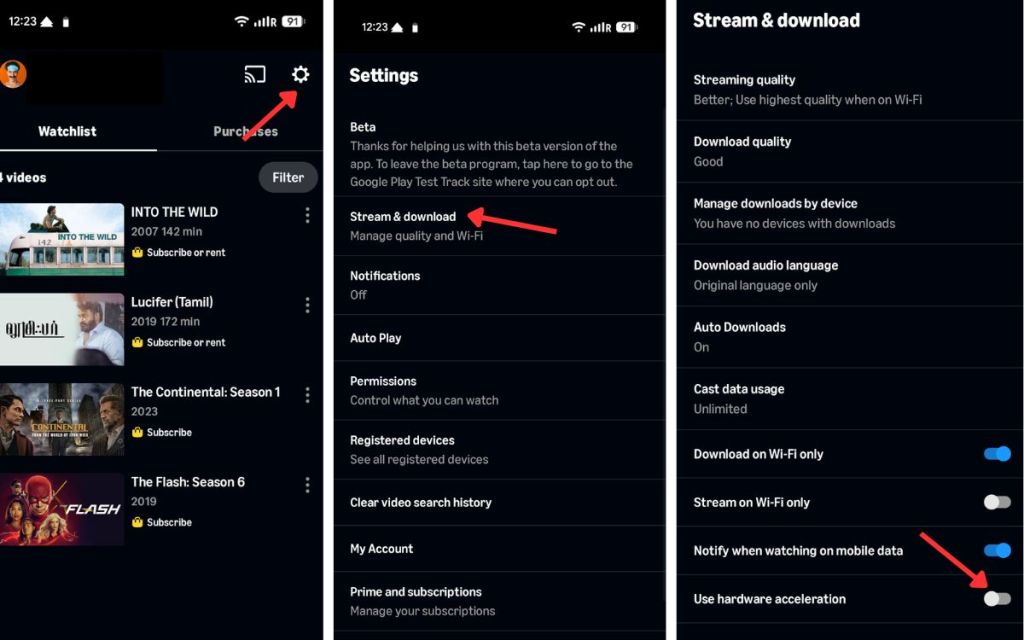
If you get a black screen with audio, go to your Profile inside the Prime Video app, tap the Settings (gear icon), select Stream & Download, and toggle on Use hardware acceleration.
Fix 3. Change Video Streaming Quality
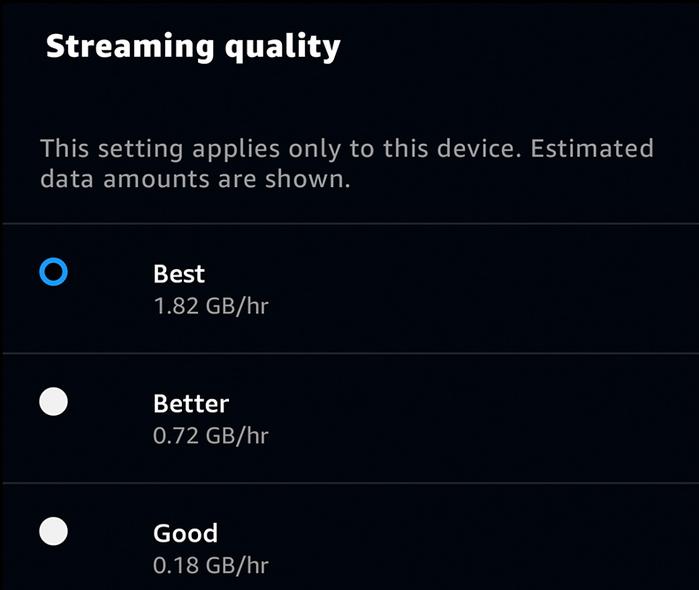
Instead of lowering the video quality, set it to Best for optimal performance. Open the Prime Video app, go to My Stuff, select the settings gear icon, then Streaming & Downloading. Choose Streaming quality and select Best.

Tip: Return to Streaming & Downloading and turn off the "Stream on Wi-Fi only" option. This allows for less restricted video playback on your phone.
Fix 4. Set Date & Time to Automatic
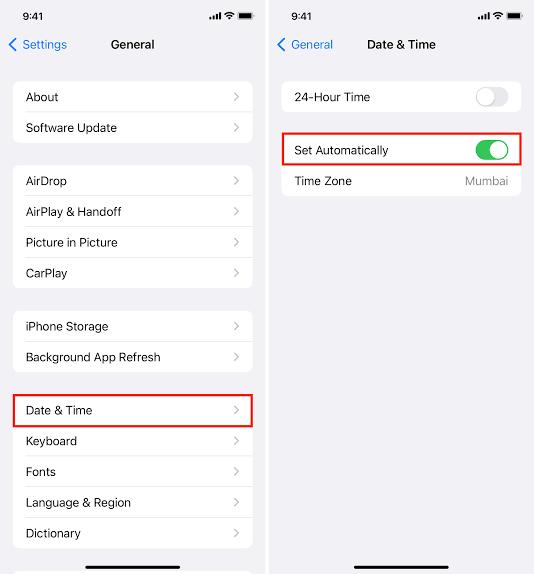
If your device time does not match Amazon's secure servers, security certificates will fail and block the stream. Go to your phone's system settings and make sure Set Automatically is turned on for date and time.
Part 3. Fix Prime Video Black Screen on PC and Mac
To resolve black screen issues on Prime Video for your desktop, start with these steps: restart your computer, update the Prime Video app, turn off hardware acceleration in your browser, or use a web browser instead of the app to check if the problem continues.
Fix 1. Disable Browser Extensions or Use Incognito Mode
Extensions like "Video Speed Controller" or strict ad blockers can conflict with Prime Video's playback code. Try disabling your extensions one by one, or open Prime Video in your browser's Incognito / Private Window to test playback.
Fix 2. Switch to Mozilla Firefox
Many users report getting a black screen on Google Chrome or Microsoft Edge when trying to watch protected content. Simply switching to Mozilla Firefox often resolves the black screen immediately, as Firefox's rendering engine and secure DRM pipeline handle these streaming handshakes differently.
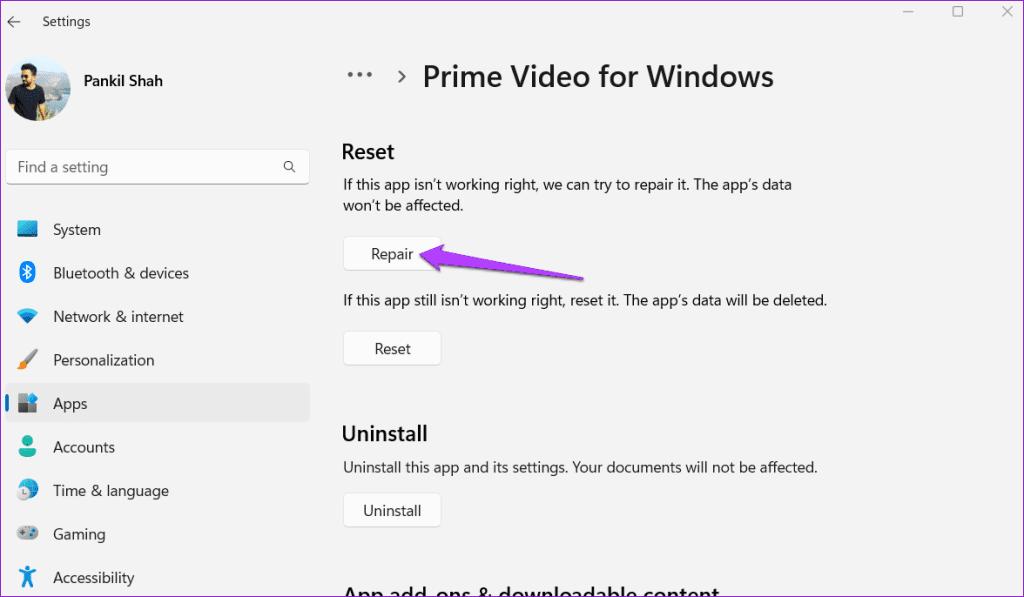
Fix 3. Repair the Prime Video App (Windows Only)
If you are using the official Windows app instead of a browser, you can fix corrupted files directly through your system settings.
-
01
Open Windows Settings and click on Apps.
-
02
Select Installed apps and find the Prime Video app.
-
03
Click the three dots next to it and choose Advanced options.
-
04
Scroll down to the "Reset" section and click Repair (if that fails, click Reset).
Fix 4. Stop Screen Sharing, Recording, and AirPlay (Remove Docks)
Prime Video has strict digital rights management (DRM) for content protection. This can result in a black screen during playback when using screen sharing, recording tools, or AirPlay.
Many Prime Video users have experienced a black screen while sharing their screen or mirroring their display, even though audio continues to play.
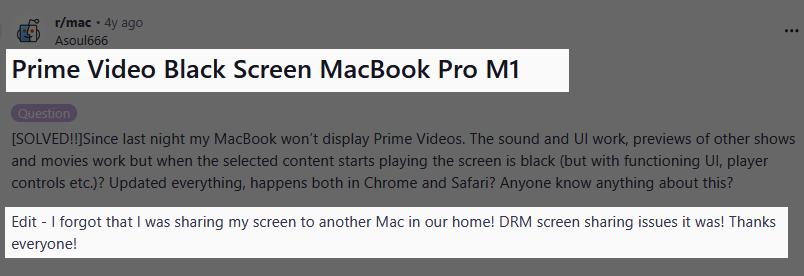
To resolve this issue, watch Prime Video directly on your main device screen. Disconnect any USB-C hubs, HDMI splitters, or docking stations that are connected to multiple monitors. Additionally, close any screen recording software, such as OBS, Zoom, or Discord, that may be running in the background.
Ultimate Fix: Download and Play Offline with VidiFab
If browser/app bugs, extension conflicts, or HDCP errors continue to block your screen, you can use VidiFab Streaming Video Downloader to download the video from Prime Video to your Windows PC or Mac computer and play it using a standard media player. Because the video plays locally, it will not trigger any DRM or browser-related black screen issues. Thus, not likely to give you black screens.
VidiFab Streaming Video Downloader
Download Prime Video titles into 1080p MP4 or MKV files on PC or Mac computer with multilingual subtitles and audio tracks.

-
01
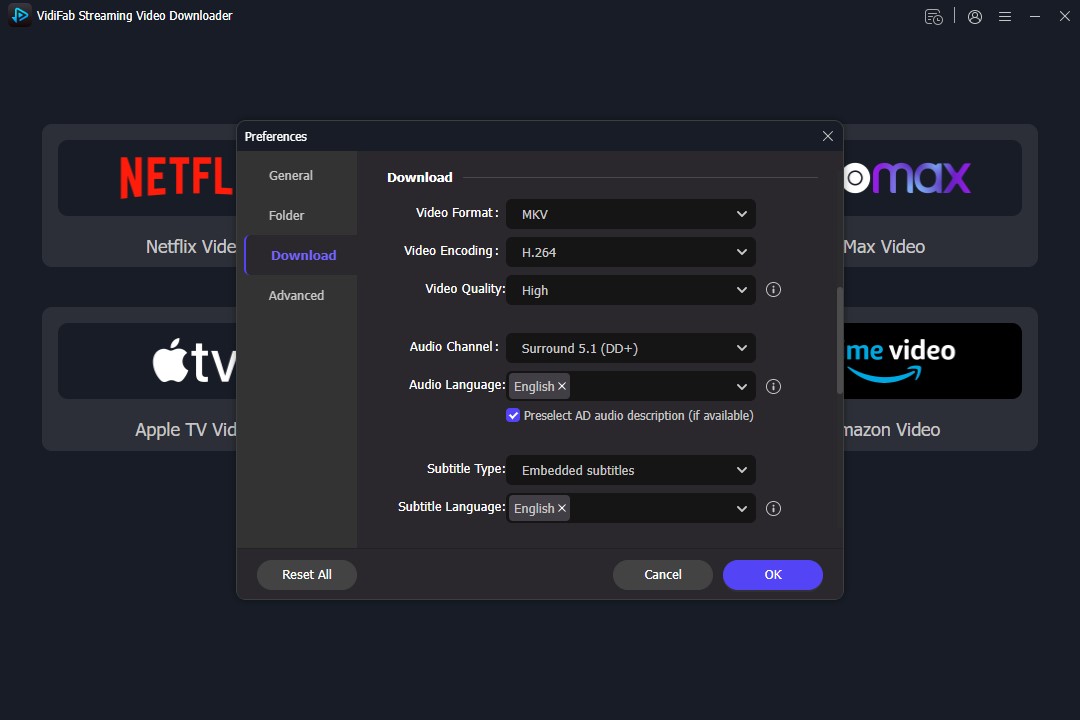
Open VidiFab on your desktop. Click the Menu icon, navigate to Preferences > Download, and select either MP4 or MKV as your output format. Choose your preferred download folder and click OK to save the settings.
-
02
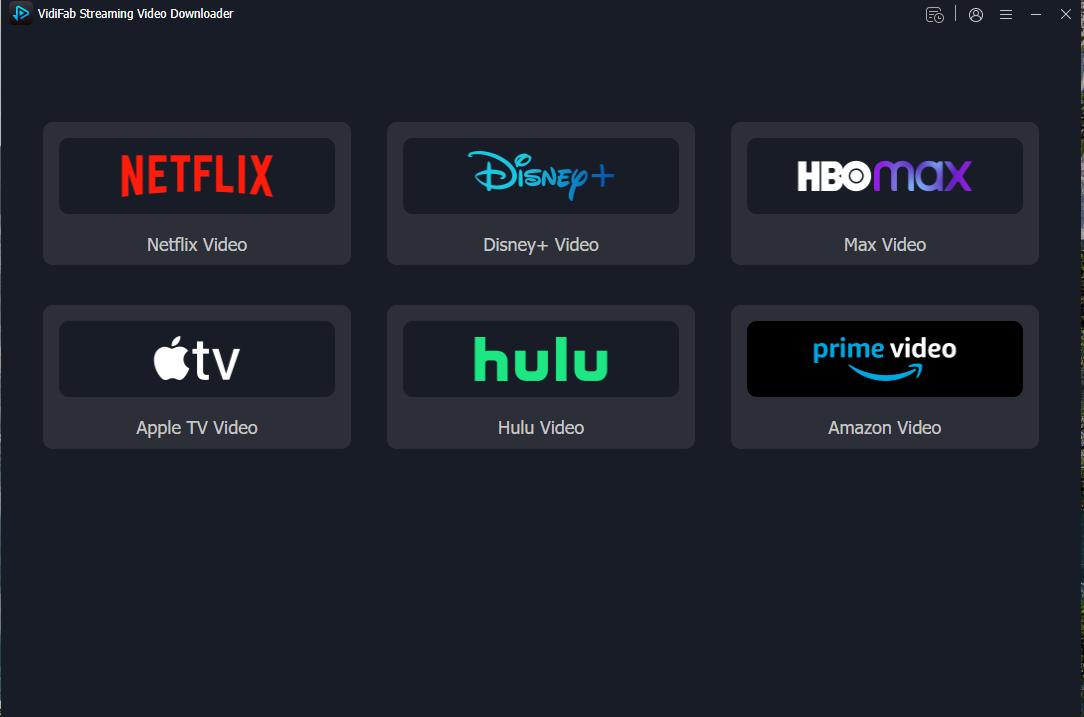
Return to the main interface, click on the Amazon Video card, and log into your active Prime Video account using the secure, built-in browser.
-
03
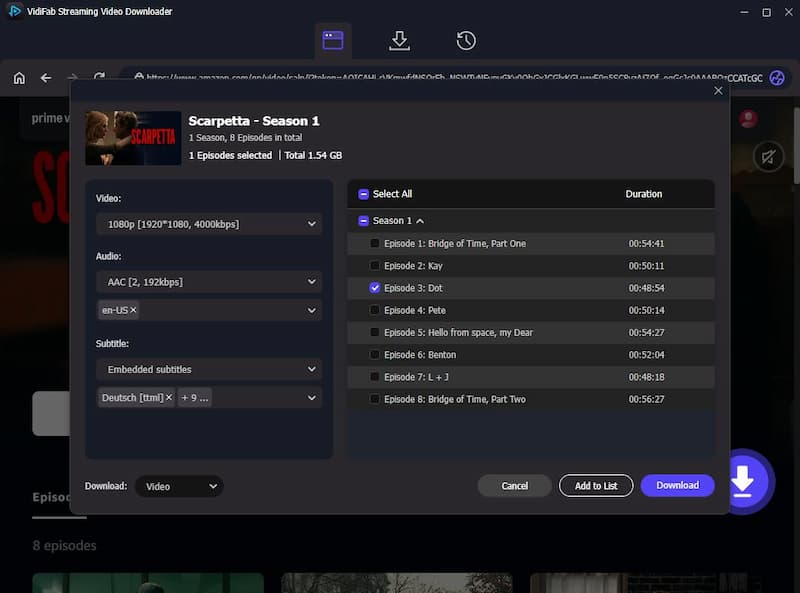
Browse the library or search for the specific movie or episode you want to watch. Once you open the video details page, VidiFab will automatically analyze the stream and display a Download button. Click the Download button to open the settings window. Select 1080p video quality, choose your audio tracks, pick your subtitle languages, and choose whether to save subtitles as embedded text or separate files. Click Download to start saving the file.
-
04
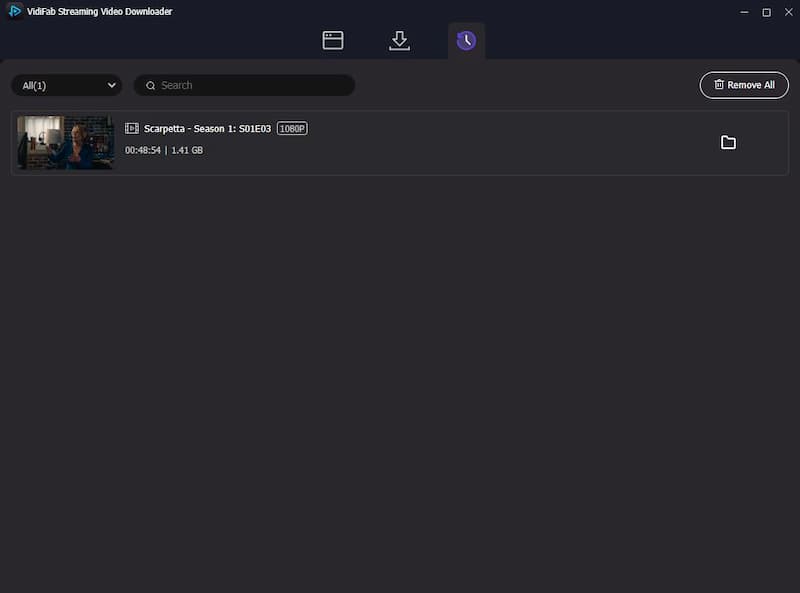
Once the download completes, go to the History section (clock icon) and click the folder icon to locate your saved file. Open the video using VLC Media Player or your system's default player for a smooth, blackout-free viewing experience.
Part 4. Fix Prime Video Black Screen on Smart TV
To fix the black screen issues on Prime Video on your TV, restart your TV, reinstall the Prime Video app, and update your TV's system software. Also, check your internet speed and open Prime Video from the main TV home menu instead of using quick-launch shortcuts.
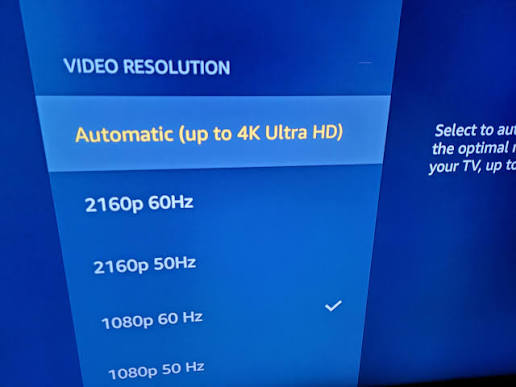
A common reason for a black screen is attempting to watch a 4K Ultra HD movie or show on a TV that doesn't support it. If the video resolution is higher than what your hardware can handle, the video feed will fail, resulting in a black screen.
Check the back label or go to Settings > Display or Picture > Resolution. If the highest option is 1920x1080 or 1080p, your TV doesn't support 4K. In this case, change the resolution to 1080p at 60Hz in the Display Settings instead of leaving it on "Auto." This will restore the picture.
Device-Specific Fixes for Main TV Platforms
On Samsung Smart TV
- Test Your HDMI Link: Go to Settings > Support > Device Care > Self Diagnosis > Signal Information and run the HDMI Cable Test to see if your cable is damaged.
- Deregister Your TV: Visit Amazon's Manage Your Content and Devices page on your phone or PC, select your Samsung TV under "Prime Video," and click Deregister to log out and clear server-side authorization glitches.
On LG Smart TV
- Disable Quick Start+: This feature keeps apps in a standby state that can freeze video playback. Go to Settings > All Settings > General > Quick Start+ and turn it Off, then restart the TV.
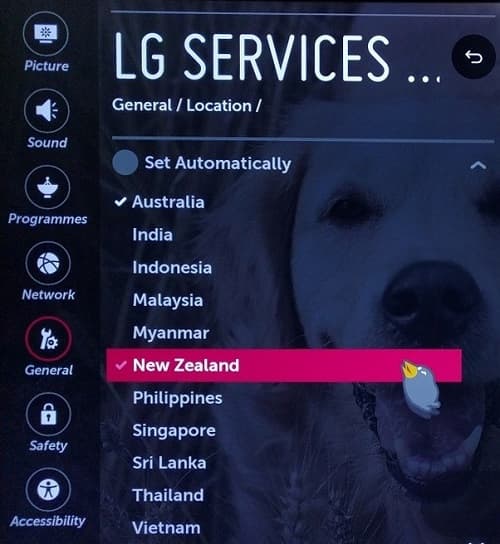
- Change Location Settings: Go to Settings > General > System > Location and toggle your service country back and forth to force the LG Content Store to reload the app licenses.
On Apple TV
- Upgrade to a High-Speed HDMI Cable: Many users report that Apple TV is highly sensitive to video data limits. Replacing an old cable with a certified High Speed HDMI cable fixes the handshake failure and restores full resolution.
- Disable or Adjust Match Content: Go to Settings > Video and Audio > Match Content and turn them off, or set your main format to 4K SDR 60Hz to minimize the number of screen blanking handshakes.
On FireStick
- Cycle Resolution Using Remote: If your FireStick boots into a black screen, hold the Up and Rewind buttons on your remote together for 5 seconds. The FireStick will cycle through various display resolutions (like 1080p, 720p, etc.) and pause for 10 seconds on each. Once you see an image appear, click Use Current Resolution on your remote.
- Clear App Data: Go to Settings > Applications > Manage Installed Applications > Prime Video and select Force Stop followed by Clear Data to refresh the app's secure files.
If nothing else resolves the issue, performing a full system wipe is an effective solution. For example, on a Samsung TV, navigate to Settings, then All Settings, followed by General & Privacy, and select Reset. Enter your PIN and choose Reset.
Part 5. Fix Prime Video Black Screen When Casting
When you cast Prime Video from your mobile phone to your TV, you might see a black screen with audio only. This usually happens because Screen Mirroring (mirroring your entire phone screen) is blocked by Digital Rights Management (DRM) piracy protections. If you are facing this issue, try the following solutions:
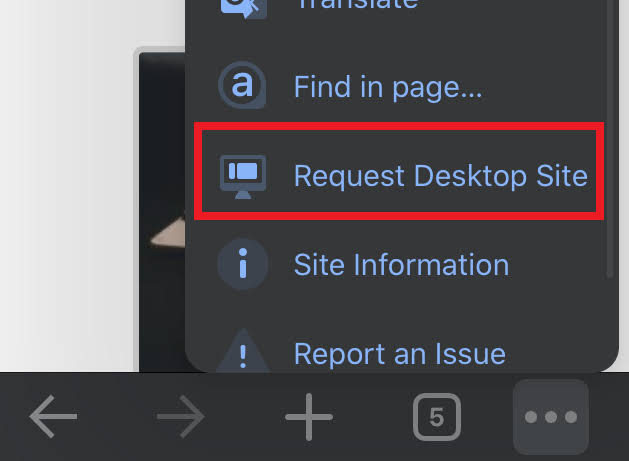
Fix 1. Play Through Desktop Mode in a Web Browser
If you do not have an HDMI cable, and your TV does not support Google Chromecast, you can use your mobile browser.
-
01
Open the Google Chrome browser on your phone.
-
02
Tap the browser menu (three dots) and tap Request browser site or check the box for Desktop site.
-
03
Go to the web version of the Prime Video website and log in (do not open the Prime Video app when prompted).
-
04
Play your movie directly inside the Chrome browser.
-
05
Turn on your phone's regular Screen Mirroring or Smart View feature to share your screen with the TV. The video will play perfectly on your TV without turning black.
Note: You cannot cast Prime Video offline downloads.
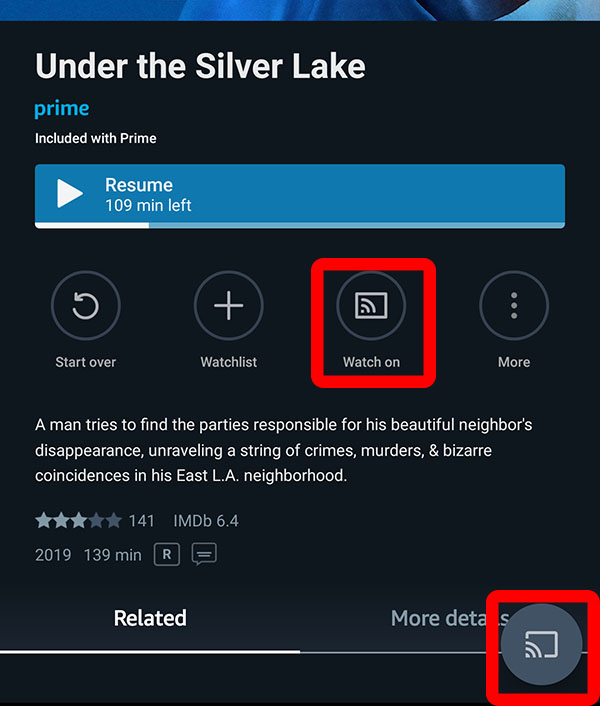
Fix 2. Use In-App Casting Instead of Screen Mirroring
If your TV supports casting, avoid using generic screen mirroring and use the in-app Cast feature instead.
Open the Prime Video app, locate your movie, and tap the Cast icon in the corner of the screen. This will instruct your TV's Chromecast or receiver to stream the video directly from Amazon's servers, which is permitted and avoids DRM restrictions.
Part 6. Final Thoughts
A black screen on Prime Video is annoying, but restarting your device, adjusting resolutions, or checking your HDMI connection usually brings the picture right back. If hardware protection settings keep blocking your screen, downloading titles with VidiFab ensures flawless, offline playback. Use these fast troubleshooting steps today to fix the glitch and enjoy your favorite shows!
 Free Download
 Secure Download
 Free Download
Secure Download
Free Download
Secure Download


I'm a video tech specialist with over 10 years of experience in digital media and streaming. I focus on making complex workflows simple and practical. Through my guides, you'll learn how to convert media, keep high-quality playback across devices, and manage your streaming video library with ease.
 Leave Your Comment