How to Fix Hulu Error Code P-DEV320: Complete Troubleshooting Guide
 By Miles Kent
Seeing Hulu error code P-DEV320 when you try to play a video? This error usually means Hulu is having trouble loading or playing content, and the cause can be your internet connection, Hulu app, device, or Hulu's service. This guide explains the causes behind P-DEV320 and provides step-by-step fixes for Smart TVs, Roku, PS5, NVIDIA Shield, mobile phones, and browsers.
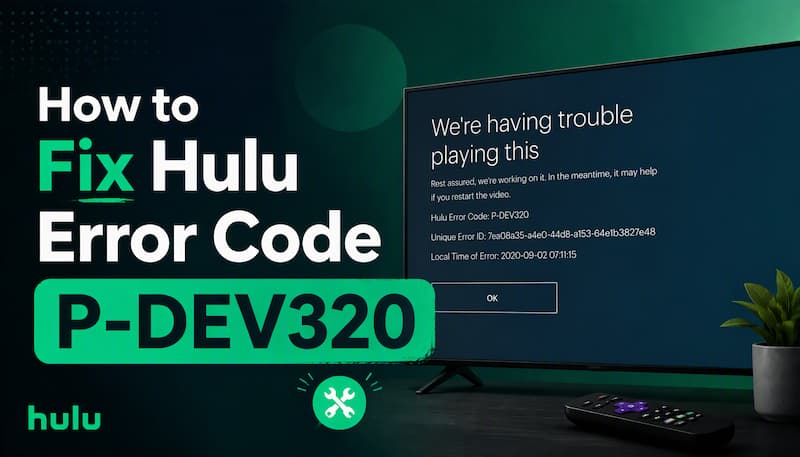
Part 1. What Is Hulu Error Code P-DEV320?
What does Hulu error code P-DEV320 mean? Hulu error code P-DEV320 signals a communication breakdown between your device and Hulu's servers. The app cannot send or receive the data it needs to start playback, so the stream fails before it begins.
The error can appear on any device that runs the Hulu app, including smart TVs, Roku, PS5, NVIDIA Shield, mobile phones, and web browsers.

Note: Hulu error codes P-DEV318, P-DEV322, and P-DEV323 belong to the same family of media player communication errors. If you see any of these codes, they share the exact same root causes and can be fixed using the identical troubleshooting steps outlined in this guide.
What Does Hulu P-DEV320 Look Like?
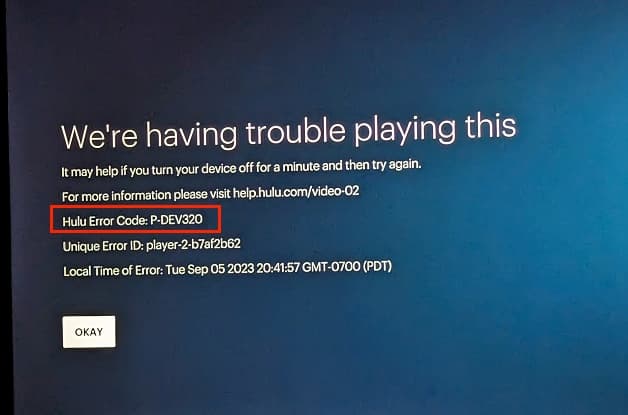
When the error triggers, Hulu displays a specific on-screen message:
We're having trouble playing this. It may help if you turn your device off for a minute and then try again. For more information, please visit help.hulu.com/video-02. Hulu Error Code: P-DEV320
Common Causes of Hulu P-DEV320
Hulu P-DEV320 can happen for various reasons, mostly due to internet issues. Based on user reports and discussions about this error, it appears frequently on smart TVs and streaming devices such as Android TV, Roku, and Chromecast. To help you figure out what's causing it on your device, I've listed the main reasons for P-DEV320, ranked by how often they lead to the error.
| Cause | What Happens | Devices Most Affected |
|---|---|---|
| Unstable or slow internet | Connection drops or falls below Hulu's minimum speed (3 Mbps for on-demand, 8 Mbps for live, 16 Mbps for 4K) | All devices |
| Corrupted app cache | Stale temporary files interfere with playback requests and server handshakes | Android TV, Fire TV, mobile |
| Outdated Hulu app | Older app versions fail to communicate with updated server protocols | Smart TVs, Roku, consoles |
| Device firmware issues | OS-level bugs or DRM conflicts block content playback after system updates | Samsung TVs, NVIDIA Shield |
| Hulu server outage | Widespread connectivity failure on Hulu's end, often reported on Downdetector | All devices simultaneously |
| VPN or proxy interference | Regional licensing checks reject the connection when location is obscured | All devices |
| Blocked ad domains | Firewalls or ad blockers stopping Hulu's CDN domains (e.g., ads-e-darwin.hulustream.com) | Browsers, network-level blockers |
Part 2. Preliminary Checks: Rule Out External Problems
Before you troubleshoot your device, confirm that the problem is not on Hulu's side or in your network. These preliminary checks take only a few minutes and can save you from unnecessary app reinstalls or device resets. Once you have confirmed that Hulu is online and your network meets its speed requirements, any remaining fault sits with your device or app, so move on to Part 3.
Method 1. Check If Hulu Is Down
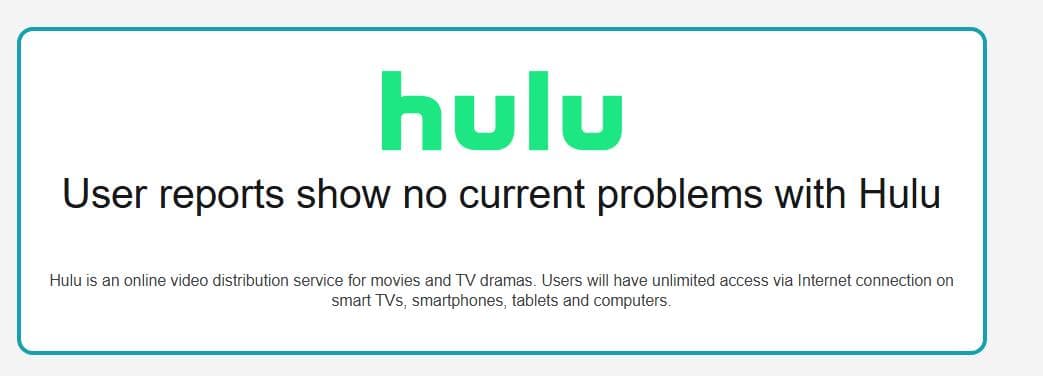
- Downdetector: Go to the Hulu page on Downdetector and check the report volume for the last 24 hours. A sudden spike suggests a widespread outage.
- IsDown: This tracker checks Hulu every few minutes and gathers user reports, showing both the current status and recent incidents.
- Social media: Check the official @hulu_support account on X (Twitter) and the r/Hulu subreddit for outage updates or user complaints.
What to do if Hulu is down: Wait for Hulu to restore service. Most outages are resolved within 30 minutes to a few hours. In the meantime, you can use VidiFab to download Hulu videos for offline viewing, so future outages never interrupt your entertainment.
Method 2. Test Hulu Titles on Another Device
If Hulu's servers are working, try playing the same title and a different title on another device connected to the same Wi-Fi, or over mobile data. This tells you whether the problem lies with your device, your network, or just one title.
| Test Result | Diagnosis | Next Step |
|---|---|---|
| Works on phone (cellular) but fails on TV | Home network or device-specific issue | Perform a full power cycle on your router and streaming device. |
| Works on phone (same Wi-Fi) but fails on TV | The network is fine; the problem is isolated to your TV or streaming device | Force-close Hulu and clear the application cache on your TV. |
| Fails on all devices on the same network | Network-wide problem | Reboot your modem/router or disable active network VPNs and ad blockers. |
| Fails with only one movie or show | The issue may be specific to that title | Play another Hulu title or contact customer support to report a corrupted media stream. |
Method 3. Check and Improve Your Internet Speed
Insufficient or unstable bandwidth causes Hulu error code P-DEV320 because Hulu cannot maintain the minimum connection required for playback. Hulu's speed requirements vary by content type:
| Content Type | Minimum Speed |
|---|---|
| Standard streaming library | 3.0 Mbps |
| Live TV streams | 8.0 Mbps |
| 4K Ultra HD content | 16.0 Mbps |

To run a speed test on your device, check through the Hulu Internet Speed Test Guide or use an independent testing tool like Speedof.me on your streaming device.
Part 3. Universal Fixes for Hulu Error Code P-DEV320
These fixes work across most devices, including smart TVs, Roku, Fire TV, PS5, NVIDIA Shield, and mobile. Try them in order before moving on to the device-specific solutions.
Fix 1. Power Cycle Your Streaming Device
Unplug your device completely from its power outlet rather than just putting it into sleep mode. Wait 2-3 minutes to allow the system memory to fully drain. Plug it back in, power it on, and then launch Hulu to test playback.
Fix 2. Restart the Hulu App
Close Hulu completely, then reopen it. On most devices, you can force-close the app from your system's app settings or by swiping it away from the app switcher. This terminates active sessions and re-establishes a clean handshake with Hulu's media server network.
Fix 3. Update or Reinstall the Hulu App
An outdated or corrupted app is a leading cause of P-DEV320. Check your device's app store for updates and install any available version. If there are no updates, try reinstalling the Hulu app to clear out any corrupted cache files and old authentication tokens that might be causing issues.
Fix 4. Restart Your Router or Try Another Network
Unplug your router and modem, wait 60 seconds, then plug in the modem first and the router second. Wait for a full connection before testing Hulu. If the error persists, switch to a mobile hotspot temporarily. If Hulu works on the hotspot, your home network is the problem.
Fix 5. Disable VPN, Proxy, or Ad Blockers
Temporarily turn off any VPN or proxy since Hulu actively blocks anonymous, shared, or non-residential IP addresses. If you're watching Hulu in a browser, also disable ad-blocking or other extensions that may accidentally intercept Hulu's mandatory streaming data and trigger playback errors.
Part 4. Device-Specific Fixes for Hulu Error Code P-DEV320
If universal troubleshooting fails, locate your streaming device below for a 10-second technical fix.
Hulu Error Code P-DEV320 on NVIDIA Shield TV / Android TV
Fix 1. Enable HDCP 1.4 via Developer Options
Step 1. Go to Settings, then Device Preferences (or System), then About.
Step 2. Scroll to the bottom and click Build seven times until the screen says "You are now a developer".
Step 3. Return to the previous menu and select Developer Options.
Step 4. Scroll down, locate Enforce HDCP 1.4, and toggle it to Enabled.
Step 5. Restart your device and test Hulu.
Fix 2. Reset the HDMI Handshake
Step 1. Go to Settings, then Display & Sound, then HDMI Settings.
Step 2. Set the HDMI Mode back to Default instead of Auto or Custom.
Step 3. Restart your streaming device.
Step 4. Return to the HDMI settings, switch to your preferred display profile (such as HDMI 2.0 or 2.1), and perform one final system reboot.
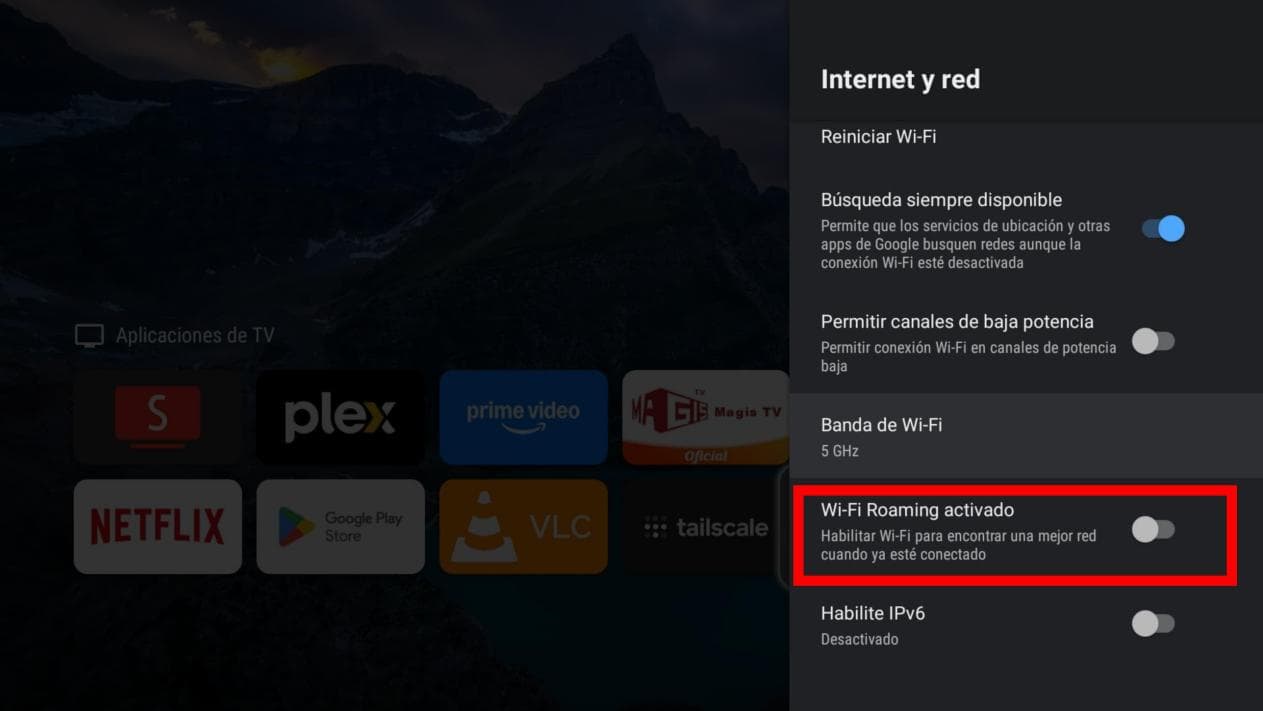
Fix 3. Disable Wi-Fi Roaming
Go to Settings, then Network & Internet, then Wi-Fi, scroll down to locate Wi-Fi Roaming Enabled, and toggle it to Disabled.
Hulu Error Code P-DEV320 on Smart TVs
Smart TVs can accumulate temporary system or app data that interferes with Hulu playback and may contribute to error code P-DEV320. Turning off the TV with the remote usually only puts it into standby mode, so a full power cycle can be more effective. Use the quick-reference chart below to find the brand-specific steps for clearing the temporary system issues that may trigger P-DEV320.
| Smart TV Brand | Troubleshooting Steps |
|---|---|
| Samsung TV | 1. Update the TV software: Settings, then Support, then Software Update. 2. Make sure the TV is set to Home Mode: Settings, then General, then System Manager, then Usage Mode, then Home Mode. 3. Reset Smart Hub: Settings, then Support, then Self Diagnosis, then Reset Smart Hub. |
| LG TV (webOS) | 1. Update webOS: Settings, then All Settings, then Support, then Software Update. 2. If Hulu still shows P-DEV320, remove the Hulu app, restart the TV, and reinstall Hulu from the LG Content Store. |
| Apple TV | 1. Delete the Hulu app by highlighting it on the Home Screen, then use the Delete option. 2. Restart Apple TV: Settings, then System, then Restart. Then reinstall Hulu from the App Store. |
| Google TV / Chromecast | 1. Open Settings, then Apps, then See all apps, then Hulu. 2. Select Force Stop, then Clear Cache. 3. Restart the Google TV or Chromecast device and try Hulu again. |
| All smart TVs | Perform a cold boot: unplug the TV from the wall outlet, wait about 60 seconds, then plug it back in and restart Hulu. This clears temporary system issues that may interfere with Hulu playback. |
Hulu Error Code P-DEV320 on Roku
Fix 1. Clear the Roku Cache
Press Home five times, then Up once, Rewind twice, and Fast Forward twice. Wait for the cache to clear, then relaunch Hulu. Alternatively, restart your Roku via Settings, then System, then Power, then System Restart.
Fix 2. Remove and Re-Add Hulu
Highlight Hulu, press the Star button, select Remove channel, restart Roku, then re-add Hulu from the Channel Store.
Fix 3. Change the Roku Display Settings
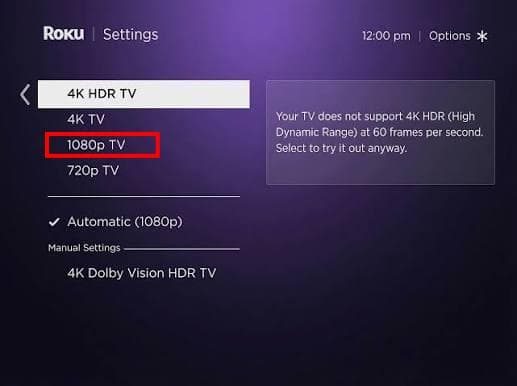
Go to Settings, then Display Type, and switch from the default 1080p HDR to 1080p TV. This has resolved P-DEV320 for multiple users when the automatic HDR setting conflicted with Hulu playback.
Fix 4. Check for System Updates
Go to Settings, then System, then System Update, then Check Now.
Hulu Error Code P-DEV320 on PS5
Fix 1. Delete and Reinstall Hulu
Highlight Hulu, press Options, then Delete, then reinstall it from the PlayStation Store.
Fix 2. Rebuild the Database
Turn off your PS5, then hold the Power button until you hear the second beep to enter Safe Mode. Select Rebuild Database and follow the on-screen instructions.
This process scans the PS5's storage and rebuilds its content database without deleting your installed games or saved data. Once it finishes, restart the PS5 and open Hulu again to check whether P-DEV320 is resolved.
Fix 3. Update and Test the Network
Check for system updates under Settings → System → System Software, then run Settings → Network → Test Internet Connection.
If the test shows a connection problem, restart your router or try another network. After updating the PS5 and confirming a stable connection, open Hulu again and check whether P-DEV320 still appears.
Hulu Error Code P-DEV320 on iPhone and Android
Fix 1. Clear the App Cache on Android
On Android, go to Settings, then Apps, then Hulu, then Storage & cache. Tap Clear cache first. If that does not work, tap Clear data and log back in.
Fix 2. Reinstall the App on iPhone or iPad
iOS does not offer per-app cache clearing. The only way to reset Hulu's local data is to delete the app, restart your iPhone, reinstall Hulu from the App Store, and sign back in.
Fix 3. Reset Your Network Settings
This clears saved Wi-Fi networks, DNS overrides, and Bluetooth data that can interfere with Hulu's connection.
iPhone: Settings → General → Transfer or Reset iPhone → Reset → Reset Network Settings.
Android: Settings → System → Reset options → Reset Wi-Fi, mobile & Bluetooth.
Fix 4. Check for OS and App Updates
An outdated Hulu app running on a recently updated Android or iOS version is a classic P-DEV320 trigger. Update both the app and your system software before trying anything else.
Hulu Error Code P-DEV320 on Chrome, Safari, Edge, or Firefox
Fix 1. Use a Private or Incognito Window
Open Hulu in a Private or Incognito window and try playing the same video. If Hulu works normally, your regular browser session may have outdated cookies, cached data, or an extension interfering with playback.
Fix 2. Check Your Ad or Network Blocker
If you use Pi-hole or another network-level ad blocker, check whether it is blocking the Hulu domains required for playback. Make sure hulustream.com and hulu.com are allowed.
Some Pi-hole users have reported that blocking Hulu's ads-e-darwin.hulustream.com domain prevented Hulu from working properly. If you use a custom blocklist, temporarily disable it or whitelist the relevant Hulu domains, then test playback again.
Fix 3. Try Another Browser
If Hulu still shows P-DEV320 in your current browser, try another supported browser, such as Firefox or Edge.
Part 5. What If Hulu Error Code P-DEV320 Still Won't Go Away?
If you have worked through the universal fixes and the device-specific solutions, and P-DEV320 still blocks playback, two paths remain.
Contact Hulu Support
Reach out to Hulu directly when the error persists across multiple devices and Hulu's servers are confirmed operational. Before contacting support, gather the following information to speed up the process:
- The exact error code (P-DEV320)
- The unique error ID displayed on screen
- Your device model and operating system version
- A list of the troubleshooting steps you have already tried
Hulu offers support through live chat in its Help Center, direct messages on X (Twitter) at @hulu_support, and phone assistance. When you contact them, provide the unique error ID; it helps their team trace the specific failure on their end.
If the error affects a single device while Hulu works elsewhere on your network, the problem may be a device-specific bug or a compatibility issue with a recent app or firmware update. In those cases, Hulu support can confirm whether a known issue exists for your device model.
Use VidiFab to Download Hulu Videos for Offline Playback
A permanent workaround is to watch Hulu content without relying on a live streaming connection.
VidiFab Streaming Video Downloader downloads Hulu shows and movies and saves them in standard formats such as MP4 or MKV. Once downloaded, you can watch Hulu movies and shows offline on compatible devices without buffering, loading delays, ads, or streaming-related playback interruptions such as Hulu error code P-DEV320.
VidiFab Streaming Video Downloader
Download Hulu videos as MP4 or MKV files and watch them offline without buffering, streaming interruptions, or playback errors.

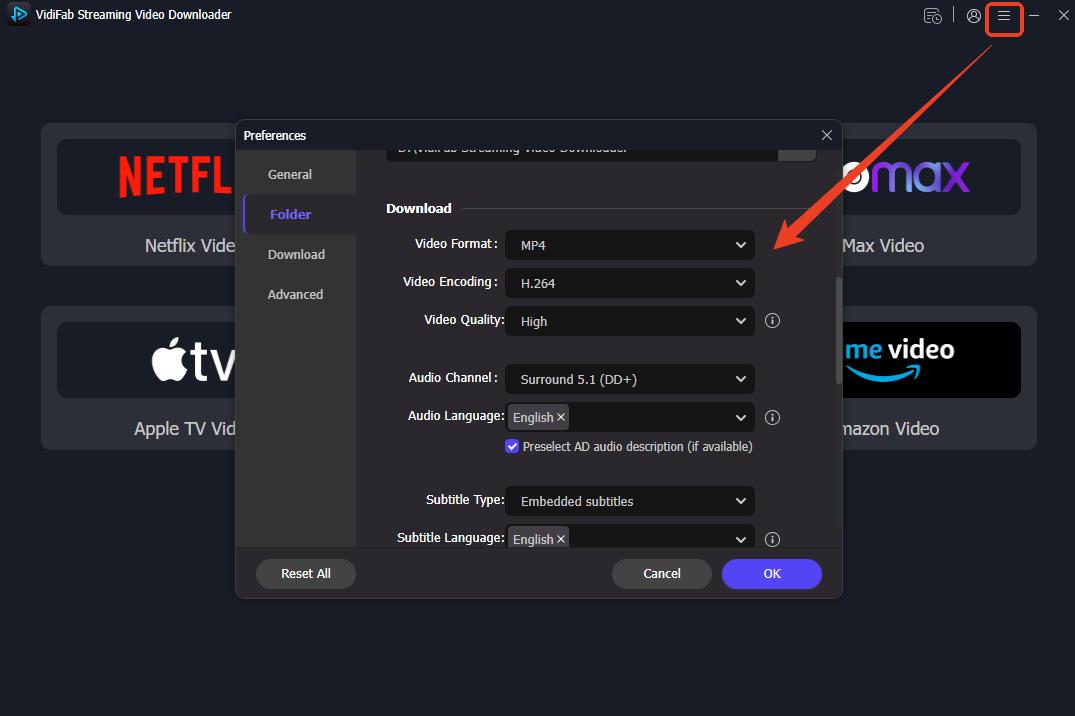
Step 1. Launch VidiFab and open Preferences. Choose your preferred output format, such as MP4 or MKV, then select the destination folder where downloaded videos will be saved. You can also adjust other download preferences before proceeding.
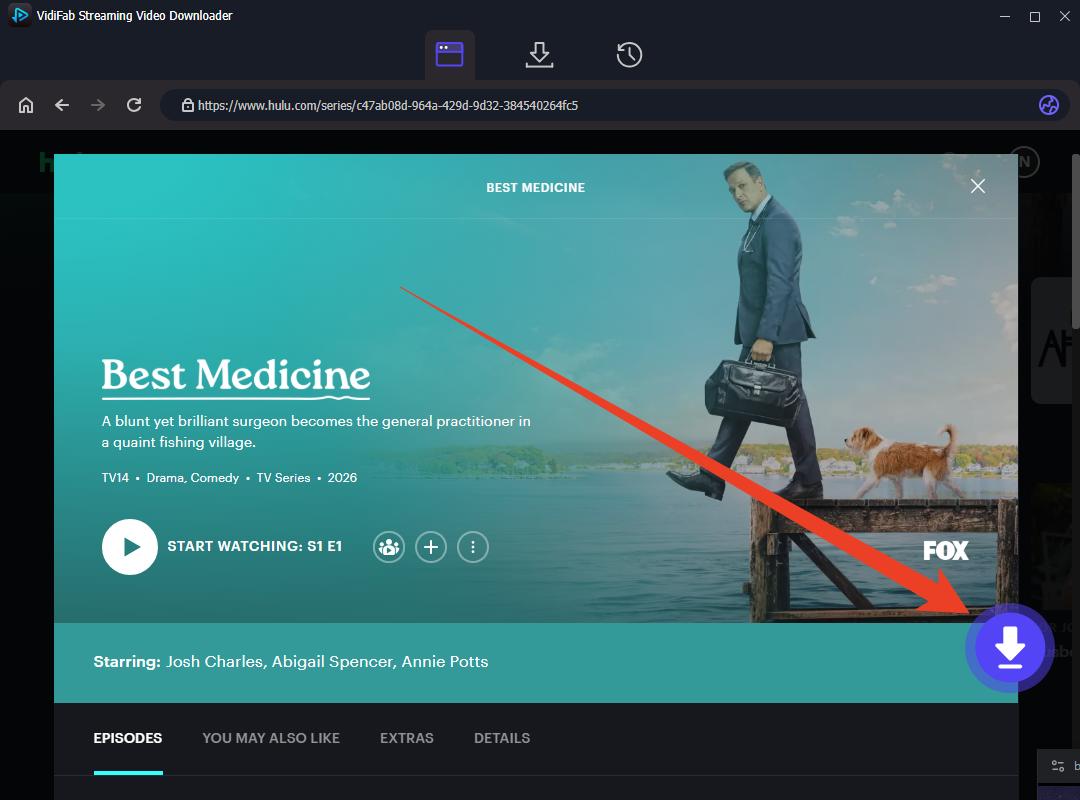
Step 2. Open Hulu through VidiFab's built-in browser and sign in to your account. Browse to the movie or TV show you want to save for offline viewing, then click the Download button in the lower-right corner of the playback page.
Step 3. When the download settings window appears, select your preferred video quality, audio language, and subtitle options. For TV series, you can select multiple episodes at once and use Select All to add an entire season to the download queue.
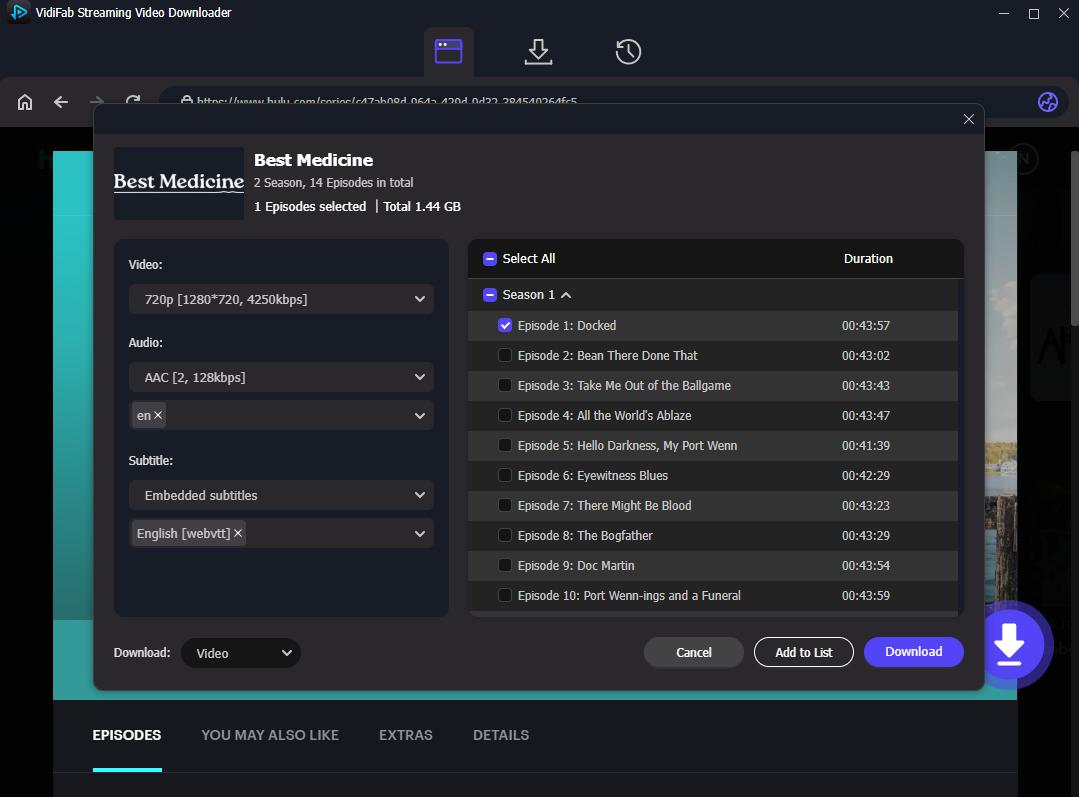
Step 4. Click Download to start saving the selected videos. Once the download is complete, open the output folder to access the MP4 or MKV files. You can then watch them offline on compatible devices and media players without relying on a live Hulu stream.
Part 6. FAQs About Hulu Error Code P-DEV320
Does P-DEV320 mean my Hulu account is blocked?
Can Hulu error code P-DEV320 go away on its own?
Why does Hulu error code P-DEV320 only happen at night?
Is P-DEV320 the same as P-DEV318 or P-DEV322?
Can P-DEV320 be caused by too many devices on one Hulu account?
Does P-DEV320 affect live TV differently than on-demand content?
Conclusion
Hulu error P-DEV320 is a communication error, not an account problem, and most cases clear with a power cycle, a cache clear, or a reinstall. For device-specific faults, use the fixes in Part 4. If the error keeps returning, VidiFab lets you download Hulu videos for permanent offline playback on any device.
 Free Download
 Secure Download
 Free Download
Secure Download
Free Download
Secure Download


I'm a video tech specialist with over 10 years of experience in digital media and streaming. I focus on making complex workflows simple and practical. Through my guides, you'll learn how to convert media, keep high-quality playback across devices, and manage your streaming video library with ease.
 Leave Your Comment