How to Fix Disney Plus Error Code 42: 11 Ways to Try
 By Miles Kent
Key Takeaway: Disney Plus Error Code 42 usually indicates a problem connecting to Disney+ servers. Even if your internet is working, an unstable connection, app issue, or temporary service disruption may trigger the error. To fix it, check your network connection, restart the Disney+ app and your router, disable your VPN if you use one, or clear the app cache on supported devices.
Disney Plus Error Code 42 can interrupt streaming even when your internet seems to be working fine. Whether you're unable to stream or experiencing issues with downloads and offline playback, this guide covers practical fixes to help you get back to watching.
Part 1. What Does Disney Plus Error Code 42 Mean?
Disney Plus Error Code 42 usually indicates a problem connecting to Disney+ servers. It can appear on smart TVs and streaming devices, game consoles, computers, and mobile devices when you try to stream content.
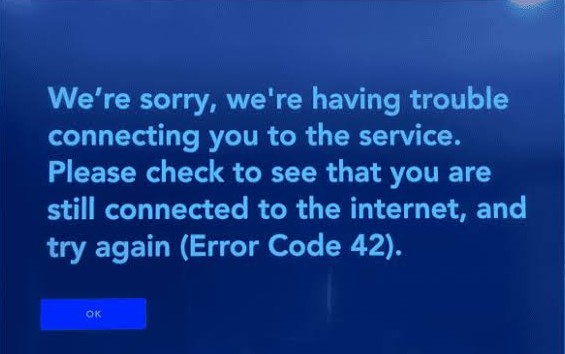
The error message typically reads:
"We're sorry, we're having trouble connecting you to the service. Please check to see that you are still connected to the internet, and try again. (Error Code 42)"
Common Causes of Error Code 42
In short, Error Code 42 means your device cannot establish or maintain a stable connection with Disney+ servers. The primary triggers include:
- Unstable or slow internet connection: Weak Wi-Fi or network congestion keeps Disney+ from loading the stream.
- Disney+ server problems: The service may be down or overloaded.
- VPN or proxy interference: These can block or reroute the connection.
- Unsupported or outdated device or browser: Disney+ can't run properly on it.
- Corrupted app cache or data: Stored files conflict with playback.
- DNS or router issues: Your network settings can't connect to Disney+ servers.
Part 2. 11 Fixes for Disney Plus Error Code 42
Error Code 42 is almost always a connection problem, so the fixes below go from the quickest checks to the more involved ones. Try them in order and test Disney+ after each one. Where steps differ by device, find yours in the list.
Fix 1. Check Whether Your Device or Browser Is Supported
Disney+ Error Code 42 may occur if you're using an unsupported device, operating system, or web browser. Disney+ supports a wide range of platforms, including web browsers, mobile devices, smart TVs, streaming players, game consoles, and select connected services.
Check the official Disney+ supported devices list to confirm that your device and software meet the current requirements. If your device is supported, make sure its operating system and the Disney+ app are up to date before trying the next fix.
Fix 2. Check Disney+ Server Status
If Disney+ is down or overloaded, no fix on your side will help. Disney's help pages offer troubleshooting but not live outage status, so check a third-party outage tracker like Downdetector, and look at the official @DisneyPlusHelp account on X for recent reports. If many users are reporting problems, wait 15 to 30 minutes and try again.
Fix 3. Restart the Disney+ App and Your Streaming Device
A restart clears temporary glitches that block the connection. Fully close the app first, then restart the device.
- Amazon Firestick / Fire TV: Go to Settings > My Fire TV > Restart. Alternatively, unplug the power cord from the outlet for 30 seconds, then plug it back in.
- Roku & Roku TV: Go to Settings > System > Power (if available) > System restart, or unplug the TV/Roku power cable.
- Smart TVs (Samsung, LG, Sony): Unplug the TV power cable from the wall socket for 60 seconds (do not just turn off the screen with the remote), press the physical power button on the TV for 5 seconds to drain residual power, and plug it back in.
- Game Consoles (PS4/PS5, Xbox): Turn off the console completely, unplug the power cable for 2 minutes, and restart.
- Mobile & PC: Force close the Disney+ app or browser completely and relaunch it.
Fix 4. Test Internet Connection and Disable VPN
Turn off your VPN or proxy. Disable it in the app on your device, and also check whether your router runs a VPN. Then run an internet speed test.
Disney's own recommended speeds are at least 5 Mbps for HD, 8 Mbps for live content, and 25 Mbps for 4K Ultra HD. Slower or unstable speeds can trigger Error 42. Your internet may seem fine but still fall short of these requirements. To find out, test your speed on your device:
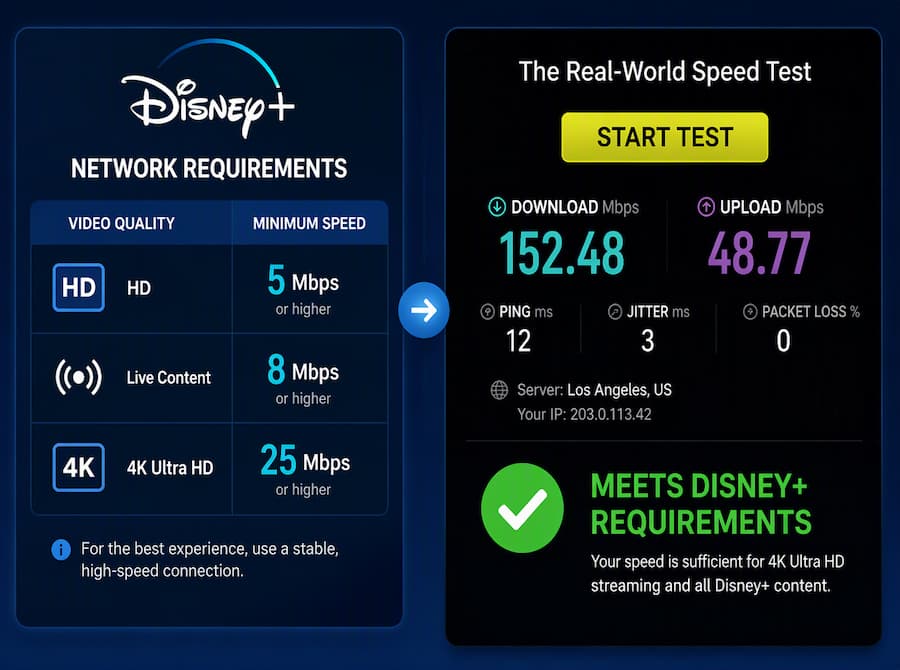
- Computer, iPhone, iPad, Android: Open a web browser, go to speedof.me, and select Start Test.
- PlayStation: Go to Settings > Network > Test Internet Connection.
- Xbox: Go to Settings > General > Network settings > Test network connection.
- Fire TV: Under the Find tab, select Search, search for Silk Browser, and select the Internet icon > Download. Once it's installed, open it, go to speedof.me, and select Start Test.
- Roku: Press Home on your Roku remote, then go to Settings > Network > Check connection.
- Other smart TVs (Samsung Tizen, LG, Hisense): Open the TV's web browser, go to speedof.me, and select Start Test.
What to do next: If your speed meets the requirements, skip ahead to Part 3 for fixes that work when your internet is fine. If it doesn't, keep reading and continue with the next fixes below.
Fix 5. Restart Your Modem and Router
A slow or unstable connection can trigger Error 42 on Disney+. Restarting your modem and router refreshes the connection and often restores normal speeds.
-
01
Unplug both the modem and the router from power.
-
02
Wait at least 60 seconds.
-
03
Plug the modem in first and wait until its lights are stable.
-
04
Plug the router in and wait for Wi-Fi to come back.
-
05
Run the internet speed test from Fix 4 and check whether it meets Disney's streaming requirements. If it does, reopen Disney+. If it doesn't, move on to an Ethernet connection.
Fix 6. Use an Ethernet Connection
A wired connection is more stable than Wi-Fi. It avoids interference from walls, distance, and competing devices.
- Smart TVs, consoles, and PCs: Turn off Wi-Fi and connect a Cat5e or Cat6 Ethernet cable directly from your router to the LAN port on your device.
- Fire TV Stick, Chromecast, and Roku: If your device has no built-in Ethernet port, use an official USB Ethernet adapter.
- Phones and tablets: These can't use Ethernet in the usual way. Move closer to your router and switch to the 5 GHz Wi-Fi band if your router has one.
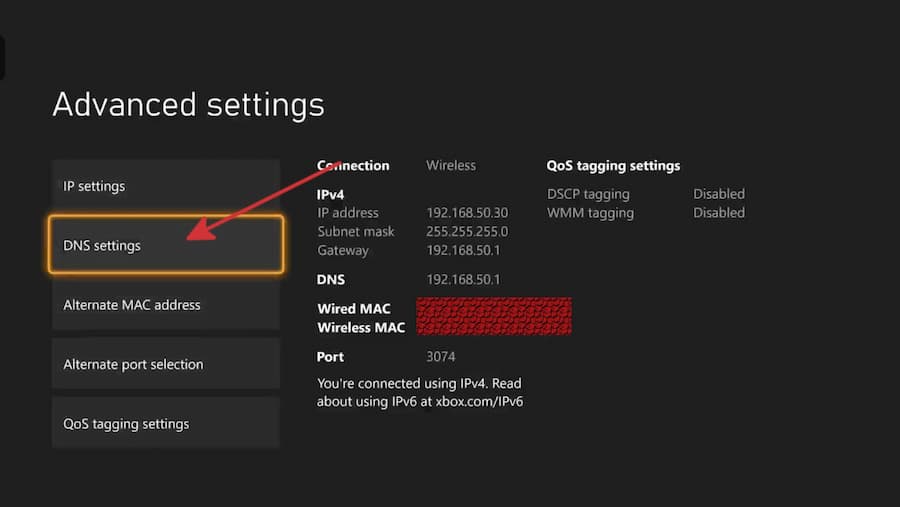
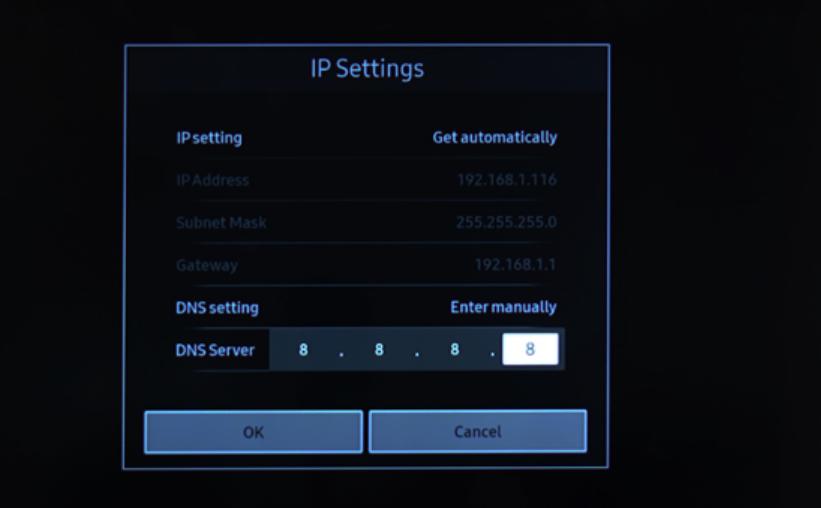
Fix 7. Change Your DNS Server Settings
Your DNS can fail to reach Disney+ servers. Switching to a public DNS often helps. Use these values: 8.8.8.8 (primary) and 8.8.4.4 (secondary) or 1.1.1.1 (primary) and 1.0.0.1 (secondary)
- PlayStation: Settings > Network > Settings > Set Up Internet Connection, choose your network, then Advanced Settings > DNS Settings > Manual.
- Xbox: Settings > General > Network settings > Advanced settings > DNS settings > Manual.
- Apple TV: Settings > Network > Wi-Fi > your network > Configure DNS > Manual.
- Samsung and LG TVs: Open the network or IP settings for your connection, switch DNS from automatic to manual, and enter the addresses.
- Roku and Fire TV: These don't allow a custom DNS on the device. Change the DNS on your router instead, which applies to every device on your network.
- Windows: Settings > Network & internet > Wi-Fi (or Ethernet) > your network > DNS server assignment > Edit > Manual, turn on IPv4, and enter the DNS addresses.
- Mac: System Settings > Network > Wi-Fi > Details > DNS, click +, and add the addresses.
Fix 8. Clear Disney+ App Cache and Data
Corrupted cache files can break the app's connection, and clearing them forces a fresh start. This doesn't delete your account. Note: The paths below are general guides, and exact menu names may differ by device model and system version.
- Android phones, tablets, Android TV, Google TV, and Fire TV: Go to Settings > Apps > select Disney+, then choose Clear cache. If the error remains, choose Clear data as well.
- Samsung and LG TVs: Open the TV's app or storage settings (for example, Settings > Support > Device Care > Manage Storage on Samsung), and clear Disney+'s cache or data if the option is there. If not, uninstall and reinstall the app. Menu names vary by model and year.
- iPhone, iPad, Apple TV, Roku, PlayStation, and Xbox: These can't clear an app's cache directly. Delete the Disney+ app (on Roku, remove the channel), restart the device, and reinstall it.
- Windows app: Go to Settings > Apps > Installed apps > Disney+ > Advanced options, then select Repair, and Reset if needed.
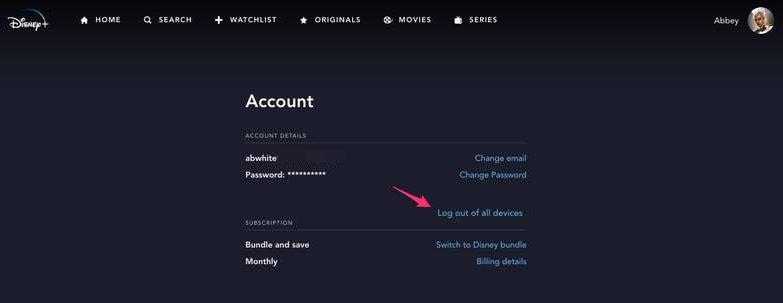
Fix 9. Log Out and Log Back In
Signing out refreshes your session and can fix stale login data behind the error. The fastest way is to sign out of every device at once, so you don't have to do it device by device.
-
01
Open
disneyplus.comin a browser and log in. -
02
Click your profile icon, then Account.
-
03
Select Log out of all devices.
Fix 10. Clear Your Browser Cache
If the error appears in a web browser, old cached files and cookies may be the cause. Use All time as the time range.
- Chrome and Edge: Press Ctrl + Shift + Delete (Cmd + Shift + Delete on Mac), select Cookies and other site data and Cached images and files, then click Delete data.
- Firefox: Press Ctrl + Shift + Delete, choose Everything, check Cookies and Cache, then click OK.
- Safari: Go to Safari > Settings > Privacy > Manage Website Data, search for "disneyplus", and click Remove.
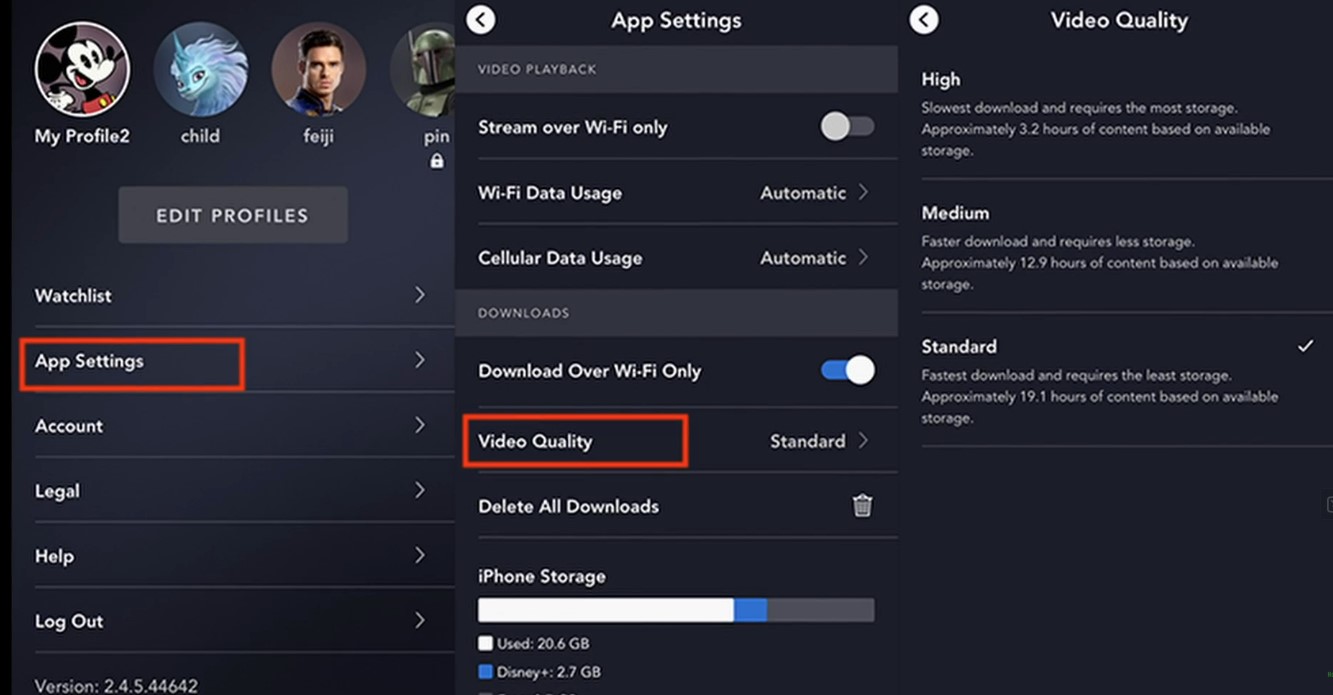
Fix 11. Change Video Quality
This applies to phones and computers only. High-quality streaming needs a faster, steadier connection, and lowering the quality can stop the connection from timing out.
- iPhone, iPad, Android: Open the Disney+ app, tap your profile, go to App Settings, and tap Video Quality, choose a lower setting such as Medium or Standard.
- Computer: Open your profile, check App Settings for a data usage or video quality option, and lower it. Closing other tabs and apps that use bandwidth also helps.
Part 3. How to Fix Disney Plus Error Code 42 When Your Internet Is Fine
If your speed test passed but Error 42 still appears, the problem is likely in one specific place: your device, the Disney+ app, your network setup, or the title. Run a quick test first, then use the table to find your situation.
| What you notice | What to do |
|---|---|
| Only one device fails, and other devices work on the same Wi-Fi | 1. Turn on automatic date and time in your device settings 2. Connect with an Ethernet cable 3. Connect the device to your phone's hotspot to test 4. Reset the device's network settings |
| Only Disney+ fails, while other apps on the same device work | 1. Update the Disney+ app and your device's system software 2. Delete and reinstall Disney+ 3. Change your DNS (see Fix 7 in Part 2) |
| Works on the hotspot, fails on home Wi-Fi | 1. Restart the router (Fix 5) 2. Change the DNS on your router (Fix 7) 3. Turn off router parental controls or DNS filtering 4. Contact your internet provider |
| Fails only in one browser | 1. Clear the browser cache (Fix 10) 2. Turn off extensions and ad blockers 3. Try another supported browser |
| Only one title fails, others play normally | 1. Play the same title on another device 2. If it fails everywhere, send feedback to Disney+ 3. If it works elsewhere, exit the title, fully close and reopen the app, then try again 4. If it still fails, update or reinstall the app on that device |
Part 4. What If Disney Plus Error Code 42 Appears on Downloads?
If you've already downloaded movies or episodes in Disney+, Error Code 42 may prevent you from opening the app and accessing your downloads.
Disney+ checks your account status in the background to confirm you have an active subscription before it grants offline access. Downloads only stay active if your device reconnects to the internet at least once every 30 days. If the app can't reach Disney's servers during that check, Error 42 pops up and your downloaded videos won't open.
Fix 1. Turn On Airplane Mode Before Opening Disney+
It sounds odd, but in our tests it works. Turn on Airplane mode, then open Disney+ and go to Downloads. With no connection to attempt, the app may skip the failed server check and let your downloads open.
Fix 2. Connect Through a Mobile Hotspot
If Fix 1 doesn't work, let the app complete its check on a stable connection:
-
01
Turn on your phone's hotspot and connect your device to it.
-
02
Open Disney+ and go to Downloads to confirm your videos open.
-
03
Once they play, turn off the connection and watch offline.
Fix 3. Clear the Disney+ Cache
Corrupted cache files can interfere with the account check. Clear the Disney+ cache by following the steps in Fix 8 in Part 2.
Fix 4. Restart Your Device
Fully close Disney+, restart your phone or tablet, then open the app and try your downloads again.
Fix 5. Use a Disney+ Video Downloader as a Workaround
Disney+'s built-in downloads have limits. They aren't available on TVs or computers, and they depend on the account check that causes Error 42. A more flexible option is to save the video yourself with a Disney+ video downloader such as VidiFab.
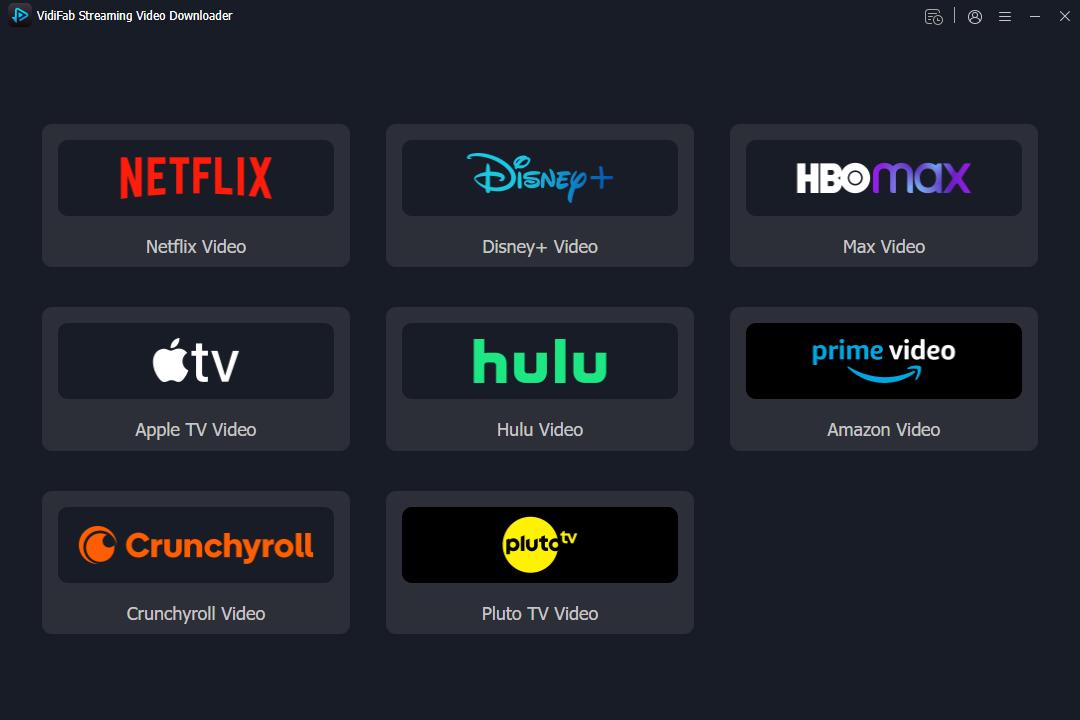
VidiFab Streaming Video Downloader lets you download Disney+ movies and shows to your Windows PC or Mac, with your choice of video quality, audio track, and subtitles. Because the video is saved as a MP4 or MKV local file on your computer, you can watch it anytime in a media player, without opening the Disney+ app. That means no account check and no Error 42 at playback. Please use downloaded videos for personal viewing only.

Download videos from Netflix, Amazon Prime Video, Disney+, HBO Max, Hulu, Apple TV, Crunchyroll, and Pluto TV to MP4 or MKV.
-
01
Download and install VidiFab on your Windows PC or Mac, then open it. Choose the Disney+ module from the list of supported streaming services. This opens VidiFab's built-in browser, where you can log in with your Disney+ account.
-
02
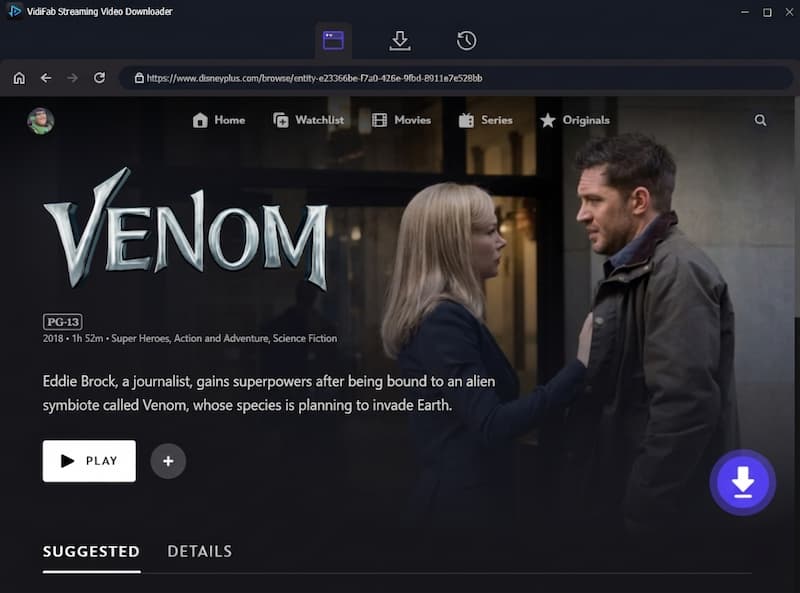
Search for the movie or show, open its detail page, and click the download icon in the bottom right corner.
-
03
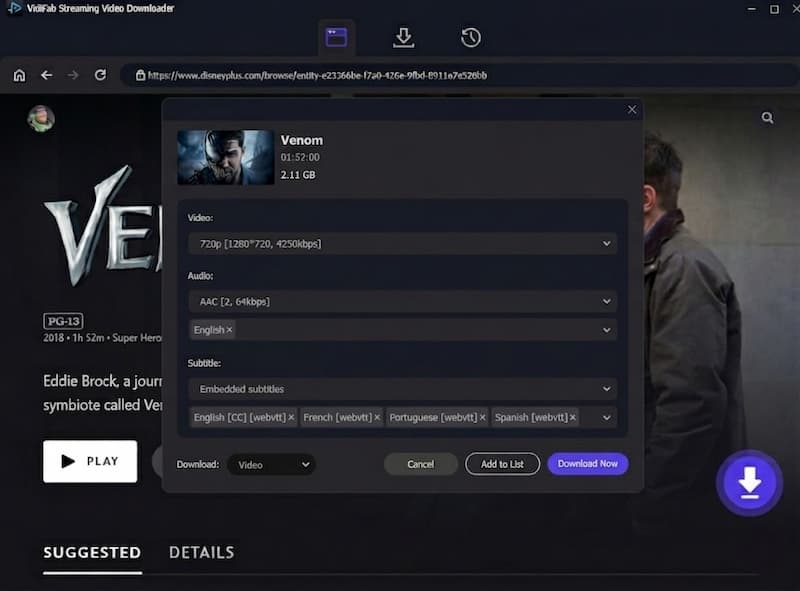
Select your preferred video quality, audio track and language, and subtitle format and language, then click Download. When it finishes, open the History section and click the folder icon to find your video file.
Part 5. FAQs About Disney Plus Error Code 42
Is Disney Plus Error Code 42 a problem with my account or my internet?
How long does Disney Plus Error Code 42 last?
What's the difference between Error 42 and other Disney+ connection errors, like 24, 43, and 83?
Error 24 & 43: Usually triggered by internet connection drops, interrupted network sessions, or unstable Wi-Fi signals causing the stream to break.
Error 83: A compatibility, device authentication, or strict DRM security error indicating your device is having trouble passing Disney+ security checks.
Can too many devices on my network or account cause Error 42?
Will resetting my smart TV to factory settings fix a persistent Error 42?
Does Disney Plus Error Code 42 happen more often on specific streaming devices?
Part 6. Conclusion
Disney Plus Error Code 42 is usually a connection problem. Testing your internet, restarting your devices, and changing your DNS fix most cases. If your internet is fine, find out whether the device, app, or a single title is at fault. For offline viewing errors, try airplane mode or save videos with VidiFab.
 Free Download
 Secure Download
 Free Download
Secure Download
Free Download
Secure Download

I write about streaming services, video playback, and digital media management. My articles cover practical ways to convert video files, troubleshoot playback issues, and manage digital content across devices. I aim to make technical topics easier to understand and help readers find practical solutions to common challenges.
 Leave Your Comment