Hulu & Disney+ Merger: What Happens to Your Downloads?
 By Miles Kent
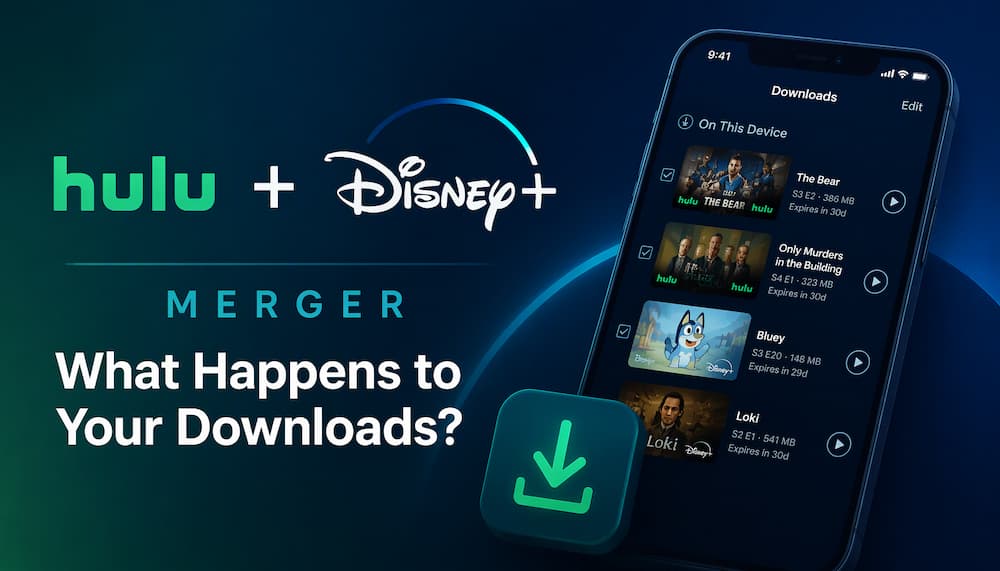
If you use Hulu to stream and download movies and shows, the upcoming Disney+ integration may affect how you access them. Starting in December 2026, Disney plans to complete its Disney+ and Hulu app integration. Although the standalone Hulu app has no confirmed shutdown date, it's worth checking what will happen to your library and downloads before the transition.
The merger brings Hulu's full streaming library, live TV, and add-ons directly inside the Disney+ app using a single MyDisney login. While your watch history and My Stuff list sync automatically, offline downloads from the Hulu app will not transfer to Disney+. You must either re-download titles inside Disney+ or use VidiFab downlaoder to back up your shows locally to a computer before switching.
Part 1. What's Happening With the Hulu and Disney+ Merger?
From December 2026, you can watch Hulu shows, Live TV and select premium add-ons right inside the Disney+ app, with no need to switch between two apps.
Will the Hulu App Still Be Available?
Do You Need a New Subscription to Watch Hulu on Disney+?
Note: If you get Hulu through Hulu + Live TV or a partner perk such as Spotify or T-Mobile ("Hulu On Us"), check that your Hulu account is activated and uses the same email address as your MyDisney account. Partner-billed accounts sometimes need this match before Disney+ recognizes the subscription.
What Changes (and What Stays the Same) for Existing Hulu Subscribers?
Most Hulu titles, your login, subscription, watchlist and watch history carry over to Disney+. The two catches are your Hulu offline downloads, which won't transfer and have to be re-downloaded in Disney+, and device support, because some older devices that run the Hulu app may not run the Disney+ app.
| Feature / Category | What Changes | What Stays the Same |
|---|---|---|
| Streaming App & Features | Hulu library, Live TV and add-ons available in the Disney+ app | Standalone Hulu app still works; no shutdown date announced |
| Subscription Plans | Disney+ & Hulu bundle: $12.99/mo with ads, $21.99/mo no ads Bought separately: $12.49/mo with ads, $21.49/mo no ads (each) |
Existing plan stays active (With Ads, No Ads, Live TV, Bundle Plans); no re-purchase |
| Account Login | MyDisney single sign-on; matching emails link profiles | Hulu email and password work as MyDisney login |
| Watchlist & History | Hulu watch history and My Stuff sync to Disney+ after the linking process | Hulu originals and Disney titles stay available |
| Device Support | Some older smart TVs, set-top boxes and Echo Show models may not support the Disney+ app | Modern iOS, Android, Roku, Fire TV, Apple TV, gaming consoles, and web browsers remain supported. |
| Offline Downloads | Hulu app downloads don't transfer; re-download in Disney+ | Limits still apply: 30-day expiry, 48-hour playback window, 25 titles on 5 devices (Hulu), no PC/Mac app downloads |
Part 2. Will Hulu Downloads Transfer to Disney+?
No. Your existing Hulu downloads won't transfer to Disney+. Even if you link your Hulu profile to Disney+, your downloaded movies and episodes won't carry over as offline files. If you want to watch them offline through Disney+, you'll need to download eligible titles again using the Disney+ app.
The Good News: Your Hulu Watch History and My Stuff Can Move to Disney+
Link your Hulu profile to Disney+ once, and your watch history, recommendations and My Stuff list follow you over. You just need to sign in with the same MyDisney login you use for Hulu.
Who Can Link Their Profile
- Eligible: Standard Hulu, Hulu Premium and eligible Disney Bundle subscribers.
- Not eligible at this time: Subscribers with a Live TV plan, a Disney+/Hulu/Max bundle plan or Hulu Add-ons, and Kid Profiles (under 18).
How to Link Your Hulu Profile to Disney+
Step 1. Check Your Email: Make sure your Hulu account and MyDisney/Disney+ account are registered under the exact same email address. (If you get Hulu through a partner like Spotify or T-Mobile, verify that your linked email matches on their account portal first.)
Step 2. Sign In to Disney+: Open the Disney+ app or website and log in using your Hulu email and password.
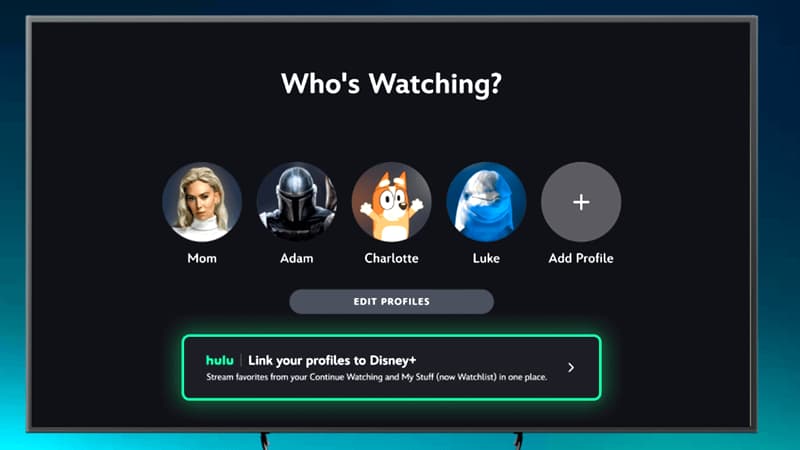
Step 3. Choose Your Profile: On the "Who's Watching" screen, select your profile. If you're on a Hulu bundle plan, select the "Link your profiles to Disney+" banner, then choose which Hulu profile to link. You can link it to a new Disney+ profile or to an existing one.
Step 4. Link Your Profile: Select LINK PROFILE, then update your content rating or keep the original one. Your Hulu watch history and My Stuff list will now sync to Disney+.
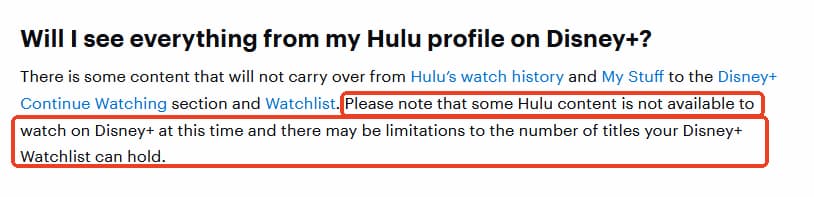
Even after linking your profile, not every Hulu title will carry over to Disney+. Hulu's content library includes licensed movies and TV shows from third-party studios, and their availability can vary between streaming services. This means some of your favorite older movies, anime, or licensed series may not be accessible through Disney+.
This is why backing up your favorite Hulu movies and shows locally as MP4/MKV files with a desktop tool like Vidifab is the safest way to ensure you can rewatch them anytime without losing access.
Part 3. How to Back Up Hulu Shows and Movies Before the Merger
Your Hulu downloads won't transfer to Disney+, and some Hulu titles may not make the move either. If there are shows you want to keep, back them up before the app changes. There are two ways to do it: save them with Hulu's own download feature, or keep a local copy on your computer.
Method 1: Re-Download Hulu Shows Inside the Disney+ App
If you subscribe to an ad-free tier and primarily watch on a phone or tablet, you can download your Hulu shows directly inside the Disney+ app.
Step 1. Open the Disney+ App: Sign in with your linked MyDisney/Hulu credentials on an iPhone, iPad, Android device, or supported Amazon Fire tablet.
Step 2. Find Your Hulu Titles: Navigate to the Hulu hub or search for the movie or series you want to save.
Step 3. Tap the Download Icon: Open the title's details page and tap the downward Download arrow next to each eligible episode or movie.
Step 4. Check the Download: Go to the Downloads tab at the bottom of the app to find your downloads and play them offline.
The Catch: Hulu's Original Download Limits Still Apply on Disney+
| Limit | Details |
|---|---|
| Plan | Ad-free plans only; Hulu (With Ads) can't download |
| Devices | iPhone, iPad, Android phones and tablets, Fire tablets; no PC, Mac, TV or game console |
| Storage Cap | 25 titles on up to 5 devices |
| Expiry | 30 days to start watching; 48 hours to finish once you press play |
| Title Availability | Only titles with a download icon |
| App-Bound | Stays in the Hulu app; won't move to Disney+ and stops working if you cancel |
Method 2: Download Hulu Videos Locally to Your Computer as MP4/MKV
As you know, not every title will be available on Disney+. If one day the Hulu app stops working, some titles would go away. So, to keep your favorite titles with you, it is a wise idea to download those Hulu videos with VidiFab Streaming Video Downloader.
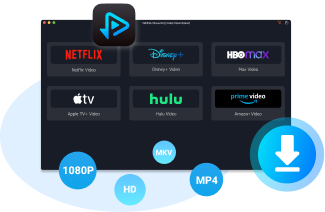
VidiFab lets all Hulu users, including those on an ad-supported plan, download unlimited movies and shows to your hard drive as standard MP4 or MKV files. No device caps, no expiration dates. You get to save EVERY title in your Hulu library, even if some are removed during the app merger.
VidiFab Streaming Video Downloader
Download Hulu videos in MP4 or MKV format for offline viewing on any device anytime.
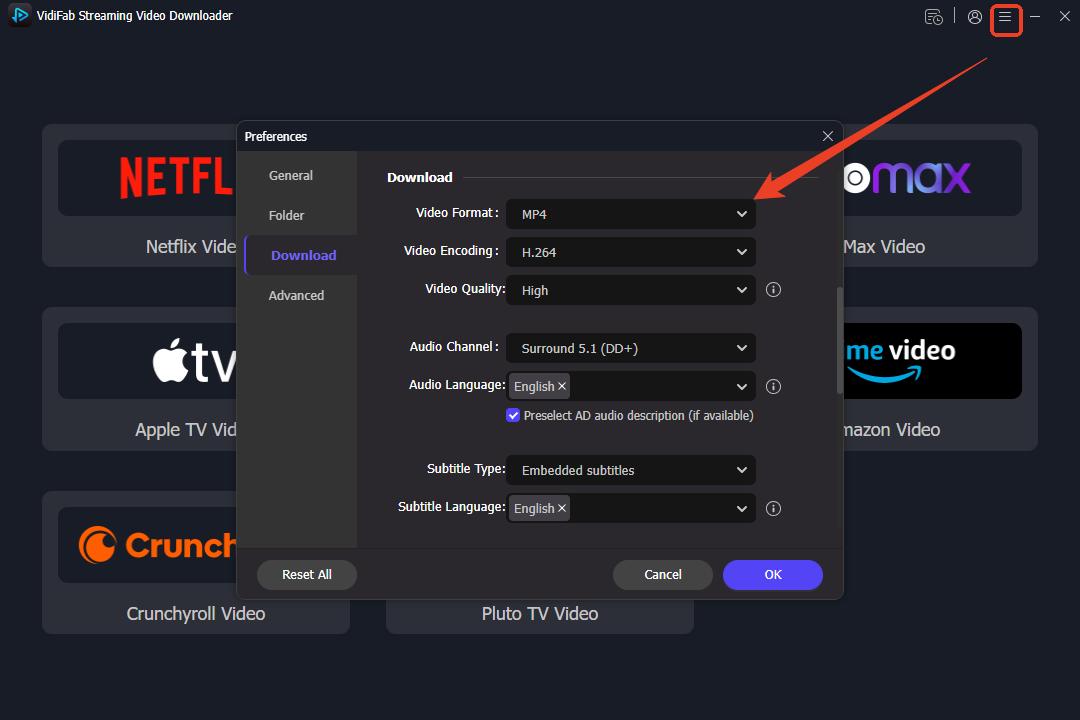
Step 1. Open VidiFab and go to Preferences. Choose MP4 or MKV as the output format, then select the folder where your Hulu backups will be saved.
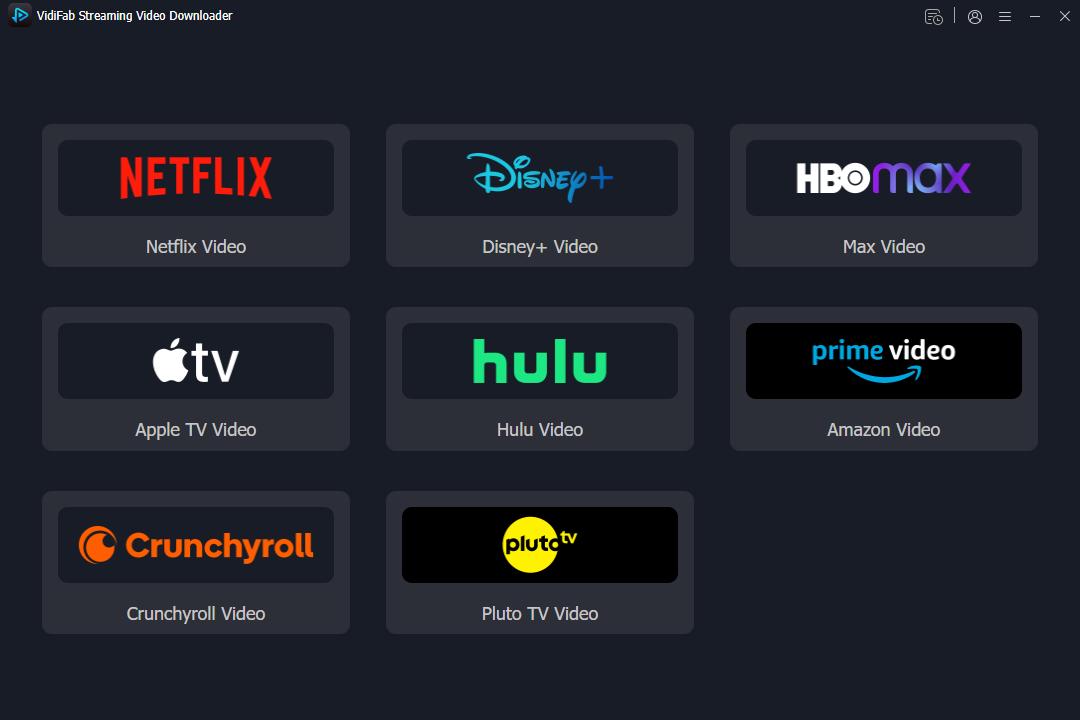
Step 2. Open Hulu in VidiFab's built-in web player and sign in with your Hulu (MyDisney) account. Search for the show or movie you want to back up, then click the download button in the bottom-right corner. Start with your favorites and any titles you're worried will leave Hulu.
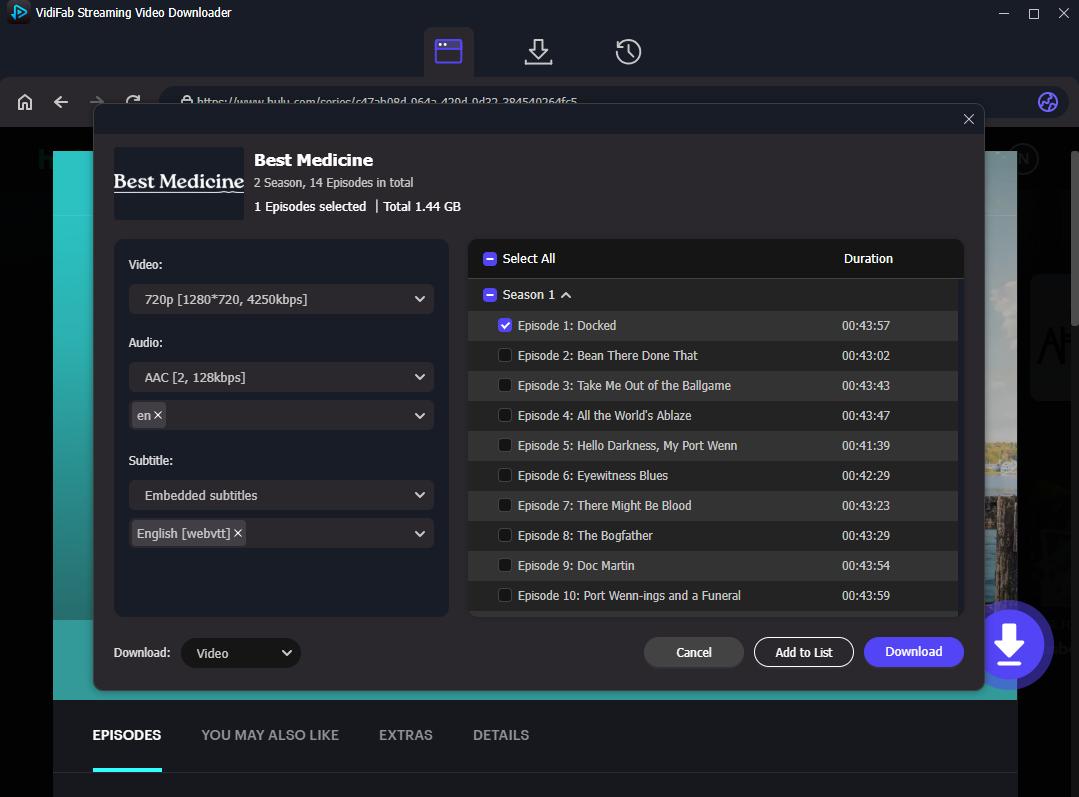
Step 3. In the settings window, choose the video quality, audio track language and subtitle options. Click Download to save the Hulu videos to your output folder.
Step 4. When it's done, you'll find the MP4 or MKV files there. They don't expire and don't depend on the Hulu app, so you can watch them offline in any compatible media player, whatever happens after the merger.
Part 4. FAQs About the Hulu and Disney+ Merger
Will Hulu ads still appear on Disney+?
Will Hulu Live TV be available on Disney+?
Why is Disney merging Hulu into Disney+?
Will Hulu originals like The Bear stay on Hulu or move to Disney+?
Can you still use the Spotify Bundle Hulu Plan?
Final Thoughts
The Hulu and Disney+ merger simplifies streaming under one MyDisney login, but your offline downloads will not transfer. For short mobile trips, re-downloading titles inside Disney+ works fine. If you want permanent offline copies on your PC or Mac, backing up shows locally with VidiFab is the safest approach.
 Free Download
 Secure Download
 Free Download
Secure Download
I write about streaming services, video playback, and digital media management. My articles cover practical ways to convert video files, troubleshoot playback issues, and manage digital content across devices. I aim to make technical topics easier to understand and help readers find practical solutions to common challenges.
 Leave Your Comment