VidiFab Streaming Video Downloader Not Working? Complete Fix Guide
 By Miles Kent
Is VidiFab not working as expected? You may run into issues such as a streaming account that keeps loading, a failed video analysis, a greyed-out download button, a failed download, or download progress that becomes slow after 30%.
This guide provides step-by-step fixes for the most common VidiFab issues. Start with the section that matches the problem you're experiencing and follow the fixes in order.

For a complete walkthrough of how to use VidiFab Streaming Video Downloader, see our VidiFab User Guide.
Issue 1. VidiFab Login Keeps Loading
What happens: The login page keeps loading after you enter your streaming service account details, but the sign-in never completes.
This may happen if the same streaming account is already active in another app or browser session on your computer.
Fix 1. Close the Official Streaming App
Completely quit the official streaming app on that computer before opening VidiFab Streaming Video Downloader. Don't just close the window; make sure it isn't still running in the background.
Fix 2. Close the Streaming Service Web Player
If you have opened the streaming service in a web browser, close the browser tab or window where the service is open. Then return to VidiFab and try signing in again.
Fix 3. Restart VidiFab
If the login page still keeps loading, completely close VidiFab and open it again.
- On Windows: Press
Ctrl + Shift + Escto open Task Manager. Locate VidiFab Streaming Video Downloader in the list, right-click it, and select End Task. - On macOS: Press
Cmd + Option + Escto open the Force Quit menu. Select VidiFab and click Force Quit.
Issue 2. "Failed to Analyze the Video Link"
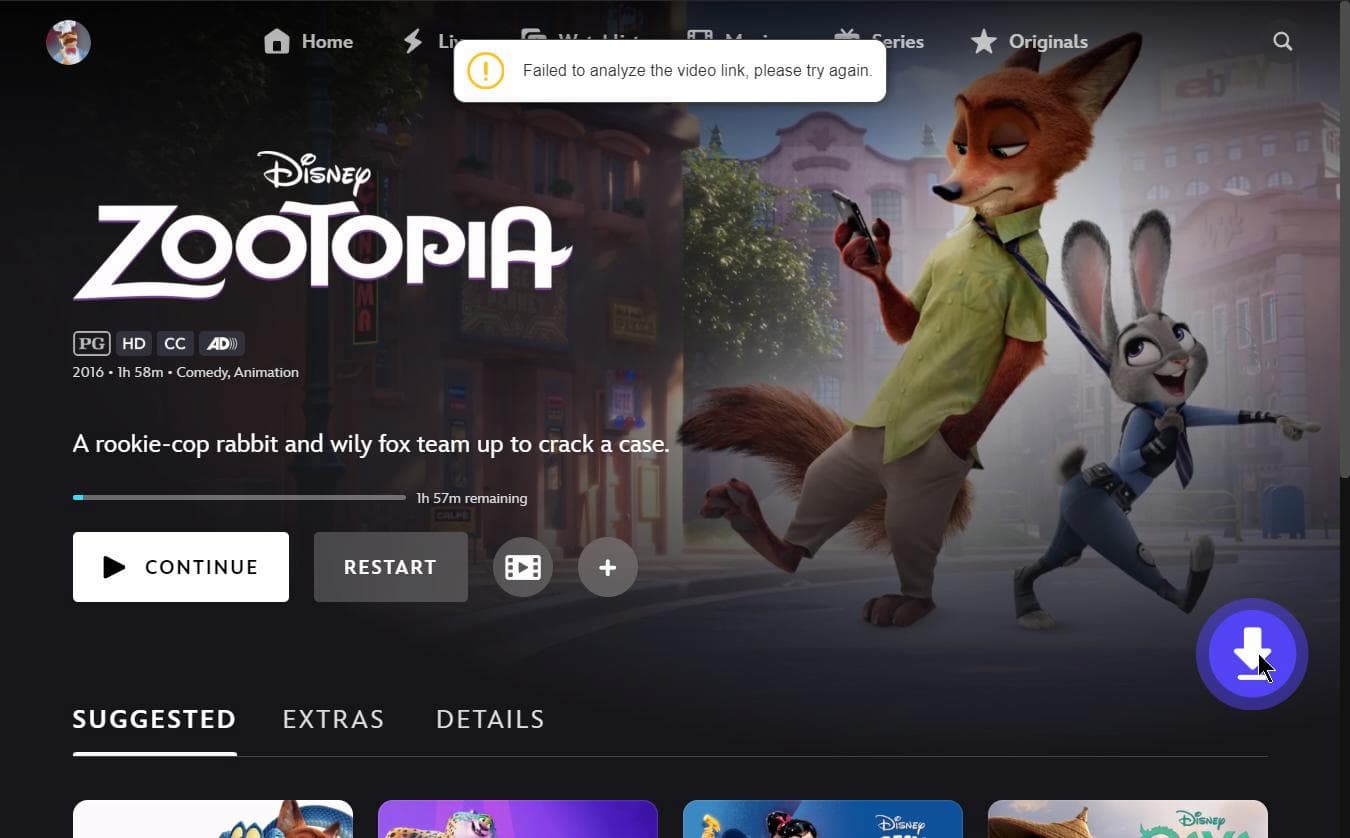
What happens: After you click the download icon, VidiFab may show “Failed to analyze the video link,” and the download options may not appear.
Fix 1. Update VidiFab Streaming Video Downloader
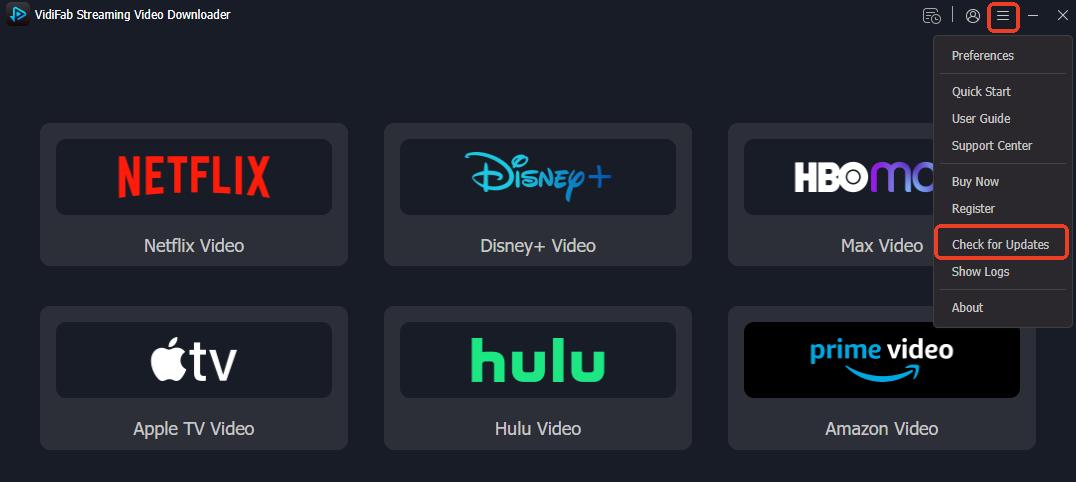
Open VidiFab, click the Menu icon, and select Check for Updates. If a new version is available, follow the on-screen instructions to download and install the latest version.
Fix 2. Temporarily Disable Antivirus Software and Firewall
Temporarily disable your antivirus and firewall, then retry. Security software sometimes blocks VidiFab's connection to the streaming source. If the issue is resolved, remember to turn your security software back on after testing.
Fix 3. Restart VidiFab
If the issue persists, completely close VidiFab and restart it.
- On Windows: If the program does not close normally, open Task Manager, select VidiFab, and click End Task.
- On macOS: Open the Force Quit menu, select VidiFab, and choose Force Quit.
Then relaunch VidiFab, find the title again, and check whether the video can be analyzed successfully.
Fix 4. Restart Your Computer
If restarting VidiFab does not solve the problem, restart your computer.
Fix 5. Contact VidiFab Support
If VidiFab still cannot analyze the video link, contact VidiFab Support at support@vidifab.com.

Include your VidiFab version, operating system, streaming platform, and a screenshot of the error. This information can help identify the problem more quickly.
Issue 3. Download Button Is Greyed Out
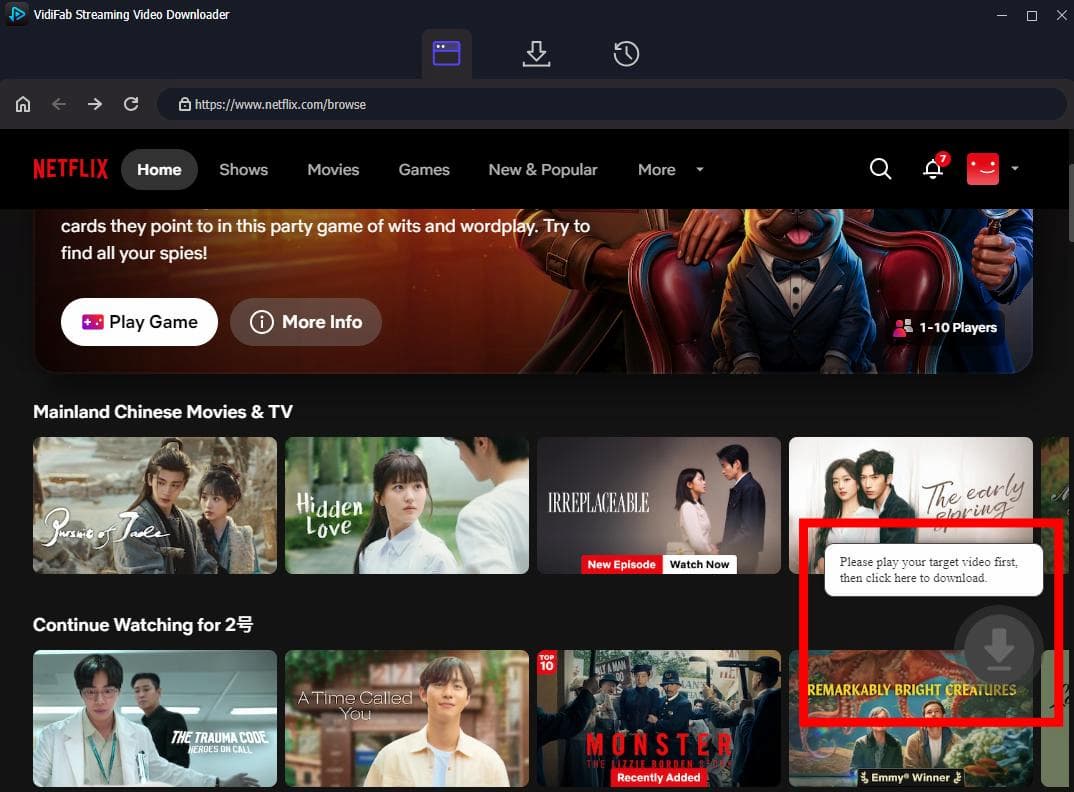
What happens: If the download button is grey and cannot be selected, VidiFab may not have finished loading the video's information.
Fix 1. Open the Video Details Page
Do not stay on a search results page or category page. Open the video's detail page first.
Fix 2. Start Playing the Video
Start playing the video on its detail page. Once the video starts playing normally, the Download button should become clickable.
Fix 3. Check Your Streaming Subscription Status
Make sure your streaming service subscription is still active. If your subscription has expired, you may no longer be able to watch the video through the streaming service. In this case, VidiFab cannot download the video either.
Fix 4. Check Whether the Content Is Supported
Some types of content cannot be downloaded with VidiFab, such as live TV content, videos you have not purchased or rented, and content you cannot access through your streaming account.
Fix 5. Restart VidiFab and Your Computer
If the issue persists, restart VidiFab and your computer. Then reopen VidiFab and try downloading the video again.
Issue 4. How to Fix VidiFab Download Failed
What happens: VidiFab starts the download, but the download fails partway through.
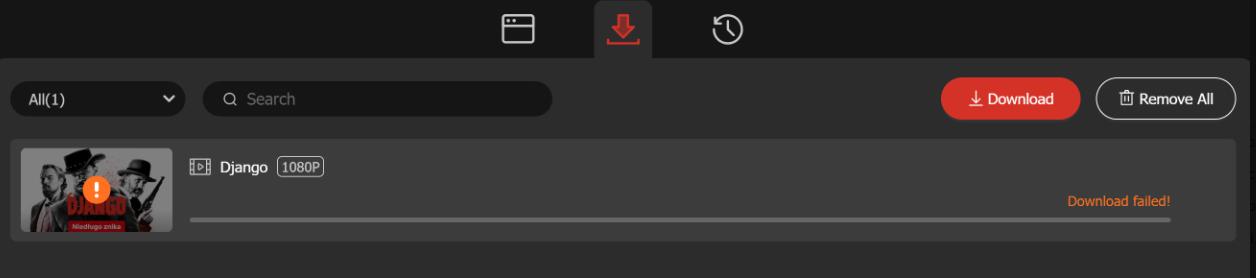
- Update VidiFab.
- Temporarily disable your antivirus software and firewall.
- Restart both VidiFab and your computer.
- Make sure the video plays normally in VidiFab's built-in player.
If the issue persists, try the additional fixes below.
Fix 1. Delete the Failed Task and Try Again
Remove the failed download task from VidiFab. Then add the video again and start a new download task instead of retrying the same failed task.
Fix 2. Avoid Using the Same Streaming Account Elsewhere
While VidiFab is downloading, avoid using the same streaming account on another device, browser, or official streaming app.
Issue 5. Download Progress Slows After 30%
What happens: You may notice that VidiFab downloads quickly at first but appears to slow down significantly after the progress reaches around 30%.
What you should know: The download progress shown in VidiFab is an estimate. During the first 30%, most of the time is spent decrypting the video, so the progress bar may move quickly. The remaining 70% may appear slower, which is normal and does not indicate a download failure.
If you want to improve the download speed, try the following fixes:
Fix 1. Close Unnecessary Background Apps
Close apps that consume significant CPU, memory, or network bandwidth while VidiFab is downloading.
- On Windows: Open Task Manager (
Ctrl + Shift + Esc) and check the CPU and Memory columns to see which apps are using the most resources. Right-click the heavy apps and select End Task. - On macOS: Open Activity Monitor (press
Cmd + Spaceto open Spotlight, type Activity Monitor, and press Enter). Check the CPU and Memory tabs to find resource-heavy apps, select them, and click the X button at the top to quit them.
Fix 2. Pause Other Downloads and Streaming
Stop other downloads, uploads, cloud syncing, or video streaming that may be using your network bandwidth.
Fix 3. Use a Stable Network Connection
Make sure your internet connection is stable and fast. If possible, use a wired Ethernet connection instead of Wi-Fi.
FAQs About Using VidiFab
Where can I set the MP4 or MKV output format?
On Windows:
- Open VidiFab and click the Menu icon in the top-right corner of the home page.
- Select Preferences.
- In the Preferences window, scroll down to the Folder section.
- Choose MP4 or MKV as your output format.
- Open VidiFab and click the VidiFab menu in the top-left corner.
- Select Settings or Preferences.
- A Download Preferences window will appear.
- Scroll down to the Folder section and select MP4 or MKV as your output format.
How can I find my downloaded video?
Can I run other programs while VidiFab is downloading?
Can I download multiple videos at the same time?
Can I close VidiFab while a download is running?
What should I do if my computer runs out of storage?
If your computer is already running low on storage, you can also move completed downloads to cloud storage or another device to free up space. Since VidiFab saves videos in standard video formats, such as MP4 or MKV, you can transfer the files to other supported devices for playback.
Video Guide of Using VidiFab Streaming Video Downloader
Video Guide: How to Download Streaming Videos with VidiFab




I'm a video tech specialist with over 10 years of experience in digital media and streaming. I focus on making complex workflows simple and practical. Through my guides, you'll learn how to convert media, keep high-quality playback across devices, and manage your streaming video library with ease.
 Leave Your Comment